Overview:
Stock Opening Balance in N3 AI Accounting is used to record the opening stock quantities and values when setting up a new company database, migrating from another accounting system, or starting a new accounting cycle.
Maintaining the correct Stock Opening Balance helps ensure that inventory records reflect the actual stock on hand. To ensure accurate financial reporting, users must also update the corresponding stock value in Stock Value Maintenance so that the inventory value in the General Ledger matches the stock records.
Scenario:
A user is migrating from an existing accounting system to N3 AI Accounting. As of the cut-off date, the company has several stock items with existing quantities and costs.
The user needs to enter the opening stock quantities and unit costs into N3 AI Accounting and ensure that the stock QTY and unit cost is reflected in month end stock report correctly
Solution/Steps:
Create Stock Opening Balance
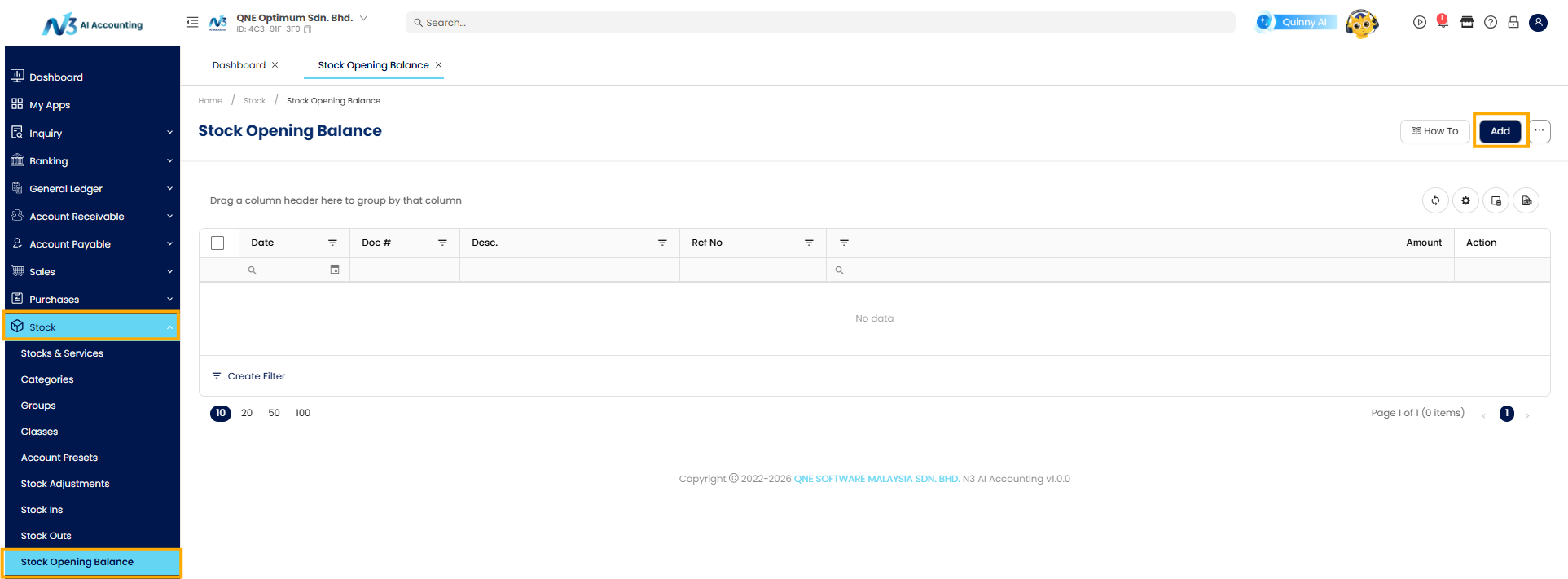
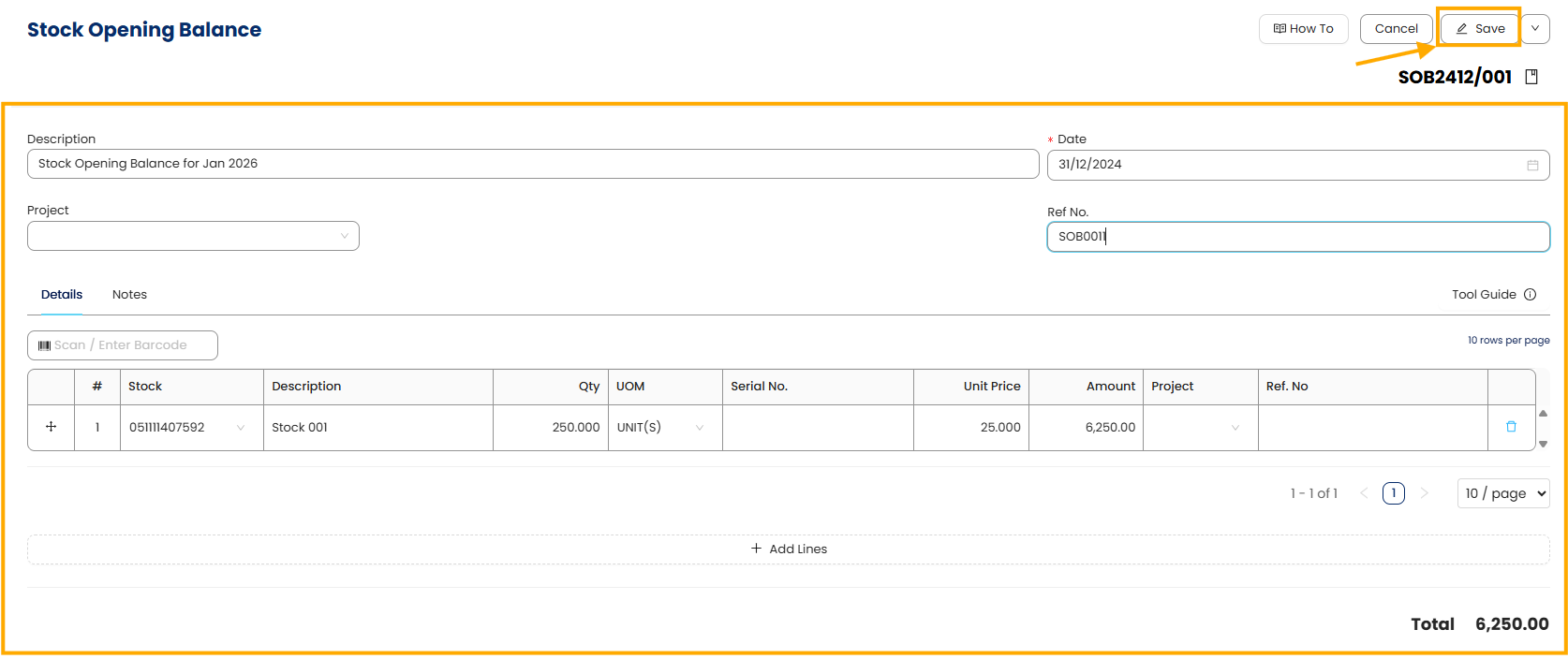
- Go to Stock > Stock Opening Balance, then click Add.
- Enter the Header Information:
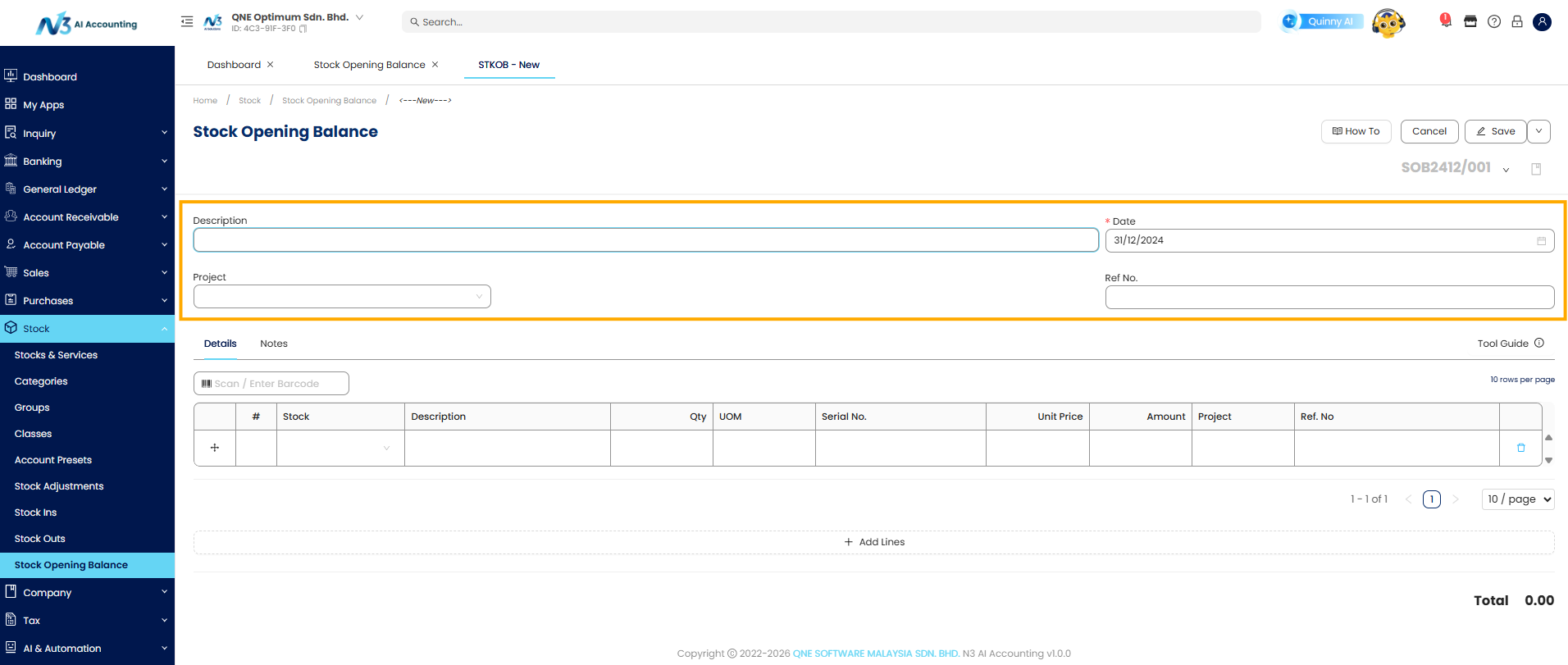 - Description : Provide a short label, (e.g., “Opening Inventory – January 2026.”)
- Date: The date must not be later than your cutoff date (e.g., 31/12/2025).
- Stock Location: Select the warehouse where the stock is held (e.g., Main).
- Ref. No.: Enter a unique reference number. Use your company’s internal numbering format for easier tracking and auditing. - Enter Stock Items
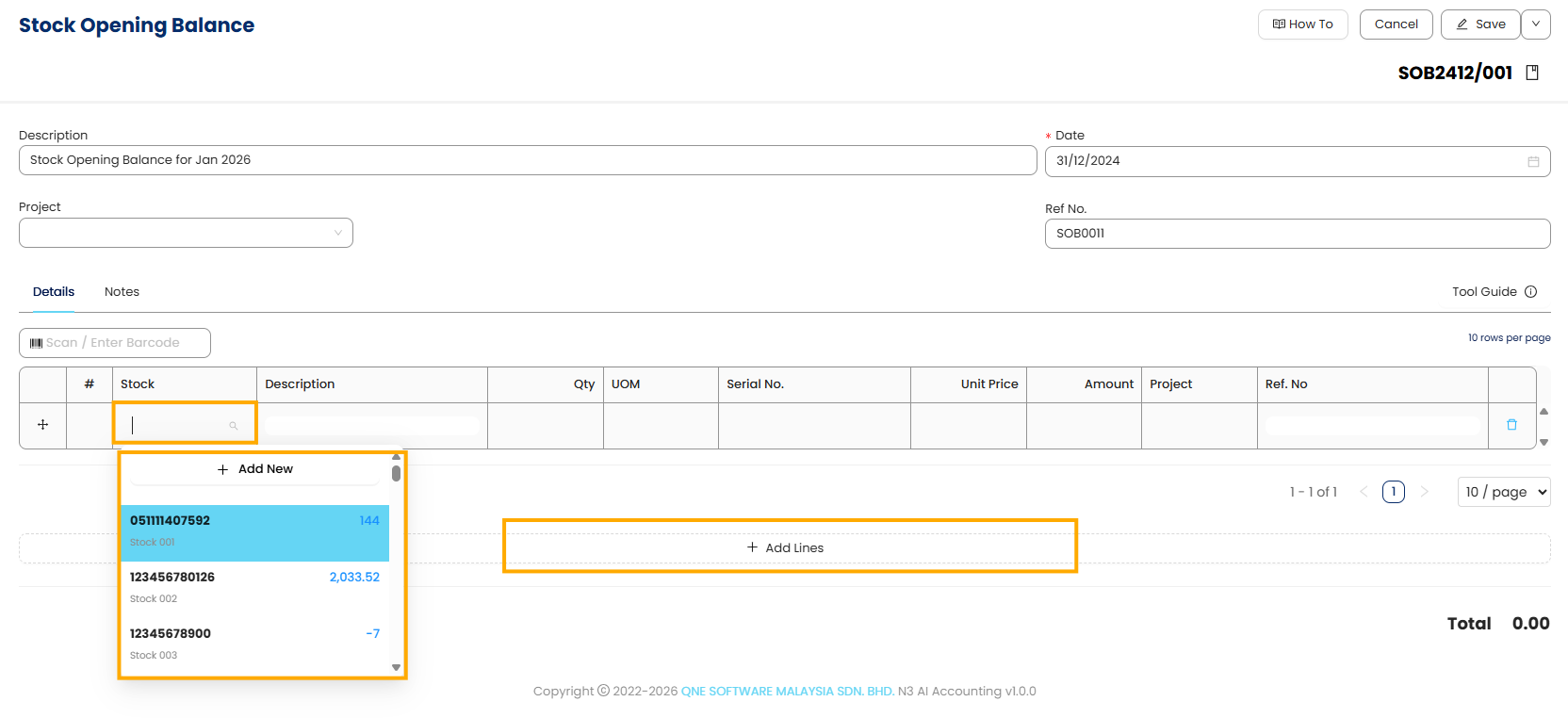
Stock: Select the item code from the dropdown list.
The system automatically fills in the following fields based on item master data
Description
Unit of Measure (UOM)
Unit Price will be auto retrieve if user update the Purchase Price in Stock Maintenance. Else user may need to manually key in the Unit Price
Qty: Enter the quantity on hand (e.g., 100 for Item A, 50 for Item B).
Amount: Automatically calculated (quantity × unit price).
Project (Optional): Use this to tag the entry to a project or cost center if applicable.
Click Add Lines to include additional stock items.
- Save the Entry
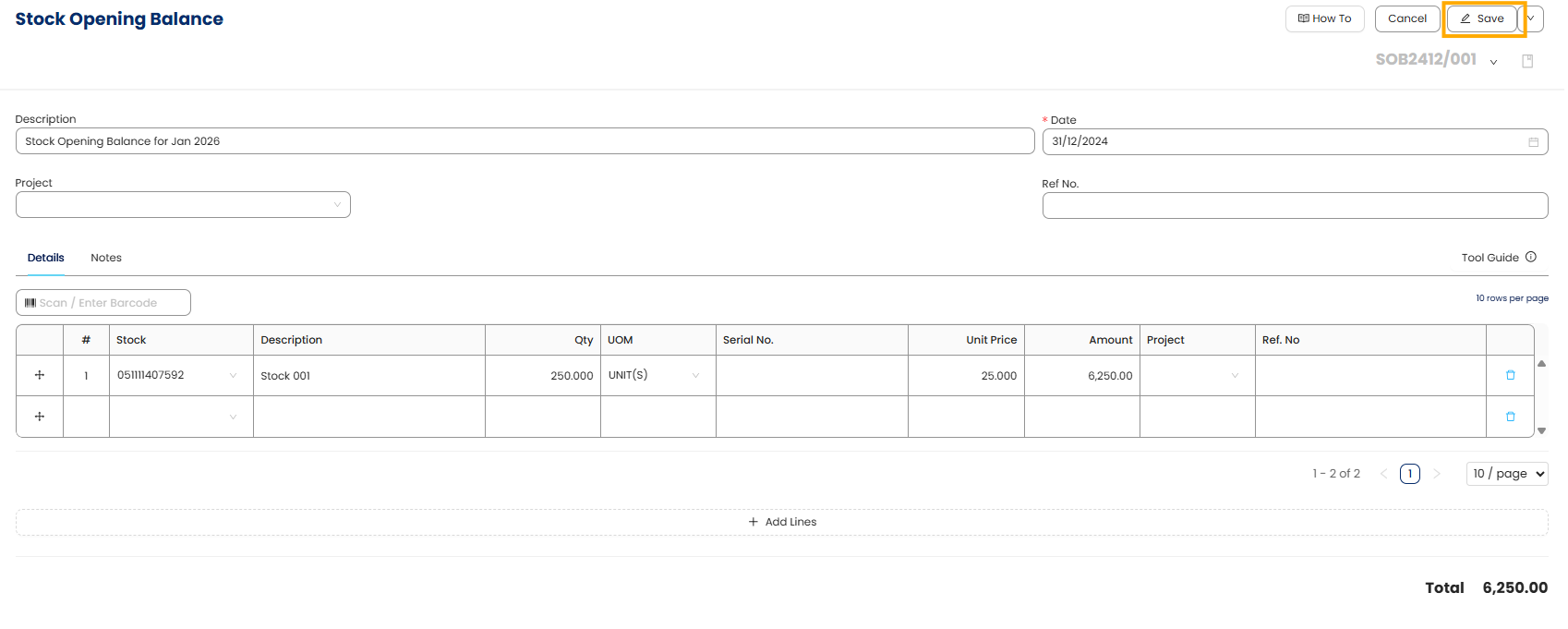
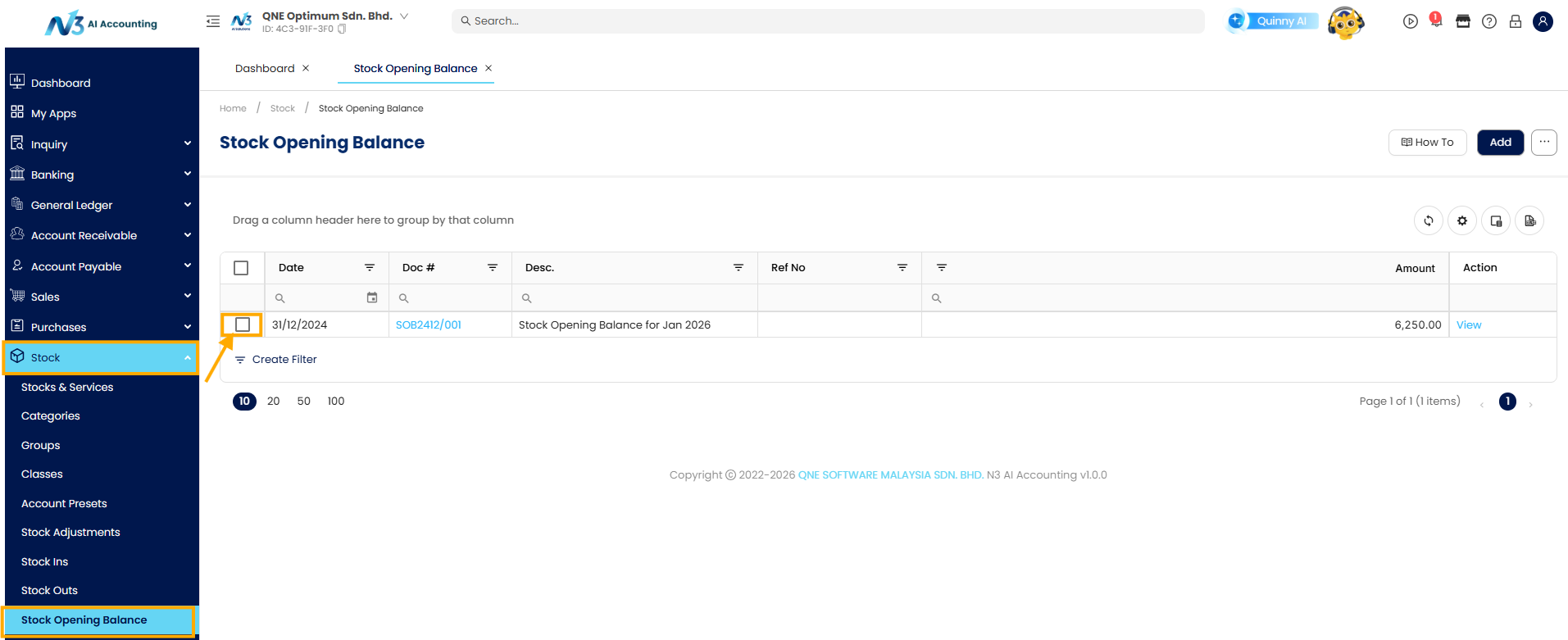
Once saved, the entry will appear in the Stock Opening Balance list, confirming it has been recorded.
Note: This step records stock in the system but does not yet update the GL.
Update the General Ledger
- Go to General Ledger > Maintenance > Stock Value Maintenance. Open the stock value maintenance record that you created, then click Edit.
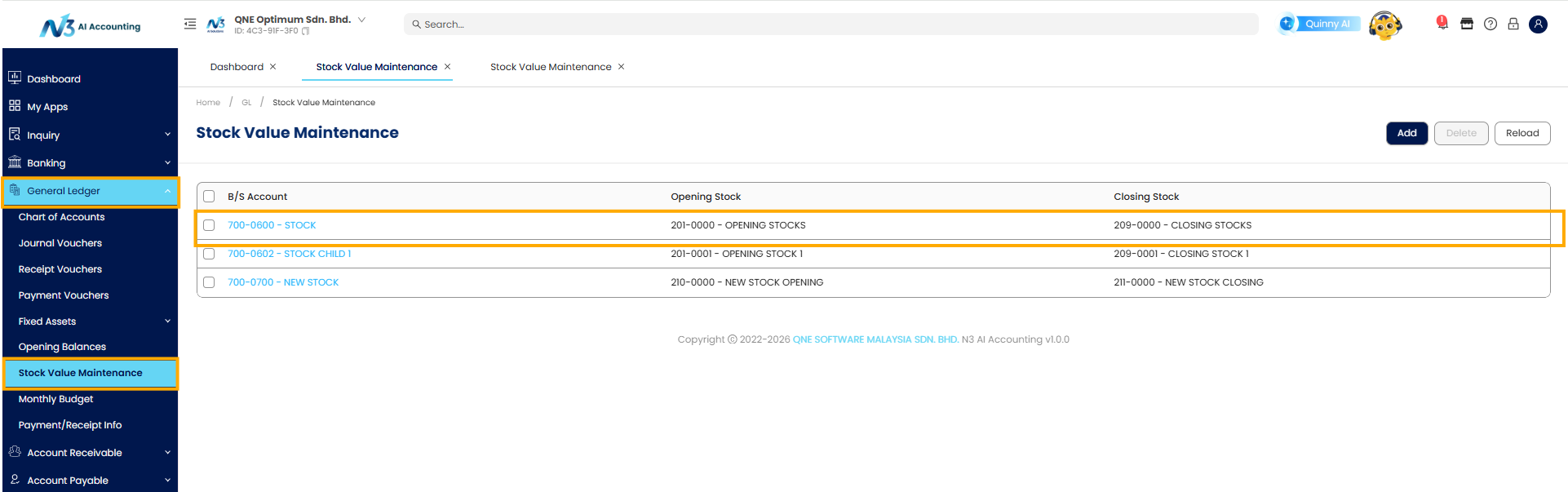
- Click Edit.
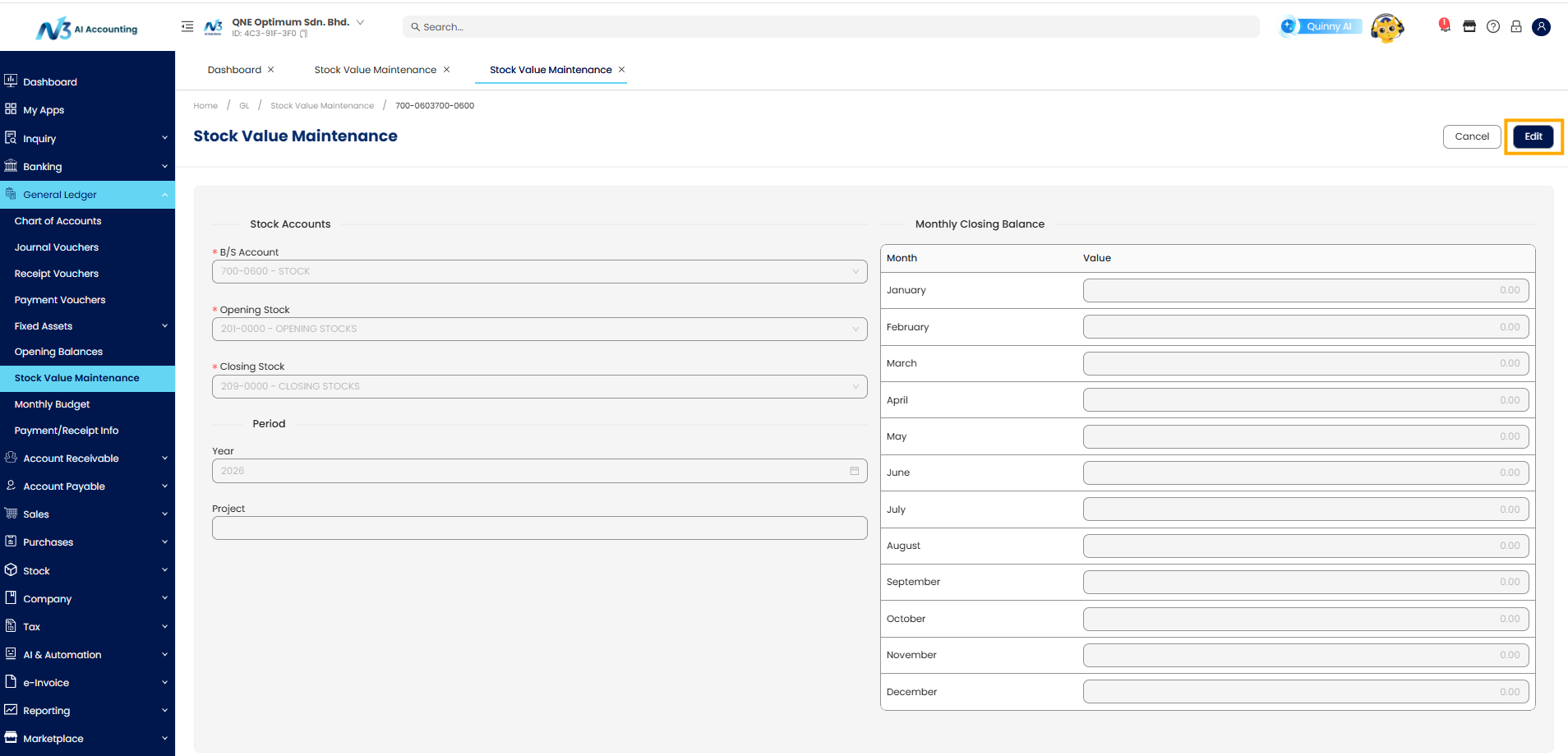
- Select the Year of your previous accounting period (e.g., 2025).
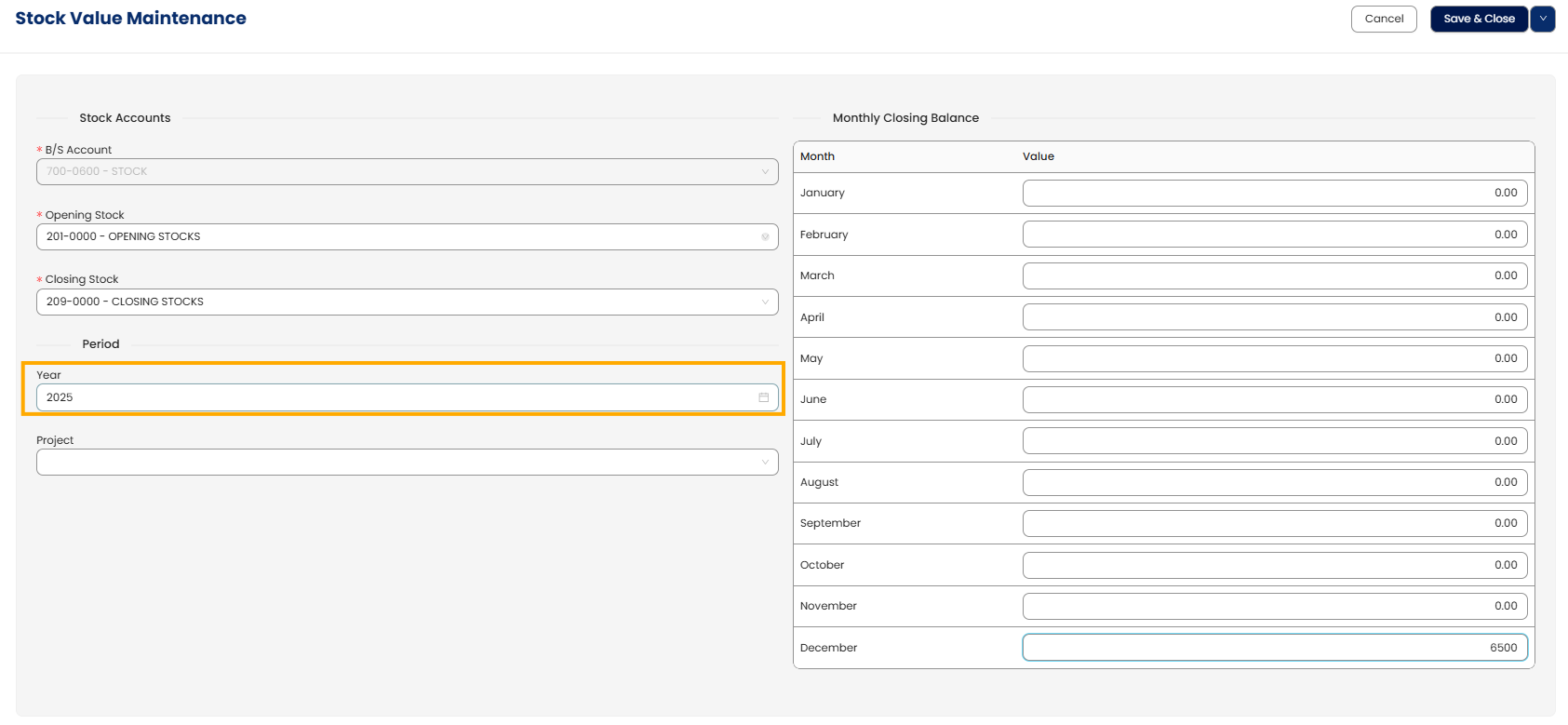
- Enter the total stock value in the December field.
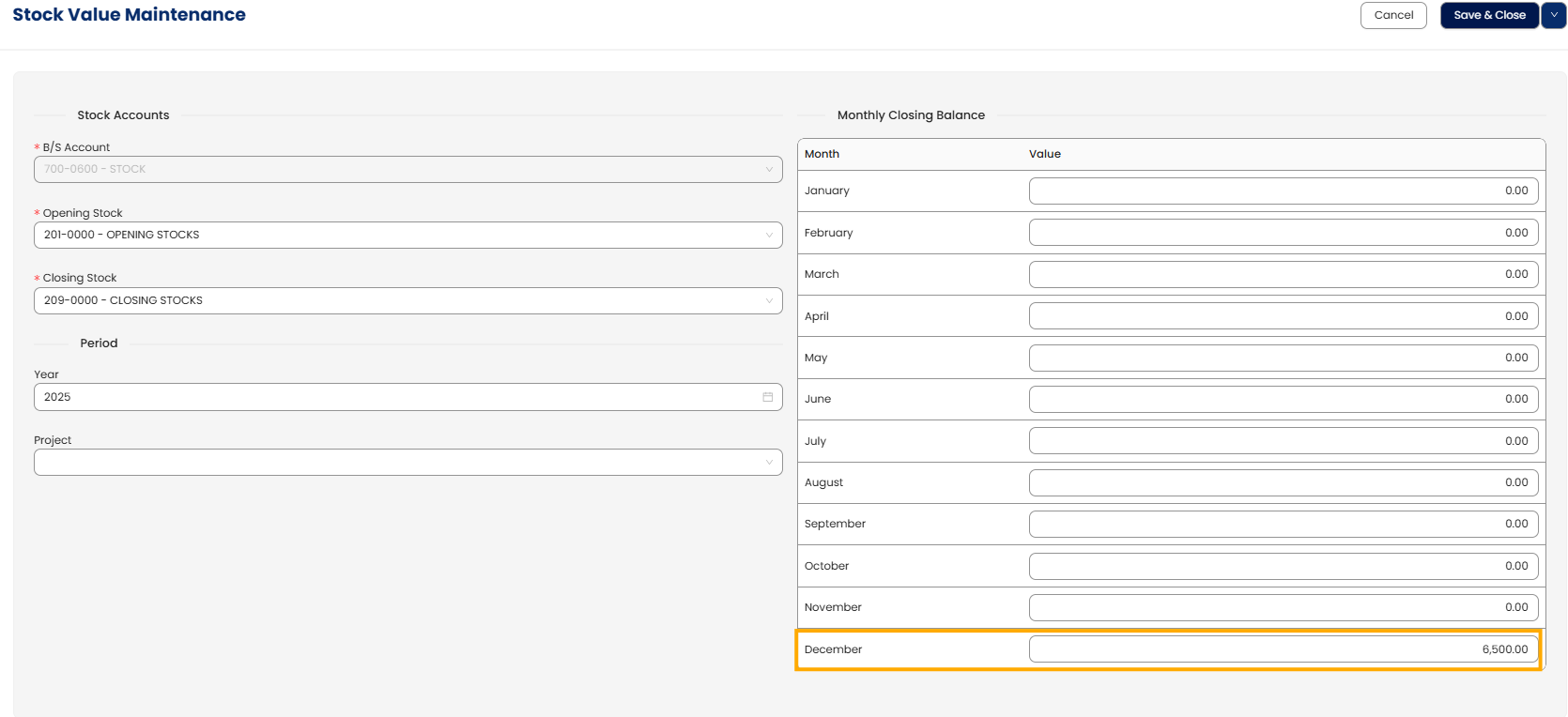
- Click Save to post the entry to the GL
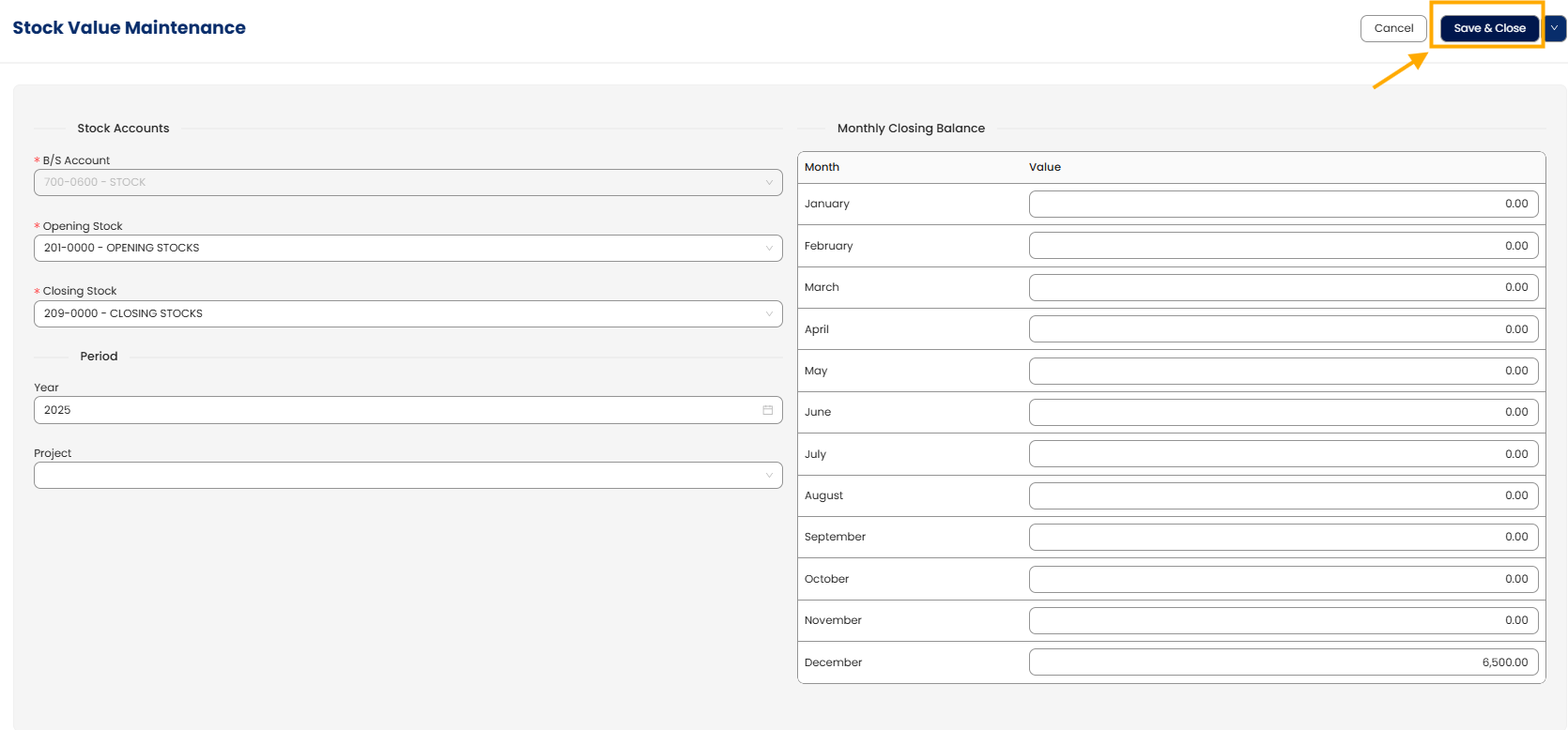
Note: This step ensures your financial statements reflect the same stock value recorded in your inventory.
Tip: To verify the update, check the Inventory account balance in your General Ledger Opening Balances after saving.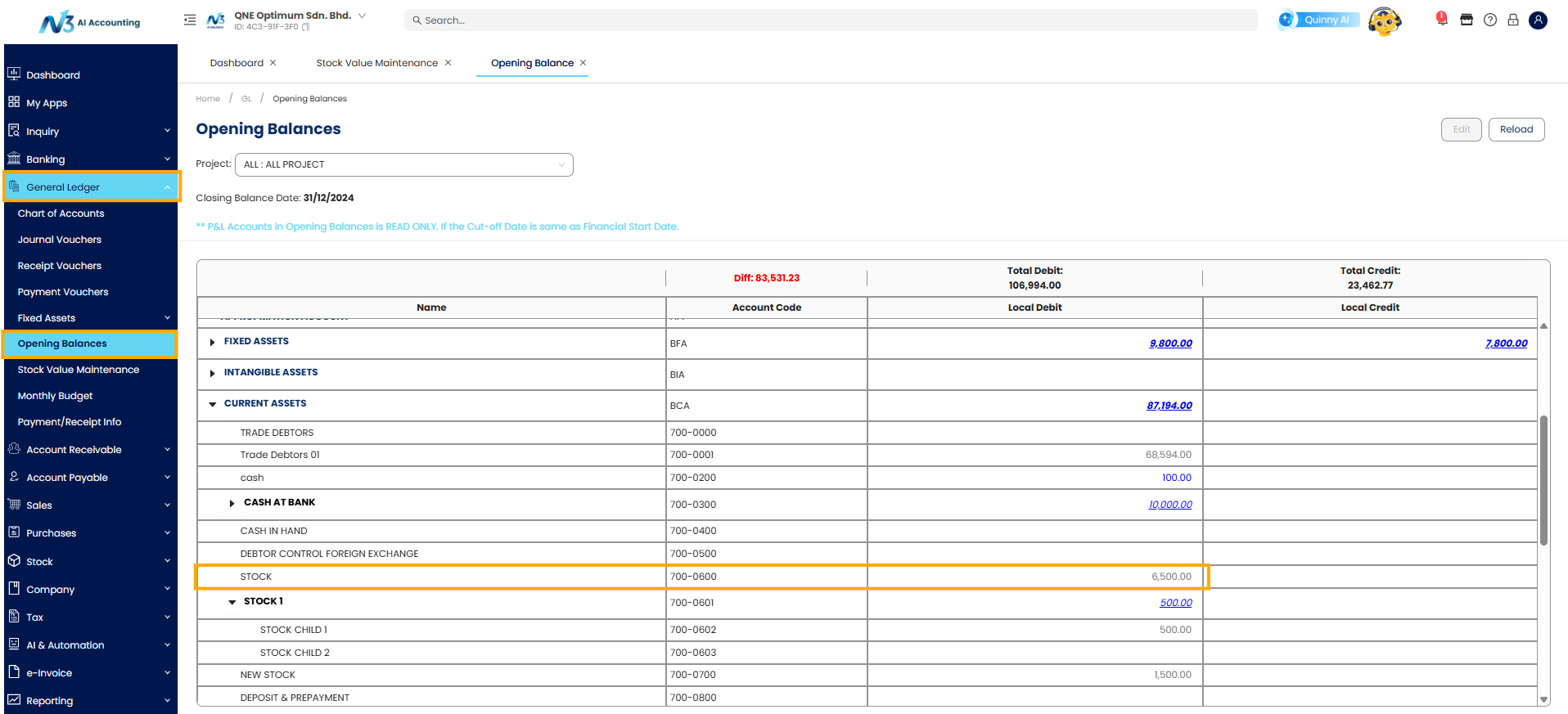
Edit Stock Opening Balance
Use this if you need to correct quantities or costs after the initial setup.
- Go to Stock > Stock Opening Balance and select the specific record.
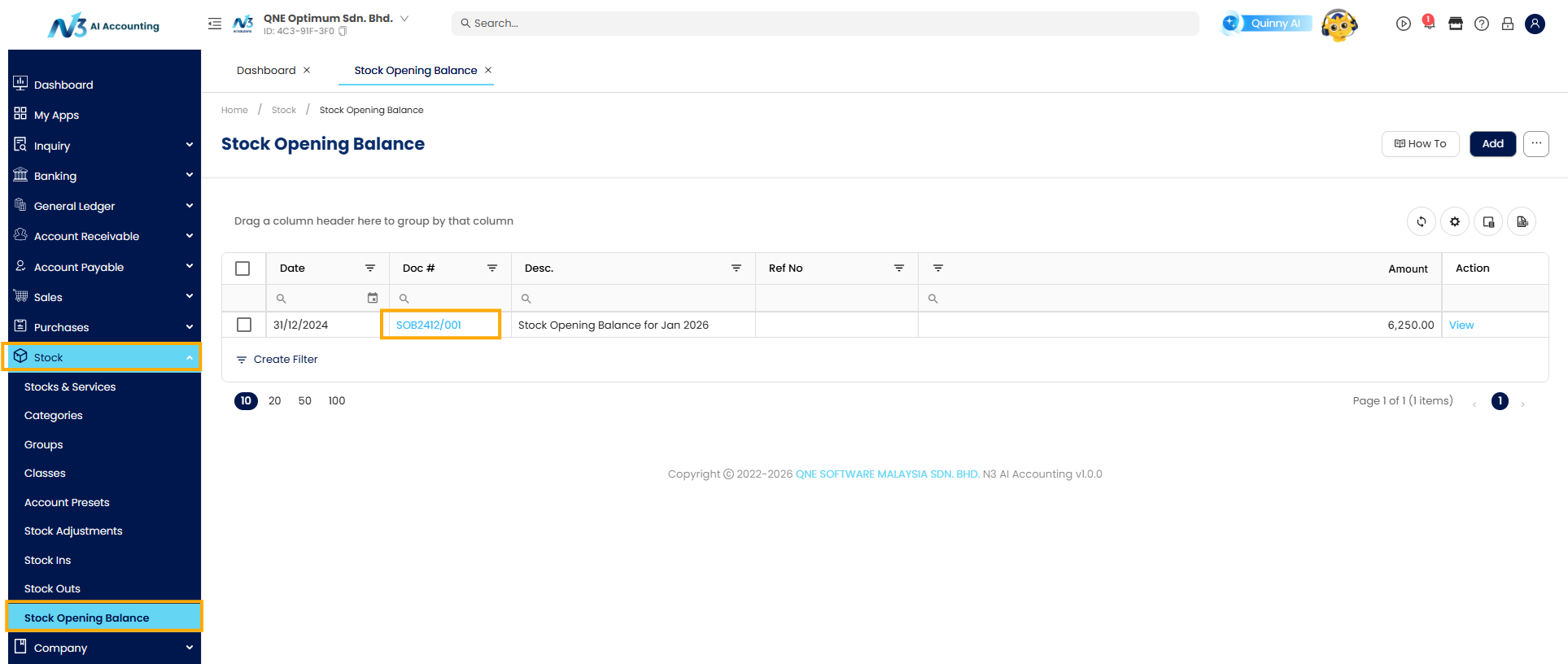
- Click Edit
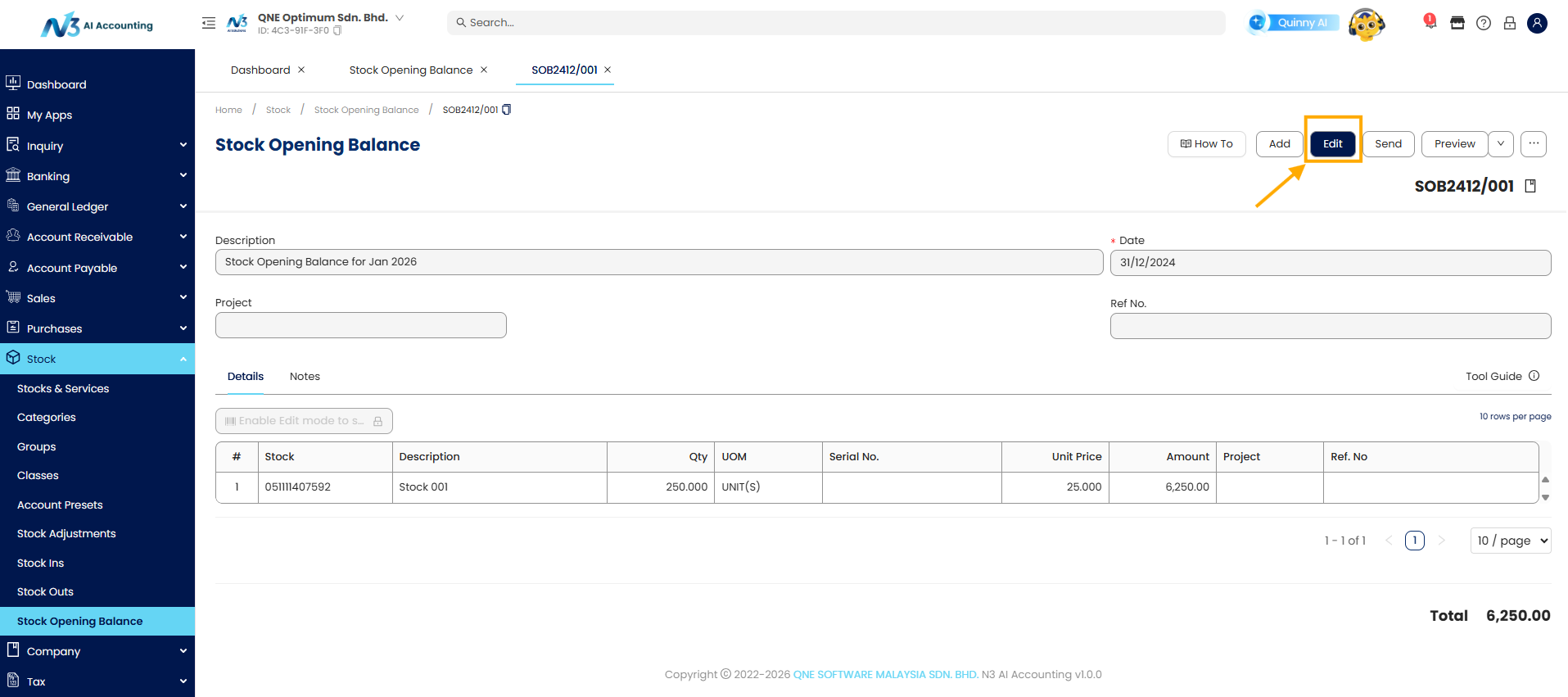
- Update Details: Modify Quantity, Unit Price, or Date as necessary. Click Save once finish update
Delete Stock Opening Balance
- Go to Stock > Stock Opening Balance and tick the box of the entry.
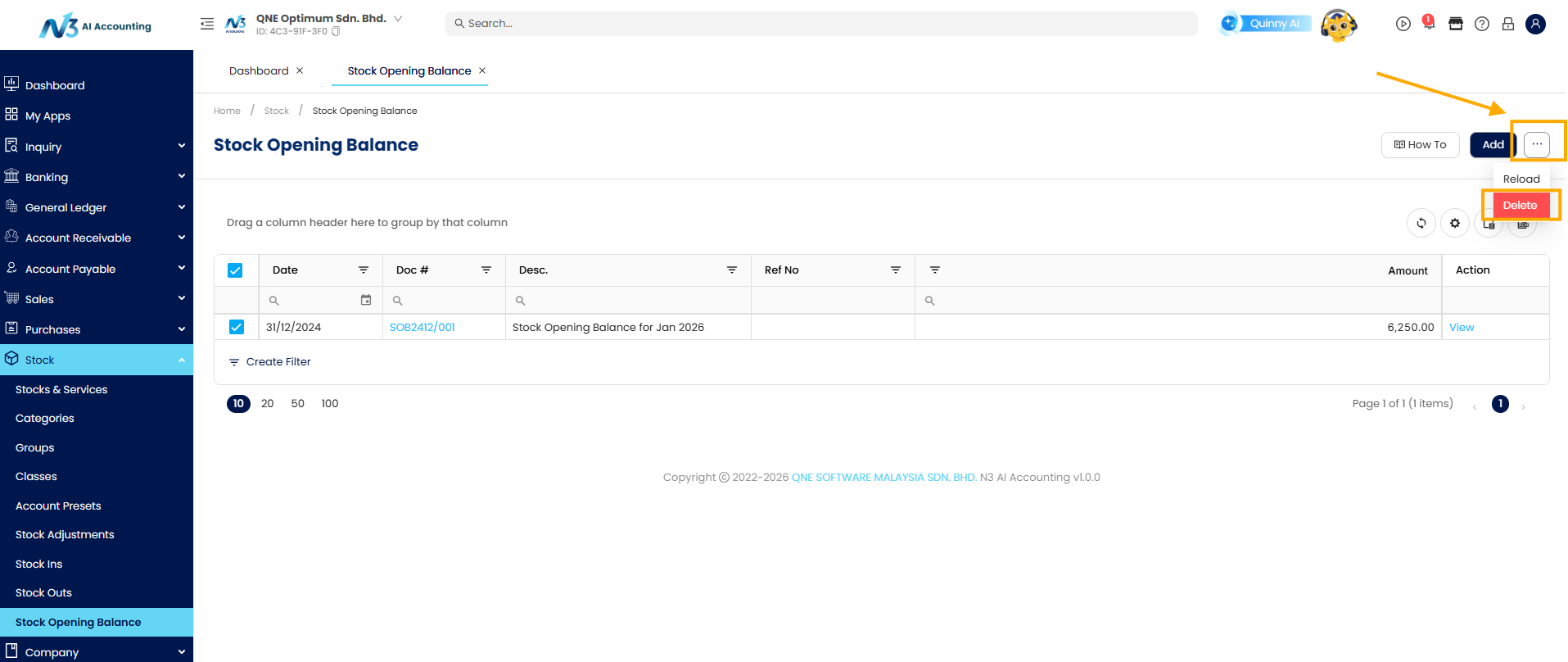
- Click Delete. (Note: Deletion is restricted if the accounting period is locked.)
- Next Steps (Mandatory): Immediately navigate to General Ledger > Maintenance > Stock Value Maintenance. You must manually deduct the deleted value from the corresponding month or set it to zero.
Result: Failure to do this will cause your balance sheet to show inventory value that no longer exists in your stock reports.
Click here to see the pdf file
Was this article helpful?
That’s Great!
Thank you for your feedback
Sorry! We couldn't be helpful
Thank you for your feedback
Feedback sent
We appreciate your effort and will try to fix the article
