Overview:
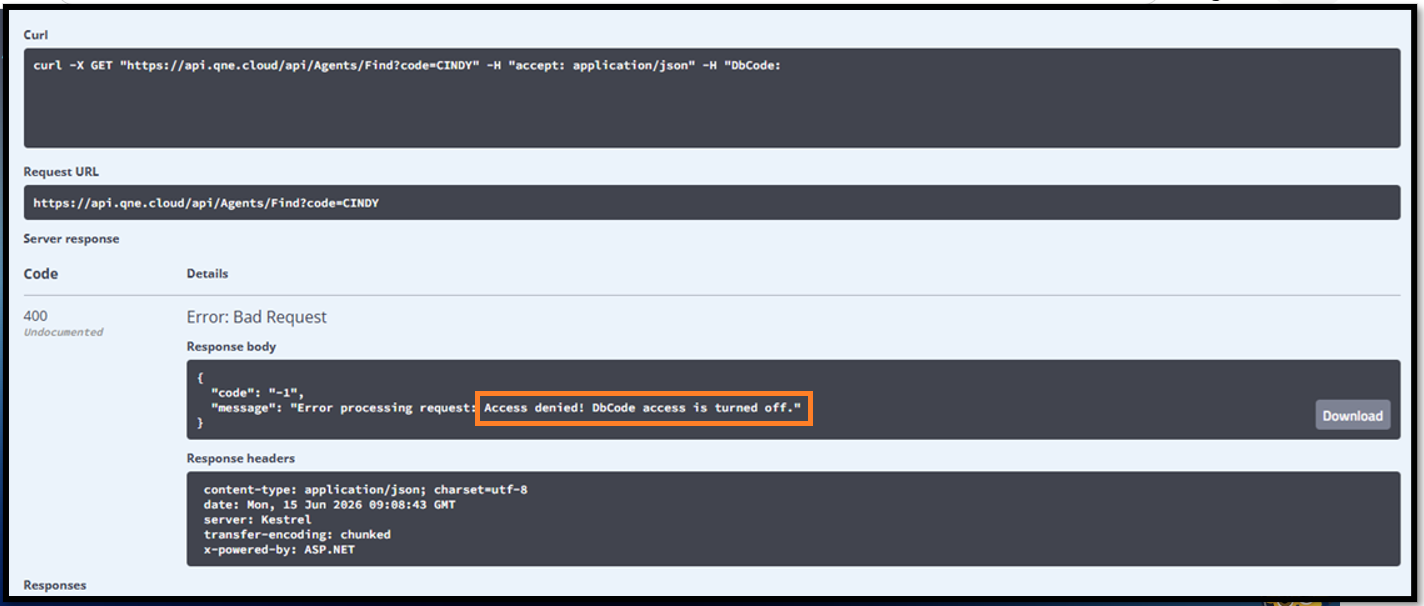
After disabling API DbCode Access (can follow the steps as outlined in the (QNE API ACCESS CONTROL), sending API requests using only the DbCode header will fail with an authorization error (Access denied! DbCode access is turned off.).
To securely interact with the API, users must authenticate via the /api/Users/Login endpoint using valid user credentials to generate a Token. This token is then passed in the Authorization header as a Bearer token to authorize all subsequent requests.
Scenario:
A system administrator or integration developer attempts to query record data (e.g., calling GET /api/Agents/Find?code=CINDY) using only the DbCode header. Because DbCode access has been disabled on the server, the API returns an error:
400 Bad Request - Error processing request: Access denied!
To resolve this, the developer must obtain a token through the login endpoint and authenticate using the Bearer (apiKey) token header.
Steps to Obtain and Use a Login Token
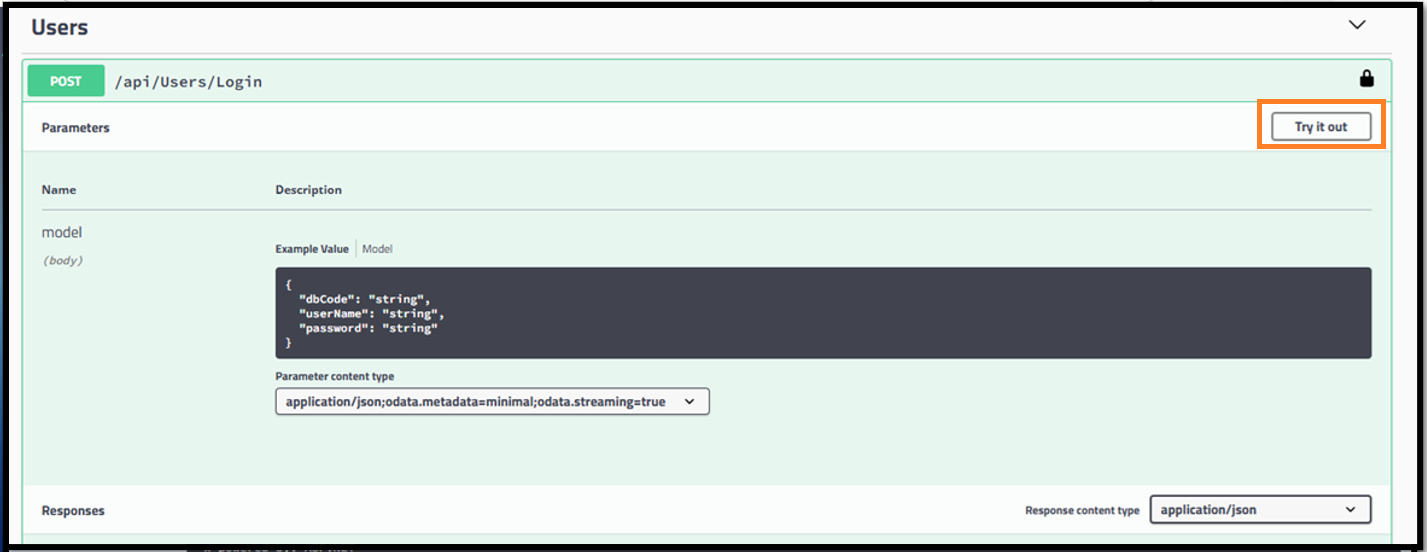
- Go to Users > POST/api/Users/Login > Click Try it out
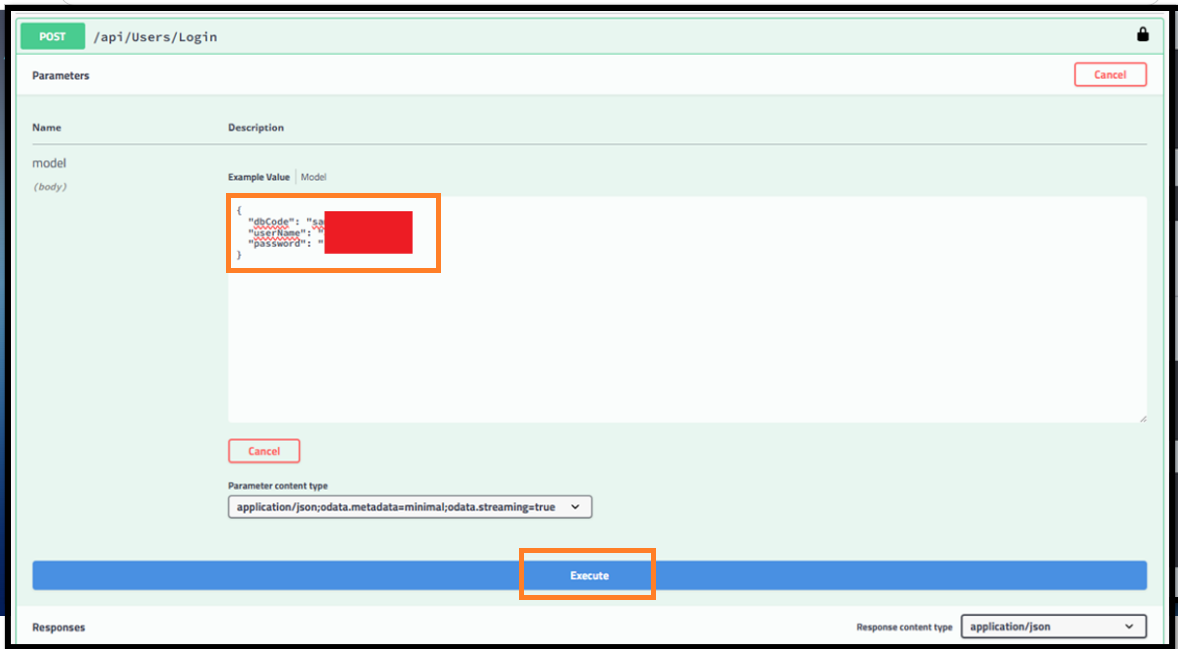
- Keyin you dbCode, username and password for the company database > Click Execute
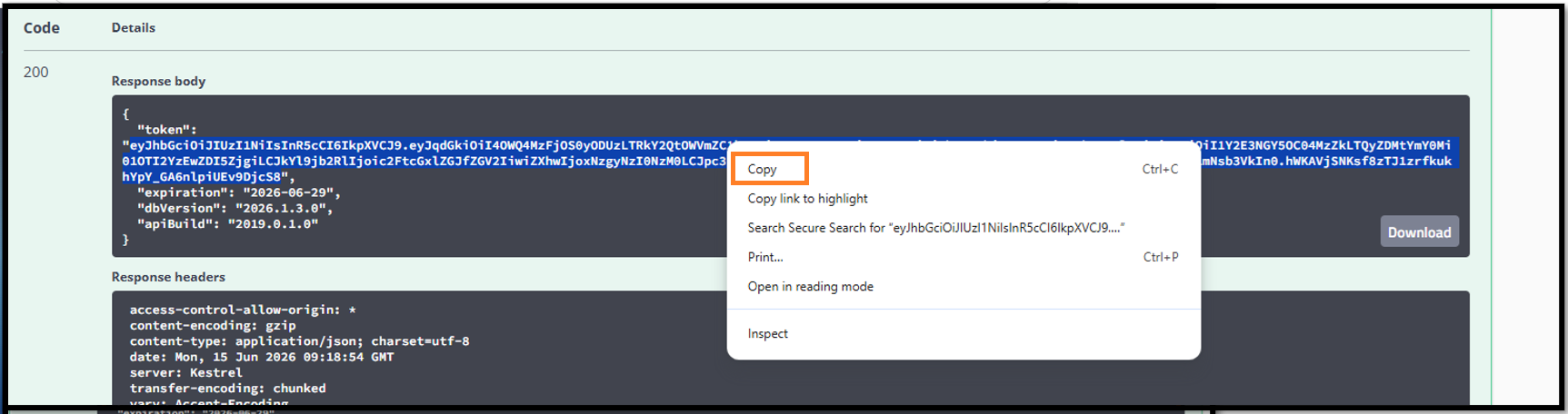
- Upon successful login, the system will return a token for the authenticated user.
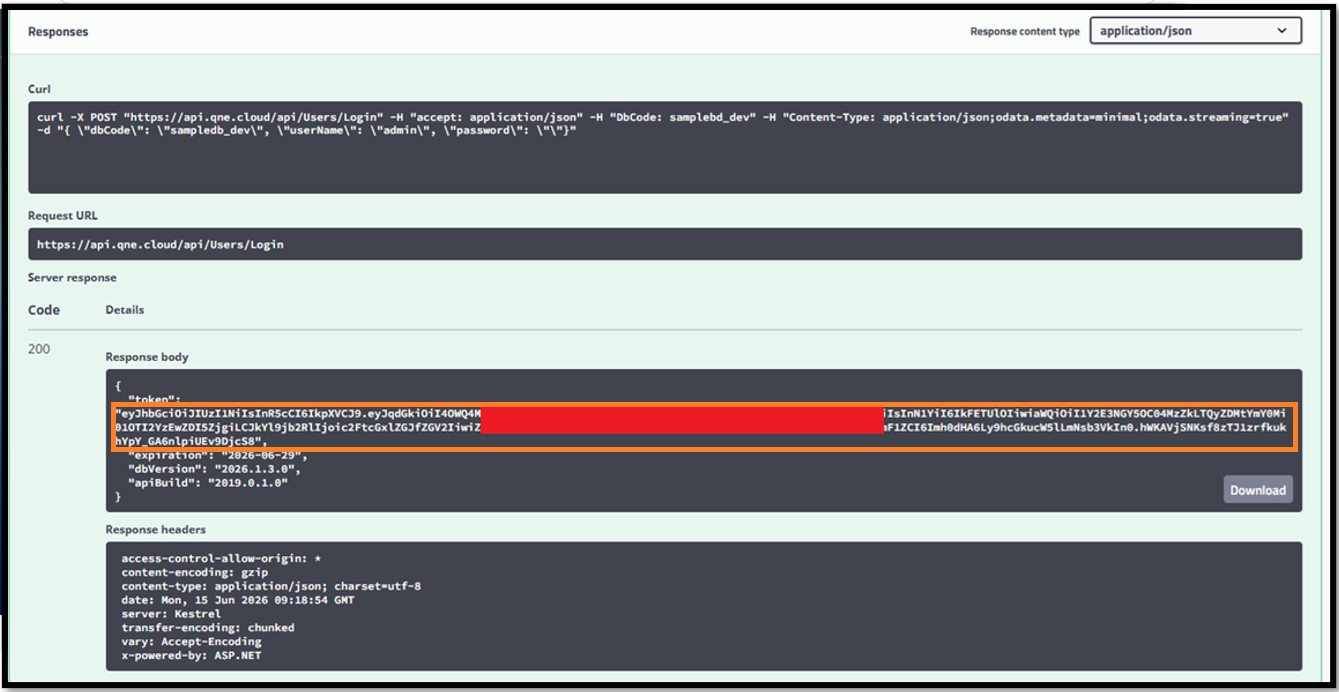
- Highlight the token value and copy it
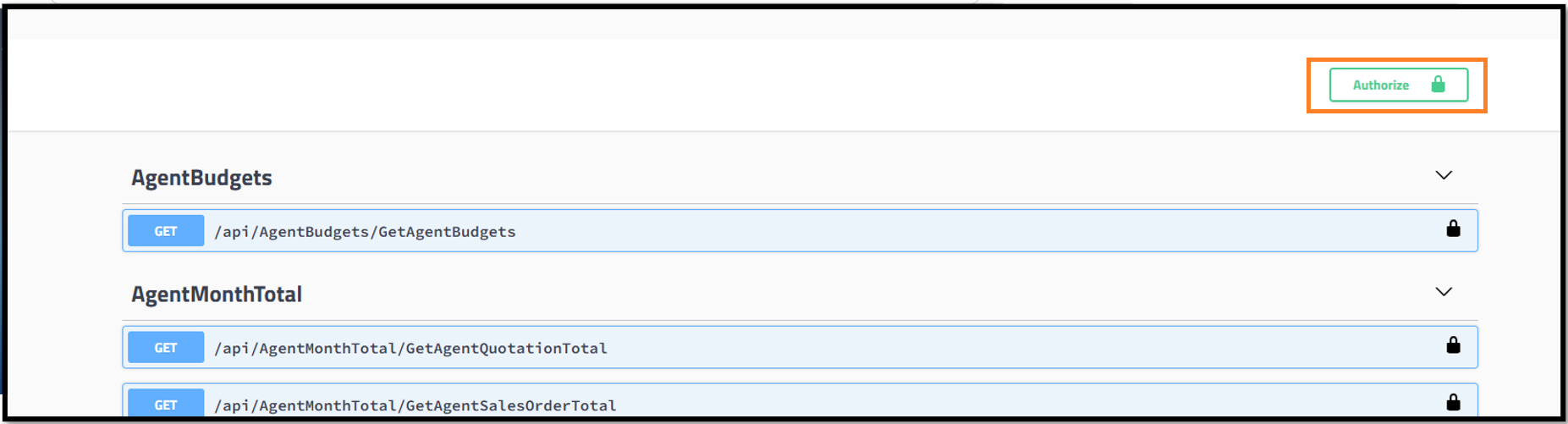
- Scroll up back to the Top of the API documentation page and click on Authorize.
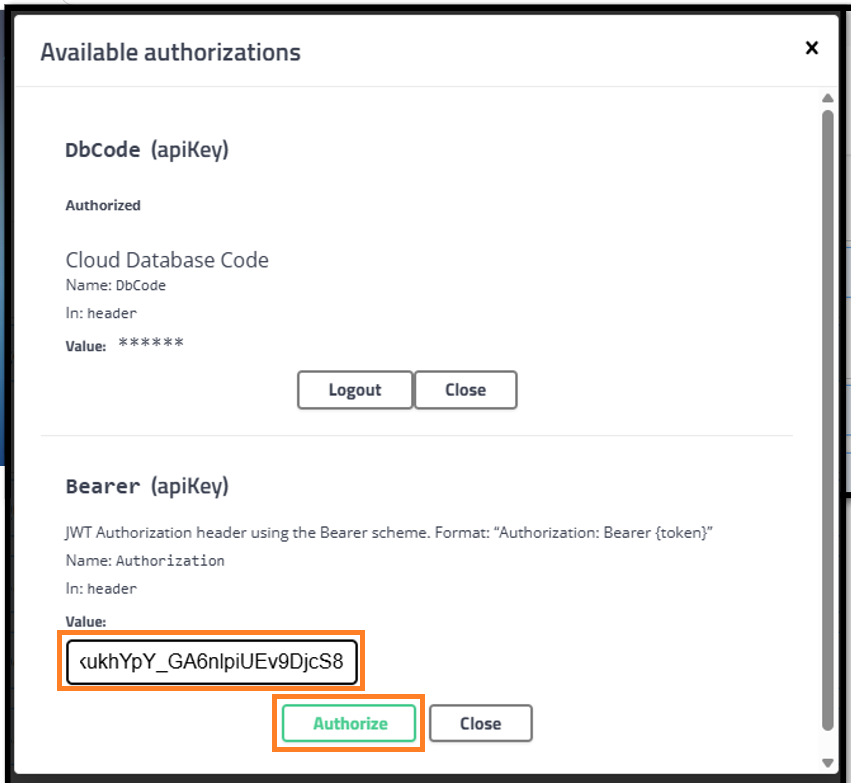
- Paste the copied token into Bearer (apiKey) field > Click Authorize.
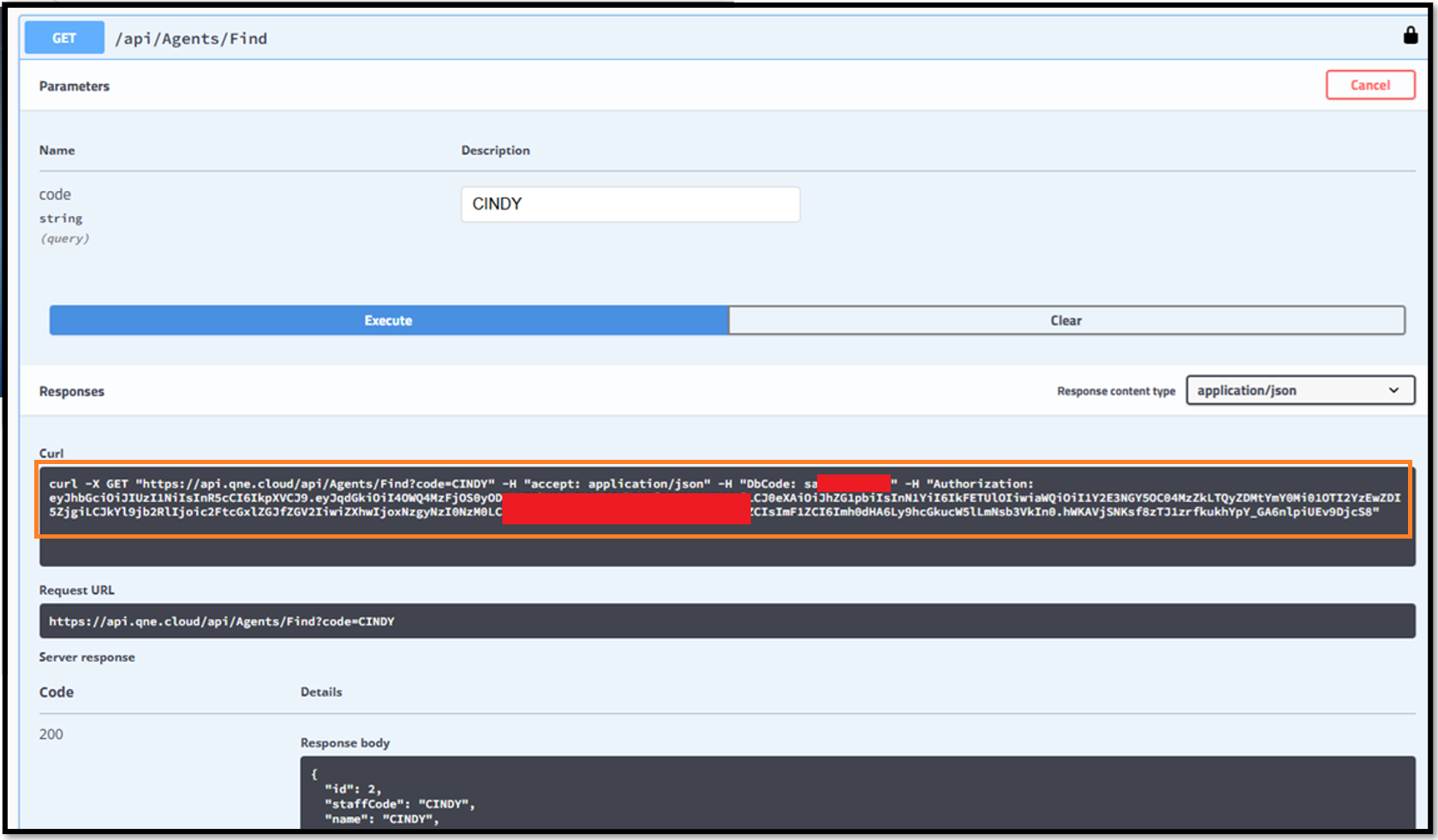
- Once authorization is successful, you can perform GET and POST requests using the authenticated user's token.
Note:
• Keep your user name, password and token private. Do not share them or post them in public places.
• The token has an expiration date. When it expires, or when you see the access denied message again, log in again to get a new token.
• The Bearer field in the API test page describes the format as “Authorization: Bearer {token}”. In the example, the request that succeeded shows the token pasted on its own. If your request is rejected, try typing Bearer and a space before the token.
• The same token is used for all endpoints marked with a lock icon, so you do not need to log in again for each endpoint.
Was this article helpful?
That’s Great!
Thank you for your feedback
Sorry! We couldn't be helpful
Thank you for your feedback
Feedback sent
We appreciate your effort and will try to fix the article
