Overview:
The Project Module in N3 AI Accounting (formerly QNE AI Cloud Accounting)
enables users to effortlessly categorize various incomes and expenses into different projects in detail. These categorized projects can then be utilized for generating financial reports, facilitating departmental classification, and managing various types of projects with ease.
How to Add, Edit, and Delete Project
Procedure:
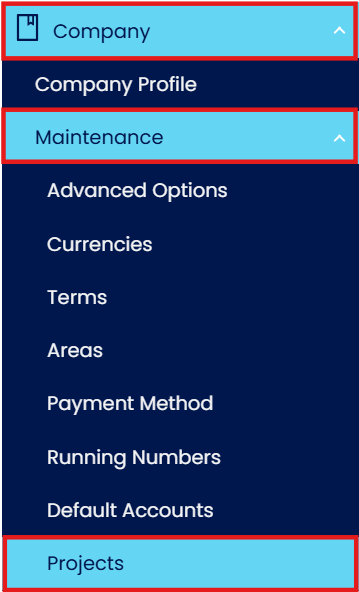
In Navigation pane, go to Company > Maintenance > Projects
How to Add New Project
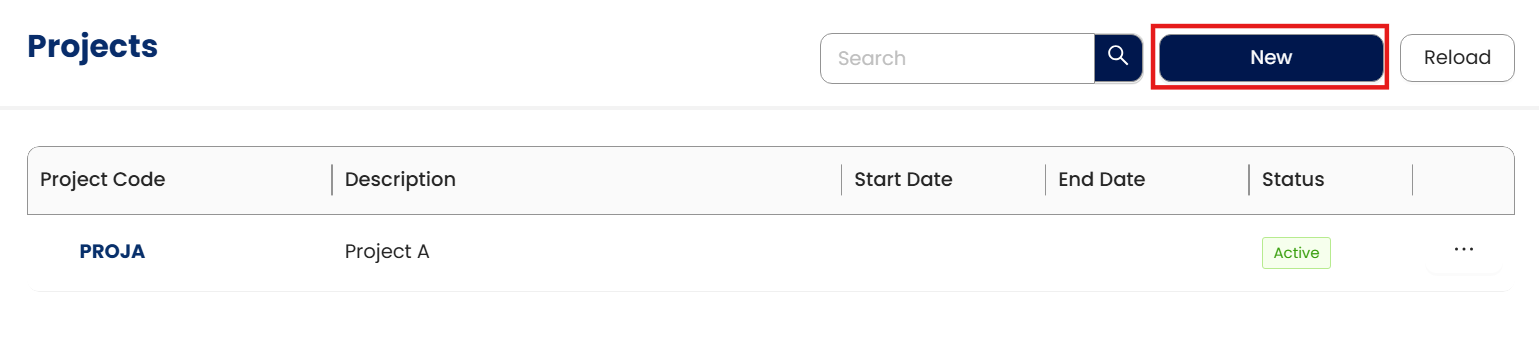
Click New to add a project.
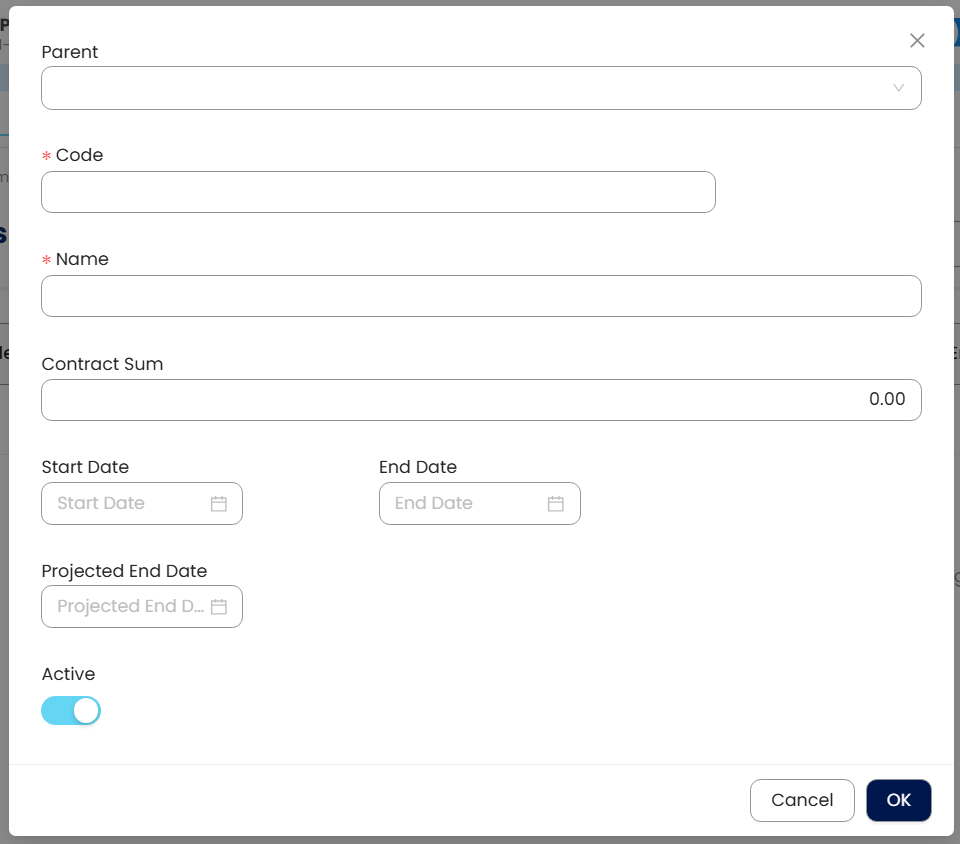
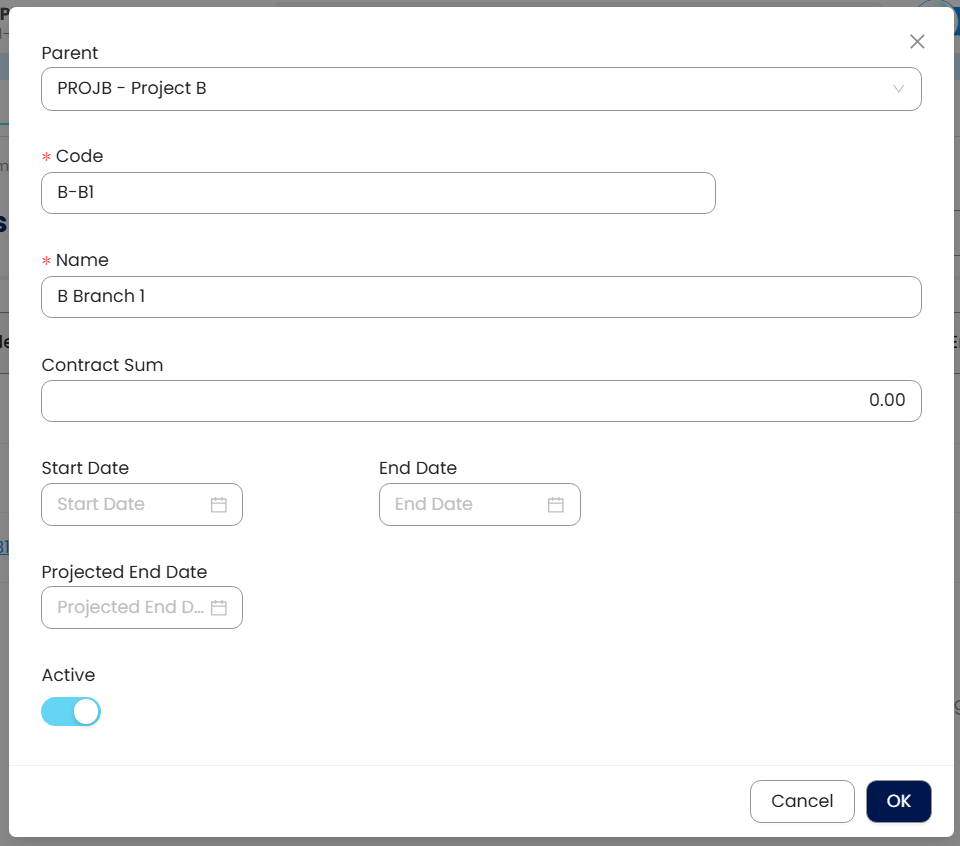
In New form, fill in all the necessary fields
Parent – The mother project of created sub-projects, this is optional.
Code – This is a compulsory field and should be a unique code.
Name – Name of the project, this is a compulsory field.
Contract Sum – The total allotted cost for the project.
Start Date – The date the project actually started; this is optional.
End Date – The date the project actually ended; this is optional.
Projected End Date – The targeted date for the project completion, this is optional.
Active button – The button to specify an active or inactive project.
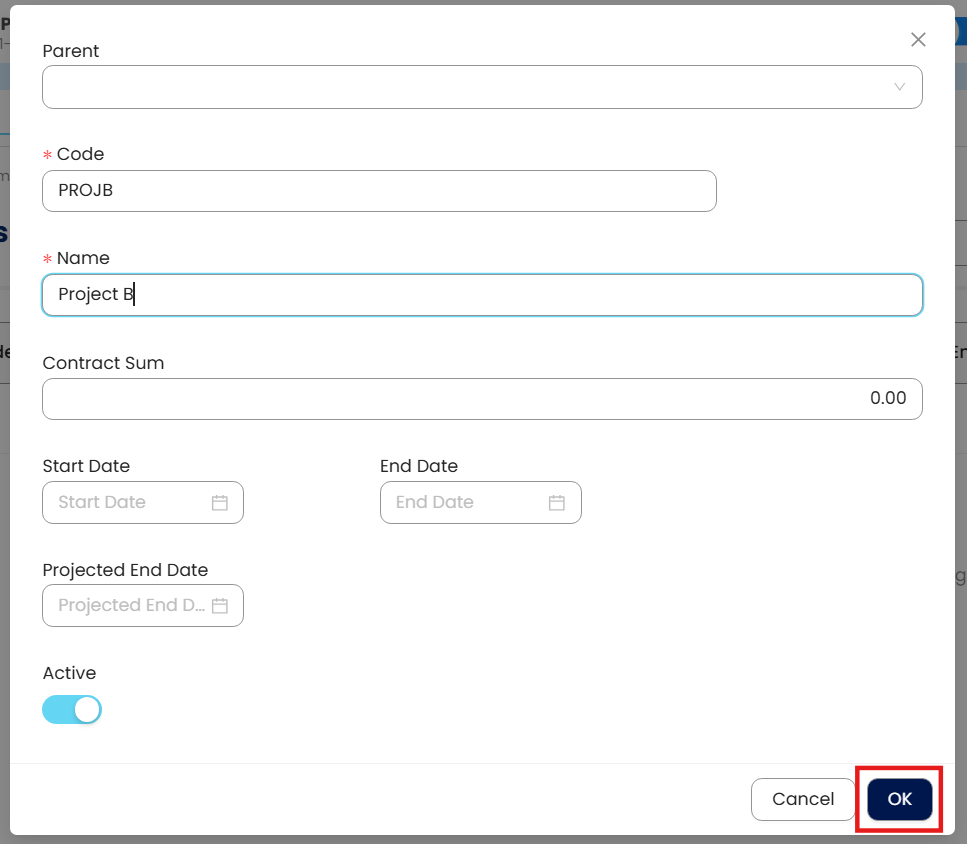
Once done, click OK.
How to Add New Sub-Project
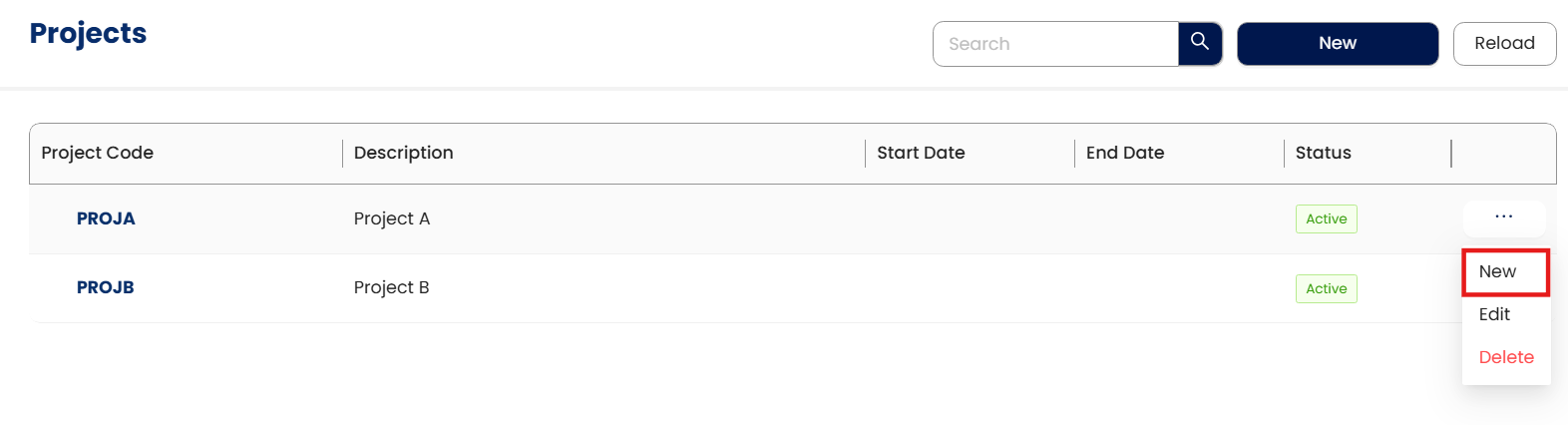
On the Project list view, click the triple dot […], then New on the Main Project
New form will open with the default Parent Account
Note: Only Sub-Projects can be selected in transaction while both Main and Sub Projects can be used in filtering when generating Project Related Reports.
How to Edit Project
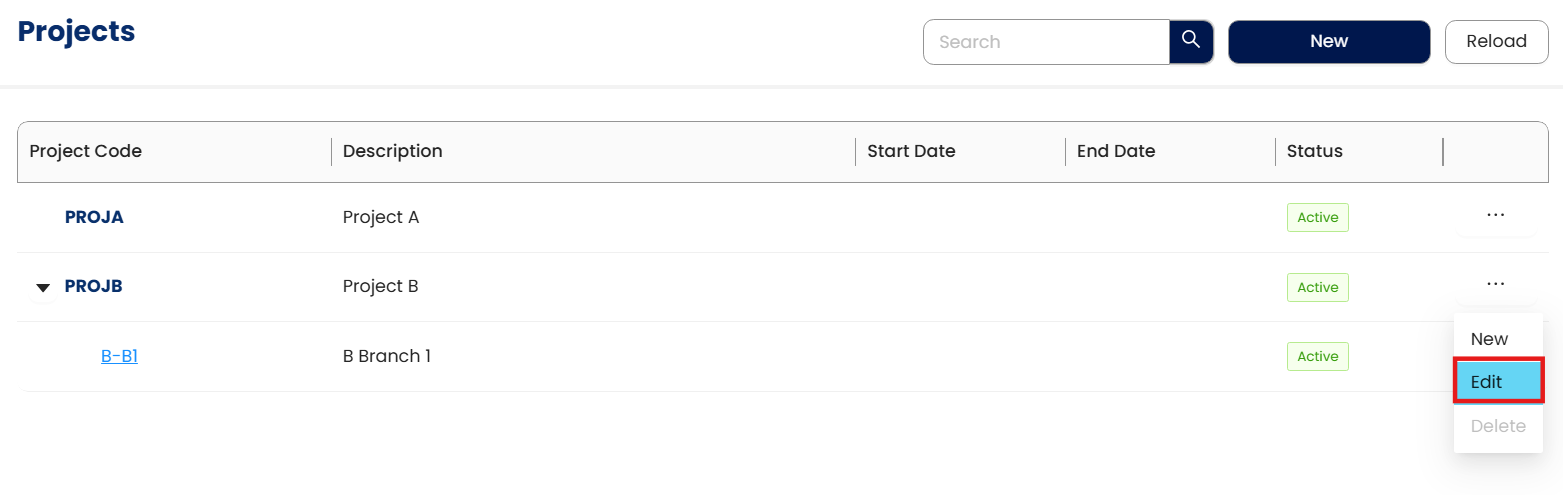
To Edit, click the three-dot button > Edit
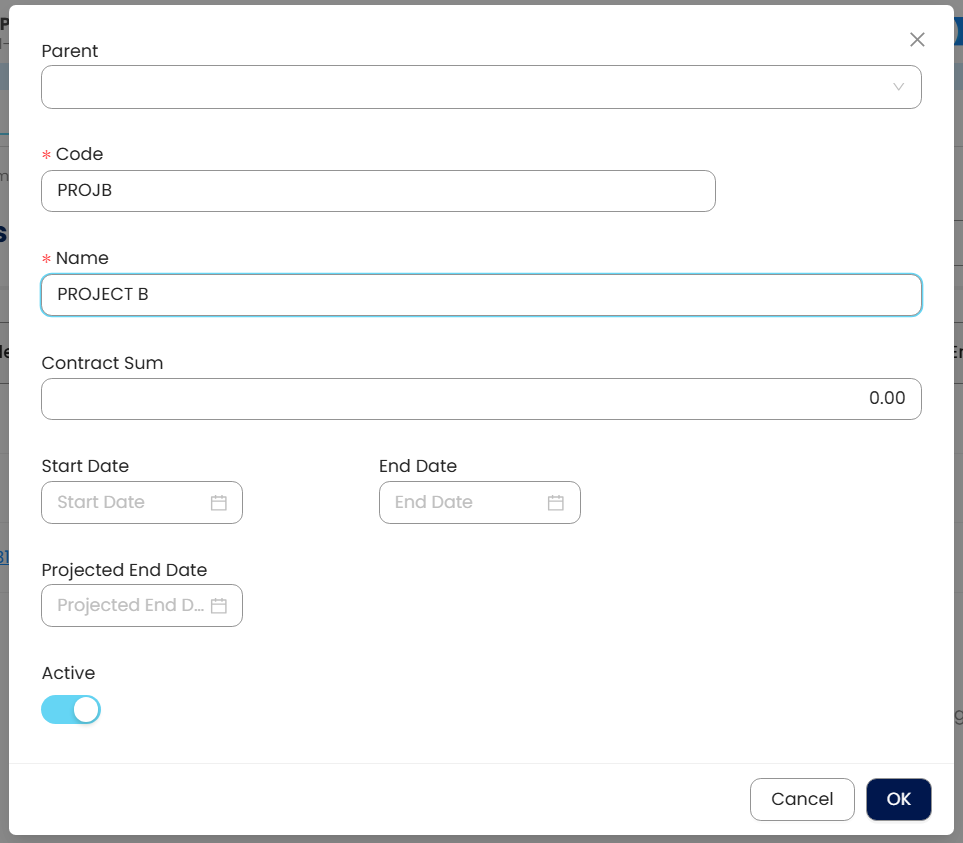
Apply necessary changes. Once done, click OK
How to Delete Project
To delete, click the three-dot […] button > Delete
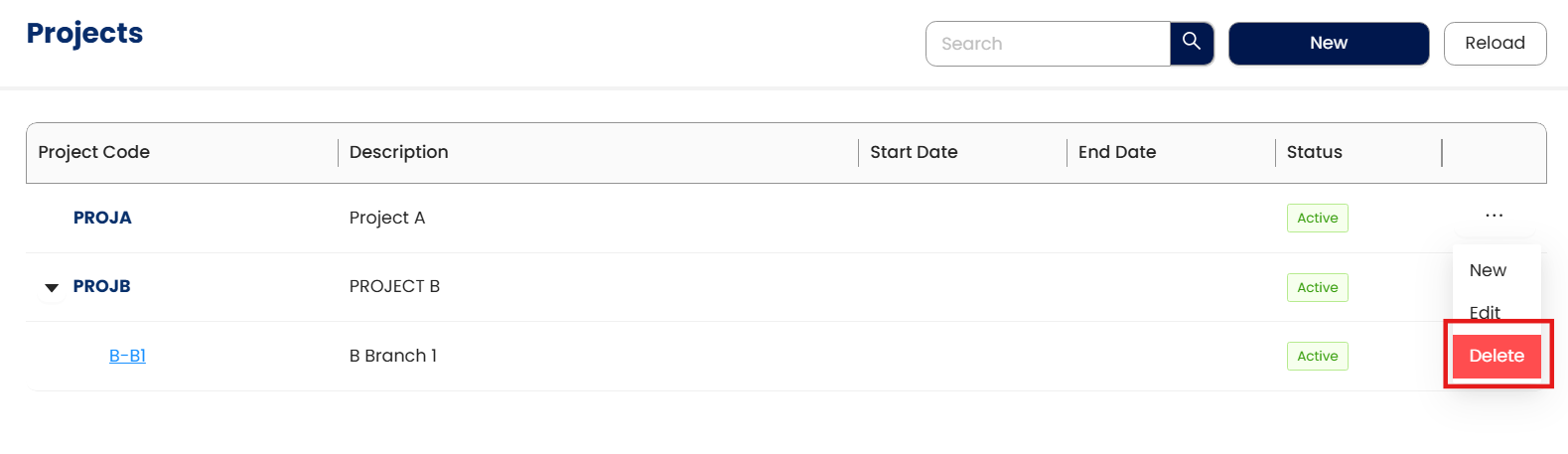
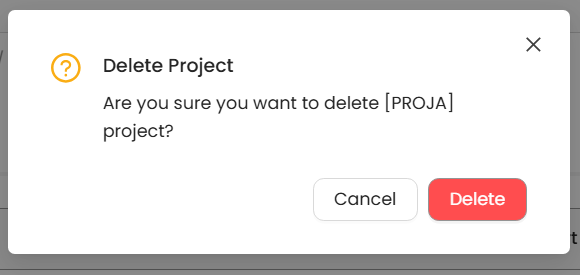
A pop-up will appear, click Delete.
Application:
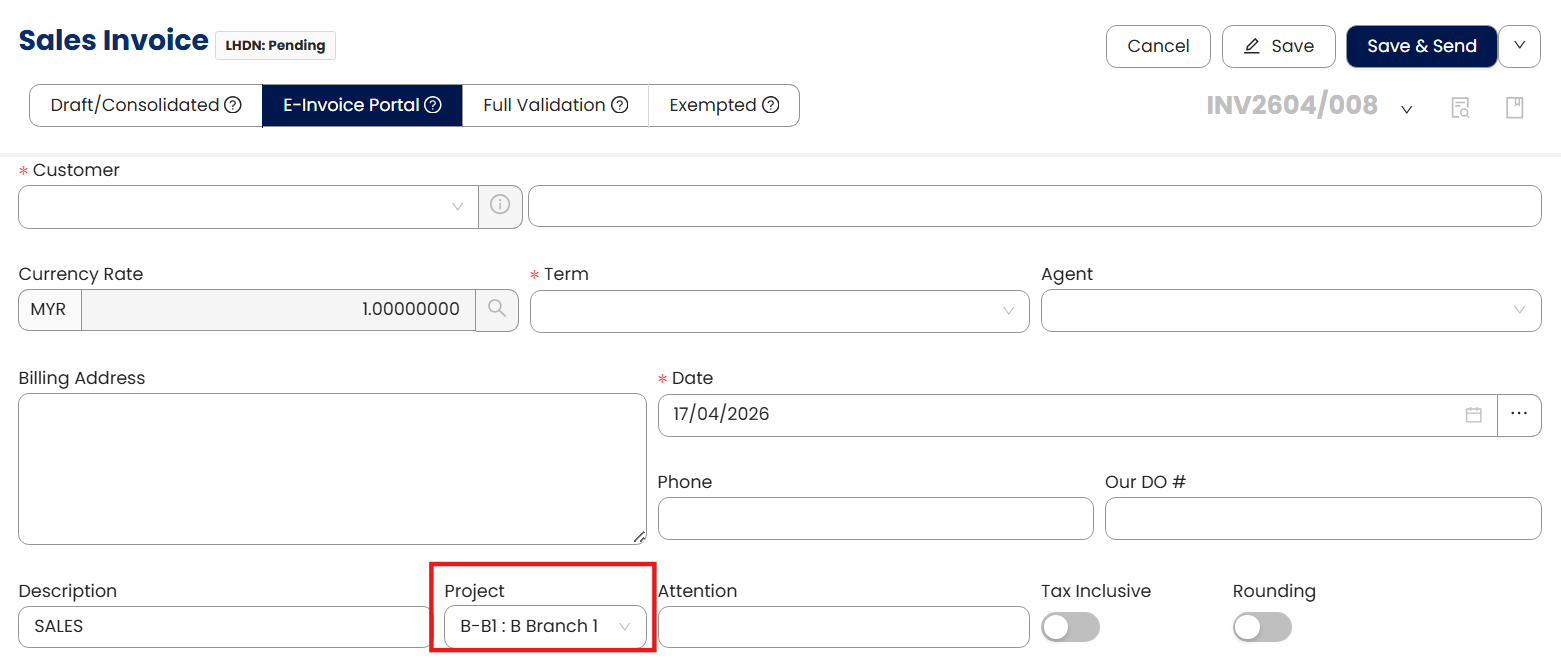
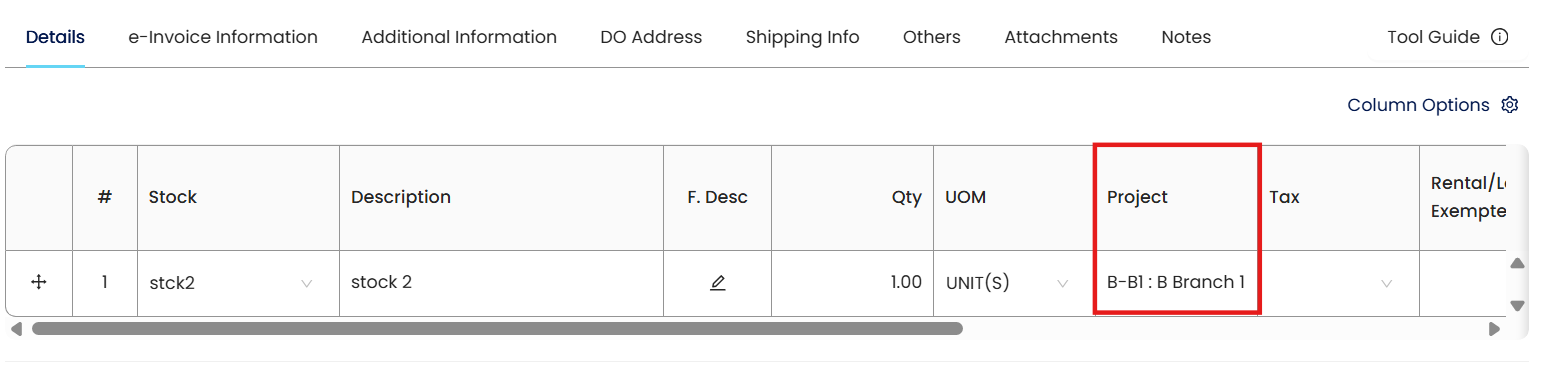
The Project is now available for selection in transaction forms.
Global - Applies to the entire document.
Per Item – will apply for a specific item
Report Option:
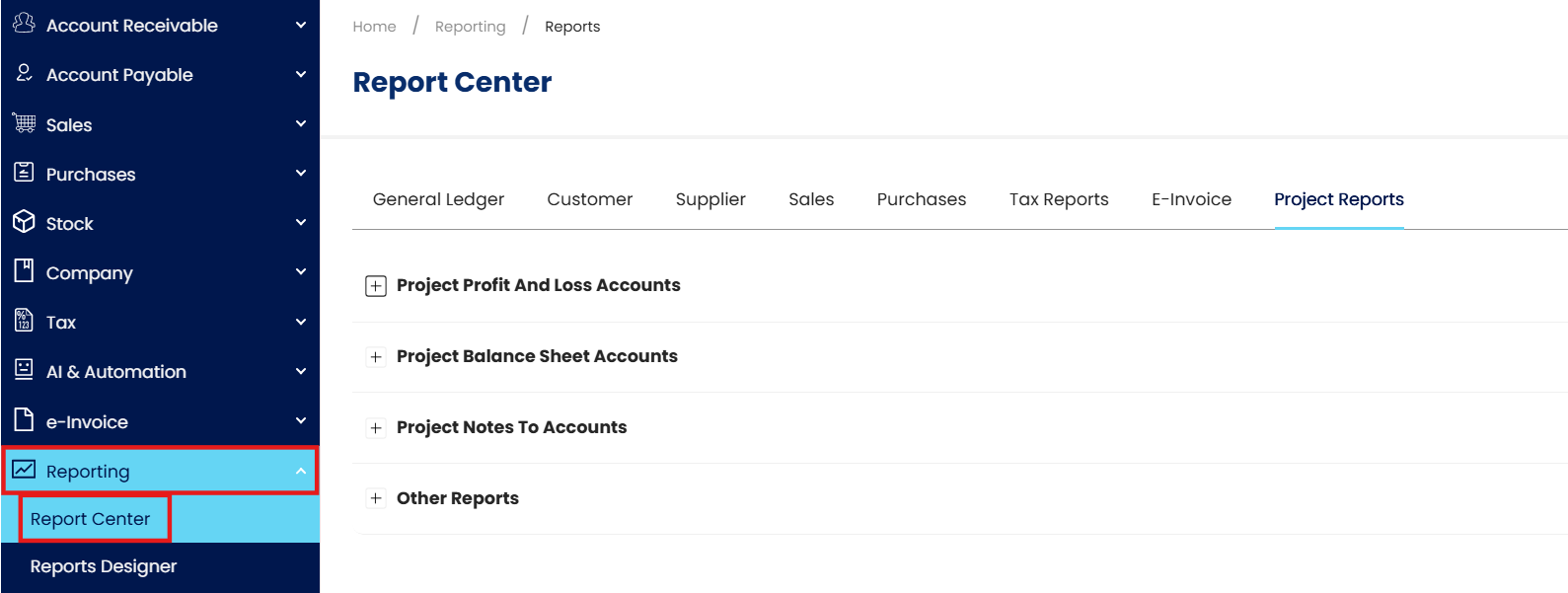
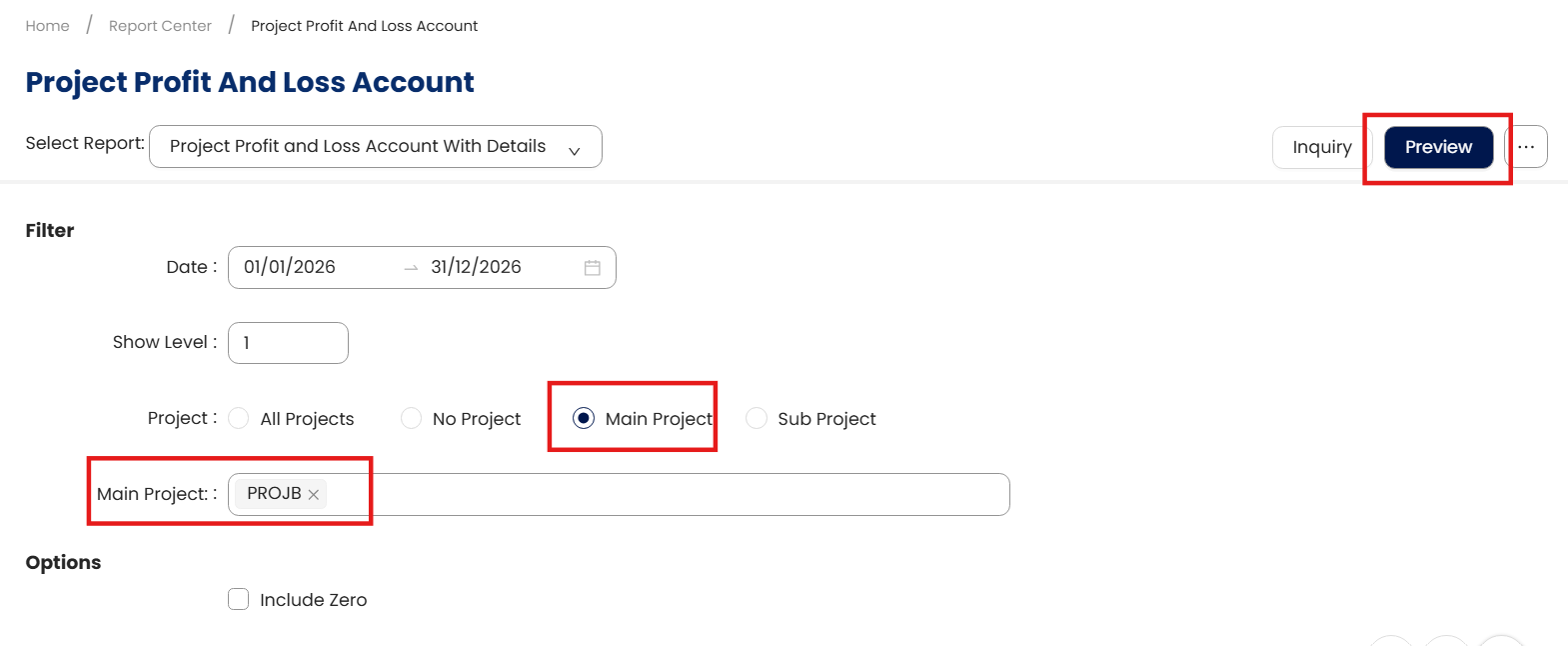
User Allow to Filter Project in order to Preview Project Profit and Loss Account
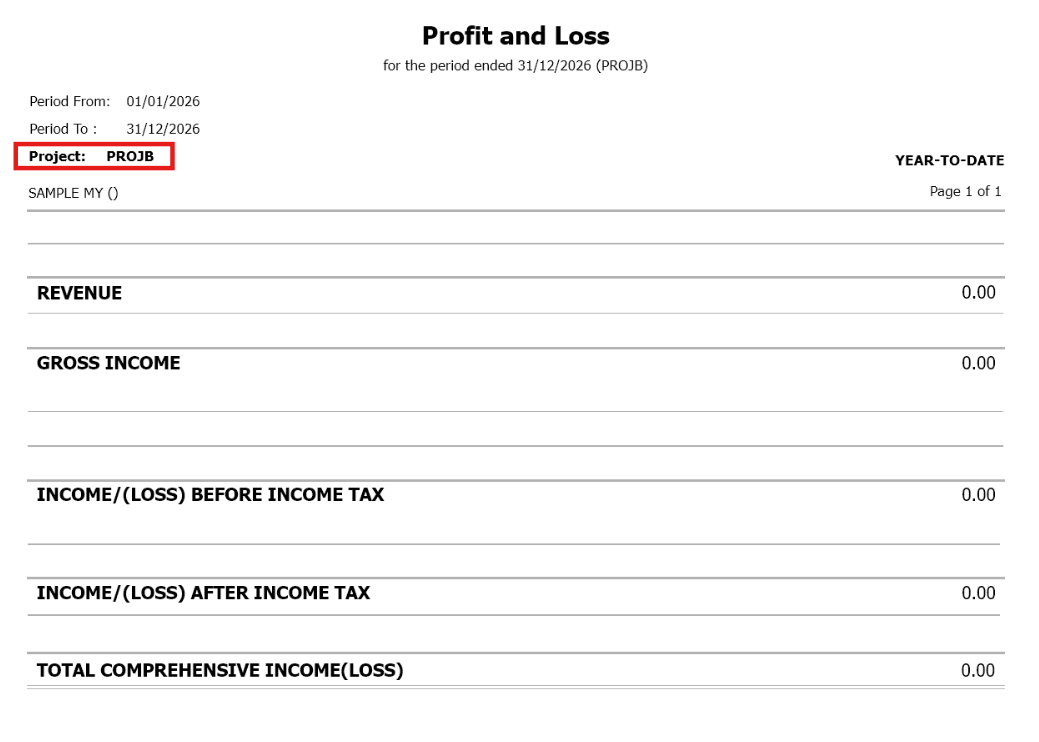
Result
** Learn more about Azure Cloud
** Learn more about QNE Hybrid Cloud Software
System Scope: QNE AI Cloud Accounting / N3 AI Accounting
Was this article helpful?
That’s Great!
Thank you for your feedback
Sorry! We couldn't be helpful
Thank you for your feedback
Feedback sent
We appreciate your effort and will try to fix the article
