Overview:
In this guide, you will learn how to import area information into the N3 AI Accounting (formerly QNE AI Cloud Accounting). Areas play a crucial role in organizing your business operations, such as categorizing regions for sales or reporting. This guide will provide step-by-step instructions on how to prepare your CSV file and successfully upload area data into the system, ensuring your records are organized and up-to-date for better reporting and operational management.
Solution:
Expand Company > Expand Tools > Press Data Migration > Press Upload CSV File > Press Upload button of Areas.
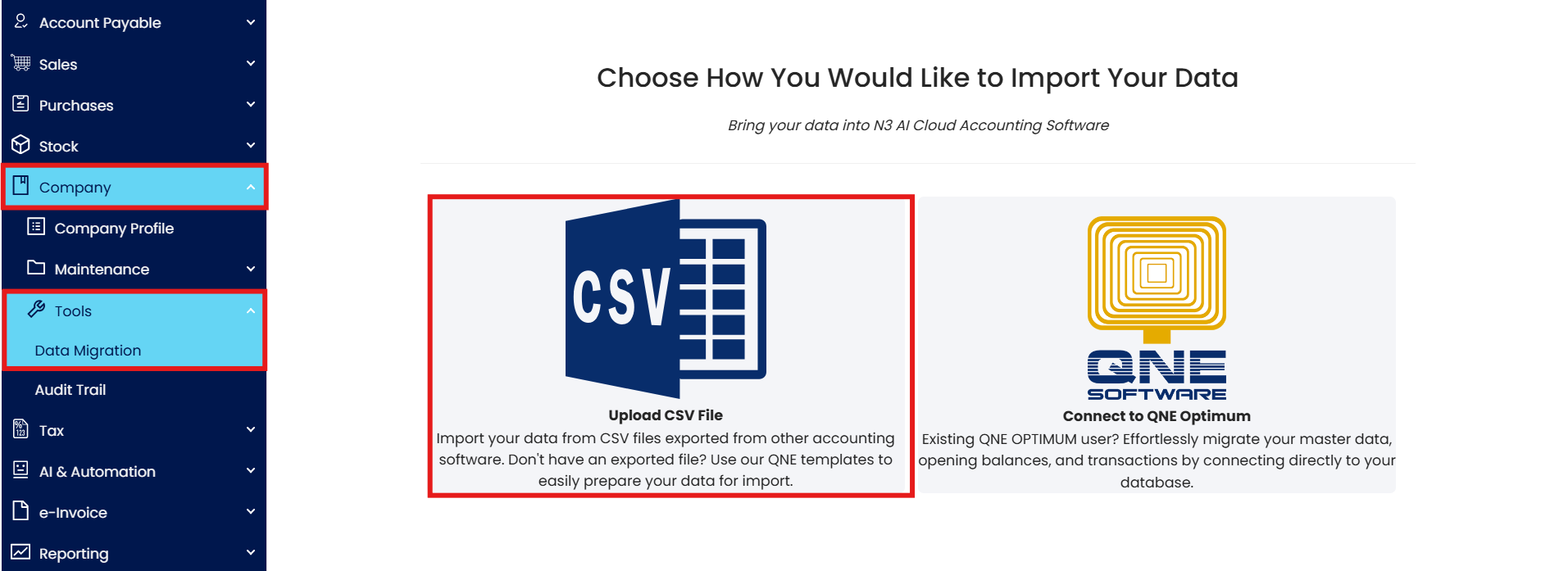
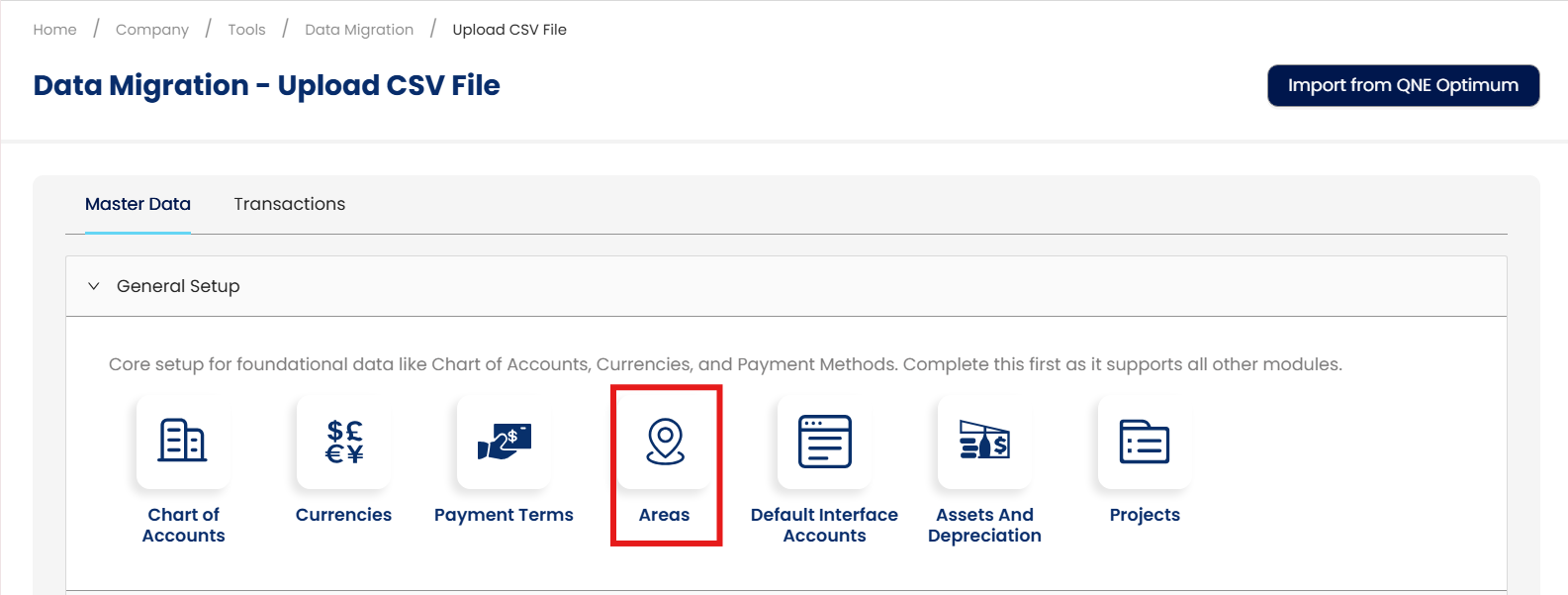
After Press Upload, below screen will prompt > Press Download Sample
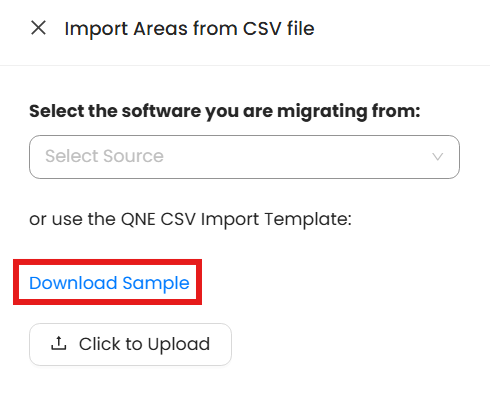
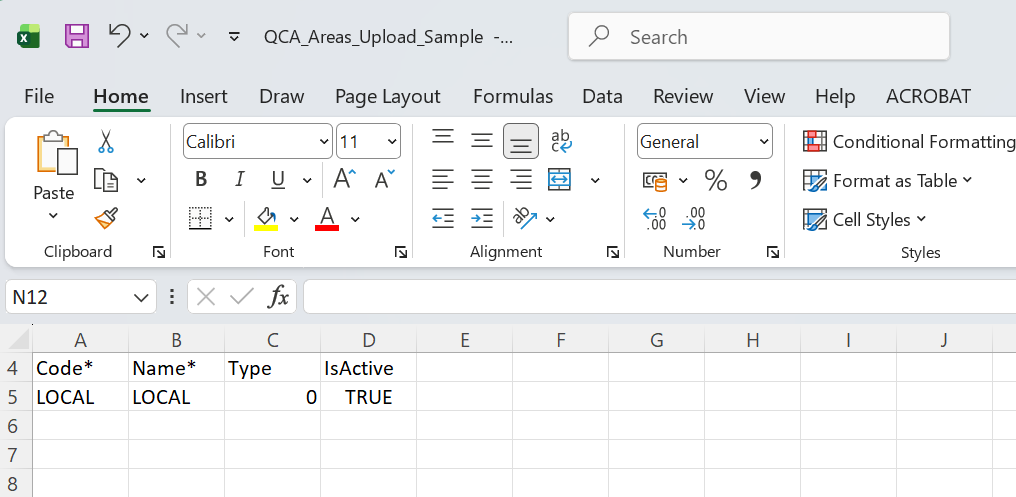
Below is Areas CSV
Code - Areas Code
Name - Areas Description/Name
Type - Can be use in Customer/Suppliers/Both
Both = 0
Customer only = 1
Supplier only = 2
IsActive - True/False
Example: below Excel, Areas and Name is Local, Type is Both, and this Area code is Active.
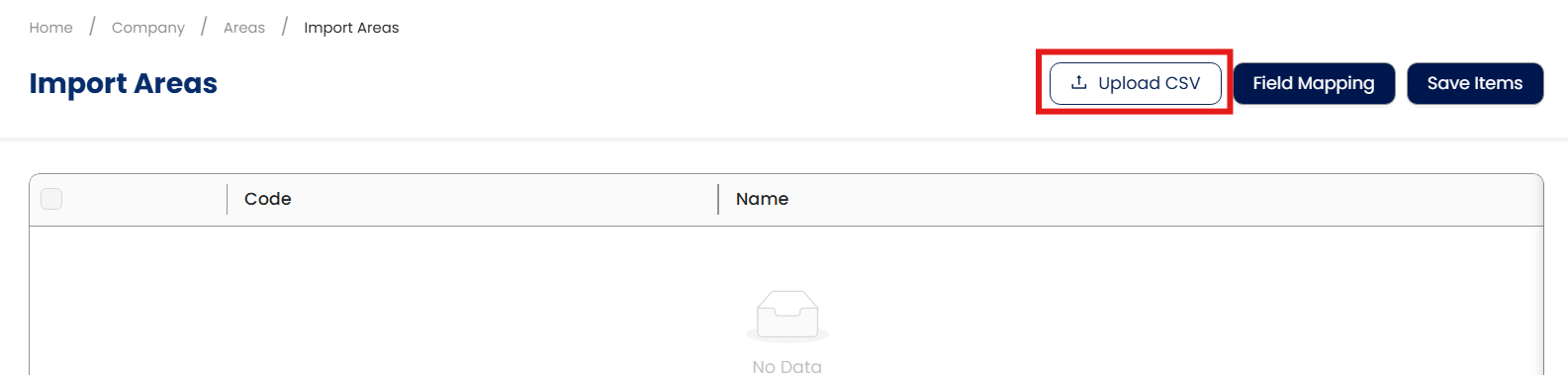
After Complete fill in the Areas CSV Template, Press Upload CSV of Import Areas.
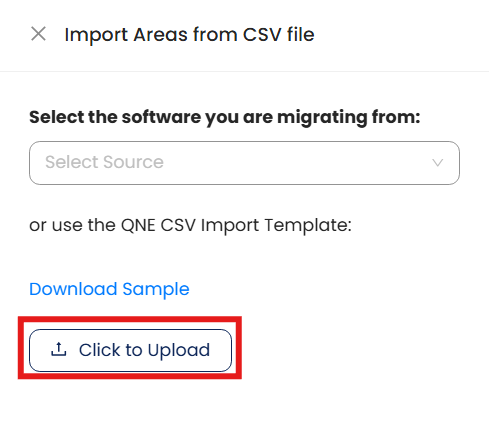
Press Click to Upload
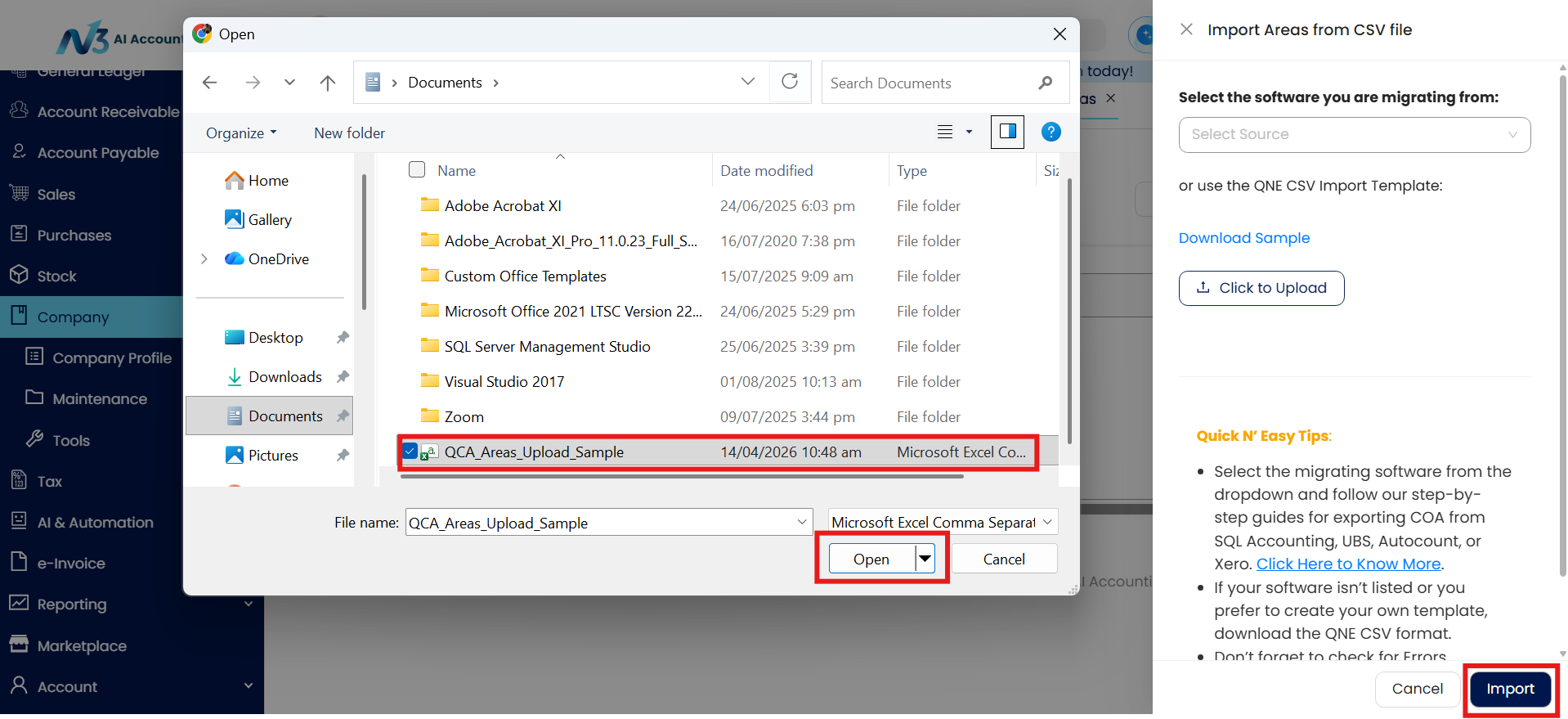
After Press Click to Upload, then Select the CSV file that user completed fill in, Press Open, Press Import
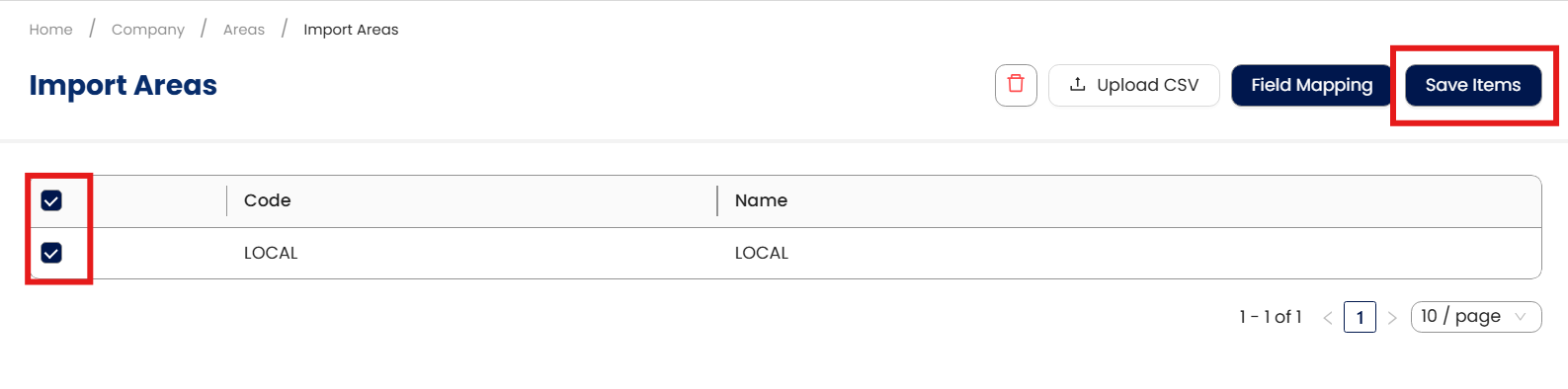
System will load the info from CSV file, tick the loaded result, Press Save Items
Done!
** Learn more about Azure Cloud
** Learn more about QNE Hybrid Cloud Software
System Scope: QNE AI Cloud Accounting / N3 AI Accounting
Was this article helpful?
That’s Great!
Thank you for your feedback
Sorry! We couldn't be helpful
Thank you for your feedback
Feedback sent
We appreciate your effort and will try to fix the article
