Overview:
The Monthly Budget module lets you plan and monitor your expected income and expenses for each month, helping you control costs and compare actual results vs. budget targets. This article will guide you on how to use Monthly Budget in QNE AI Cloud Accounting.
At the end of this article, you will be able to:
- Set up Monthly Budget in your QNE AI Cloud Accounting for Accounts, Customer and Suppliers.
- Compare your Actual Result Vs. Budget targets through Reporting
Scenario:
The management of a retail company wants to control operating expenses and monitor sales performance by comparing the actual vs budget monthly to avoid overspending. So, they decide to use the Monthly Budget module in QNE AI Cloud Accounting.
Solution:
Notes: Make sure your accounting plan has subscribed to Budget Management Module to proceed using this feature.
Setup Monthly Bugdet
Step 1: Open your QNE AI Cloud Accounting and navigate to General Ledger > Monthly Budget
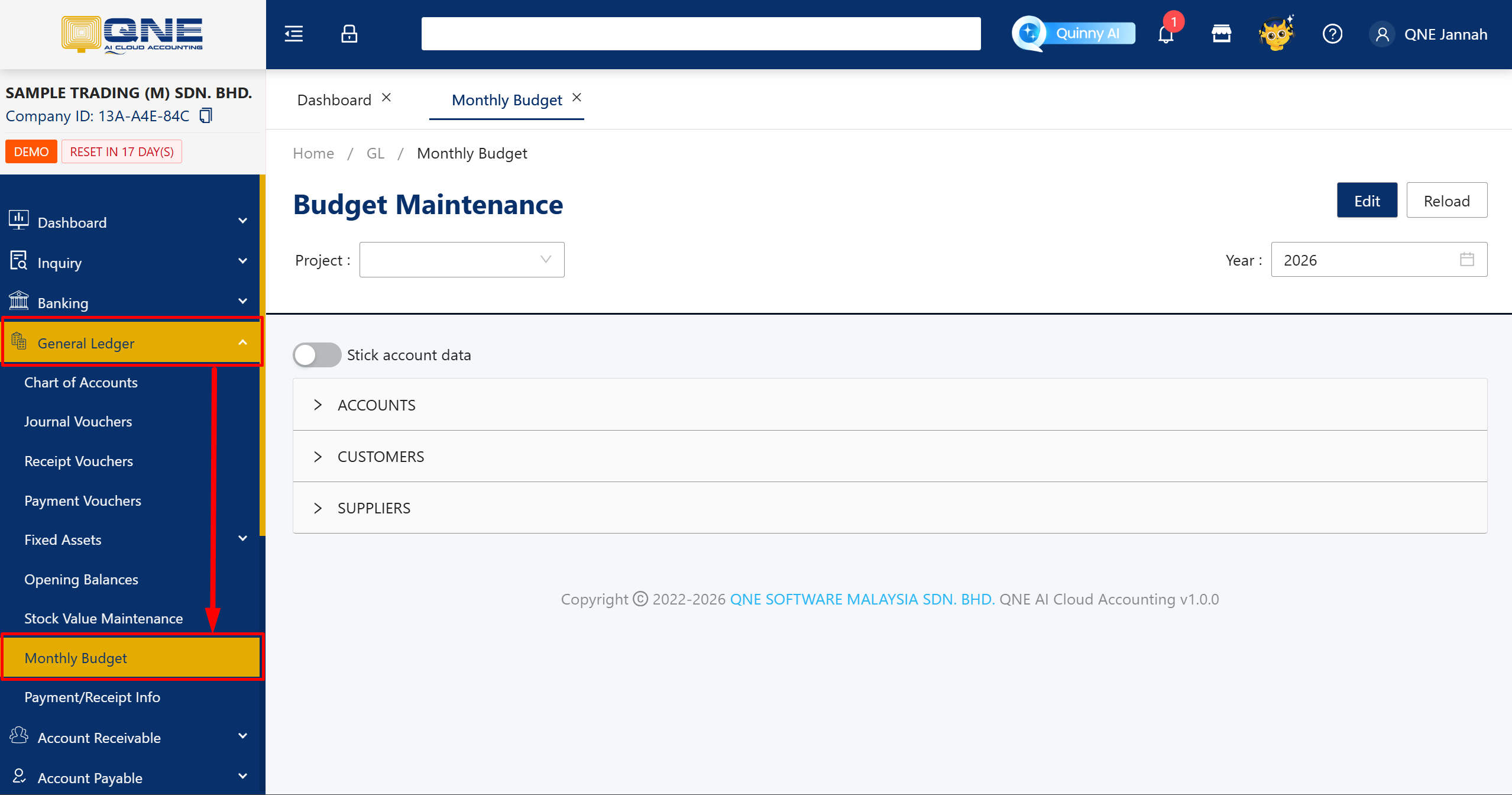
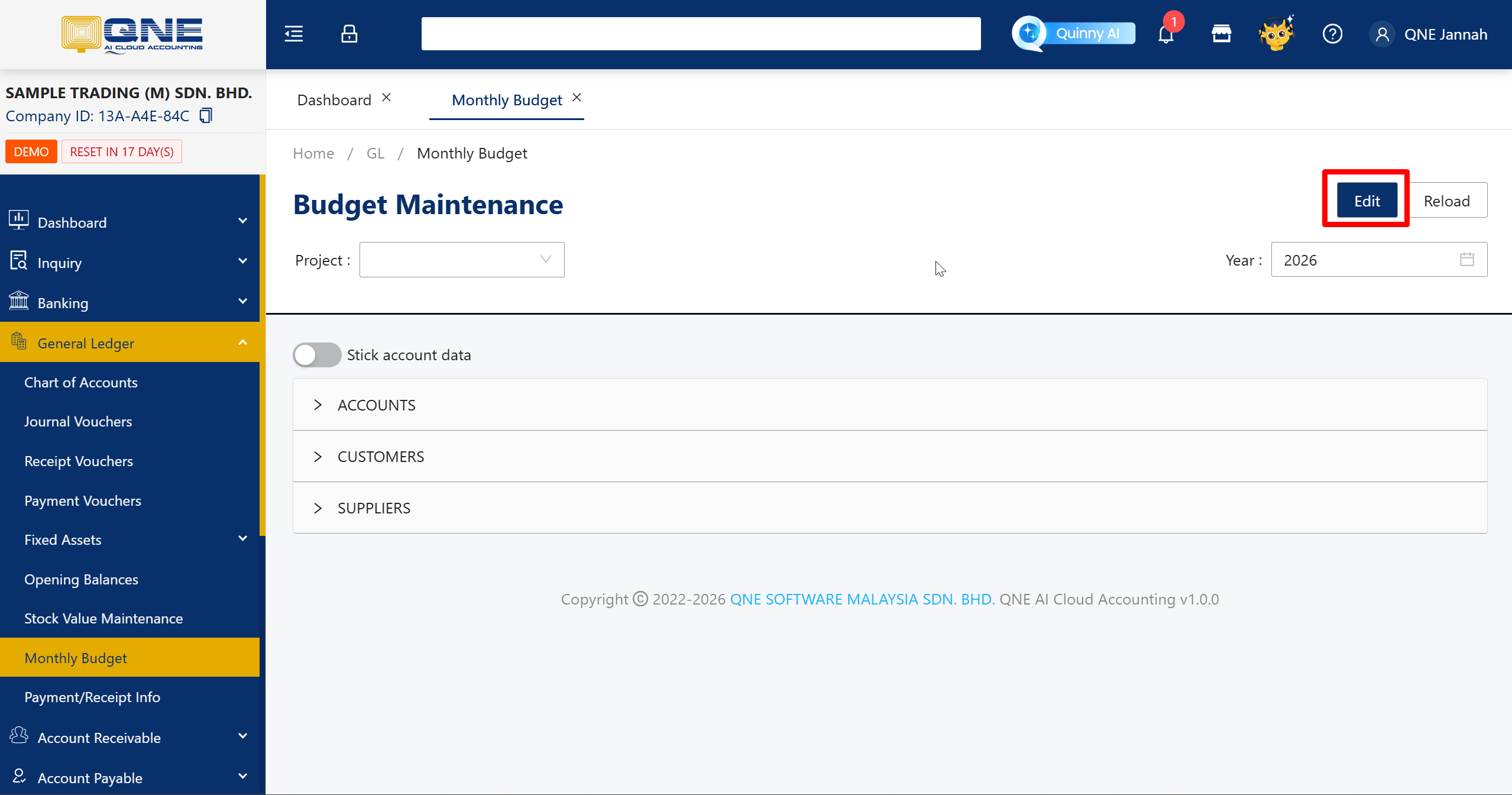
Step 2: You may change the Year if necessary. Then click Edit.
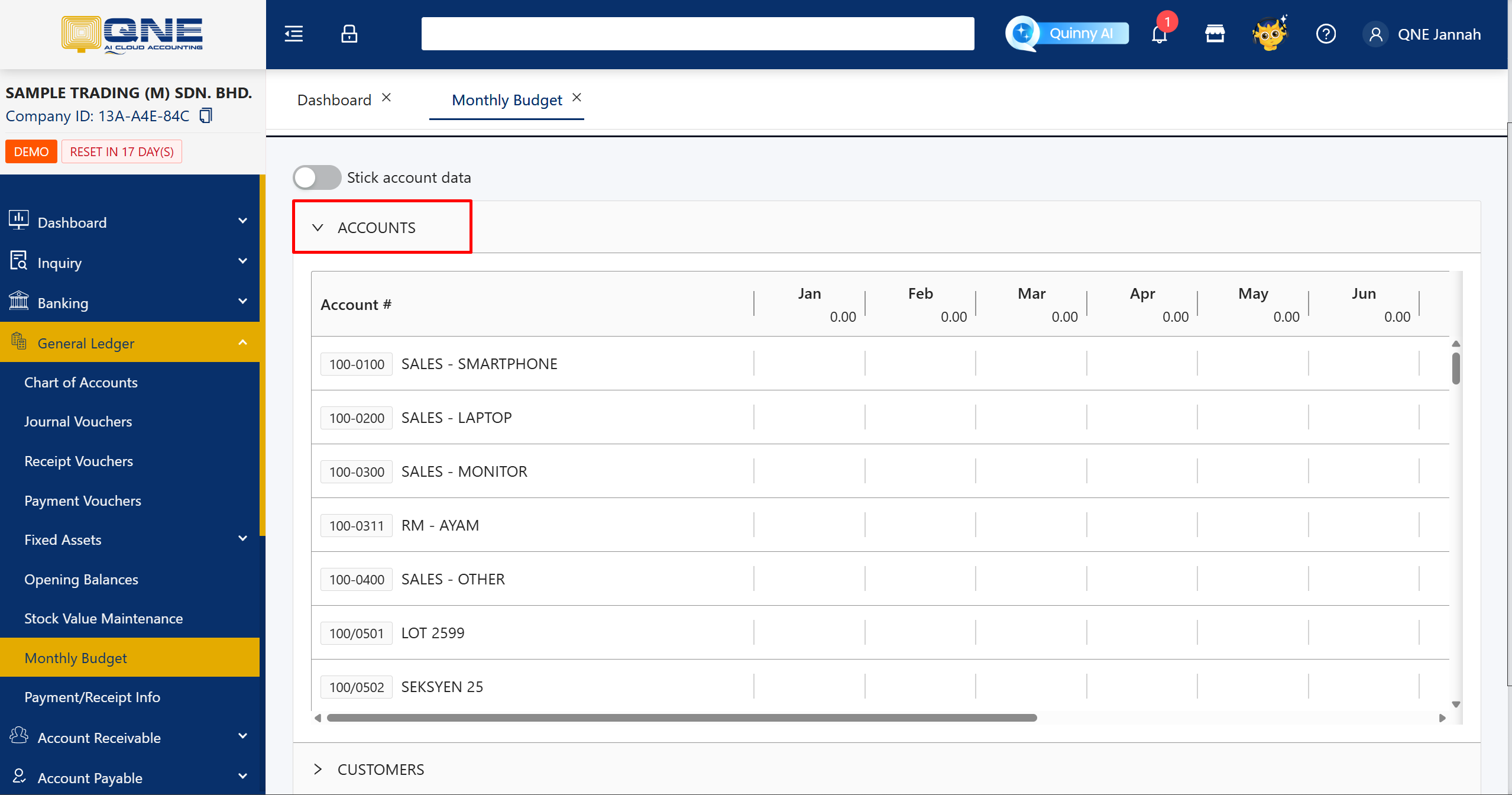
Step 3: Expand any Accounts you want to set the budget. For example, Account.
Step 4: System will display all the accounts and you are able to key in your monthly budget.
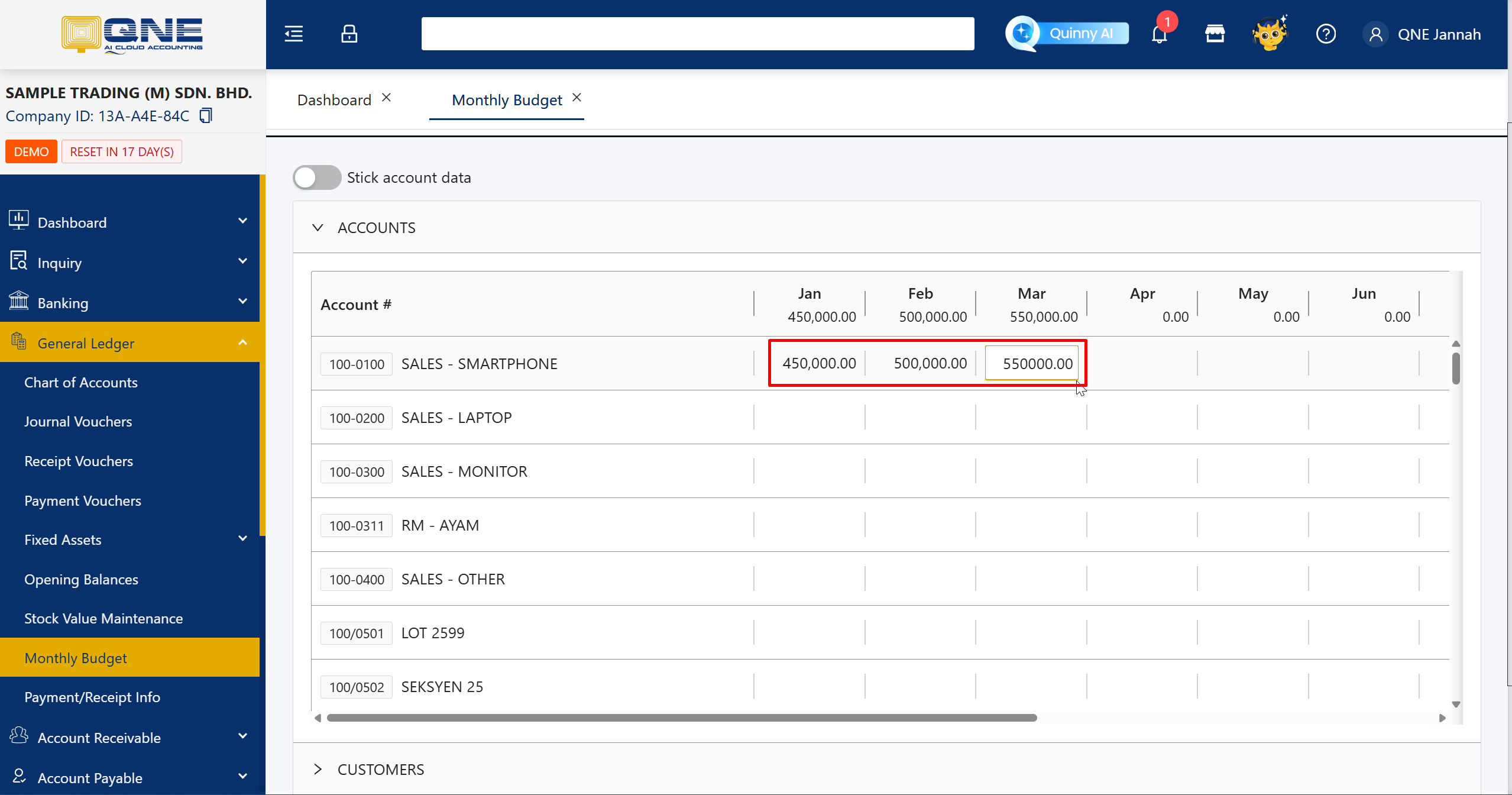
Step 5: Click Save button to save all the budget.
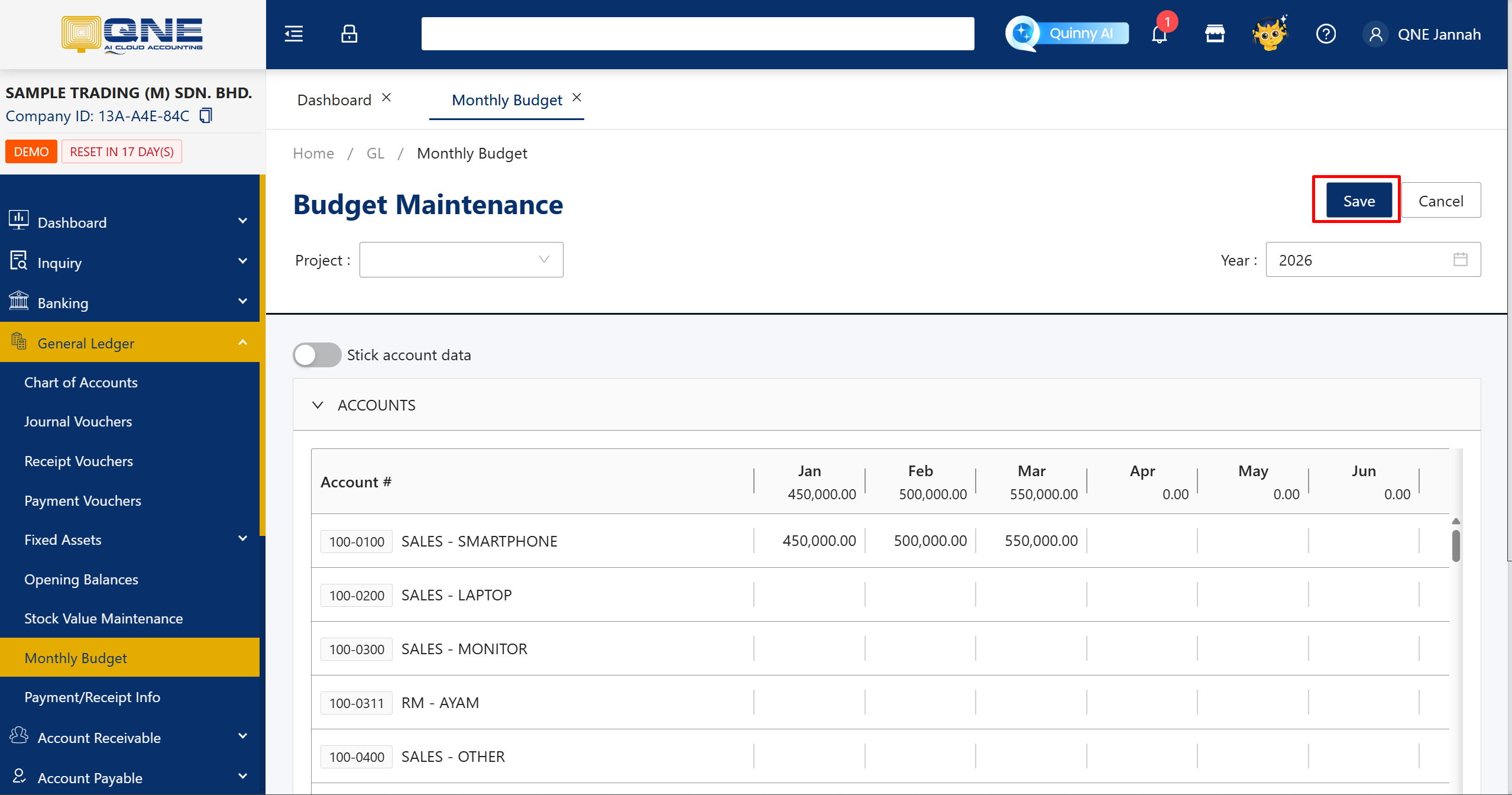
Now you are done setting up your monthly budget. Next, you need to view your current performance.
Compare your Actual Result Vs. Budget
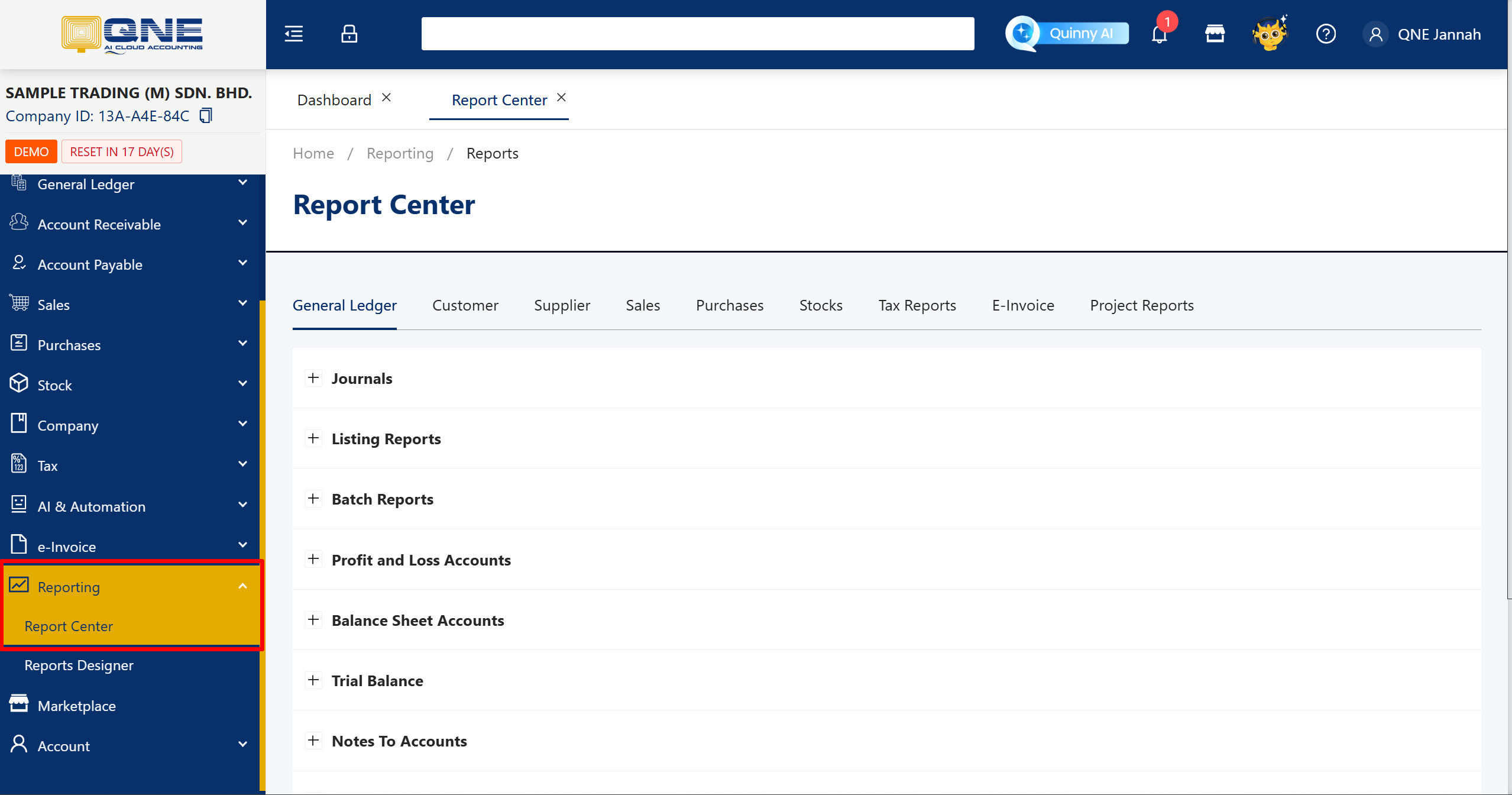
Step 1: Navigate to Reporting > Report Center
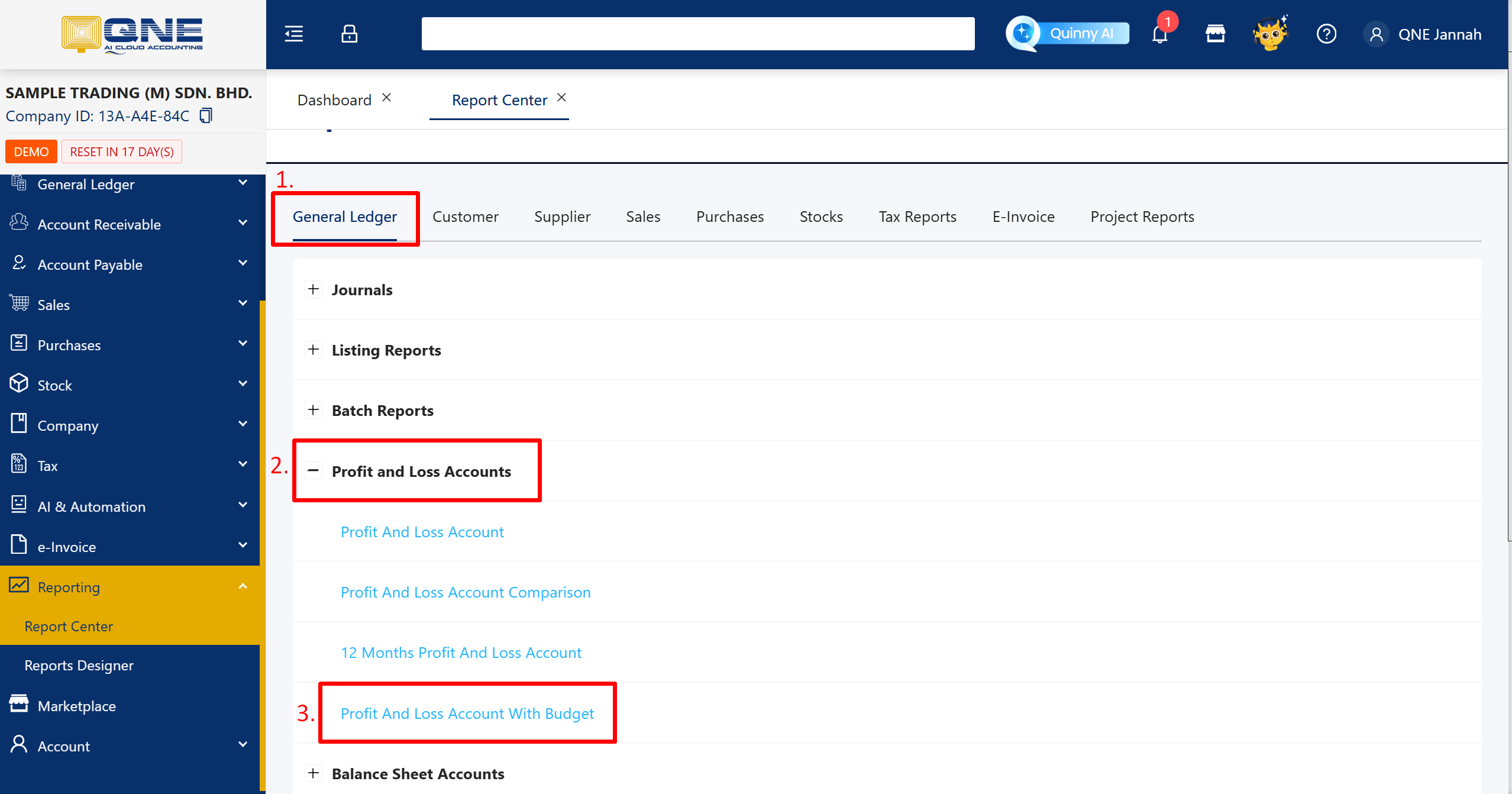
Step 2: In General Ledger Report, expand the Profit and Loss Accounts > Profit and Loss Account With Budget
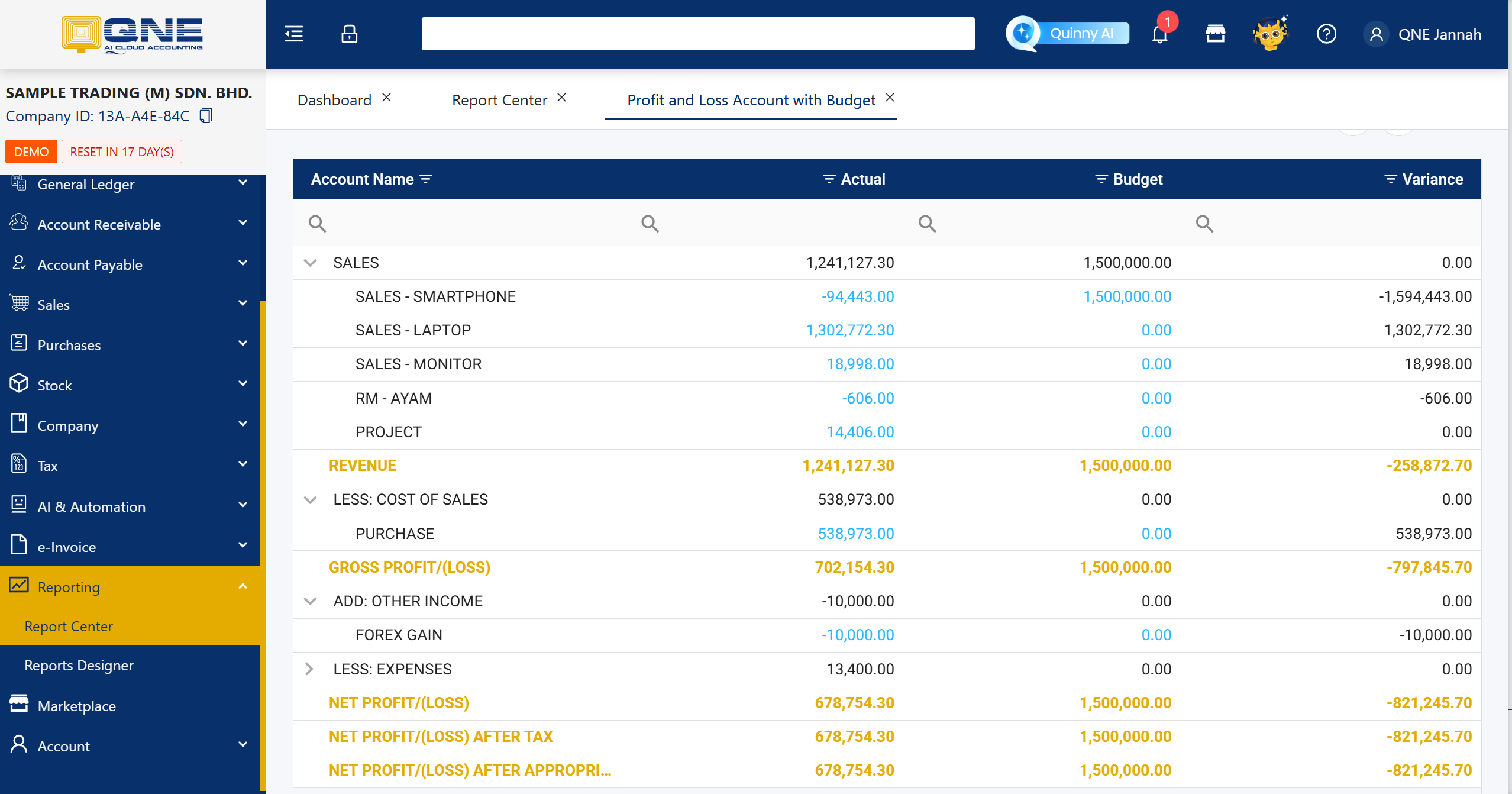
Step 3: Filter your Date or Level to show, then click Inquiry.
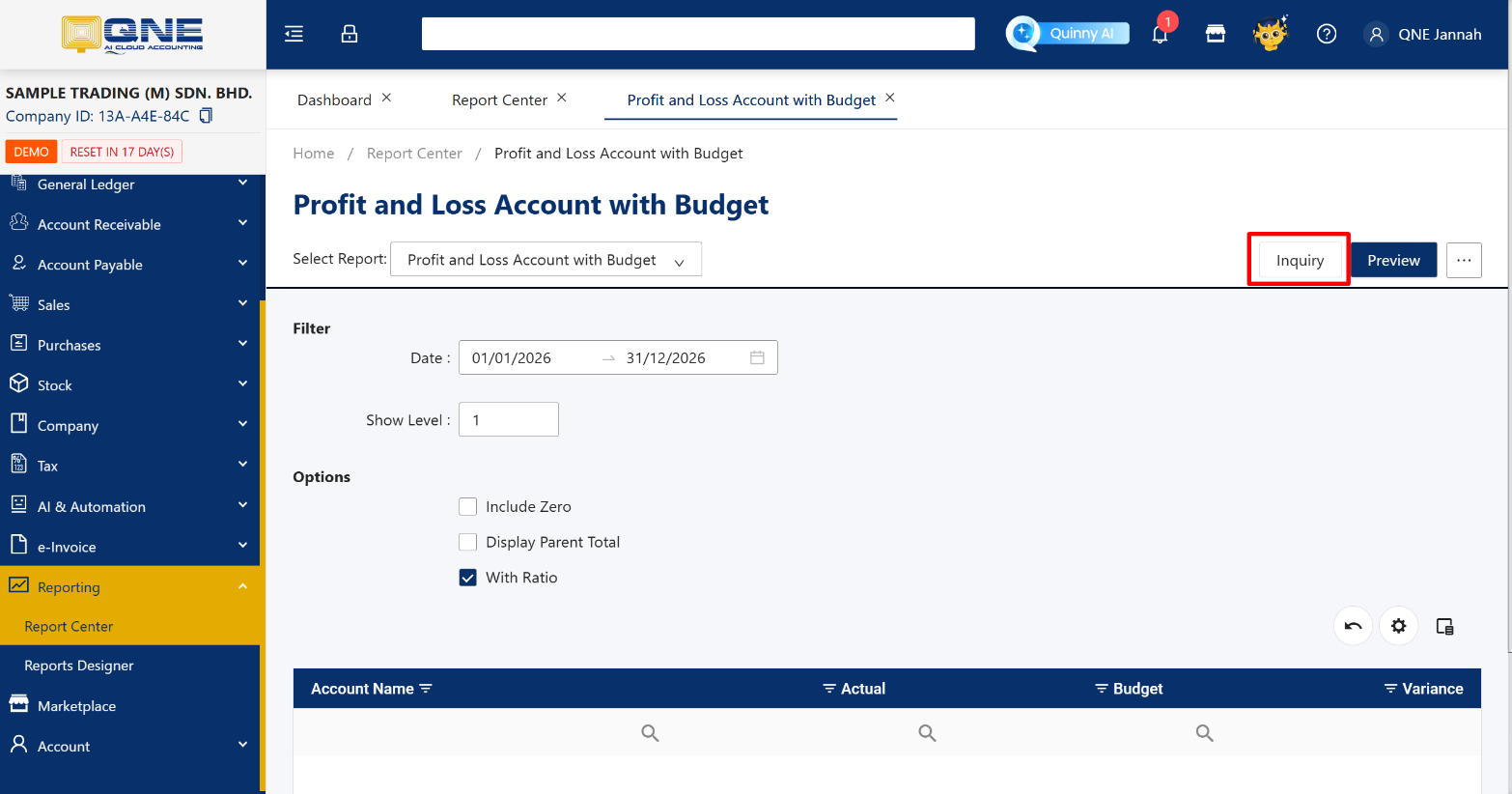
Step 4: System will show the Actual vs Budget amount and the Variance to show your performance. You may analyze the Report from the Inquiry page.
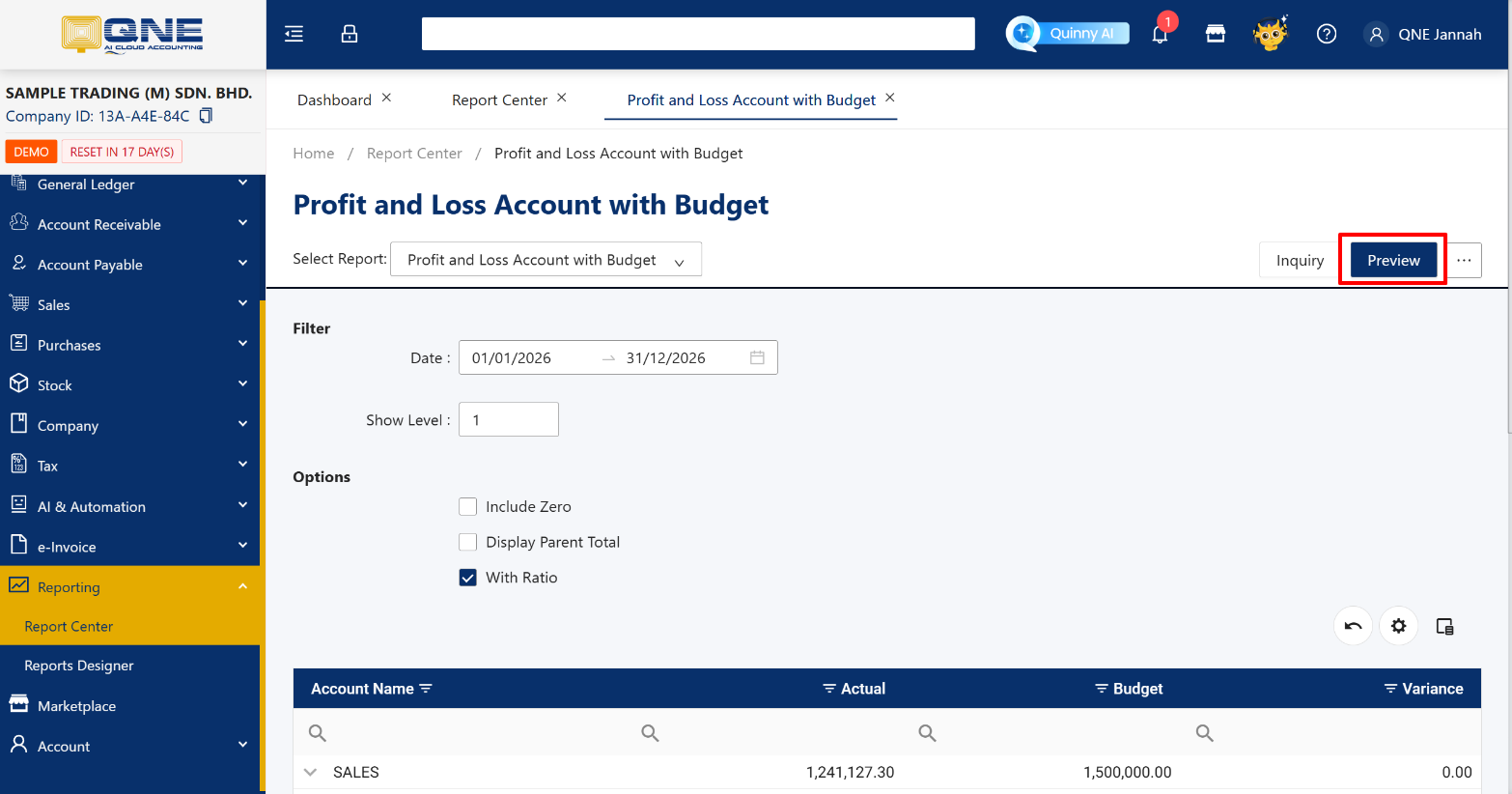
To Preview in the Report Format, you may click Preview button.
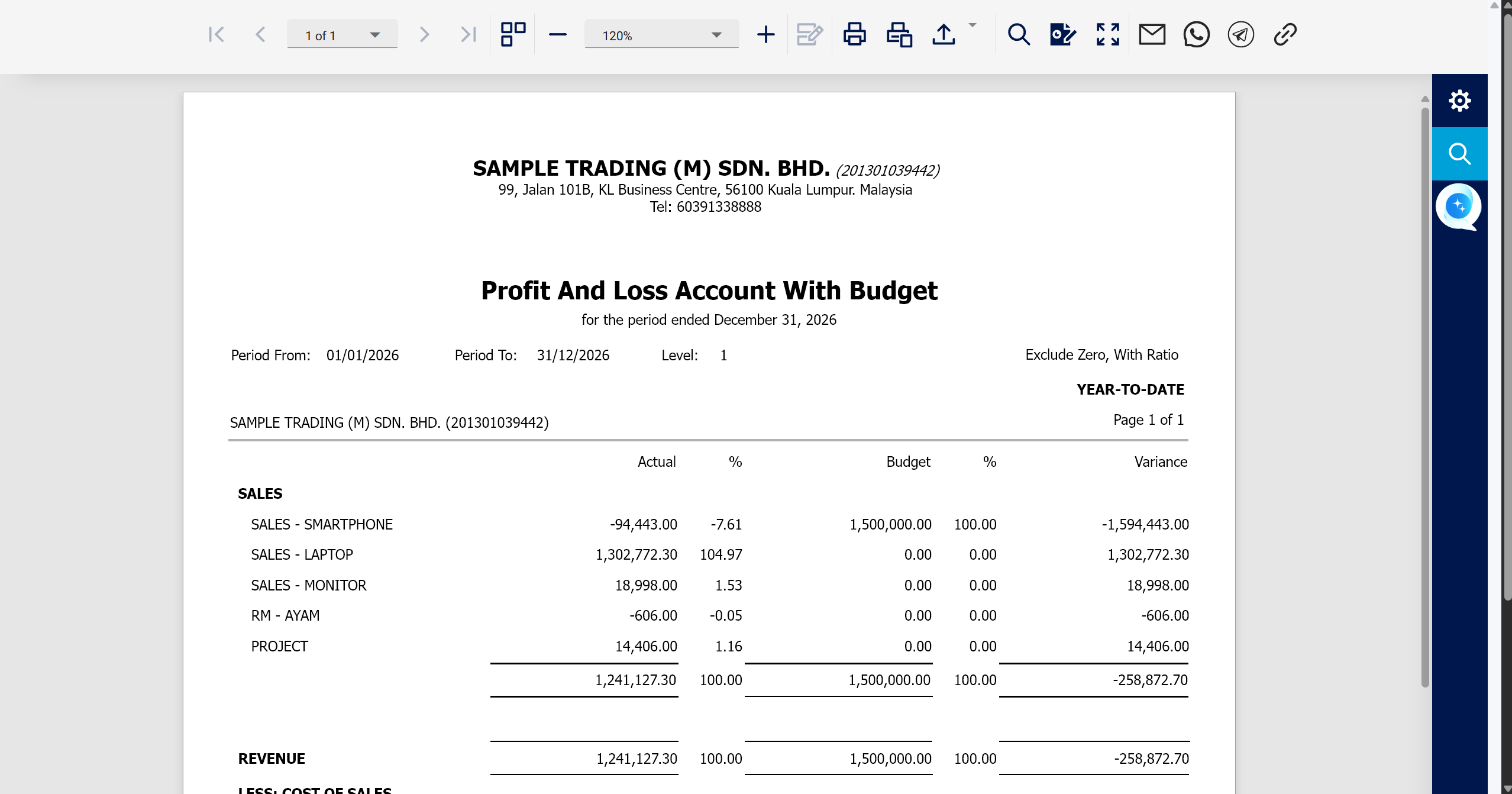
This is how the Preview report format will be displayed. You are allowed to Print, Export to PDF, XLS, XLSX, RTF. DOCX, MHT. HTML, Text or CSV file.
Now you’re already know how to setup the Monthly Budget through Monthly Budget Modules and how to compare the actual vs budget targets.
Was this article helpful?
That’s Great!
Thank you for your feedback
Sorry! We couldn't be helpful
Thank you for your feedback
Feedback sent
We appreciate your effort and will try to fix the article
