Solution:
1. After logging in to QNE Cloud Payroll, navigate to Reports > Management Reports > Statutory Transfer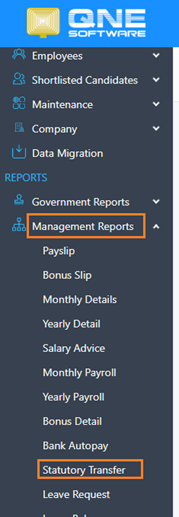
2. Click the Calendar button on CP8D > Select the Year of CP8D that want to submit > Click Download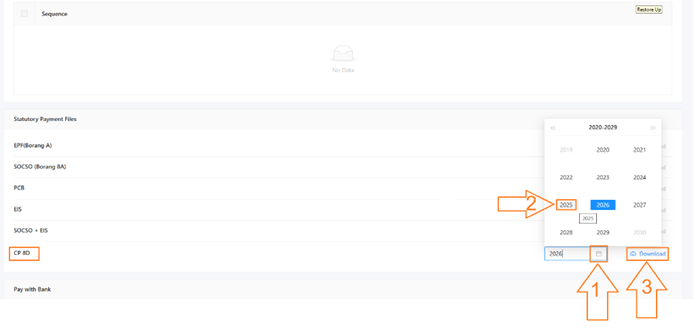
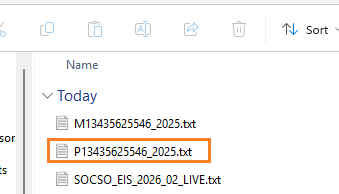
3. 2 files are downloaded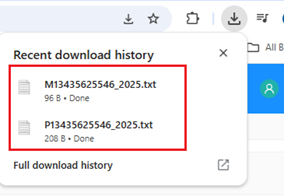
4. Login to LHDN MyTax Portal(https://mytax.hasil.gov.my/) via MyKad/MyPR/MyKas No.
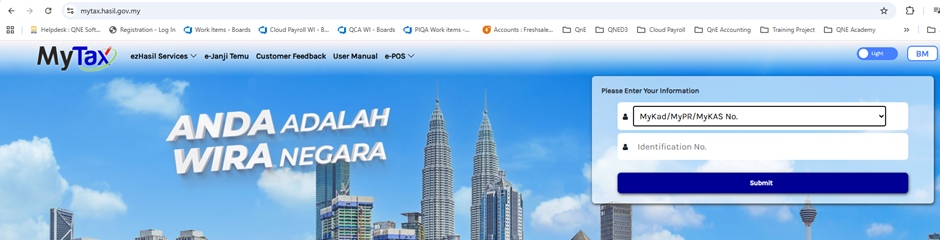
Notes: Please note that this should be your company director identification number
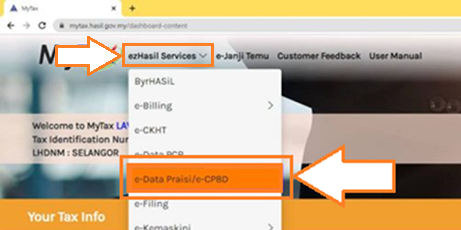
5. On the homepage, click on ezHasil Services > e-Data Praisi/e-CP8D to proceed
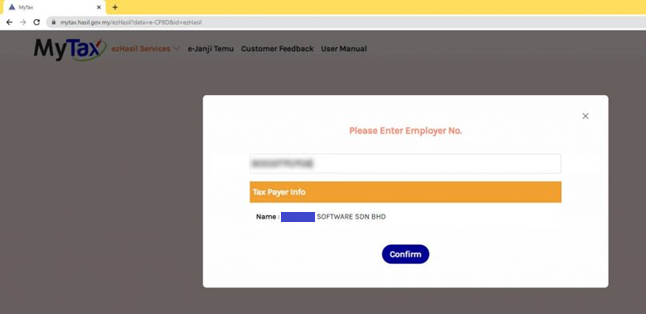
6. Enter your Employer Number and check if it’s your company name, click Confirm to proceed
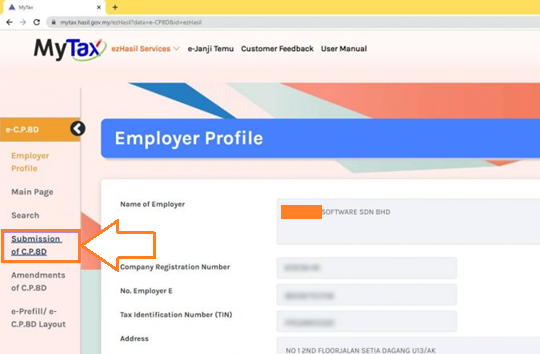
7. Click on submission of CP8D on the left panel
8. Upload C.P.8.D
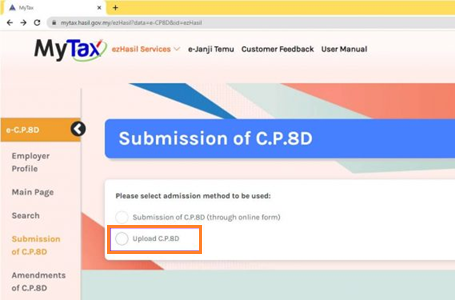
9. Upload the txt file that filename start with “Pxxxx_20XX”
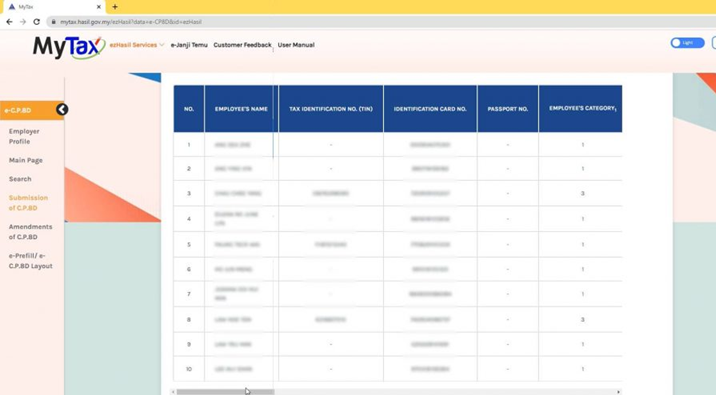
10. Once uploaded, all the employee information and figure will be filled up automatically
11. Fill up employer declaration information > Click Confirm & Submit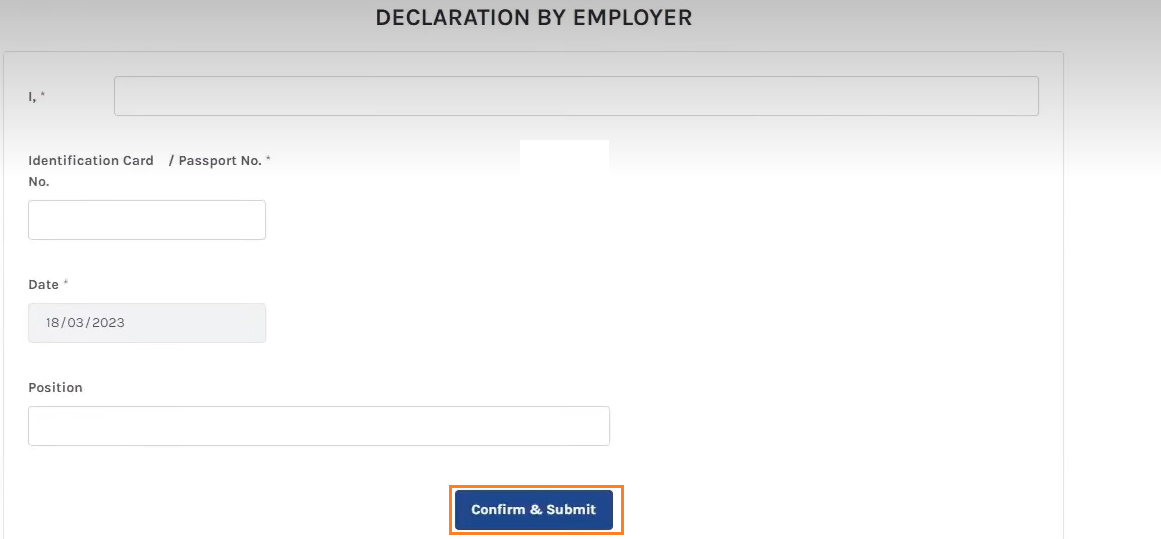
12. After completing the submission for E-Data Praisi/e-CP8D, you may continue with the e-filling submission.
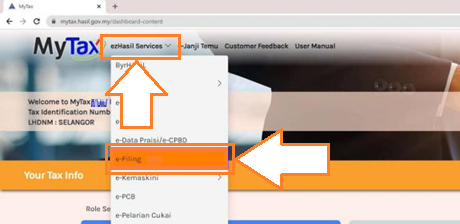
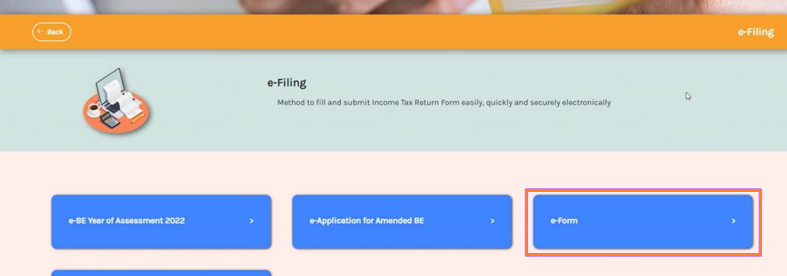
13. Click on ezHasil Services > e-Filling
14. Click on e-Form
15. Locate e-E > Select the Tax Year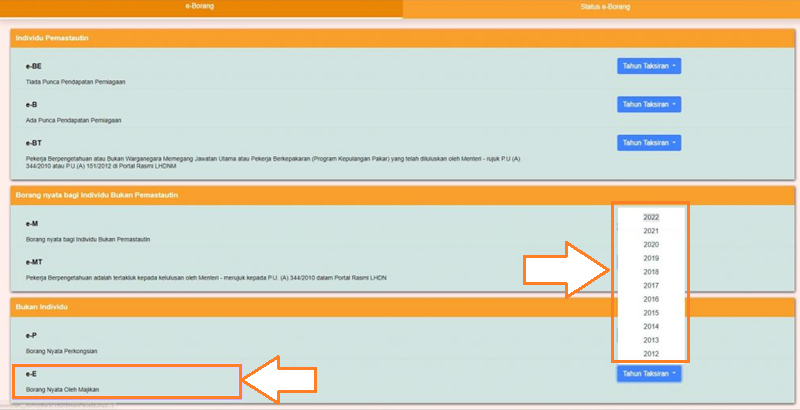
16. Fill up company income tax number and click on Proceed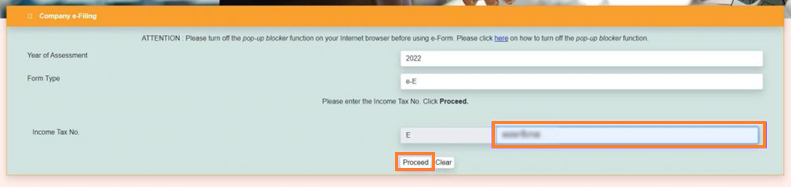
17. Locate “Cara pengemukaan C.P.8.D” > Choose “Melalui e-Data Praisi/e-CP8D” > Click Seterusnya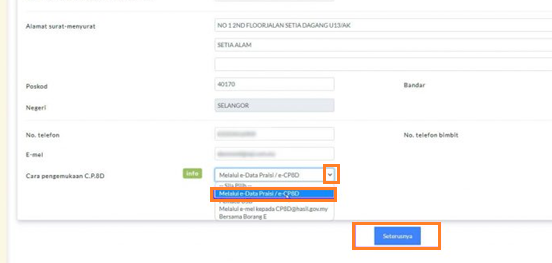
18. Keyin the total number for employee on your company > Click Next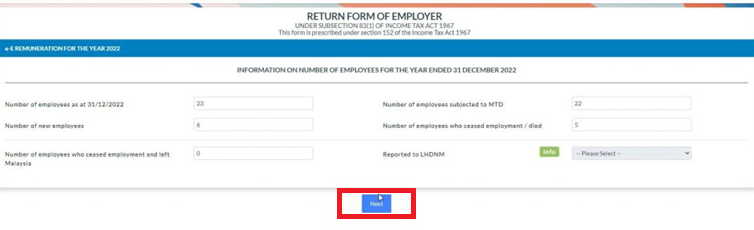
19. As the e-CP8D has been successfully uploaded, click Next to continue.
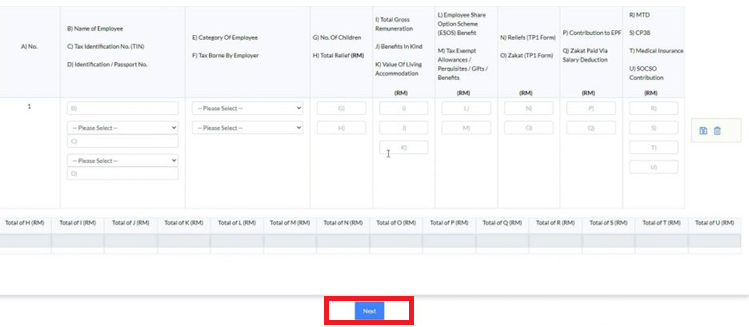
20. Fill up designation > Click Sign and Send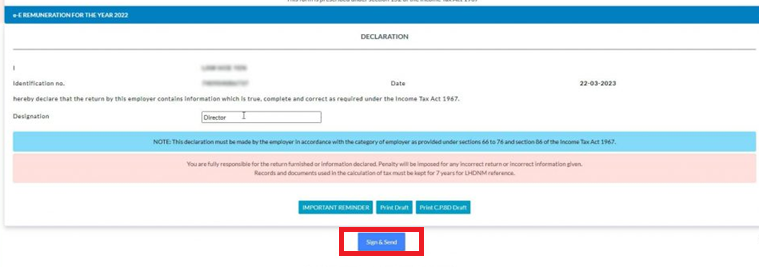
21. Keyin identification number and password > Click Sign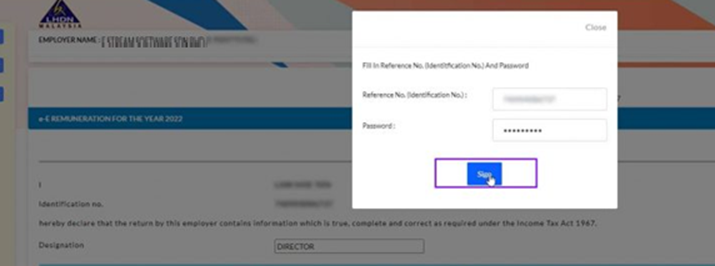
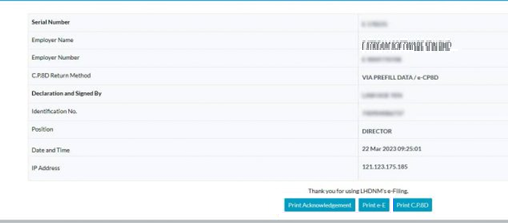
22. Submission done. You can print out the acknowledgement as a copy if you want
Was this article helpful?
That’s Great!
Thank you for your feedback
Sorry! We couldn't be helpful
Thank you for your feedback
Feedback sent
We appreciate your effort and will try to fix the article
