Overview:
This guide explains how to connect N3 AI Accounting to Claude using the Model Context Protocol (MCP).
Once the connection is successfully configured, users can interact with their N3 AI Accounting data directly through Claude using natural language. This allows users to retrieve accounting information and perform supported tasks without manually navigating through the accounting system.
Scenario:
Users who want to leverage Claude AI to access and interact with their N3 AI Accounting system through MCP.
For example:
- Retrieve Accounting Information: Ask Claude to retrieve customer, supplier, stock item or transaction details from N3 AI Accounting.
- Generate Reports: Request Claude to retrieve relevant accounting data and help summarize business performance.
- Check Transactions: Ask Claude to look up specific transactions, such as sales invoices or cash sales.
- Simplify Daily Tasks: Use natural language to retrieve information instead of manually searching through different modules in N3 AI Accounting
Solution:
- MCP Connection is available to all users
Navigate to AI & Automation > Quinny AI > MCP Connections.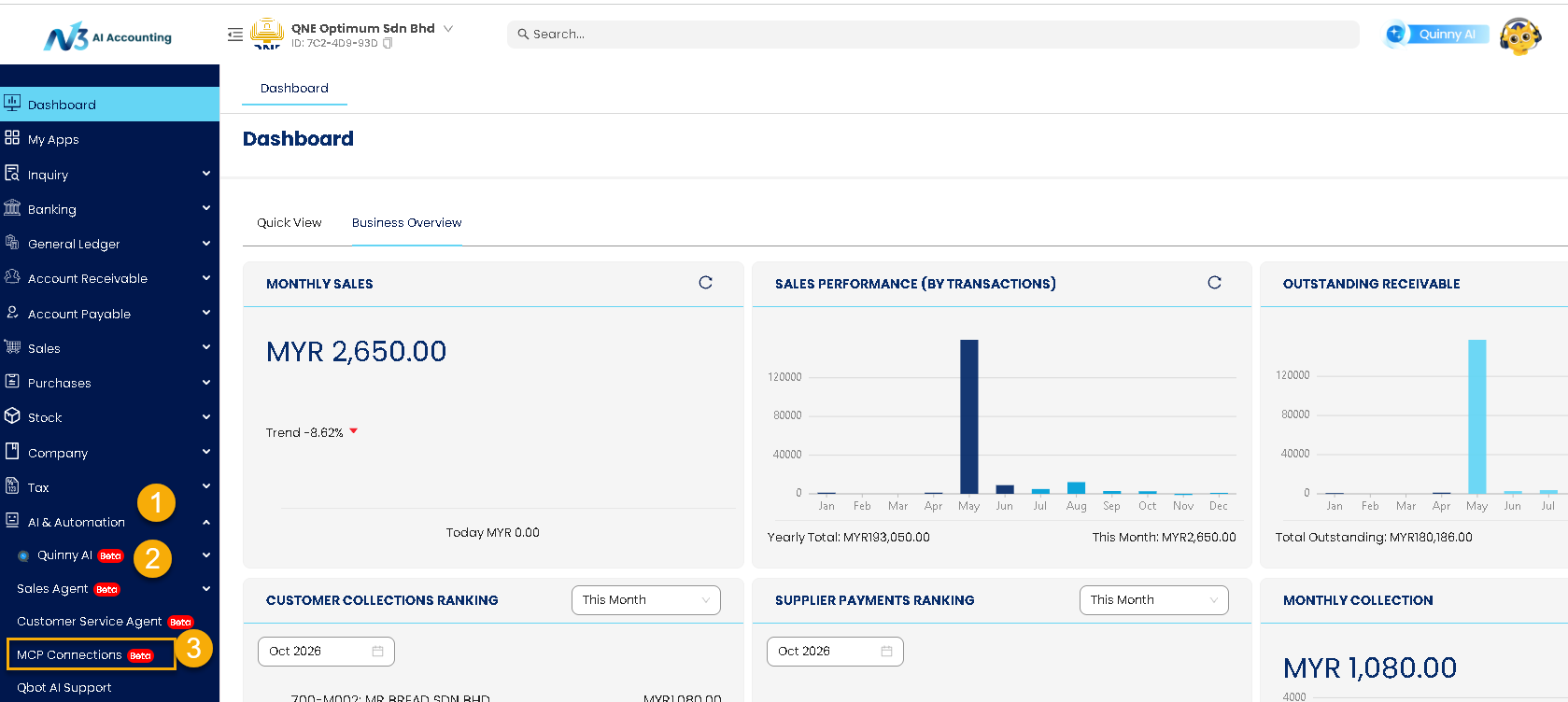
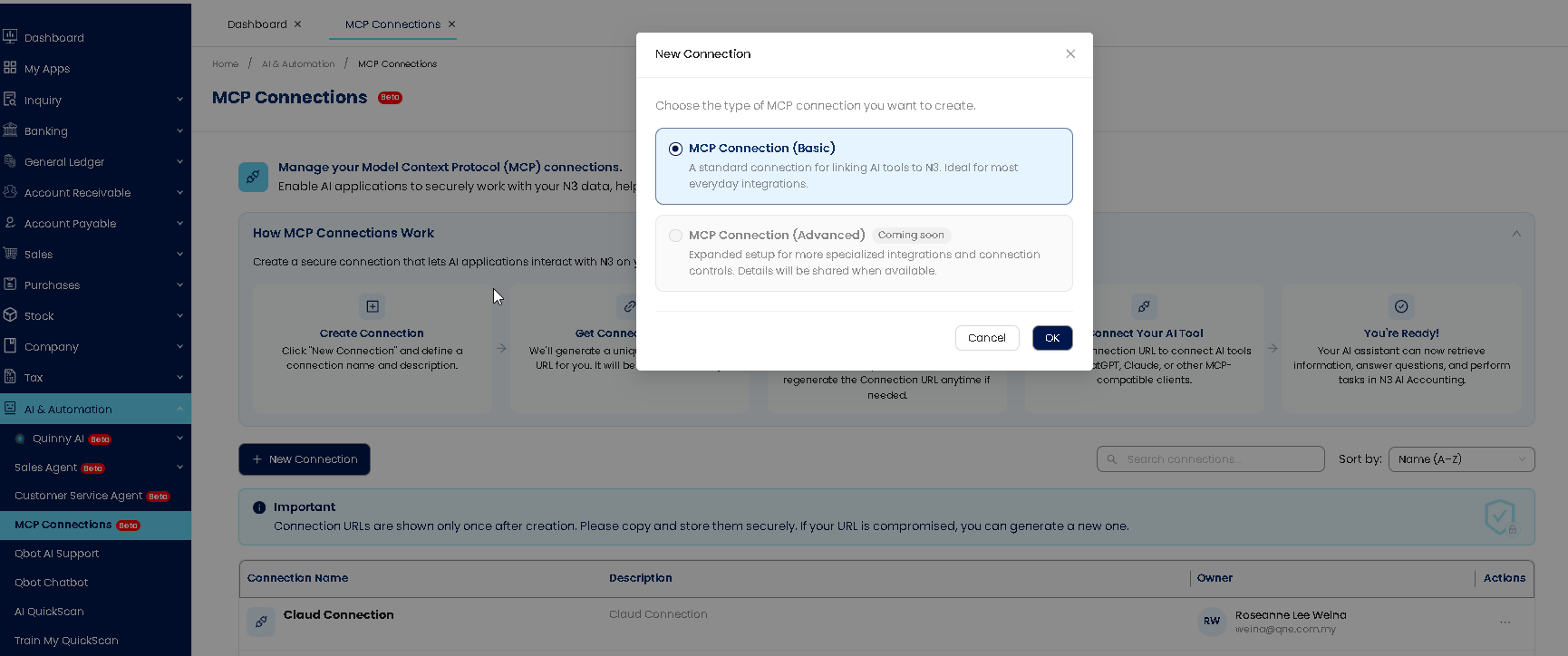
- Click on MCP Connection > OK
3. Enter your preferred Connection to identify the connection. Then click “Create Connection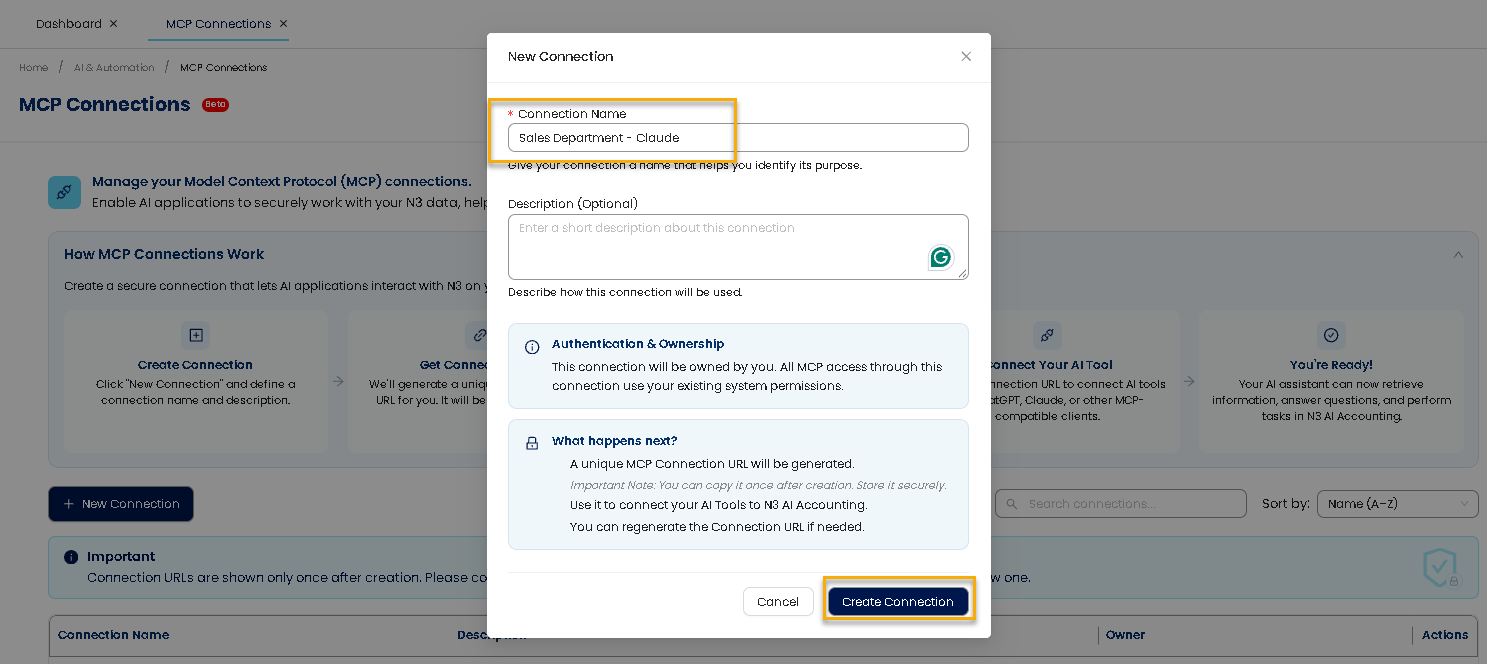
4. After creating the connection, the system will generate an MCP Connection URL. Copy the MCP Connection URL.
You will need this URL when setting up the connection in Claude.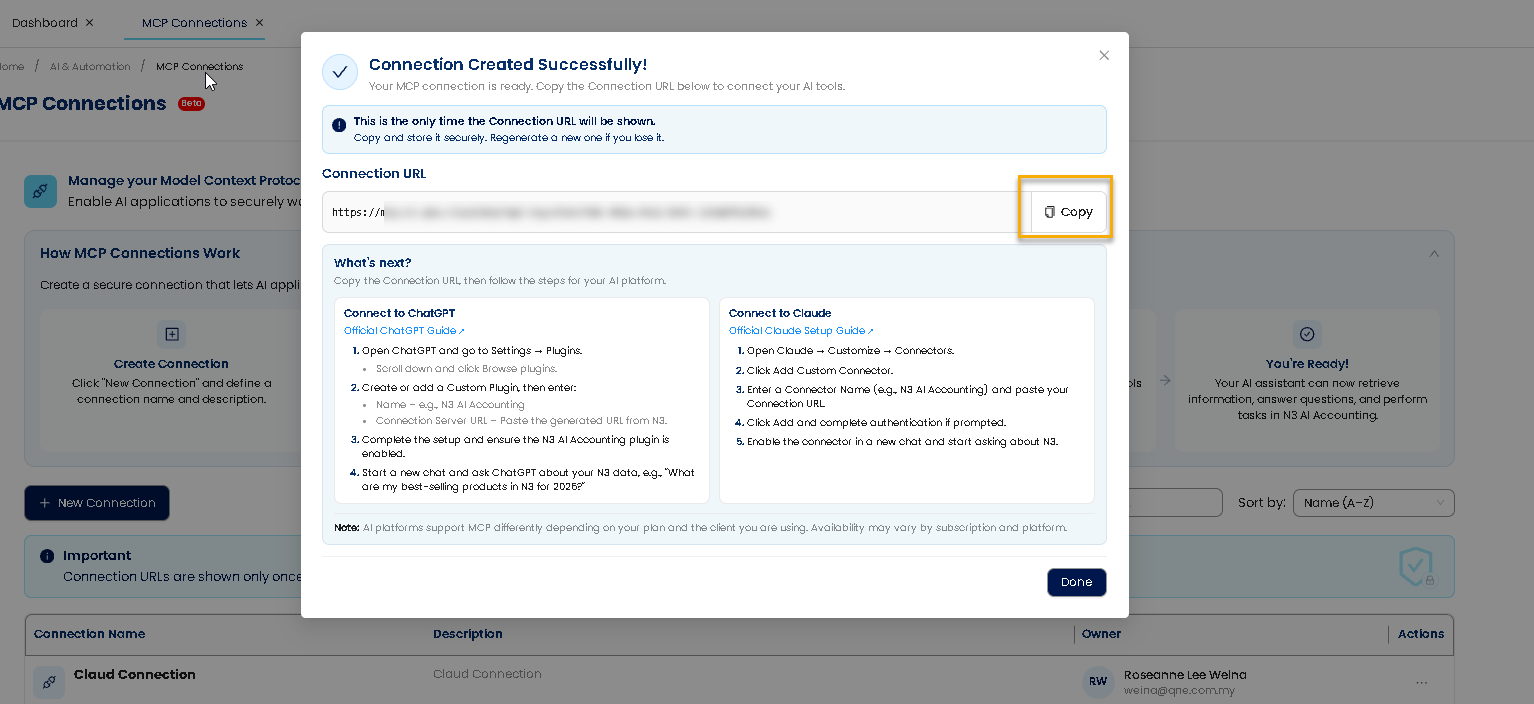
5. Log in to your Claude account > Click your Profile icon at the bottom-left corner of the screen > Select Settings from the menu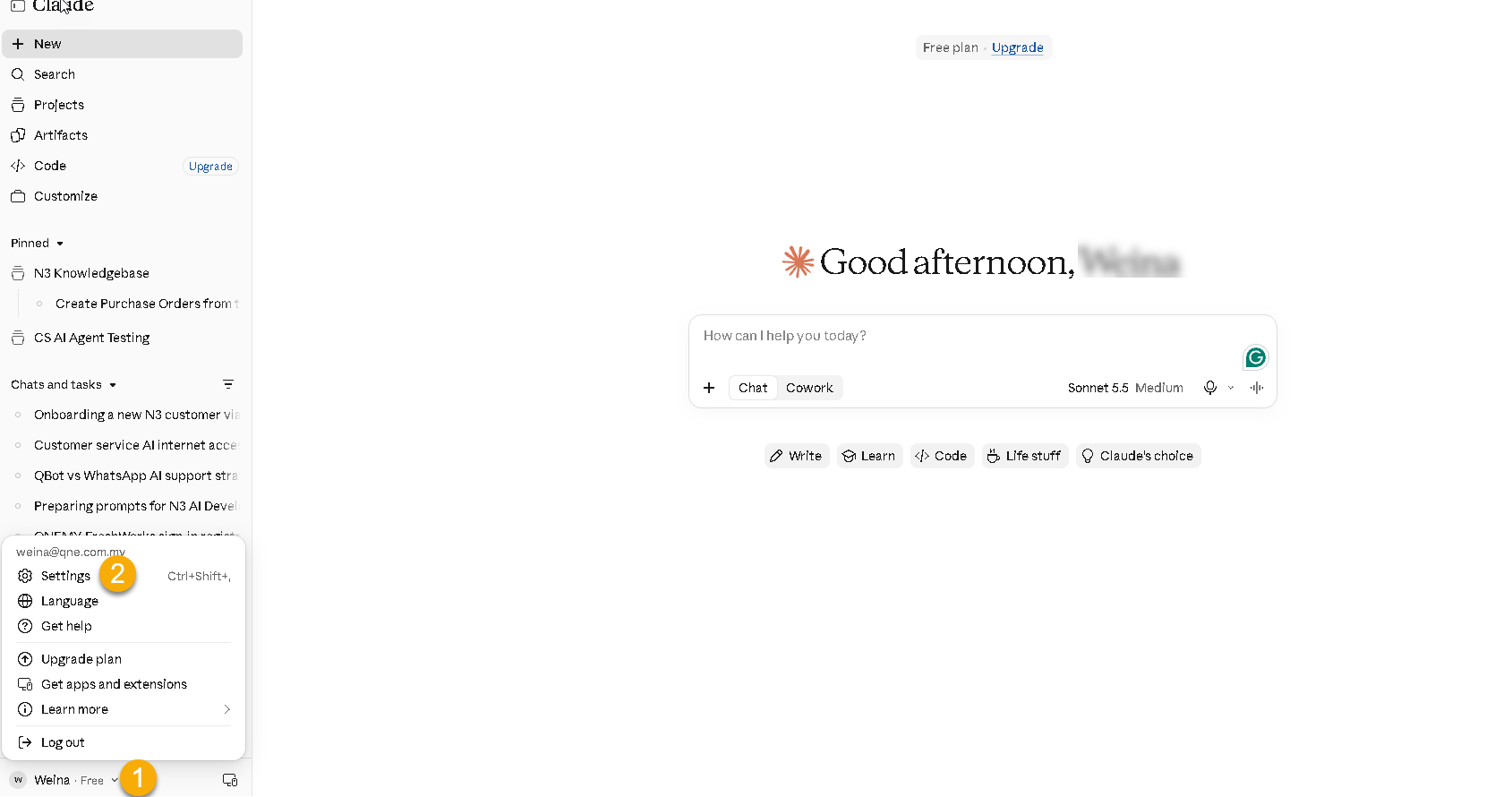 6. In Claude Settings, navigate to Customize > Add Custom Connector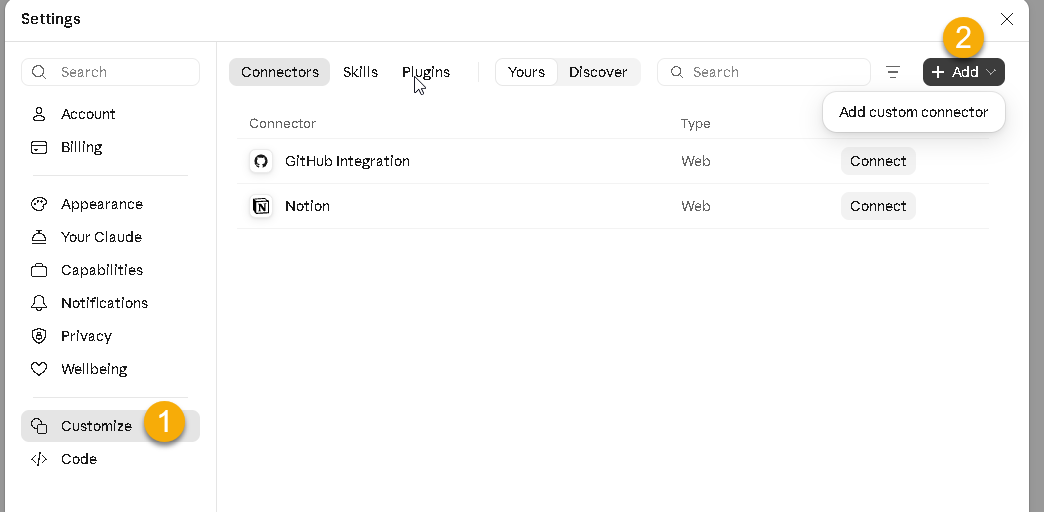
7. Enter a name for your connector then paste the MCP Connection URL that copied from N3 AI Accounting (Step 4) into the URL field.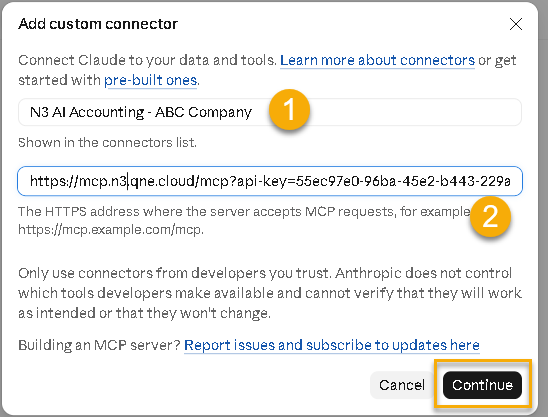
8. When prompted to select an authentication method, choose No sign-in and click Add to complete the connector setup.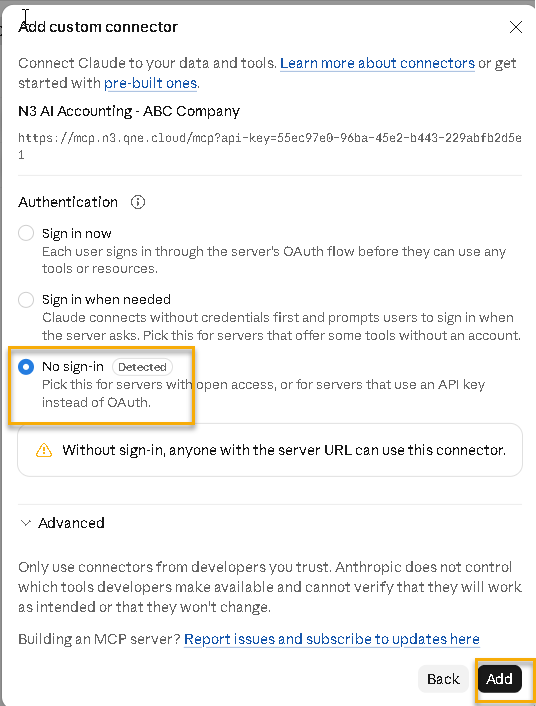
9. You’re now connected to N3 AI Accounting. Click Connect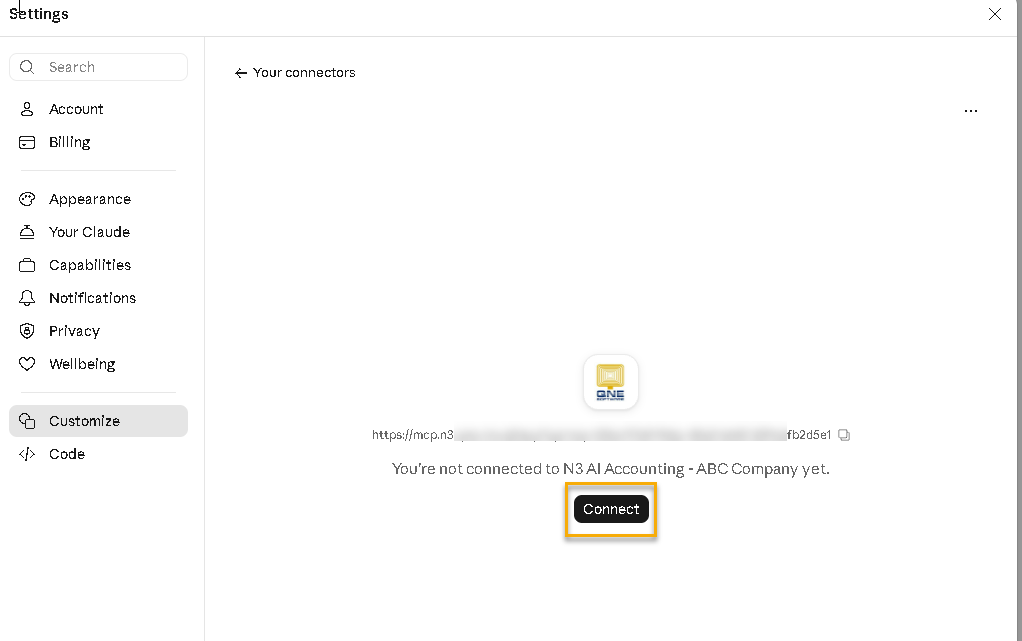
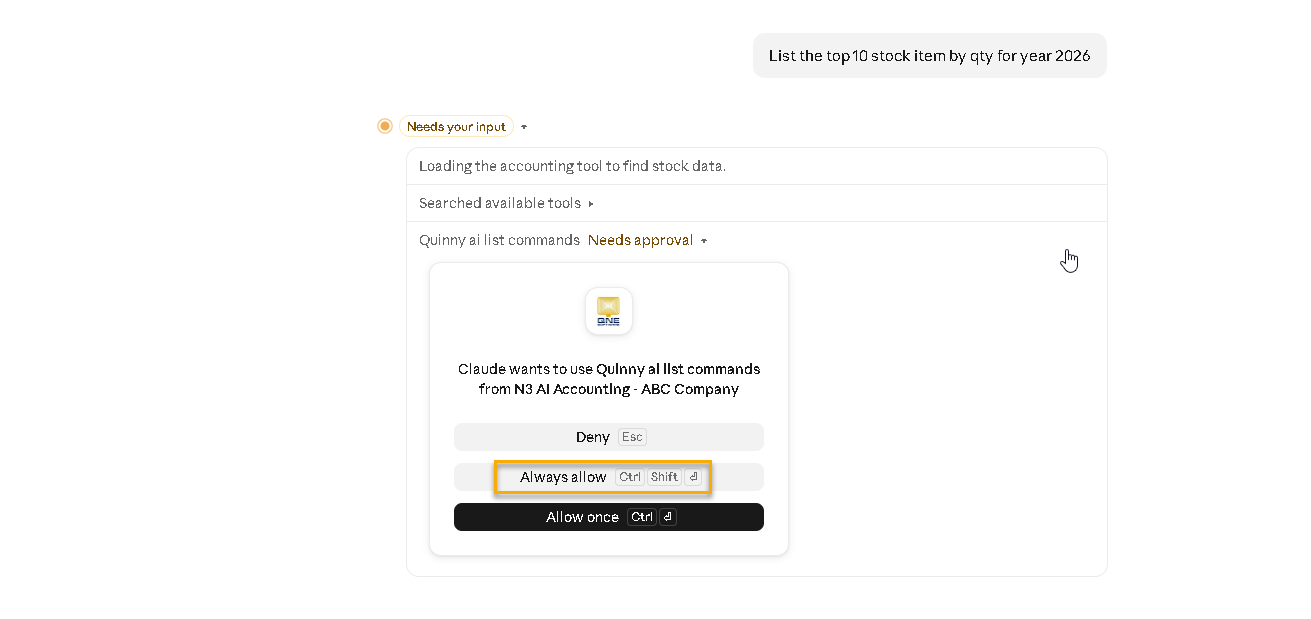
10. You can start to ask question. If Claude prompts you to grant permission to access N3 AI Accounting, select Allow once or Always allow, depending on your preference.
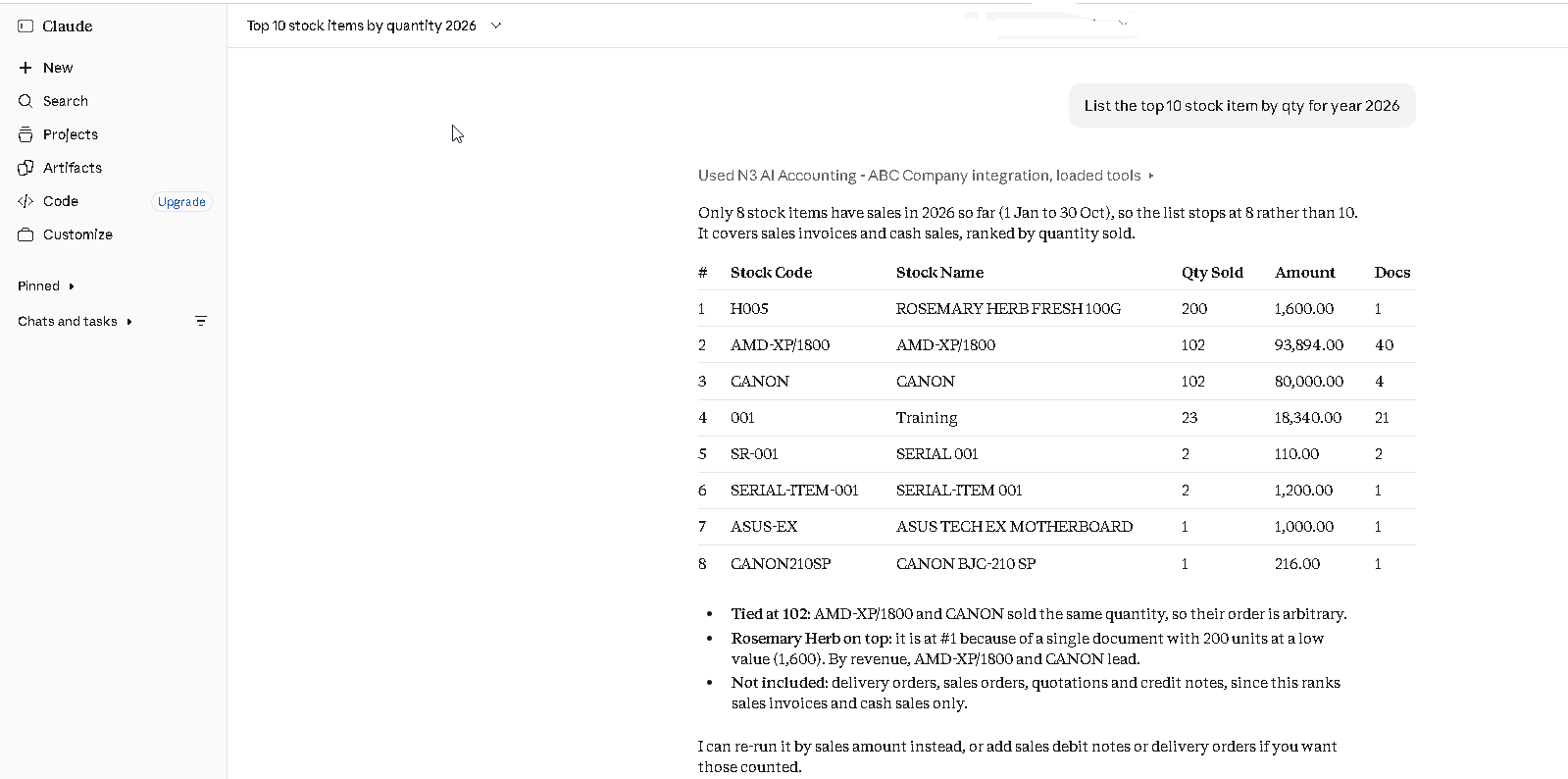
11. Claude will process your request and retrieve the relevant information from N3 AI Accounting.
Configure User Access Rights
To control which users are allowed to create and manage MCP Connections, you can configure the access rights through the user role settings.
Enable the setting if the user able to view, create, update, delete, import and export. 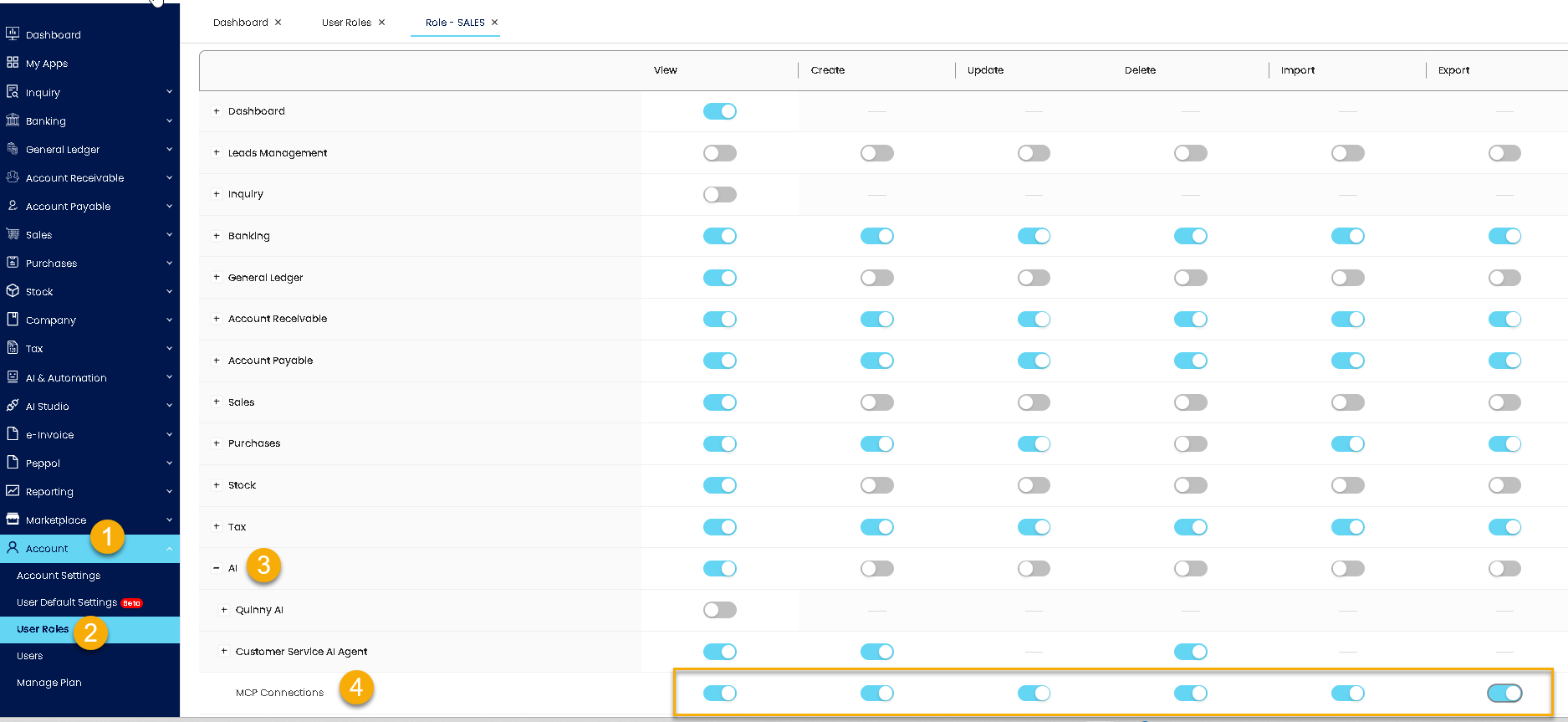
Was this article helpful?
That’s Great!
Thank you for your feedback
Sorry! We couldn't be helpful
Thank you for your feedback
Feedback sent
We appreciate your effort and will try to fix the article
