Overview:
Many list screens, such as Bank Reconciliation, display records in a grid with an optional footer bar. The footer allows you to calculate column summaries such as Sum, Min, Max, Count, and Average without exporting data or performing manual calculations.
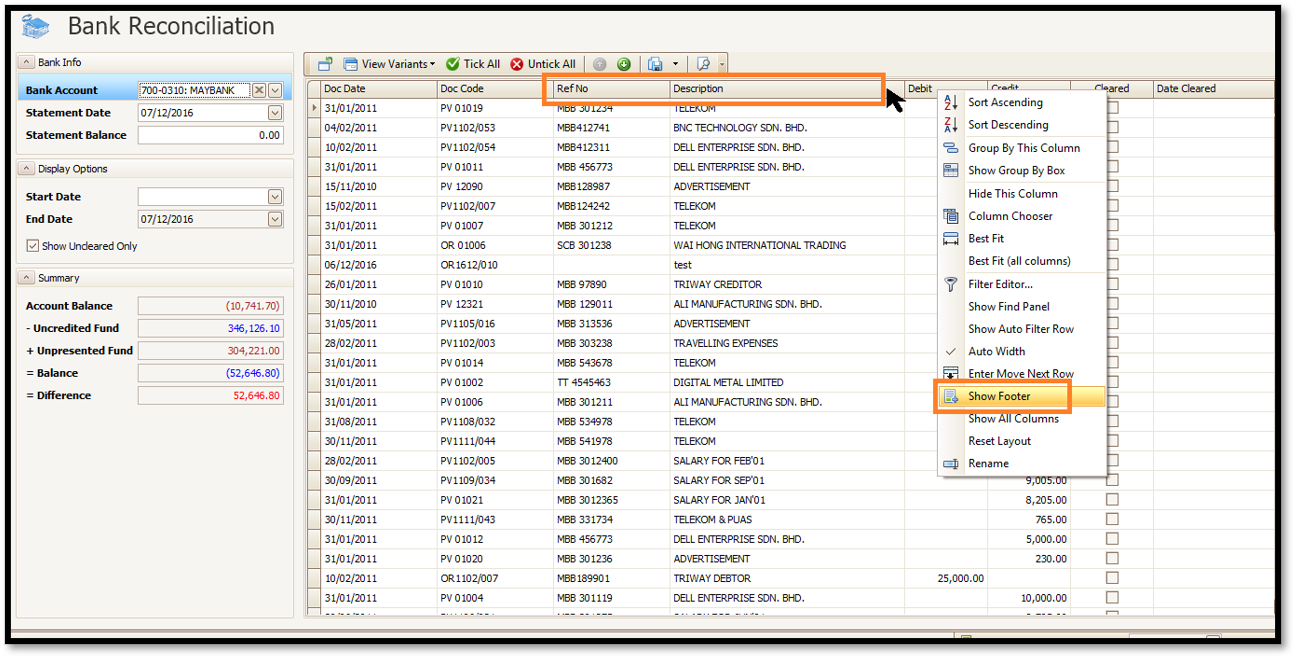
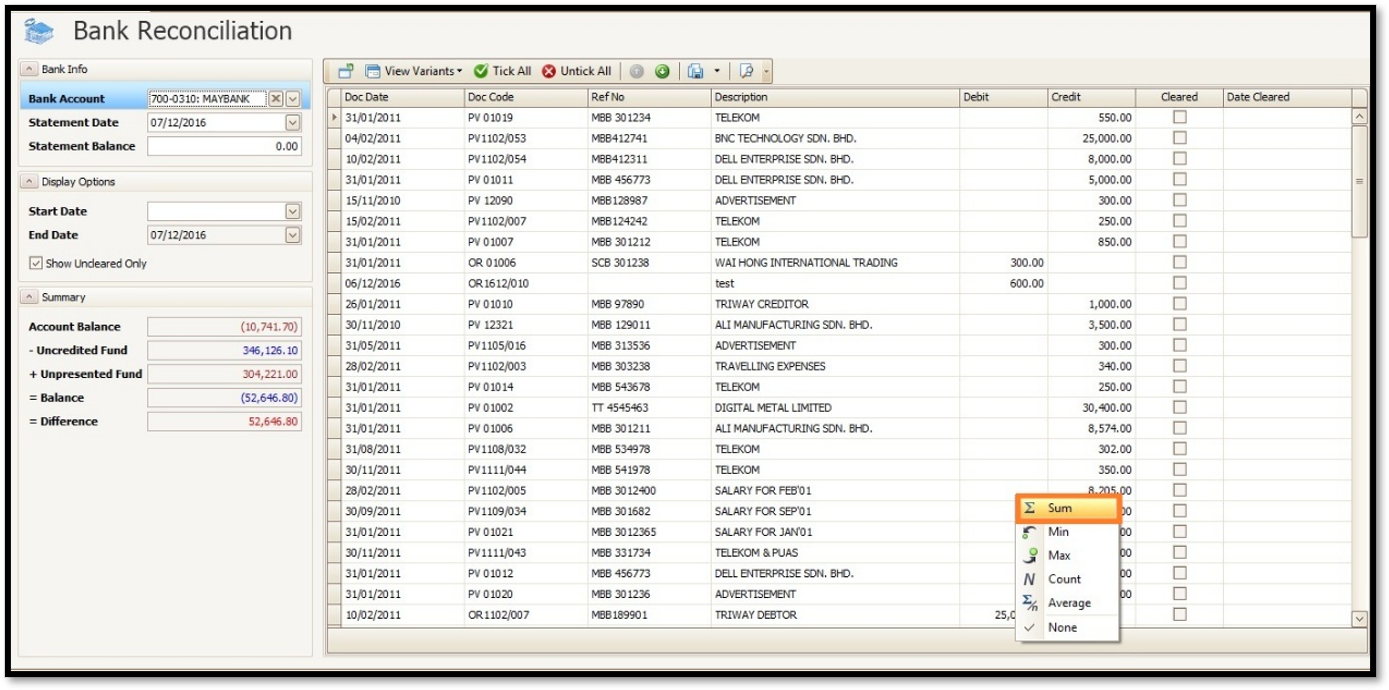
To enable it, right-click a column header and select Show Footer. Then, right-click the footer under the desired column and select Sum (or another calculation).
This guide demonstrates how to display the total Debit amount in the Bank Reconciliation screen.
Scenario:
An accountant is reconciling bank account 700-0310: MAYBANK and wants to quickly check the total Debit amount of all uncleared transactions without manual calculation or exporting to Excel.
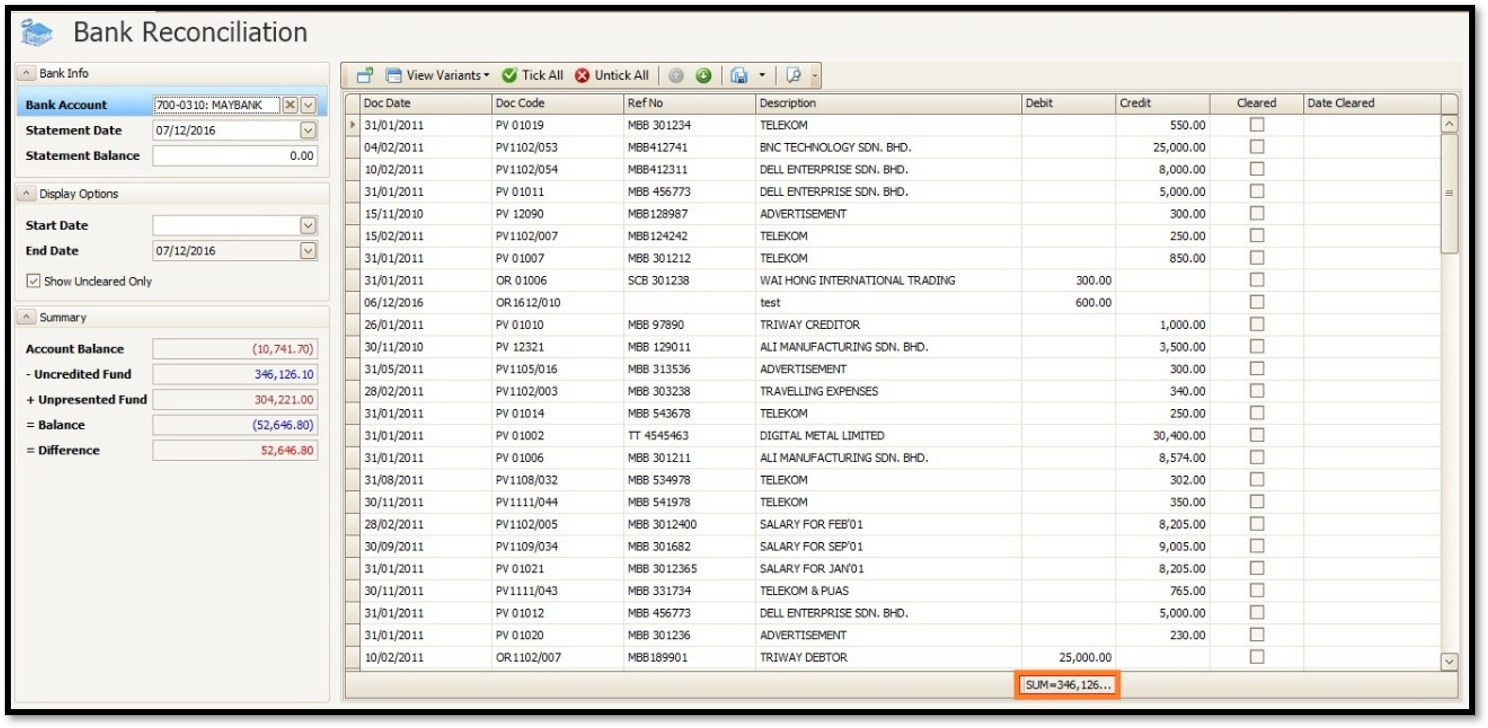
By enabling the footer in the Bank Reconciliation list and selecting Sum under the Debit column, the total amount is displayed at the bottom of the list (e.g. SUM = 346,126…), allowing the accountant to view the total instantly during reconciliation.
Solution:
- Open the screen that has the list, for example Bank Reconciliation, and select the bank account so that the list is displayed.
- Right-click any column header in the list, for example the Ref No or Description header. A menu appears. Click Show Footer.
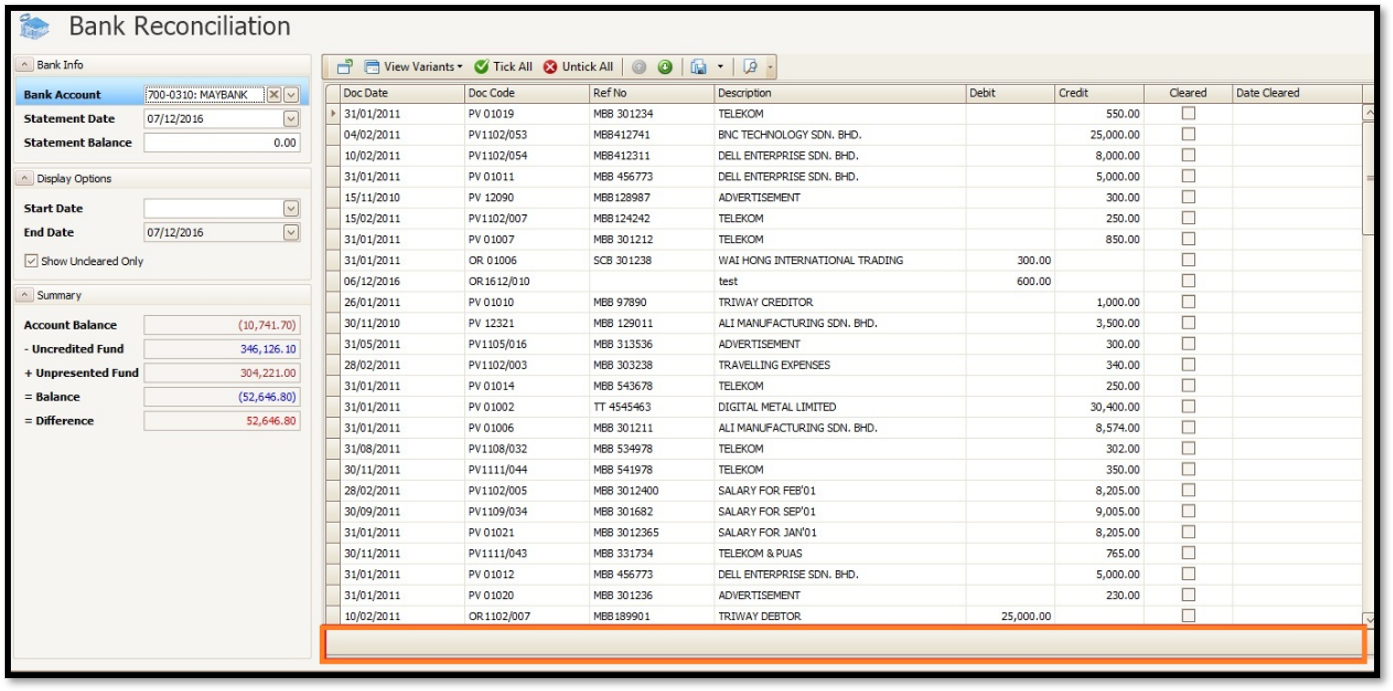
- A footer bar now appears at the bottom of the list. It is empty for now
- Right-click in the footer, under the column you want to total, for example the Debit column. A menu appears with Sum, Min, Max, Count, Average and None. Click Sum.
- The footer now shows the total of the column, for example SUM=346,126… under the Debit column.
Note:
• To total another column, such as Credit, right-click the footer under that column and choose Sum.
• The same footer menu also offers Min, Max, Count and Average. Choose None to remove the calculation.
• If the amount in the footer is cut off with “…”, make the column wider so that the full number is shown.
• The footer total is for the list on screen, so check the display options, such as Show Uncleared Only and the Start Date and End Date, before you use the figure.
Was this article helpful?
That’s Great!
Thank you for your feedback
Sorry! We couldn't be helpful
Thank you for your feedback
Feedback sent
We appreciate your effort and will try to fix the article
