Overview:
The PCB Audit File screen in QNE Cloud Payroll provides a Generate action for a selected year and employee scope. Use it when preparing a PCB audit file from payroll information. The year, selected employees and resigned-employee filter determine the requested scope.
At the end of this article, you will be able to:
• Open the PCB Audit File screen.
• Select the reporting year.
• Choose employees individually or by range.
• Review the filters before generating the file.
Scenario:
Your payroll team needs a PCB audit file for a particular year and group of employees. This example shows year 2026. Select the year and employees required for your own request.
Solution:
Open PCB Audit File
1. Check that you are working in the correct company.
2. Under Reports, open Government Reports > PCB Audit File.
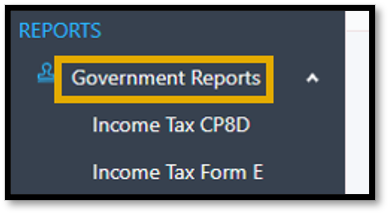
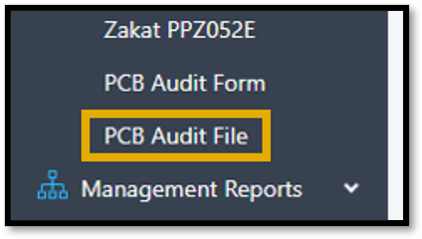
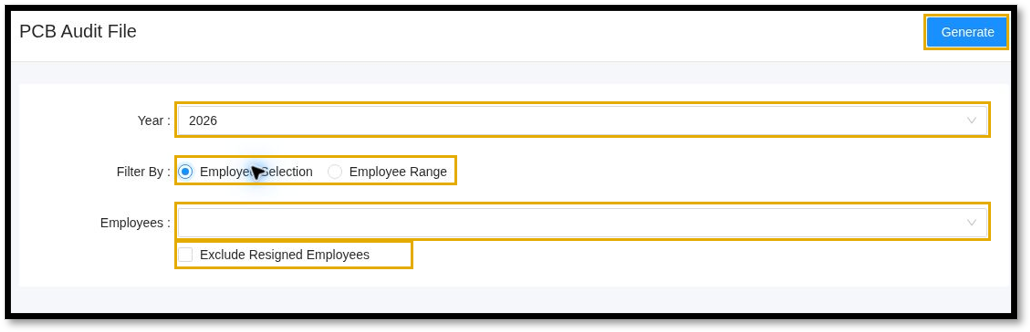
3. Select the required Year from the dropdown.
Note: PCB Audit Form is a separate menu item. Select PCB Audit File for this workflow.
Choose the Employee Scope
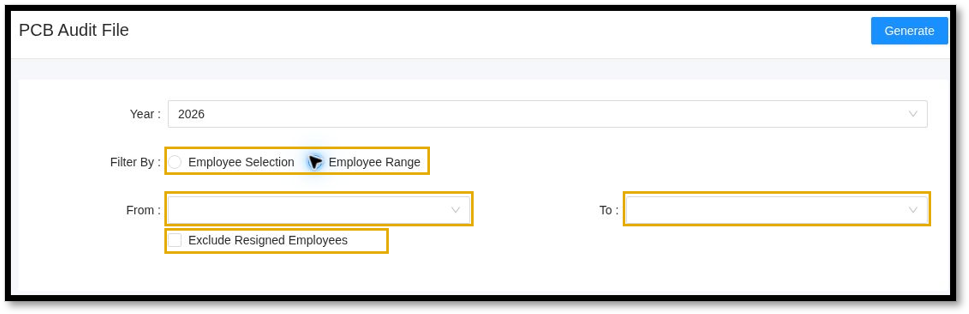
1. Under Filter By, choose one of the following options.
Employee Selection – Use the Employees dropdown to choose the employees required for the file.
Employee Range – Use the From and To dropdowns to define the required employee range.
2. Review the Exclude Resigned Employees checkbox. Select it if resigned employees should be excluded from the requested file; otherwise leave it unchecked.
Note: Review the employee scope explicitly. Do not assume that an empty employee selection or range will include every employee.
Generate PCB Audit File
1. Check the company, Year, employee selection or range, and Exclude Resigned Employees option.
2. Click Generate at the top right of the PCB Audit File screen.
3. Follow the system’s resulting message or file retrieval prompt. Check that the output corresponds to the year and employee scope requested.
What’s Next
1. Review the file with the payroll team before using it for an audit request.
2. If the output does not match the intended scope, return to PCB Audit File, review the filters and generate again after correcting the selection.
Was this article helpful?
That’s Great!
Thank you for your feedback
Sorry! We couldn't be helpful
Thank you for your feedback
Feedback sent
We appreciate your effort and will try to fix the article
