Overview :
A cashier is a staff member who signs in to the N3 AI POS Win App or Android App with a 6-digit PIN to sell at the counter. Each cashier belongs to an outlet, can use one or more cash registers, and gets their till permissions from one or more Cashier Roles. This article guides you through creating a cashier in the N3 AI POS Portal.
At the end of this article, you will be able to:
- View the Cashier list
- Create a cashier with a PIN, outlet, cash registers and roles
Scenario :
A new staff member joins the Sri Kembangan outlet and will work at the Windows counter (SK Counter01) and the Android till. The owner creates a cashier for them with the Cashier role, so they can sign in to both tills with their own PIN.
Solution :
Create a Cashier
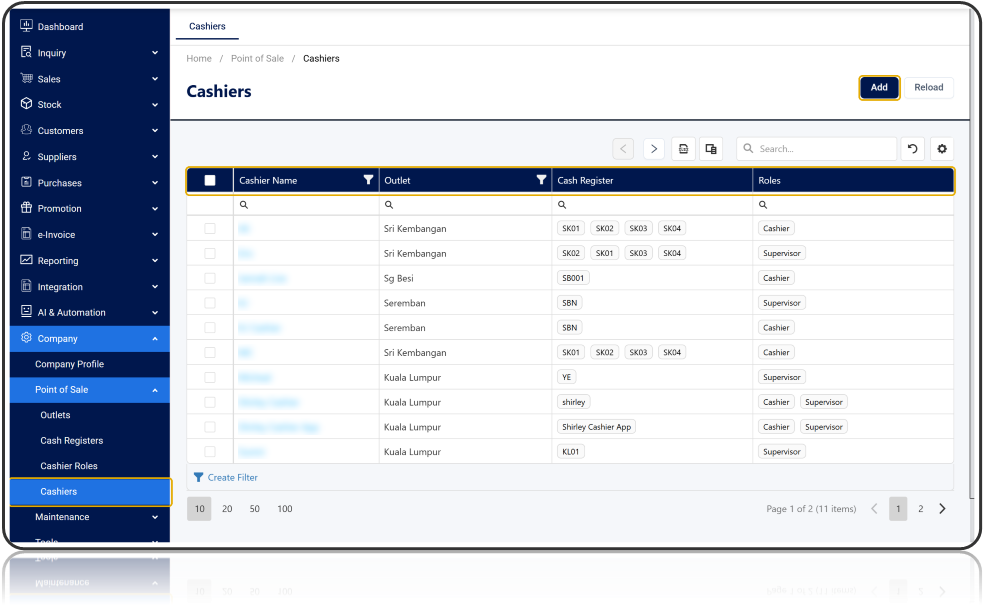
- Navigate to Company > Point of Sale > Cashiers. The list shows each cashier's Cashier Name, Outlet, Cash Register and Roles. Click Add.
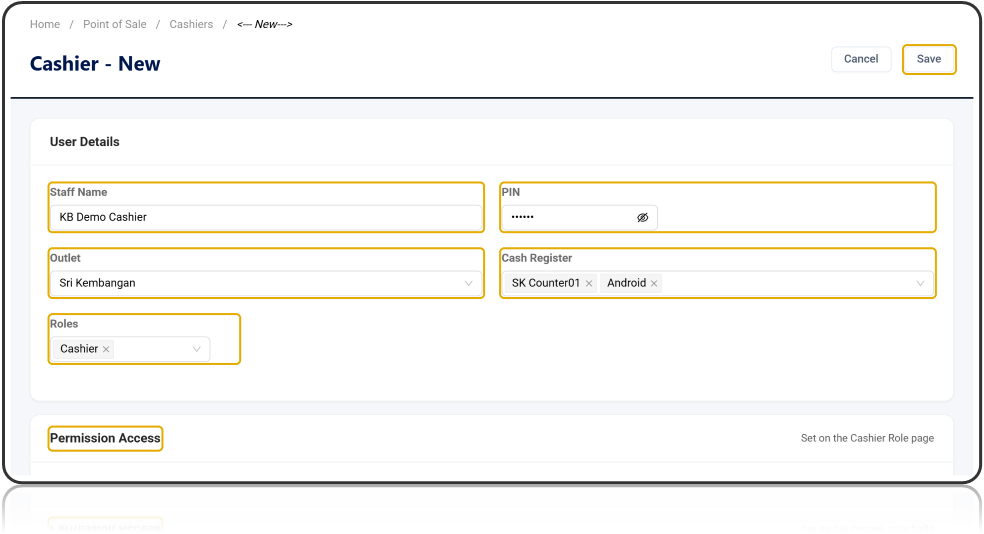
- Fill in the User Details. All fields are required:
Staff Name – The name of the cashier, e.g. KB Demo Cashier.
PIN – A 6-digit number the cashier keys in to sign in to the till. Click the eye icon to show or hide it.
Outlet – The outlet the cashier works at, e.g. Sri Kembangan.
Cash Register – One or more cash registers the cashier can sign in to.
Roles – One or more cashier roles that decide what the cashier can do at the till.
Note: Permission Access is set on the Cashier Role page and is shown here once the cashier is saved with their roles.
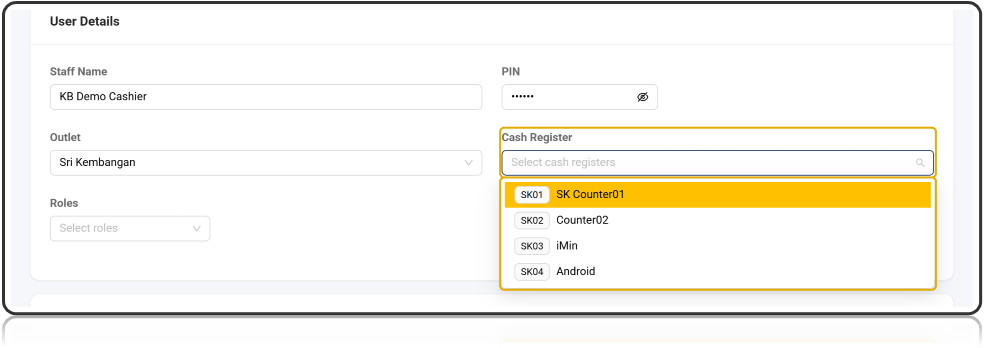
- Cash Register lists only the cash registers of the selected outlet, e.g. SK01 – SK Counter01 and SK04 – Android for Sri Kembangan. Select every register the cashier will use.
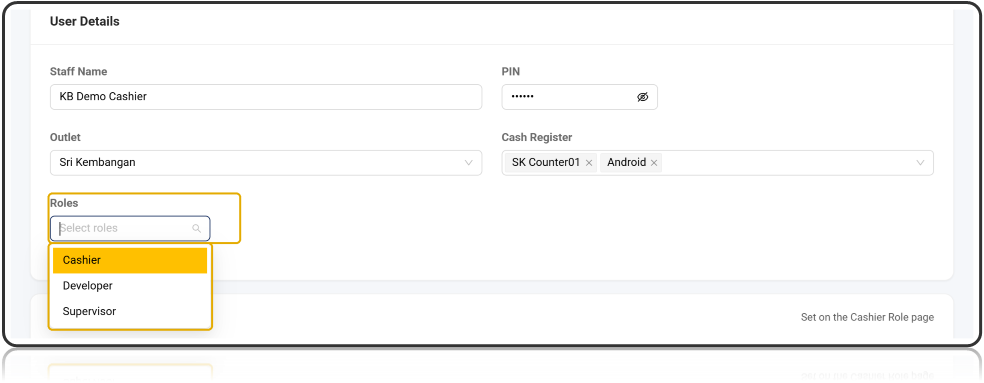
- Roles lists the cashier roles created at Company > Point of Sale > Cashier Roles, e.g. Cashier, Developer and Supervisor. Select the role, then click Save.
- The new cashier appears in the Cashier list. Once the tills sync, the cashier signs in to the selected cash registers with their PIN.
What's Next :
To set what each role can do at the till, see Company > Point of Sale > Cashier Roles. To sign in to the Win App with the PIN, see How to Complete the Basic Setup in N3 AI POS.
** Learn more about Azure Cloud
** Learn more about QNE Hybrid Cloud Software
Was this article helpful?
That’s Great!
Thank you for your feedback
Sorry! We couldn't be helpful
Thank you for your feedback
Feedback sent
We appreciate your effort and will try to fix the article
