Overview :
Payment Methods are the ways a customer can pay at the till, e.g. cash, card or e-wallet. You set them up in the N3 AI POS Portal, and they appear on the payment screen of the N3 AI POS Win App and Android App. This article guides you through adding a payment method and shows where it appears at the till.
At the end of this article, you will be able to:
- Add a payment method and choose its type
- Make a payment method available at all counters or only some cash registers
- Find the payment methods in the Win App and Android App
Scenario :
A shop starts accepting Touch ’n Go eWallet at its Sri Kembangan counters only. The owner adds a TNG payment method of the type e-Wallet / Digital Wallet and binds it to the Sri Kembangan cash registers.
Solution :
Add a Payment Method
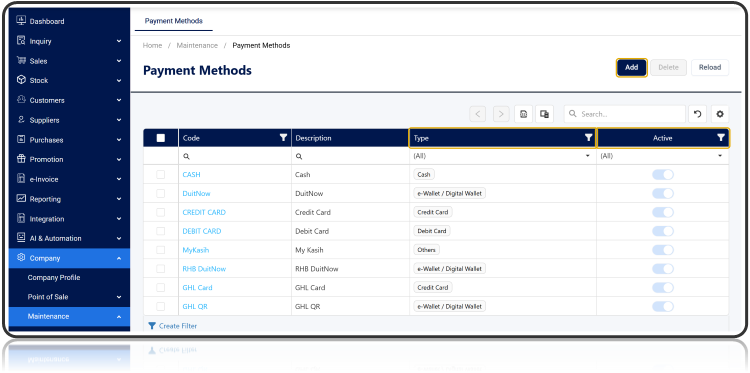
- Navigate to Company > Maintenance > Payment Methods. The list shows each method's Code, Description, Type and whether it is Active. Click Add.
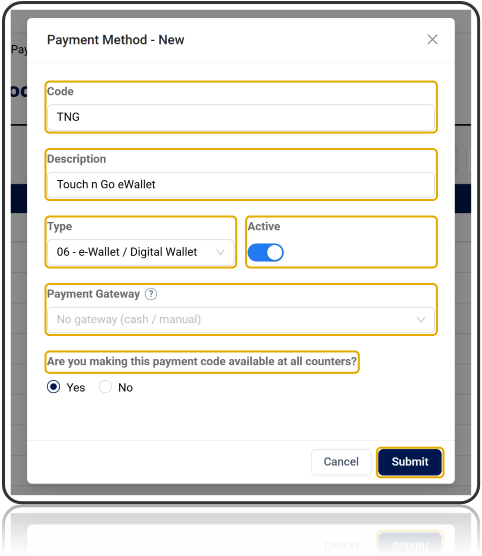
- Fill in the payment method details:
Code and Description – Required, e.g. TNG and Touch n Go eWallet. The description is the name the cashier sees.
Type – Required. The kind of payment, e.g. 06 - e-Wallet / Digital Wallet.
Active – Only active payment methods appear at the till.
Payment Gateway – Route this method through a payment gateway, e.g. an ADAPTIS card terminal or ADAPTIS DuitNow QR. Leave it blank (No gateway) for cash or manual payments.
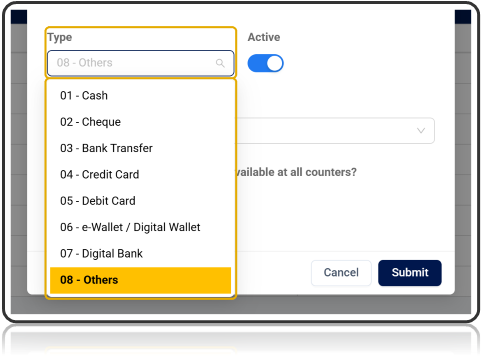
- Type has these options: 01 - Cash, 02 - Cheque, 03 - Bank Transfer, 04 - Credit Card, 05 - Debit Card, 06 - e-Wallet / Digital Wallet, 07 - Digital Bank and 08 - Others.
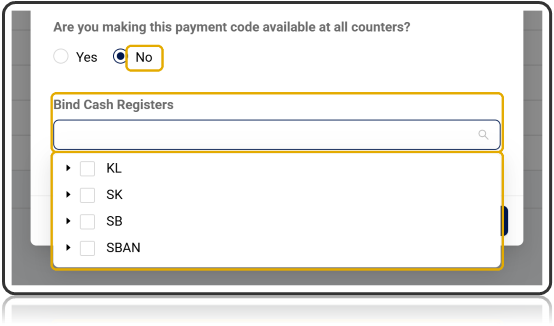
- Are you making this payment code available at all counters? – Keep Yes for every cash register. Choose No to show Bind Cash Registers, then tick the outlets or cash registers that can use this method, e.g. SK. Click Submit.
Payment Methods in the Win App
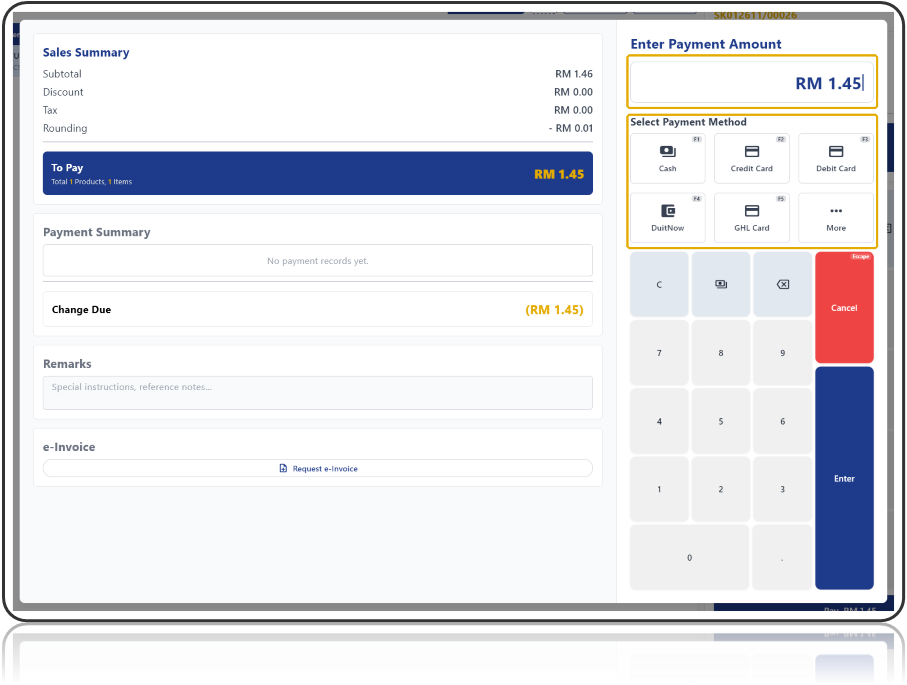
- After the tills sync, add the items and click Pay (F10). Under Select Payment Method, the cashier picks a method, e.g. Cash (F1), Credit Card (F2), Debit Card (F3), DuitNow (F4) or GHL Card (F5), then keys in the amount.
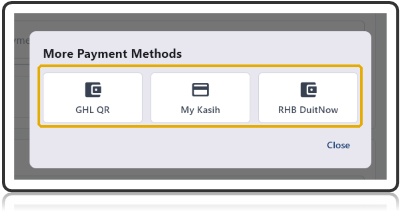
- Click More to see the other payment methods, e.g. GHL QR, My Kasih and RHB DuitNow.
Payment Methods in the Android App
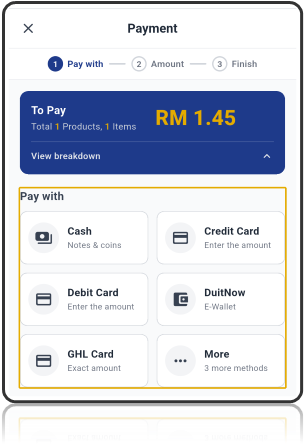
- Tap Charge. On the Payment screen, under Pay with, tap the payment method, e.g. Cash, Credit Card, Debit Card, DuitNow or GHL Card.
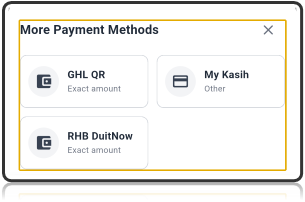
- Tap More to see the other payment methods.
What's Next :
To post the payments to N3 AI Accounting by payment method, see How to Link N3 AI POS to N3 AI Accounting.
** Learn more about Azure Cloud
** Learn more about QNE Hybrid Cloud Software
Was this article helpful?
That’s Great!
Thank you for your feedback
Sorry! We couldn't be helpful
Thank you for your feedback
Feedback sent
We appreciate your effort and will try to fix the article
