Overview :
Stock Items are the products you sell and buy. Each stock item has a code, a name, a category, one or more UOMs (units of measure) with their own price, cost and barcode, and settings that control whether it is sold at the tills and whether its quantity is tracked. This article guides you through creating a stock item in the N3 AI POS Portal and shows the result in the Portal, the N3 AI POS Win App and the Android App.
At the end of this article, you will be able to:
- Create a stock item with its details and settings
- Set the price, cost, minimum price and barcode for each UOM
- Find the new item in the Portal and sell it at the till
Scenario :
A mini market starts selling Rolled Oats 500g, by the packet and by the carton of 12. The owner creates stock item OAT500 with two UOMs: UNIT(S) at RM 7.90 and CTN (carton of 12) at RM 89.00.
Solution :
Create a Stock Item
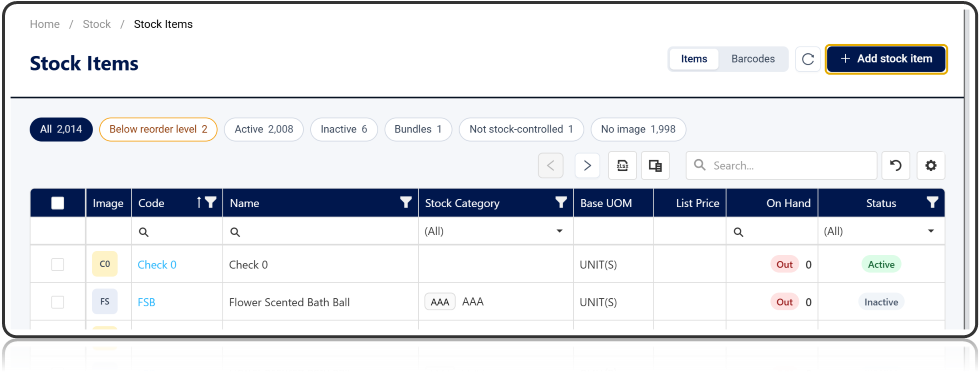
- Navigate to Stock > Stock Items, then click Add stock item.
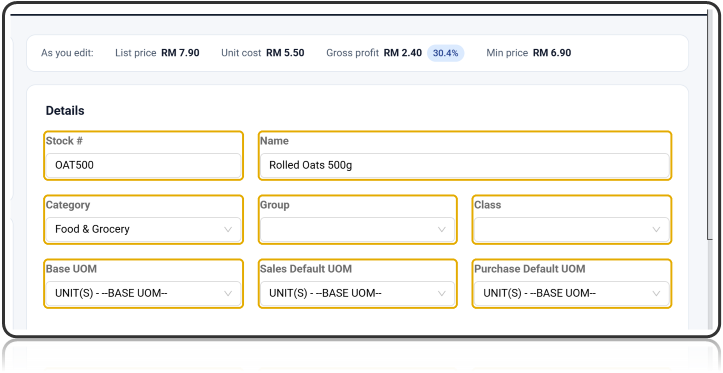
- In Details, key in the item details:
Stock # – Required. A short, unique code, e.g. OAT500.
Name – Required. The item name shown on receipts and at the till, e.g. Rolled Oats 500g.
Category, Group and Class – Optional, e.g. Category Food & Grocery. See How to Create Stock Categories, Stock Groups and Stock Classes in N3 AI POS.
Base UOM – Required. The smallest unit you sell, e.g. UNIT(S). Its rate is always 1.
Sales Default UOM and Purchase Default UOM – The UOM chosen first when the item is sold or bought.
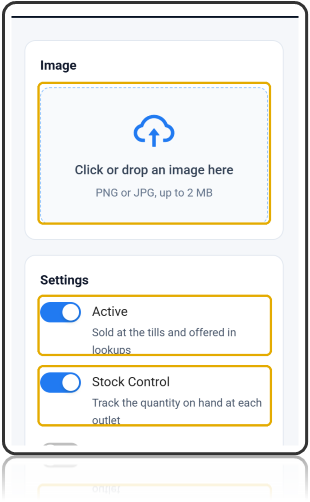
- On the left, add an Image if you have one (PNG or JPG, up to 2 MB), and check the Settings:
Active – Keep on, so the item is sold at the tills and offered in lookups.
Stock Control – Keep on to track the quantity on hand at each outlet. Turn off for items you do not count, e.g. services.
Set the UOM Prices and Barcodes
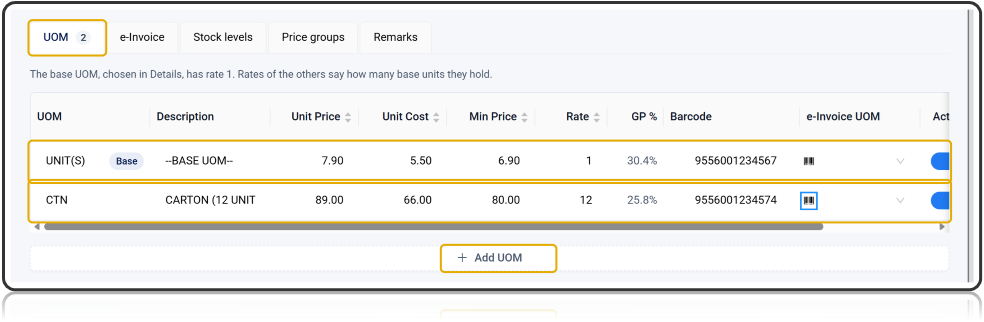
- In the UOM tab, fill in the base UOM row: Unit Price (selling price), Unit Cost, Min Price (the lowest price allowed at the till) and Barcode. The GP % works out by itself.
Example – UNIT(S): Unit Price 7.90, Unit Cost 5.50, Min Price 6.90, Barcode 9556001234567.
- To sell the item in a bigger pack too, click Add UOM and fill in the new row. Rate is how many base units the pack holds.
Example – CTN, Description CARTON (12 UNITS): Unit Price 89.00, Unit Cost 66.00, Min Price 80.00, Rate 12, Barcode 9556001234574.
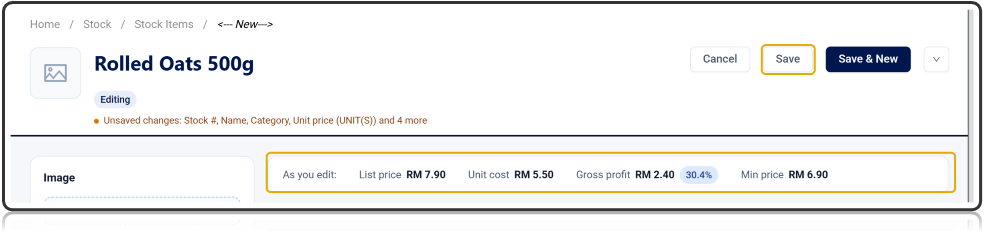
- The As you edit bar at the top shows the list price, unit cost, gross profit and min price of the base UOM, so you can check them before saving. Click Save (or Save & New to add another item).
Result in the N3 AI POS Portal
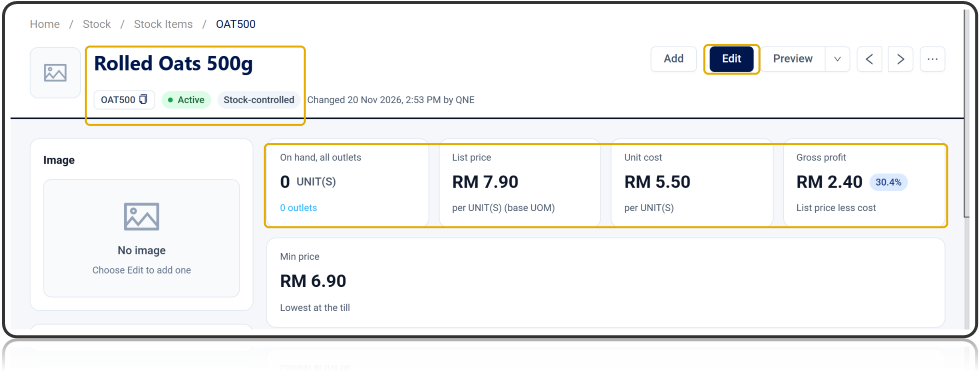
- Result: The item is saved and opens as Rolled Oats 500g, with code OAT500, Active and Stock-controlled. The cards show the on-hand quantity, list price, unit cost and gross profit. Click Edit to change the item.
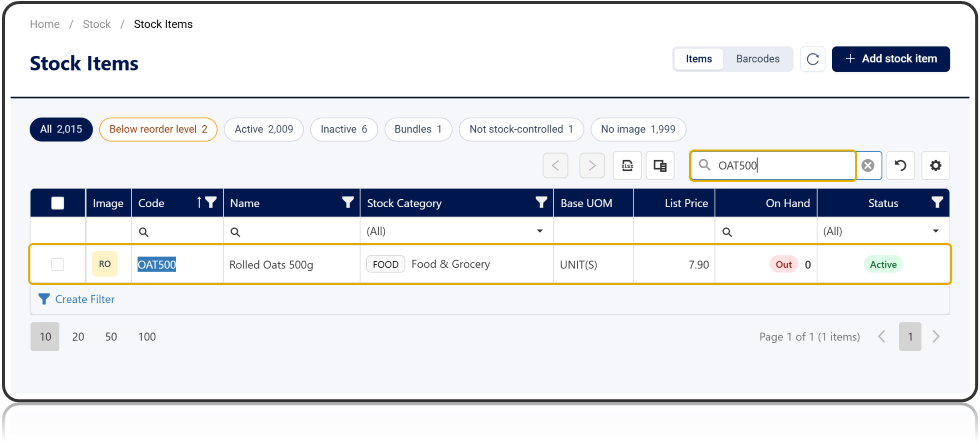
- Back in Stock > Stock Items, search OAT500 to find the new item in the list, with its category, base UOM and list price.
Result at the Cash Registers
Tip: The cash register get new stock items when they sync. In the Win App, open Sync and click Quick Sync for Stocks. In the Android App, open the Sync tab and tap Quick Sync for Stocks.
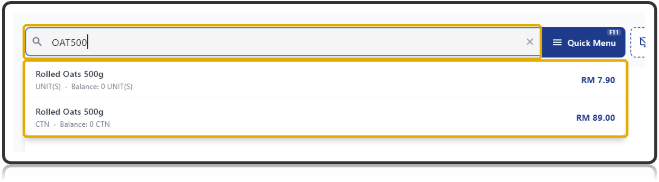
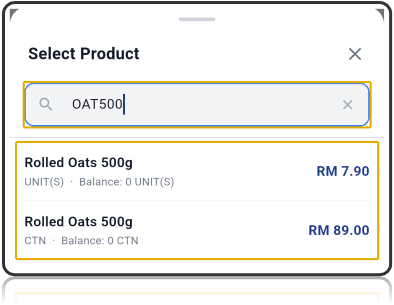
- N3 AI POS Win App – On the sales screen, search OAT500 (or scan its barcode). Both UOMs are listed: UNIT(S) at RM 7.90 and CTN at RM 89.00. Click the one to sell.
- Result: The item is added to the bill with the UOM and price you picked.

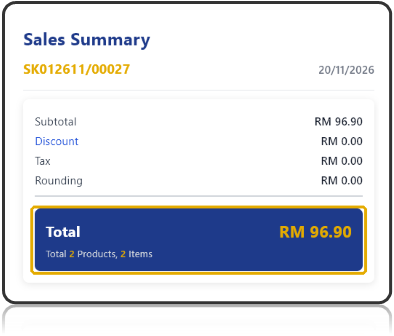
- N3 AI POS Android App – On the POS screen, tap the search box and search OAT500. Tap the UOM to sell.
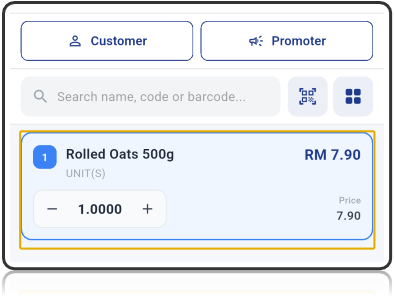
- Result: The item is added to the bill, e.g. Rolled Oats 500g, UNIT(S), RM 7.90.
What's Next :
See also How to Create Stock Categories in N3 AI POS and How to Set Quantity and Price Precision in Stock Settings in N3 AI POS.
** Learn more about Azure Cloud
** Learn more about QNE Hybrid Cloud Software
Was this article helpful?
That’s Great!
Thank you for your feedback
Sorry! We couldn't be helpful
Thank you for your feedback
Feedback sent
We appreciate your effort and will try to fix the article
