Overview :
Stock Categories group your stock items, e.g. Beverages, Snacks or Dairy & Eggs. They are used on stock items, in Stock Inquiry and report filters, in promotion rules, and on the Quick Menu at the till. This article guides you through creating, editing, cloning and deleting stock categories in the N3 AI POS Portal.
At the end of this article, you will be able to:
- Create a stock category
- Edit or deactivate a stock category
- Clone and delete stock categories
- Know where stock categories are used
Scenario :
A mini market starts selling pet food and pet care items. The owner creates a new PET – Pet Supplies category so these items can be grouped together in the Portal and on the till's Quick Menu.
Solution :
Create a Stock Category
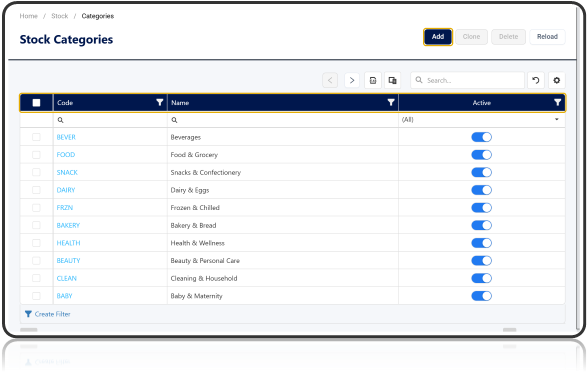
- Navigate to Stock > Categories. The list shows each category's Code, Name and whether it is Active. Click Add.
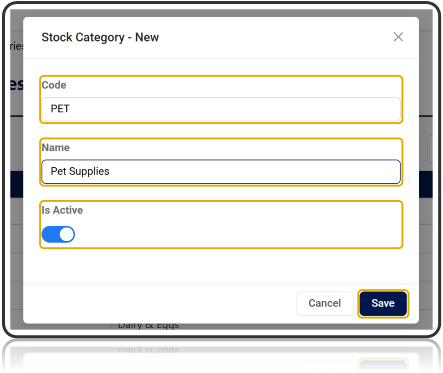
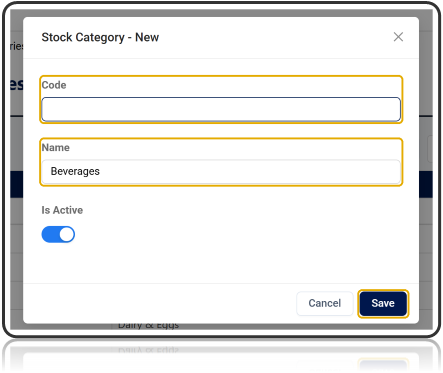
- Fill in the category details, then click Save:
Code – A short, unique code, e.g. PET. Required.
Name – The category name, e.g. Pet Supplies.
Is Active – Keep it on to use the category. Turn it off to hide it without deleting it.
Edit, Clone and Delete
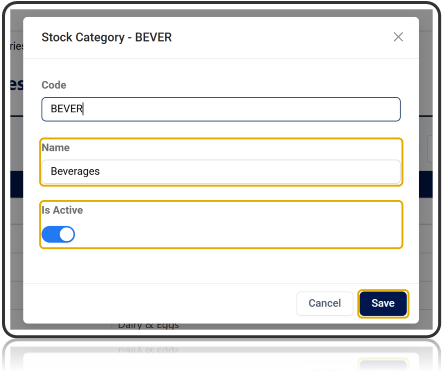
- Edit: Click the category Code in the list. Change the Name or switch Is Active off, then click Save.
- Tick the checkbox of a category to select it. Clone and Delete become available.
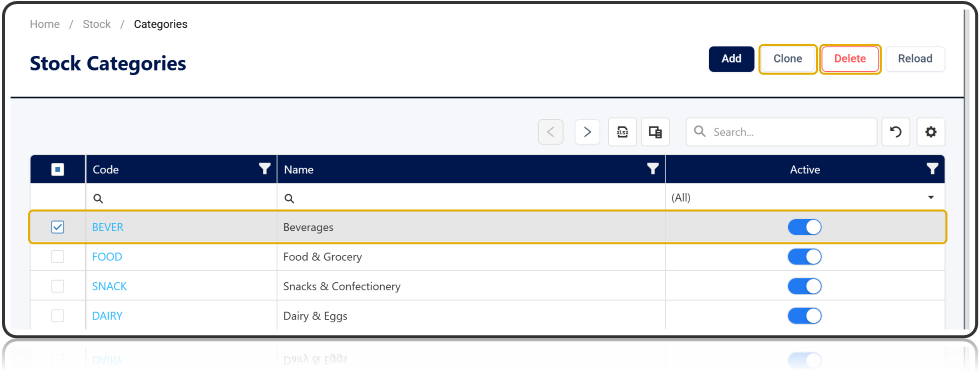
- Clone: Click Clone to start a new category with the same Name and Is Active. Key in a new Code, change the Name if needed, then click Save.
- Delete: Click Delete to remove the selected categories.
Tip: Before deleting a category, move its stock items to another category, or switch the category to inactive instead.
Where Stock Categories Are Used
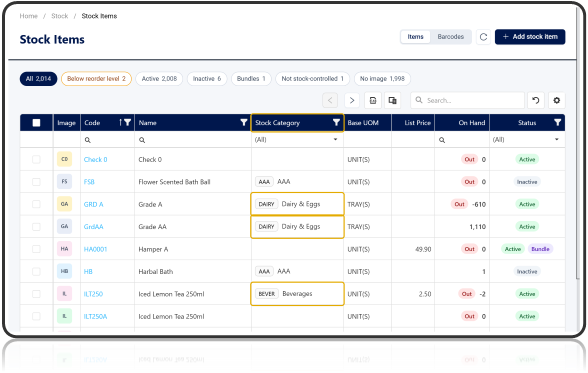
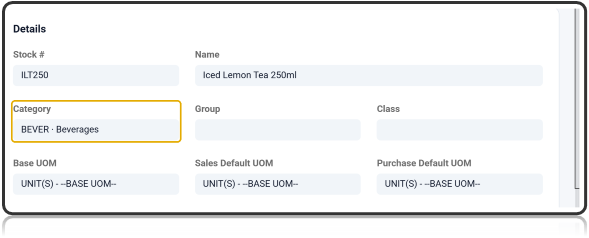
- Stock Items – Each stock item is assigned a Category. The Stock Items list shows the Stock Category column, which you can filter.
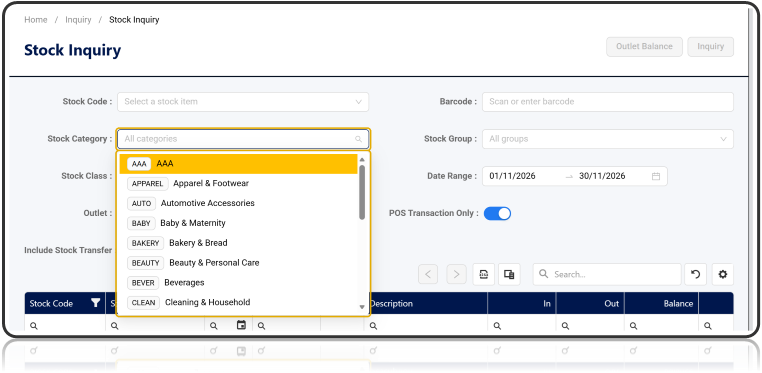
- Stock Inquiry – In Inquiry > Stock Inquiry, filter the stock movements by Stock Category to see only the items of that category.
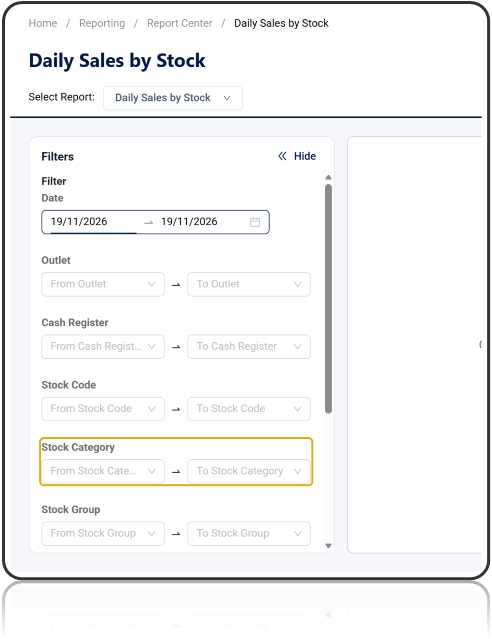
- Reports – In Reporting > Report Center, reports such as Daily Sales by Stock have From / To Stock Category filters, so you can see the sales of one category or a range of categories.
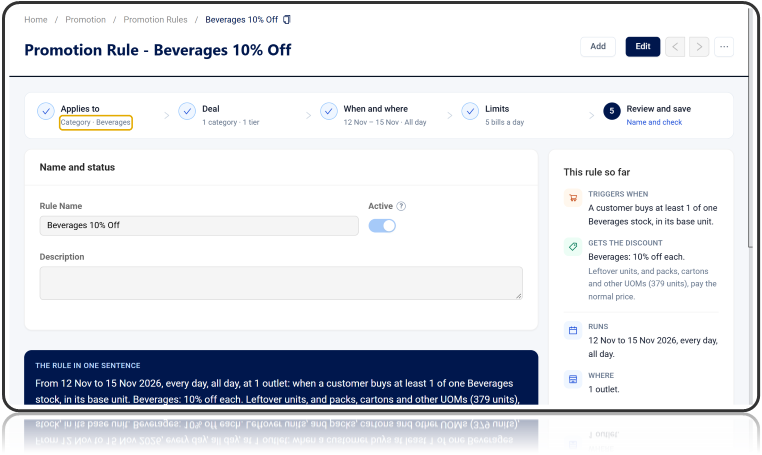
- Promotion Rules – A promotion can apply to a whole category, e.g. Beverages 10% Off applies to Category · Beverages, so every item in the category gets the discount.
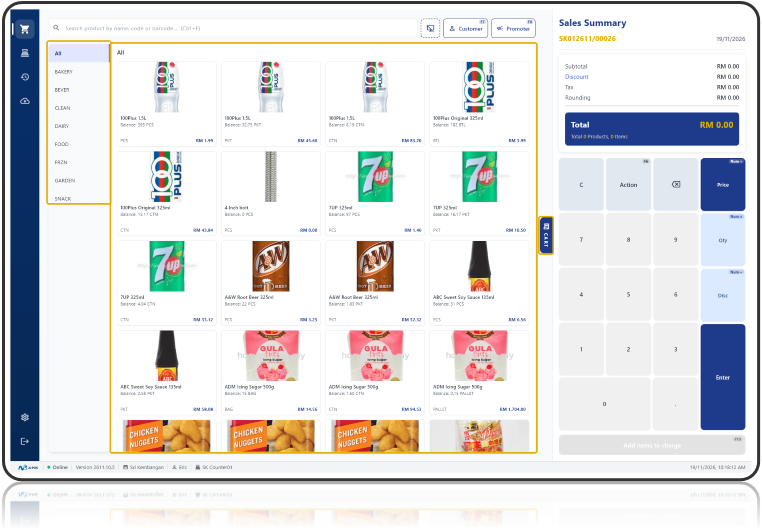
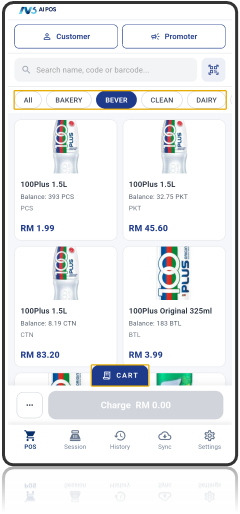
- Quick Menu at the till – The N3 AI POS Win App shows the active categories on the left of the Quick Menu, and the Android App shows them as tabs at the top. The cashier taps a category to see only its items.
What's Next :
Assign the category to your stock items – see How to Create, Edit, Clone & Delete Stock Master in N3 AI POS.
** Learn more about Azure Cloud
** Learn more about QNE Hybrid Cloud Software
Was this article helpful?
That’s Great!
Thank you for your feedback
Sorry! We couldn't be helpful
Thank you for your feedback
Feedback sent
We appreciate your effort and will try to fix the article
