Overview:
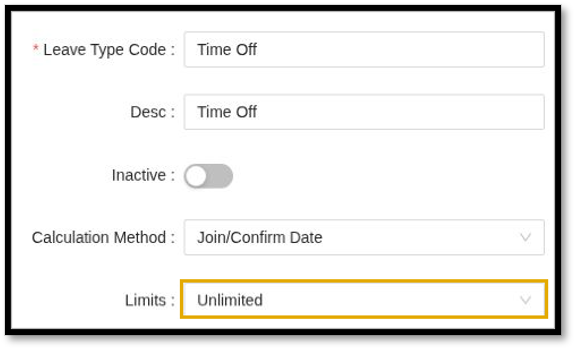
If a leave type is missing from Human Resources > Leave Setting, check its Limits setting in Leave Types. Leave types set to Unlimited do not appear for configuring entitled days. Set Limits to Limited when the leave type requires a fixed entitlement, then configure its service-year rules in Leave Setting.
At the end of this article, you will be able to:
• Identify why a leave type is missing.
• Locate the Limits option in Leave Types.
• Select the relevant Leave Group and leave type.
• Enter service-year ranges and entitled days.
Scenario:
A leave type has been created, but its tab does not appear in Leave Setting. For example, Time Off is set to Unlimited in the sample company, so there is no Time Off tab for setting entitled days.
Solution:
Check and Update the Leave Type
1. Go to Human Resources > Leave Types. Click the name of the missing leave type.
2. Check Limits. If it is Unlimited and your company requires fixed entitled days, select Limited.
3. Click Ok to save the intended change, then reopen Human Resources > Leave Setting.
Note: Keep Unlimited if that is the intended leave policy. The other options shown in the example are not recommended settings for every leave type.
Set the Entitled Days
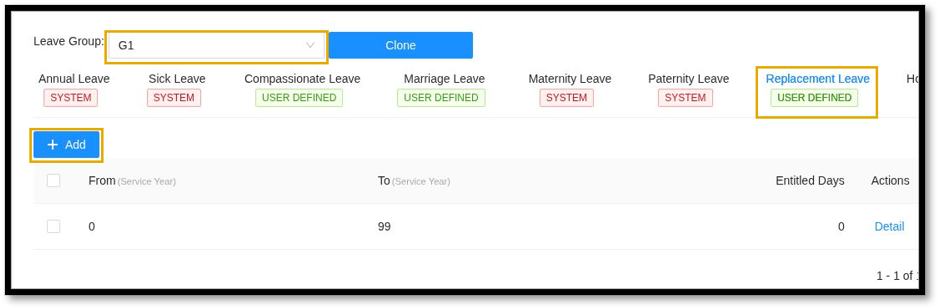
1. In Human Resources > Leave Setting, select the relevant Leave Group.
2. Select the leave type tab, then click Add. The example below shows Replacement Leave, an existing Limited leave type.
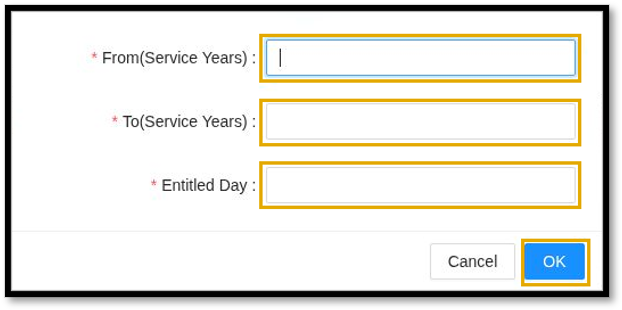
3. Complete the required entitlement fields in Create Leave Type Setting.
*From(Service Years) – Enter the starting service year for the rule.
*To(Service Years) – Enter the ending service year for the rule.
*Entitled Day – Enter the entitlement for that service-year range, according to your company policy.
4. Click OK and check the row shown under the correct Leave Group and leave type. Use Detail to review an existing rule before adding another.
What’s Next
1. Review the entitlement in Leave Balance for the relevant employee and leave type.
2. If the tab is still missing, confirm the saved Limits value and company, reopen Leave Setting, and provide QNE Support with screenshots of both screens.
Reference: QNE Support, How to add Customize Leave in Payroll, section Leave Type Settings.
Was this article helpful?
That’s Great!
Thank you for your feedback
Sorry! We couldn't be helpful
Thank you for your feedback
Feedback sent
We appreciate your effort and will try to fix the article
