Overview :
A Global Discount (called Bill Discount in the Cashier Role and Apply Discount at the till) takes a discount off the whole bill instead of one item line. The cashier can give it as a Percentage or as an Amount, and the till shows the discount and the new total before it is applied. This article guides you through allowing the Global Discount for a Cashier Role in the N3 AI POS Portal and applying it on the N3 AI POS Win App and Android App.
At the end of this article, you will be able to:
Allow Bill Discount for a Cashier Role
Apply a Global Discount on the Win App
Apply a Global Discount on the Android App
Remove a Global Discount from the bill
Scenario :
A mini market gives a 10% discount on the whole bill during its opening week. A customer buys Rolled Oats 500g (OAT500) at RM 7.90, so the cashier applies a 10% Global Discount and the customer pays RM 7.10.
Solution :
Allow Bill Discount for a Cashier Role
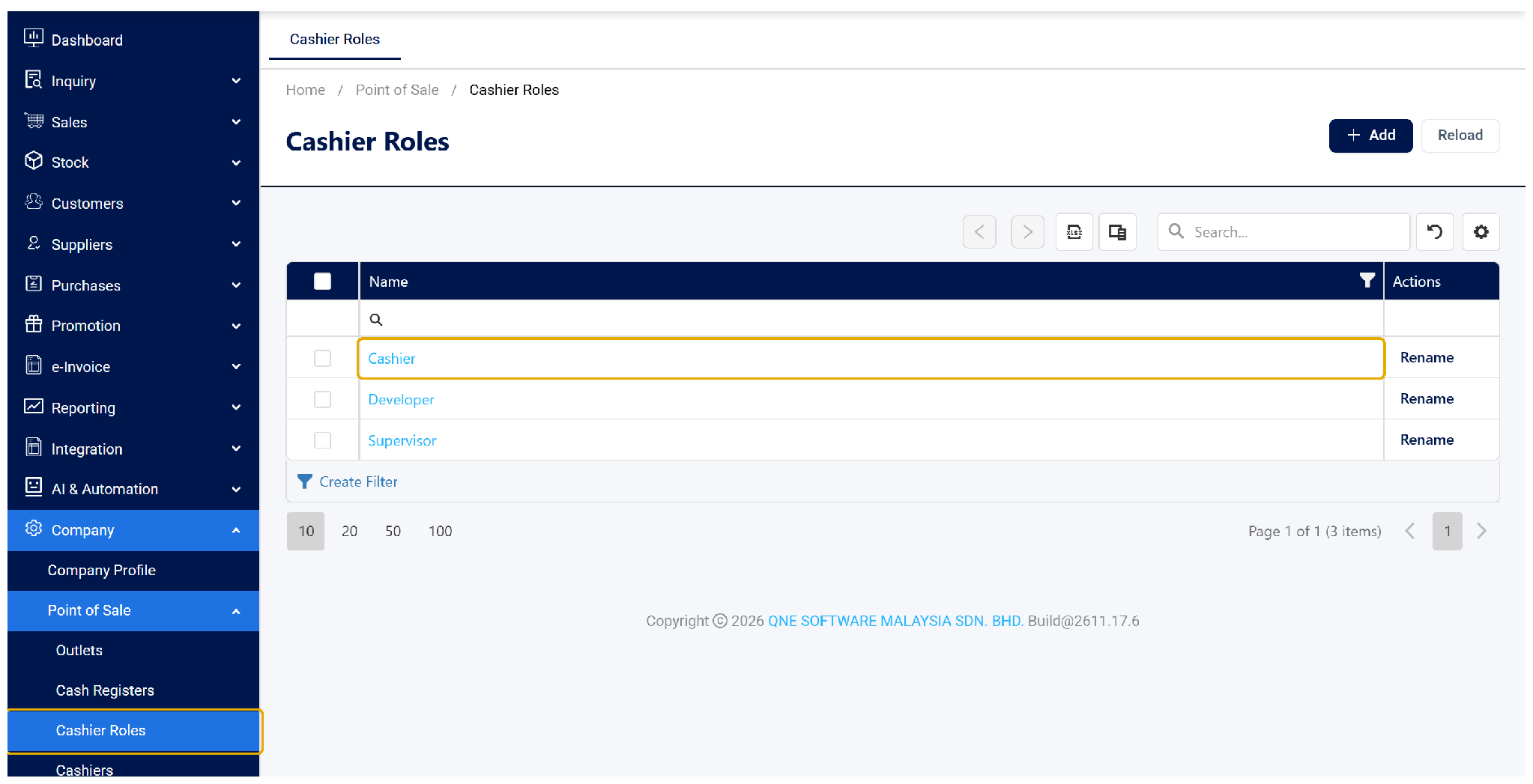
Navigate to Company > Point of Sale > Cashier Roles and click the role name, e.g. Cashier.
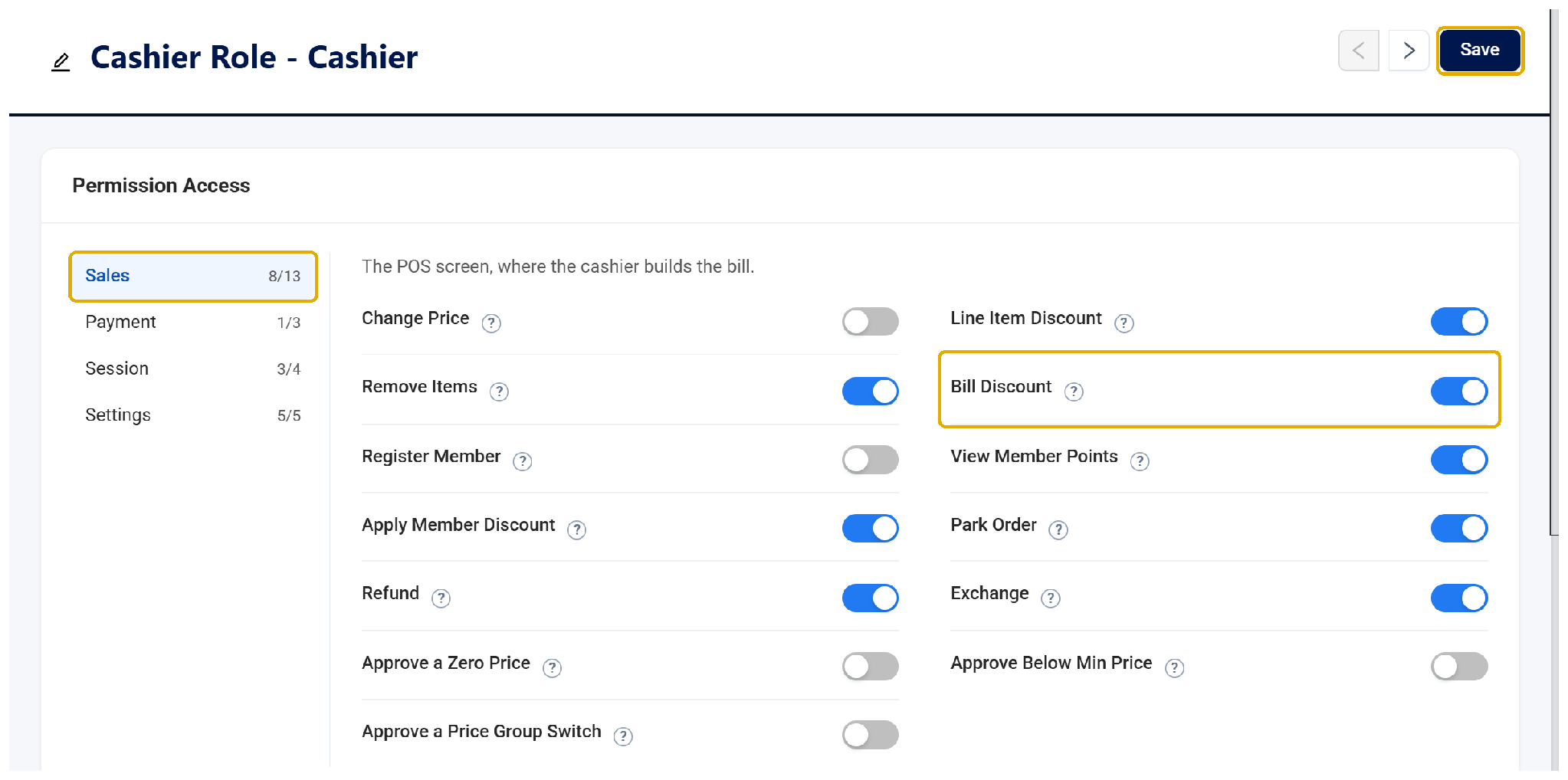
Under Permission Access, select Sales and turn on Bill Discount, then click Save.
Bill Discount – Apply Discount: discount the whole bill.
Note: Line Item Discount is a separate permission for discounting one item line. A role can have either one or both. If the cashier's role does not have Bill Discount, the till shows You do not have permission to apply a bill discount.
Tip: Run Quick Sync on the tills after changing a Cashier Role. With Multiple Discount on (Company > Maintenance > Settings > Sales Setting), Add discount lets the cashier stack more than one discount on the bill, e.g. 10% + RM 2.00.
Apply a Global Discount in N3 AI POS Win App
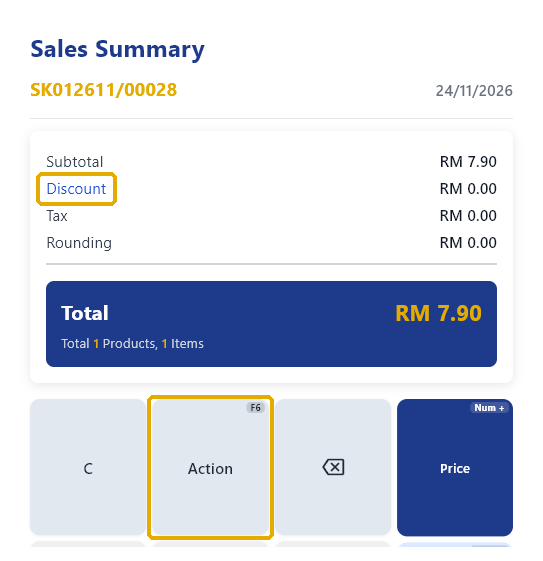
Add the items to the cart, e.g. Rolled Oats 500g, then click Action (F6). You can also click Discount in the Sales Summary.
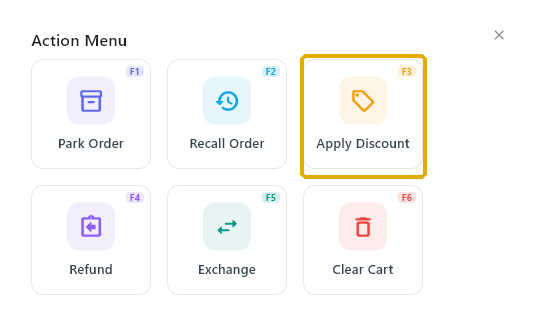
In the Action Menu, click Apply Discount (F3).
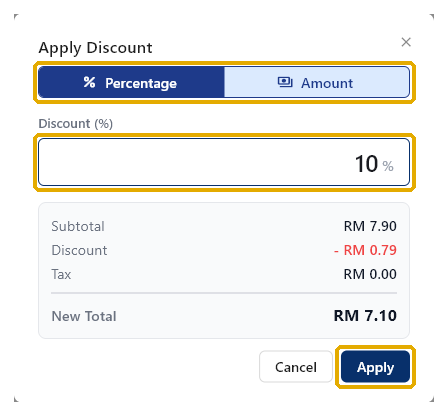
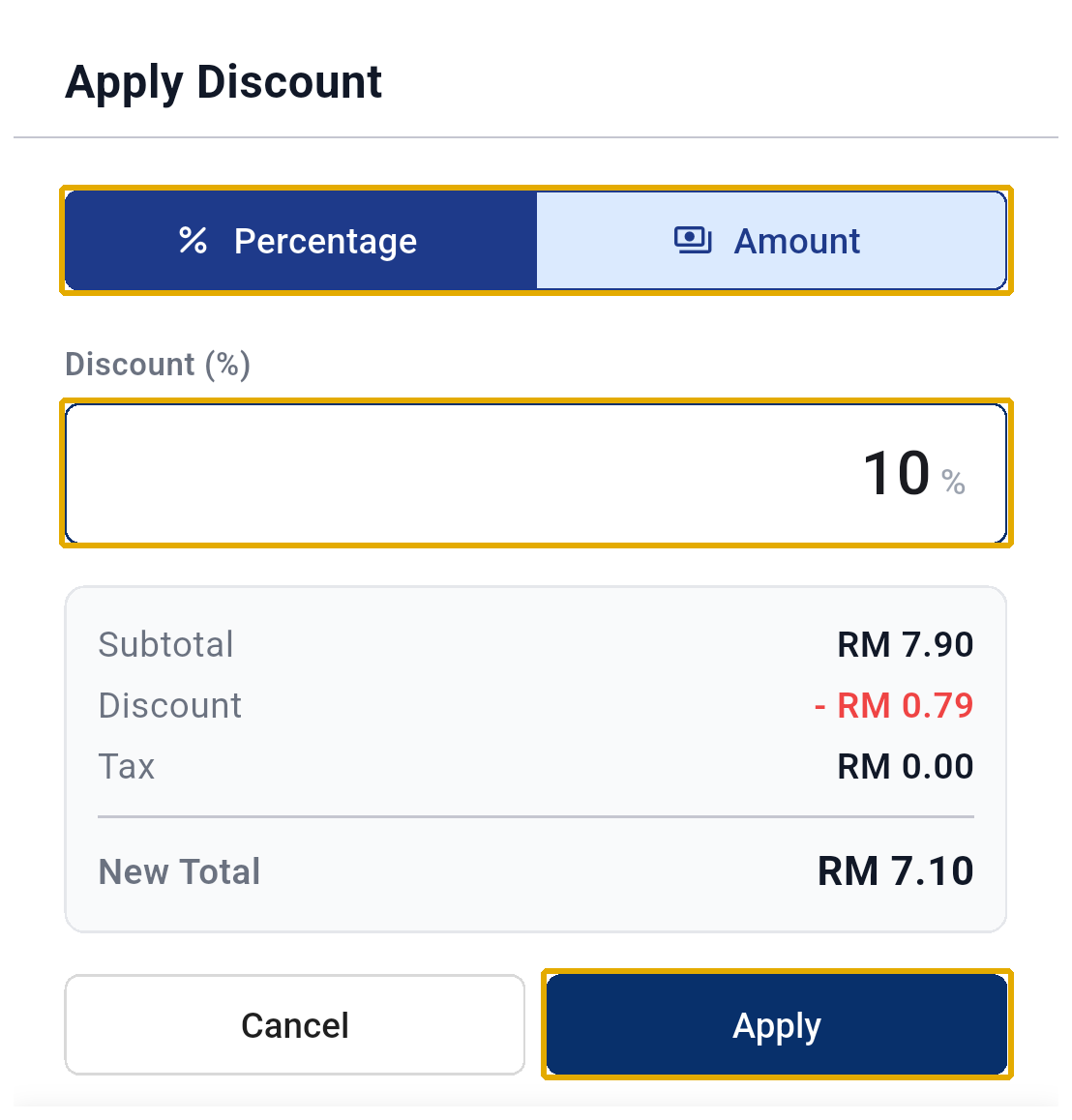
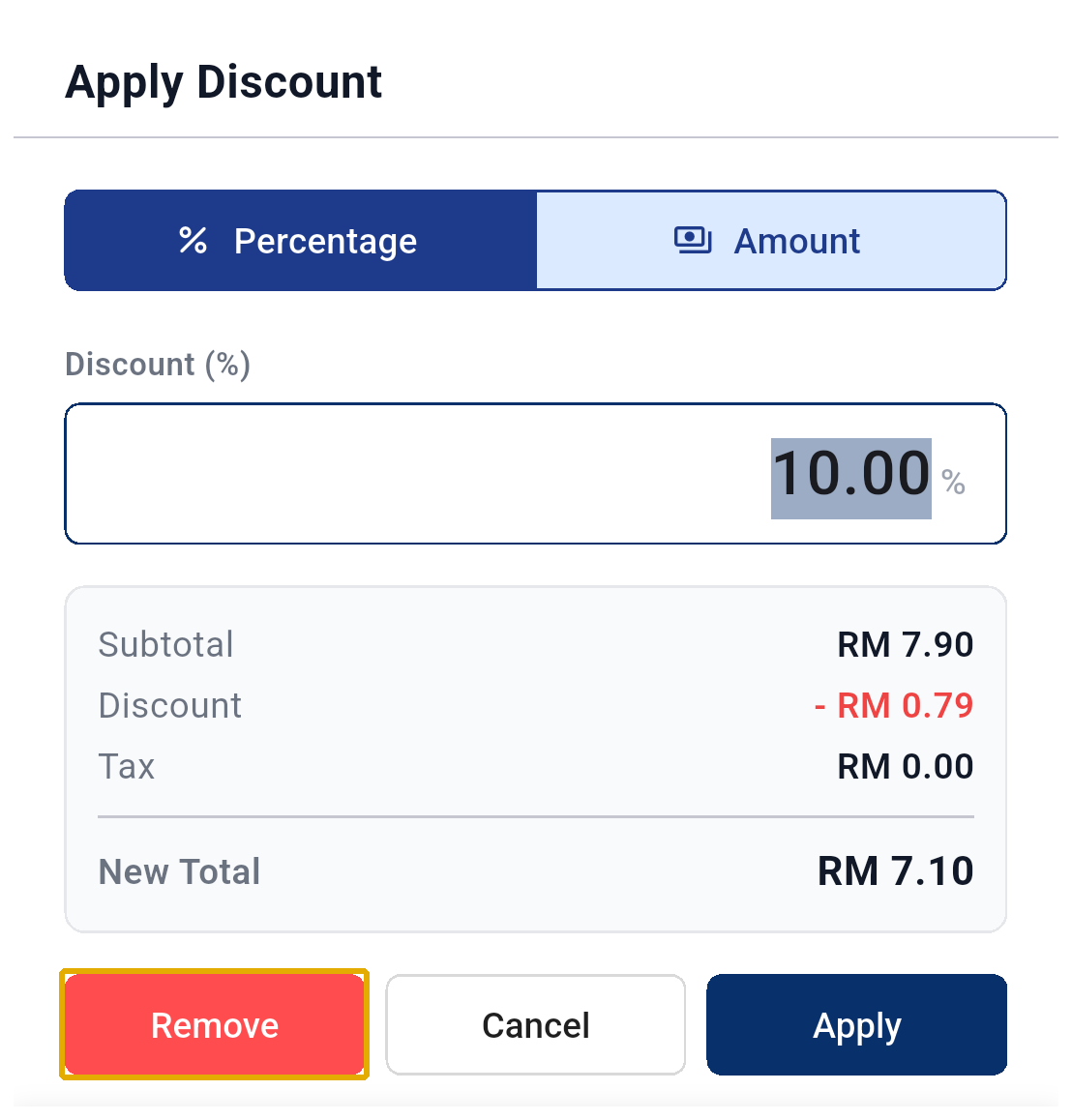
Choose Percentage or Amount, and key in the discount, e.g. 10. The dialog shows the Discount and the New Total before you apply it. Click Apply.
Percentage – A percentage off the whole bill, e.g. 10% of RM 7.90 = RM 0.79.
Amount – A fixed amount off the whole bill, e.g. RM 2.00.
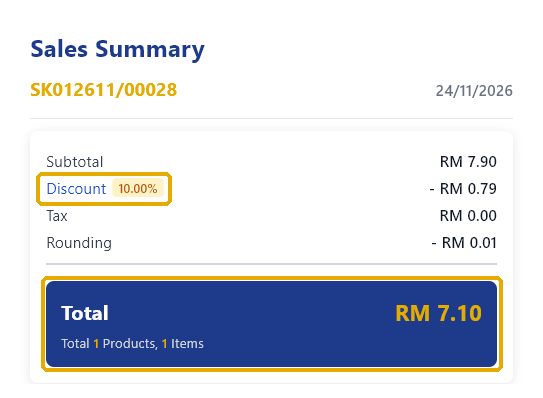
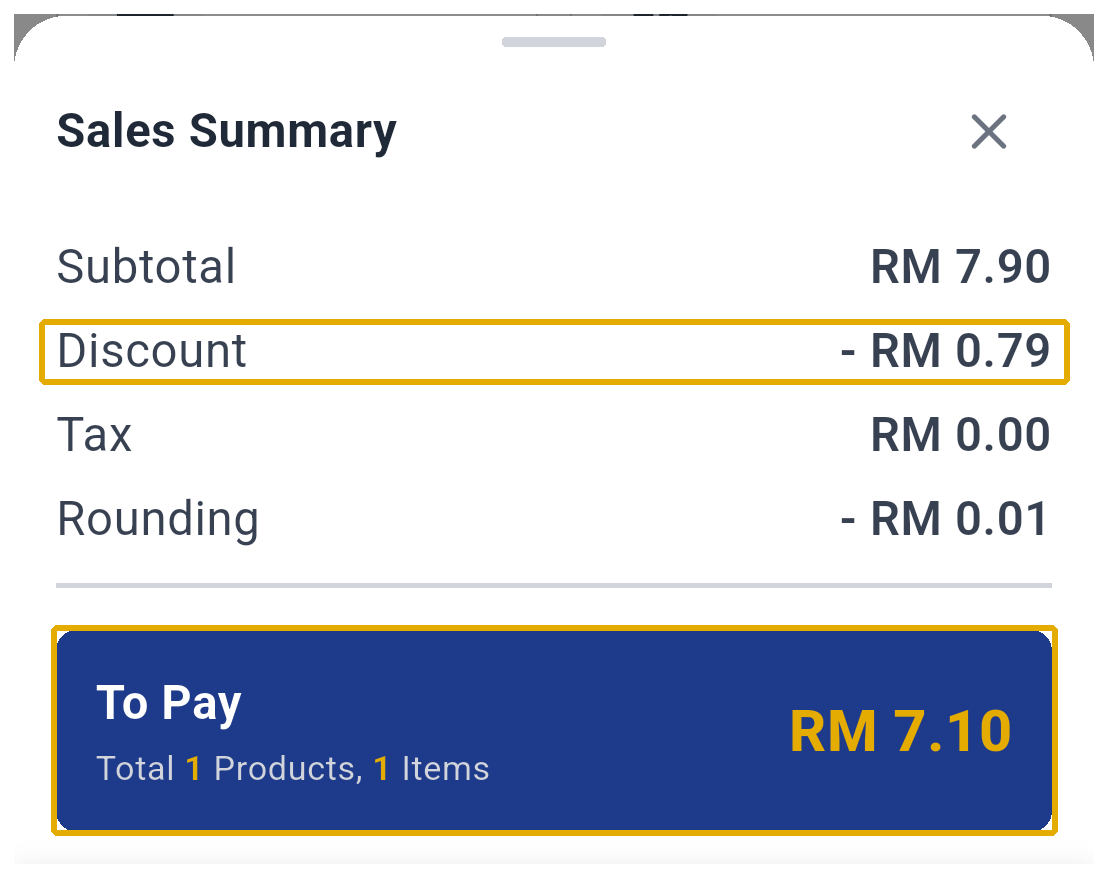
Result: The Sales Summary shows Discount 10.00% and - RM 0.79, and the Total drops from RM 7.90 to RM 7.10.
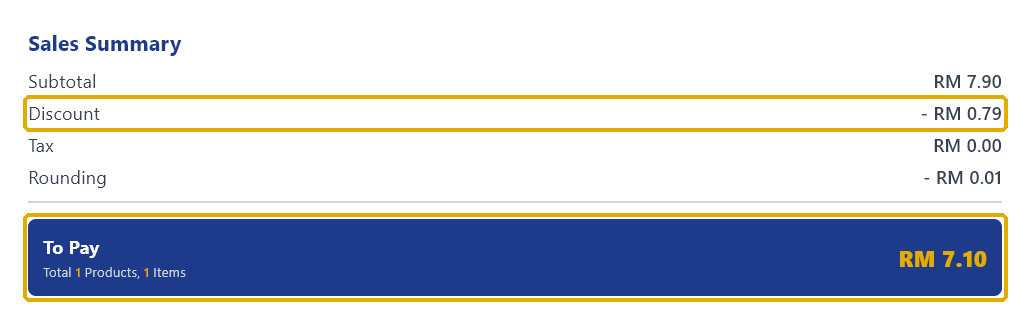
Click Pay. The payment screen also shows the Discount, and the customer pays RM 7.10.
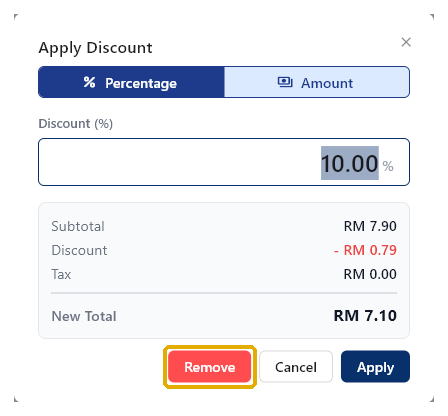
Remove: To take the discount off, click Discount in the Sales Summary (or Action > Apply Discount) and click Remove.
Apply a Global Discount in N3 AI POS Android App
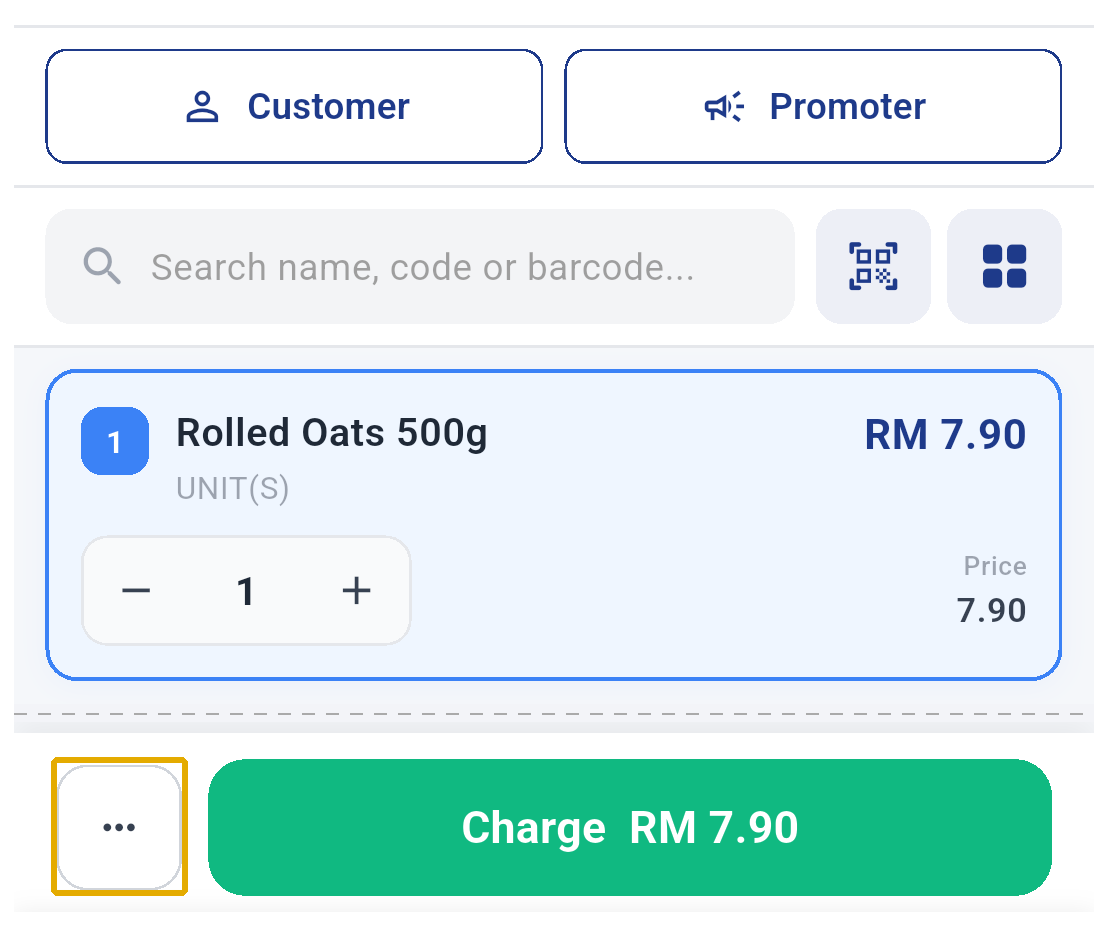
Add the items to the cart, then tap the ... button next to Charge.
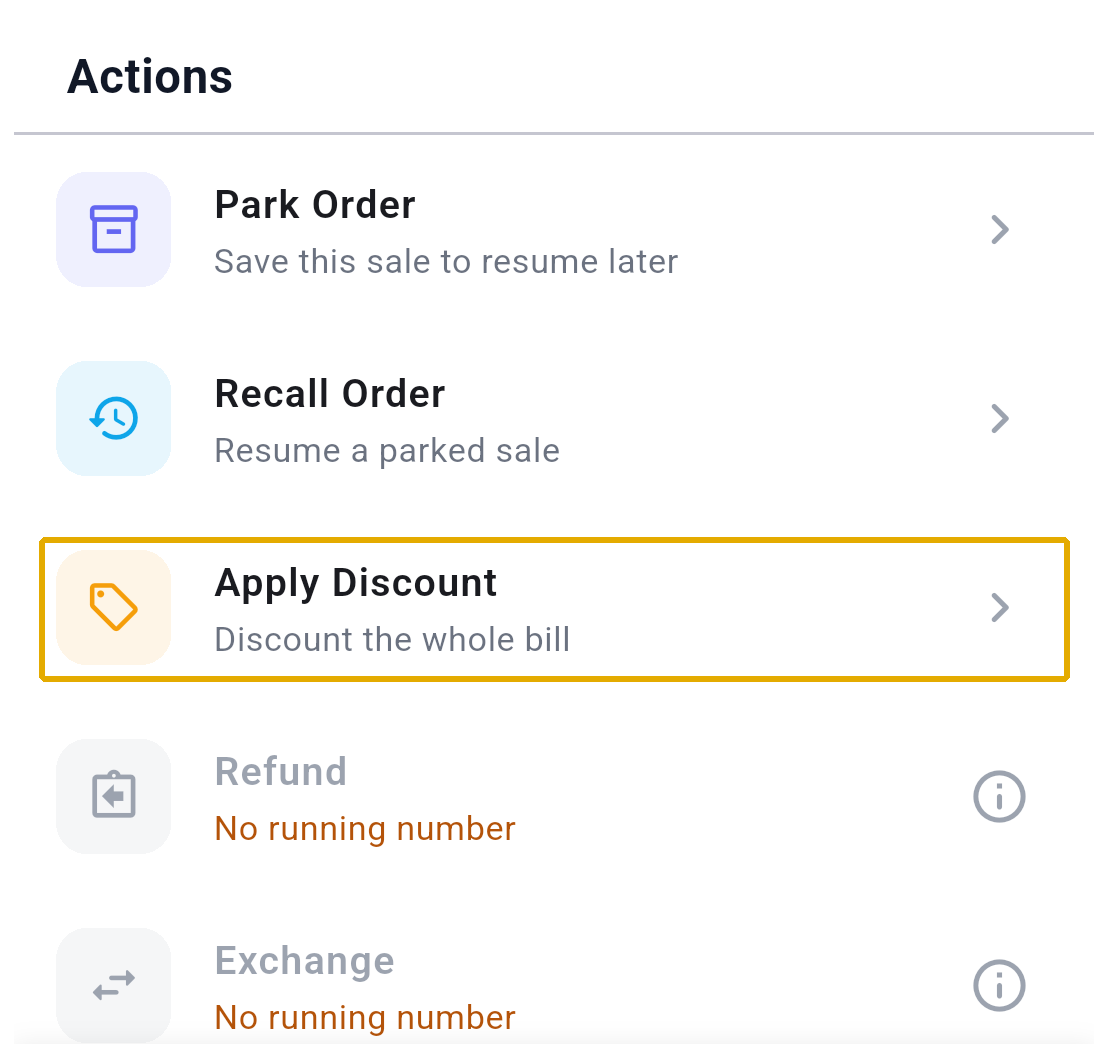
In Actions, tap Apply Discount.
Choose Percentage or Amount, key in the discount, e.g. 10, check the New Total and tap Apply.
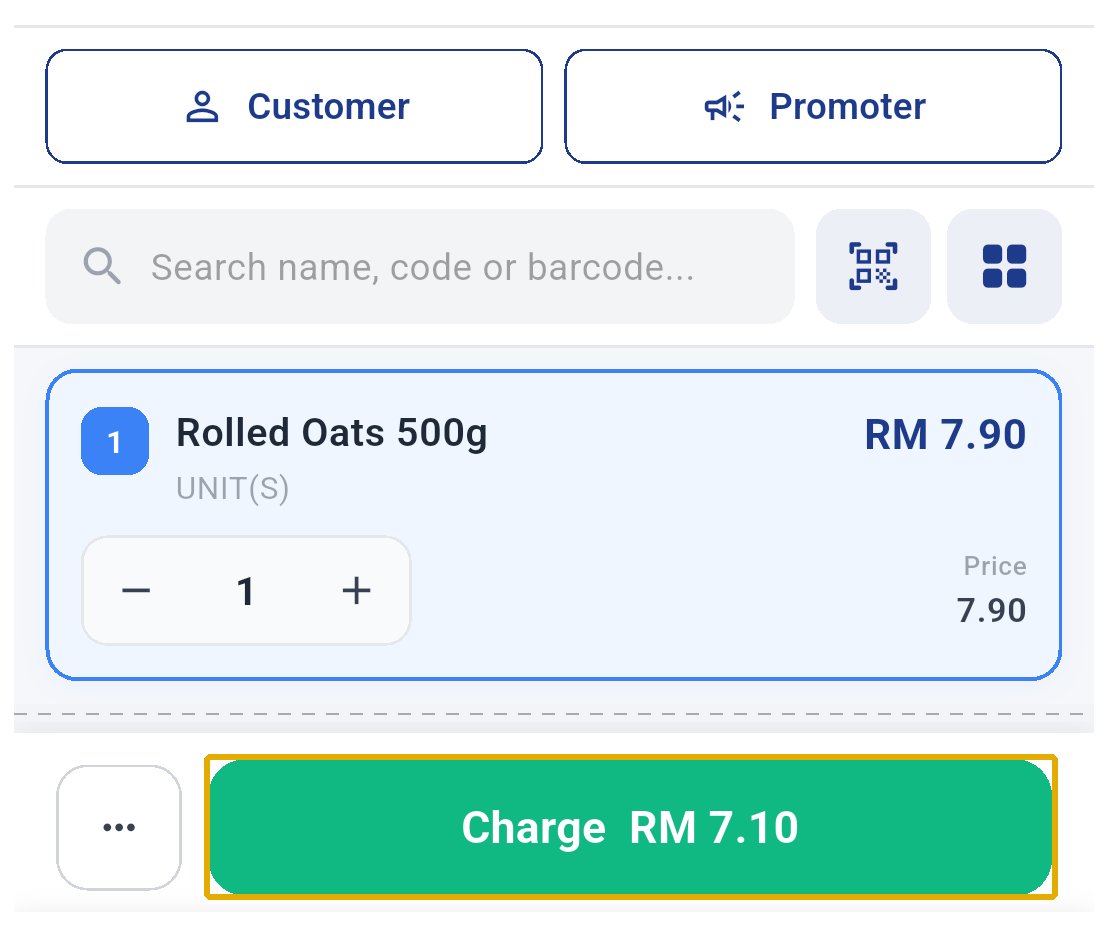
Result: Discount 10.00% applied appears and Charge drops from RM 7.90 to RM 7.10.
Tap Charge and tap View breakdown. The Sales Summary shows Discount - RM 0.79 and To Pay RM 7.10.
Remove: Tap ... > Apply Discount again and tap Remove.
What's Next :
To discount one item line only, see How to Apply an Item Discount in N3 AI POS. To hold a sale and continue it later, see How to Use Park Order and Recall Order in N3 AI POS.
** Learn more about Azure Cloud
** Learn more about QNE Hybrid Cloud Software
Was this article helpful?
That’s Great!
Thank you for your feedback
Sorry! We couldn't be helpful
Thank you for your feedback
Feedback sent
We appreciate your effort and will try to fix the article
