Overview :
N3 AI POS links to N3 AI Accounting, so the day's sales and stock movements are posted to your accounts automatically. Each day, N3 AI POS creates a Journal Posting (sales and payments) and a Stock Posting (stock movements) and sends them to N3 AI Accounting. This article guides you through the link, the auto posting schedule, the outlet mapping, the posting and sync log pages, and where the postings appear in N3 AI Accounting.
At the end of this article, you will be able to:
Link N3 AI POS to N3 AI Accounting and set up Auto Posting
Map each outlet to a Stock Location and Project
Read Journal Posting, Stock Posting and Posting Status
Use Sync Logs and Device Sync Logs to check and fix sync issues
Find the journal entries and the stock ledger in N3 AI Accounting
Scenario :
POS Sdn. Bhd. Live sells at several outlets with N3 AI POS and keeps its books in N3 AI Accounting. Instead of keying in the daily sales by hand, the accountant links the two systems, sets the postings to run every night at 11 PM, and checks the next morning that each day's journal and stock posting has synced.
Solution :
Link to N3 AI Accounting
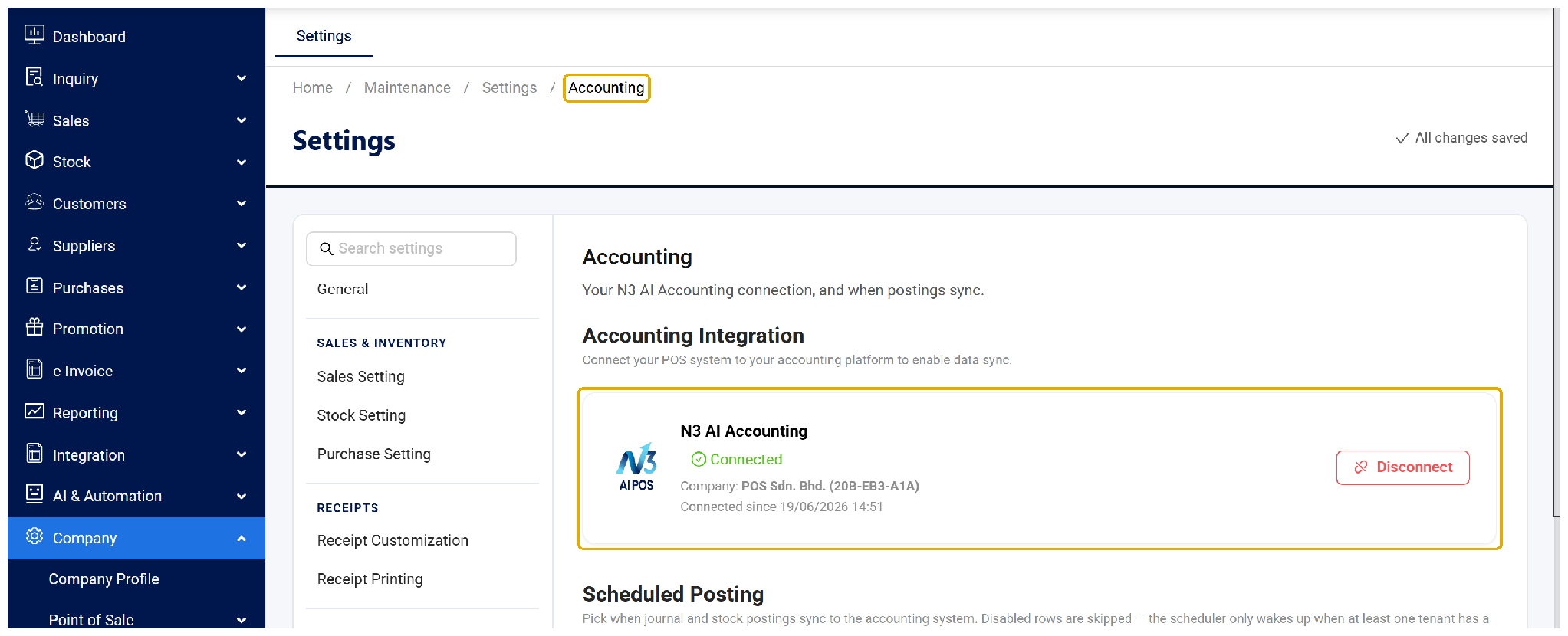
In the N3 AI POS Portal, navigate to Company > Maintenance > Settings and select Accounting under Connections.
Click Connect and enter your N3 AI Accounting Tenant Code (company ID), Username and Password, then click Connect. Once connected, Accounting Integration shows Connected, the N3 AI Accounting company and the date connected. Click Disconnect only if you need to unlink.
Set Up Auto Posting (Journal & Stock Posting)
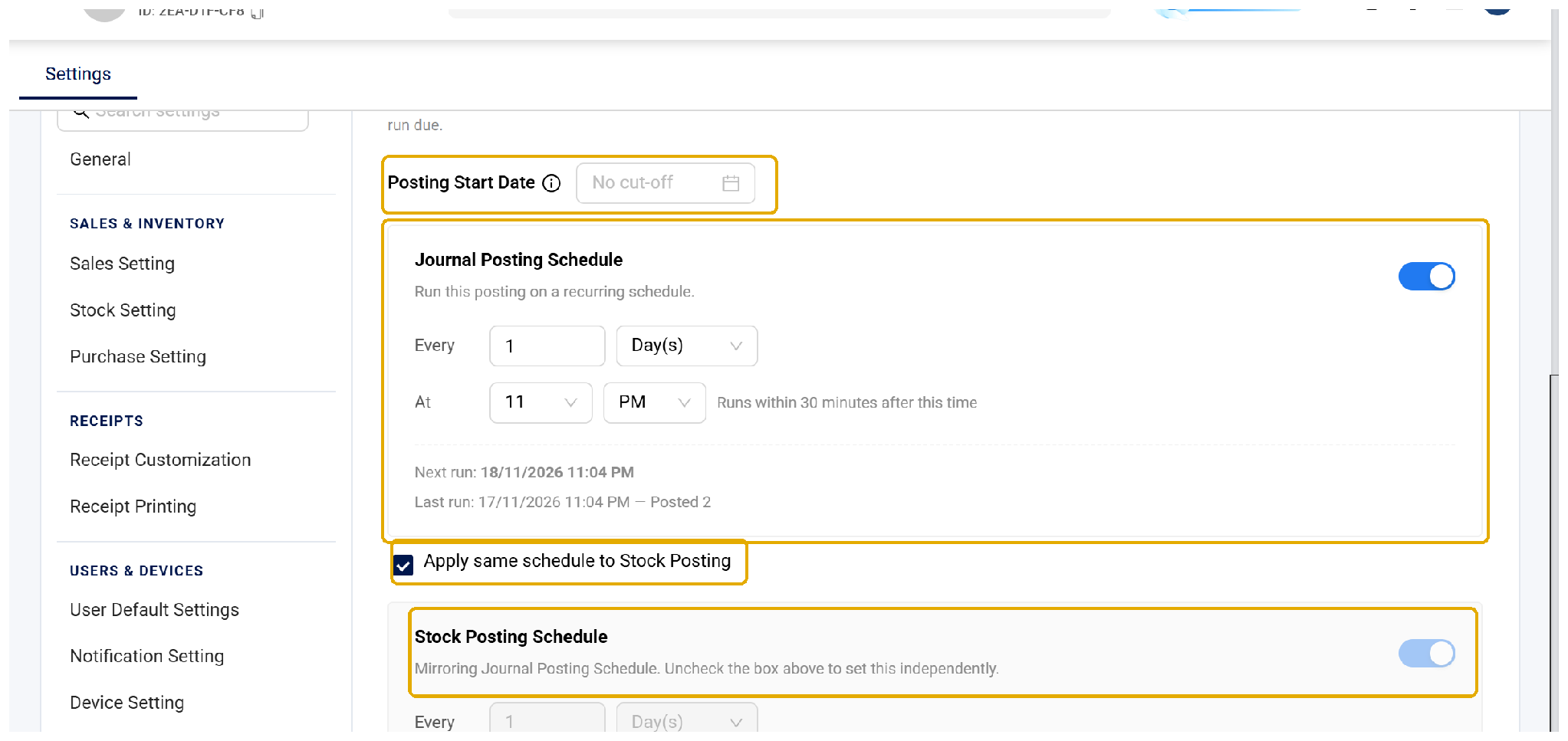
Under Scheduled Posting, set when the postings run:
Posting Start Date – Optional cut-off date. Leave as No cut-off to post all unposted transactions.
Journal Posting Schedule – Turn on to post sales automatically. Set Every (e.g. 1 Day(s)) and At (e.g. 11 PM). It runs within 30 minutes after this time.
Apply same schedule to Stock Posting – Tick to make the Stock Posting Schedule follow the journal schedule, or untick to set its own.
Next run / Last run – When the next posting runs and the result of the last run, e.g. Posted 2.
Note: Changes on this page are saved automatically – All changes saved appears at the top right.
Map Stock Location and Project to Outlets
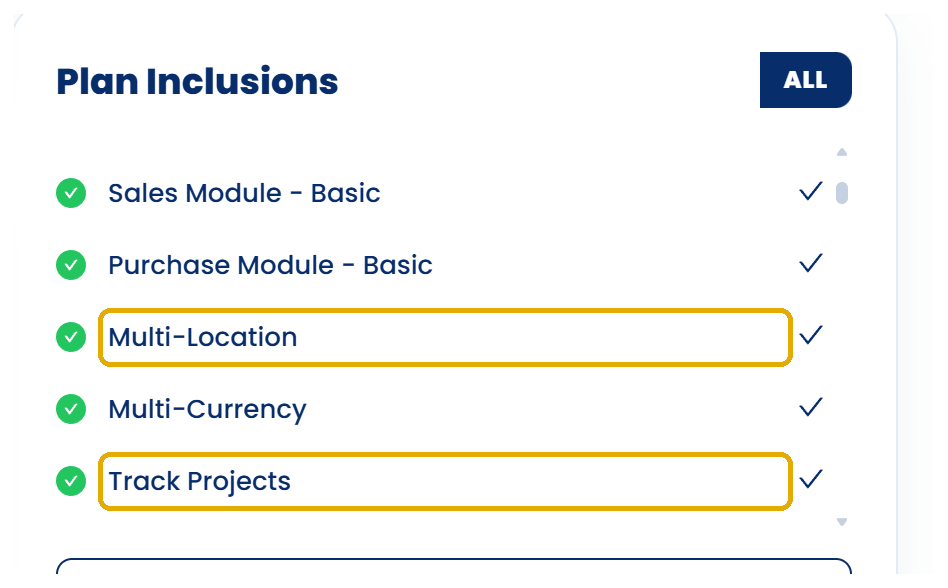
Note: Stock Location and Project mapping needs the Multi-Location and Track Projects modules in your N3 AI Accounting plan. In N3 AI Accounting, check them under Account > Manage Plan > Plan Inclusions.
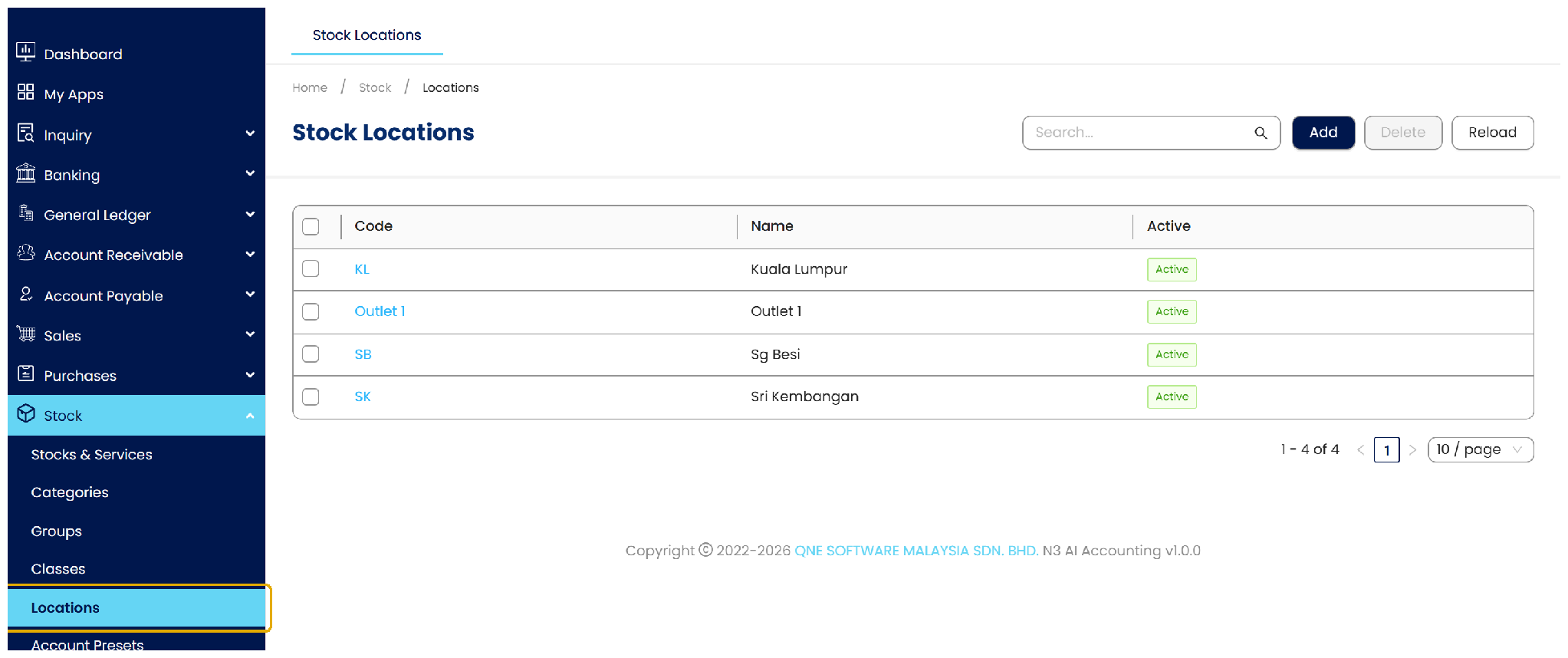
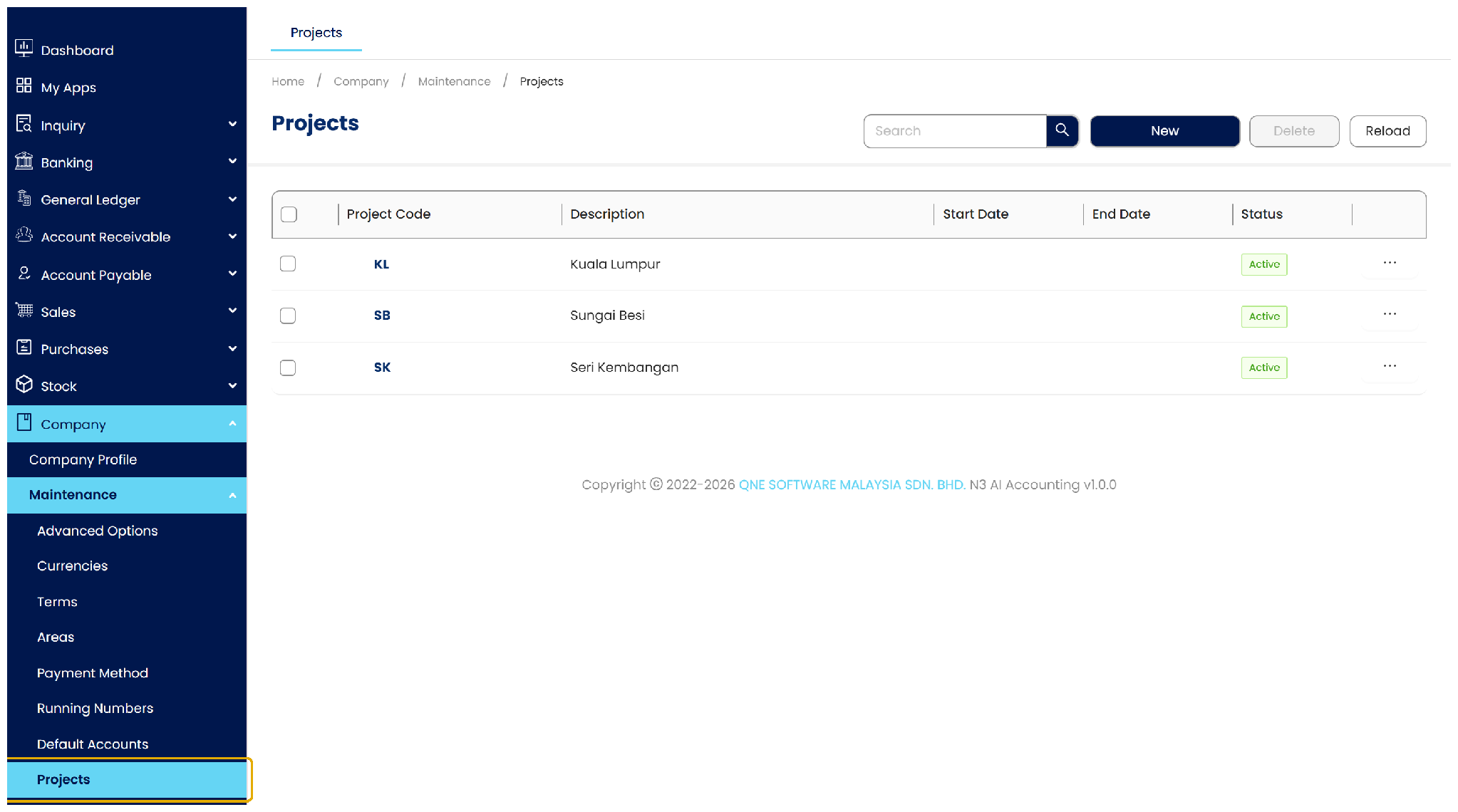
The stock locations and projects are maintained in N3 AI Accounting under Stock > Locations and Company > Projects.
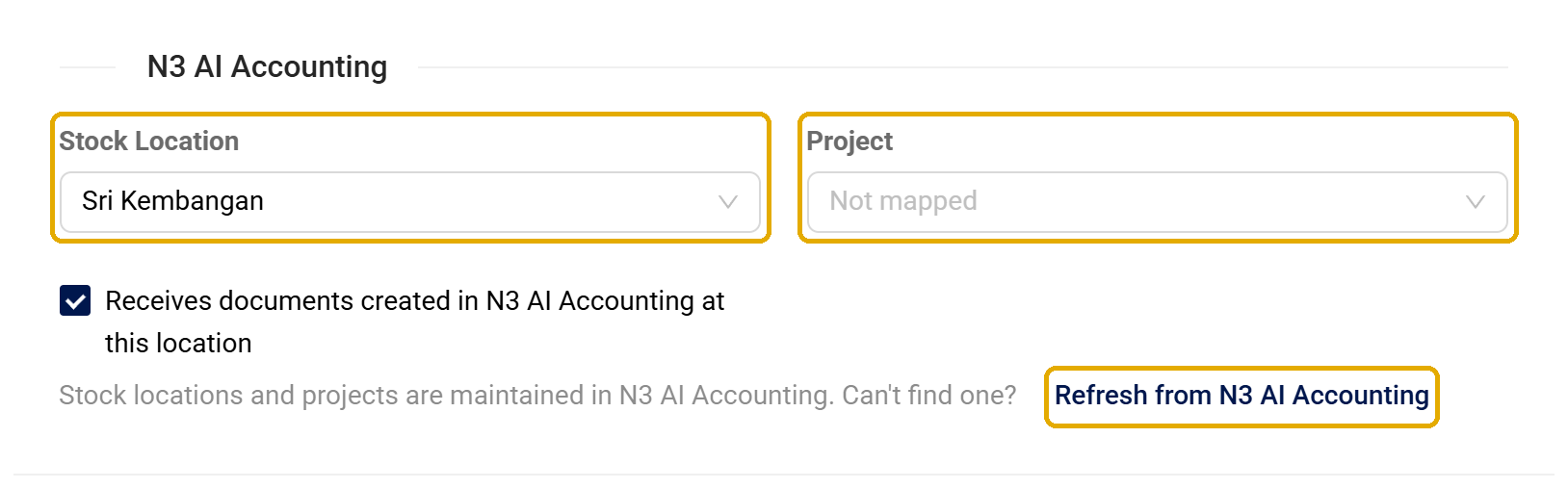
In the N3 AI POS Portal, navigate to Company > Point of Sale > Outlets and click the outlet. Under N3 AI Accounting, select the Stock Location and Project, then click Submit.
Stock Location – The N3 AI Accounting location whose stock this outlet sells. Tick Receives documents created in N3 AI Accounting at this location if documents created there should come to this outlet.
Project – The N3 AI Accounting project for this outlet's postings.
Refresh from N3 AI Accounting – Reloads the lists if a new location or project is missing.
Journal Posting
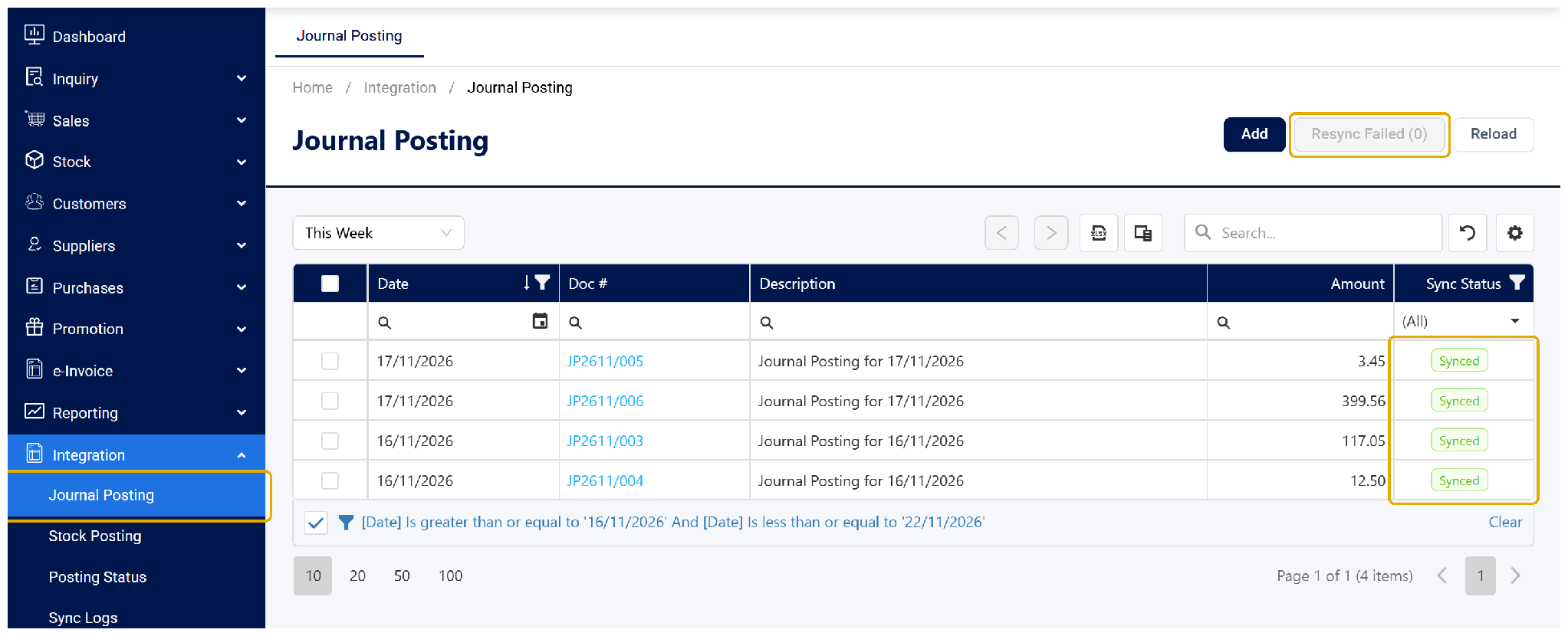
Navigate to Integration > Journal Posting. Each day's sales are summarised into one journal posting, e.g. JP2611/006 – Journal Posting for 17/11/2026, with its Amount and Sync Status (Synced or Failed). Click Resync Failed to send failed postings again.
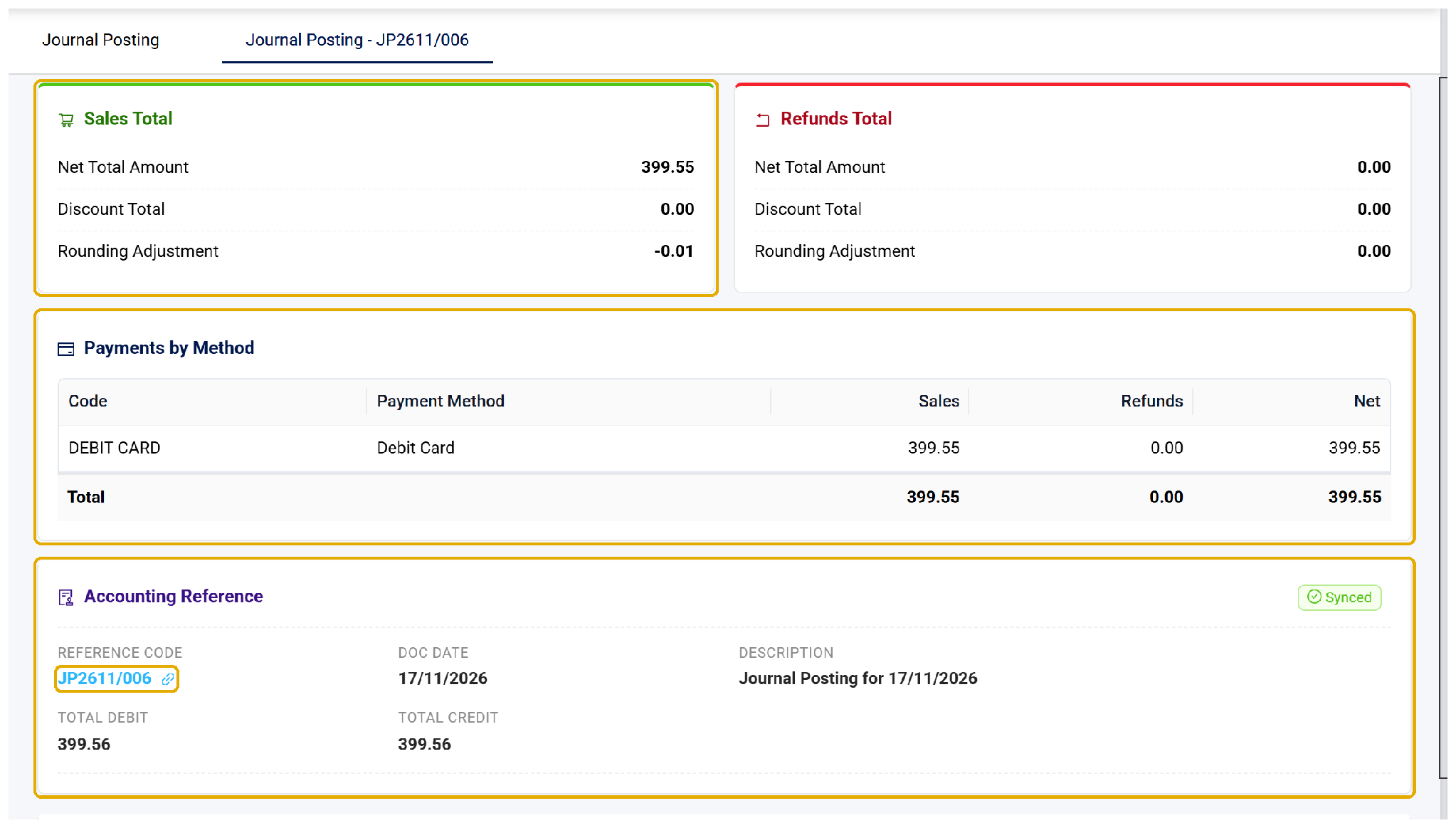
Click the Doc # to open it:
Sales Total / Refunds Total – Net Total Amount, Discount Total and Rounding Adjustment for the day.
Payments by Method – Sales, Refunds and Net for each payment method, e.g. Debit Card.
Accounting Reference – The sync status and the journal sent to N3 AI Accounting, with its Total Debit and Total Credit.
Tip: Click the blue Reference Code link, e.g. JP2611/006, under Accounting Reference to open the same journal in N3 AI Accounting in a new tab (see Journal Entries in N3 AI Accounting).
Stock Posting
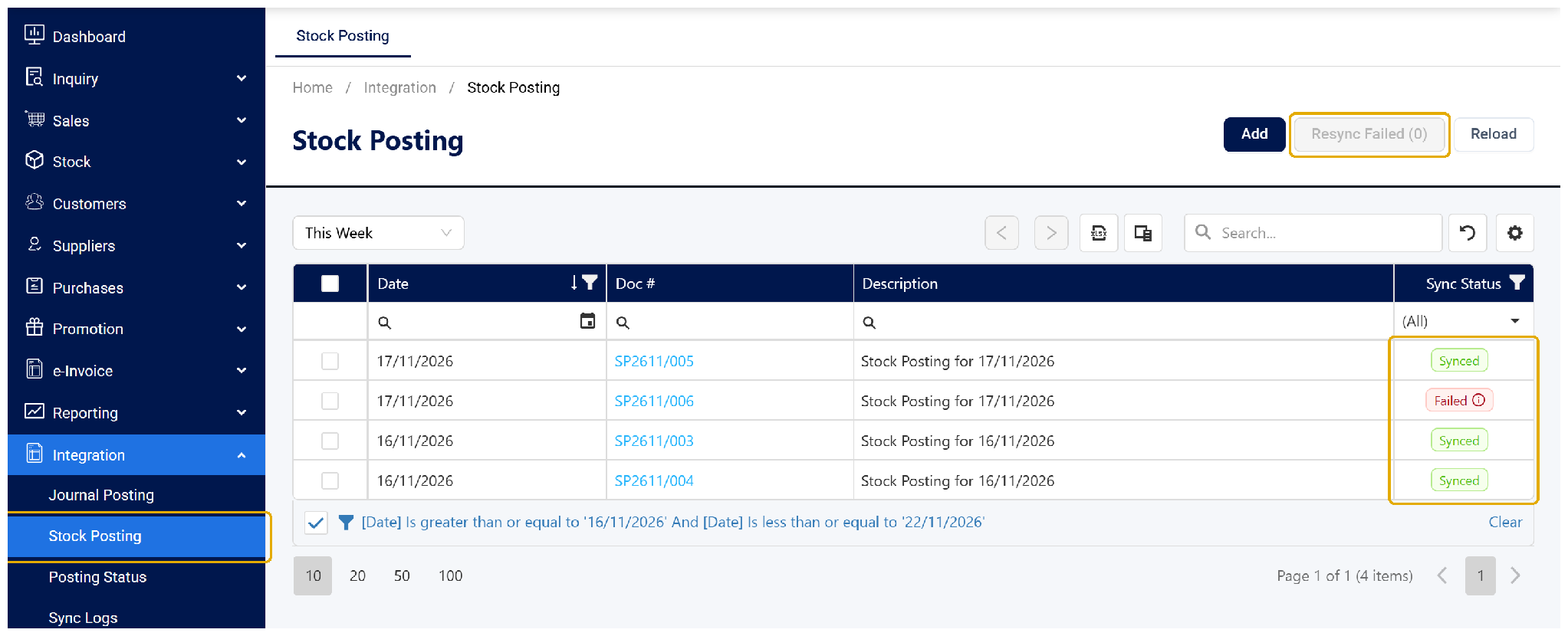
Navigate to Integration > Stock Posting. Each day's stock movements are summarised into one stock posting, e.g. SP2611/005, with its Sync Status. Click Resync Failed to send failed postings again.
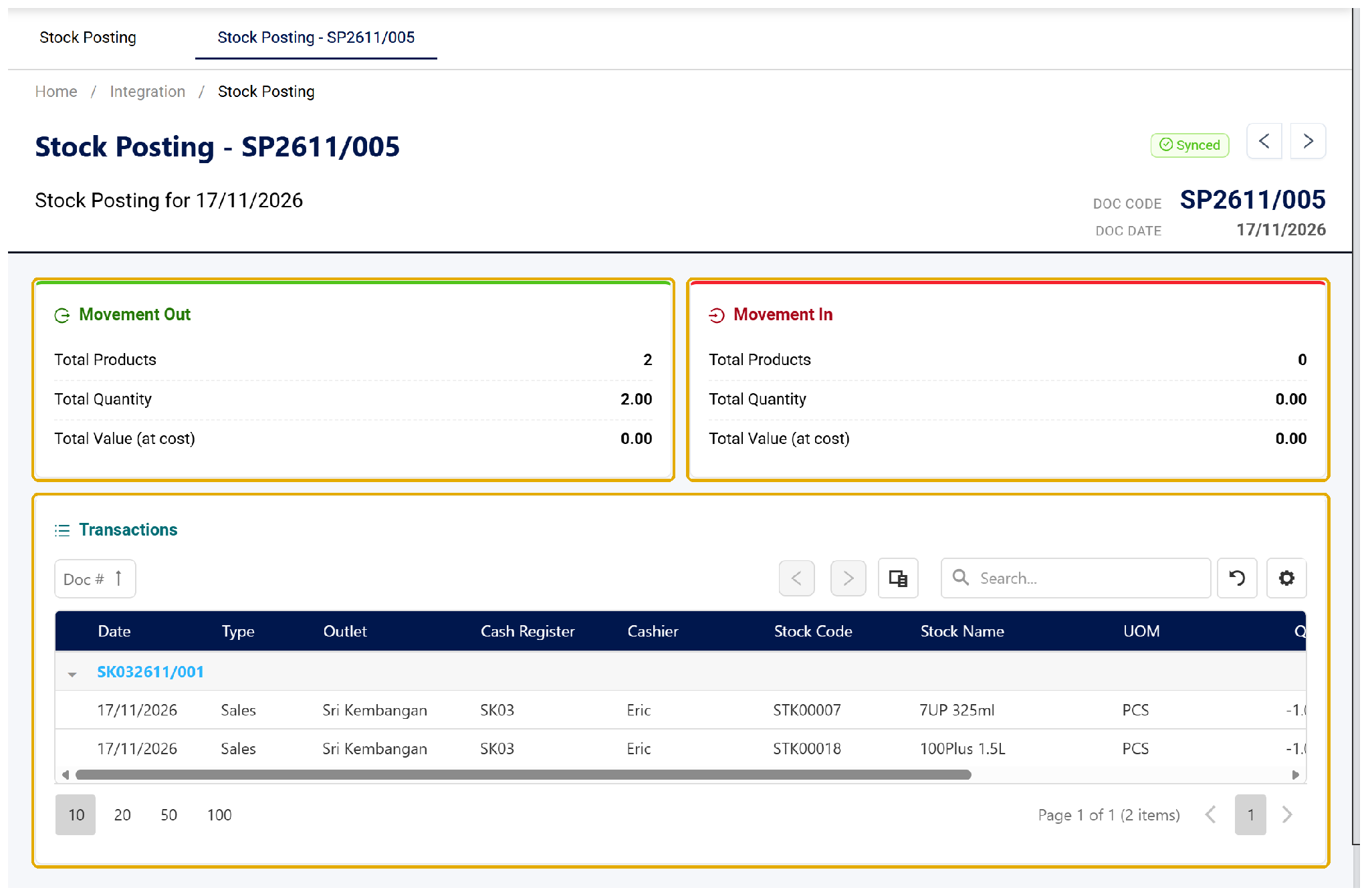
Click the Doc # to open it. Movement Out (e.g. sales) and Movement In show the total products, quantity and value at cost, and Transactions lists each N3 AI POS document with the outlet, cash register, stock, UOM and quantity.
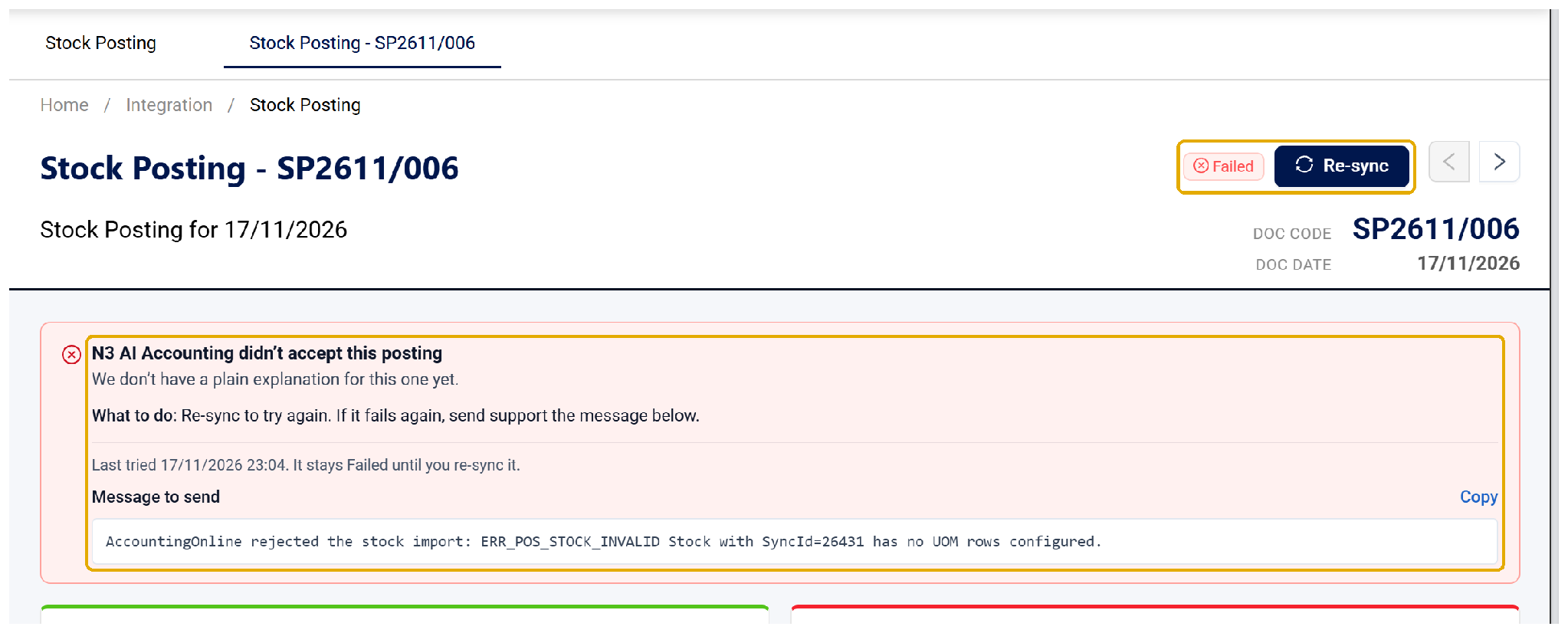
If a posting Failed, the page explains that N3 AI Accounting did not accept it and what to do. Click Re-sync to try again. If it fails again, click Copy under Message to send and send the message to our support team.
Posting Status
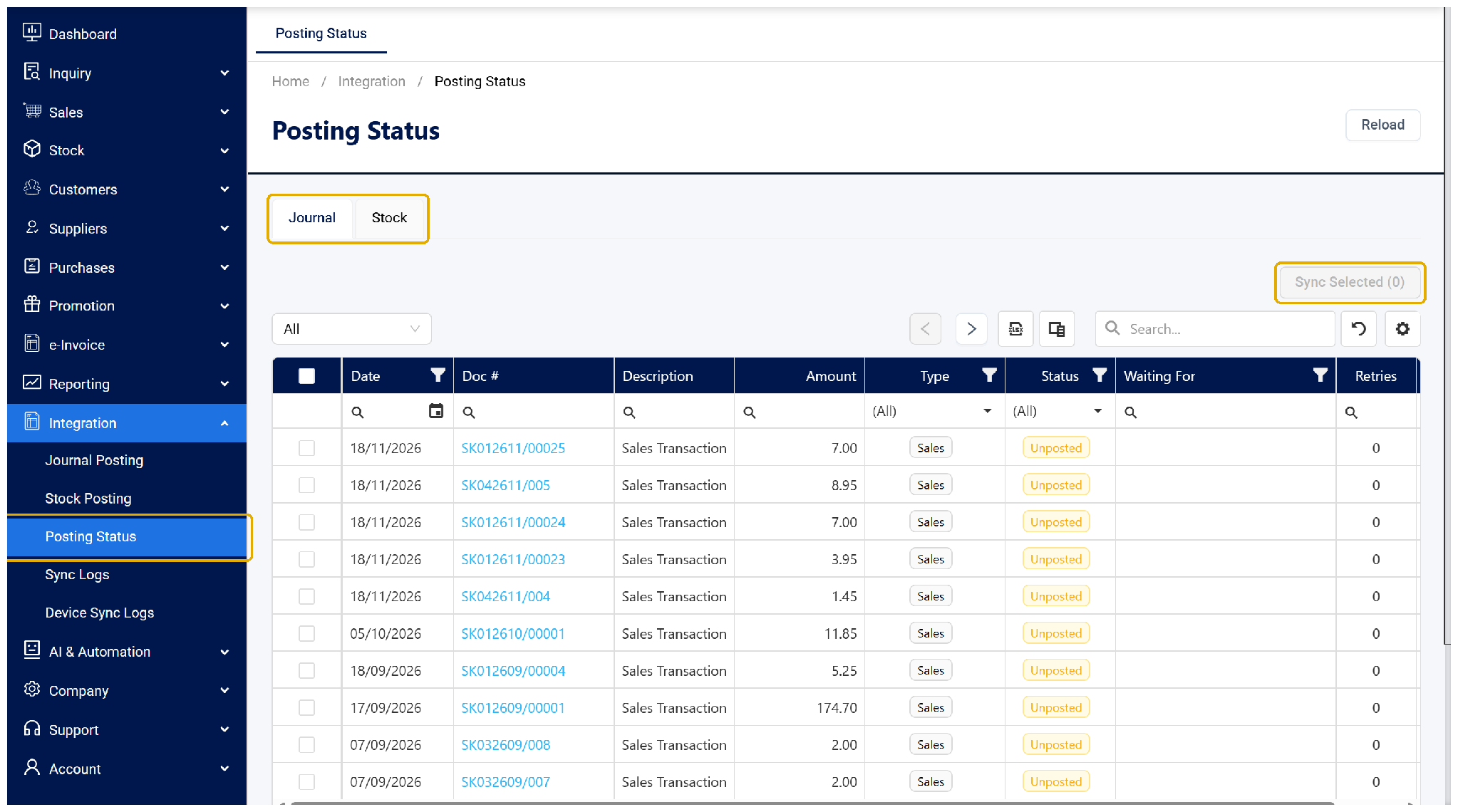
Navigate to Integration > Posting Status. It lists each N3 AI POS transaction with its Type, Status (e.g. Unposted), Waiting For, Retries and Error, on the Journal and Stock tabs. Unposted transactions are picked up by the next scheduled posting. To post some now, tick them and click Sync Selected.
Sync Logs
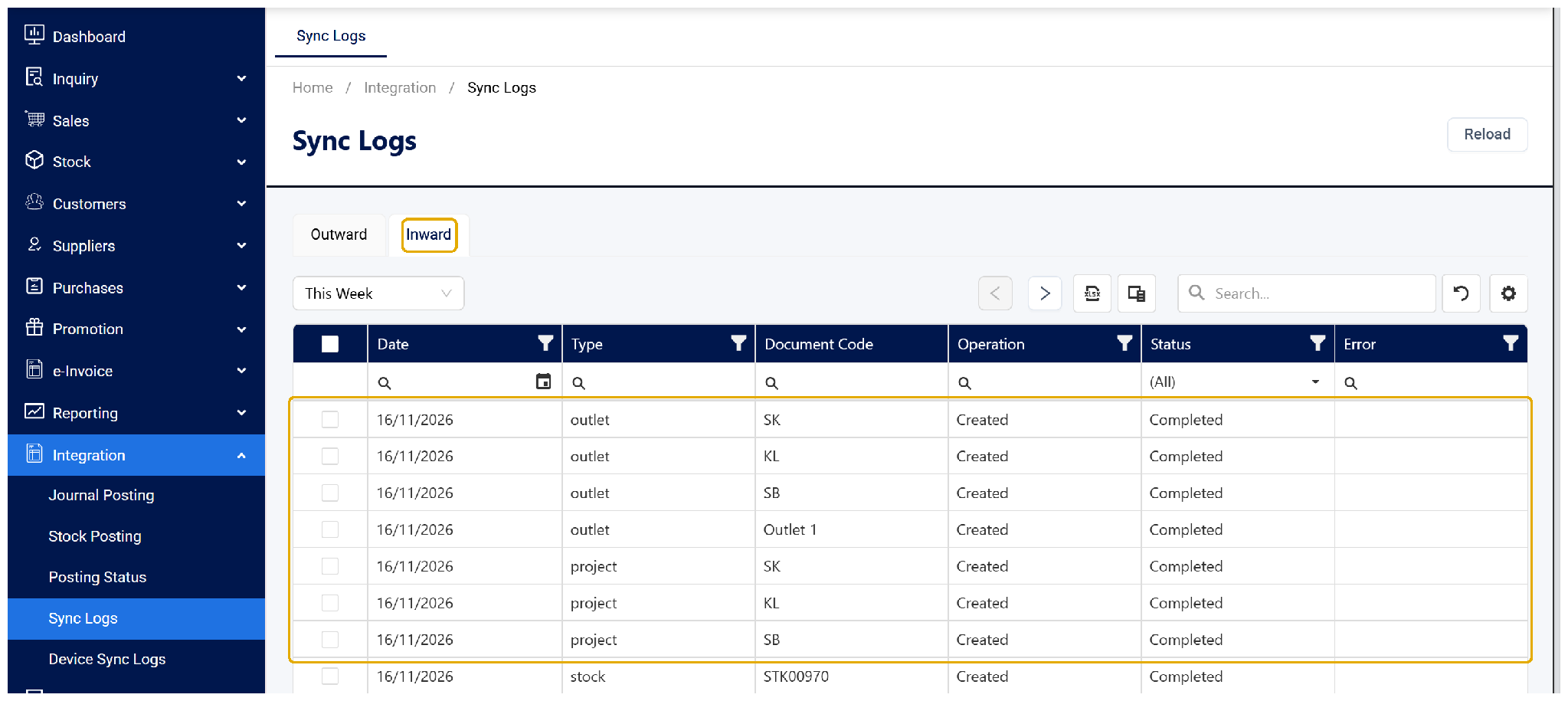
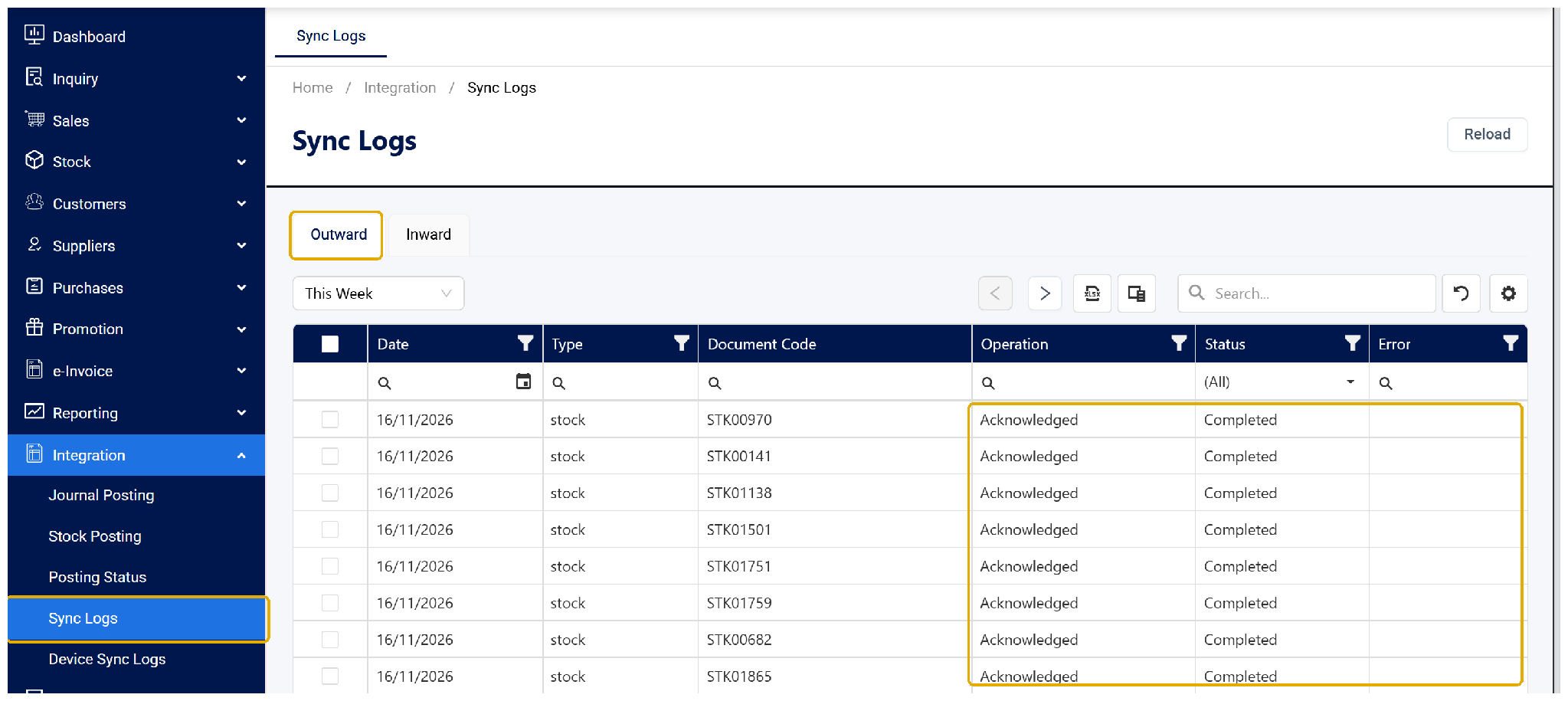
Navigate to Integration > Sync Logs. It lists the records exchanged between N3 AI POS and N3 AI Accounting, with Date, Type, Document Code, Operation, Status and Error.
Inward – Records coming from N3 AI Accounting into N3 AI POS, e.g. stock items (Type stock), stock locations (Type outlet) and projects (Type project). The Operation shows what N3 AI POS did with them, e.g. Created.
Outward – Records N3 AI POS sends back to N3 AI Accounting, e.g. an Acknowledged reply for each stock item it received.
Note: A Status of Completed means the record went through. If a record fails, the Error column shows why.
Device Sync Logs
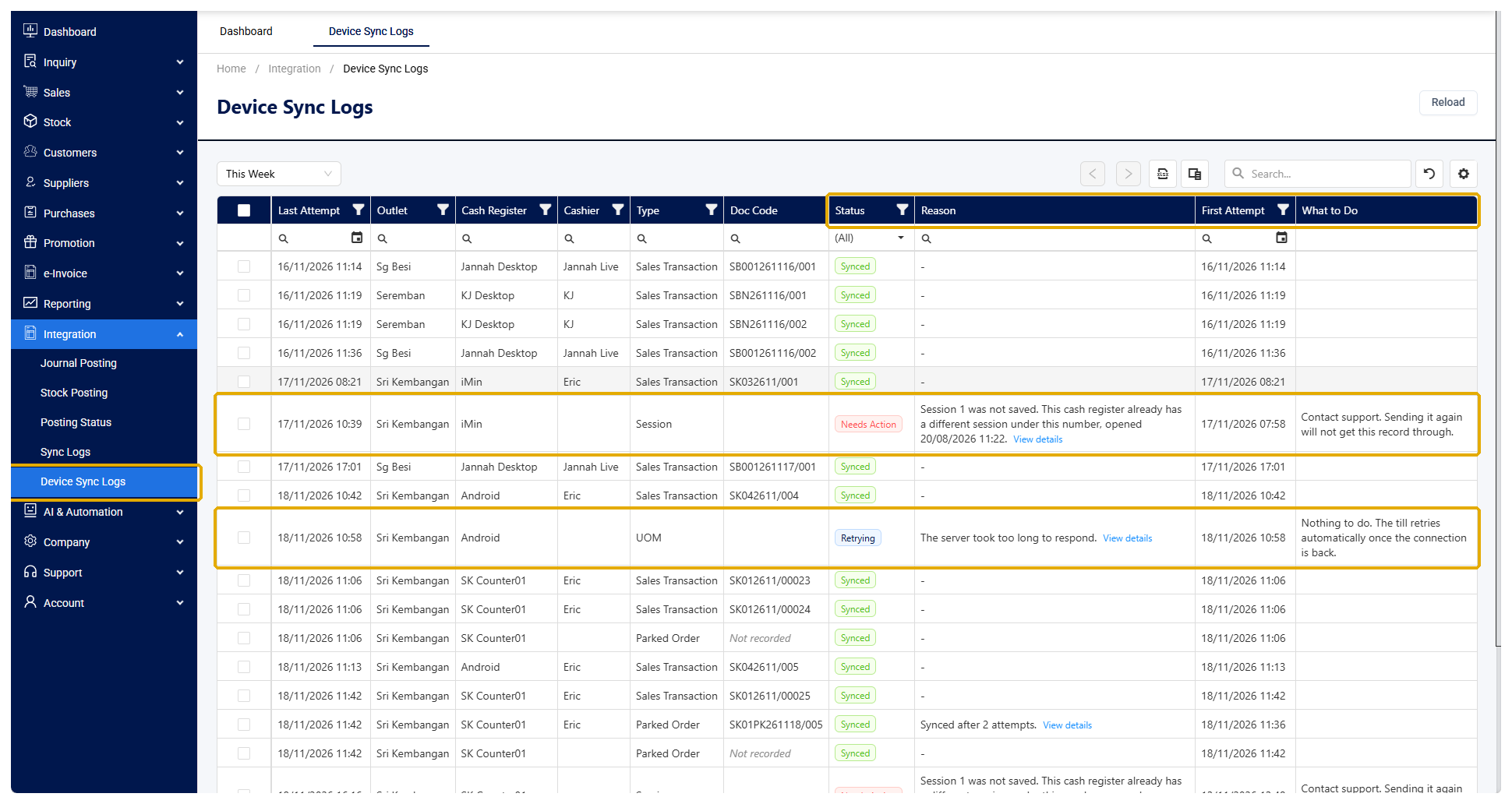
Navigate to Integration > Device Sync Logs. It lists each record uploaded from the cash registers (Win App and Android), with Last Attempt, Outlet, Cash Register, Cashier, Type, Doc Code, Status, Reason, First Attempt and What to Do.
Synced – The record reached the Portal.
Retrying – The till retries automatically once the connection is back, e.g. when the server took too long to respond.
Needs Action – The record cannot go through by itself. Follow What to Do, e.g. contact support.
Journal Entries in N3 AI Accounting
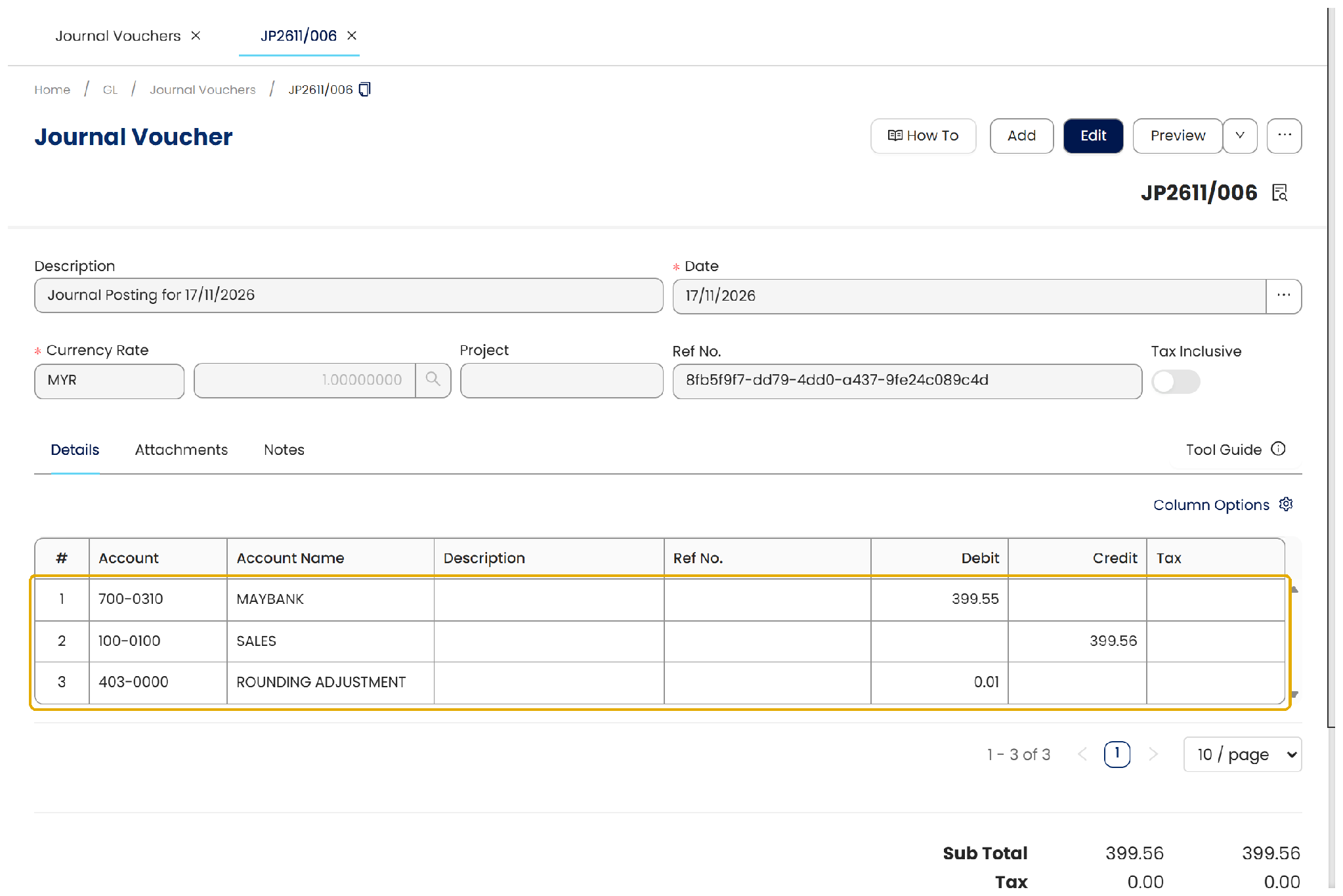
In N3 AI Accounting, navigate to General Ledger > Journal Vouchers. Each journal posting appears with the same Doc #, e.g. JP2611/006 – Journal Posting for 17/11/2026, with its Debit and Credit.
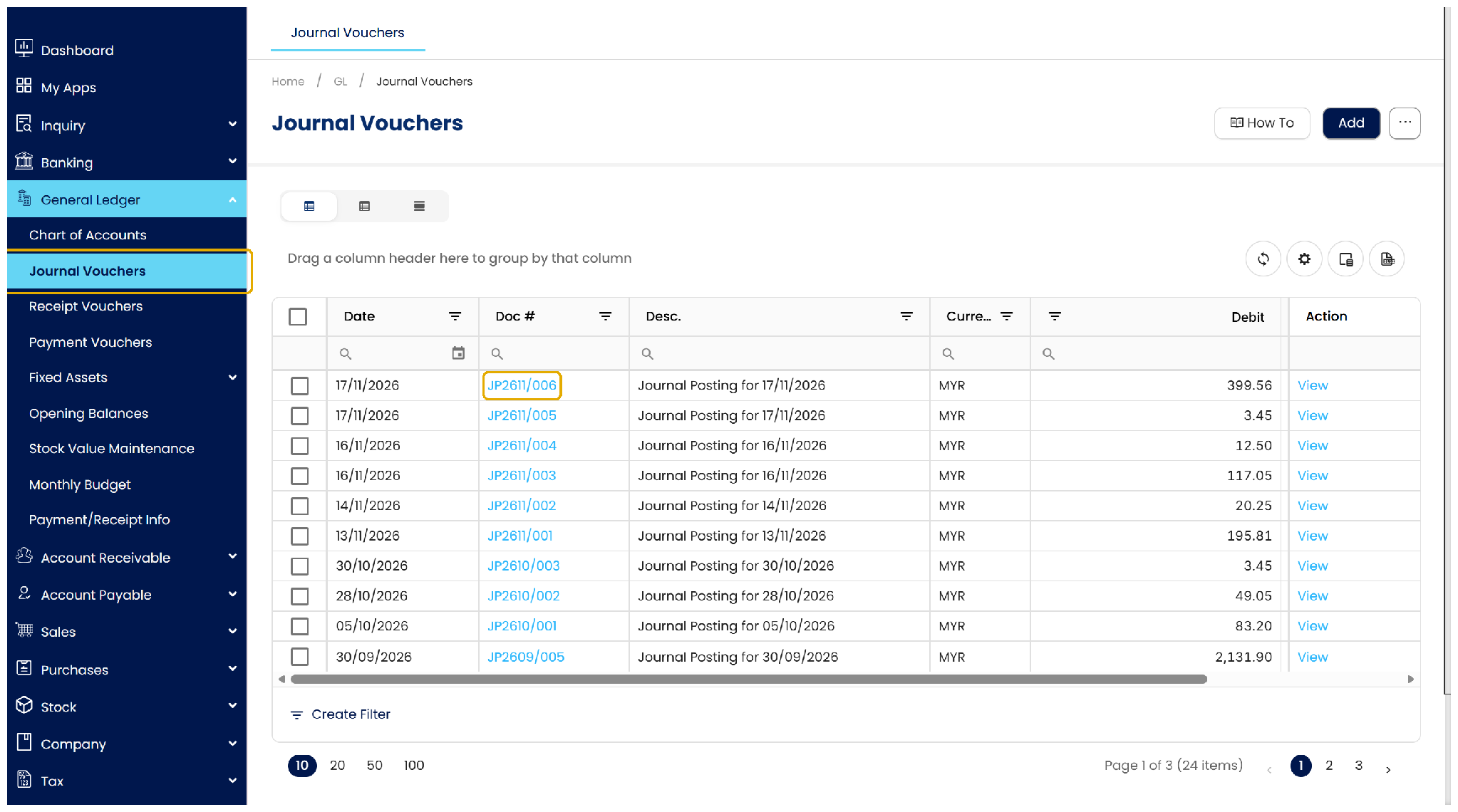
Click View to see the journal entries, e.g. for JP2611/006:
Debit – MAYBANK (the account for the Debit Card payments) 399.55, and ROUNDING ADJUSTMENT 0.01.
Credit – SALES 399.56.
Stock Ledger in N3 AI Accounting
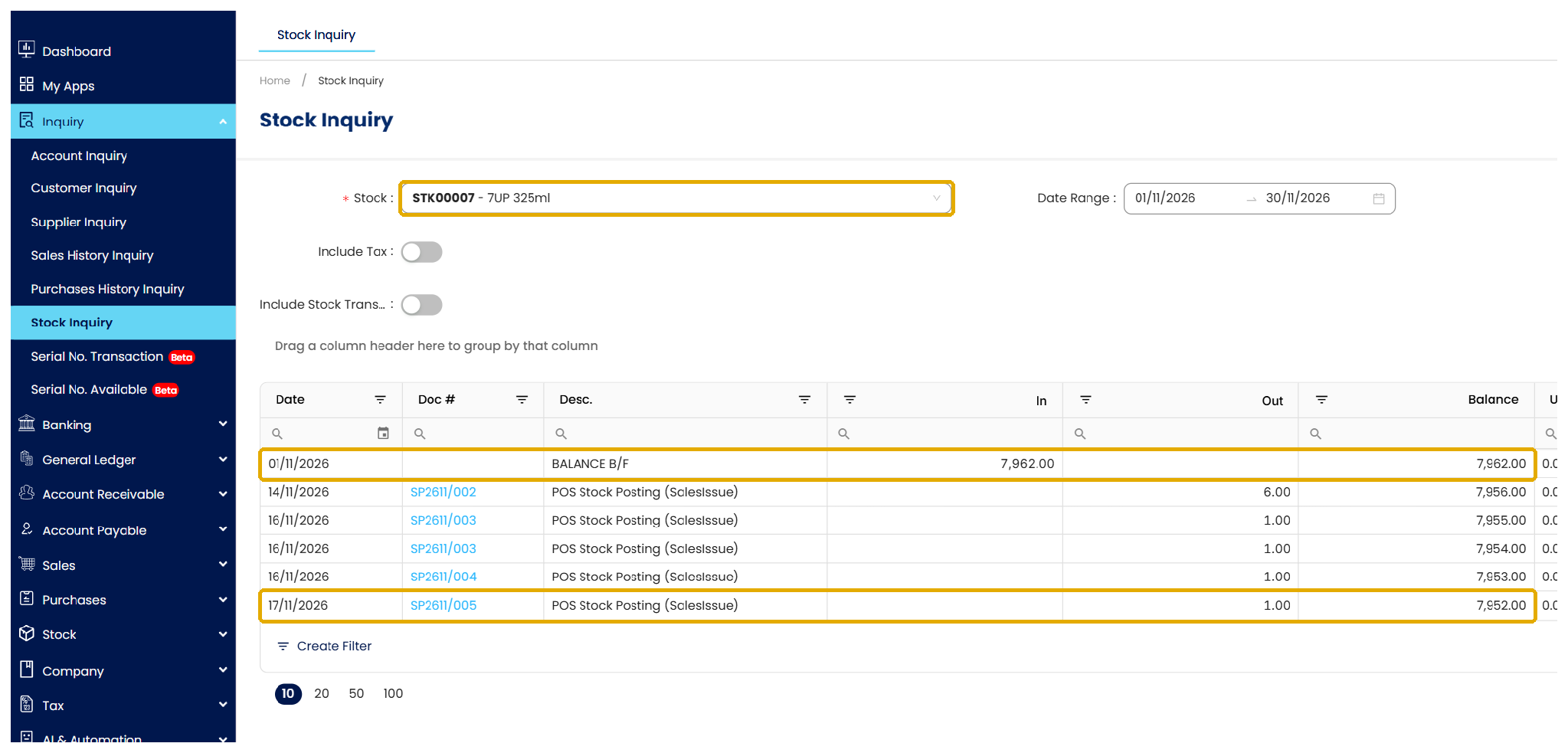
Navigate to Inquiry > Stock Inquiry, select the Stock and Date Range, then click Inquiry. The ledger starts with BALANCE B/F, and each stock posting appears as POS Stock Posting (SalesIssue) with its SP number, quantity Out and running Balance.
What's Next :
Check Integration > Posting Status and Device Sync Logs regularly, and re-sync any failed posting. For the outlet and cash register setup, see How to Complete the Basic Setup in N3 AI POS.
** Learn more about Azure Cloud
** Learn more about QNE Hybrid Cloud Software
Was this article helpful?
That’s Great!
Thank you for your feedback
Sorry! We couldn't be helpful
Thank you for your feedback
Feedback sent
We appreciate your effort and will try to fix the article
