Overview :
Sync Logs record every message N3 AI POS exchanges with N3 AI Accounting. The Outward tab lists what N3 AI POS sends, such as new or changed stock items, customers, suppliers and purchase documents. The Inward tab lists what N3 AI POS receives: the replies that N3 AI Accounting got each record, and the records created or changed in N3 AI Accounting, such as outlets. This article guides you through checking the sync logs in the N3 AI POS Portal.
At the end of this article, you will be able to:
Open Sync Logs and read the columns
Check that a record was sent to N3 AI Accounting
Check what N3 AI POS received from N3 AI Accounting
Scenario :
The stock item STK00001 (Coca-Cola 325ml) was saved in N3 AI POS today. The administrator checks that it was sent to N3 AI Accounting and that N3 AI Accounting acknowledged it, then checks the outlets received from N3 AI Accounting.
Solution :
Open Sync Logs
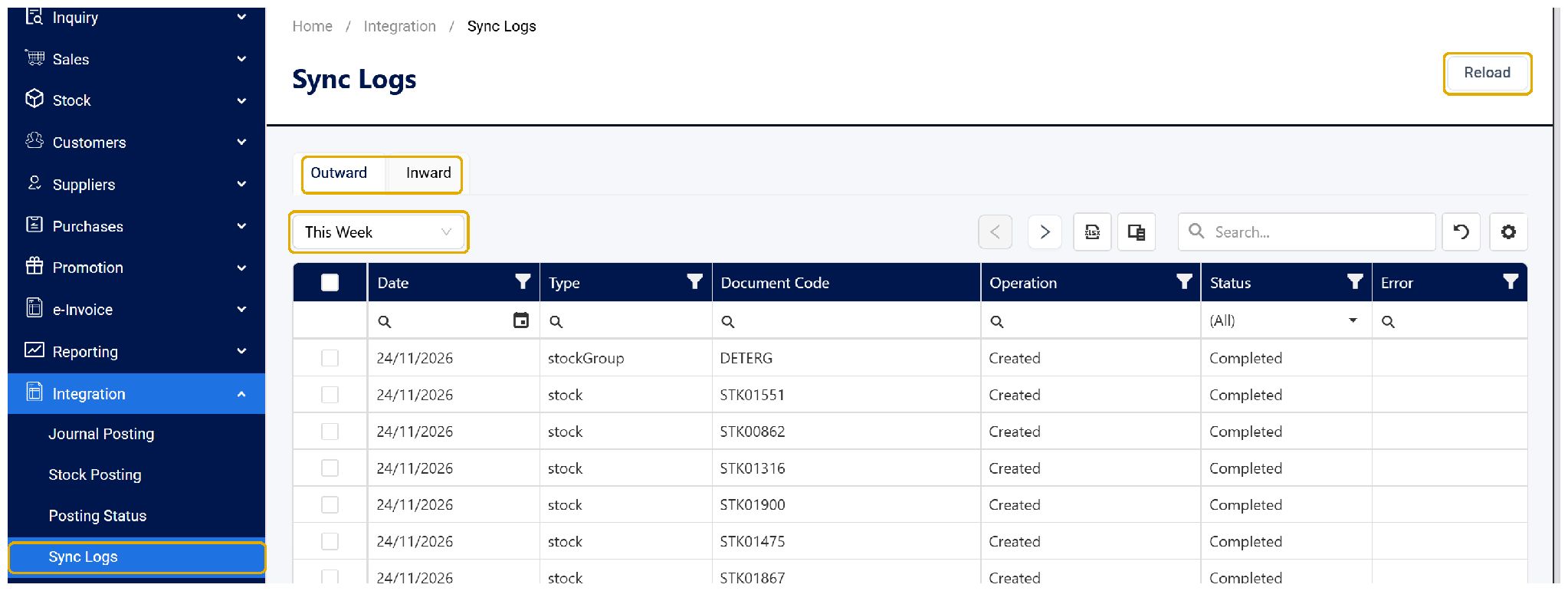
Navigate to Integration > Sync Logs. Click Outward or Inward, and choose the period, e.g. This Week. Click Reload to read the list again.
Date – When the message was sent or received.
Type – The kind of record, e.g. stock, customer, cashPurchase or outlet.
Document Code – The code of the record, e.g. STK00001.
Operation – Created, Updated or Deleted. On Inward, Acknowledged means N3 AI Accounting confirmed it got the record.
Status – Completed when the message went through. Pending or Processing while it is still on its way.
Error – Why a message did not go through. Empty when it went through.
Check a Record Sent to N3 AI Accounting
On the Outward tab, type the code in the filter box under Document Code, e.g. STK00001, and press Enter. The stock item shows Created and Completed: it was sent to N3 AI Accounting.
Tip: Type in the filter box under any column, e.g. Type, to filter by that column.

Click Inward and filter the same Document Code. The row shows Acknowledged and Completed: N3 AI Accounting got the stock item.

Check the Records Received from N3 AI Accounting
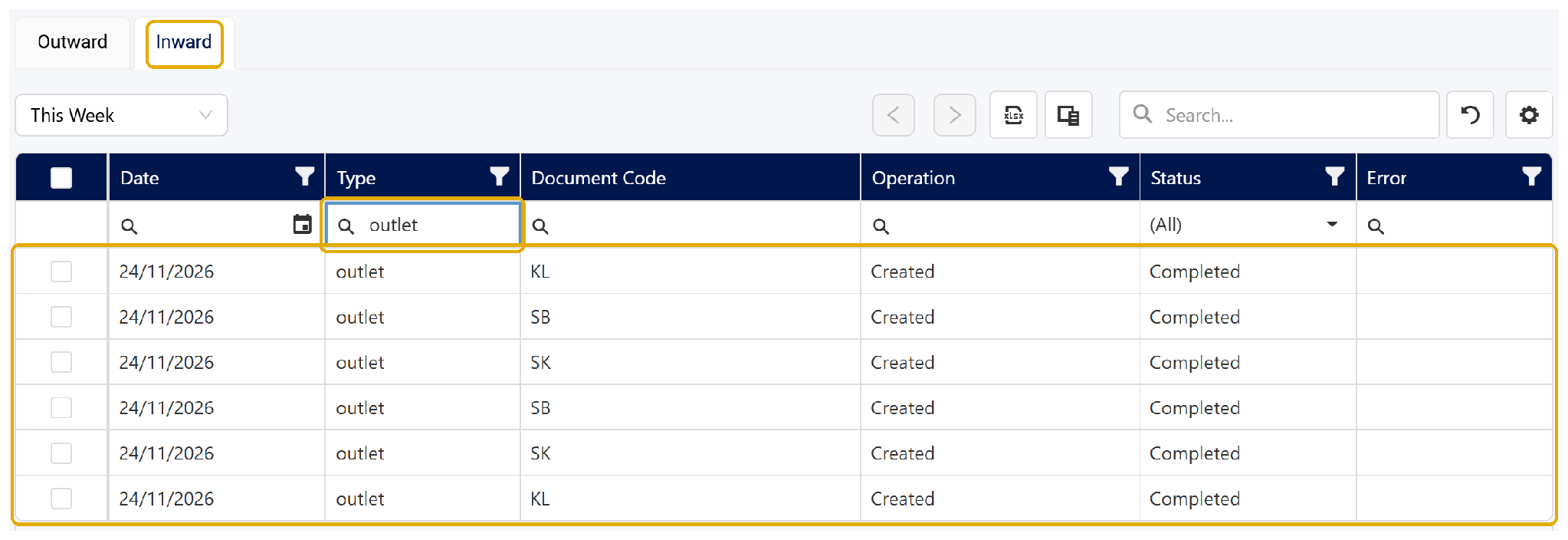
On the Inward tab, type the type in the filter box under Type, e.g. outlet. The outlets set up in N3 AI Accounting, e.g. KL, SB and SK, show Created and Completed: N3 AI POS received them.
What's Next :
Check the sales and refunds waiting to be posted in Integration > Posting Status, and the postings sent in Integration > Journal Posting and Stock Posting.
** Learn more about Azure Cloud
** Learn more about QNE Hybrid Cloud Software
Was this article helpful?
That’s Great!
Thank you for your feedback
Sorry! We couldn't be helpful
Thank you for your feedback
Feedback sent
We appreciate your effort and will try to fix the article
