Overview :
A Cash Purchase records goods you buy from a supplier and pay for straight away, with the Payment By method, e.g. Cash. You can key in the items yourself, or bring them in from a Purchase Order or a Goods Received Note. Cash purchases are sent to N3 AI Accounting (n3.qne.cloud), in the database that N3 AI POS is linked to. This article guides you through creating a cash purchase in the N3 AI POS Portal.
At the end of this article, you will be able to:
Create a new cash purchase and key in its items
Bring in the lines from a purchase order or goods received note instead
Save it and check the transfer status of the purchase order
Check the cash purchase in N3 AI Accounting
Scenario :
Kuala Lumpur pays Lim Kee Wholesale Sdn Bhd in cash for the soft drinks on purchase order PO2606/006 (106 Coca-Cola 325ml and 113 Pepsi 325ml, RM 436.77). The purchaser creates a cash purchase from the purchase order (the items can also be keyed in by hand, as for a new cash purchase), then checks it in N3 AI Accounting in the POS Sdn. Bhd. Live database.
Solution :
Create a New Cash Purchase
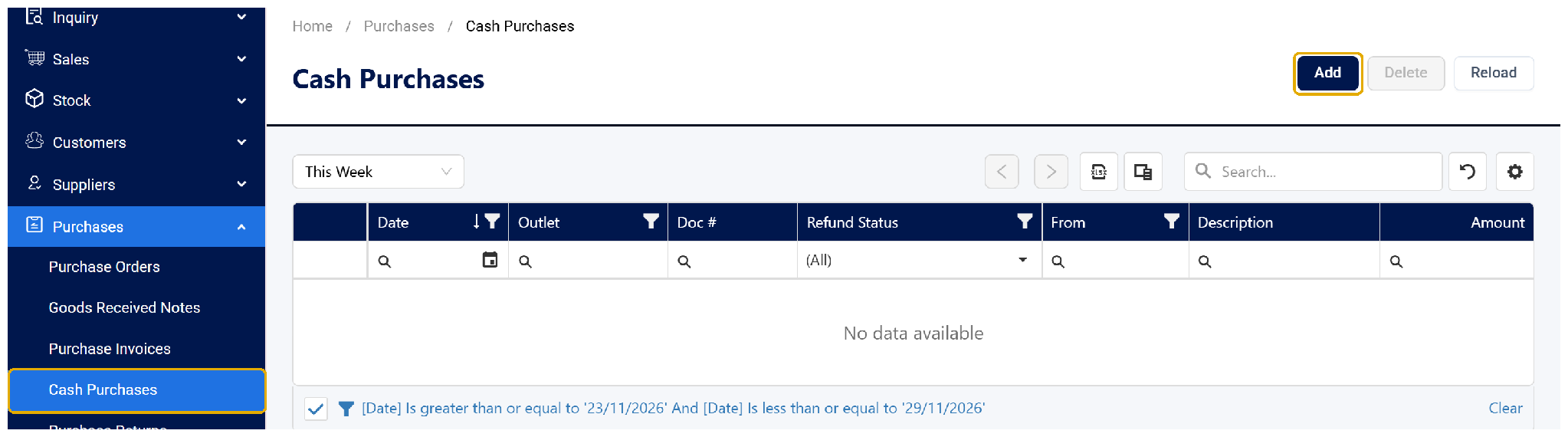
Navigate to Purchases > Cash Purchases and click Add.
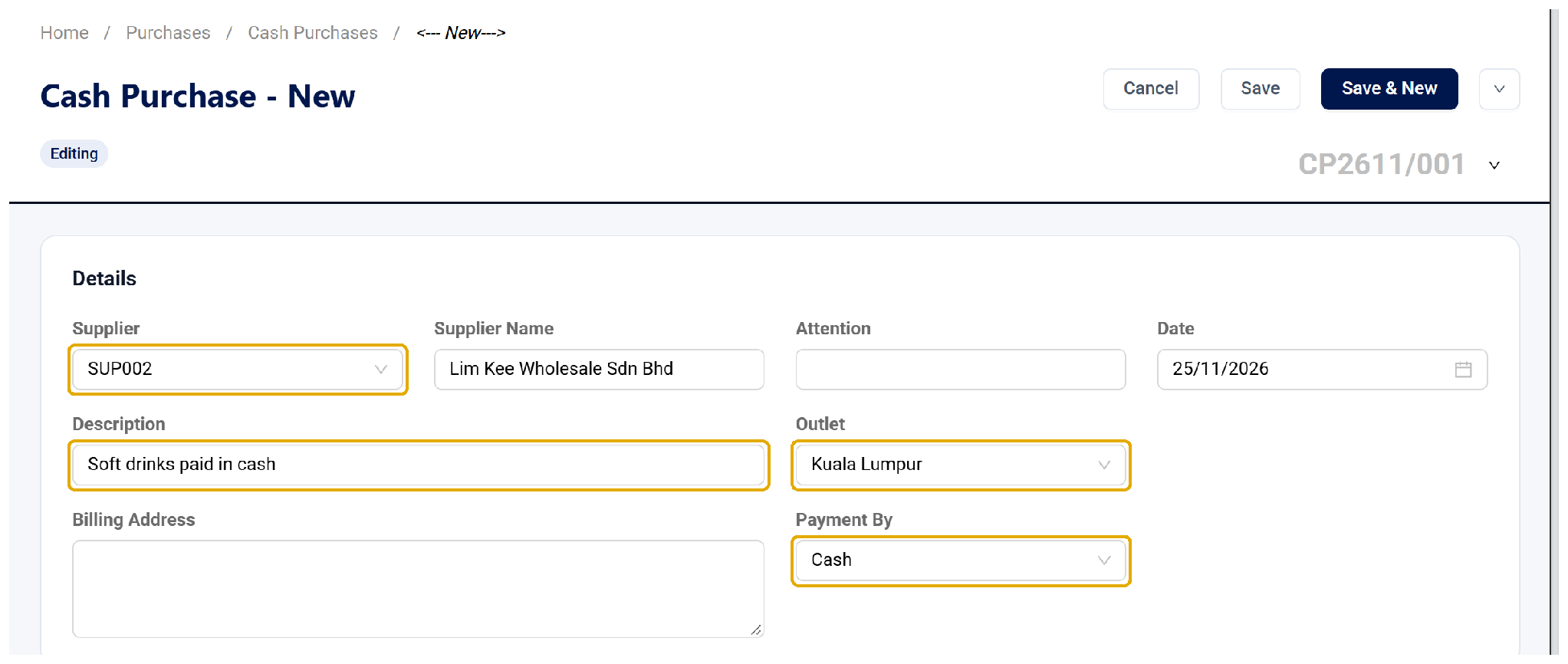
Fill in the Details. The Doc #, e.g. CP2611/001, is given by the running number.
Supplier – Choose the supplier, e.g. SUP002. The Supplier Name fills in by itself.
Description – A short note, e.g. Soft drinks paid in cash.
Outlet – The outlet the items are for, e.g. Kuala Lumpur.
Payment By – How you pay the supplier, e.g. Cash, Credit Card, Debit Card or DuitNow. It is required.
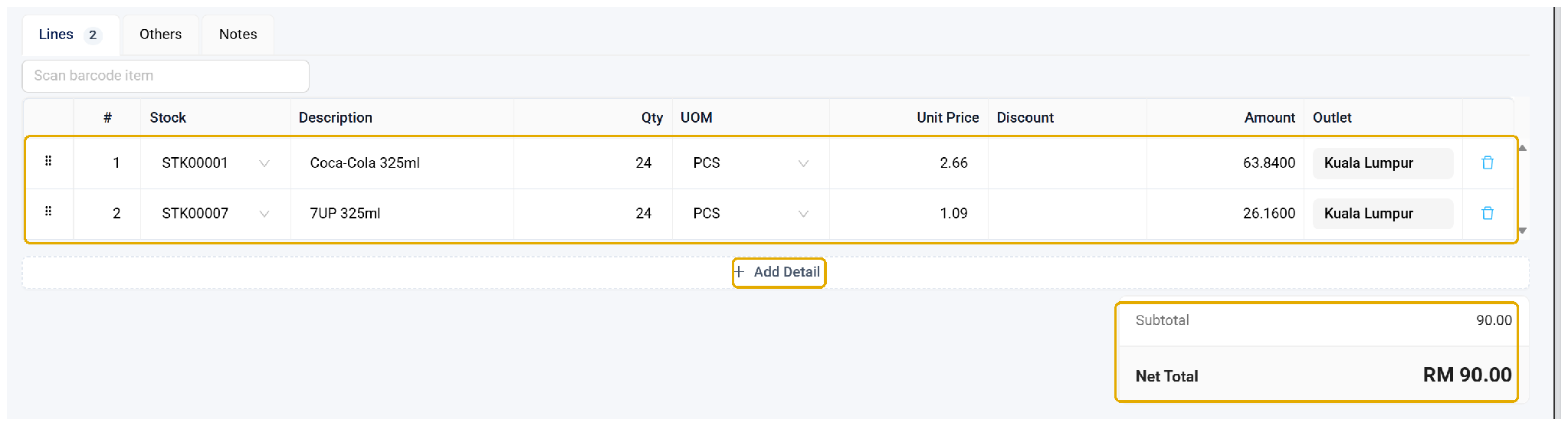
On the Lines tab, choose the Stock and enter the Qty, e.g. STK00001 Coca-Cola 325ml, 24. The Description, UOM, Unit Price and Outlet fill in by themselves, and you can change them to match the supplier’s bill. Click Add Detail for the next item, e.g. STK00007 7UP 325ml, 24.
Tip: Use Scan barcode item to add an item by its barcode. The Others tab has Reference and Remark fields, and Notes takes free text.
Subtotal / Net Total – The total of the lines, e.g. RM 90.00.
Click Save, or Save & New to start another cash purchase. See Save the Cash Purchase below.
Transfer from a Purchase Order or Goods Received Note
Instead of keying in the items, you can bring them in from a purchase order or goods received note of the supplier. Fill in the Details first, then:
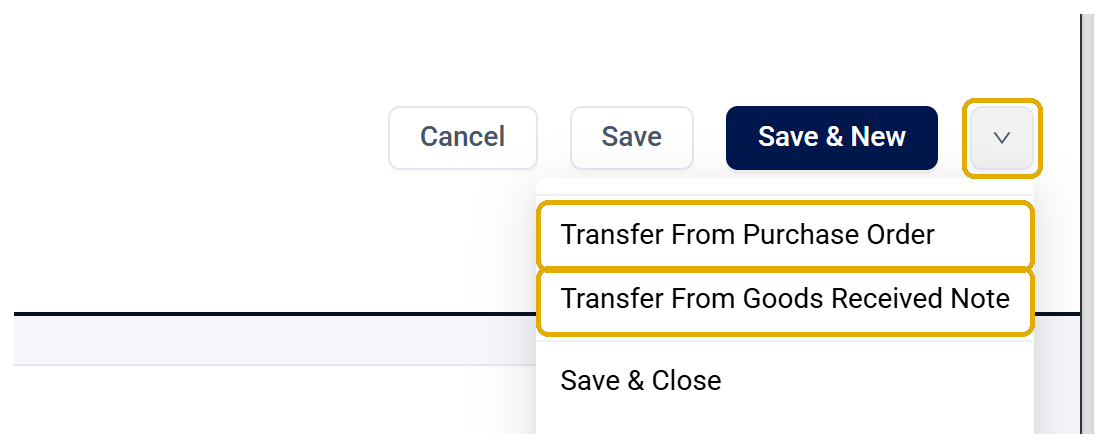
Click the arrow next to Save & New and choose where to bring the lines from:
Transfer From Purchase Order – You pay for goods you ordered on a purchase order.
Transfer From Goods Received Note – You pay for goods you have already received on a goods received note.
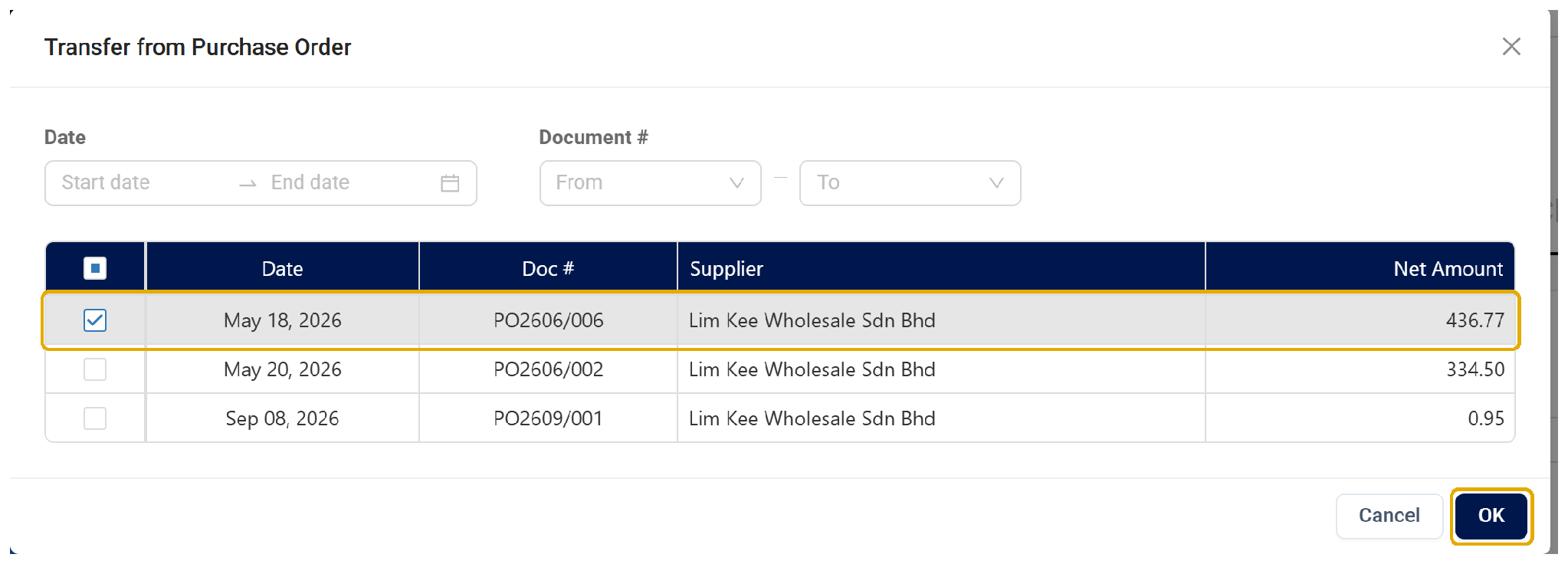
The purchase orders of the supplier that are not fully transferred are listed. Tick the purchase order, e.g. PO2606/006, 436.77, and click OK. Use Date or Document # to find it. Transfer From Goods Received Note works the same way with the goods received notes of the supplier.
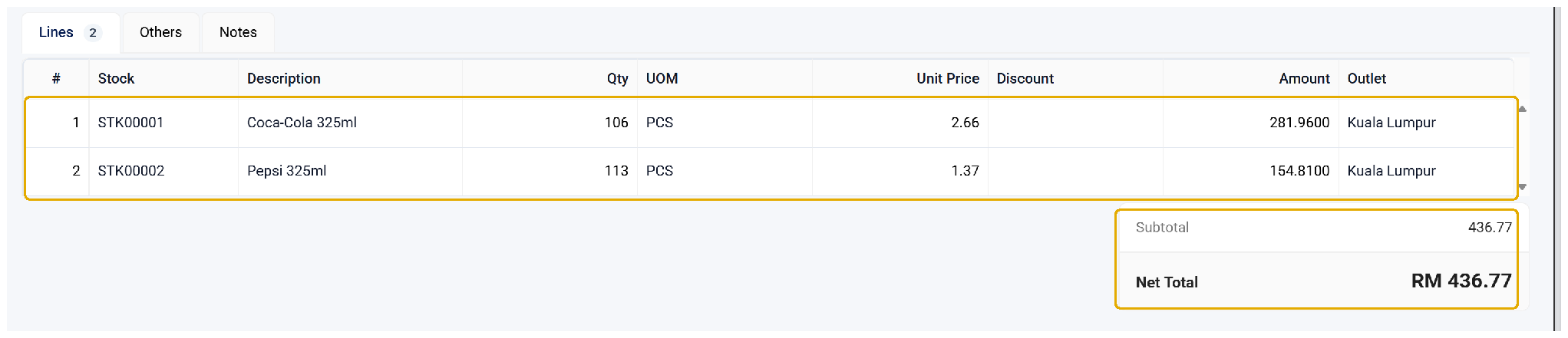
The lines are brought in, e.g. 106 Coca-Cola 325ml at 2.66 and 113 Pepsi 325ml at 1.37, RM 436.77. Change the Qty or Unit Price to match the supplier’s bill. The description of the purchase order is brought in too, so type your own Description after the transfer.
Save the Cash Purchase
Click Save.
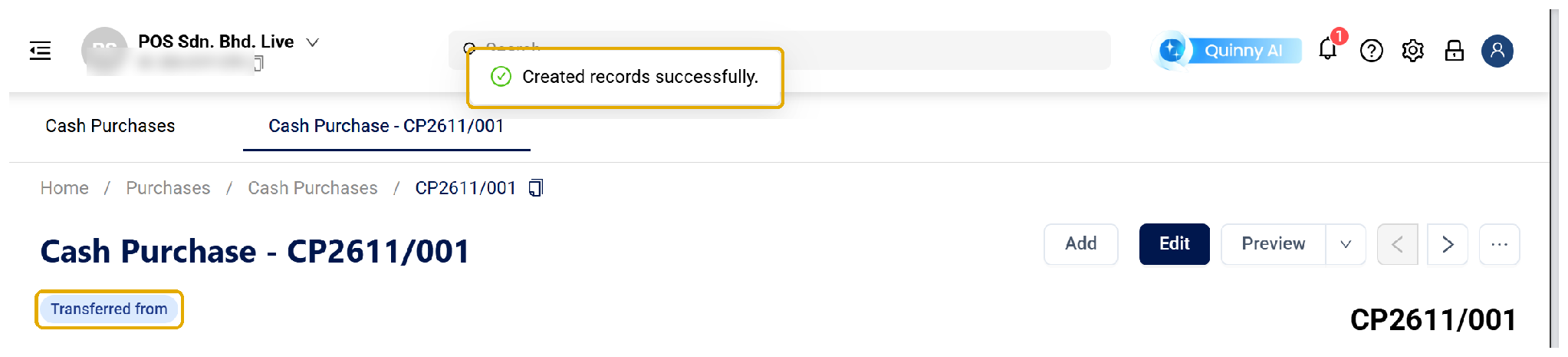
Result: Created records successfully. appears and the cash purchase opens, e.g. CP2611/001. A cash purchase brought in from a purchase order or goods received note is marked Transferred from. Point to the tag to see the document, e.g. PO2606/006.
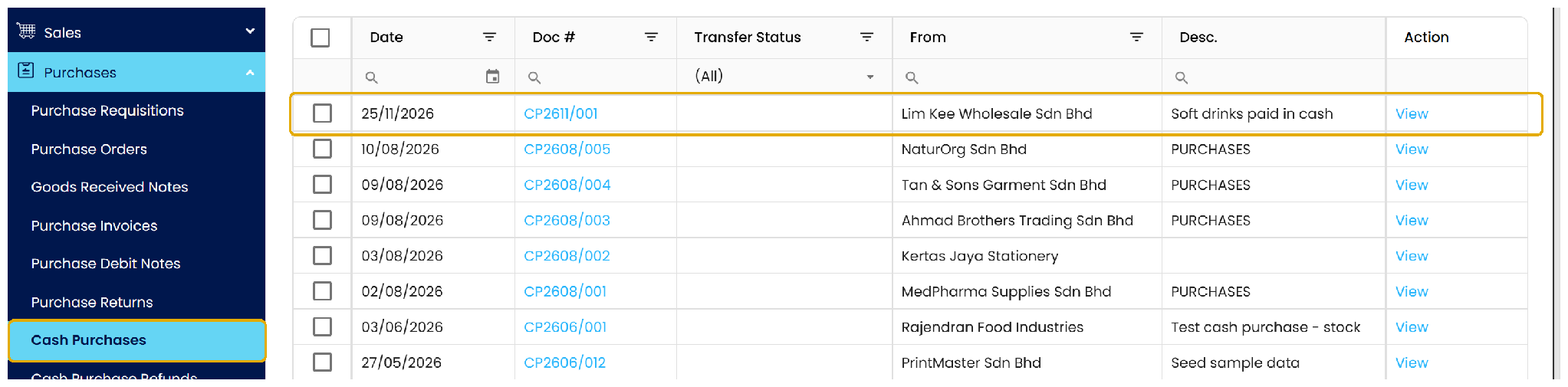
The cash purchase is listed in Purchases > Cash Purchases. In Purchases > Purchase Orders, the Transfer Status of the purchase order shows Fully when all its items are transferred.

Check the Cash Purchase in N3 AI Accounting
Sign in to N3 AI Accounting at n3.qne.cloud, in the database N3 AI POS is linked to, e.g. POS Sdn. Bhd. Live. Navigate to Purchases > Cash Purchases. The cash purchase is listed with the same Doc #, e.g. CP2611/001. Click View.
The cash purchase shows the same lines, e.g. STK00001 and STK00002, and Net Total MYR 436.77.

What's Next :
If you send goods back, open the cash purchase, click the three-dot button at the top right and choose Transfer To Purchase Return.
** Learn more about Azure Cloud
** Learn more about QNE Hybrid Cloud Software
Was this article helpful?
That’s Great!
Thank you for your feedback
Sorry! We couldn't be helpful
Thank you for your feedback
Feedback sent
We appreciate your effort and will try to fix the article
