Overview :
When a customer pays exactly, by exact cash, card or e-wallet, there is no change to give back. Customer Display on Exact Payment in Sales Setting decides what the customer display, the second screen facing the customer at the Win App, shows then: Change Due 0.00 or Thank You. The cashier's screen always shows Change Due RM 0.00.
At the end of this article, you will be able to:
Choose what the customer display shows on an exact payment
Know what the cashier and the customer see after an exact payment
Note: The customer display is in the Win App only. It opens on a second monitor connected to the cash register, with Show Customer Display turned on in the Win App's Settings > Customer Display.
Scenario :
At SK Counter01 (Win App), a customer buys 1 Pepsi 325ml for RM 3.50 and pays exactly RM 3.50 in Cash, sale SK012611/00033. The store wants the customer display to say Thank You instead of Change Due 0.00, in the POS Sdn. Bhd. Live database.
Solution :
Set Customer Display on Exact Payment
Navigate to Company > Maintenance > Settings, click Sales Setting and scroll to Sales Screen.
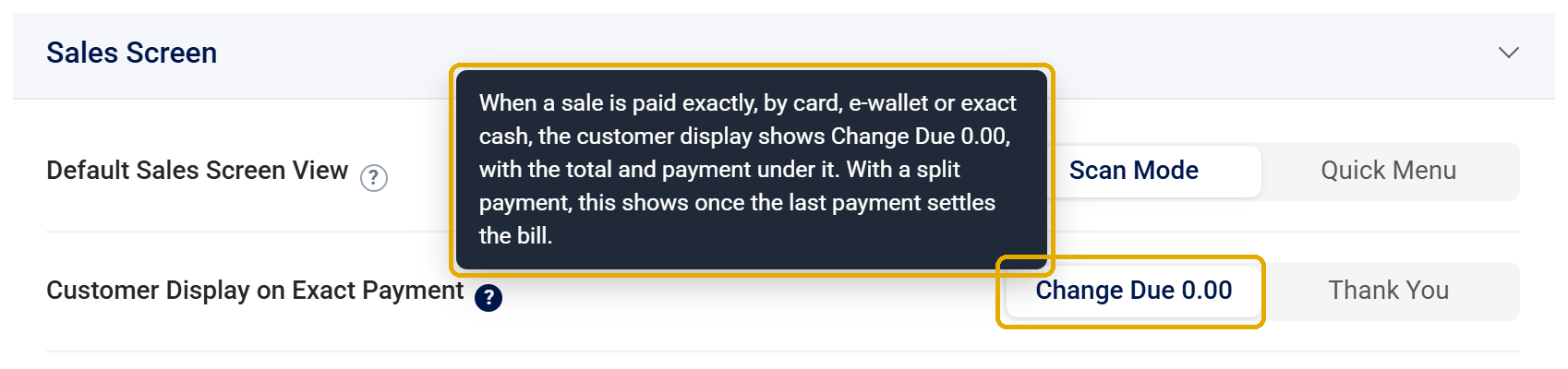
In Customer Display on Exact Payment, choose:
Change Due 0.00 – The customer display shows Change Due 0.00, with the total and payment under it. This is the default.
Thank You – The customer display shows Thank You in place of Change Due 0.00. The total and payment still show under it.
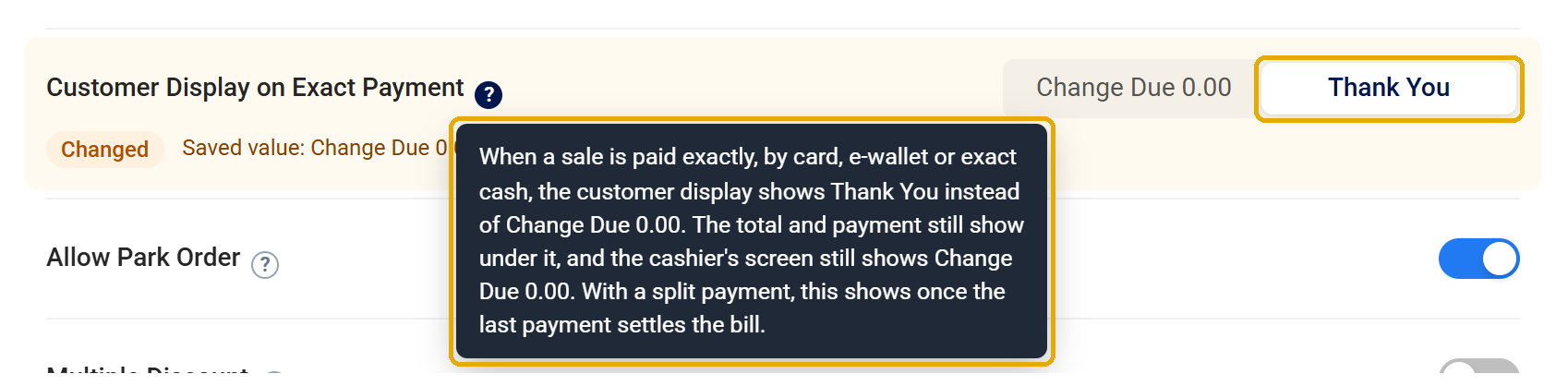
Click the ? icon to read the note for the option chosen.
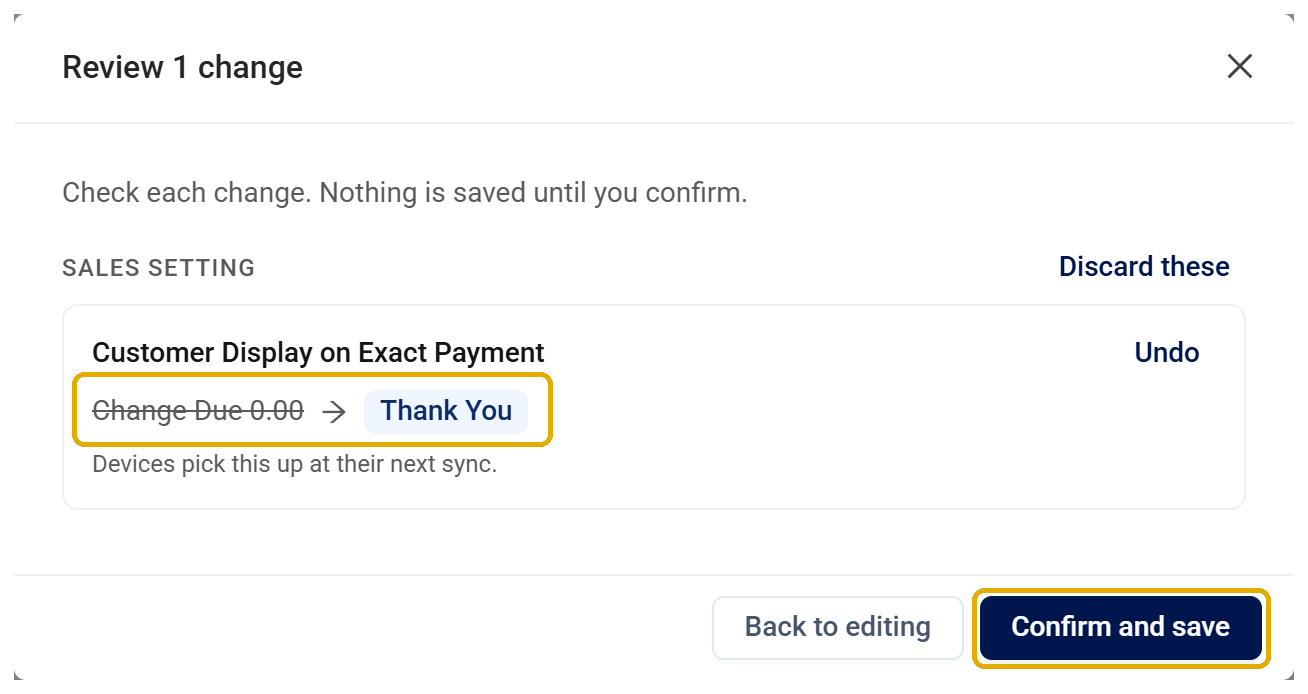
Click Review and save. Check the change, e.g. Customer Display on Exact Payment Change Due 0.00 → Thank You, and click Confirm and save. Then, in the Win App, click the cloud icon and click Quick Sync on Settings, so the cash register gets the setting.
Result at the Win App
Add the items to the cart, e.g. Pepsi 325ml, and click Pay. Click the payment method, e.g. Cash, for the exact amount, e.g. RM 3.50.
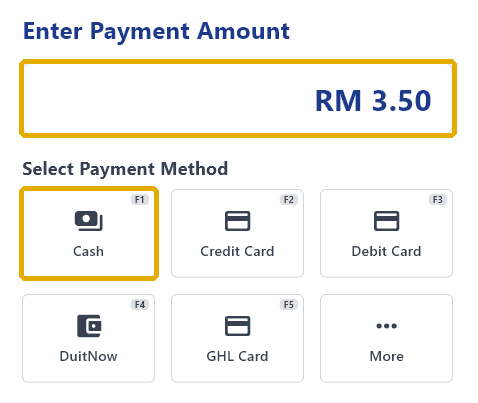
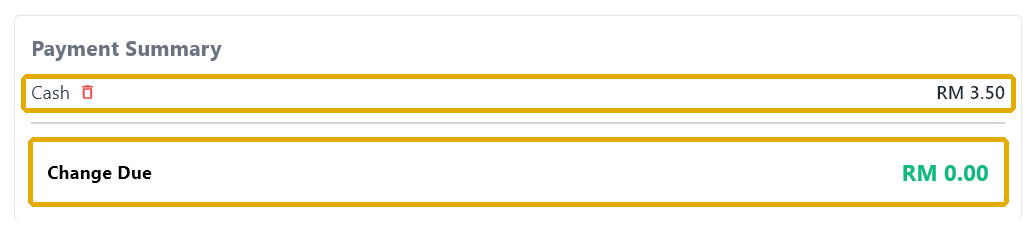
Payment Summary shows Cash RM 3.50 and Change Due RM 0.00. Click Enter.
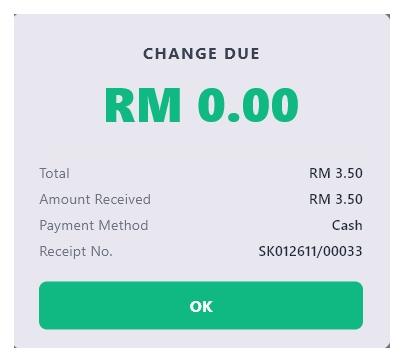
Result: The cashier's screen shows CHANGE DUE RM 0.00, with the Total, Amount Received, Payment Method and Receipt No., under either option. Click OK.
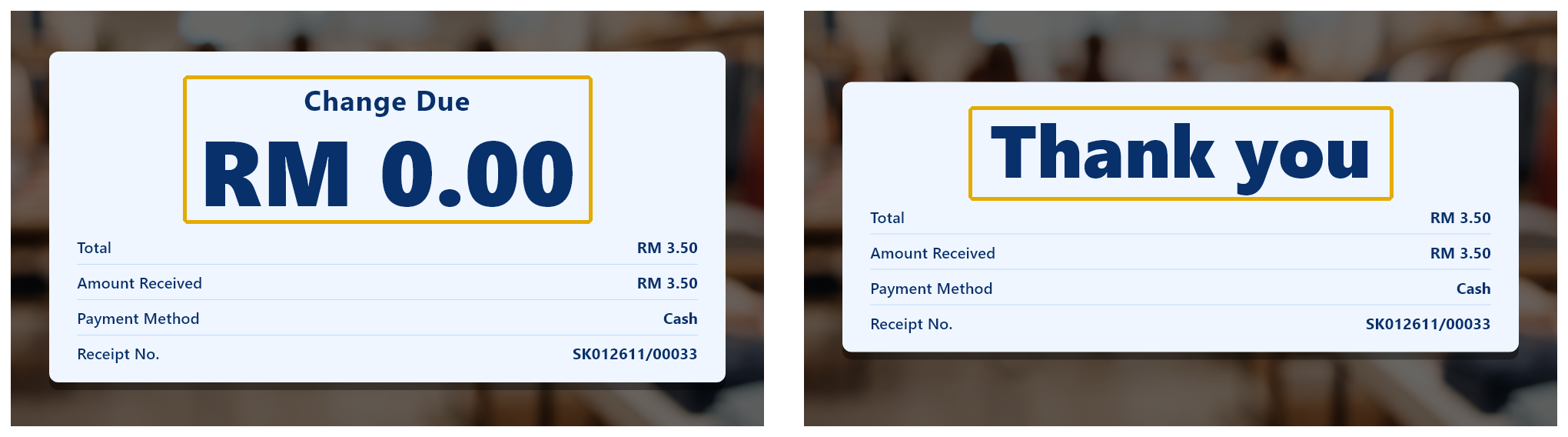
At the same time, the customer display shows:
Change Due 0.00 (left) – Change Due RM 0.00, with the Total, Amount Received, Payment Method and Receipt No. under it.
Thank You (right) – Thank you in large text, with the same Total, Amount Received, Payment Method and Receipt No. under it.
Note: When there is change to give back, the customer display always shows the amount, e.g. Change Due RM 1.50. With a split payment, it shows once the last payment settles the bill.
What's Next :
To set up the customer display itself, such as Auto Startup, the background image, font sizes and the QR code, open Settings > Customer Display in the Win App.
** Learn more about Azure Cloud
** Learn more about QNE Hybrid Cloud Software
Was this article helpful?
That’s Great!
Thank you for your feedback
Sorry! We couldn't be helpful
Thank you for your feedback
Feedback sent
We appreciate your effort and will try to fix the article
