Overview :
The Sales Default UOM of a stock item is the UOM that a new line starts on when the item is chosen on a stock document in the N3 AI POS Portal, e.g. a Stock Out, Stock Transfer or Stock Adjustment. A new stock item starts with its Base UOM as the Sales Default UOM. This article guides you through setting the Sales Default UOM of a stock item and shows the result in the Portal and at the till.
At the end of this article, you will be able to:
Choose the Sales Default UOM of a stock item
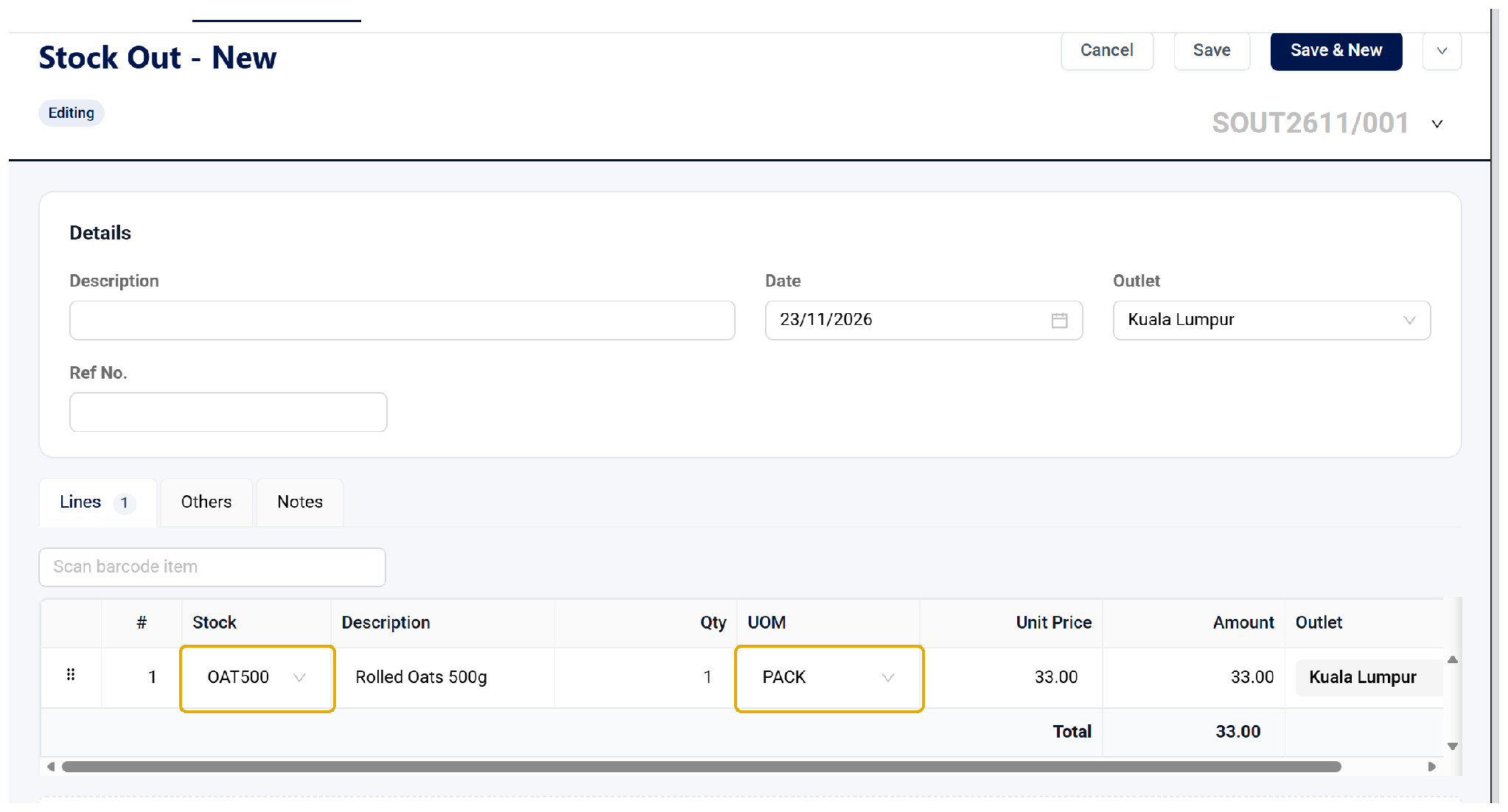
See a Stock Out line start on the Sales Default UOM
Know how the Win App and Android App choose the UOM at the till
Scenario :
A mini market keeps Rolled Oats 500g (OAT500) in UNIT(S), PACK (6 units) and CTN (12 units). Its staff usually move the item in packs. Every time they add OAT500 to a Stock Out, they have to change the UOM from UNIT(S) to PACK. The owner sets the Sales Default UOM to PACK.
Solution :
Set the Sales Default UOM
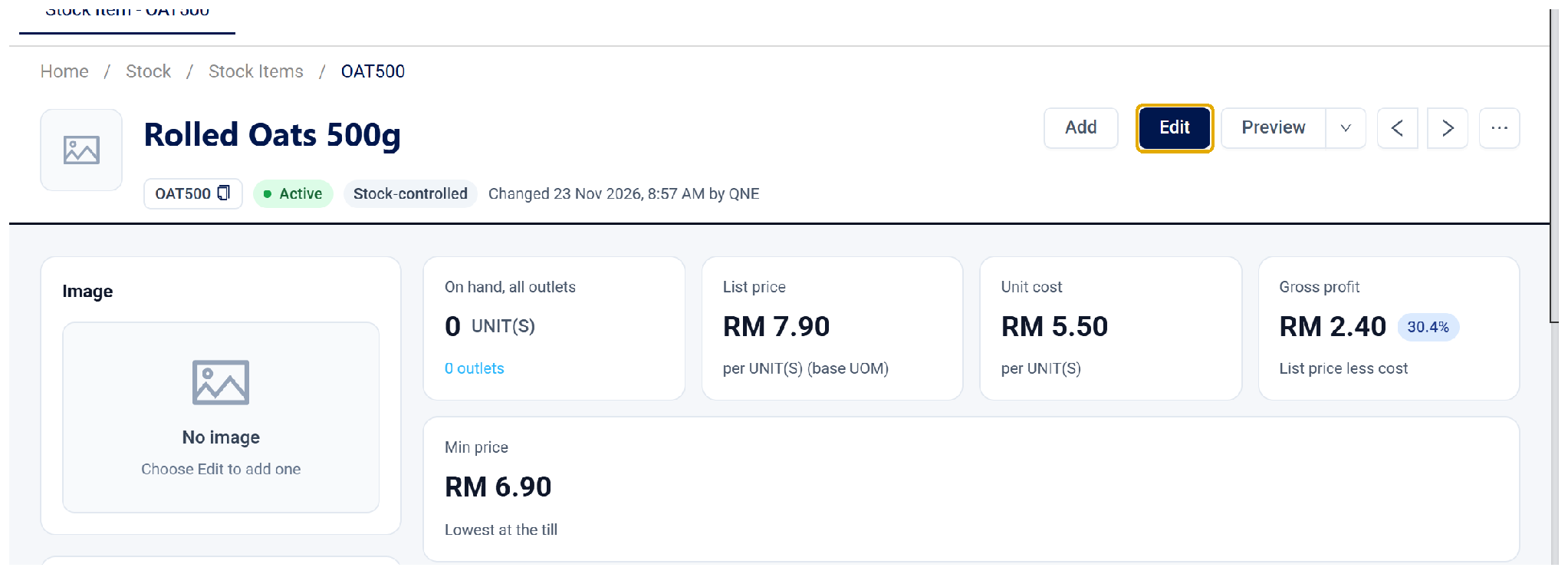
Navigate to Stock > Stock Items, open the stock item, e.g. OAT500, and click Edit.
In Details, click Sales Default UOM. The list shows the UOMs of the item. Choose the UOM, e.g. PACK - PACK (6 UNITS).
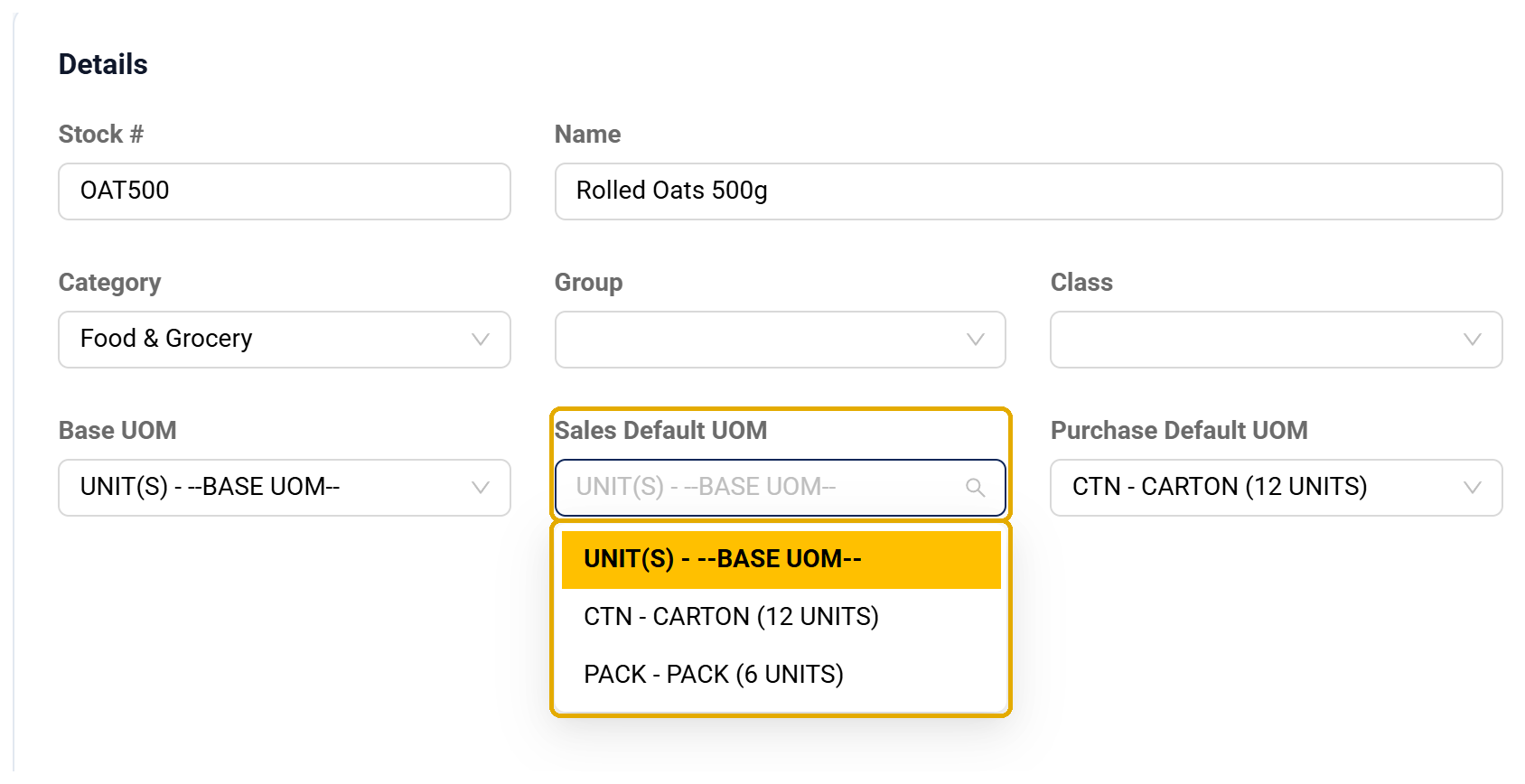
Note: The list only shows the UOMs in the item's UOM tab. To add a UOM first, see How to Create UOMs for a Stock Item in N3 AI POS.
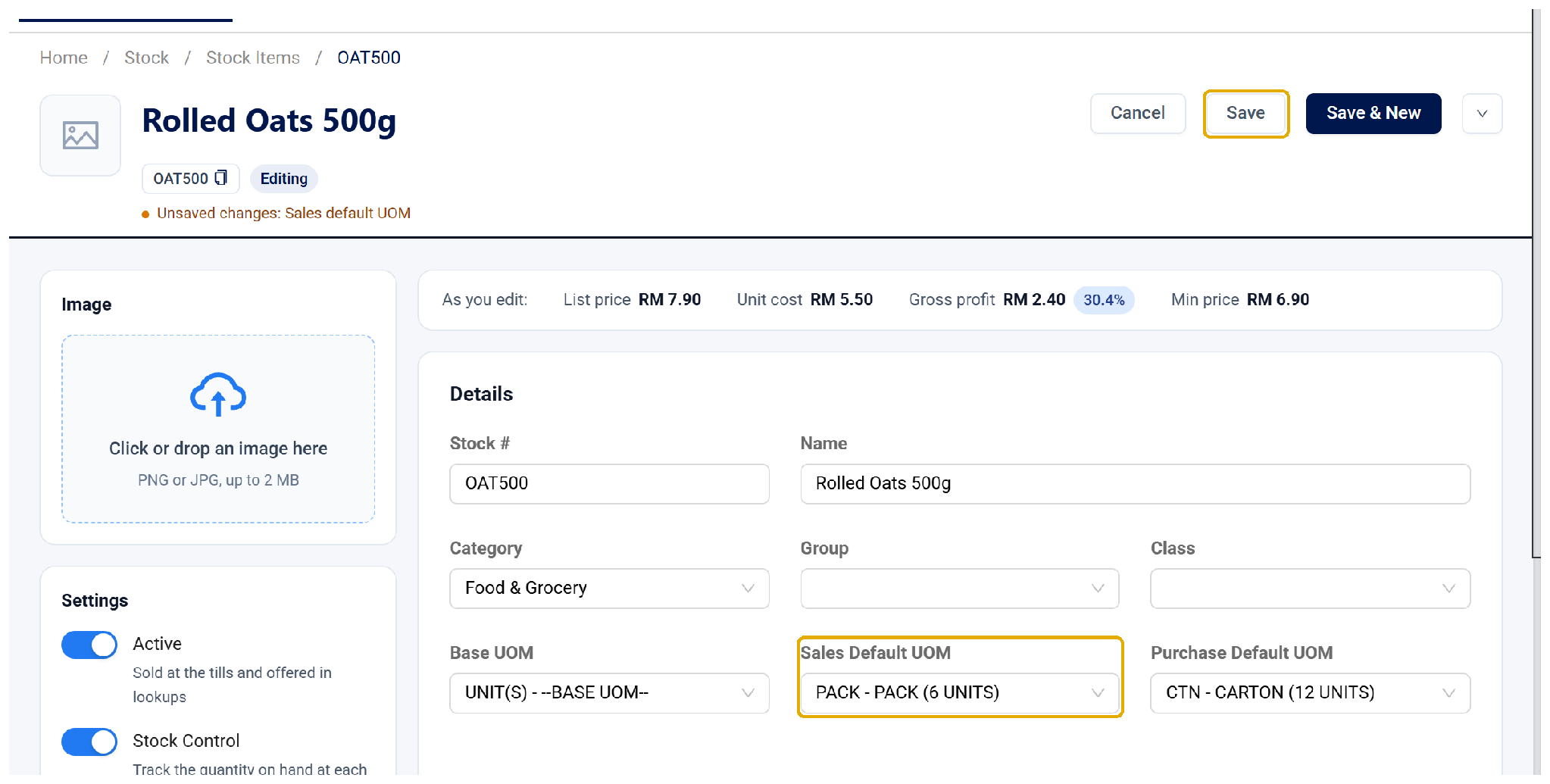
Click Save.
Sales Default UOM now shows PACK - PACK (6 UNITS).
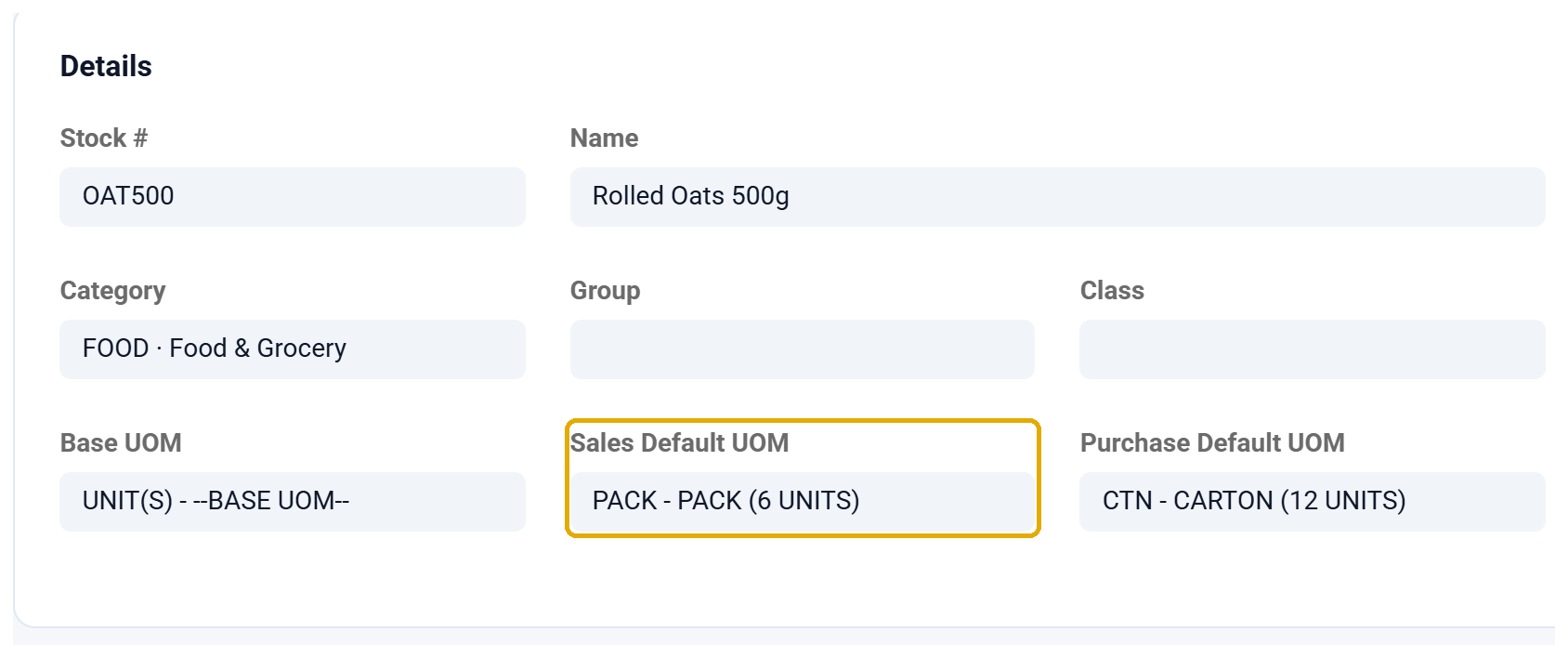
Result in the N3 AI POS Portal
Result: Navigate to Stock > Stock Out and click Add. In Lines, choose the stock item, e.g. OAT500. The line starts on the Sales Default UOM, PACK. Stock Transfer and Stock Adjustment lines start on it in the same way.
Result at the Cash Register
The N3 AI POS Win App and Android App do not use the Sales Default UOM. At the till, the item is sold in the UOM the cashier chooses:
Search – Each UOM is listed with its own price. The cashier taps the UOM to sell, e.g. PACK.
Scan – Scanning a UOM's barcode sells that UOM.
Quick Menu – Each UOM with Quick Menu turned on has its own tile.
Tip: To see how each UOM is listed at the till, see How to Create UOMs for a Stock Item in N3 AI POS.
What's Next :
See How to Set Up the Default Base UOM in N3 AI POS and How to Create UOMs for a Stock Item in N3 AI POS.
** Learn more about Azure Cloud
** Learn more about QNE Hybrid Cloud Software
Was this article helpful?
That’s Great!
Thank you for your feedback
Sorry! We couldn't be helpful
Thank you for your feedback
Feedback sent
We appreciate your effort and will try to fix the article
