Overview :
Every stock item has one Base UOM, the smallest unit it is counted in, with rate 1. The Default Base UOM in Stock Setting is the code and description that every new stock item starts with, so you do not need to type it on each item. This article guides you through setting up the Default Base UOM in the N3 AI POS Portal and shows the result on a new stock item.
At the end of this article, you will be able to:
Check the current Default Base UOM
Change the Default Base UOM code and description
See a new stock item start with the new Base UOM
Scenario :
A hardware shop sells most of its items by the piece. Every new stock item starts with UNIT(S) as its base UOM, and staff have to change it to PCS each time. The owner sets the Default Base UOM to PCS - PIECE, so new stock items start with it.
Solution :
Set Up the Default Base UOM
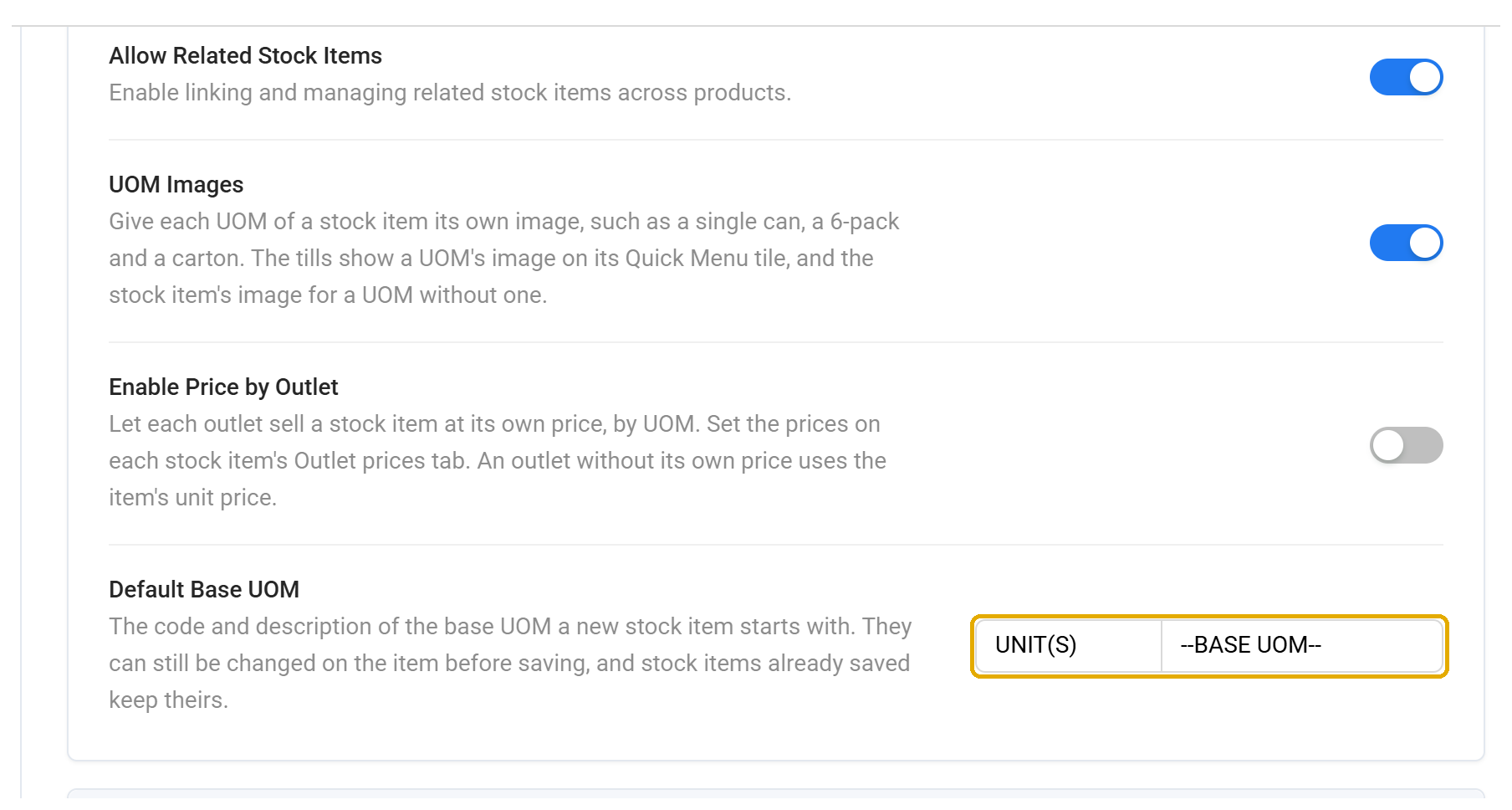
Navigate to Company > Maintenance > Settings and select Stock Setting. Under Stock Items, Default Base UOM shows the current code and description, e.g. UNIT(S) and --BASE UOM--.
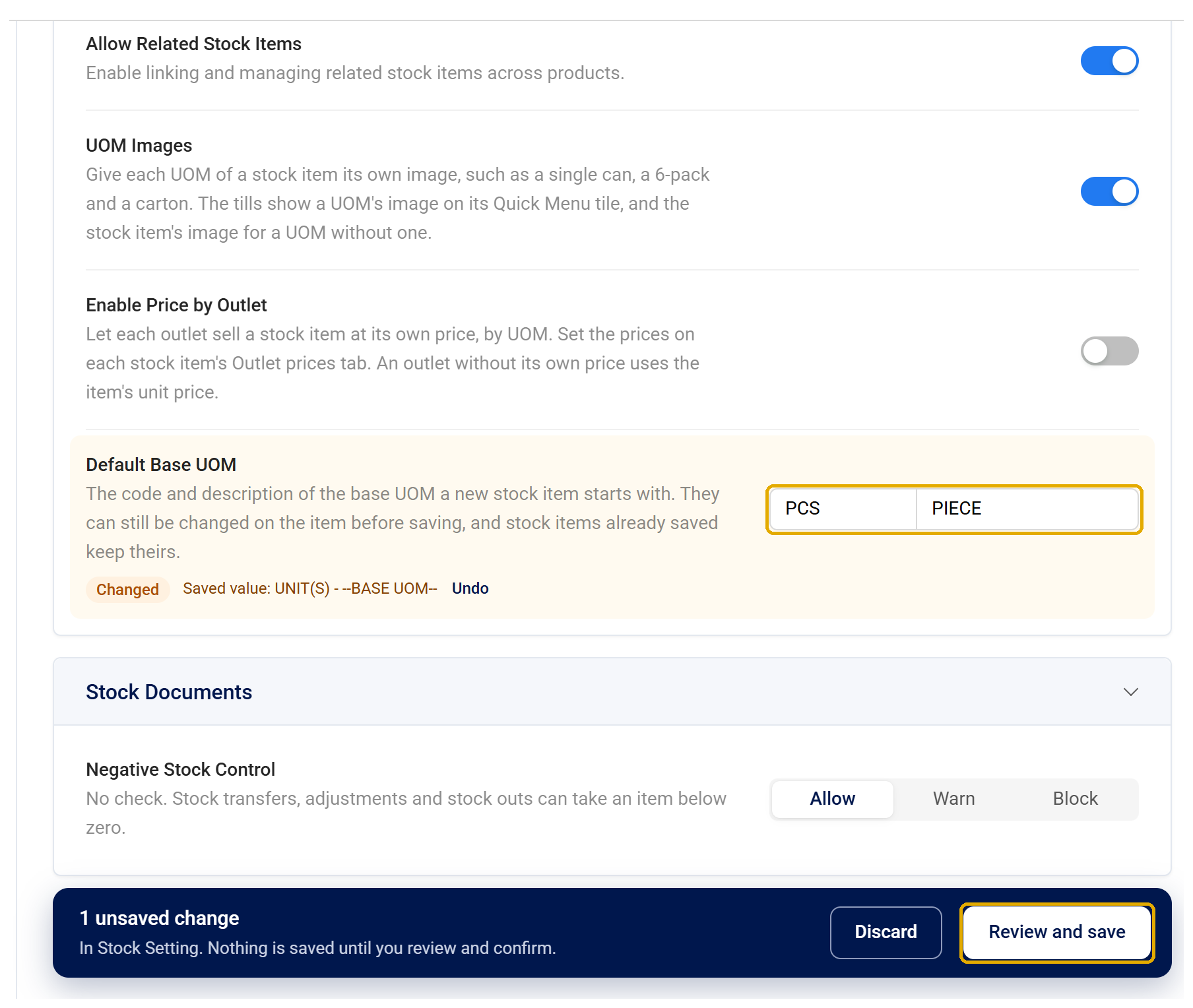
Enter the new values:
Code – The base UOM code, e.g. PCS. It is required.
Description – Optional, e.g. PIECE.
The row shows Changed with the saved value. Click Review and save.
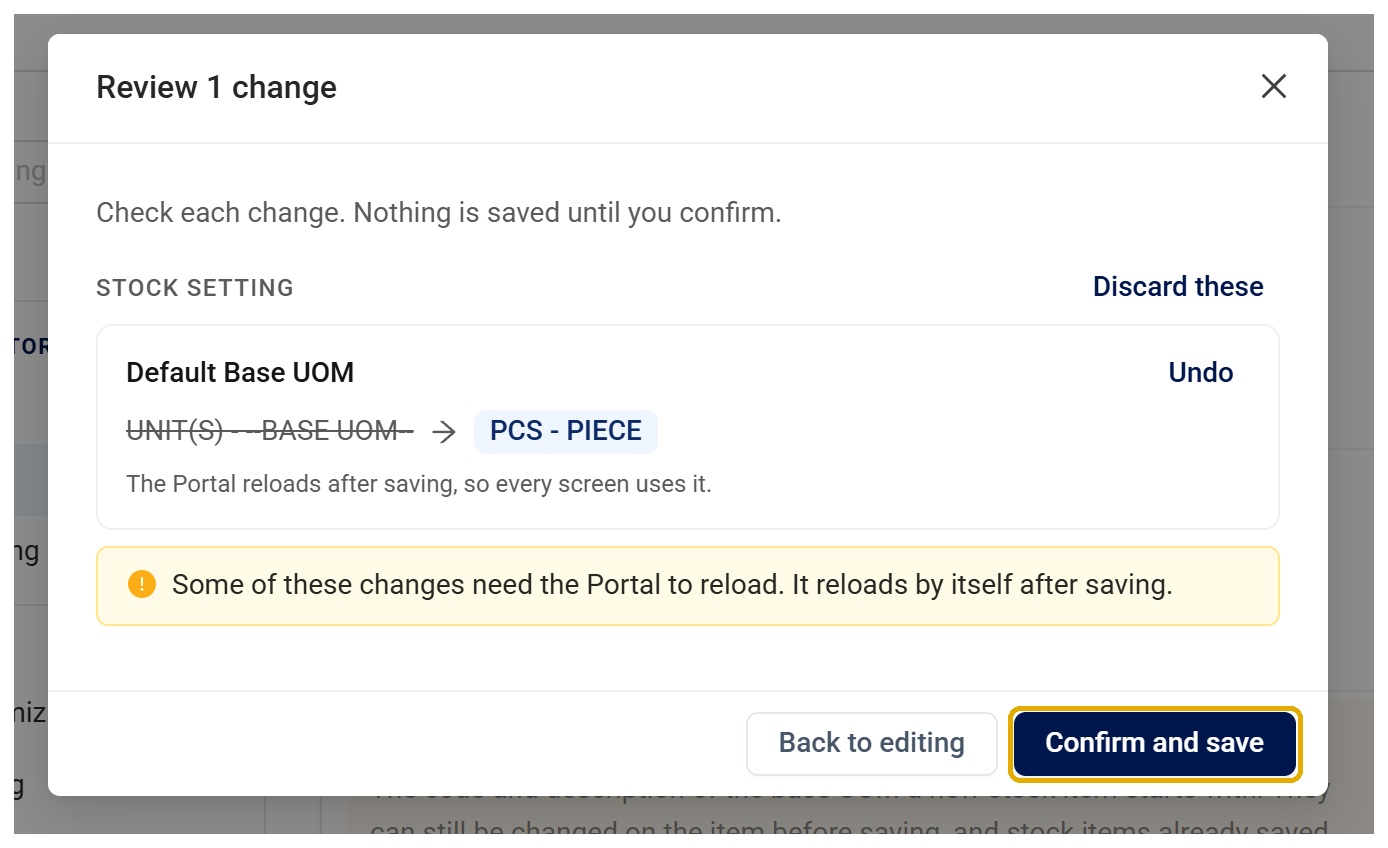
Check the change, UNIT(S) - --BASE UOM-- > PCS - PIECE, then click Confirm and save. The Portal reloads by itself.
Default Base UOM now shows PCS and PIECE.
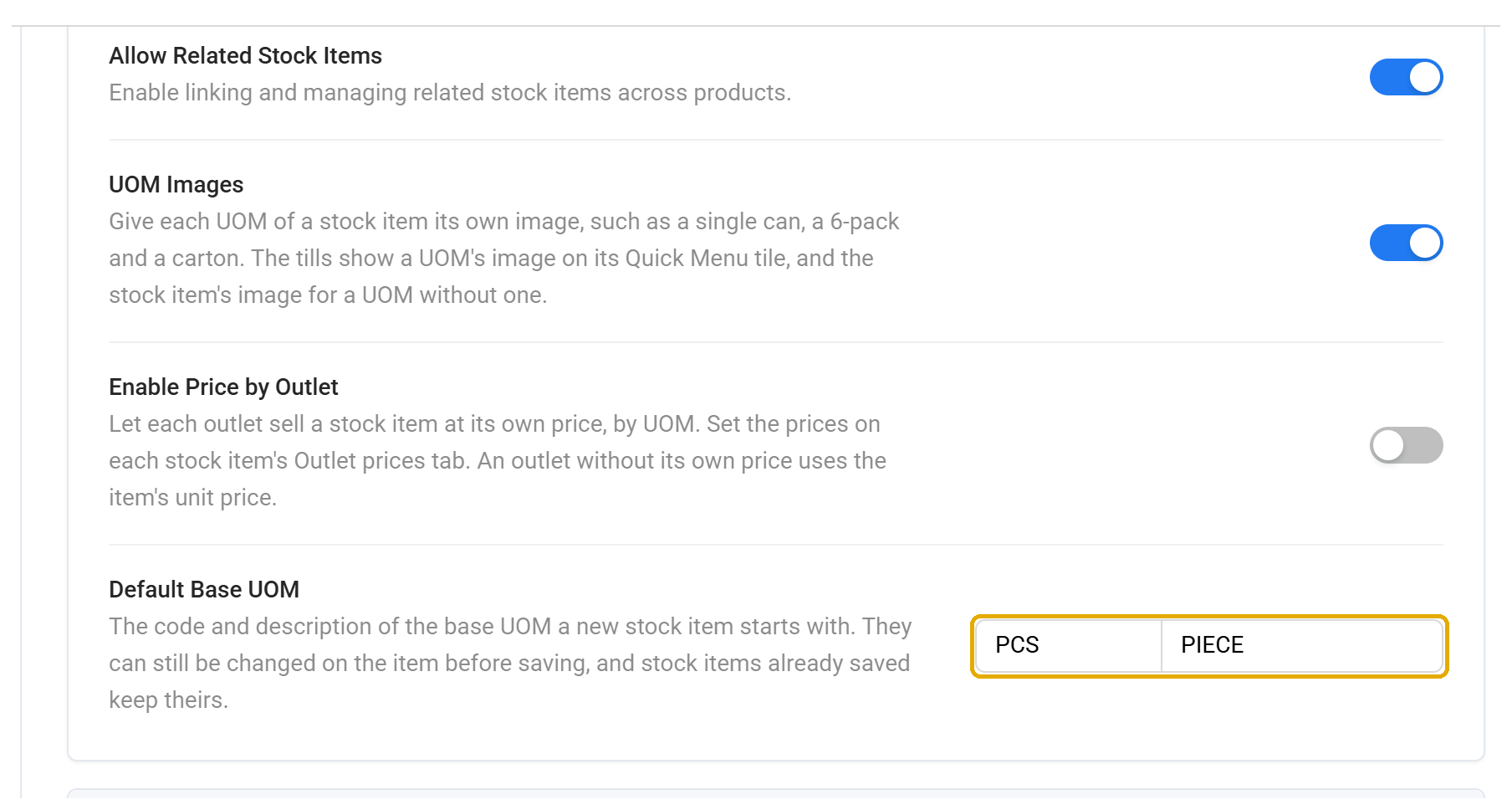
Note: The Default Base UOM only applies to new stock items. Stock items already saved keep their own base UOM.
Result in the N3 AI POS Portal
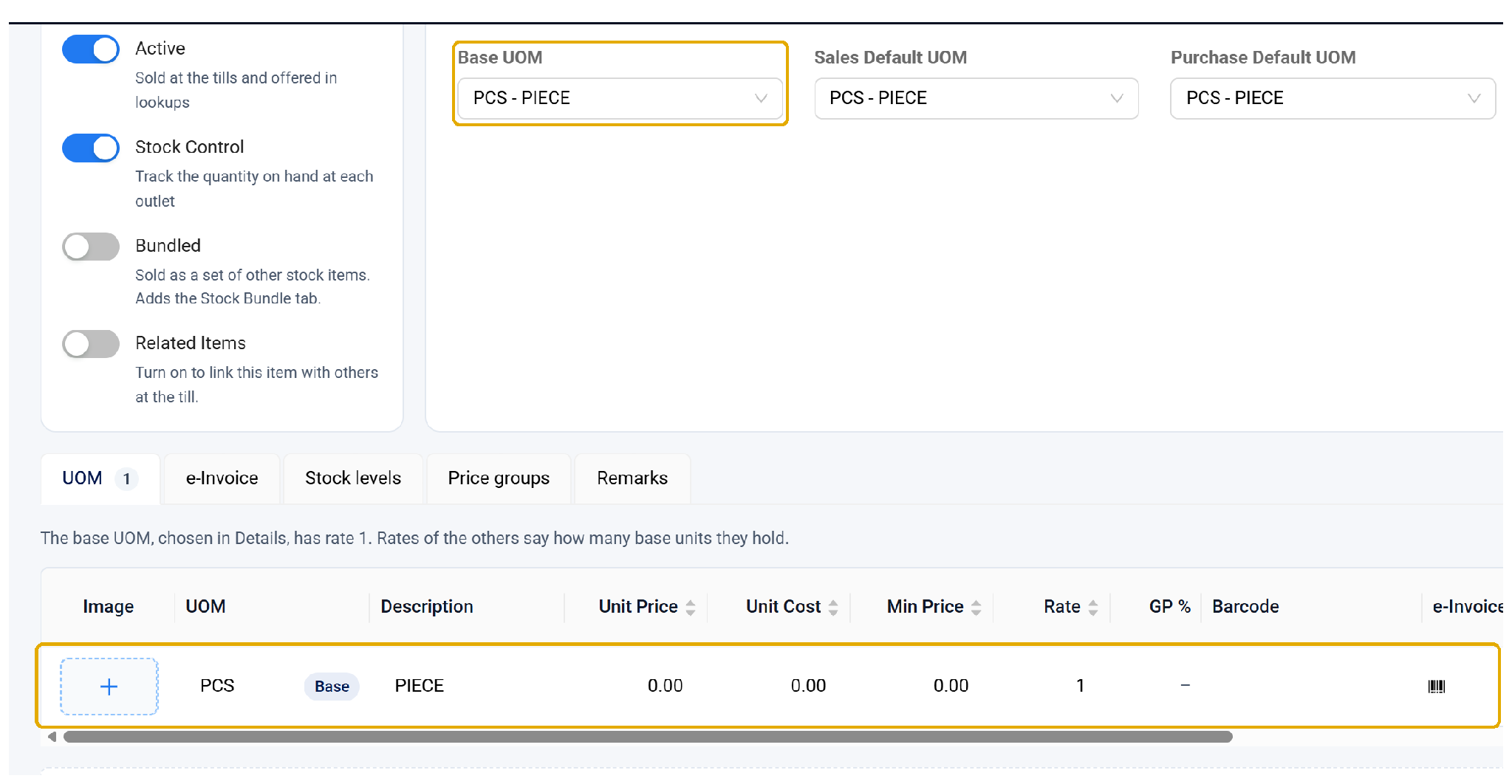
Result: Navigate to Stock > Stock Items and click Add. The new stock item starts with PCS - PIECE as its Base UOM. The UOM tab has one row, PCS marked Base, with rate 1.
Tip: You can still change the base UOM on the item before saving it. To add more UOMs, e.g. a pack or a carton, see How to Create UOMs for a Stock Item in N3 AI POS.
What's Next :
See How to Create UOMs for a Stock Item in N3 AI POS and How to Create a Stock Item in N3 AI POS.
** Learn more about Azure Cloud
** Learn more about QNE Hybrid Cloud Software
Was this article helpful?
That’s Great!
Thank you for your feedback
Sorry! We couldn't be helpful
Thank you for your feedback
Feedback sent
We appreciate your effort and will try to fix the article
