Overview :
A session is the cash register's working day. The cashier opens it in the morning with the cash in the drawer, the Opening Balance, and closes it at the end of the day by counting the drawer. While the session is closed, the cash register cannot make a sale. With Enable Shift on, the session holds one or more shifts; see How to Use Shifts in N3 AI POS.
At the end of this article, you will be able to:
Allow a cashier to close the cash register
Close the session in the Win App and open the next one
Close the session on Android and open the next one
Scenario :
At the end of the day in the POS Sdn. Bhd. Live database:
At SK Counter01 (Win App), Ali counts RM 30.50, closes the session and opens the next one with RM 50.00.
At KL02 (Android), Sunmi counts RM 50.00, closes the register and opens the next session with RM 50.00.
Solution :
Allow Cashiers to Close the Cash Register
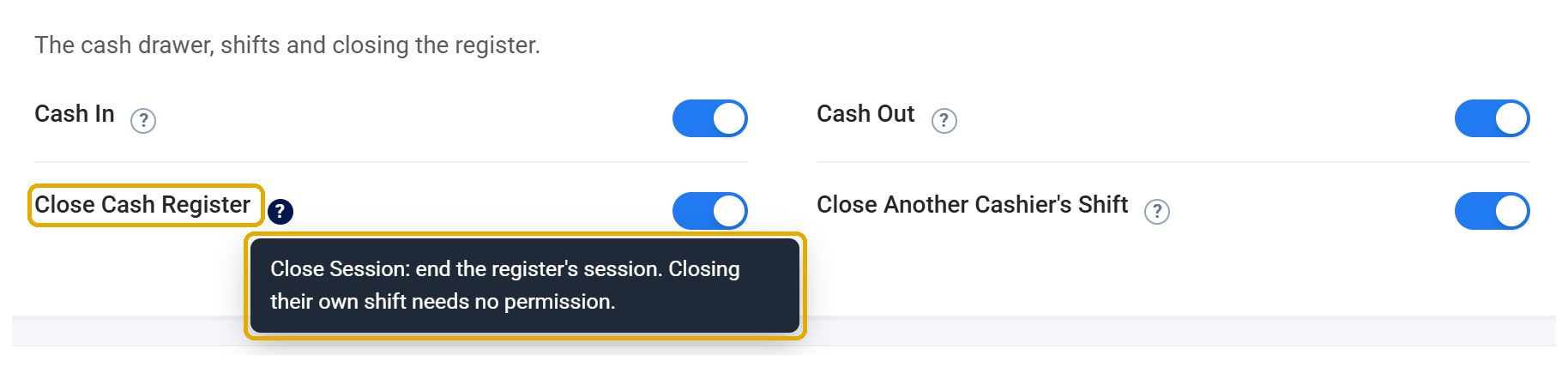
Navigate to Company > Point of Sale > Cashier Roles, click the role name, e.g. Supervisor, and click Session.
Turn on Close Cash Register so the cashier can close the session, then click Save.
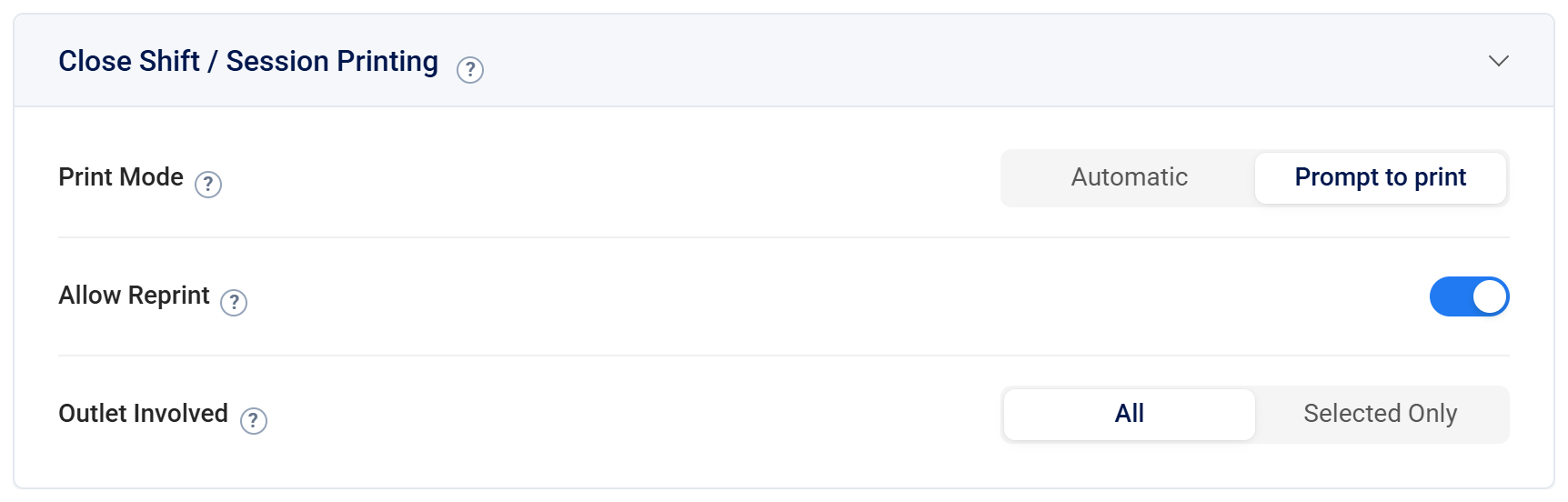
To print a slip when a session opens or closes, navigate to Company > Maintenance > Settings, click Receipt Printing and set Close Shift / Session Printing: Automatic or Prompt to print, Allow Reprint and Outlet Involved.
Close and Open a Session in N3 AI POS Win App
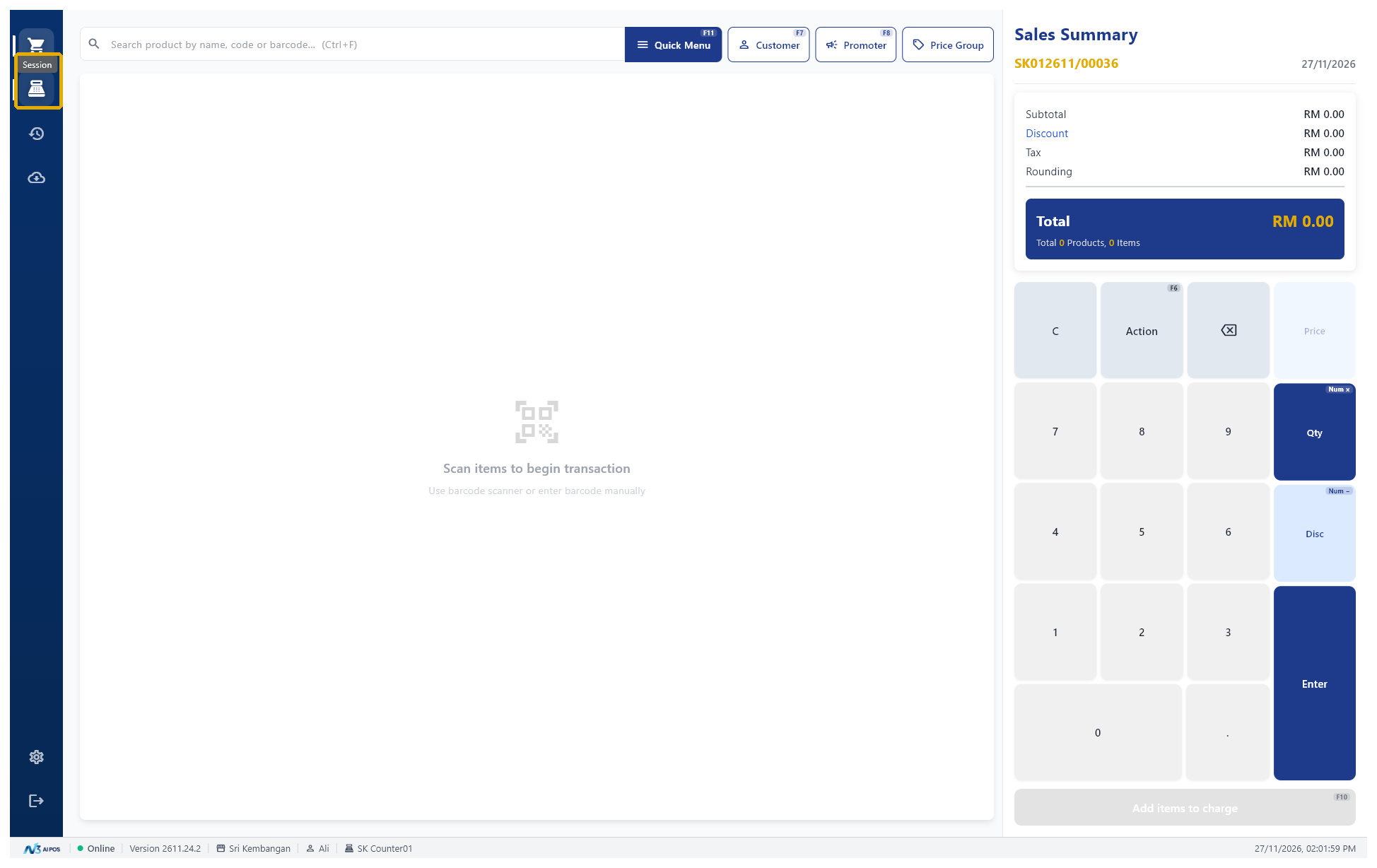
Click the Session icon on the left.
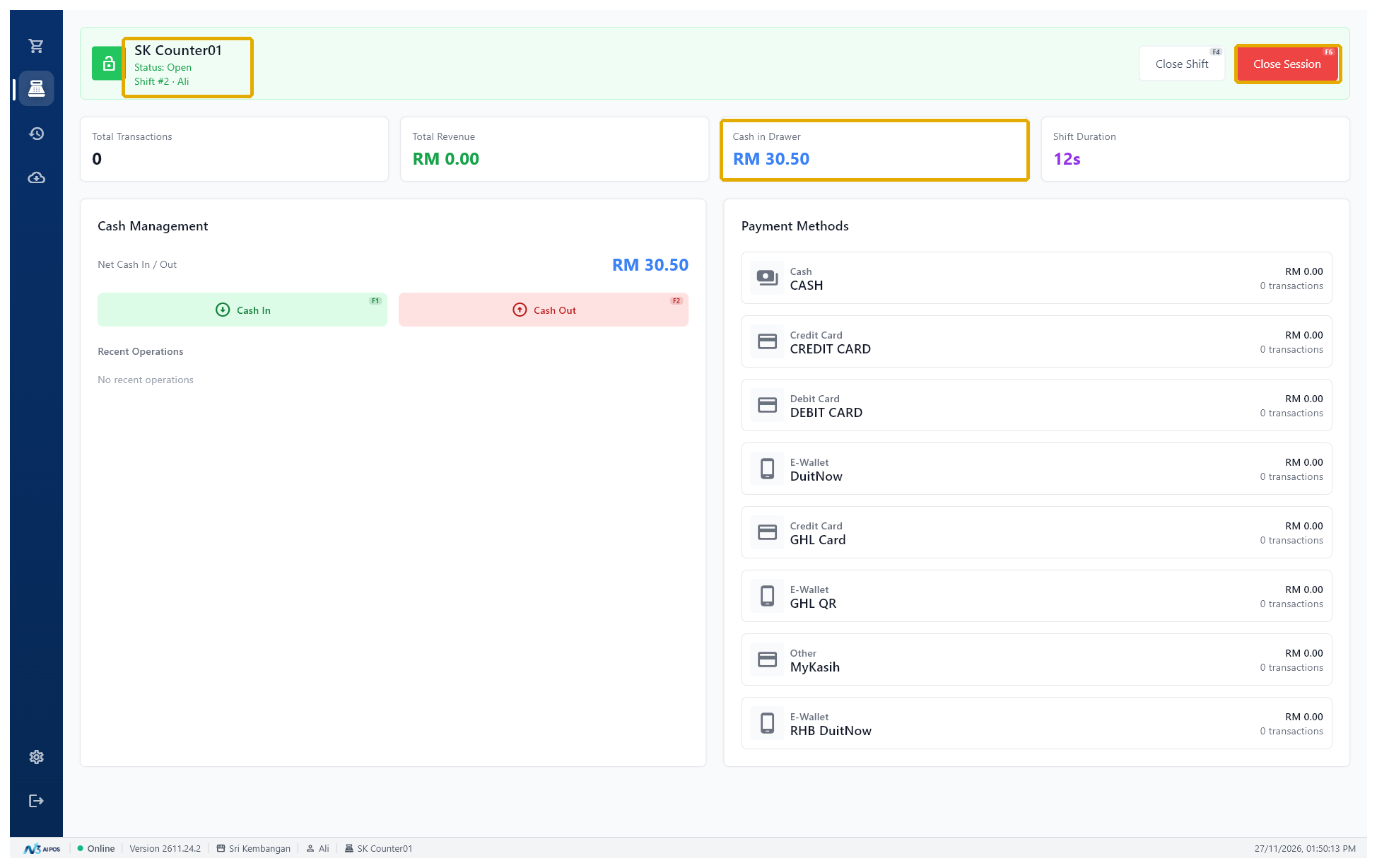
Session opens. The top shows the shift, e.g. Shift #2 · Ali, and Cash in Drawer, e.g. RM 30.50. Click Close Session (F6).
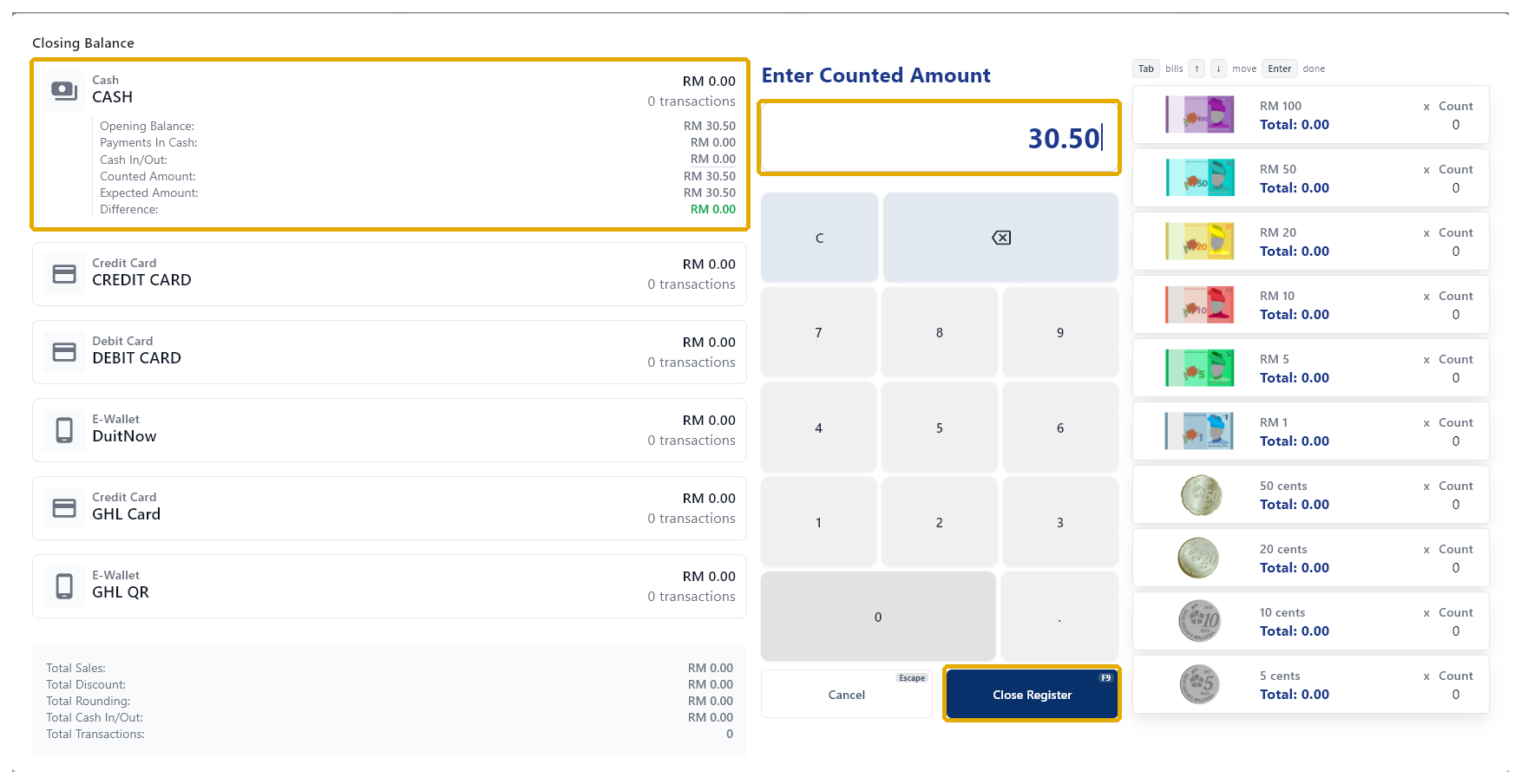
In Closing Balance, Cash shows the Opening Balance, Payments In Cash, Cash In/Out and the Expected Amount, e.g. RM 30.50. Key in the cash counted in Enter Counted Amount, or enter the Count of each note and coin on the right. Difference shows RM 0.00 when it matches. Click Close Register (F9).
Cash Register is Closed appears. To start the next day, click Start Session (F5), key in the Opening Balance, e.g. 50, and click Open Cash Register.
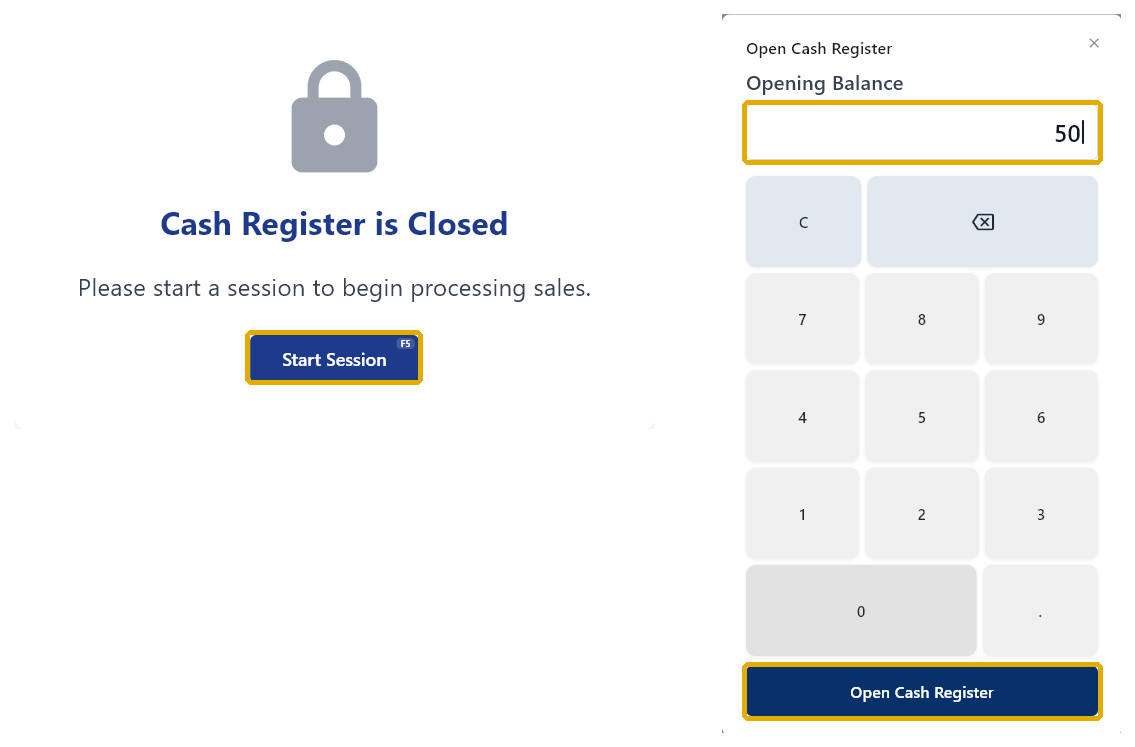
Result: A new session opens with Shift #1, e.g. Shift #1 · Ali, and Cash in Drawer RM 50.00.

Close and Open a Session in N3 AI POS Android App
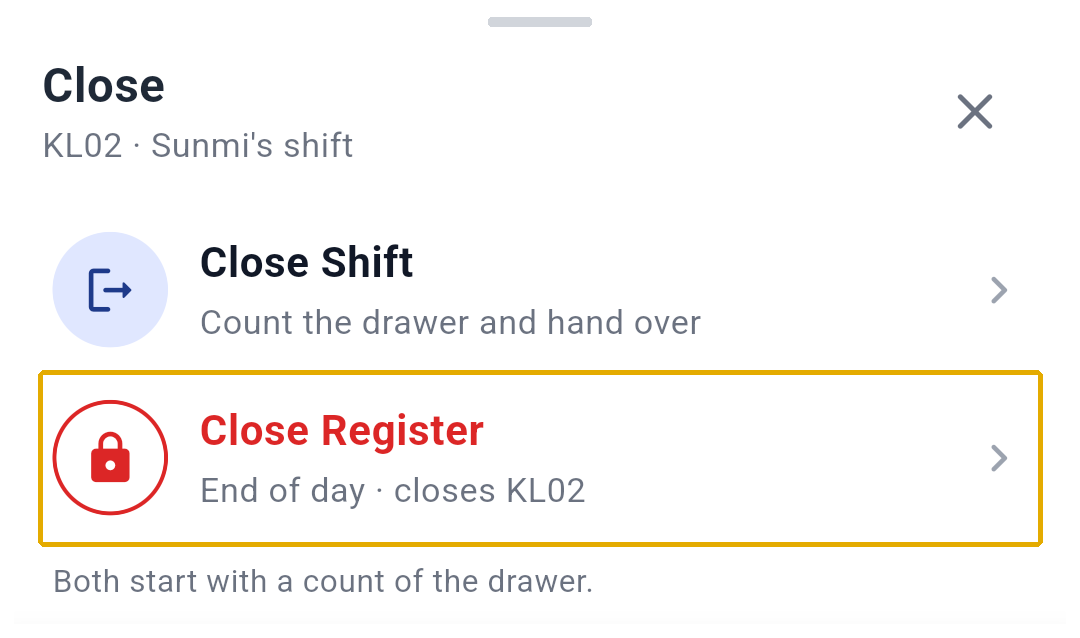
Tap the Session tab, tap Close and tap Close Register (End of day · closes KL02).
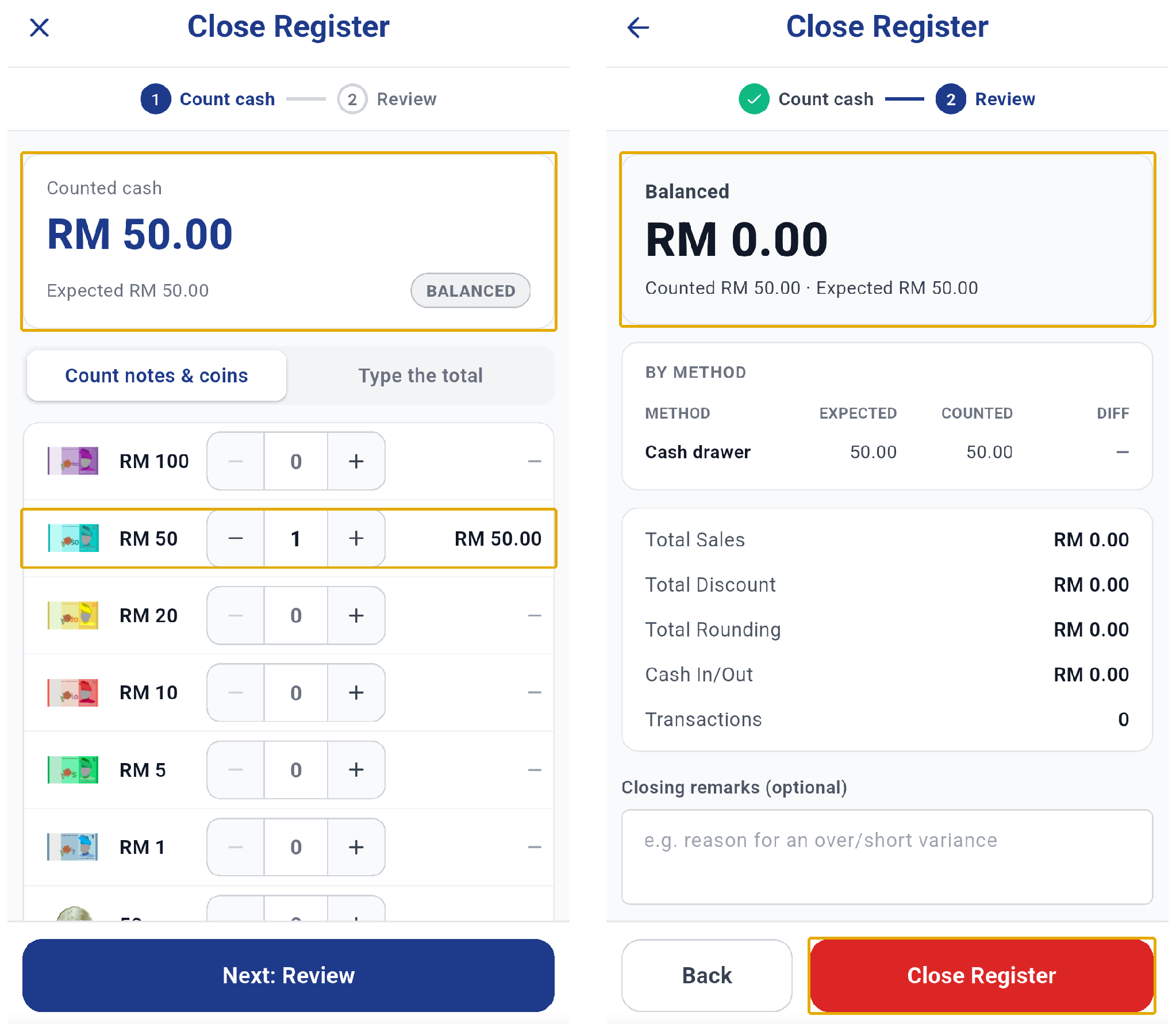
Count the drawer, e.g. 1 × RM 50, until Counted cash shows BALANCED, or tap Type the total. Tap Next: Review, check the totals, enter Closing remarks if needed and tap Close Register. Tap Print or Skip for the closing receipt.
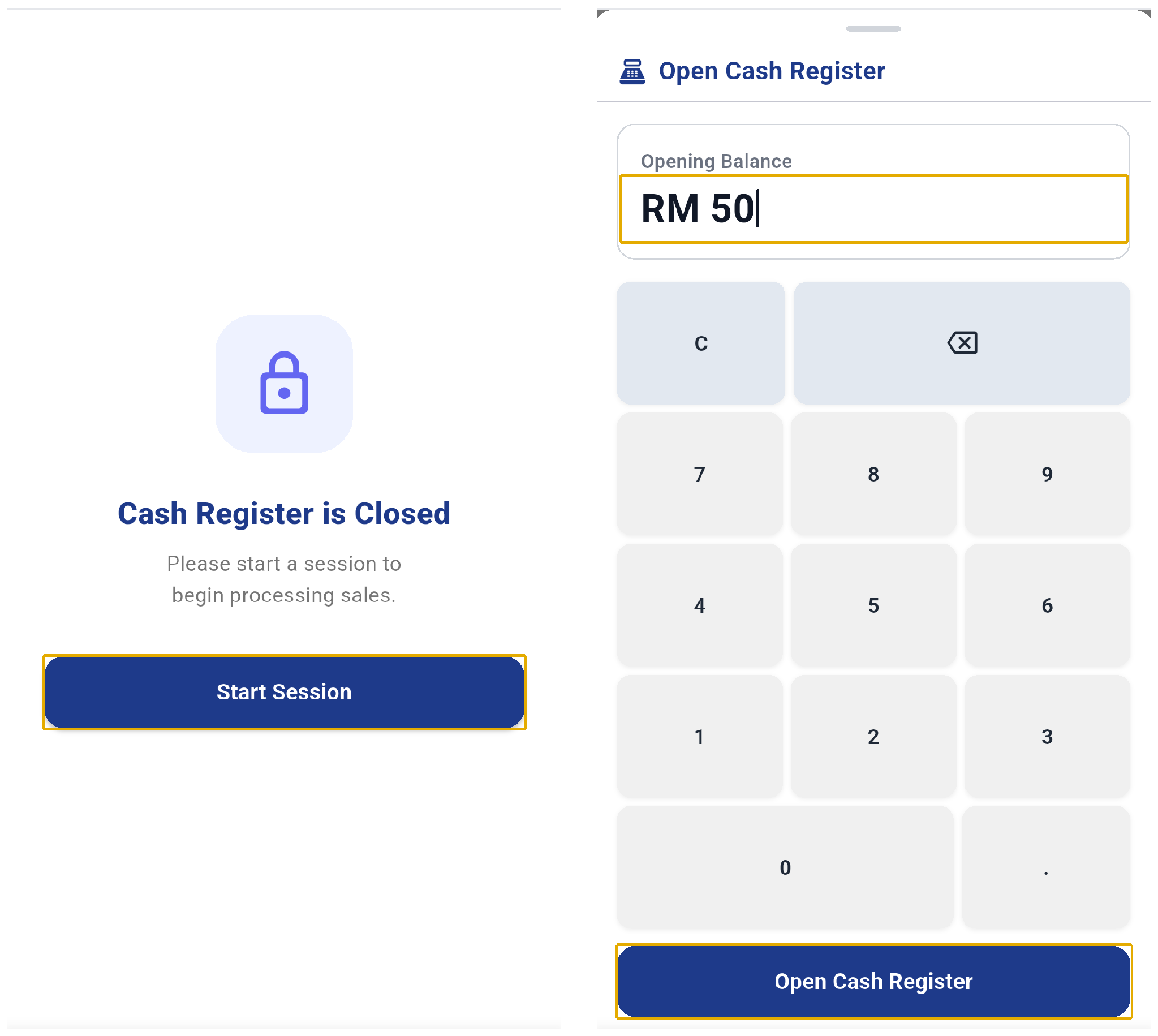
Cash Register is Closed appears. Tap Start Session, enter the Opening Balance, e.g. RM 50, and tap Open Cash Register. Tap Print or Skip for the start-session receipt.
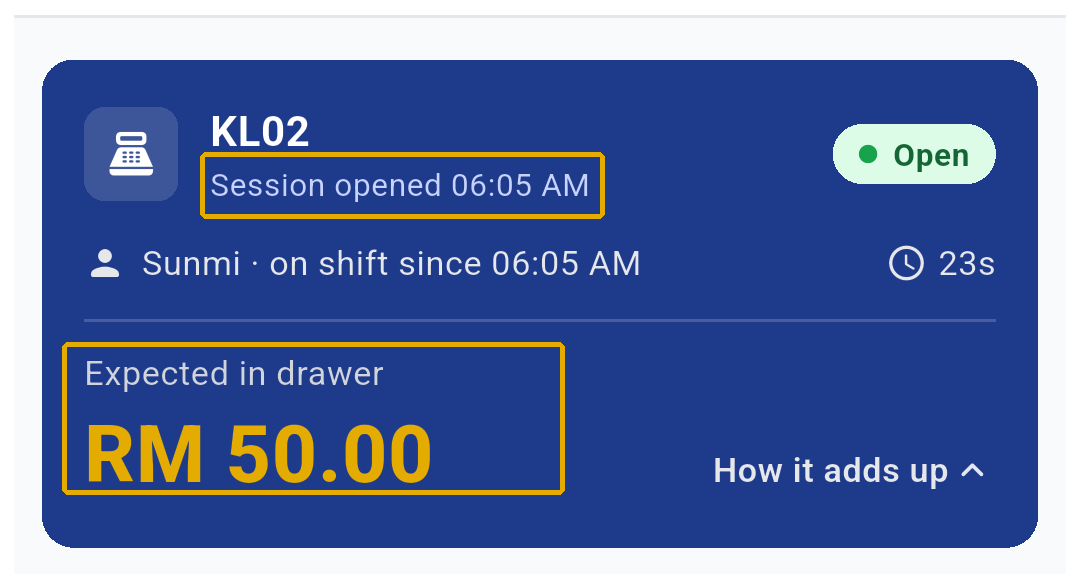
Result: Session shows the new session, e.g. Session opened 06:05 AM, with Expected in drawer RM 50.00.
Note: If the counted cash does not match, Difference (Win App) or SHORT / OVER (Android) shows the gap. Enter the reason in Closing remarks on Android.
What's Next :
To see each session's sales, navigate to Reporting > Report Center and open Cash Register Session Details. To hand over between cashiers during the day, see How to Use Shifts in N3 AI POS.
** Learn more about Azure Cloud
** Learn more about QNE Hybrid Cloud Software
Was this article helpful?
That’s Great!
Thank you for your feedback
Sorry! We couldn't be helpful
Thank you for your feedback
Feedback sent
We appreciate your effort and will try to fix the article
