Overview :
Cash In / Cash Out printing in Receipt Printing decides when the cash register prints a slip for each Cash In and Cash Out: without asking (Automatic) or after asking (Prompt to print). The slip is the paper record of the cash put in or taken out.
At the end of this article, you will be able to:
Set Cash In / Cash Out printing in the Portal
Set up the receipt printer in the Win App
Print and reprint a Cash In or Cash Out slip
Scenario :
In the POS Sdn. Bhd. Live database, the store wants the cashier to choose whether to print each Cash In and Cash Out slip. At SK Counter01 (Win App), the cashier prints the Cash In RM 20.00 and Cash Out RM 10.00 slips.
Solution :
Set Cash In / Cash Out Printing in the Portal
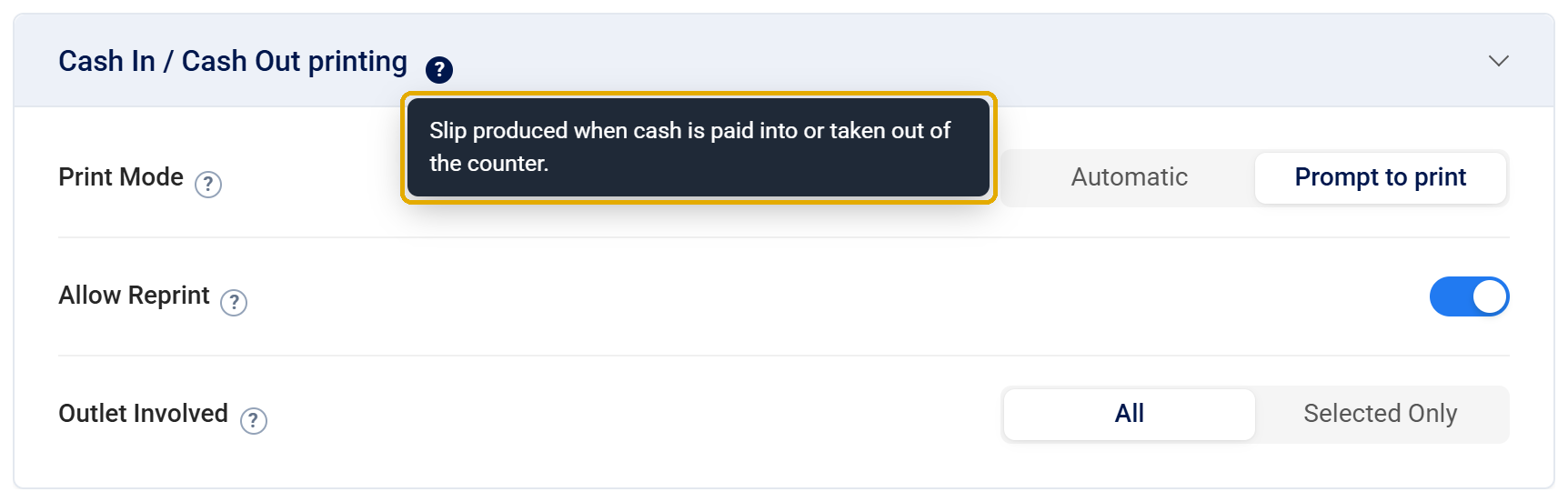
Navigate to Company > Maintenance > Settings and click Receipt Printing. Scroll to Cash In / Cash Out printing (Slip produced when cash is paid into or taken out of the counter.).
Set:
Print Mode – Automatic prints the slip without asking. Prompt to print asks the cashier each time.
Allow Reprint – The cashier can print the slip again at the cash register.
Outlet Involved – All outlets, or Selected Only.
Click Review and save and Confirm and save. Then run Quick Sync on Settings at the tills.
Set Up the Receipt Printer in N3 AI POS Win App
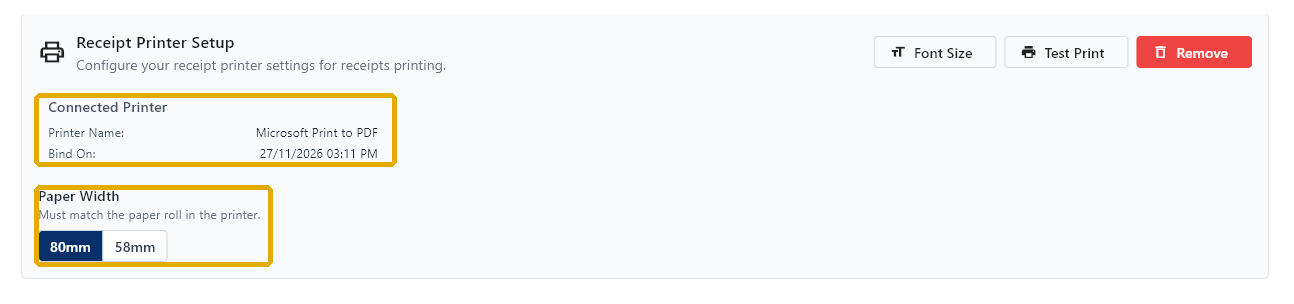
The Win App prints only when it has a receipt printer. Click Settings, and in General Settings > Receipt Printer Setup click Add printer. Choose the receipt printer, click Confirm, and choose the Paper Width, e.g. 80mm.
Print a Cash In or Cash Out Slip
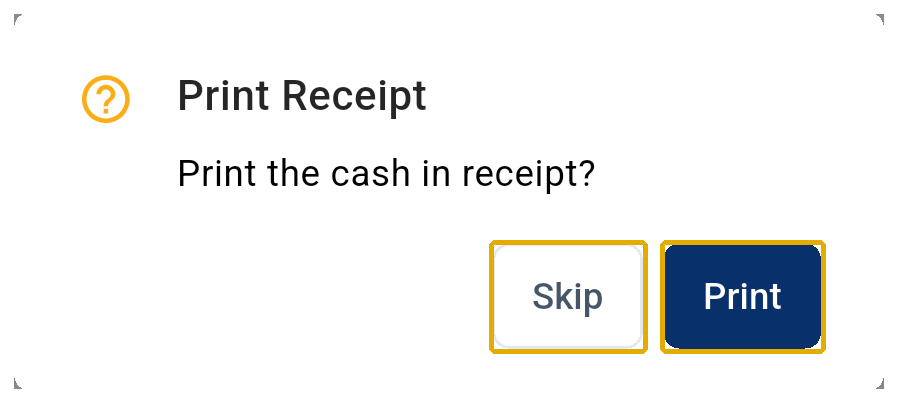
Win App: After you click Enter on a Cash In or Cash Out, Print Receipt asks Print the cash in receipt? (or cash out). Click Print, or Skip for no slip.
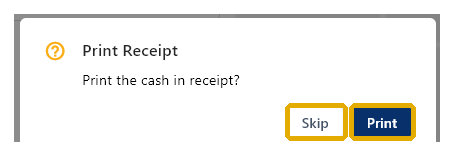
Android: After you tap Record Cash In or Record Cash Out, tap Print or Skip.
Result: The slip shows the company, Outlet Name, Counter, User, Cash In or Cash Out, the Date, Amount and Remarks, and the Printed Date.
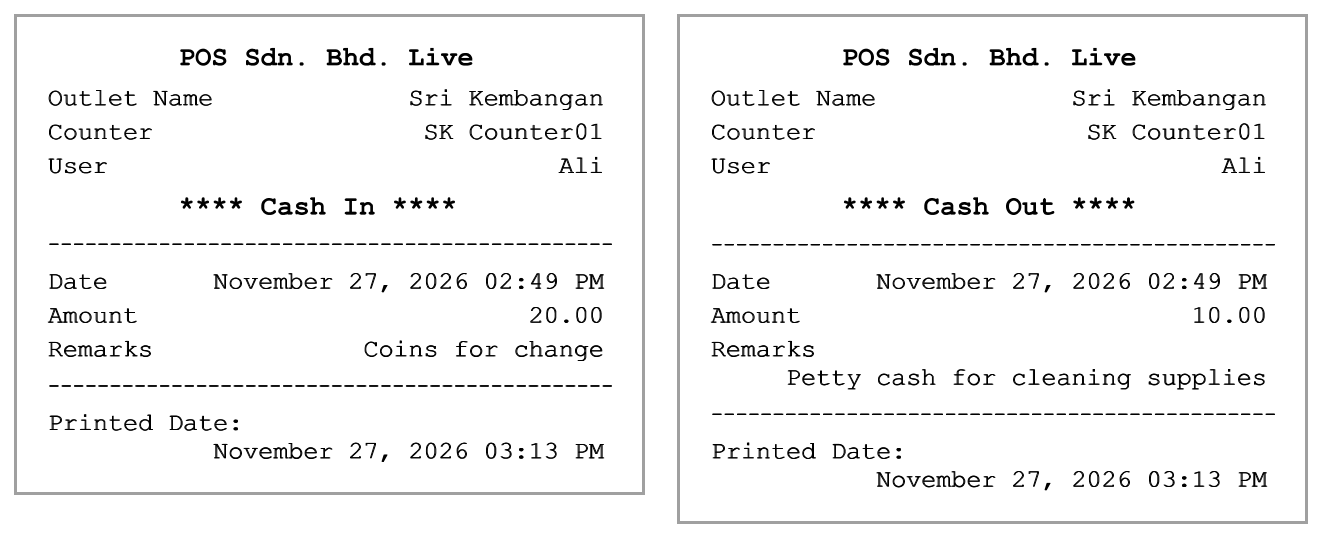
To print it again, open Session and click or tap the printer icon (Reprint receipt) next to the entry in Recent Operations (Win App) or Cash in / out (Android).
What's Next :
To record the cash, see How to Record Cash In in N3 AI POS and How to Record Cash Out in N3 AI POS. Close Shift / Session Printing in Receipt Printing works the same way for the slip printed when a shift or session closes.
** Learn more about Azure Cloud
** Learn more about QNE Hybrid Cloud Software
Was this article helpful?
That’s Great!
Thank you for your feedback
Sorry! We couldn't be helpful
Thank you for your feedback
Feedback sent
We appreciate your effort and will try to fix the article
