Overview :
In the N3 AI POS Win App, the cashier adds stock items to the cart in three ways: by scanning the barcode, by picking them from the Quick Menu, or by searching the name or code. A stock item with more than one UOM (unit of measure), e.g. PCS and CTN, shows one line for each UOM, each with its own price and barcode.
At the end of this article, you will be able to:
Add a stock item by scanning its barcode
Add stock items from the Quick Menu
Search for a stock item by name or code
Choose the UOM of a stock item with more than one UOM
Scenario :
At SK Counter01 (Win App) in the POS Sdn. Bhd. Live database, the cashier makes three cash sales:
SK012611/00039 – 1 carton of Pepsi 325ml (CTN) by scanning its barcode, RM 40.00, paid with RM 50.00 cash, change RM 10.00.
SK012611/00037 – 100Plus 1.5L and A&W Root Beer 325ml from the Quick Menu, RM 5.25.
SK012611/00038 – Sprite 1.5L by search and 1 carton of Pepsi 325ml (CTN, 24 PCS), RM 43.90.
Solution :
Barcodes and Quick Menu in the Portal
Navigate to Stock > Stock Items and open the stock item, e.g. Pepsi 325ml. The UOM tab lists each UOM with its Unit Price, Rate and Barcode, e.g. PCS 3808074611645 and CTN 3197031370373. Quick menu in Flags shows the UOM in the Win App Quick Menu.

Scan the Barcode
On the sales screen (Scan items to begin transaction), scan the barcode on the item with the barcode scanner. You do not need to click anywhere first.
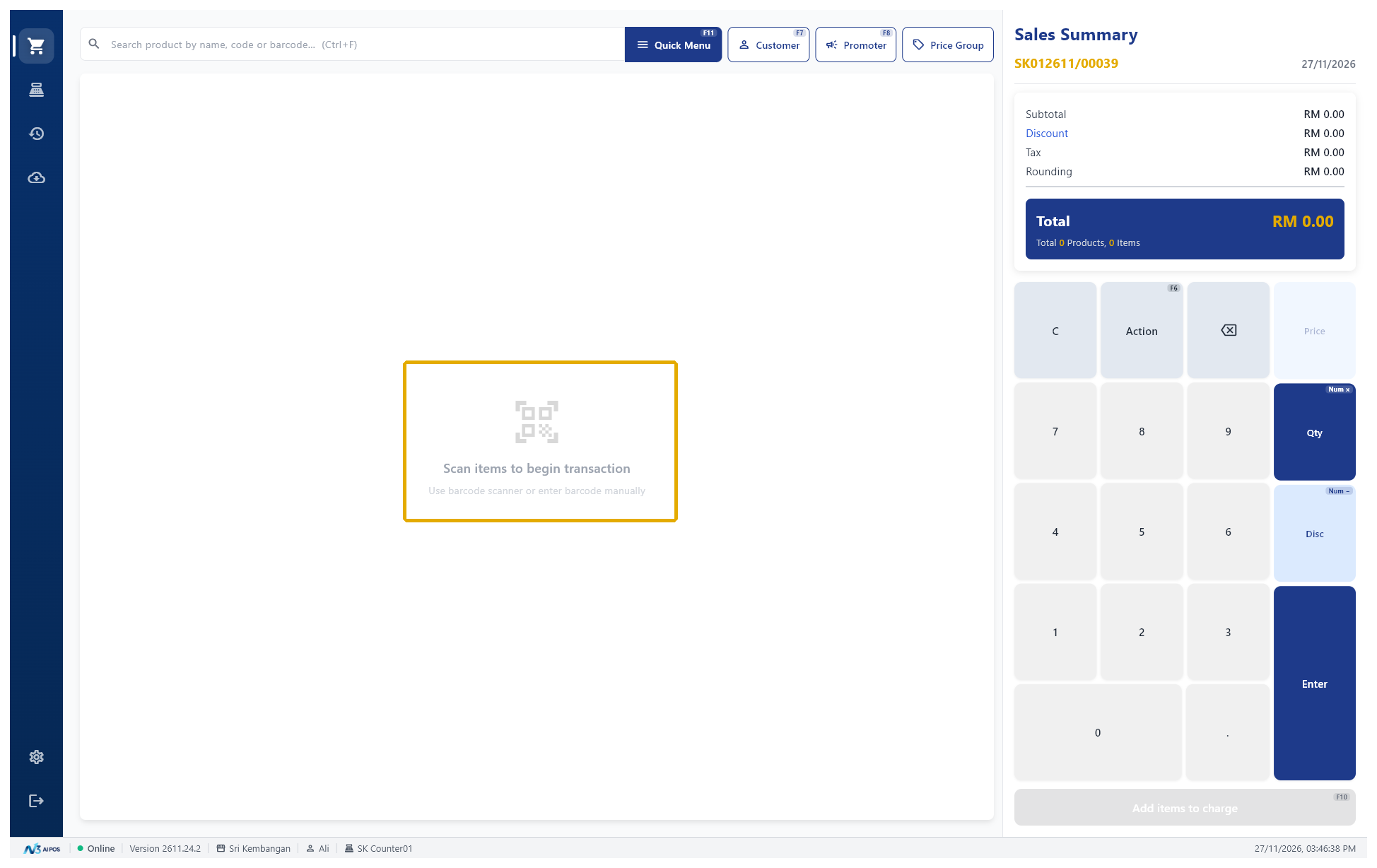
The Win App finds the stock item and the UOM of that barcode and adds it to the cart, e.g. the carton barcode 3197031370373 adds Pepsi 325ml CTN 40.00. The Total shows RM 40.00.

Pick from the Quick Menu
Click Quick Menu (F11). Quick Stock Select shows a tile for each stock item UOM flagged Quick menu, with its picture, Balance and price. Click a category on the left, e.g. BEVER, to show only those items, or search by code or name.
Click each tile to select it, e.g. 100Plus 1.5L PCS and A&W Root Beer 325ml PCS. Selected lists them; click x to drop one. Click Add 2 items.
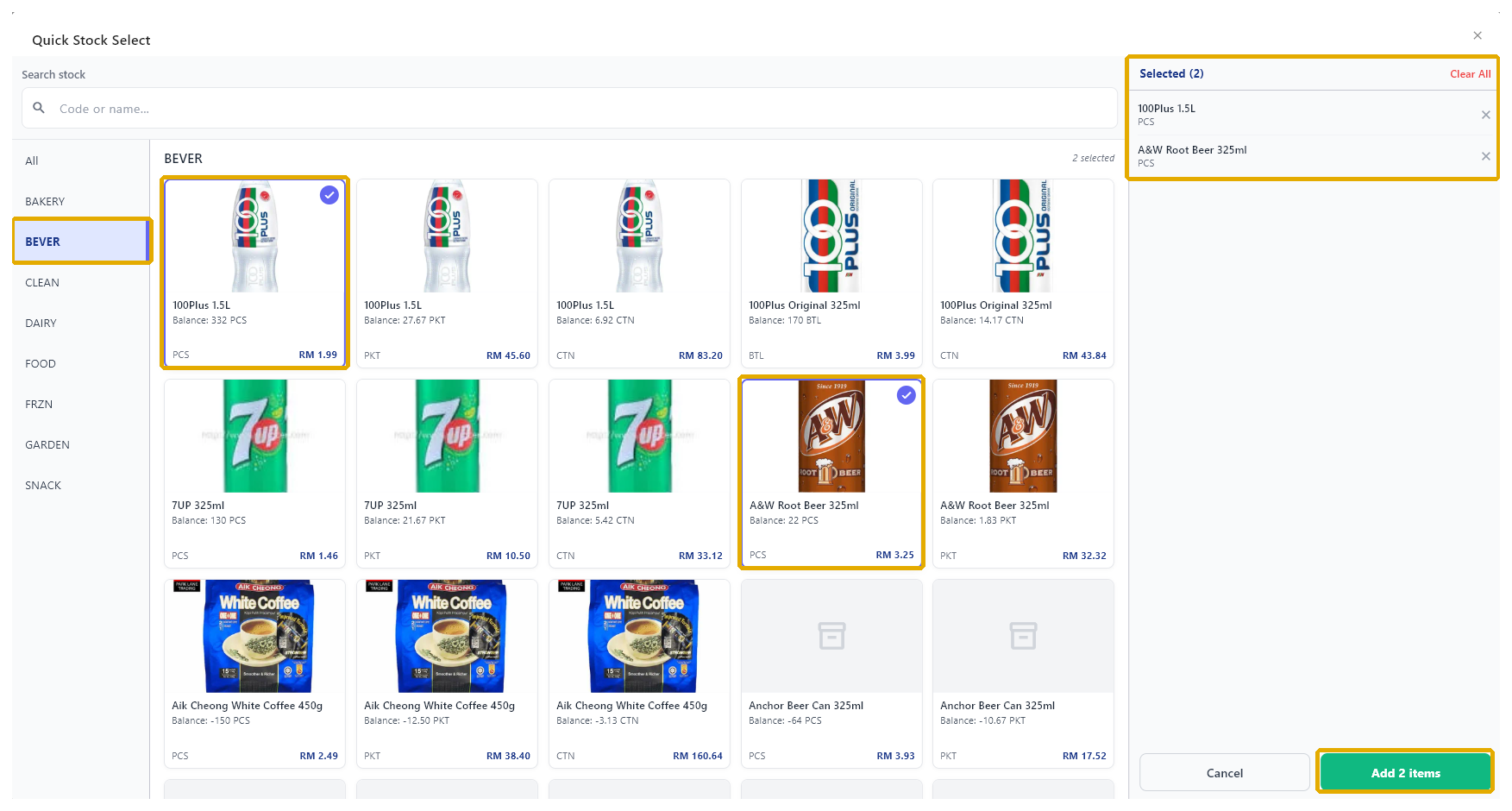
Result: The items are in the cart, e.g. 1.99 and 3.25, and the Total is RM 5.25. Click Pay.

Search for a Stock Item
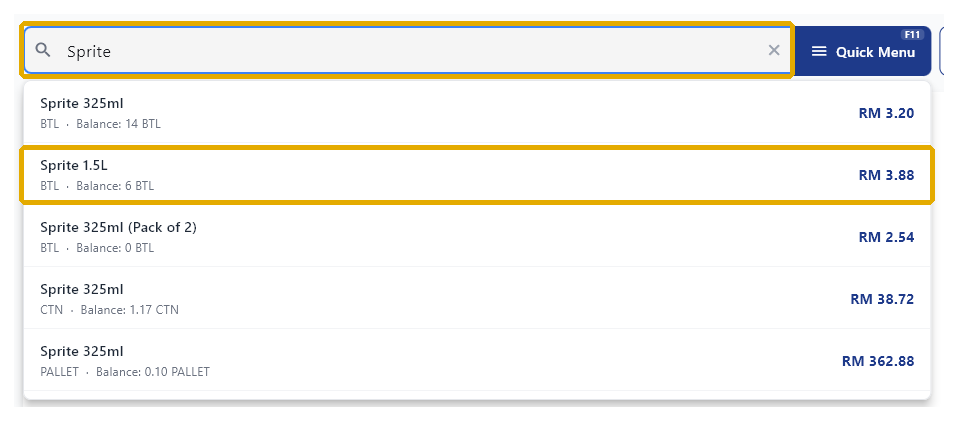
Click the search box, or press Ctrl+F, and key in part of the name or code, e.g. Sprite. The list shows every match with its UOM, Balance and price. Click the item, e.g. Sprite 1.5L BTL RM 3.88.
Search for a Stock Item with Multiple UOMs
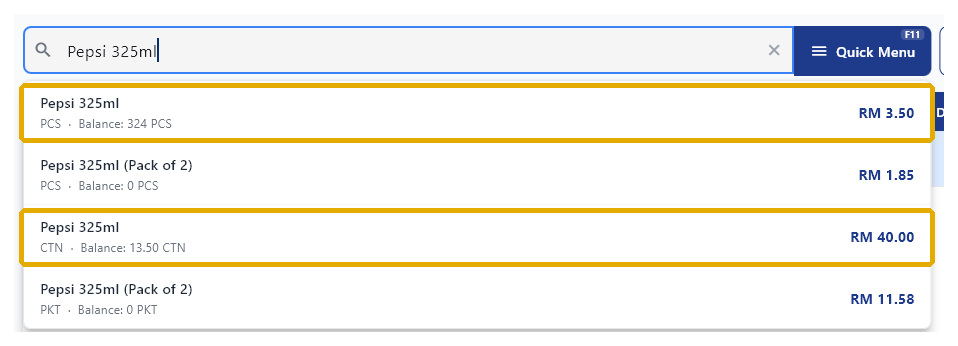
Key in the name, e.g. Pepsi 325ml. A stock item with more than one UOM shows one line for each UOM, e.g. PCS RM 3.50 (Balance: 324 PCS) and CTN RM 40.00 (Balance: 13.50 CTN). Click the UOM to sell, e.g. CTN.
Result: The cart shows the UOM under the item name, e.g. Pepsi 325ml CTN 40.00, next to Sprite 1.5L BTL 3.88. The Total is RM 43.90. Click Pay to take the payment.

Complete the Sale
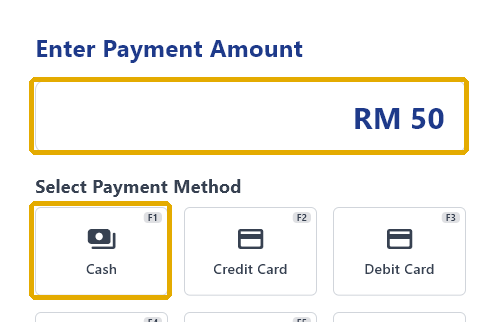
Click Pay (F10). In Enter Payment Amount, key in the cash the customer gives, e.g. 50, and click Cash (F1). To take the exact amount, click Cash without keying in an amount.
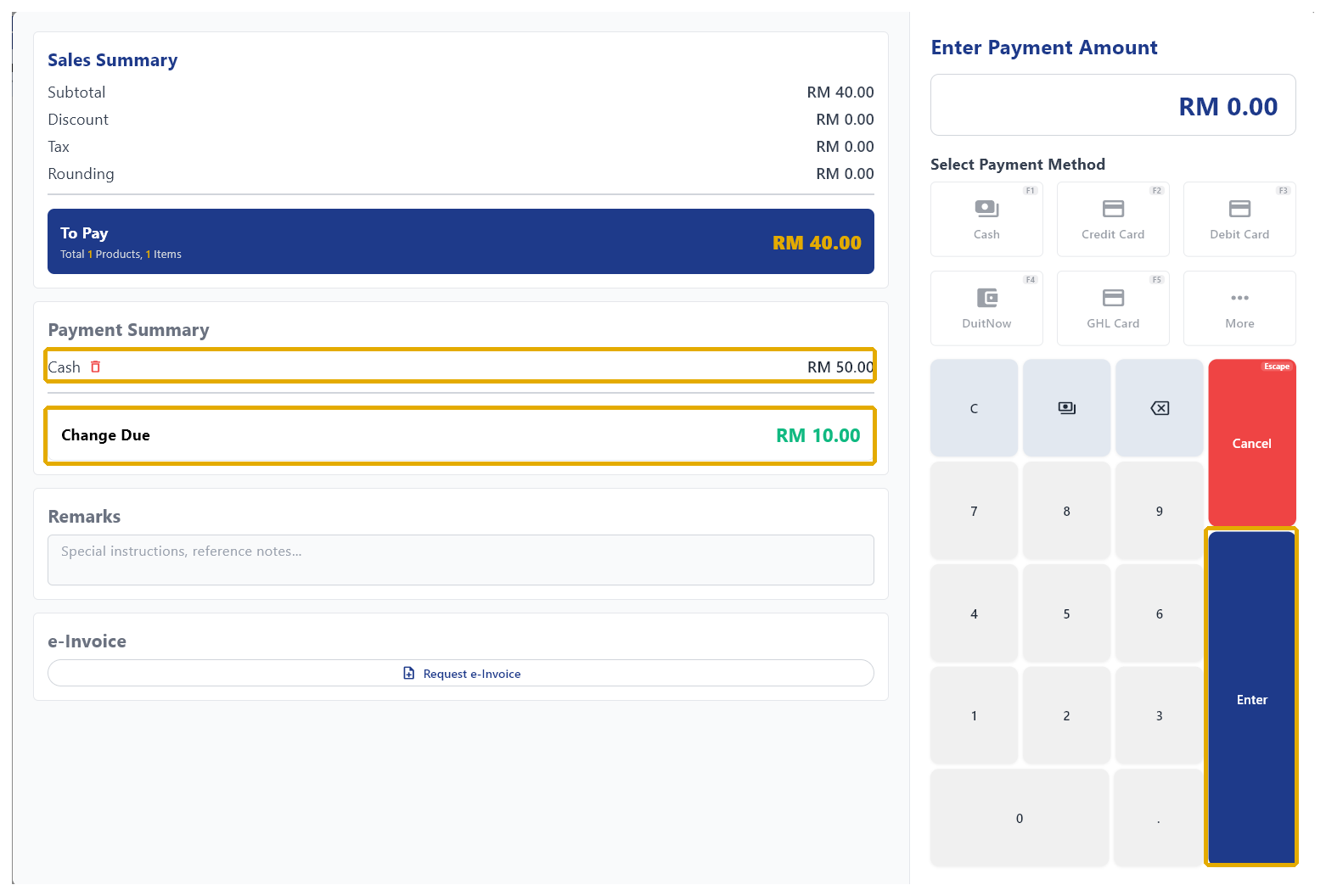
Payment Summary shows Cash RM 50.00 and Change Due RM 10.00. Add Remarks if needed, and click Enter.
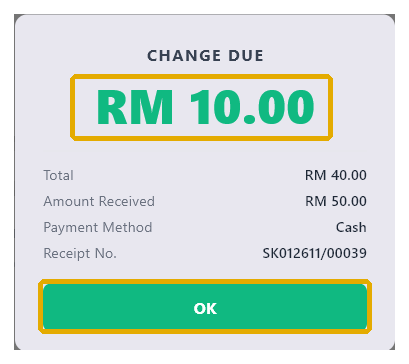
Result: Change Due shows the change to give back, e.g. RM 10.00, with the Total, Amount Received, Payment Method and Receipt No., e.g. SK012611/00039. Click OK for the next sale.
What's Next :
To change the quantity, price or discount of a line, select it and use Qty, Price or Disc on the keypad. To set up UOMs, barcodes and pictures, see the Create UOM and UOM Images articles.
** Learn more about Azure Cloud
** Learn more about QNE Hybrid Cloud Software
Was this article helpful?
That’s Great!
Thank you for your feedback
Sorry! We couldn't be helpful
Thank you for your feedback
Feedback sent
We appreciate your effort and will try to fix the article
