Scenario:
After completing the On-Boarding Process, let’s get started with the company basic setups.
Solution:
Before you start to key-in all your transactions, you still need to go through some basic setup, primarily to fill the information of your company on the Company Profile screen.
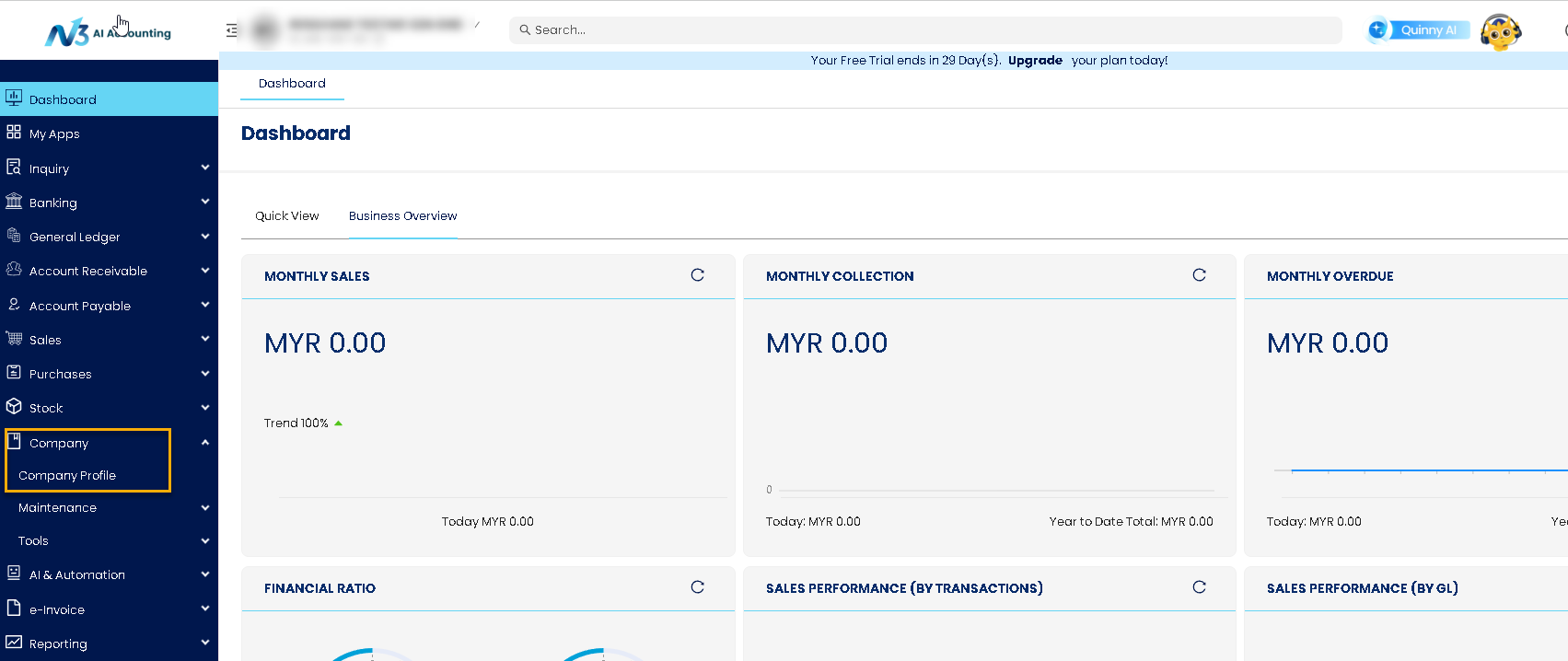
1. To do this, go to the Navigation Pane, click Company > Company Profile.
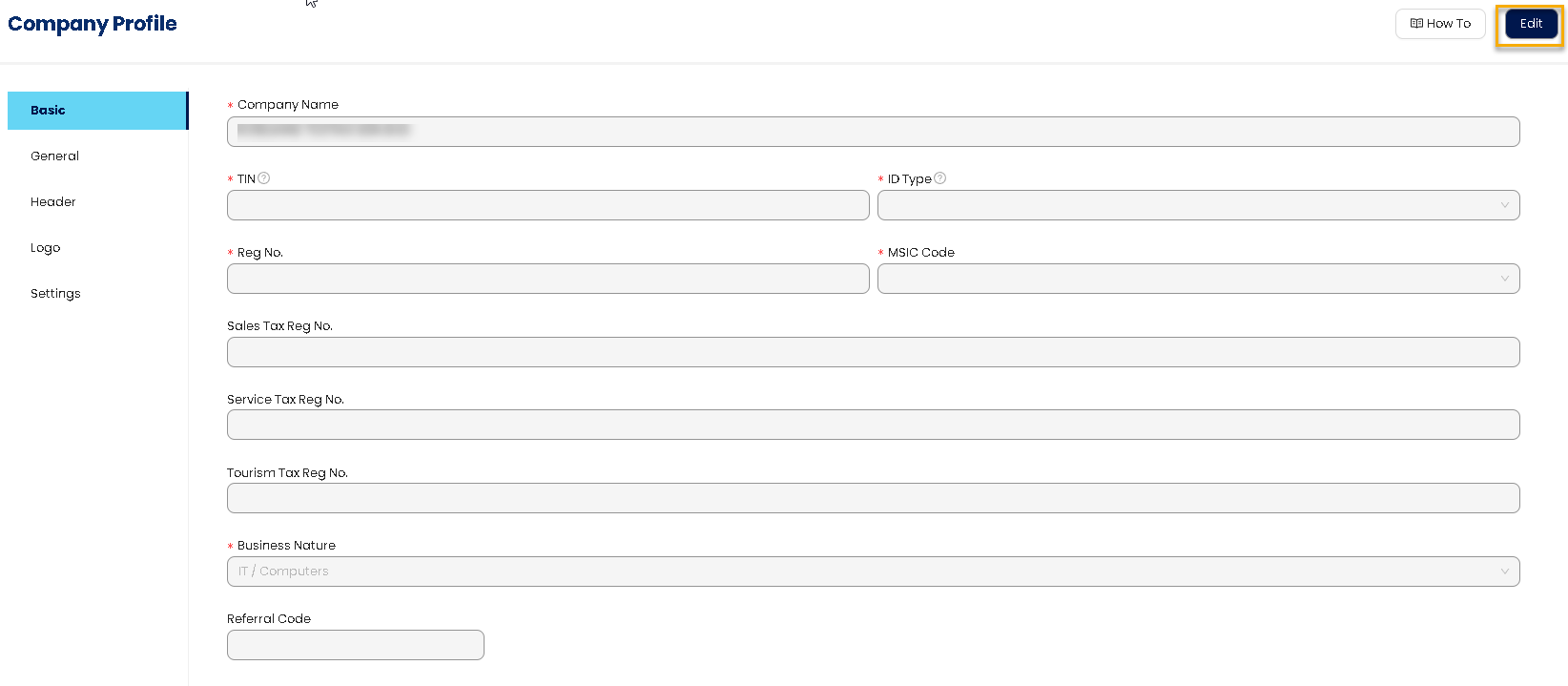
2. There are several tabs under Company Profile: Basic, General, Header, Logo and Settings. Basic Details. To modify the existing information, click ‘Edit’. Update all the necessary details
TIN, ID Type, Reg No. (Use the latest / new ROC), MSIC Code, Business Natures). Once done, you may now proceed with the succeeding tabs.
*Need help finding your company TIN? Click HERE to learn how to check your company TIN
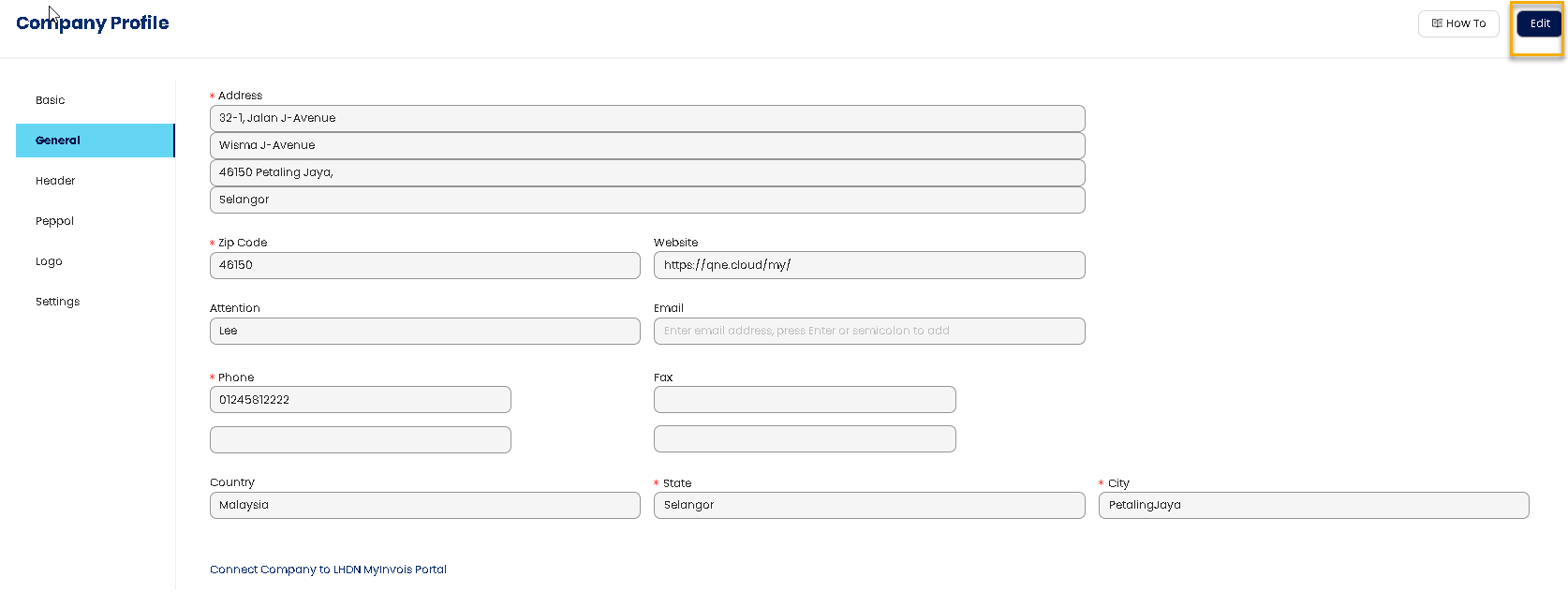
3. Following the Basic Tab in the General Tab where you can enter the Company Address, Website, Contact Person, and Contact Number.
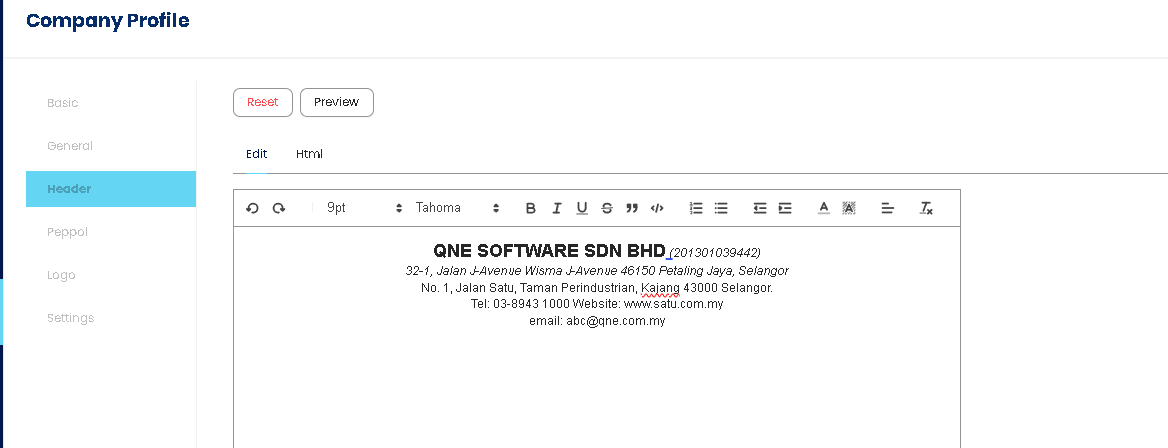
4. Under the Header tab, click Edit to modify and apply the changes made in the Basic and General tabs.
You can finalize your Company Report Header look, and further change the formatting styles by adjusting the Font Style, Color, Size, Alignment, etc.
If you want to revert the Header to the default format based on the latest changes in the Basic and General tabs, click Reset.
Click HERE to learn How to amend company letter head
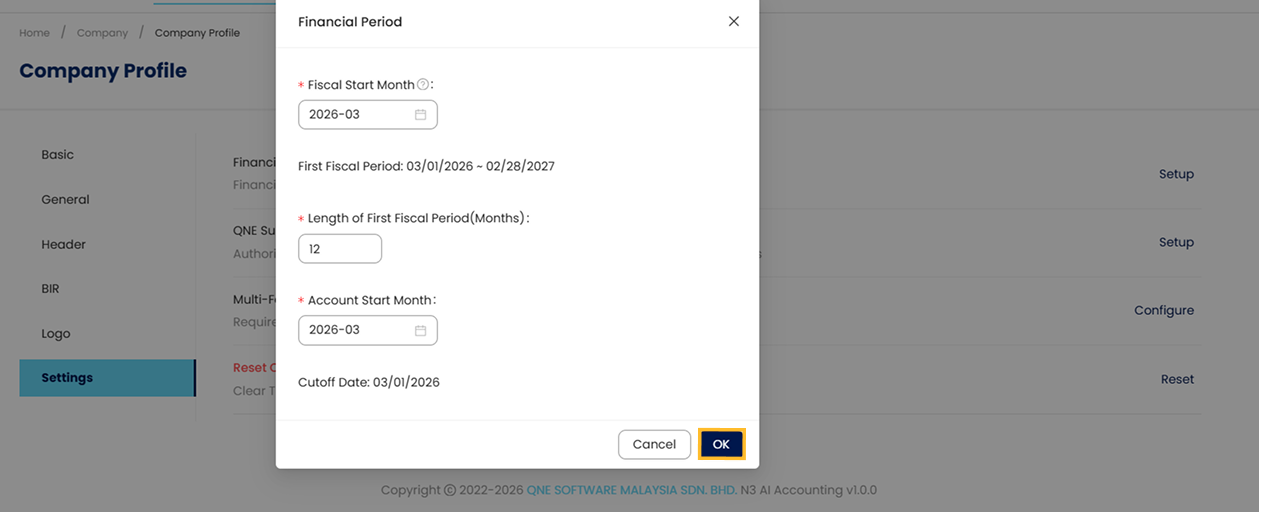
5. The Financial Period which was initially set up during on-boarding can be edited in the Financial Period tab, provided no posted transactions have yet been made.
To do this, go to the Settings tab and click Setup beside Financial Period.
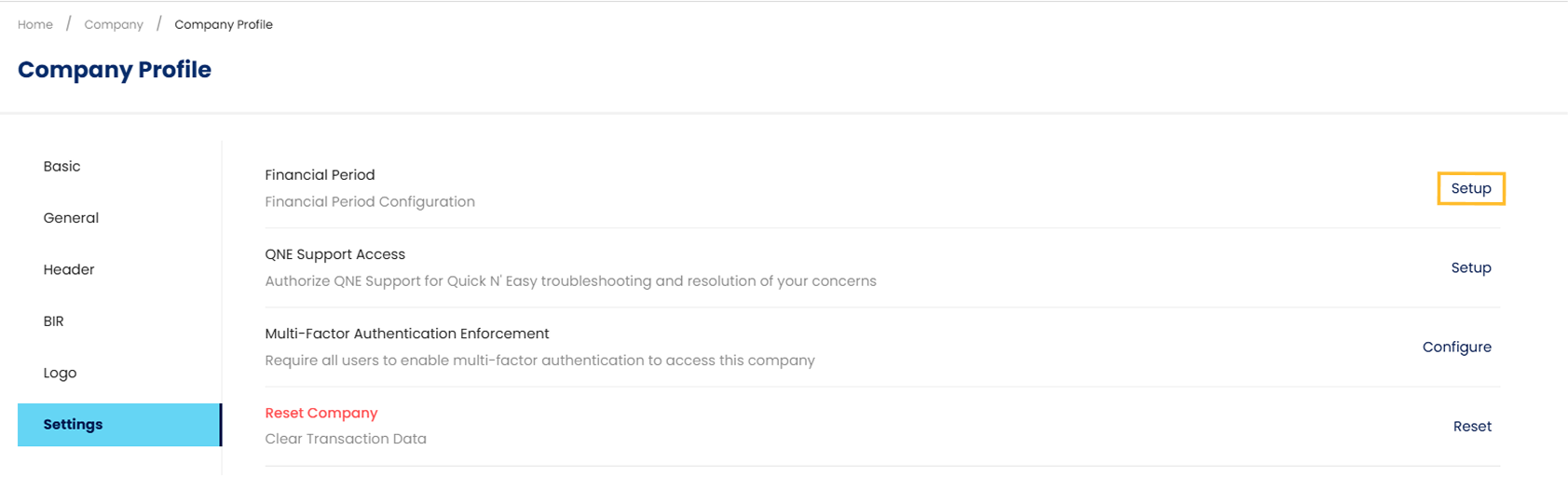
A pop-up window will appear, allowing you to edit the Financial Period details. Once done, Click the OK button.
Click HERE to learn more about Setting up Financial Period
6. Lastly, the Logo Tab allows you to remove or change the uploaded logo, or upload one in case you have skipped this step during the on-boarding process.
To do this, click the Edit button and upload, replace, or remove the company logo as needed.
Click HERE to learn How to amend Company logo size

Once updates for Company Profile is done, click ‘Save’ to apply changes.
NOTES
At Company > Company Profile, click Edit to modify Company Basic Info. Fill in your Sales Tax or Service Tax where applicable.
You may still modify the Company Header under Header tab.
Financial Period and Cut-Off Date can still be edited, provided no transactions have been posted.
You may remove or replace the Company Logo under Logo tab.
Remember to click on Save to apply all the changes you have made.
System Scope: QNE AI Cloud Accounting / N3 AI Accounting
Was this article helpful?
That’s Great!
Thank you for your feedback
Sorry! We couldn't be helpful
Thank you for your feedback
Feedback sent
We appreciate your effort and will try to fix the article
