Effortlessly Importing Invoices into N3 AI Accounting's.

Solution:
Step 1 - Expand 'Company' > Expand 'Tools' > Press Data 'Migration' > Press Upload CSV Files
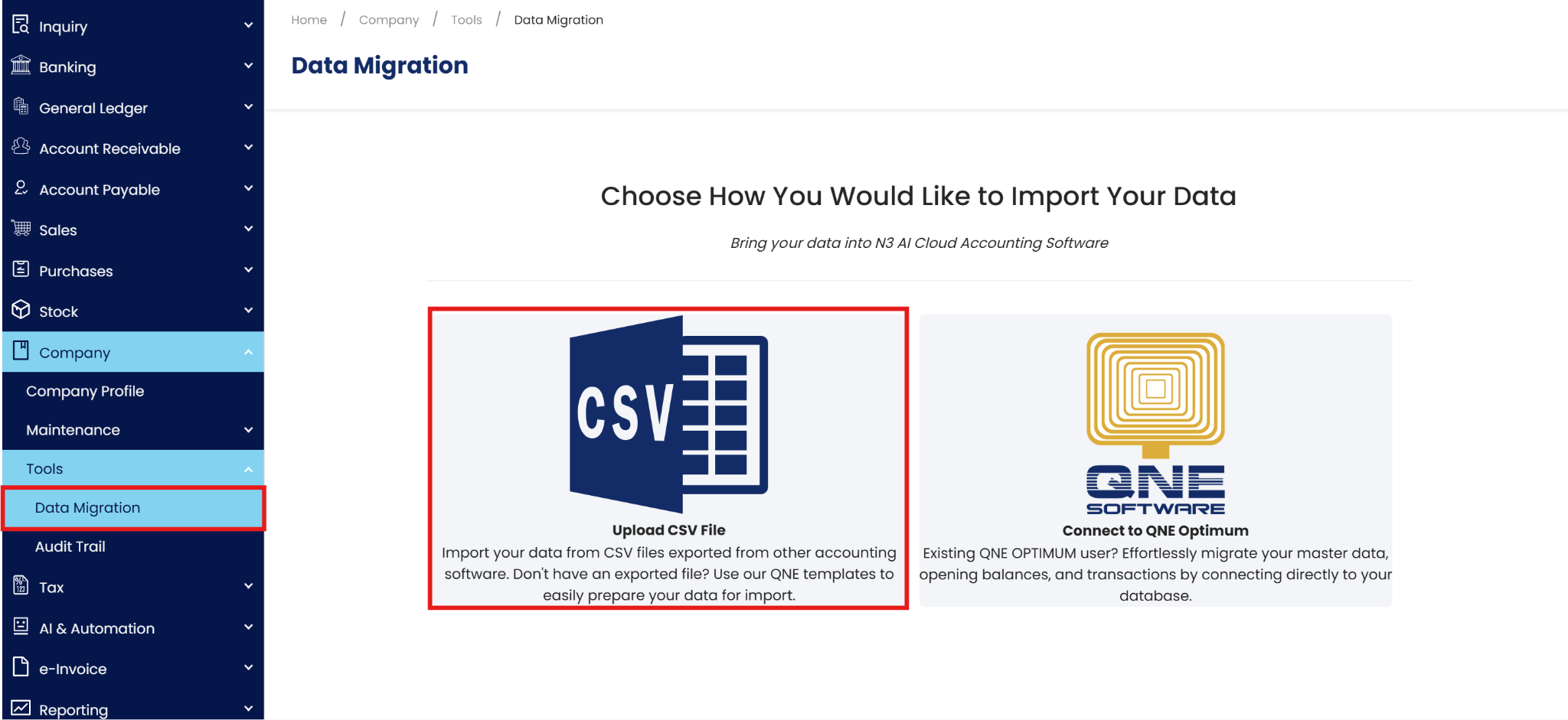
For the import handling of actual transactions, N3 AI Accounting provides several options, including the following:
Payment Vouchers
AR Invoices
Bills
Sales Invoices
Sales Credit Notes
Cash Sales
Purchase Invoices
Note: I'll take AR invoices as Example

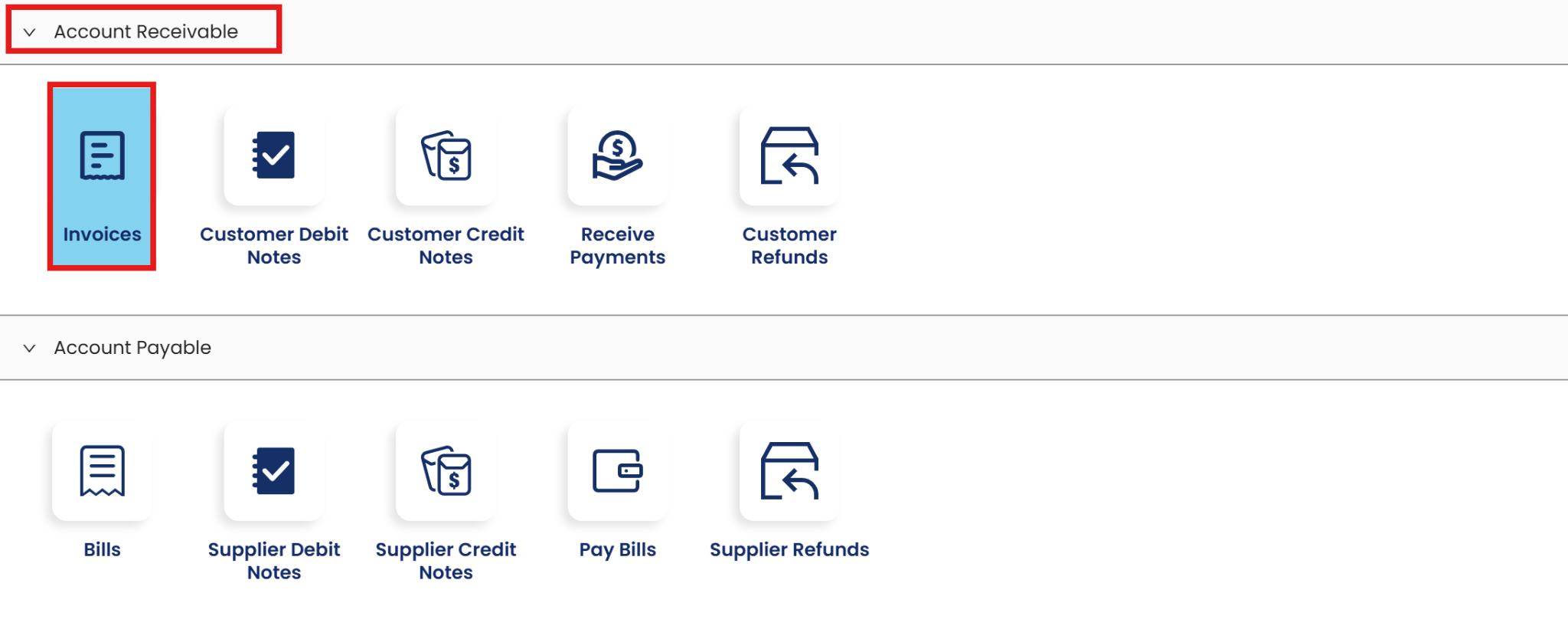
Step 2 - After Press Upload Button, Below Screen will appear, Please Press 'Download Sample' to download a Sample Excel CSV Format.
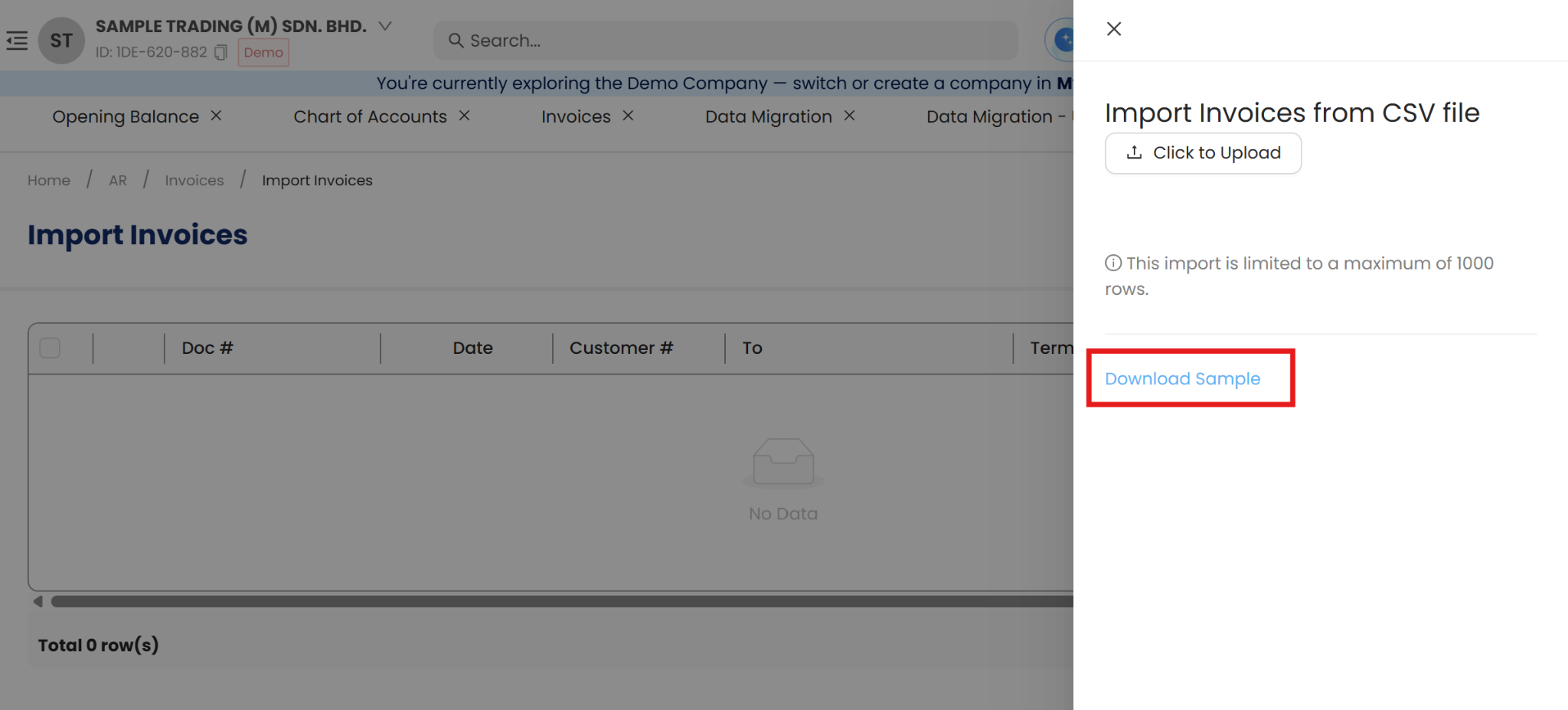
Note: this is how sample Excel CSV look like, this is 1 transaction sample.

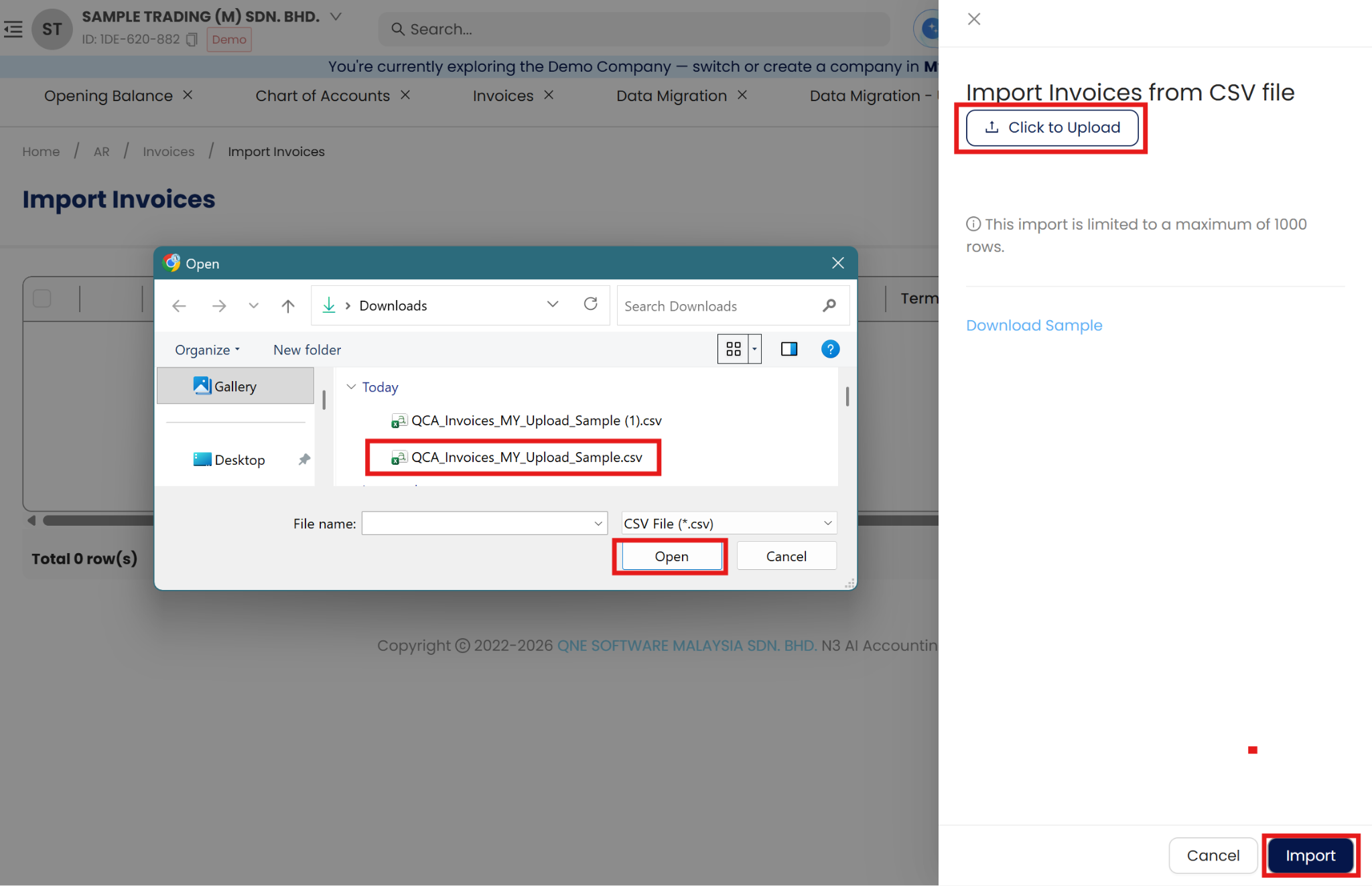
Step 3 - After finish prepare the invoice Excel, at the same screen Press 'Click to Upload'
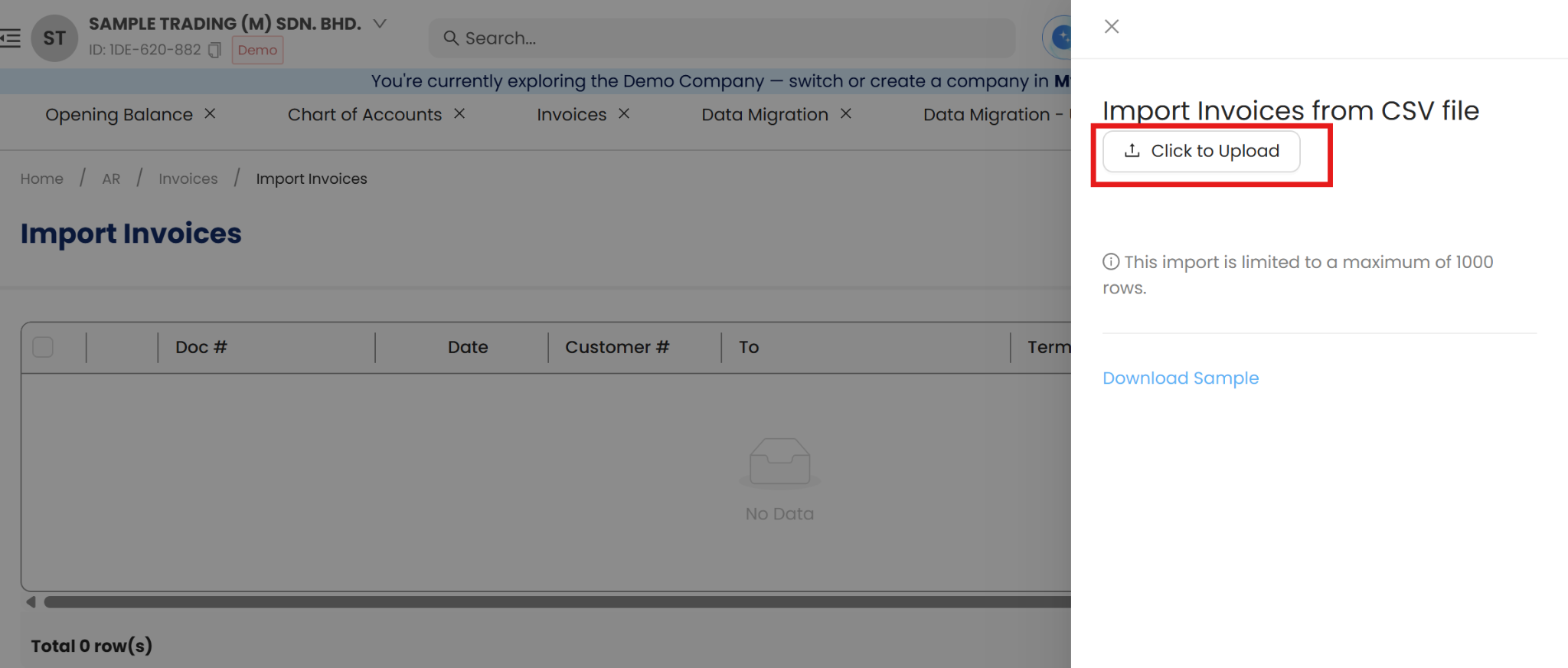
Step 4 - After Press Click to Upload, then browse the excel, Press Open > then press import
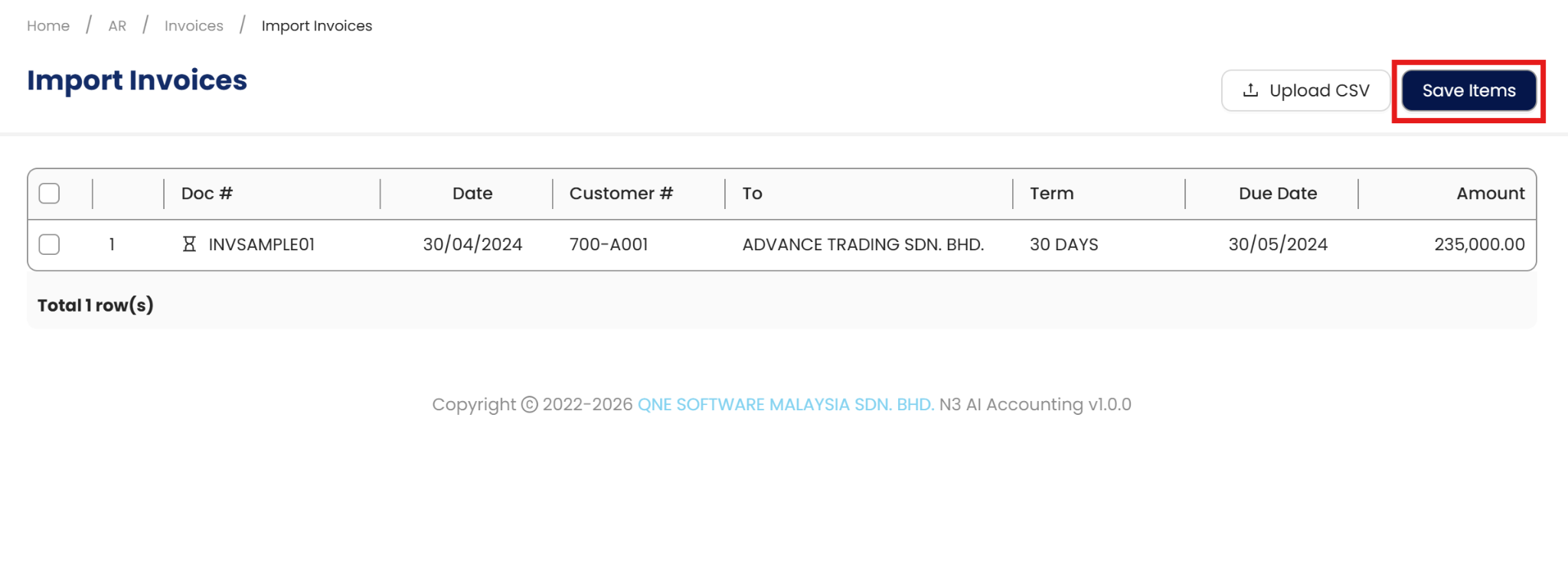
Step 5 - System detected Excel have 3 transactions, Press Save Items.
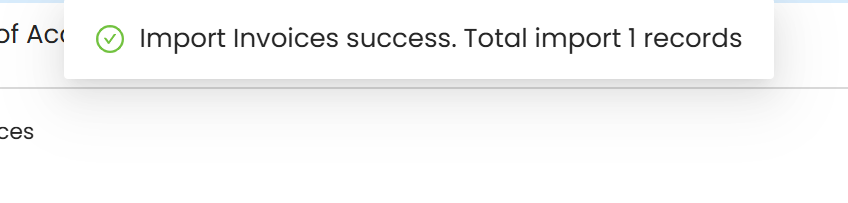
Step 6 - Success!
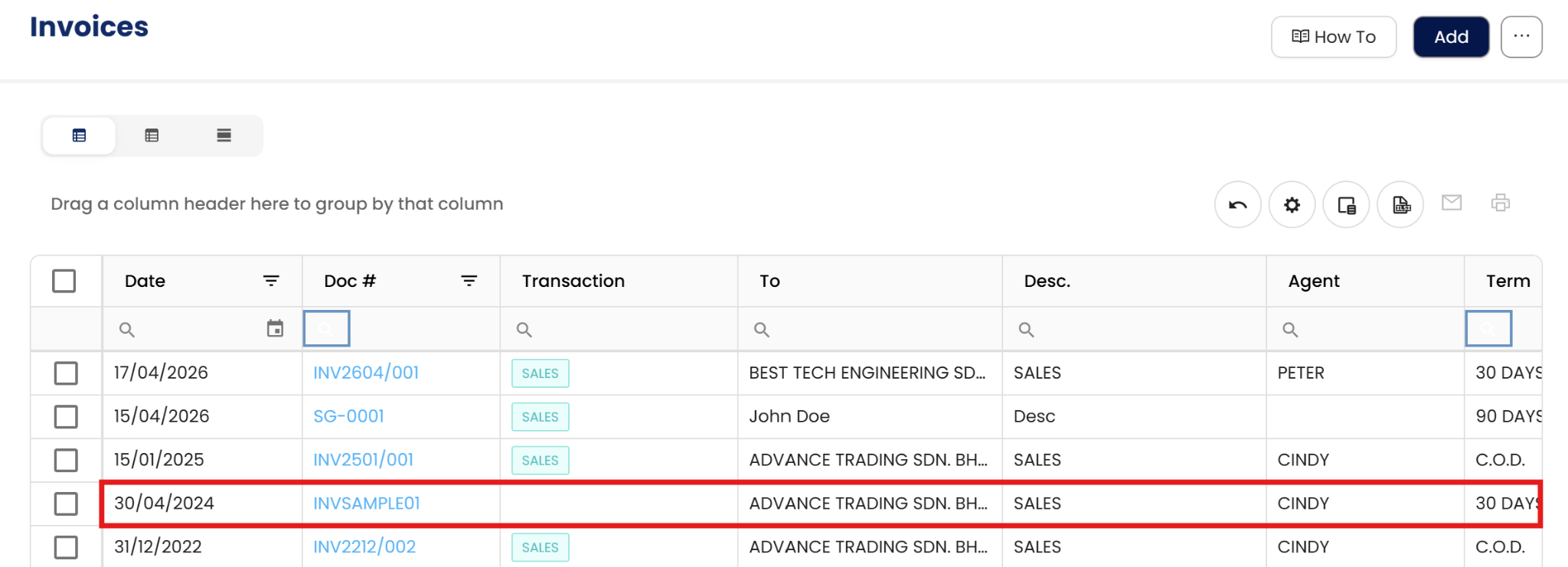
Result.
** Learn more about Azure Cloud
** Learn more about QNE Hybrid Cloud Software
System Scope: QNE AI Cloud Accounting / N3 AI Accounting
Was this article helpful?
That’s Great!
Thank you for your feedback
Sorry! We couldn't be helpful
Thank you for your feedback
Feedback sent
We appreciate your effort and will try to fix the article
