Auto Bank Recon Feature
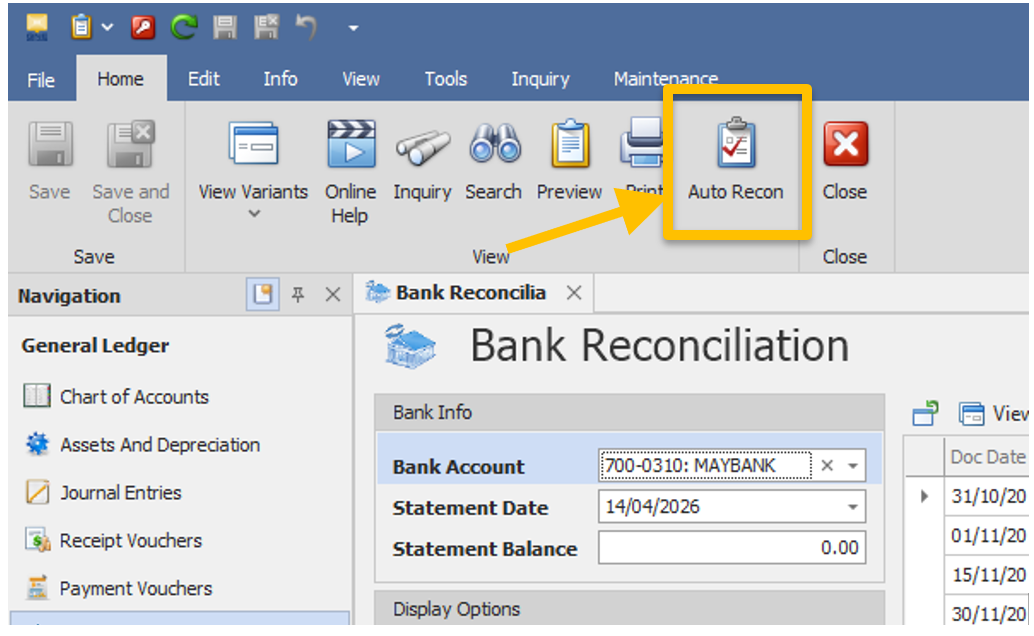
Step to use this feature
1. Download the CSV file or XLS file from your bank portal
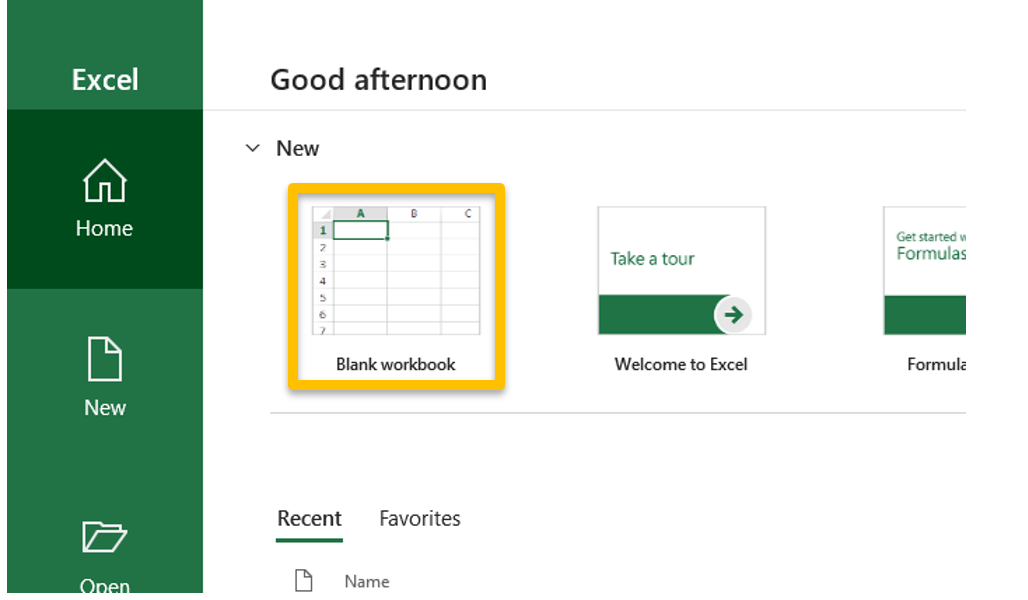
2. Open Excel with Blank workbook
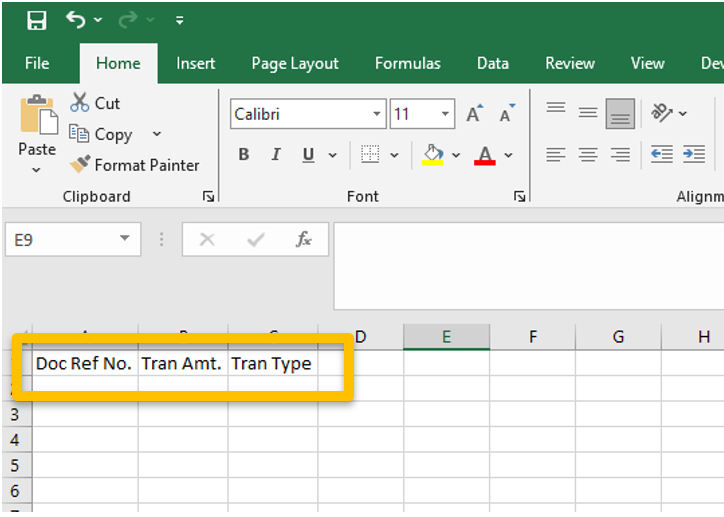
3. Set Column A = Doc Ref No. > Column B = Tran Amt. > Column C = Tran Type on 1st row
4. Open the CSV or XLS file that you downloaded from your bank portal and Copy the Doc Ref No./Reference No/Cheque Number and paste in to Doc Ref No. Column in the excel file on your blank workbook.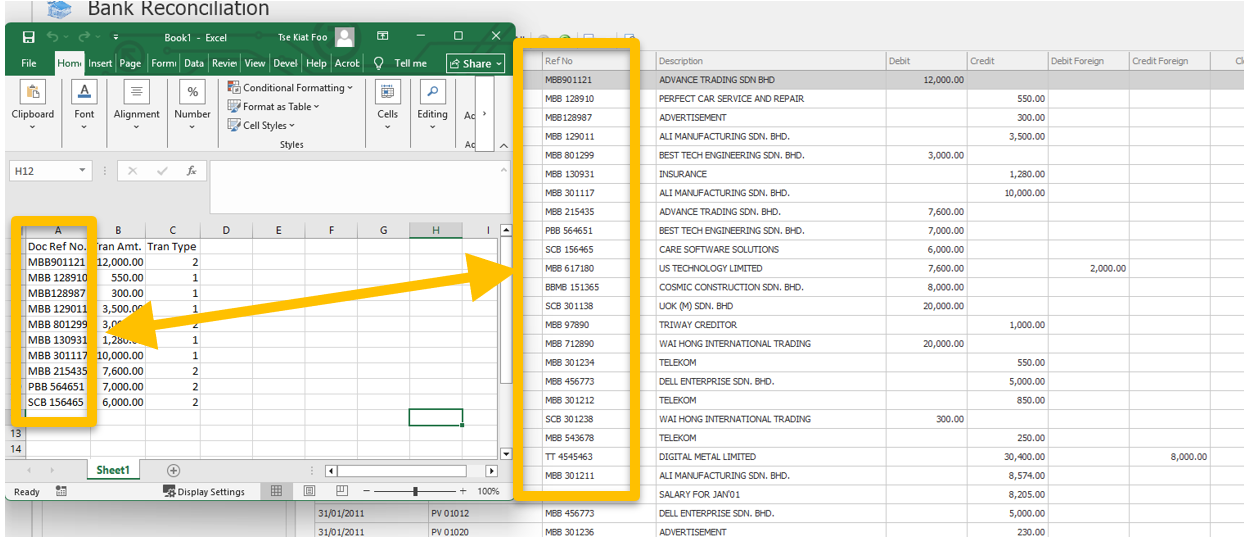
Notes: this Doc Ref No. must same with Ref No that keyed in the QNE system.
5. Copy the Transactions Amount from CSV or XLS file and past into Tran Amt. column in the blank workbook.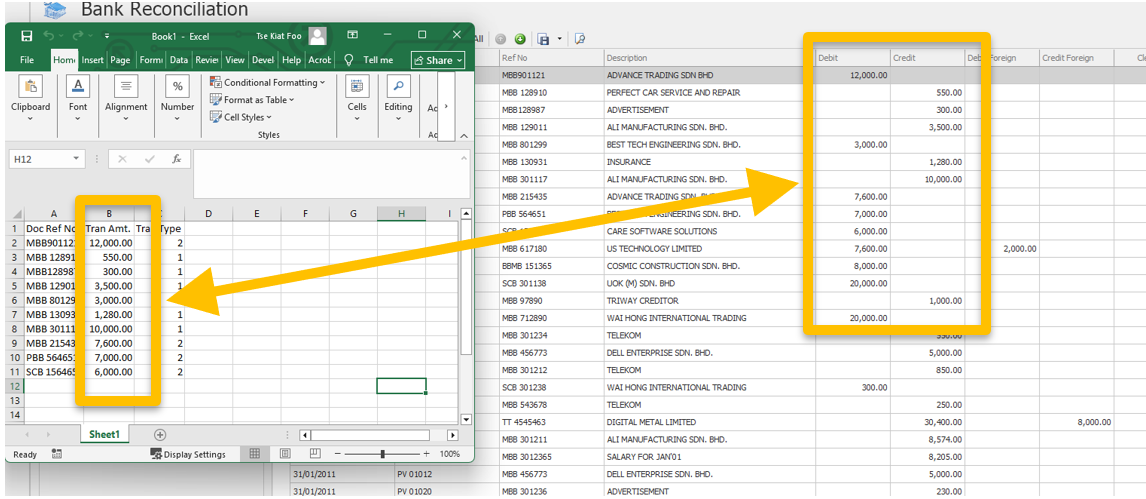
Notes: This Amount must same with the Amount that keyed in the QNE System.
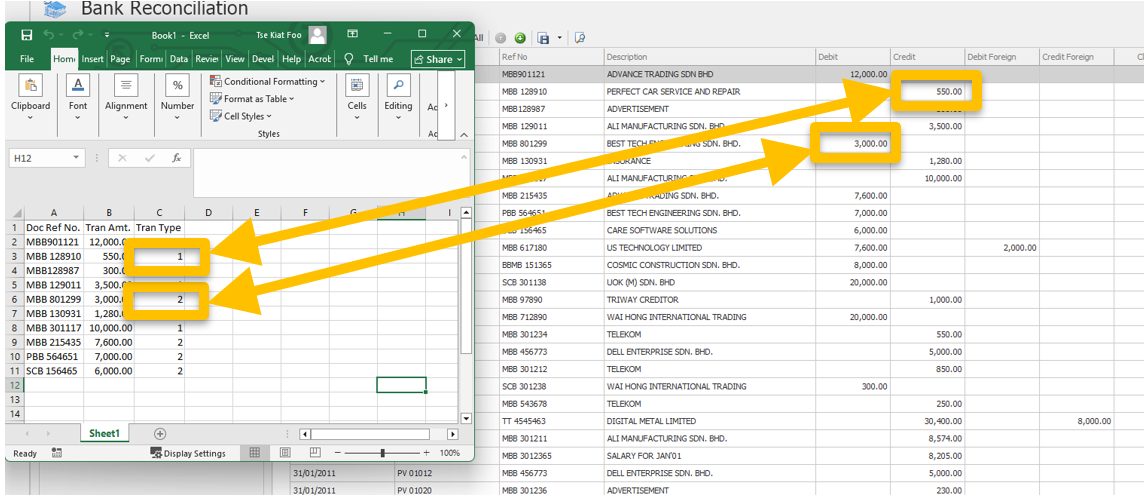
6. Key in the Tran Type 1 = Credit or 2 = Debit in the excel file.
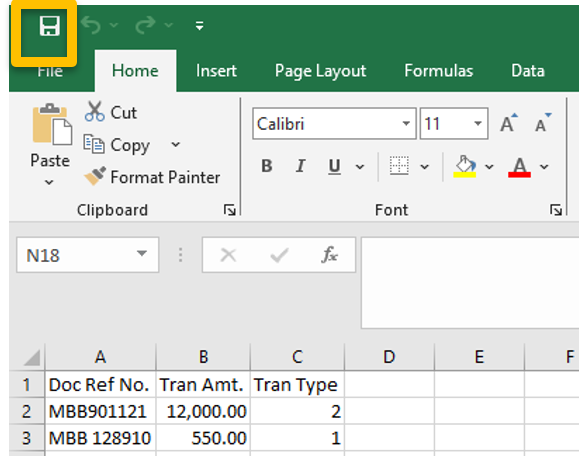
7. Save the excel file.
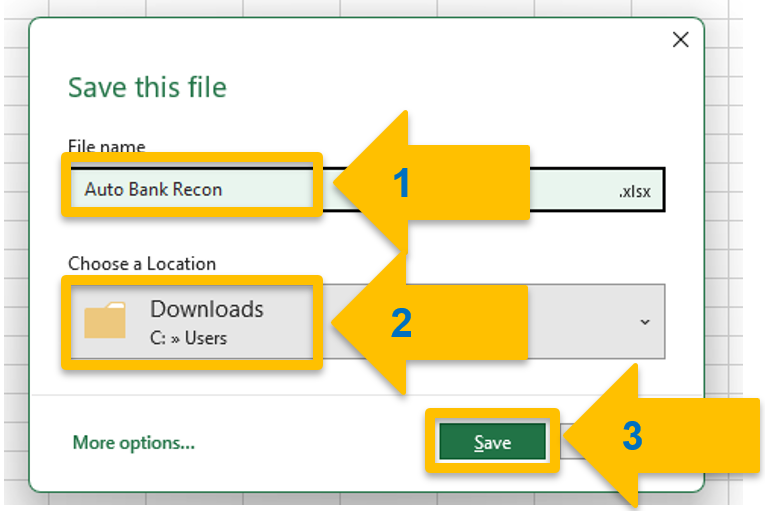
8. Key in the filename > Select the Location > Click Save.
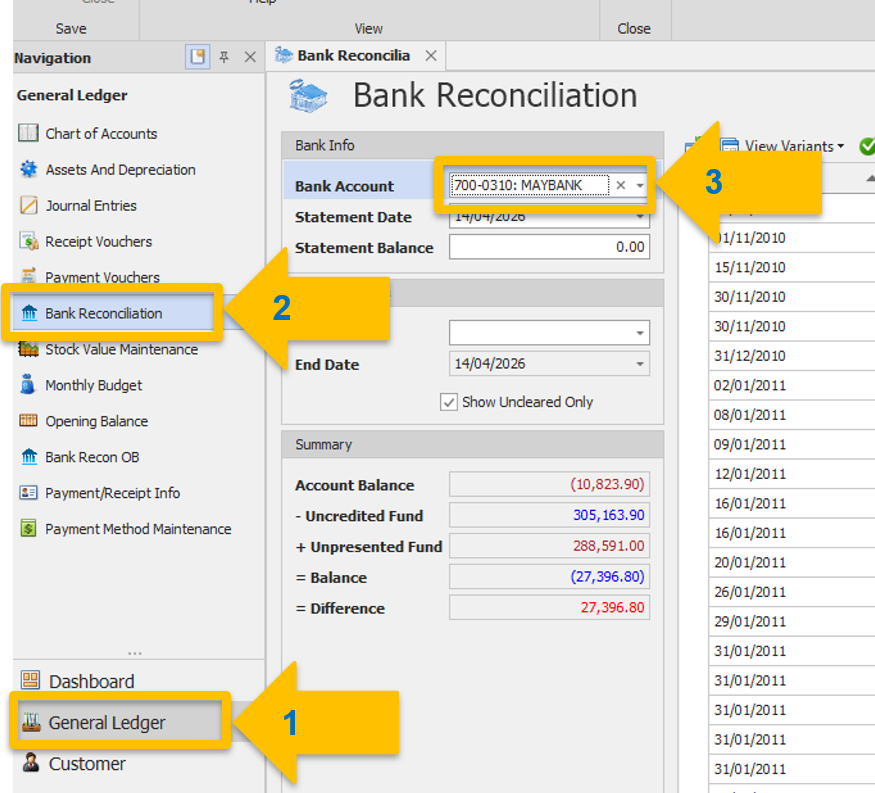
10. Login QNE System > Go to General Ledger > Bank Reconciliation > Select Bank Account that you want to do Auto Bank Recon.
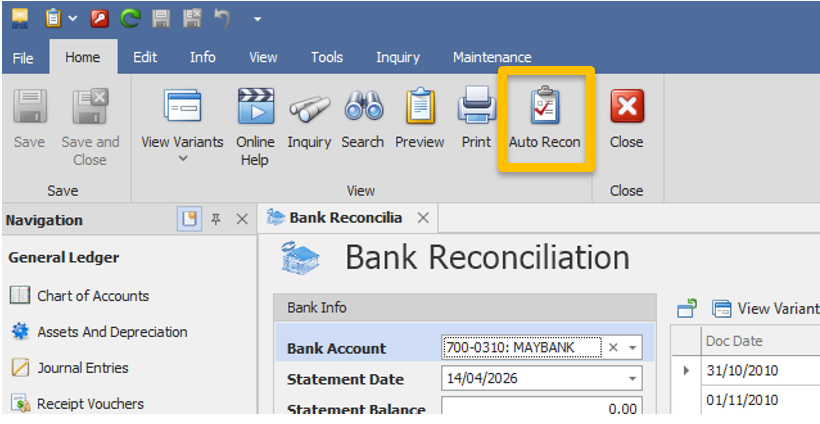
11. Click Auto Recon
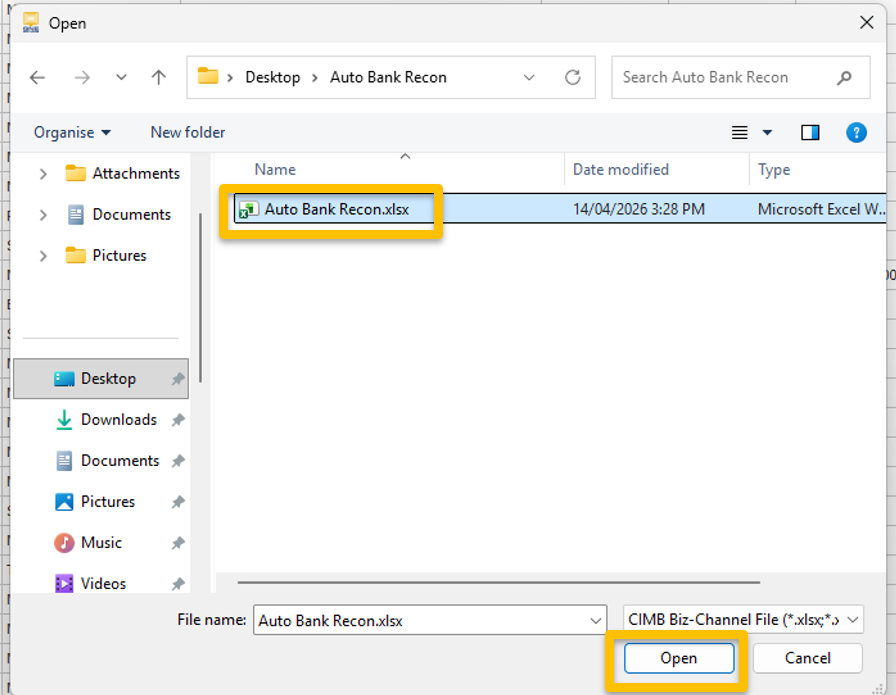
12. Select the excel file that saved just now > Click Open.
13. System will check on Ref No. and Debit/Credit amount to match with the transactions. If the Doc Ref No. and Tran Amt. is matched with system that keyed in then Status will show success and Auto Cleared with the Date Cleared(follow Statement Date).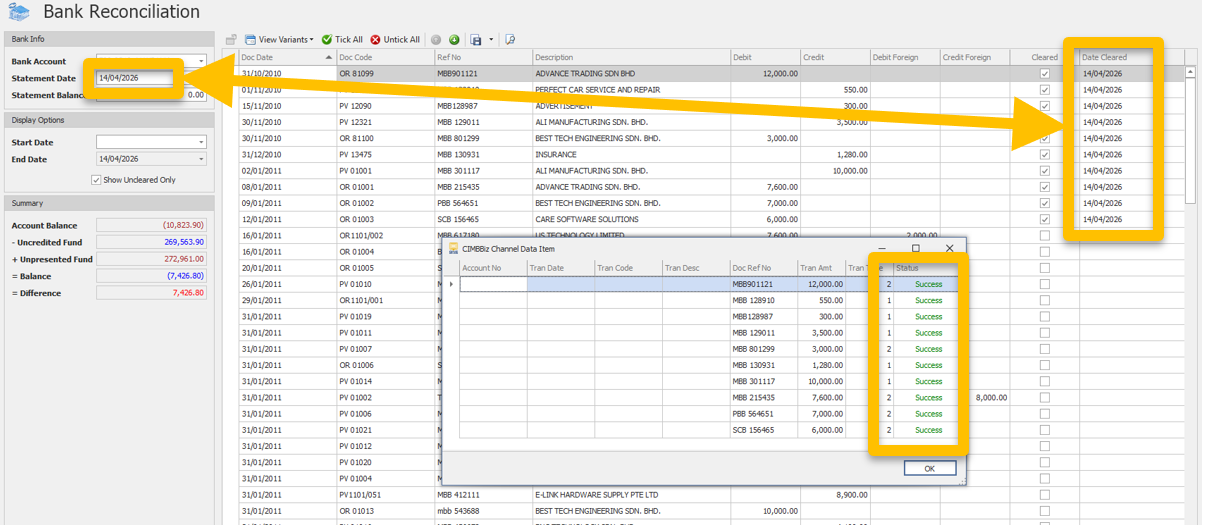
14. Click OK if everything is ok.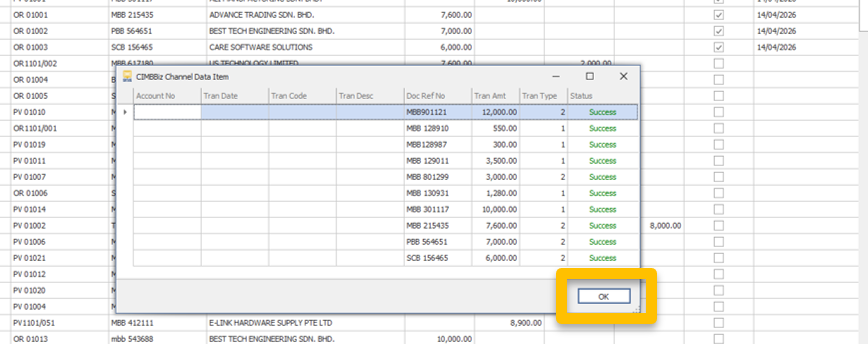
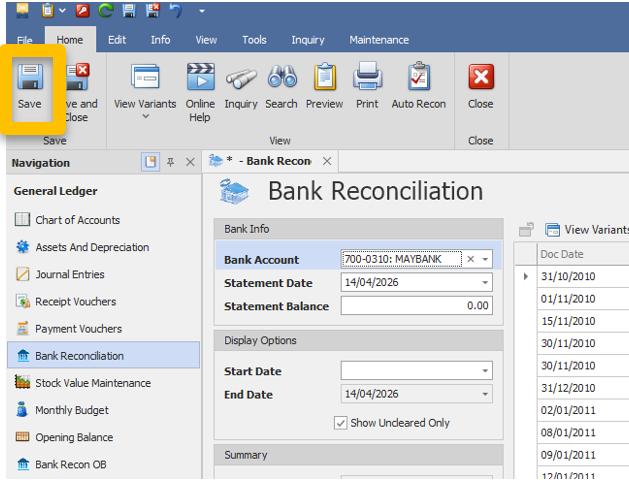
15. Click Save for the Bank Reconciliation
** Learn more about Azure Cloud
** Learn more about QNE Hybrid Cloud Software
Was this article helpful?
That’s Great!
Thank you for your feedback
Sorry! We couldn't be helpful
Thank you for your feedback
Feedback sent
We appreciate your effort and will try to fix the article
