Overview
The Recurring Transaction feature in QNE allows users to automate the creation of repetitive sales documents such as Sales Invoices. Instead of manually creating the same invoice every month, users can save the document as a recurring template and let the system generate it automatically based on a predefined schedule (Daily, Weekly, Monthly and Yearly).
With the latest enhancement, QNE can now automatically append the Month and Year to the Sales Transaction Title and Item Description when the recurring transaction is generated. This ensures that each generated invoice clearly indicates the billing period without requiring manual editing.
Scenario
Before Recurring Transaction is Generated without include Month and Year
- Title: MAINTENANCE FEES
- Description: MAINTENANCE FEES
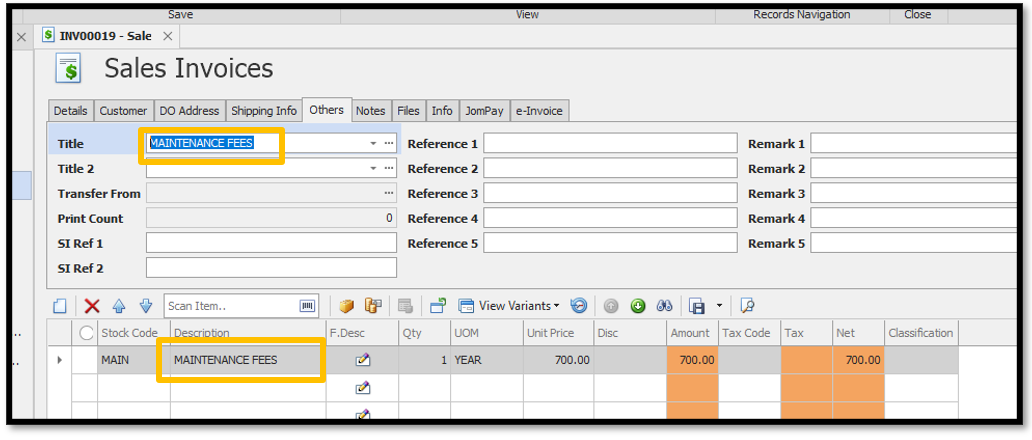
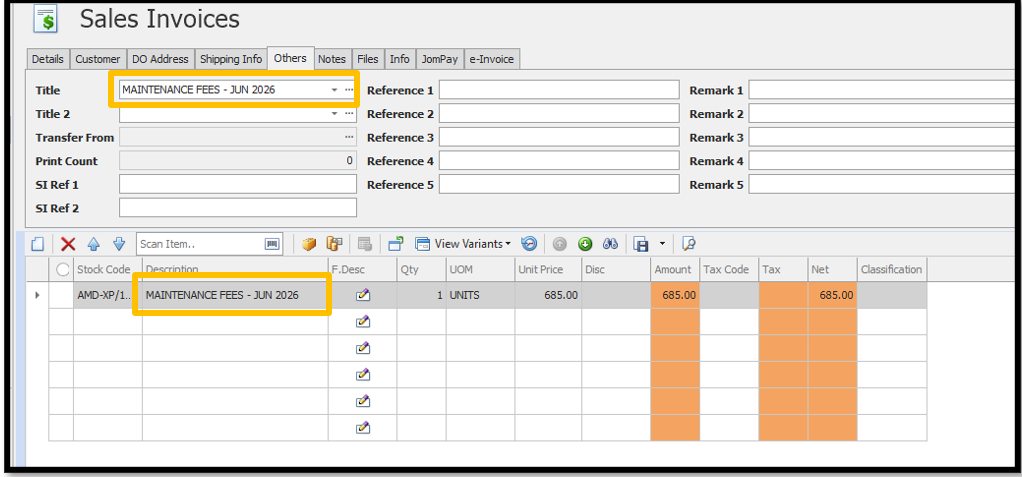
Now QNE system able to generate Recurring Transaction with auto Add Monht and Year into Title and Description (Example: April 2025)
- Title: MAINTENANCE FEES APR 2025
- Description: MAINTENANCE FEES APR 2025
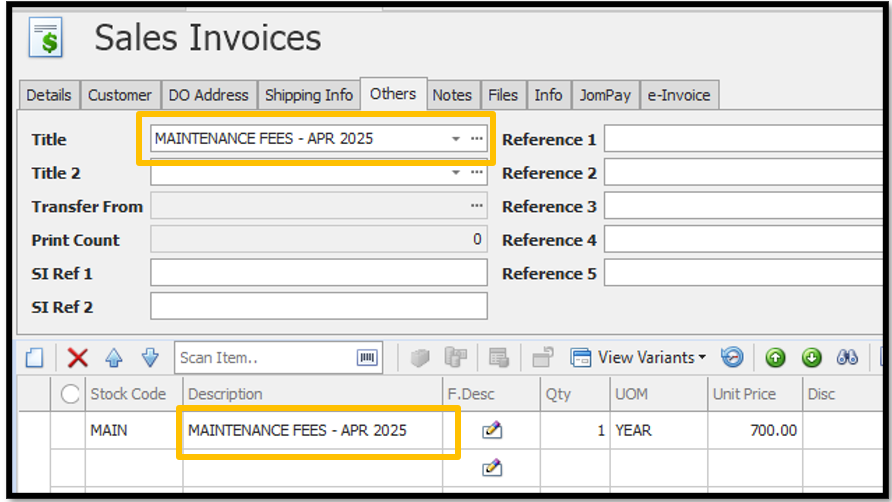
This helps users easily identify the billing period for recurring invoices without manually editing the document each month.
Step
1) Create your Sales Invoice as usual with Title and Item Description = Maintenance Fees
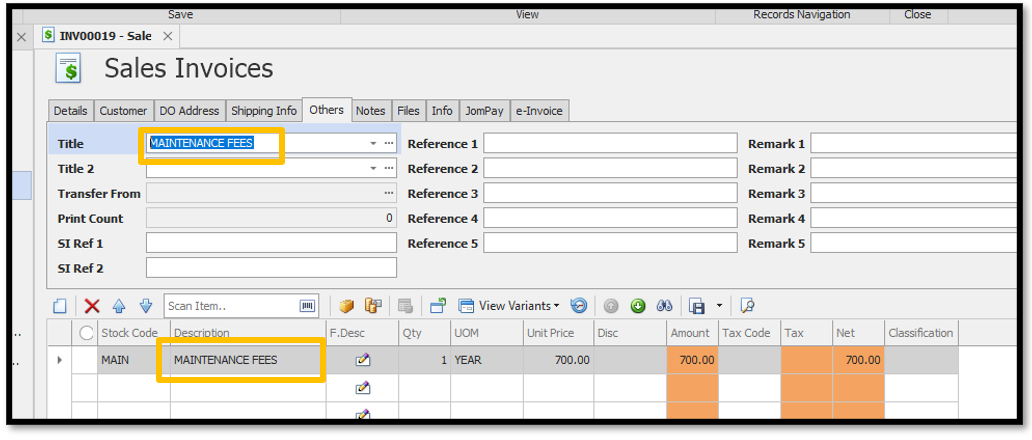
Note: Do not include the month or year manually. The system will append it automatically when the recurring transaction is generated.
2) Click Edit on the ribbon > Click on Recurring Transaction.

3) In the Recurring Transaction window > Select the Recur Type = Monthly and System will display an Option Add Month and Year to Sales Transaction Title and Description > Tick this Option > Click OK to save the recurring transaction.
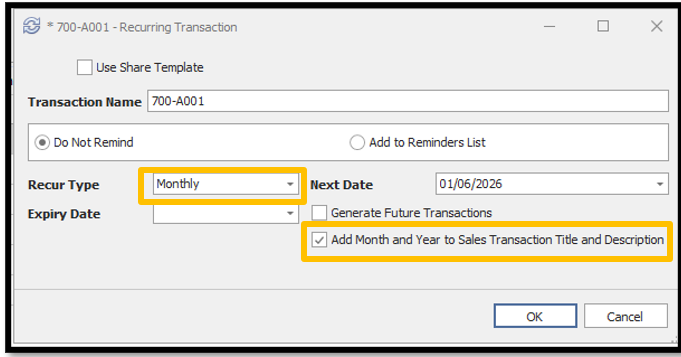 This option automatically appends the billing month and year to both the Sales Invoice Title and the Item Description whenever the recurring transaction is generated.
4) When the recurring transaction is generated on its scheduled date, the system will automatically update the Title and Description.
Thanks for viewing
Was this article helpful?
That’s Great!
Thank you for your feedback
Sorry! We couldn't be helpful
Thank you for your feedback
Feedback sent
We appreciate your effort and will try to fix the article
