Overview:
The Serial Number module allows users to individually identify and track serialized stock items throughout their inventory lifecycle. By enabling the Serial Number setting and defining the relevant stock items as serial-number-controlled, users can record serial numbers during purchase and sales transactions and trace the movement and availability of each serial number.
Scenario:
The Serial Number module is useful when each unit of a stock item needs to be uniquely identified and tracked individually.
For example, a company sells laptops, mobile phones, printers, or electronic devices, where each unit has its own unique serial number.
The company wants to:
- Record the serial number when purchasing the item.
- Track which serial numbers are currently available.
- Record the serial number when the item is sold.
- Trace the transaction history of a specific serial number.
Check which serialized items are still in stock
Solution:
Note: The Serial Number Module is a chargeable feature. Please contact your service provider to subscribe to or activate this feature.
1. Navigate to Company > Maintenance > Advance Options.
Stocks > Serial Number Setting > Setup
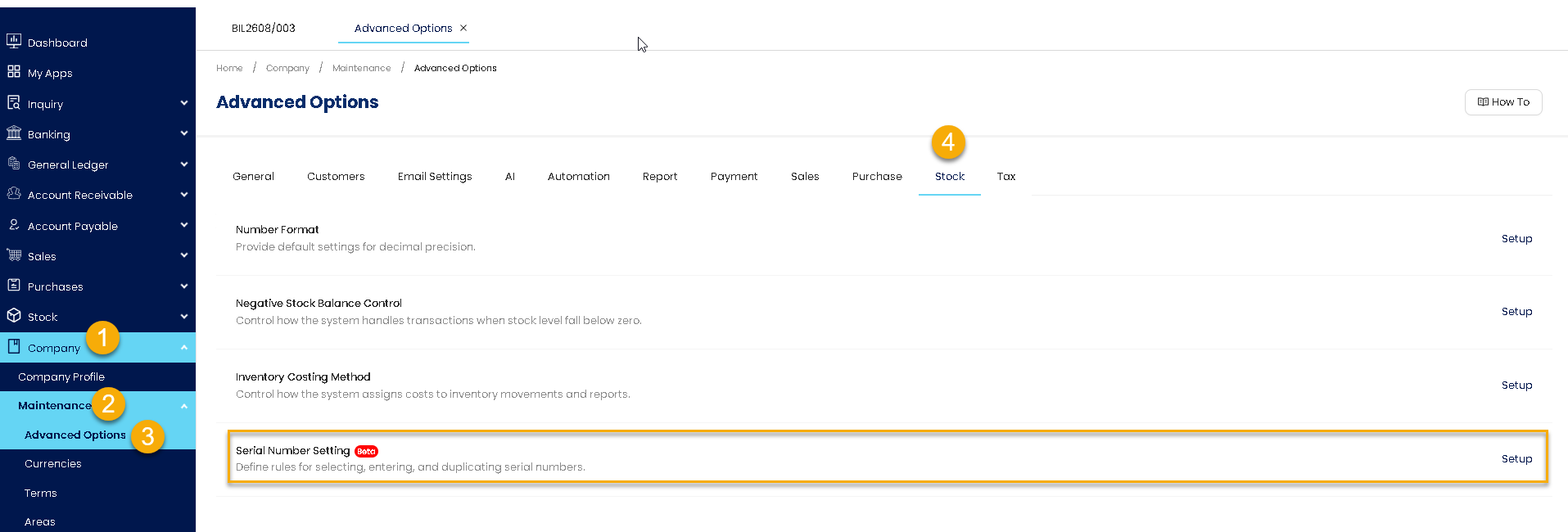
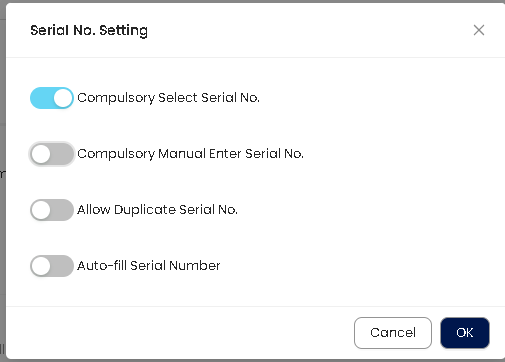
2. Turn on the setting – Compulsory select Serial No., click OK. You may turn on other features if you want, the explanation will be discussed in another article
3. Navigate to Stock > Stock & Services. Select the stock which using the serial number > Serial No. > Save
Enable the setting “Use Serial No.”
Remark: It is optional to update “Serial No. Prefix” and “Serial No. Suffix”.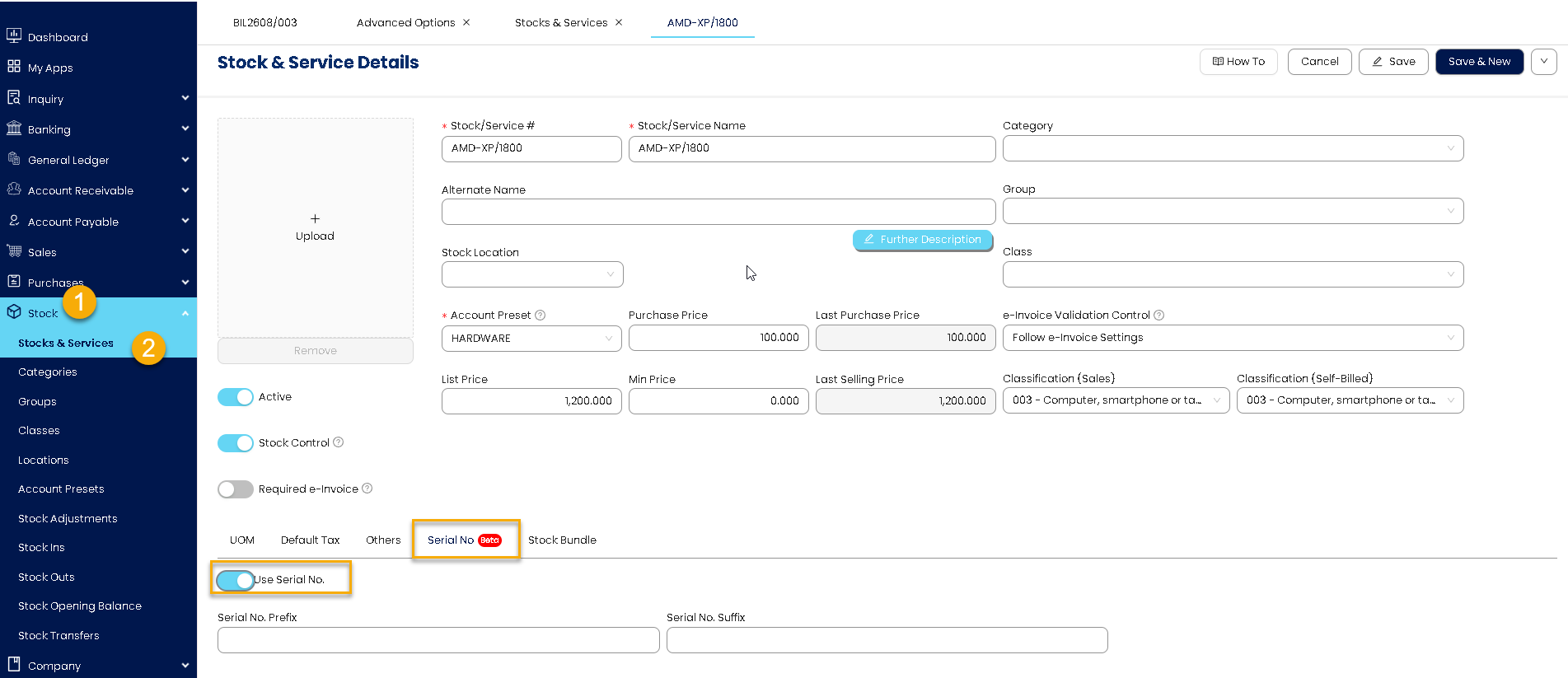
4. Navigate to Purchases > Goods Received Notes. Once the serial number item is selected, the system will prompt to update serial no. details. Update accordingly
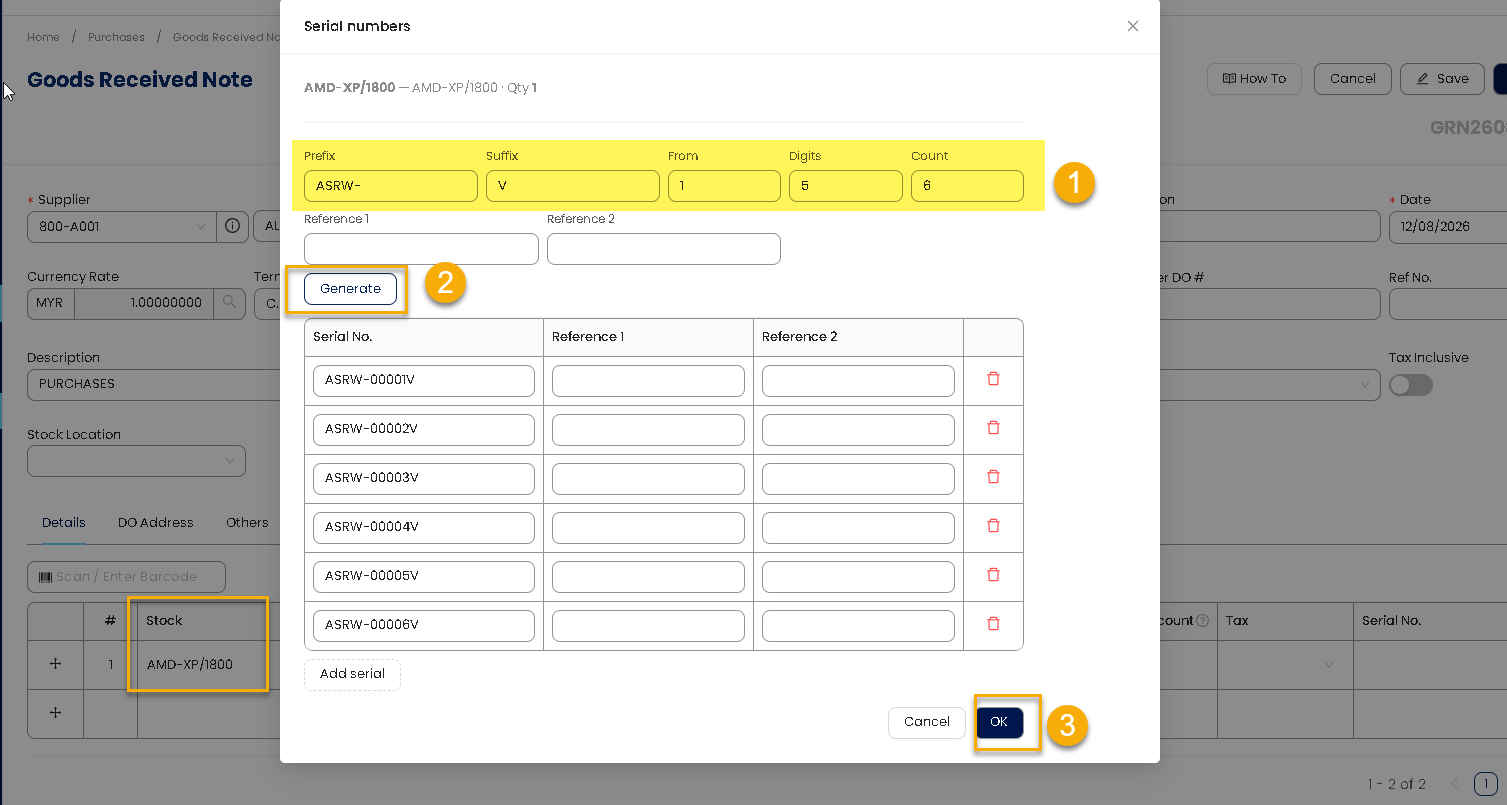
Tips: To Generate Serial Number
The system allows you to generate multiple serial numbers automatically based on the following structure: Prefix + Running Number + Suffix
For example | System will generate |
Prefix: ASRW- From: 1 Digits: 5 Count: 6 Suffix: V | ASRW-00001V |
Field | Purpose | Example |
Prefix | Text placed at the beginning | ASRW- |
From | Starting number of the sequence | 1 |
Digits | Number of digits for the running number | 5 |
Count | Number of serial numbers to generate | 6 |
Suffix | Text placed at the end | V |
So, in this example: ASRW- + 00001 + V = ASRW-00001V
The Count determines how many serial numbers will be generated, while From determines where the numbering starts.
Remark:
You can manually enter or update the Serial No. column when the serial numbers are not in a continuous sequence and cannot be generated automatically.
You can click “Add Serial” If you want to insert additional serial number.
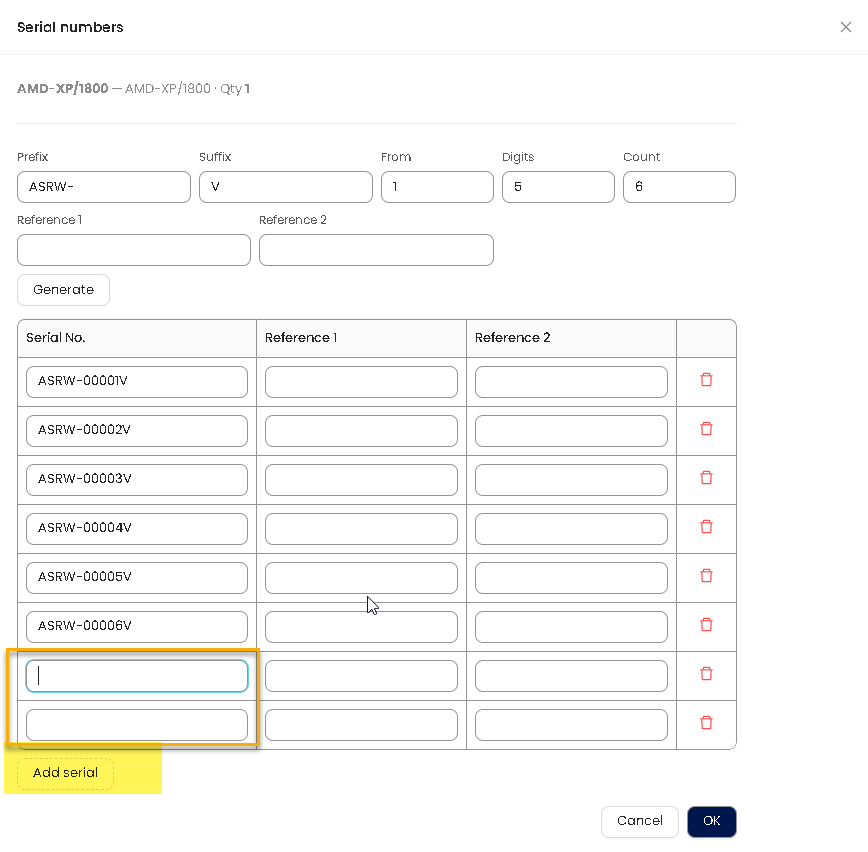
5. Complete the Goods Received Note > Save
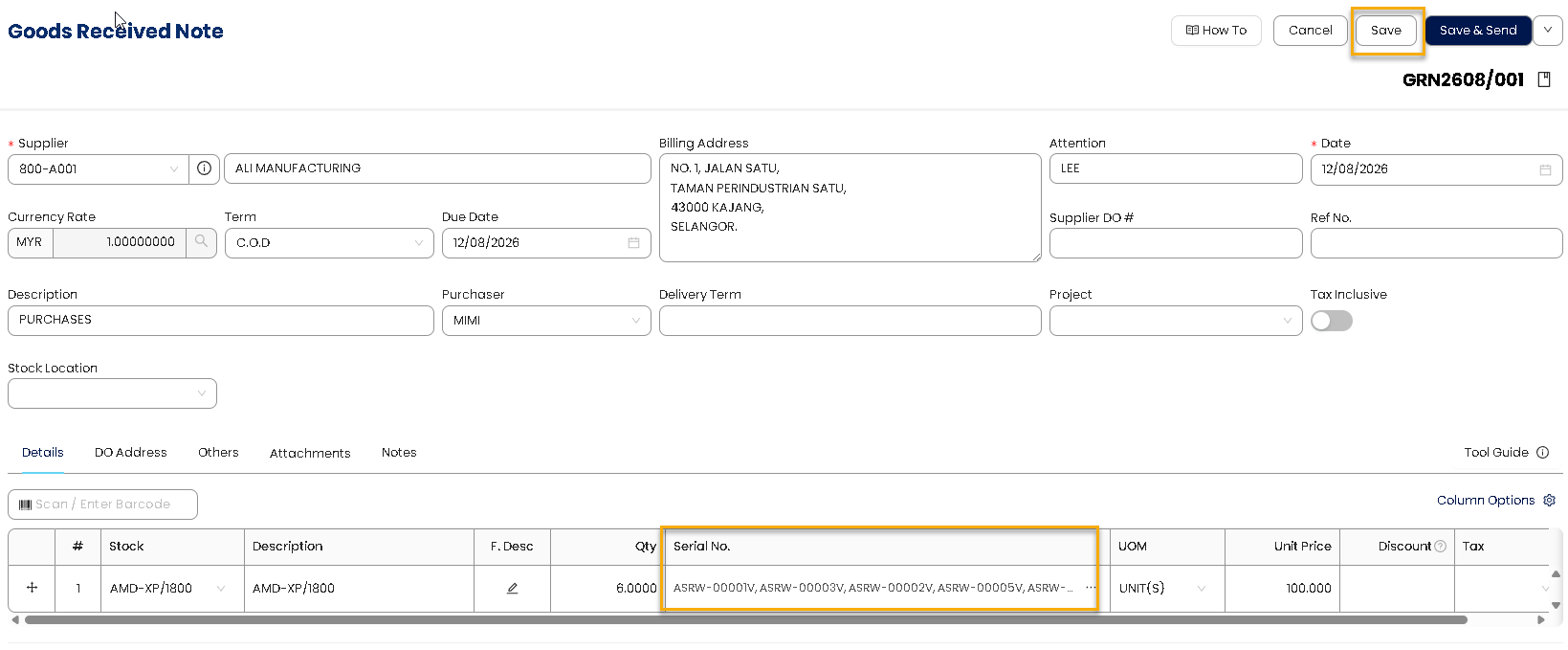
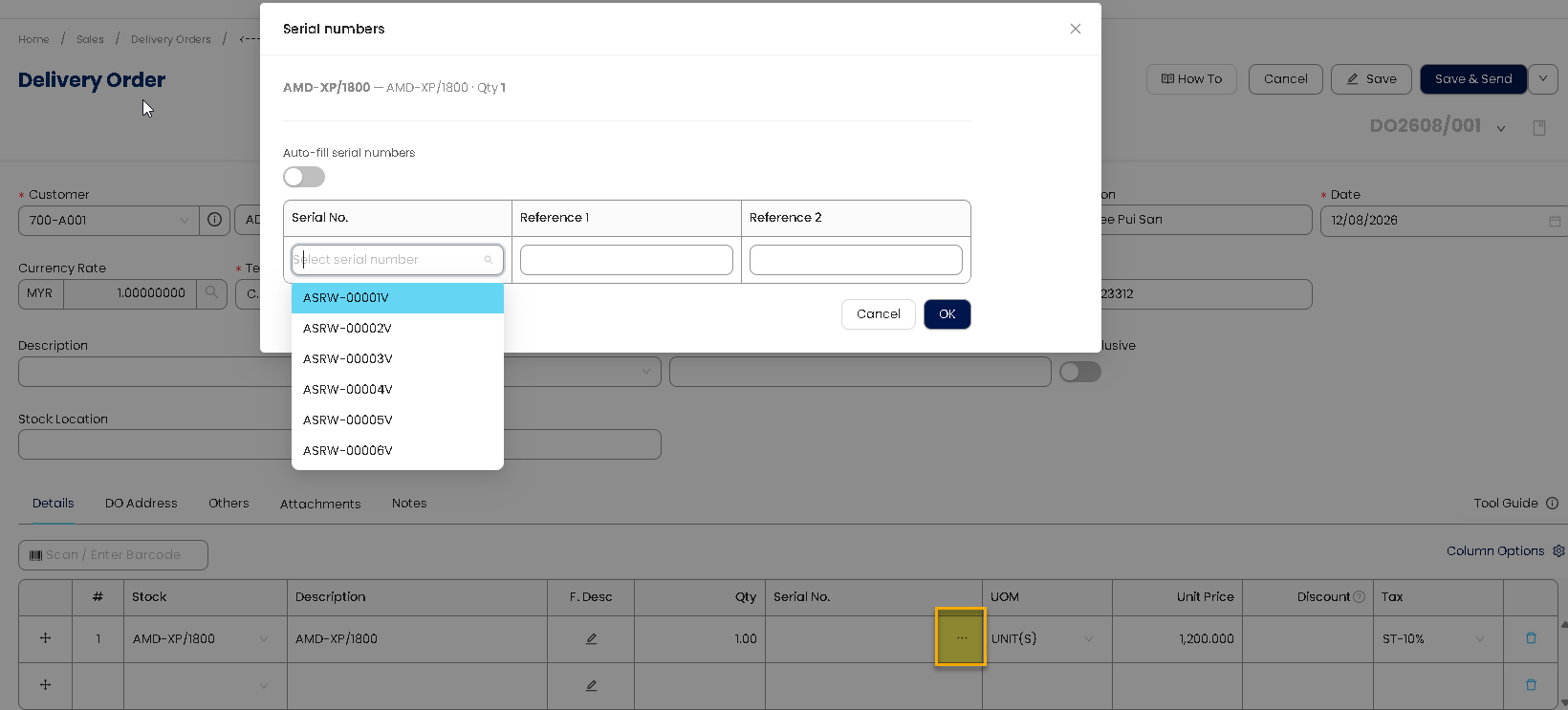
6. Navigate to Sales > Delivery Orders. Select the Serial Number Items, click on the 3 dot button of “Serial No.”. Select the serial number(s) to be issued from the available serial numbers. > Click OK.
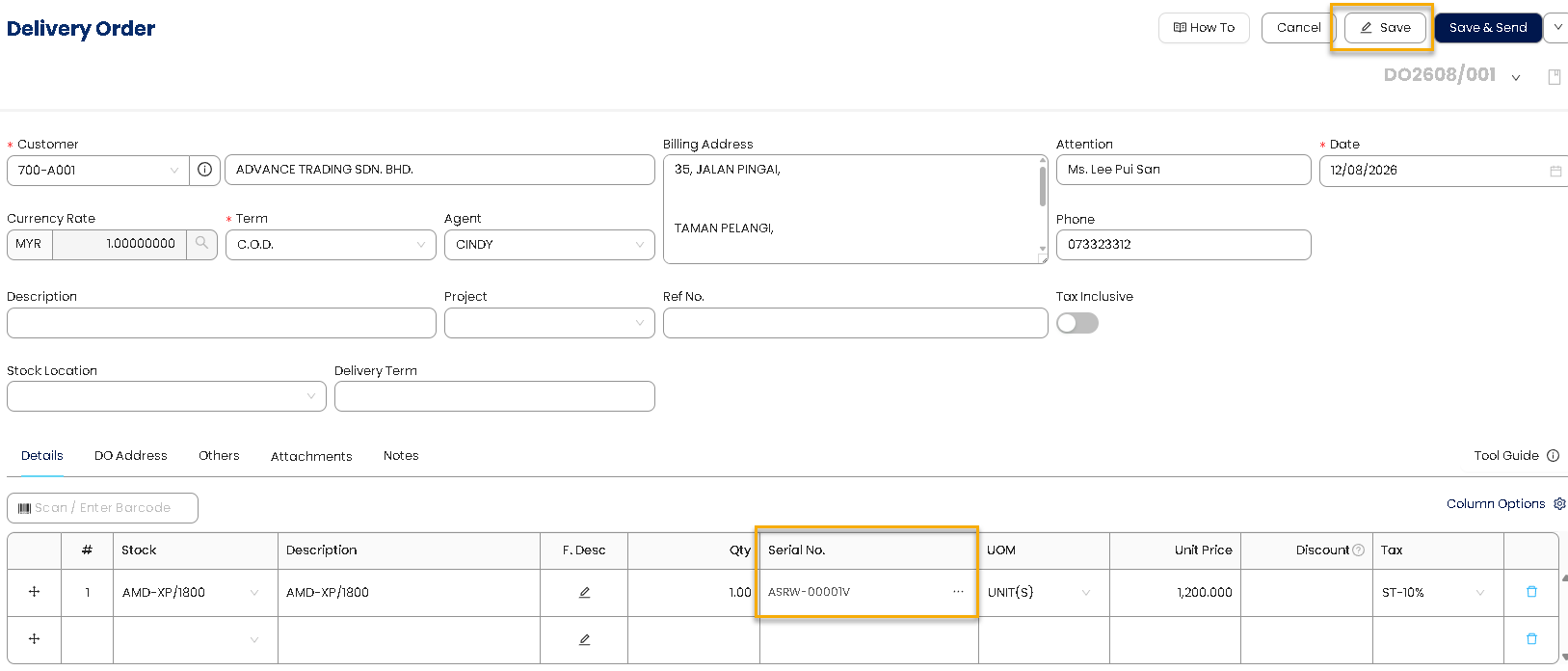
7. Notice that the selected Serial Number will be displayed on screen, Complete the Delivery Order and save it.
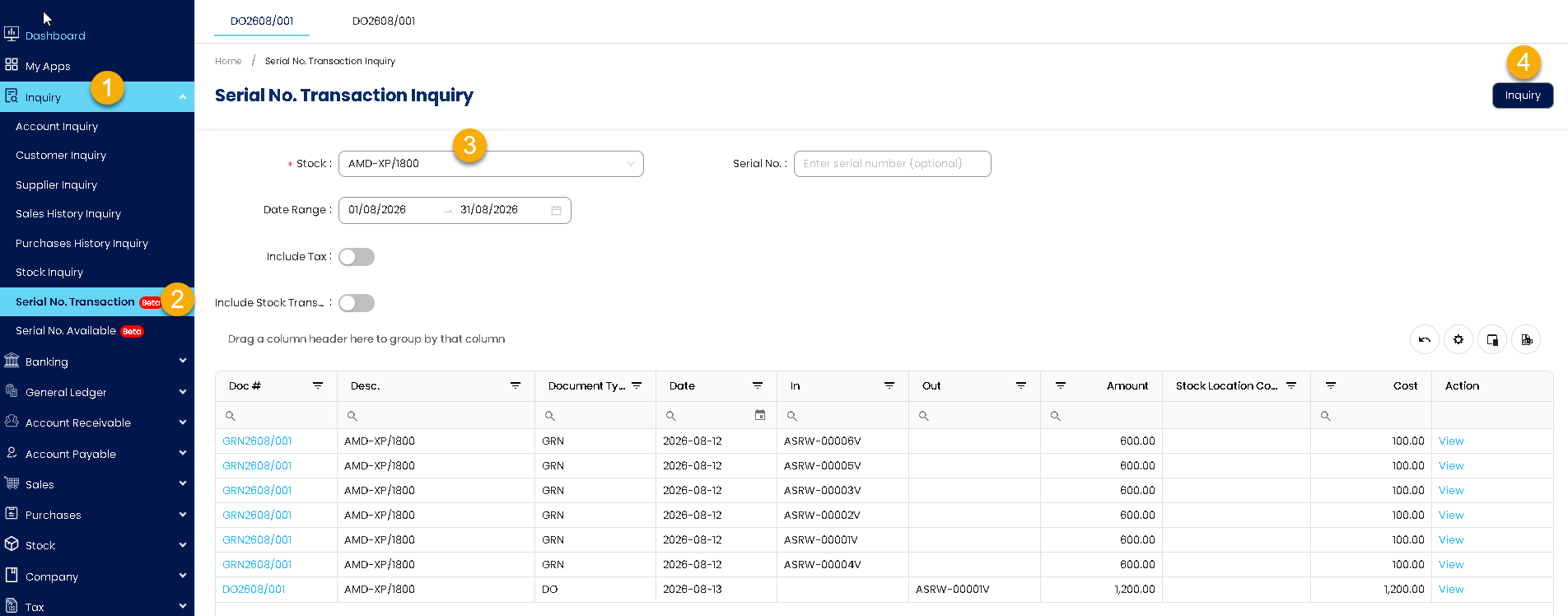
8. Check Serial Number Transactions. Navigate to Inquiry > Serial No. Transaction.
Select the relevant Stock item and click Inquiry.
The system will display the transaction history for the selected item, including the related serial numbers and transaction details.
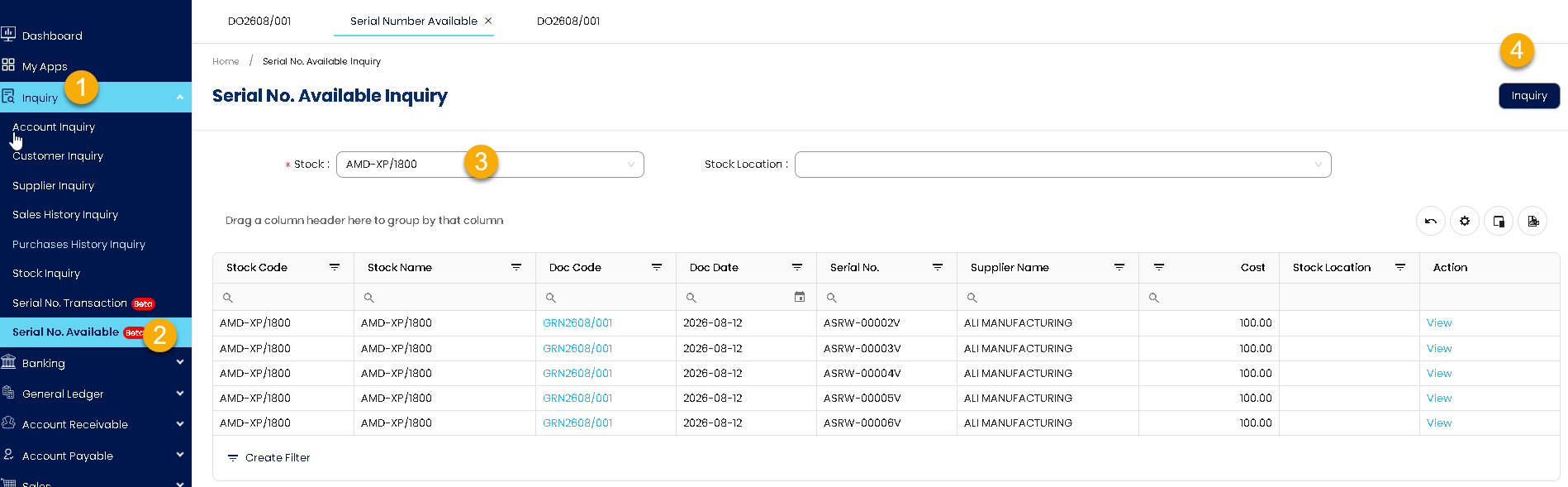
9. Check Serial Number Availability. Navigate to Inquiry > Serial No. Available.
Select the relevant Stock item then click Inquiry.
The system will display the serial numbers currently available for the selected item..
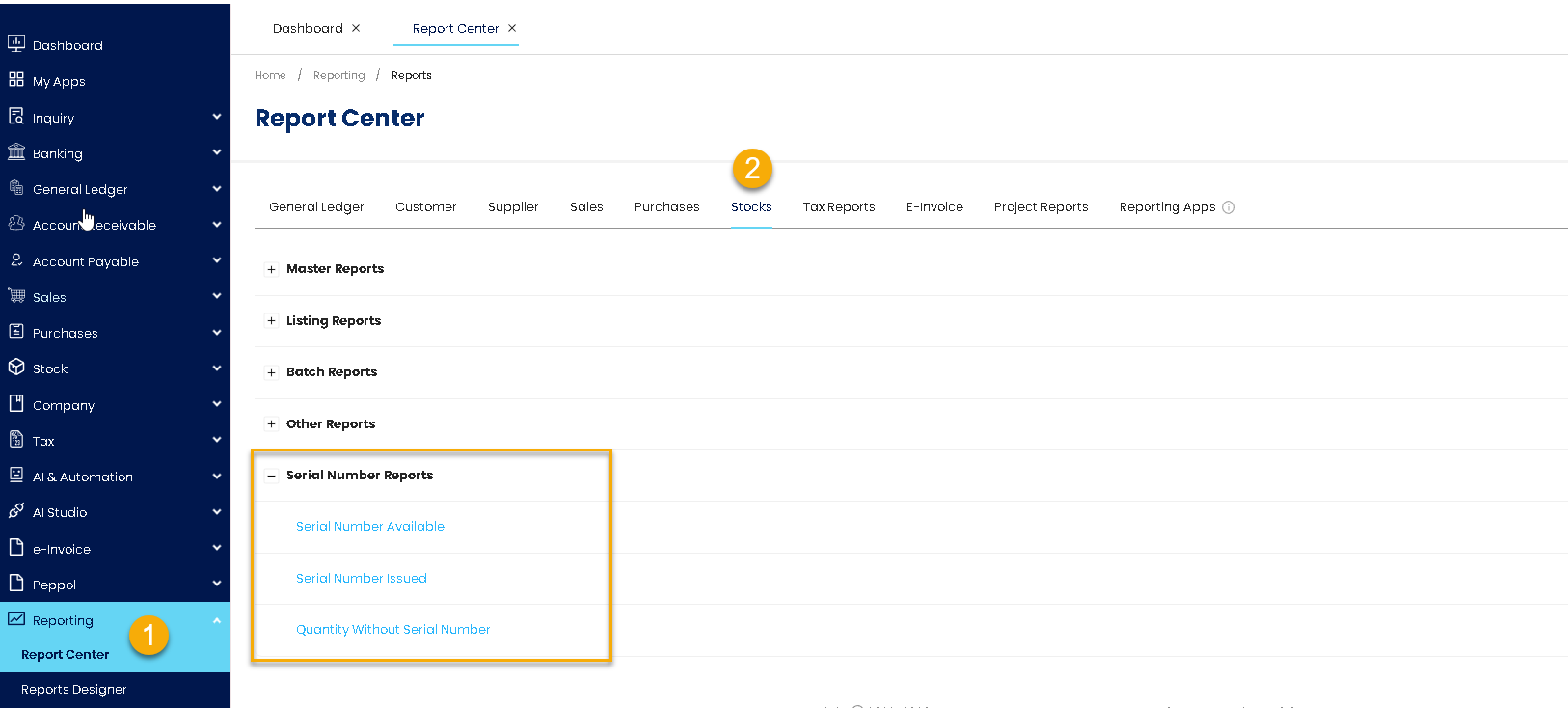
10. Navigate to Reporting > Report Center > Stocks > Serial Number Reports. User can view Serial Number reporting from here.
- Serial Number Available
- Serial Number Issued
- Quantity Without Serial Number
Refer attachment for PDF File
Was this article helpful?
That’s Great!
Thank you for your feedback
Sorry! We couldn't be helpful
Thank you for your feedback
Feedback sent
We appreciate your effort and will try to fix the article
