Overview
A Payment Method is used to define the methods of payment that can be used when recording transactions, such as Cash, Bank Transfer, Cheque, Credit Card or E-wallet.
Each payment method is linked to a Chart of Account (COA) to ensure that payments are posted to the correct accounting during transaction processing.
Before using payment methods in transactions, users are required to create and configure them by assigning the appropriate Chart of Account. This setup helps maintain accurate financial records and ensures consistent accounting entries across the system.
This guide explains how to create a new payment method and associate it with the relevant Chart of Account for use in daily business transactions.
Scenario
A business wants to add a new payment method, such as a digital wallet or bank transfer, to ensure payments are processed and recorded accurately in the system.
Solution
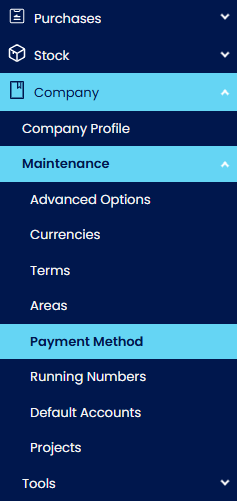
In the navigation pane, select Company > Maintenance > Payment Method
Click the ‘Add’ button to create a new option.
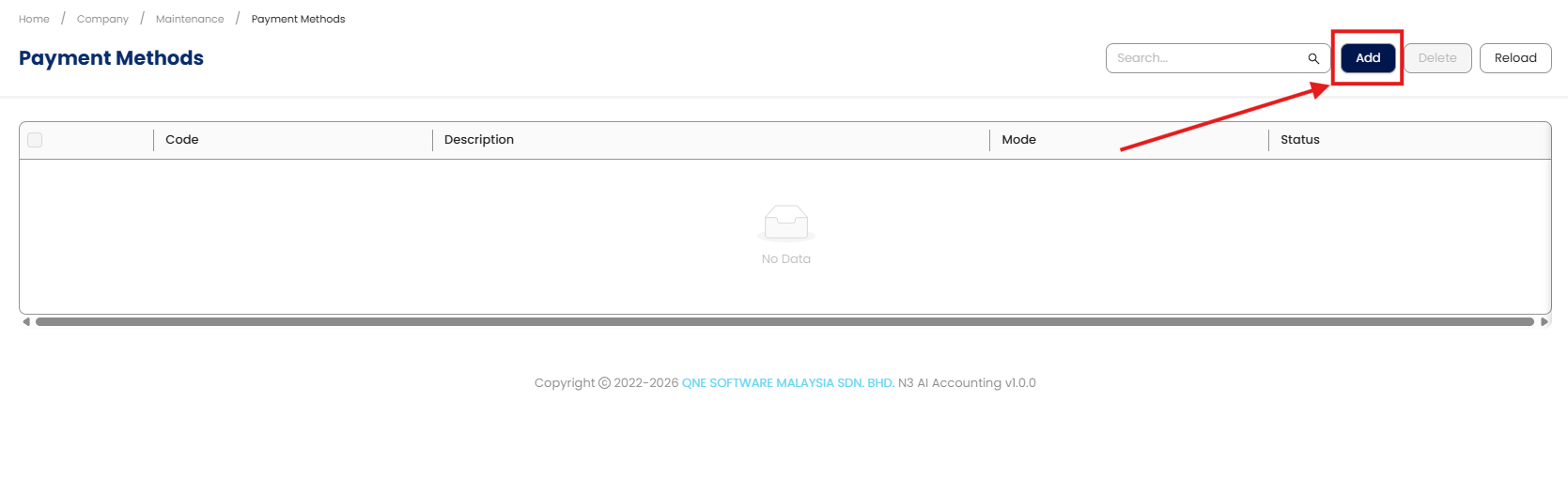
A pop-up window for Payment Method Details will appear, where the user will set up the details of the new payment option
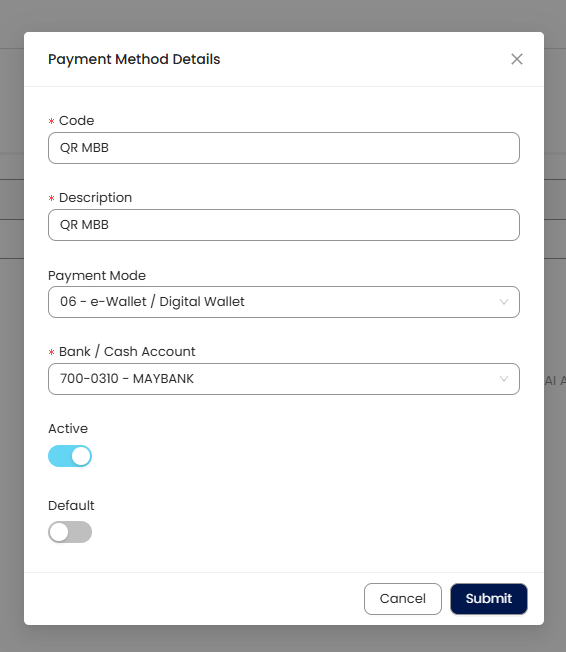
➢ Code: Select the Payment Method code
➢ Description: Name of the Payment Method
➢ Payment Mode:
01 - Cash
02 - Cheque
03 - Bank Transfer
04 - Credit Card
05 - Debit Card
06 - e-Wallet / Digital Wallet
07 - Digital Bank
08 - Others
➢ Bank / Cash Account: Choose from a selection based on what was set up under Chart of Accounts > Current Assets > Cash at Bank
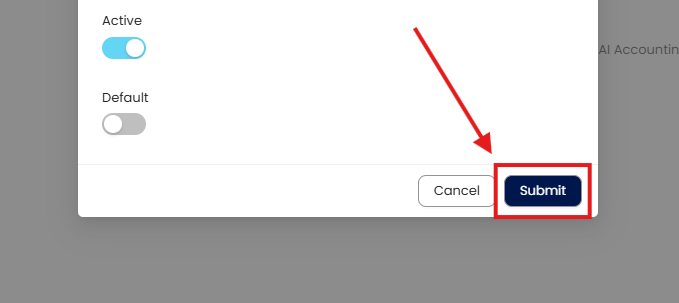
➢ Active: Set this Payment Method active
➢ Default: Set this Payment Method as default
After Setting up the Payment Method Details, proceed to click Submit
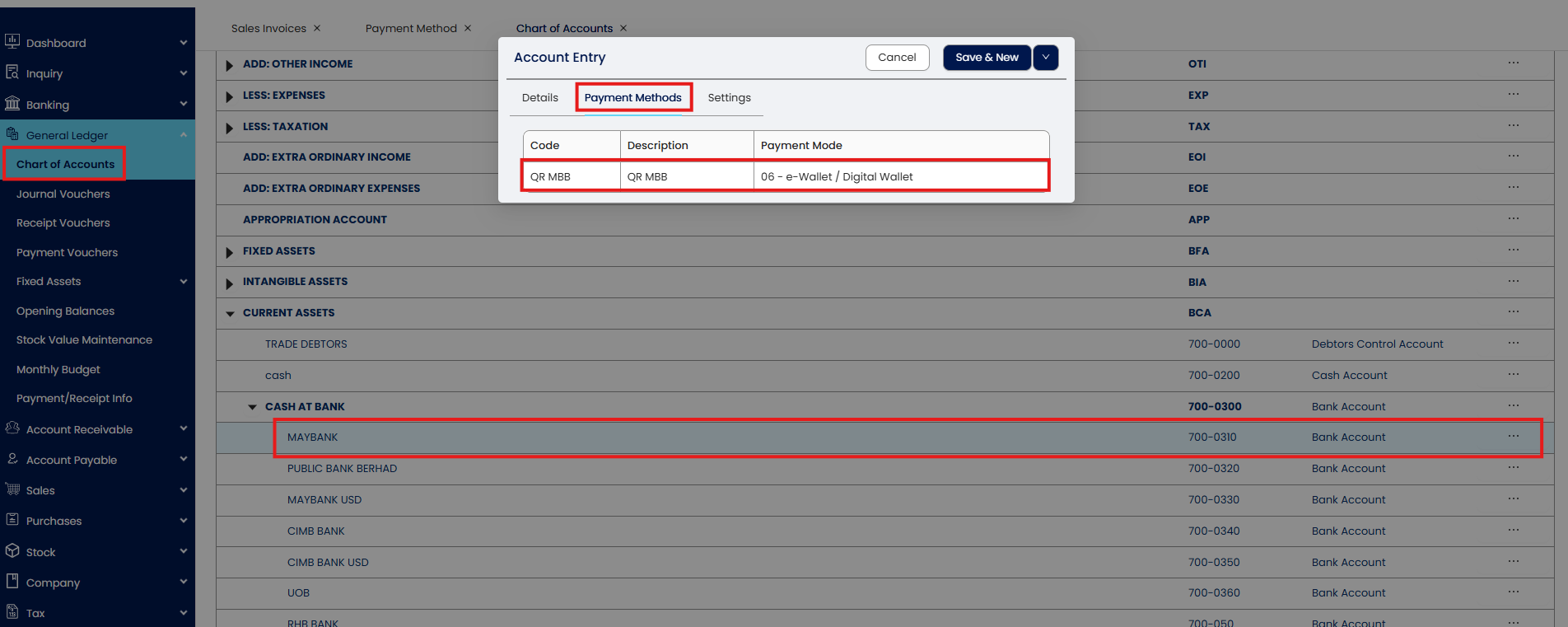
Next, you may check the setup payment method reflected in the account in Chart Of Accounts (COA).
Application
Use the newly created payment method when recording receipts and payments in invoices, or Pay Bills modules.
Automate reconciliation by linking transactions to the correct payment account.
Standardize payment processing across departments for accurate reporting.
Simplify cash flow management by tracking all payment types consistently.
Done!
**Learn more about N3 - AI Cloud Accounting
Was this article helpful?
That’s Great!
Thank you for your feedback
Sorry! We couldn't be helpful
Thank you for your feedback
Feedback sent
We appreciate your effort and will try to fix the article
