Overview:
When setting up stock items, you may need to enter fractional or precise item volume (e.g., 2.15). If the system is set to a default volume precision of 0, decimal places will not display, and decimal input will be restricted. Configuring the Volume Precision setting allows you to input and display decimal places for item weights in Stock Items
Scenario:
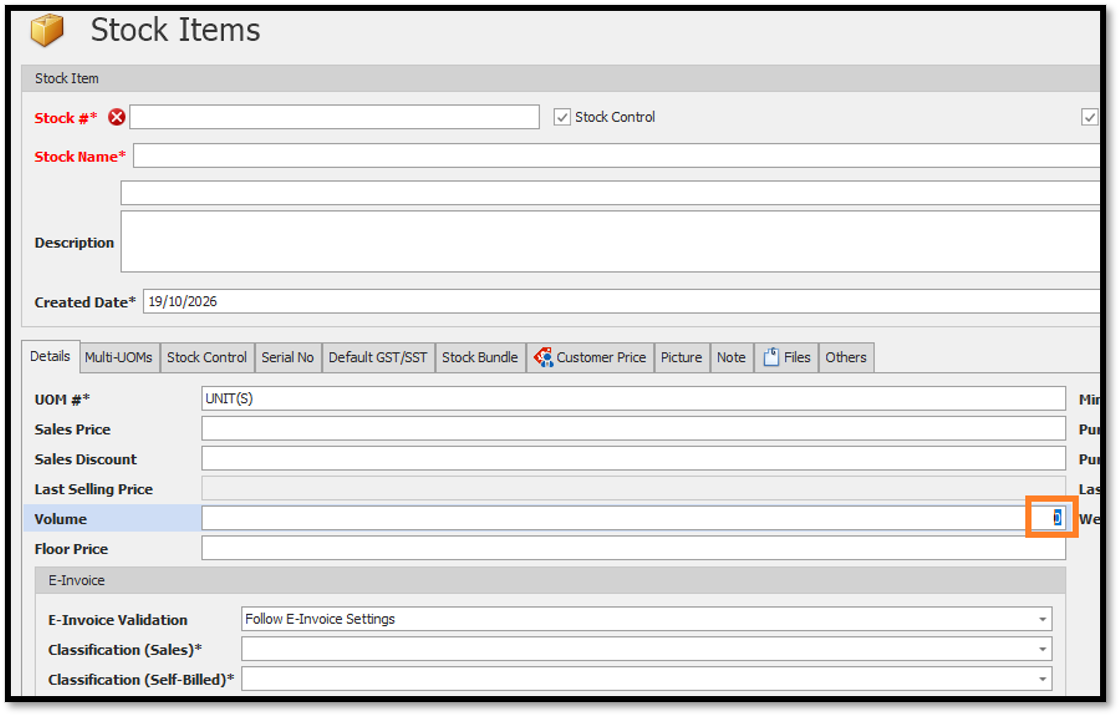
While creating or editing a stock item under Stock Items, the Volume field does not accept or display decimal numbers. To allow decimal values (such as entering 2.15 instead of rounding to whole numbers), you must adjust the system's stock precision settings
Solution:
Follow these steps to enable decimal places for item weights:
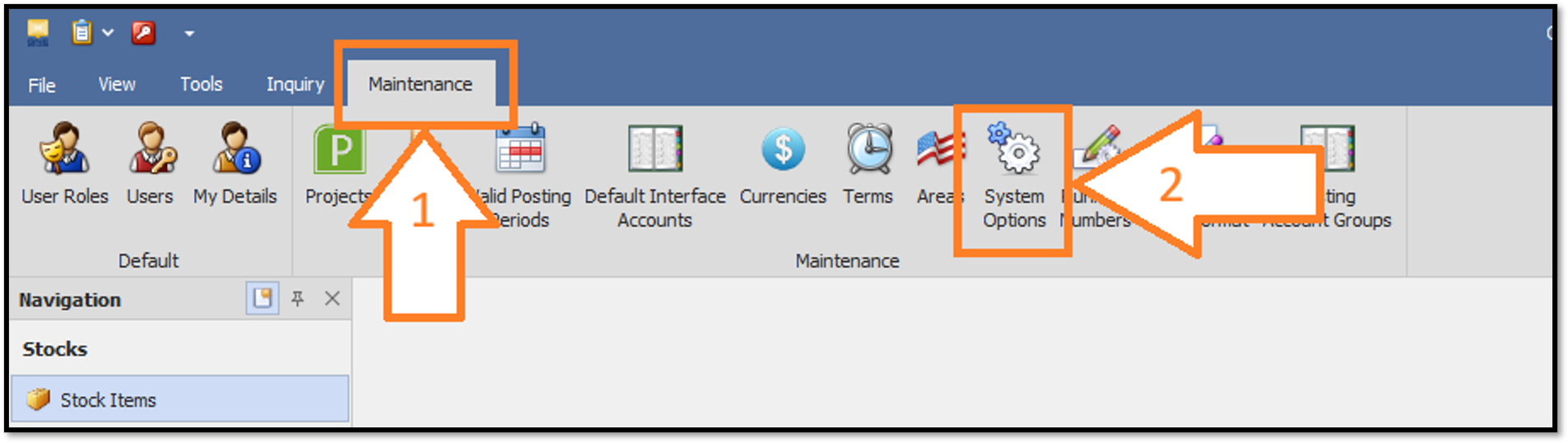
- Go to the top ribbon menu and click on the Maintenance tab. > Click on System Options.
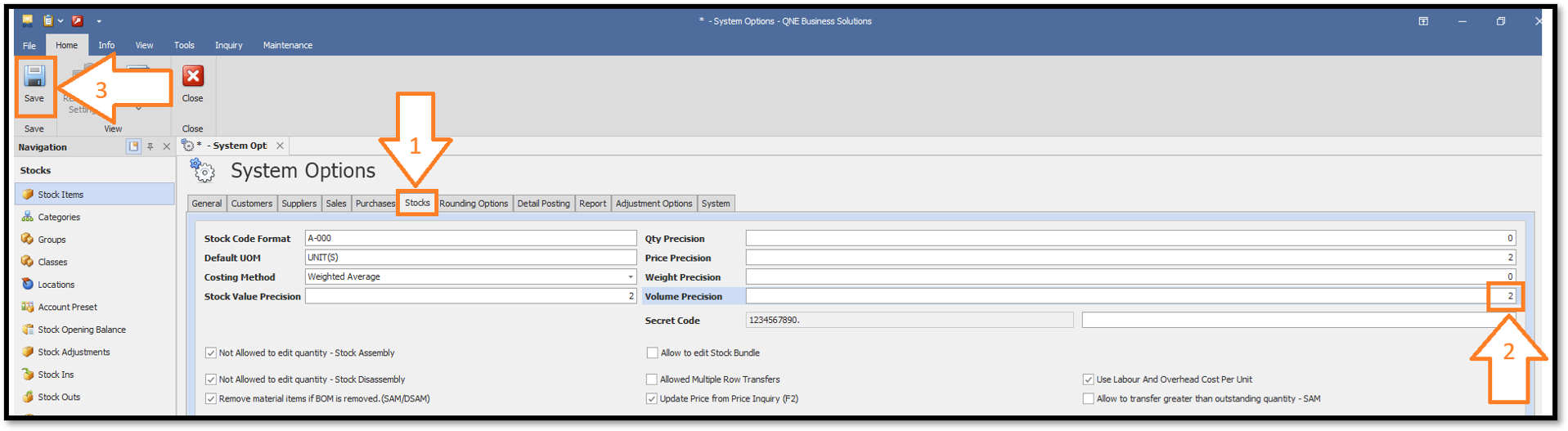
- In the System Options window, click on the Stocks tab > Locate the Volume Precision field and Key in your desired number of decimal places (e.g., enter 2 for two decimal places). > Click Save to apply the changes.
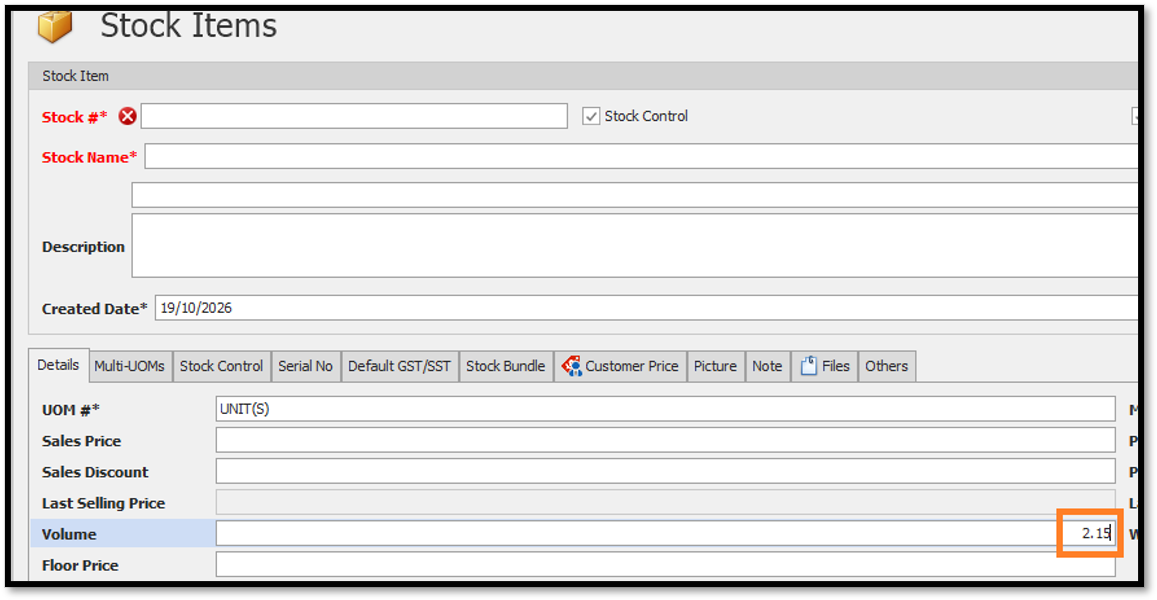
- Return to Stock Items. You can now successfully enter and view decimal values (e.g., 2.15) in the Volume field
Thanks for viewing
Was this article helpful?
That’s Great!
Thank you for your feedback
Sorry! We couldn't be helpful
Thank you for your feedback
Feedback sent
We appreciate your effort and will try to fix the article
