Overview:
This guide explains how to set up Fixed Asset and Accumulated Depreciation accounts in QNE Optimum, link the accounts under the Assets and Depreciation module, and verify the account presentation in the Balance Sheet.
Scenario:
When a company wants to record and present its fixed assets and accumulated depreciation correctly in the Balance Sheet, the user needs to create a Fixed Asset account and an Accumulated Depreciation account under Fixed Assets in the Chart of Accounts. The user must assign the appropriate Special Account Type to the Accumulated Depreciation account, link both accounts under General Ledger > Assets and Depreciation, and check the Balance Sheet using Inquiry to verify the result.
Solution:
Step 1: Create a new account under Fixed assets
For Example: Create a Acc for PRINTER under FIXED ASSETS
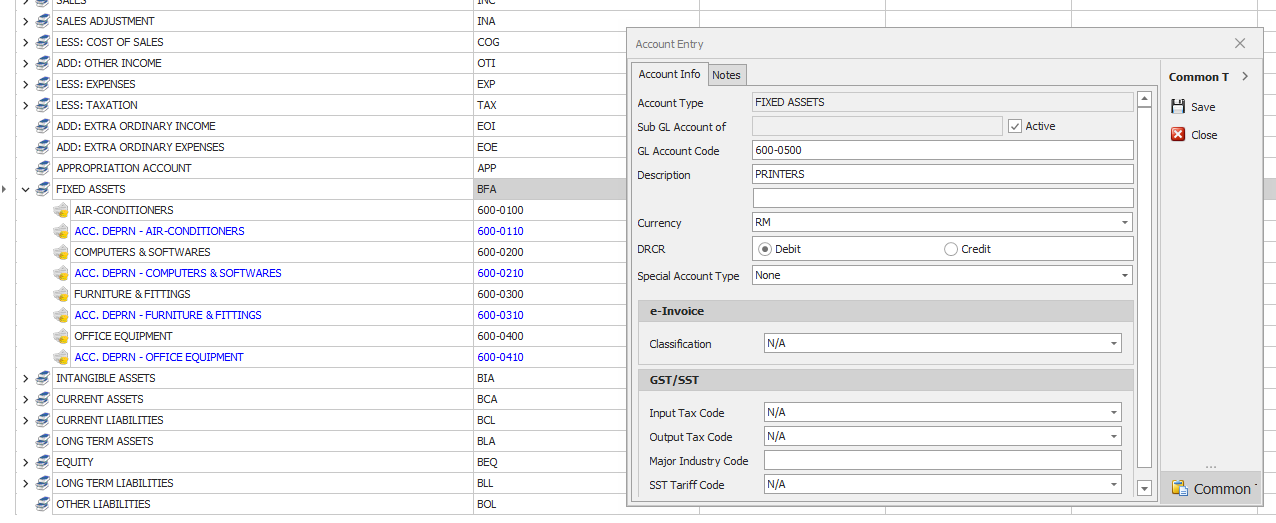
Step 2: Create an Accumulated Depreciation Account under Fixed assets
** Must insert Special account type as "Accumulated Depreciation Account"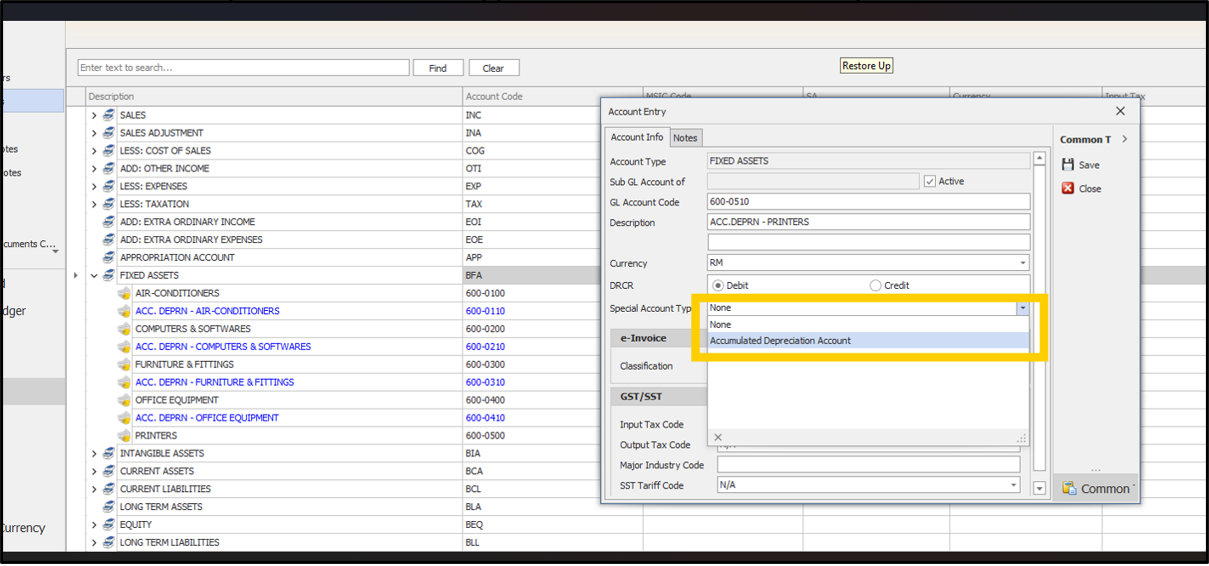
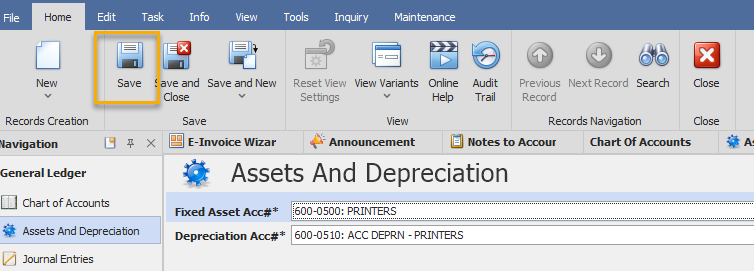
Step 3: Link Fixed Asset Account with Depreciation Account
3.1 Go to General Ledger > Assets And Depreciation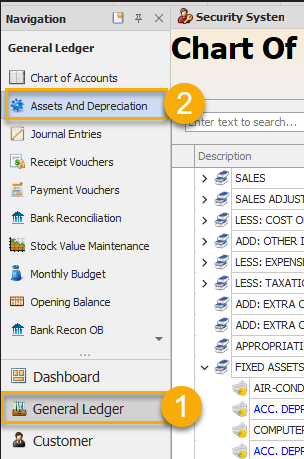
3.2 Set Fixed asset acc# and Depreciation Acc#
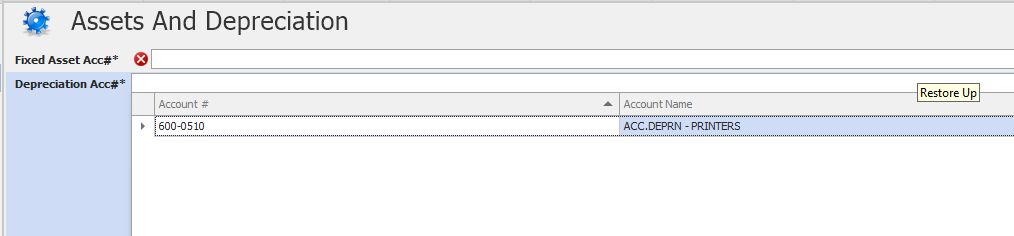
3.3 Click Save
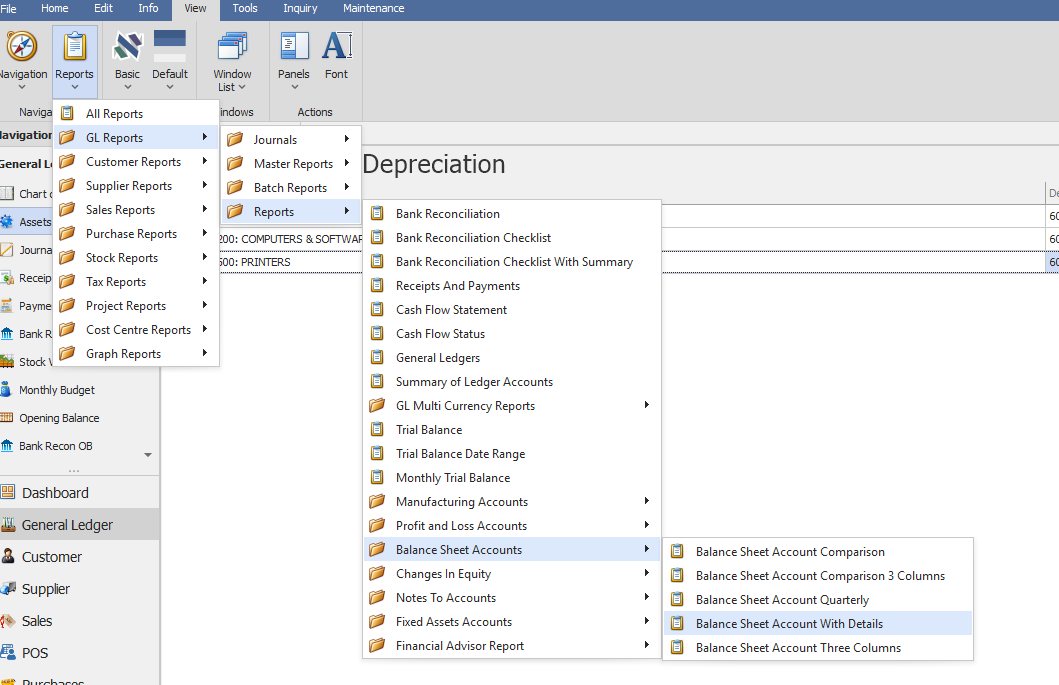
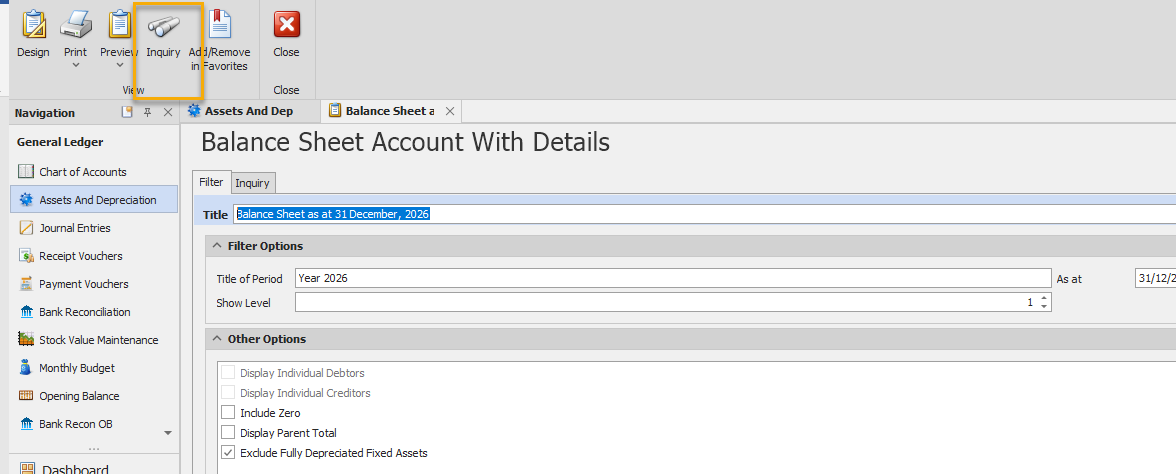
Step 4: Open Balance Sheet report and Click Inquiry
Outcome: So in Balance sheet the Acc.Deprn will show in same line with Fixed assets account if already have set in Asset and Depreciation (Step 3.2)
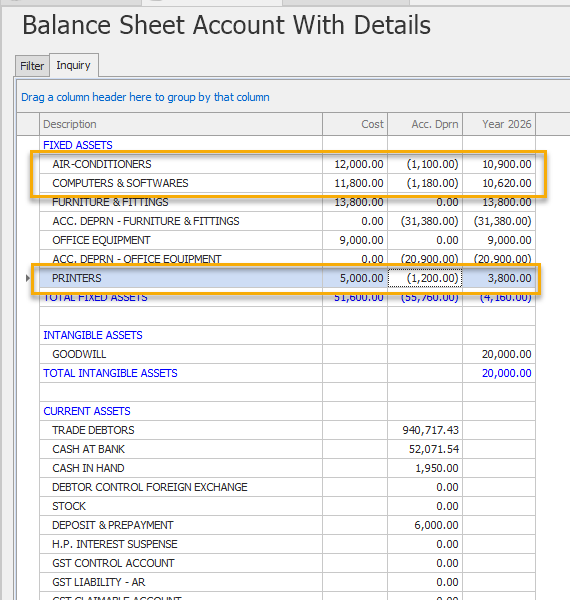
Remark: If not set in Asset and Depreciation then the Fixed Asset and Deprecation account will show separately in Balance Sheet report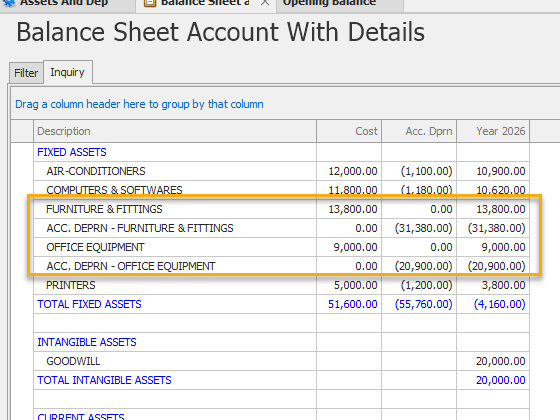
Thanks for Viewing
Was this article helpful?
That’s Great!
Thank you for your feedback
Sorry! We couldn't be helpful
Thank you for your feedback
Feedback sent
We appreciate your effort and will try to fix the article
