Overview:
After finalizing monthly payroll processing, employers are required to submit statutory contribution data—including SOCSO, EIS, and SKBBK amounts—to the official SOCSO portal (PERKESO ASSIST Portal). The system generates a formatted .txt file via the Statutory eTransfer module, enabling seamless upload to the portal without manual data entry
Scenario:
Upon completing the payroll run for a specific month, HR and payroll administrators need to generate and extract the combined SOCSO and EIS text file. This file contains the calculated statutory deductions for the selected payroll period and must be uploaded directly to the SOCSO online portal for statutory compliance
Solution:
Follow these steps to generate and download the SOCSO + EIS statutory file:
- On the left navigation menu under REPORTS, click Management Reports > Select Statutory Transfer > Set the Payroll Month at the top right > In the list, check the box for the relevant payroll sequence > Under Statutory Payment Files, locate the SOCSO + EIS row > Click the Download button
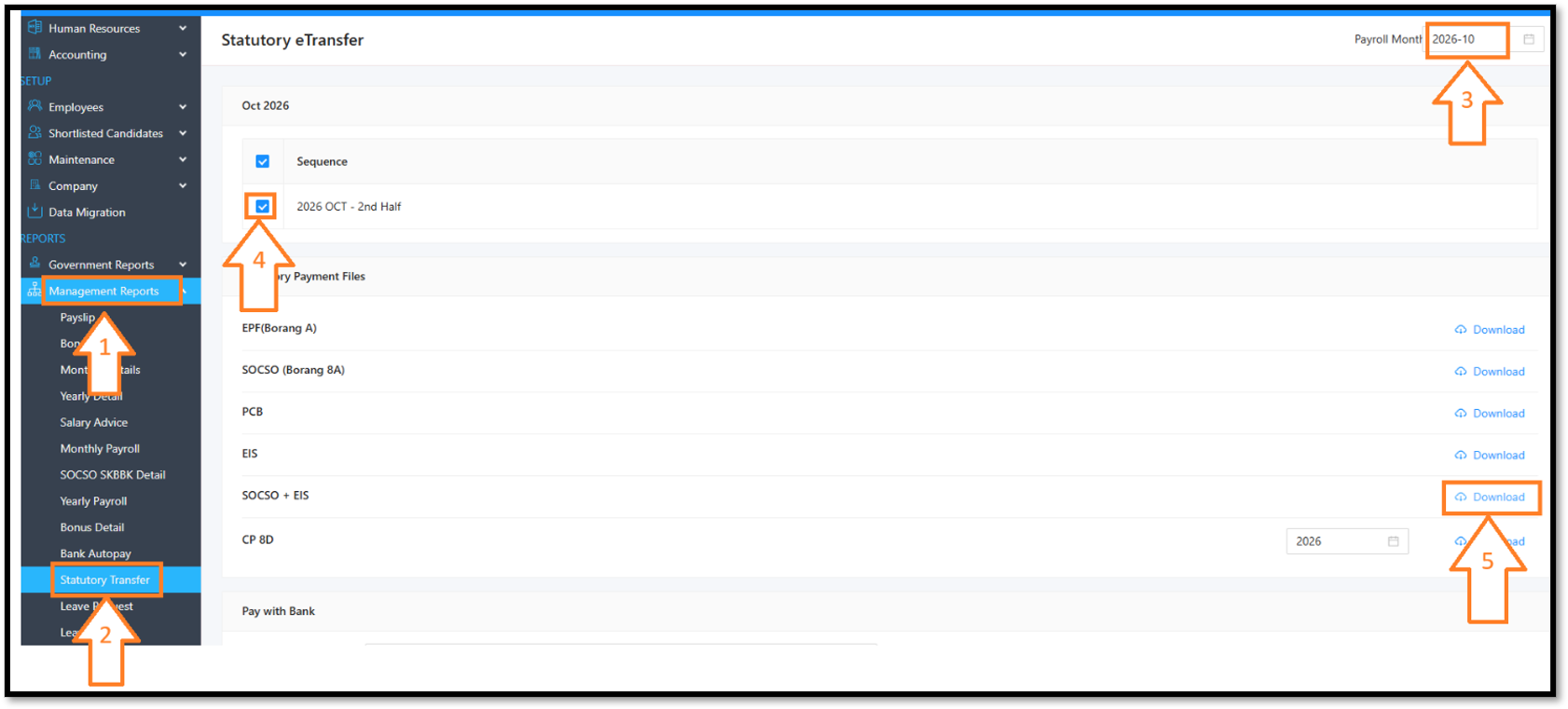
- The system generates and downloads a text file (e.g., SOCSO_EIS_2026_10_LIVE.txt) to your web browser.
- Locate this .txt file in your downloads folder and upload it directly to the SOCSO ASSIST Portal.
 Note:
• Make sure the payroll for the month has been processed before you download the file.
• Check the Payroll Month and the ticked sequence before you click Download, because the file is created from your selection and the month is shown in the file name.
• If the month has more than one payroll sequence, tick all the sequences you want to include in the file.
• Use the file as it is when you upload it. Do not change its content.
• The same screen also has separate downloads for SOCSO (Borang 8A) and EIS, if you need them individually.
Was this article helpful?
That’s Great!
Thank you for your feedback
Sorry! We couldn't be helpful
Thank you for your feedback
Feedback sent
We appreciate your effort and will try to fix the article
