Overview :
An outlet is a branch or shop location of your business. Every cash register belongs to an outlet, and cashiers are assigned to an outlet. This article guides you through creating an outlet in the N3 AI POS Portal and, if you are linked to N3 AI Accounting, mapping it to a Stock Location and Project.
At the end of this article, you will be able to:
View the Outlet list
Create an Outlet
Map the Outlet to an N3 AI Accounting Stock Location and Project (optional)
Scenario :
A retail business is opening a new branch. Before setting up the cash registers and cashiers for the branch, the owner creates the branch as a new outlet in the N3 AI POS Portal. The business also uses N3 AI Accounting, so the owner maps the outlet to its stock location and project there.
Solution :
Create an Outlet
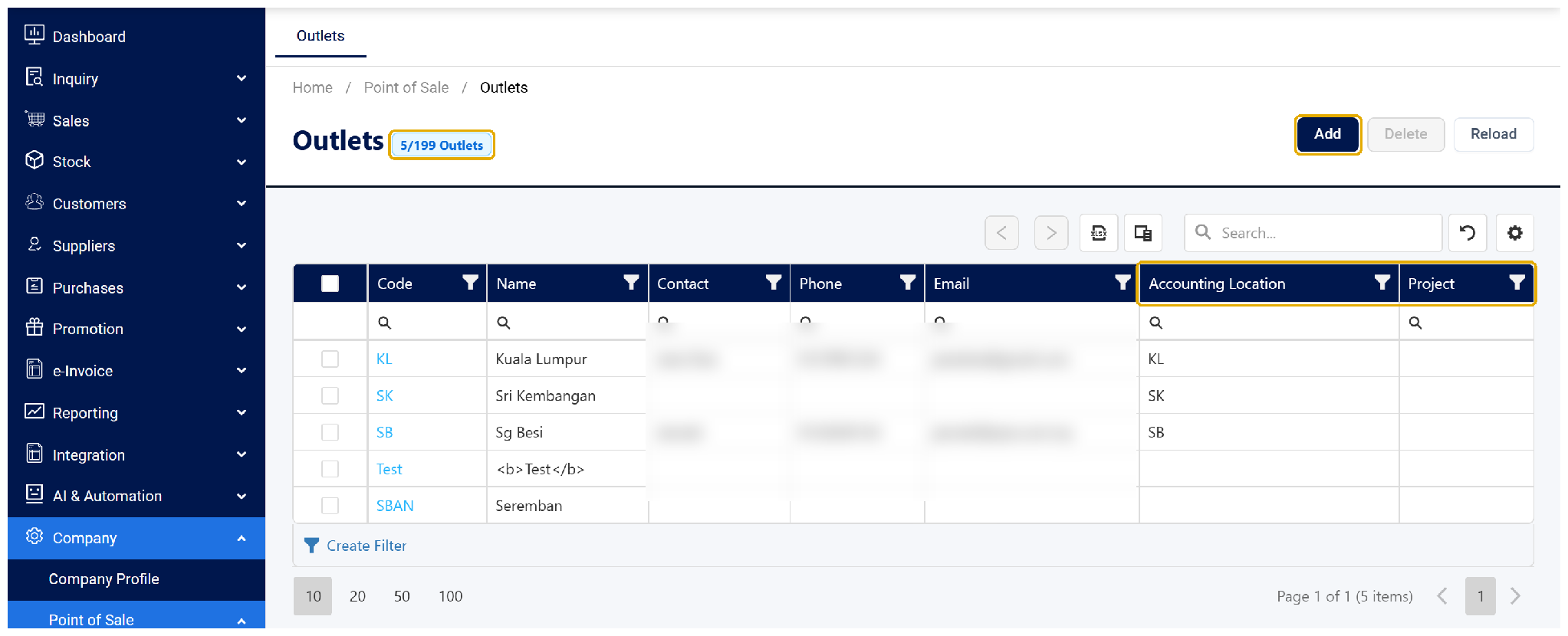
Navigate to Company > Point of Sale > Outlets. The list shows each outlet's Code, Name, Contact, Phone, Email, Accounting Location and Project. The badge beside the title, e.g. 5/199 Outlets, shows the outlets created and the maximum allowed by your subscription. Click Add.
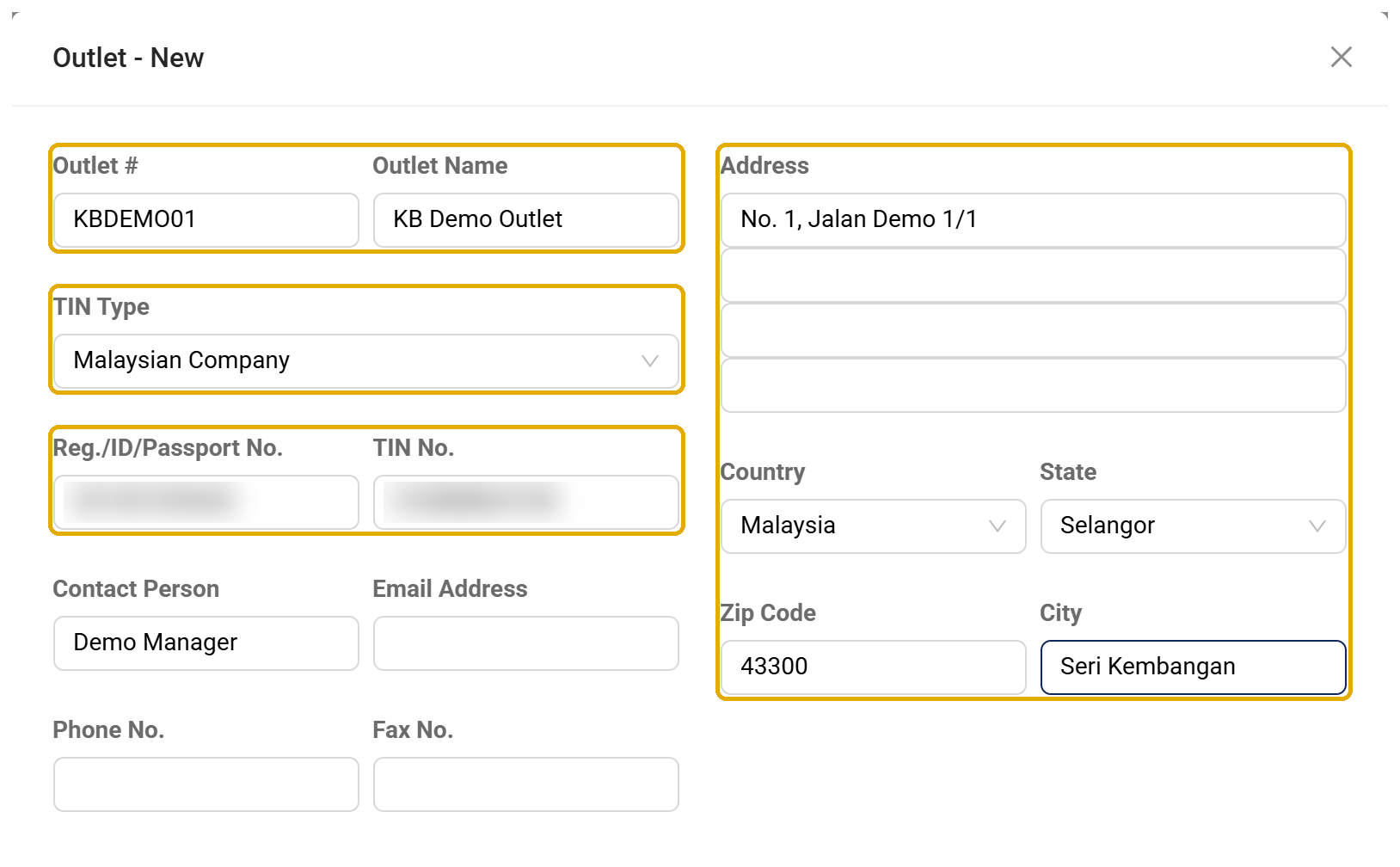
Fill in the outlet details. The following fields are required:
Outlet # – A short, unique code for the outlet, e.g. KL or SK.
Outlet Name – The name of the outlet, e.g. Kuala Lumpur.
TIN Type – Malaysian Company by default. Other options: Malaysian Individual, Foreign Company, Foreign Individual, General Public/Consolidated E-Invoice and Government.
Reg./ID/Passport No. and TIN No. – Pre-filled from your Company Profile.
Address, Country, State, Zip Code and City – The outlet address.
Note: Contact Person, Email Address, Phone No. and Fax No. are optional.
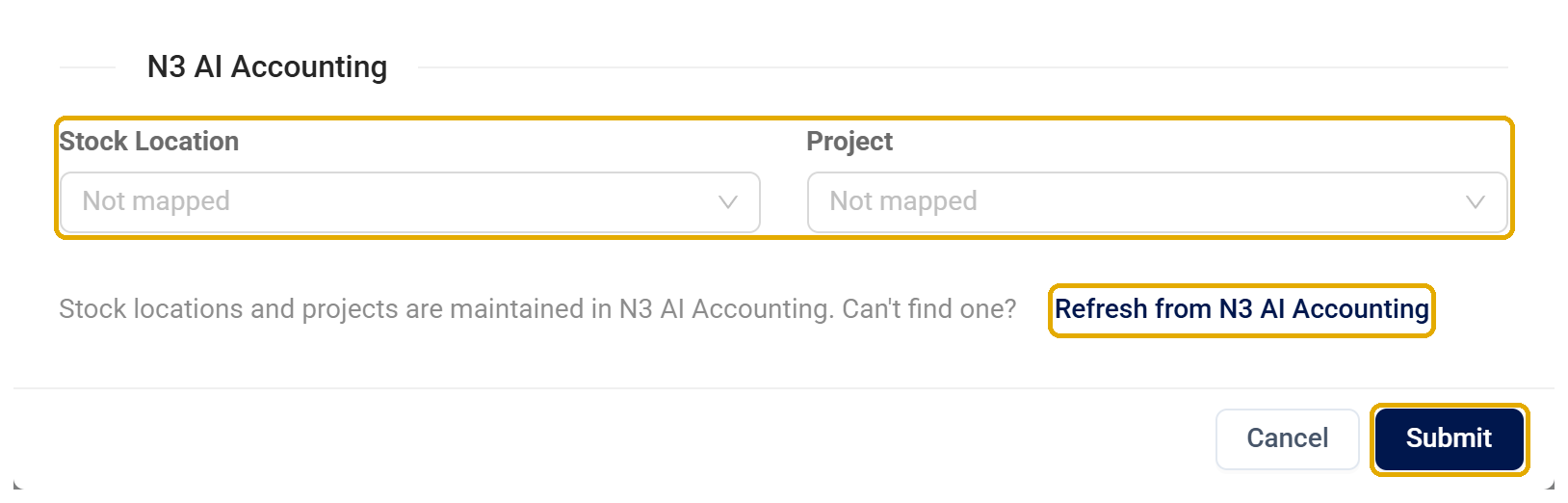
If you do not use N3 AI Accounting, leave Stock Location and Project as Not mapped and click Submit. The new outlet appears in the Outlet list.
Map Stock Location and Project (Optional)
Note: This section is only for companies linked to N3 AI Accounting (see How to Link N3 AI POS to N3 AI Accounting). The N3 AI Accounting plan must include the Multi-Location and Track Projects modules. If you are not linked to N3 AI Accounting, skip this section.
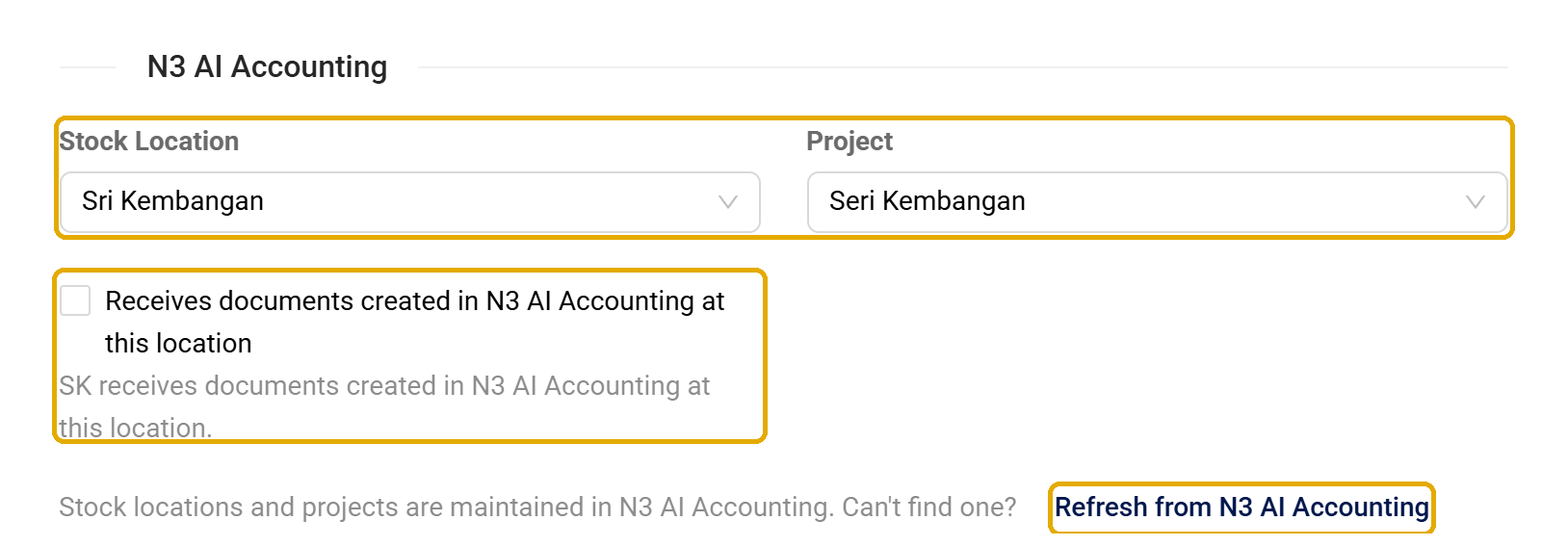
Under N3 AI Accounting, click Stock Location and select the N3 AI Accounting stock location whose stock this outlet sells, e.g. SK – Sri Kembangan.
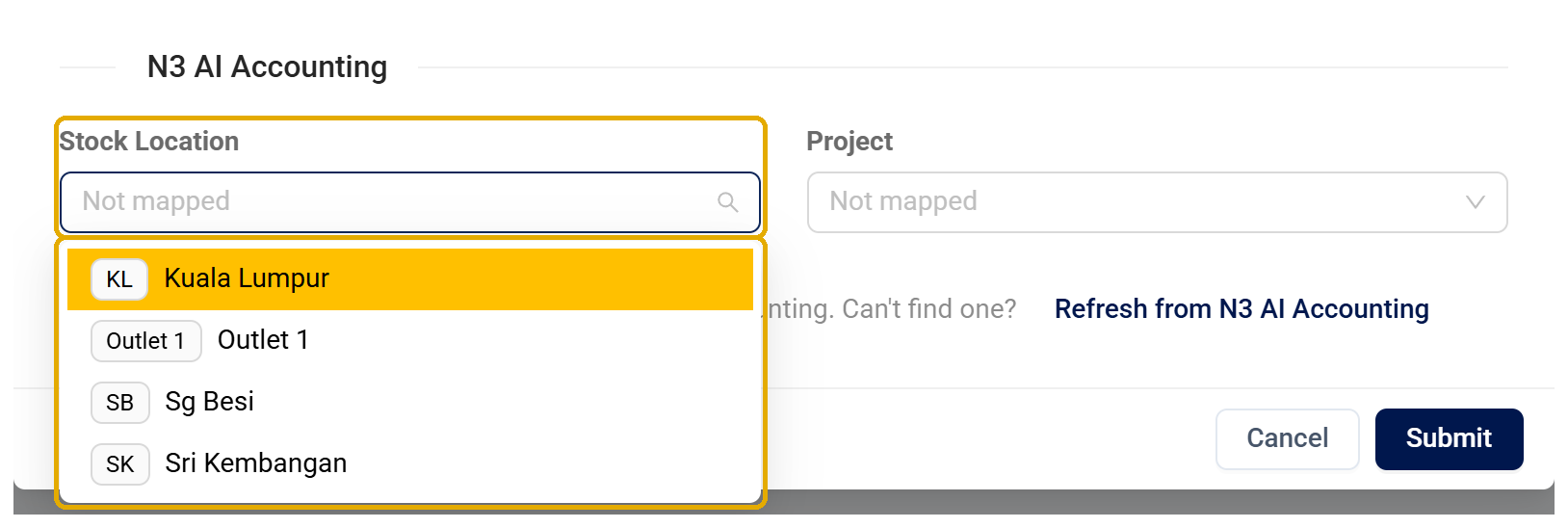
Click Project and select the N3 AI Accounting project for this outlet's postings, e.g. SK – Seri Kembangan.
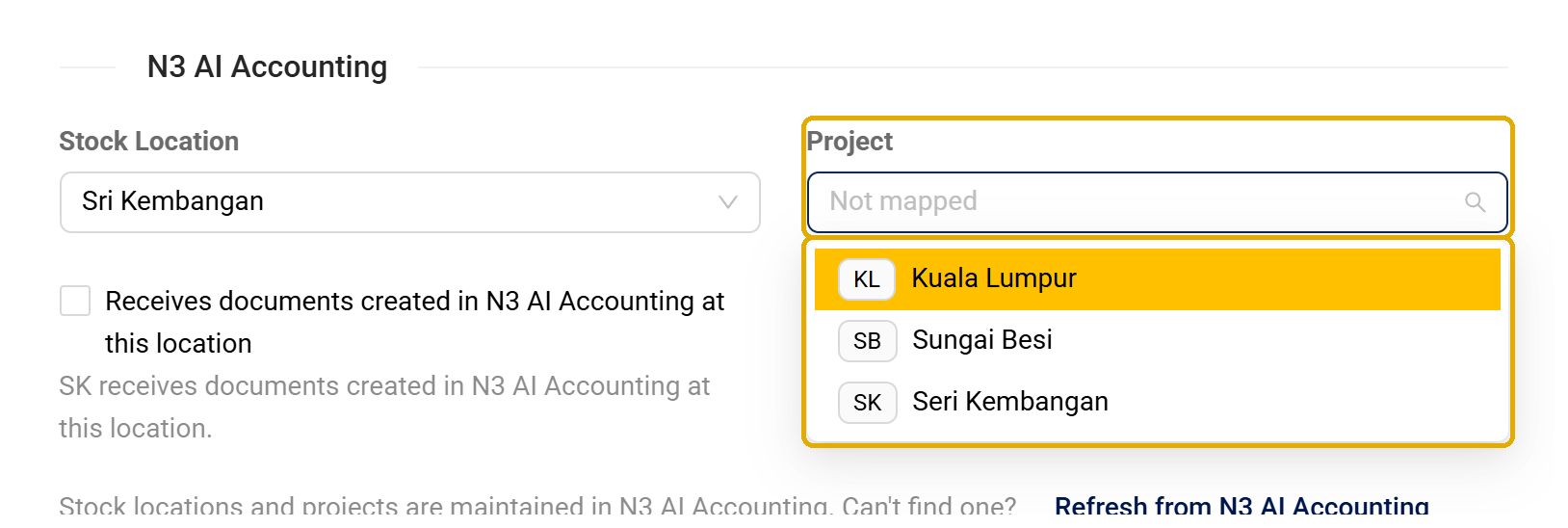
Check the mapping, then click Submit.
Receives documents created in N3 AI Accounting at this location – Tick it if documents created in N3 AI Accounting at this stock location should come to this outlet. The note below shows which outlet receives them now, e.g. SK.
Refresh from N3 AI Accounting – Click it if a new stock location or project is not in the list yet.
Note: Stock locations and projects are maintained in N3 AI Accounting under Stock > Locations and Company > Projects.
What's Next :
Create a cash register for the outlet at Company > Point of Sale > Cash Registers, then assign cashiers at Company > Point of Sale > Cashiers – see How to Complete the Basic Setup in N3 AI POS.
** Learn more about Azure Cloud
** Learn more about QNE Hybrid Cloud Software
Was this article helpful?
That’s Great!
Thank you for your feedback
Sorry! We couldn't be helpful
Thank you for your feedback
Feedback sent
We appreciate your effort and will try to fix the article
