Overview :
Negative Stock Control decides what happens when a Stock Transfer, Stock Adjustment or Stock Out would take the stock of an item below zero at an outlet. With Allow, the document saves as usual. With Warn, N3 AI POS asks you first before you save. This article guides you through setting it up in the N3 AI POS Portal.
At the end of this article, you will be able to:
Set Negative Stock Control for stock documents
See what Allow and Warn do when you save a stock adjustment
Scenario :
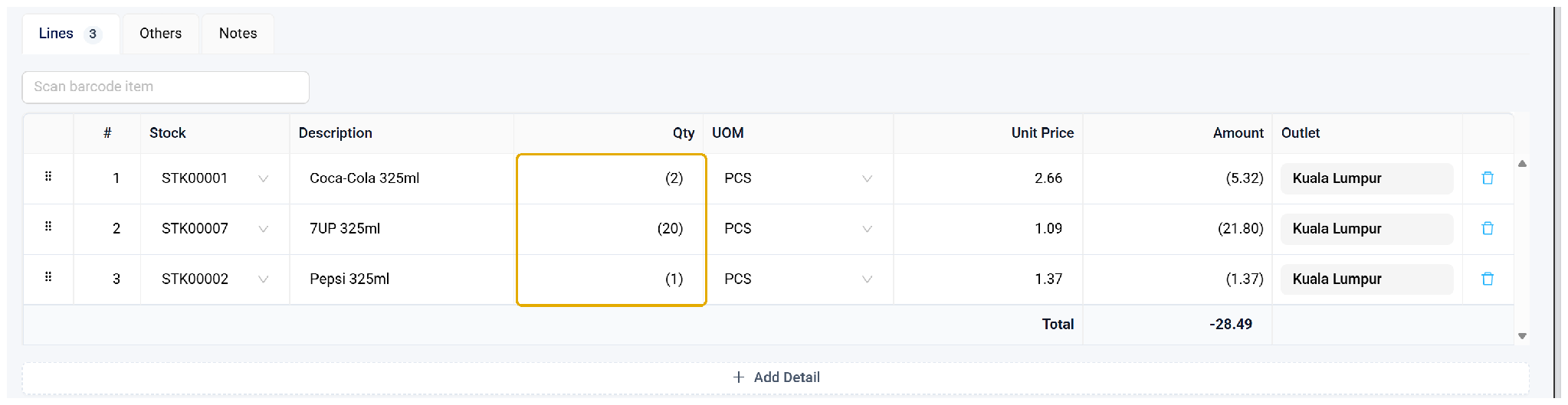
Kuala Lumpur finds damaged and missing drinks and takes them off with a stock adjustment: 2 Coca-Cola 325ml, 20 7UP 325ml and 1 Pepsi 325ml. Kuala Lumpur has only 12 7UP 325ml on hand, so that line takes the stock below zero, while the other items stay above zero. This is in the POS Sdn. Bhd. Live database.
Solution :
Set Negative Stock Control
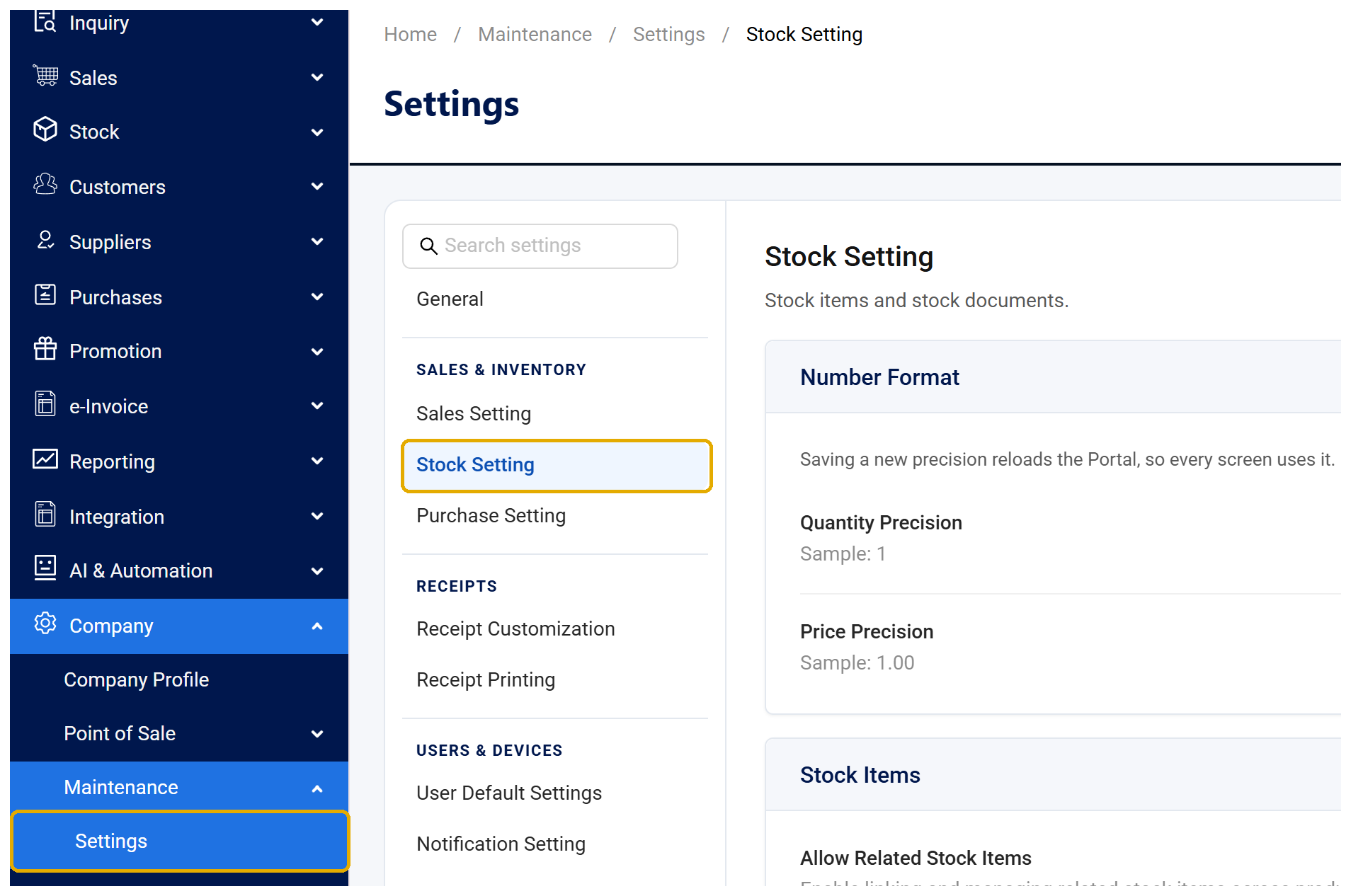
Navigate to Company > Maintenance > Settings and click Stock Setting.
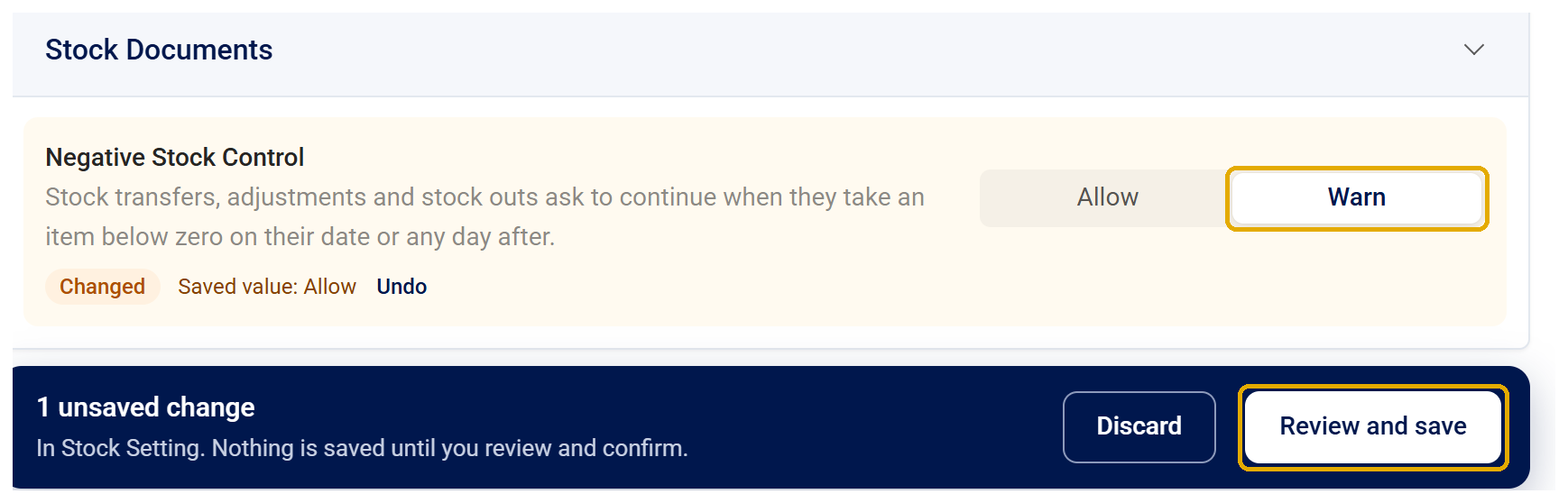
In Stock Documents, choose the Negative Stock Control:
Allow – No check. Stock transfers, adjustments and stock outs can take an item below zero.

Warn – Stock transfers, adjustments and stock outs ask to continue when they take an item below zero on their date or any day after.
The change is marked Changed with the Saved value. Click Review and save at the bottom.
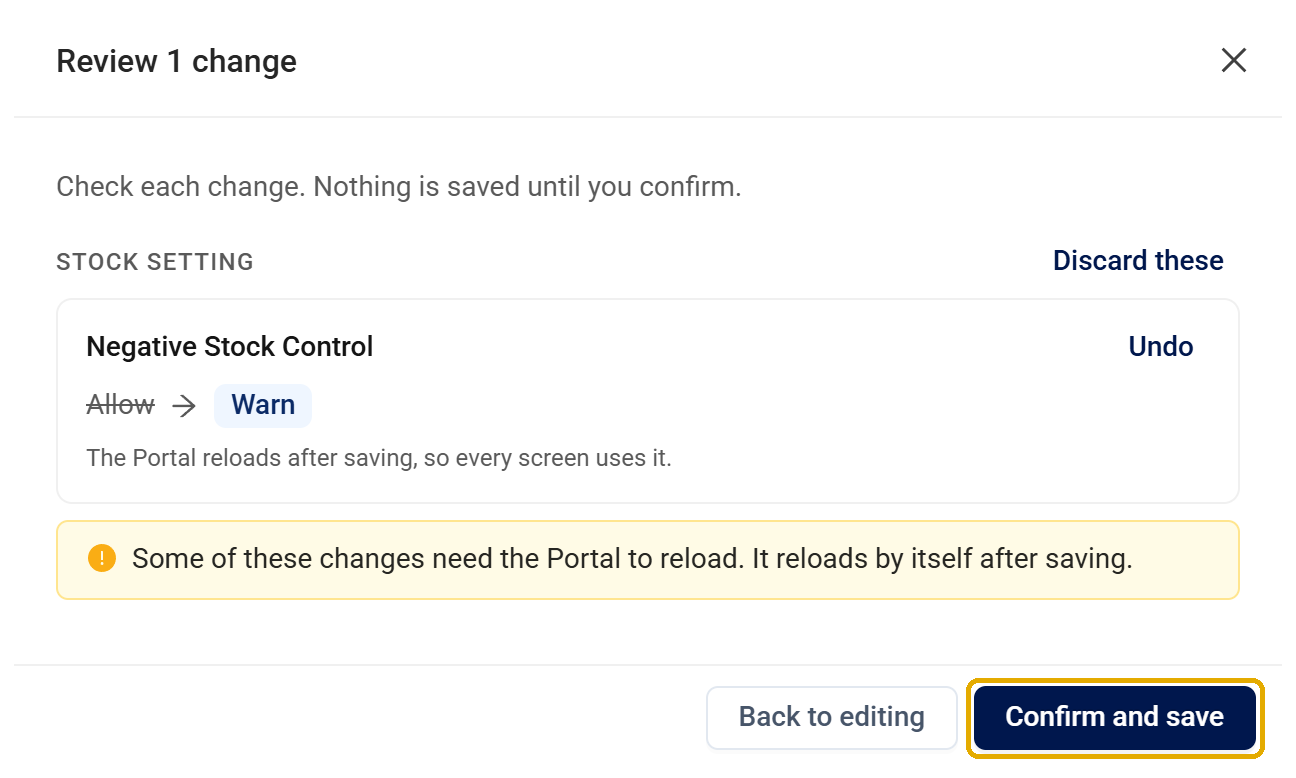
Check the change, e.g. Allow > Warn, and click Confirm and save. The Portal reloads by itself, so every screen uses the new setting.
Result: Save a Stock Adjustment
The check runs when you click Save. It compares each line with the stock of its outlet on the date of the document and any day after. In this stock adjustment at Kuala Lumpur, a negative Qty takes stock off:
With Warn
Click Save. Stock will go below zero appears. It lists only the items that go below zero, e.g. 7UP 325ml: On Hand 12 PCS, This Document -20 PCS, After -8 PCS. Coca-Cola 325ml and Pepsi 325ml stay above zero, so they are not listed.
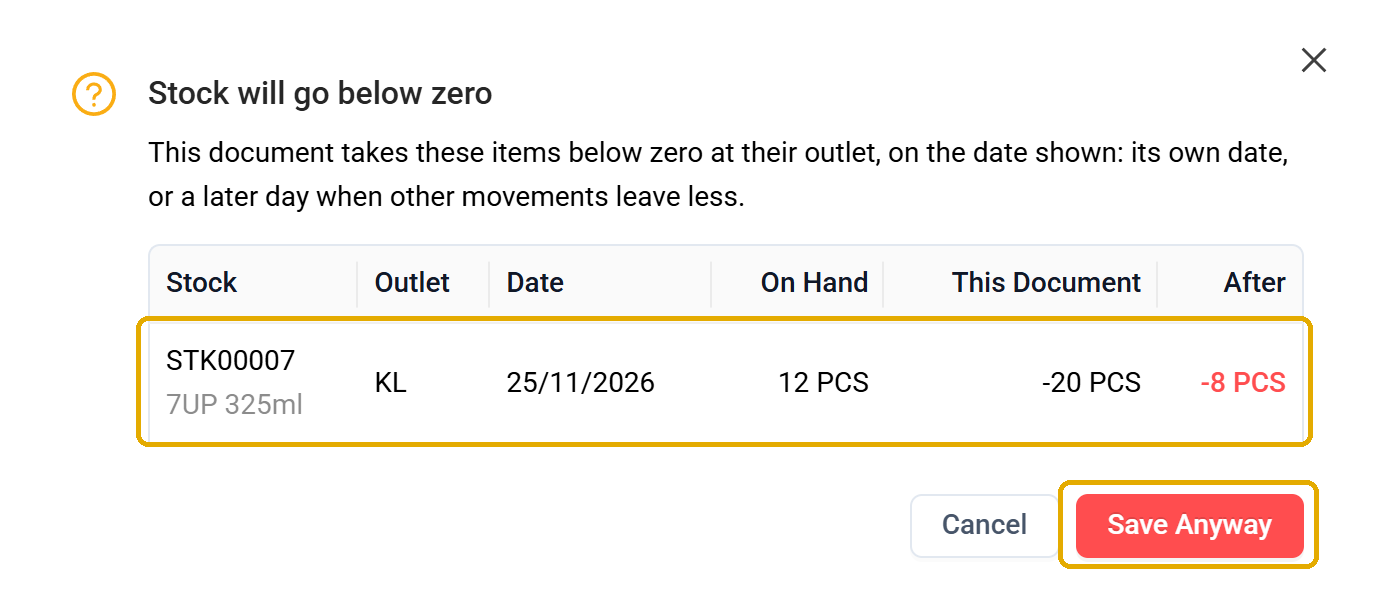
Click Cancel to go back and change the quantity, or Save Anyway to save the stock adjustment.
With Allow
Click Save. The stock adjustment saves straight away, with no question, e.g. SADJ2611/006.

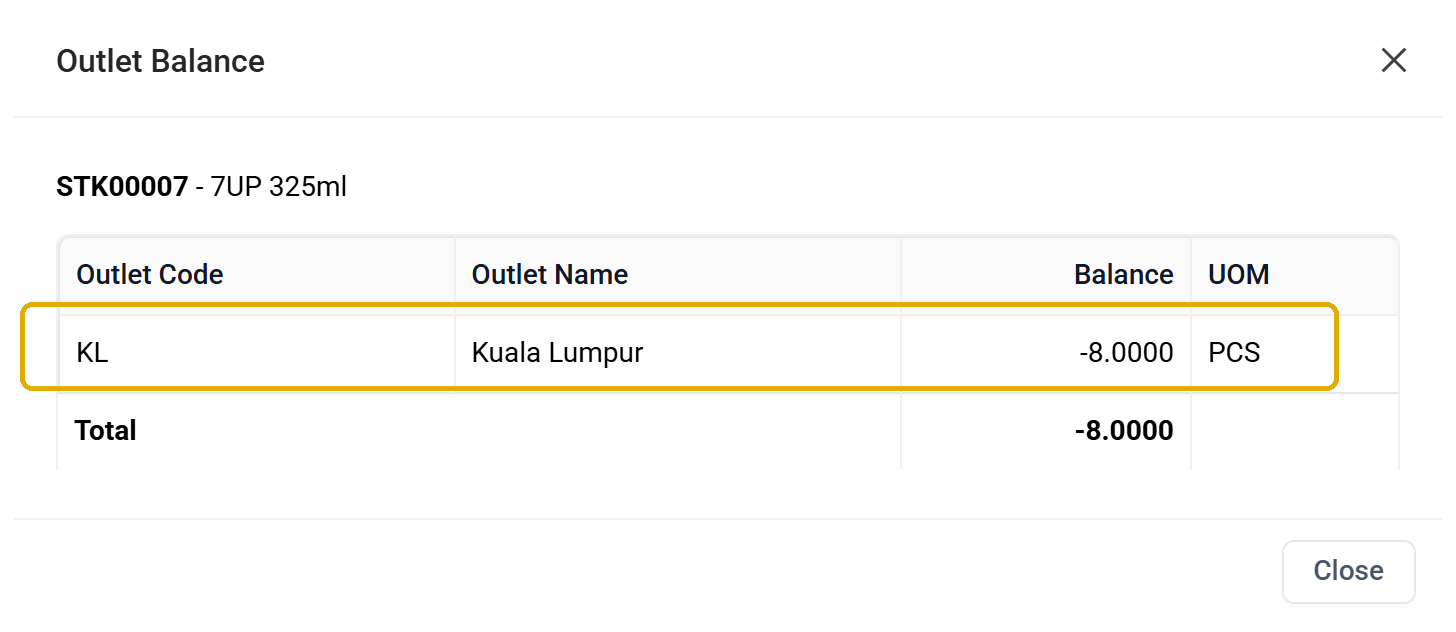
The stock of the item goes below zero. In Inquiry > Stock Inquiry, choose the item, e.g. STK00007, and click Outlet Balance. The Balance of Kuala Lumpur is -8.
What's Next :
Check the stock on hand of each outlet before you save large stock documents, or set Warn so N3 AI POS asks you first.
** Learn more about Azure Cloud
** Learn more about QNE Hybrid Cloud Software
Was this article helpful?
That’s Great!
Thank you for your feedback
Sorry! We couldn't be helpful
Thank you for your feedback
Feedback sent
We appreciate your effort and will try to fix the article
