Overview :
A Stock Adjustment corrects the stock of an outlet, e.g. after a stock take, or for damaged or found items. A positive quantity adds stock and a negative quantity takes stock off. Stock adjustments are sent to N3 AI Accounting (n3.qne.cloud), in the database that N3 AI POS is linked to. This article guides you through creating a stock adjustment in the N3 AI POS Portal.
At the end of this article, you will be able to:
Create a stock adjustment for an outlet
Add stock with a positive quantity and take stock off with a negative quantity
Check the stock adjustment in N3 AI Accounting
Scenario :
A stock take at Kuala Lumpur finds 2 more Coca-Cola 325ml than the system shows, and 3 7UP 325ml are damaged. The store manager corrects the stock with one stock adjustment, in the POS Sdn. Bhd. Live database.
Solution :
Create a Stock Adjustment
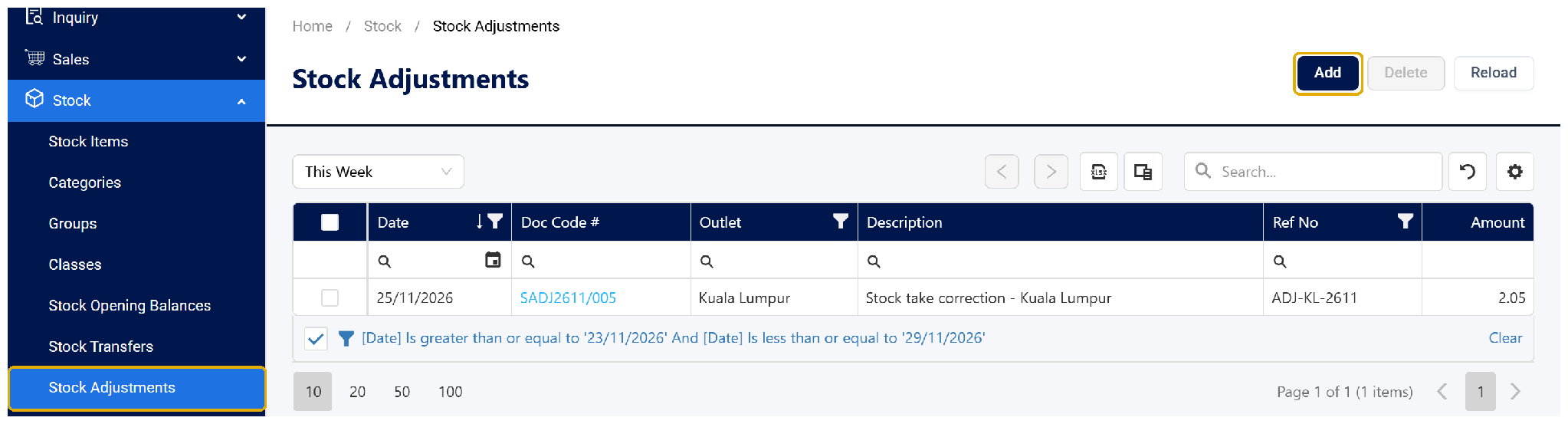
Navigate to Stock > Stock Adjustments and click Add.
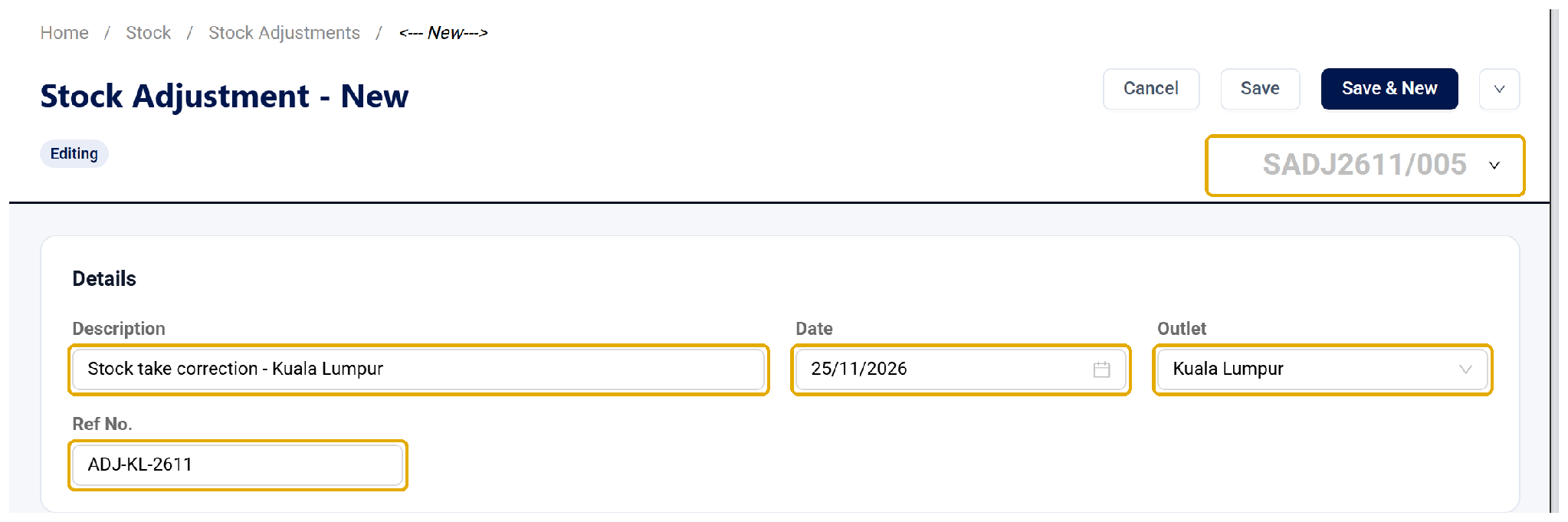
Fill in the Details. The document number, e.g. SADJ2611/005, is given by the running number.
Description – The reason, e.g. Stock take correction - Kuala Lumpur.
Date – The date of the adjustment. Today is filled in.
Outlet – The outlet whose stock you correct, e.g. Kuala Lumpur. Every line uses this outlet.
Ref No. – Optional, e.g. ADJ-KL-2611.
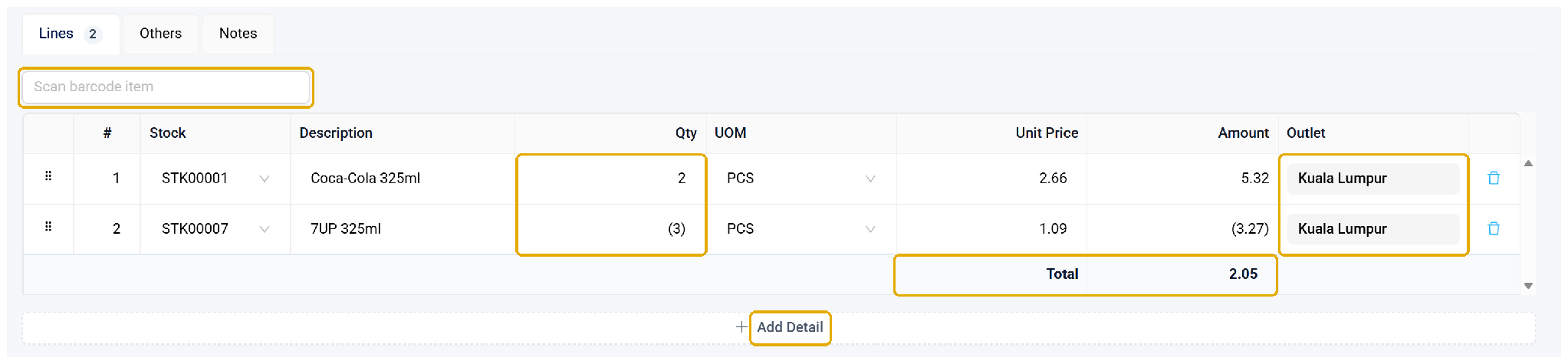
In the Lines tab, add each stock item:
Stock – Choose the item, e.g. STK00001. The Description, UOM and Unit Price (the purchase price of the item) fill in, and Qty becomes 1.
Qty – A positive quantity adds stock, e.g. 2 Coca-Cola 325ml. A negative quantity takes stock off, e.g. -3 7UP 325ml, shown as (3).
Outlet – Filled in from the Details, e.g. Kuala Lumpur.
Total – The sum of the Amount of all lines, e.g. 5.32 - 3.27 = 2.05.
Tip: Scan an item barcode into Scan barcode item to add the item. Click Add Detail for a new line, or the bin icon at the end of a line, then OK, to remove it.
Optional: In the Others tab, fill in Reference 1, Remark 1, Reference 2 and Remark 2, e.g. the stock take sheet number.

Click Save.
Note: If the adjustment takes the stock of an item below zero, N3 AI POS asks you first, depending on the Negative Stock Control setting.
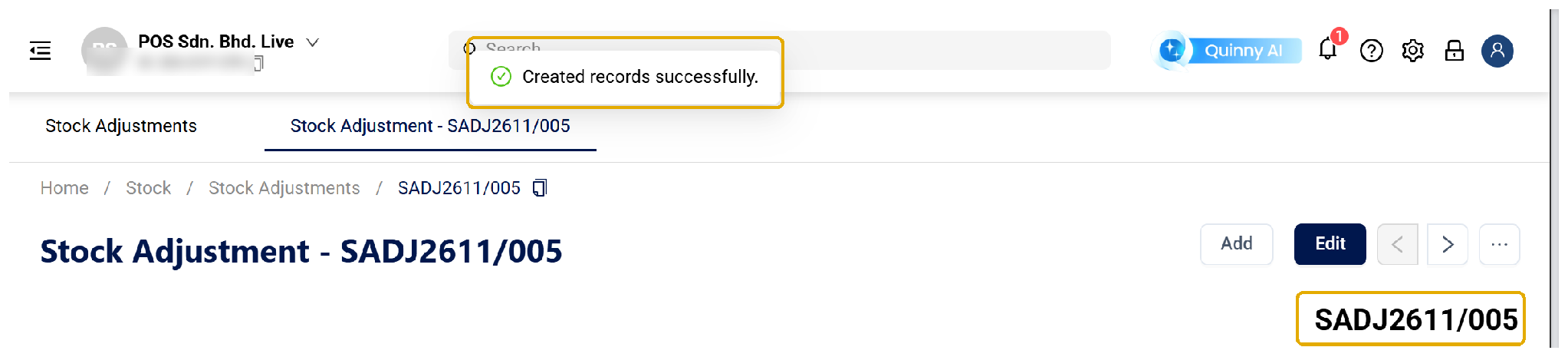
Result: Created records successfully. appears and the stock adjustment opens, e.g. SADJ2611/005.
The stock adjustment is listed in Stock > Stock Adjustments.

Check the Stock Adjustment in N3 AI Accounting
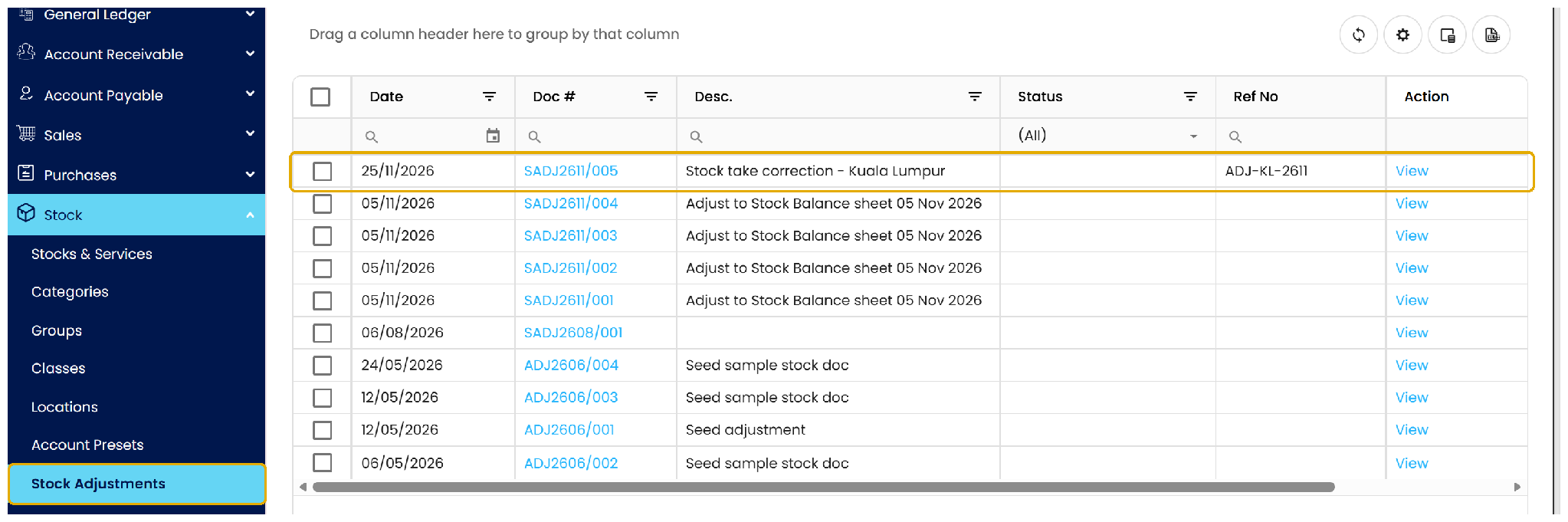
In N3 AI Accounting, navigate to Stock > Stock Adjustments. The stock adjustment is listed with the same Doc #, e.g. SADJ2611/005. Click View.
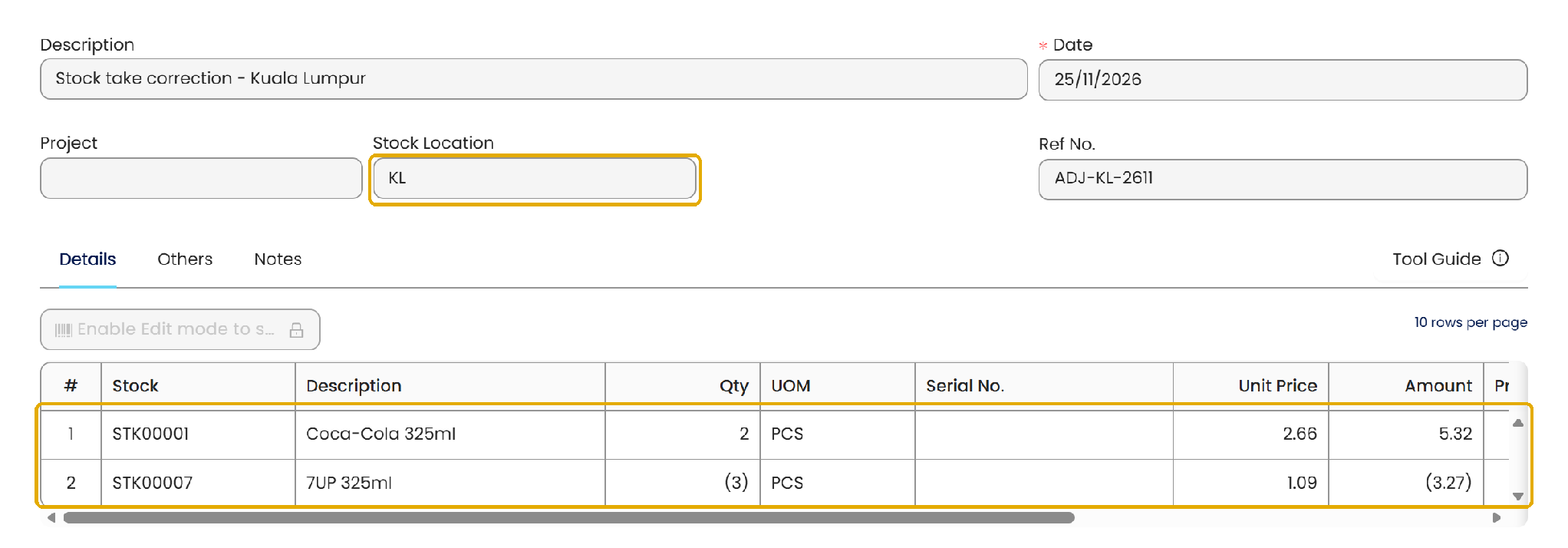
The lines are the same as in N3 AI POS. The Stock Location is the outlet, e.g. KL.
What's Next :
Check the new stock balance of the outlet in Stock > Stock Items.
** Learn more about Azure Cloud
** Learn more about QNE Hybrid Cloud Software
Was this article helpful?
That’s Great!
Thank you for your feedback
Sorry! We couldn't be helpful
Thank you for your feedback
Feedback sent
We appreciate your effort and will try to fix the article
