Overview :
Price by Outlet lets each outlet sell a stock item at its own price, by UOM, e.g. a can of Coca-Cola is RM 3.50 in Kuala Lumpur but RM 3.80 in Sri Kembangan. You turn it on and set the outlet prices in the N3 AI POS Portal. The cash registers (Win App) of that outlet then sell at the outlet price. An outlet without its own price sells at the item's unit price.
At the end of this article, you will be able to:
Turn on Enable Price by Outlet
Set the outlet price of a stock item
Sell at the outlet price in the Win App
See the unit price at another outlet on Android
Check the prices in the Price Listing by Outlet report
Scenario :
The Sri Kembangan outlet (SK) sells Coca-Cola 325ml at RM 3.80 a can. The other outlets (KL, SB and SBAN) keep the unit price of RM 3.50. The store manager sets the price in the Portal, and the cashier at SK Counter01 sells it in the Win App, in the POS Sdn. Bhd. Live database.
Solution :
Turn On Enable Price by Outlet
Navigate to Company > Maintenance > Settings and click Stock Setting.
In Stock Items, turn on Enable Price by Outlet.
Note: The switch can be turned on only when the company has more than one outlet. With one outlet, the unit price of a stock item is its price.
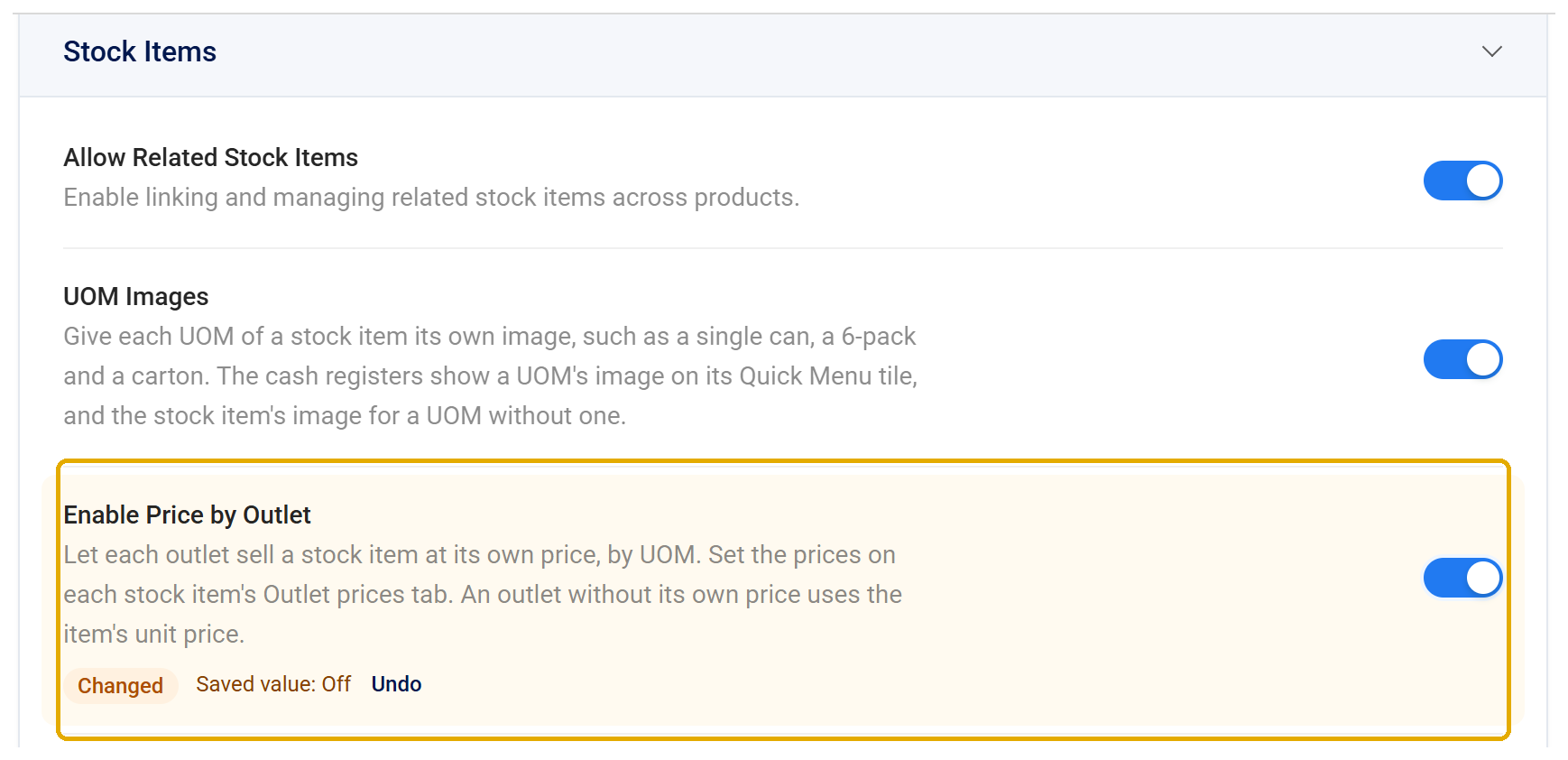
Click Review and save.

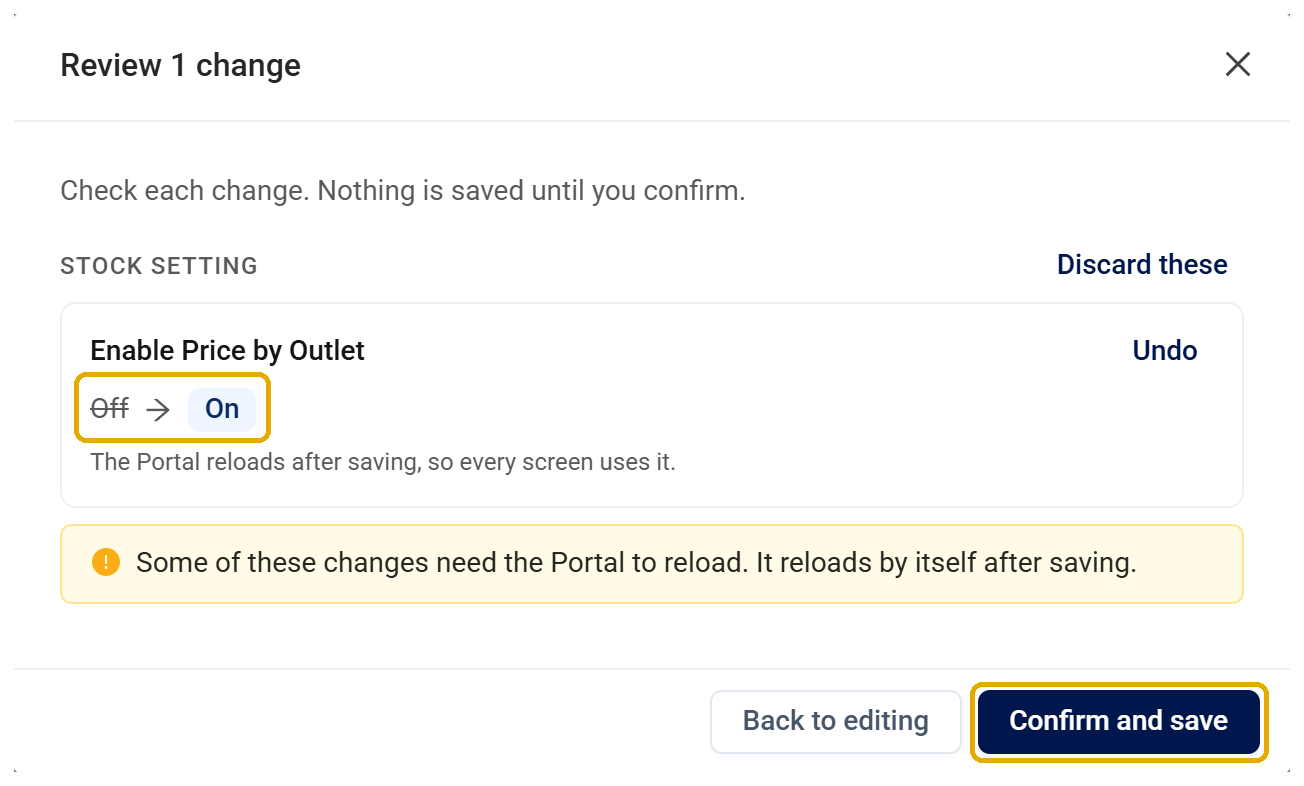
Check the change, e.g. Enable Price by Outlet Off → On, and click Confirm and save. The Portal reloads by itself, and each stock item now has an Outlet prices tab.
Set the Outlet Price of a Stock Item
Navigate to Stock > Stock Items, search for the item, e.g. STK00001, and click its Code. Click Edit.

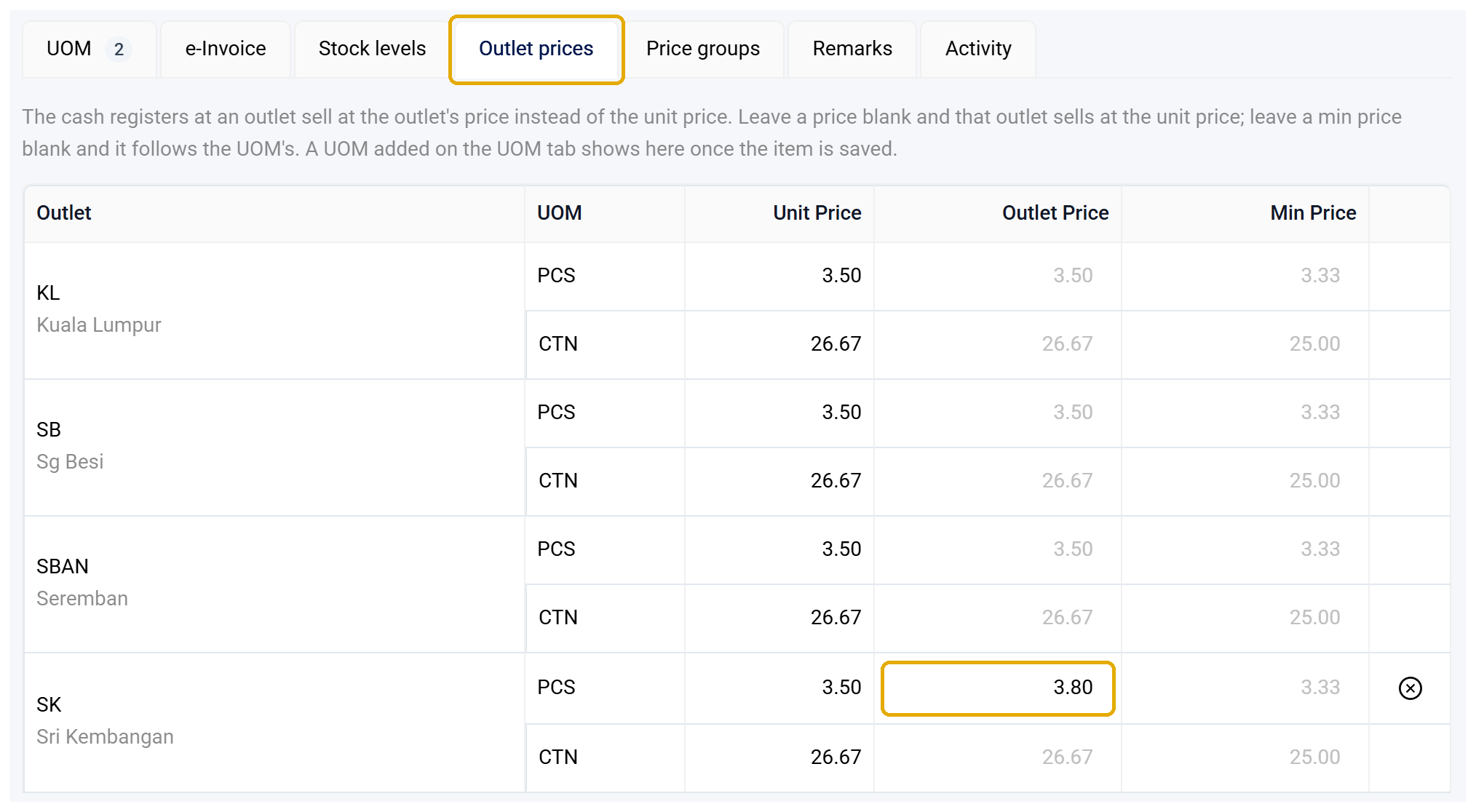
Click the Outlet prices tab. Each outlet is listed with each UOM of the item:
Unit Price – The unit price of the UOM, e.g. 3.50 for PCS.
Outlet Price – The price this outlet sells at, e.g. 3.80 for SK Sri Kembangan, PCS. Leave it blank and the outlet sells at the unit price.
Min Price – The lowest price the cashier can sell at in this outlet. Leave it blank and it follows the min price of the UOM, e.g. 3.33.
Click Save.

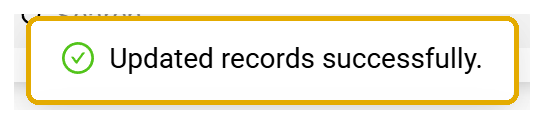
Result: Updated records successfully. appears.
Sell at the Outlet Price in the Win App
In the Win App of the outlet, e.g. SK Counter01, click the cloud icon on the left to open Data Synchronization. Click Quick Sync on Settings and on Stocks.
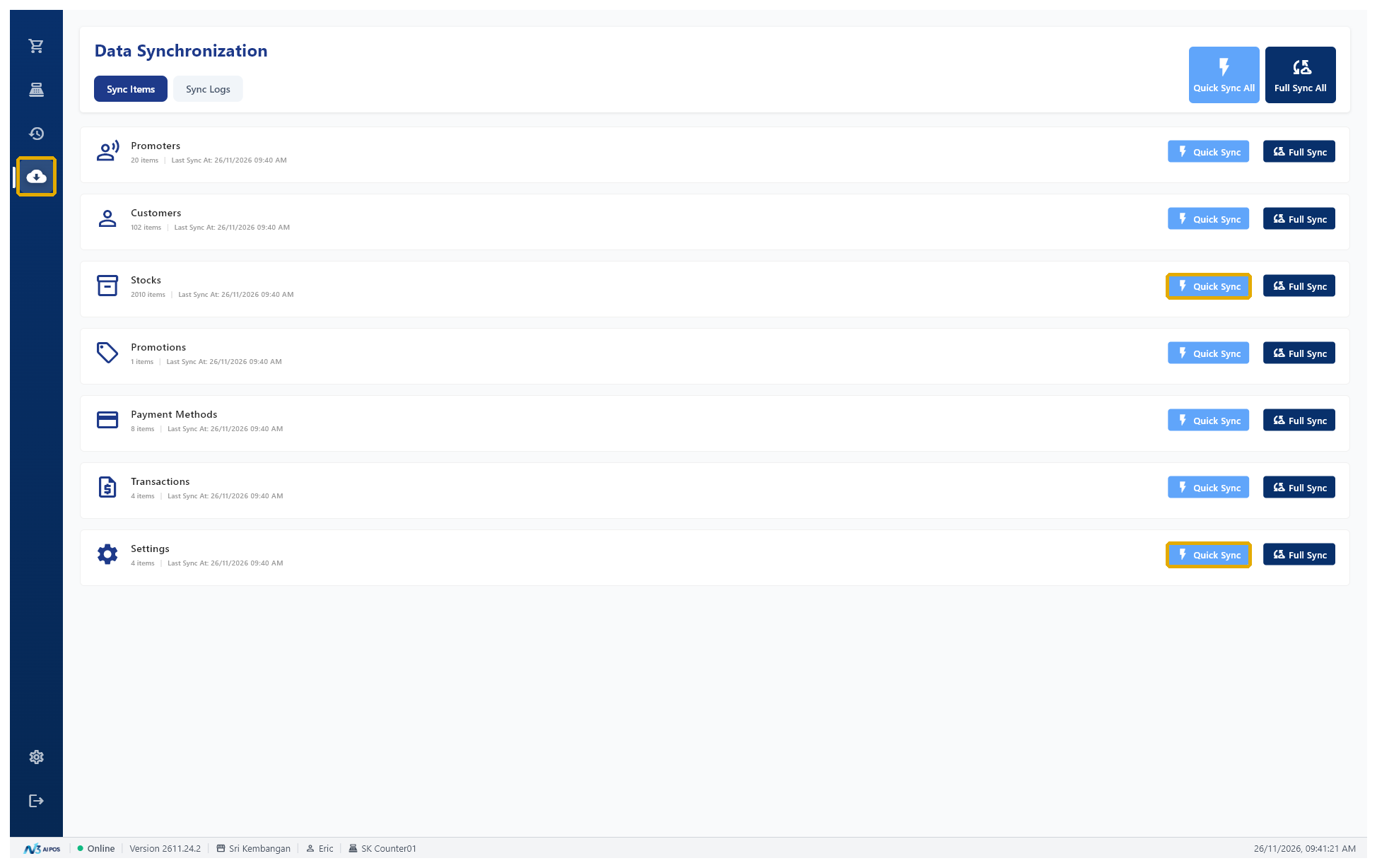
The status bar at the bottom shows the outlet of the cash register, e.g. Sri Kembangan.

Click the cart icon and search for the item, e.g. STK00001. Coca-Cola 325ml PCS shows the outlet price RM 3.80. The CTN has no outlet price, so it shows the unit price RM 26.67.
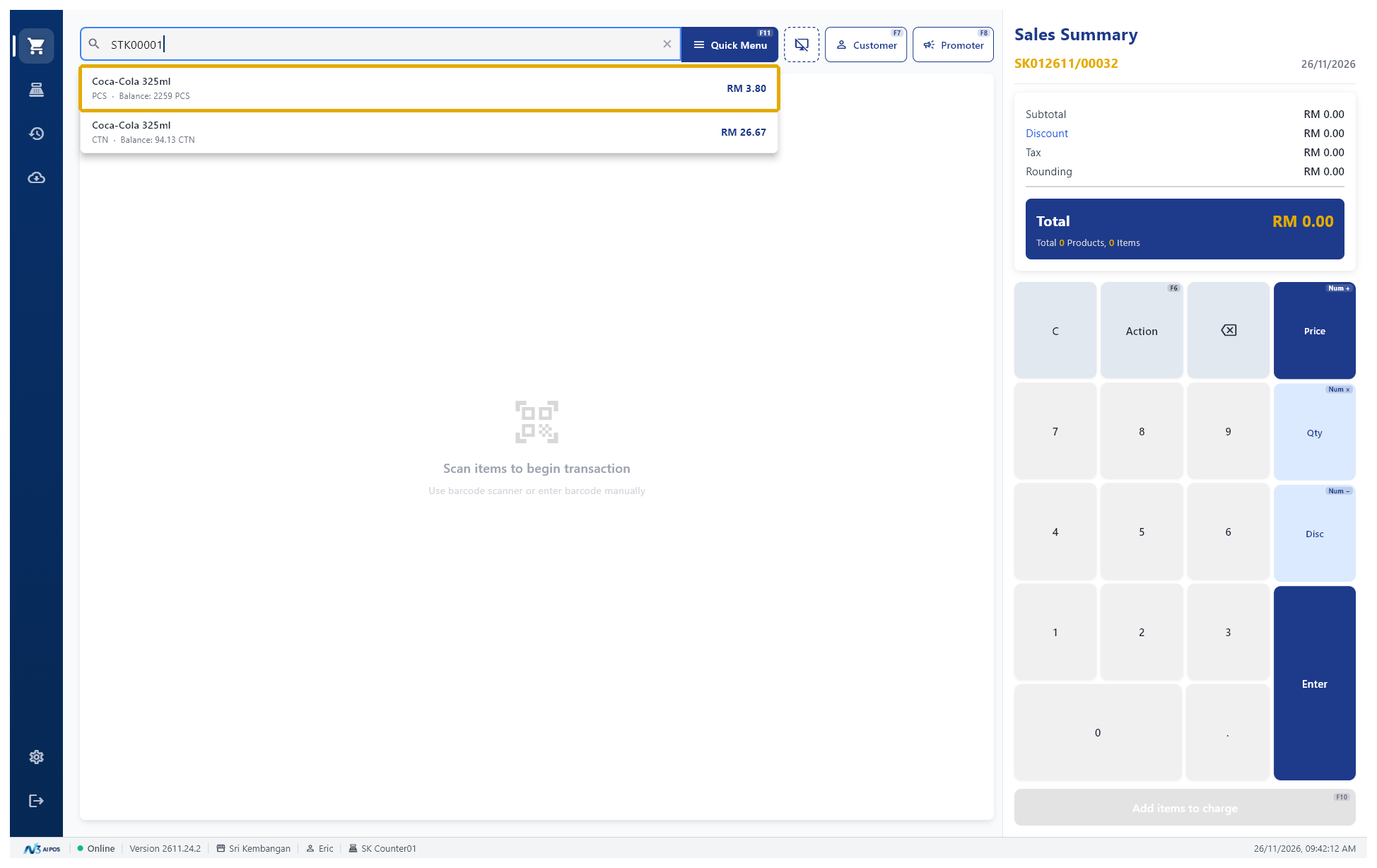
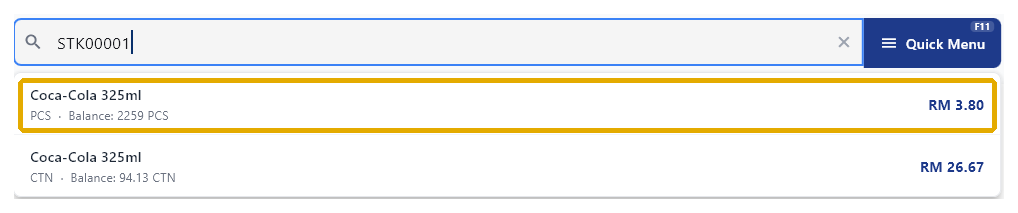
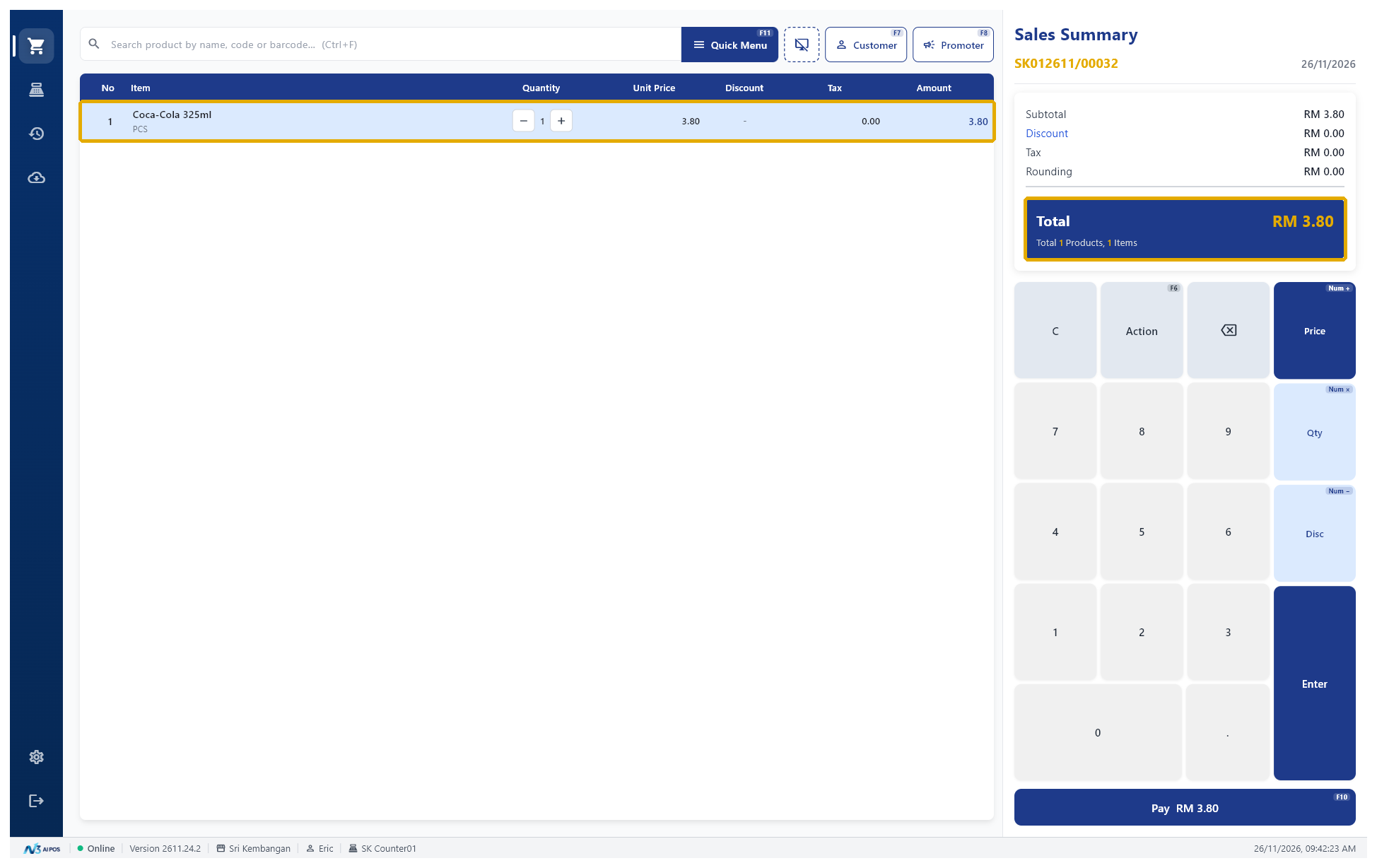
Click the item to add it to the cart.
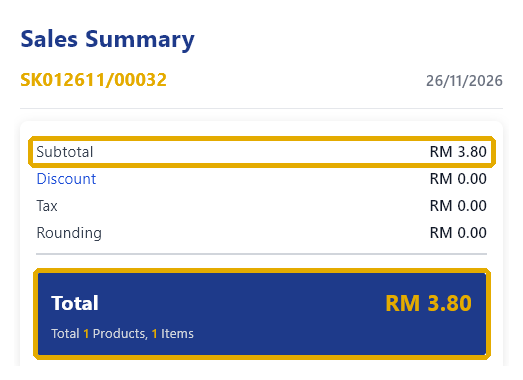
Result: The Unit Price is 3.80, and the Subtotal and Total are RM 3.80. At the other outlets, e.g. Kuala Lumpur, the same item sells at RM 3.50.

Result at Another Outlet: Kuala Lumpur on Android
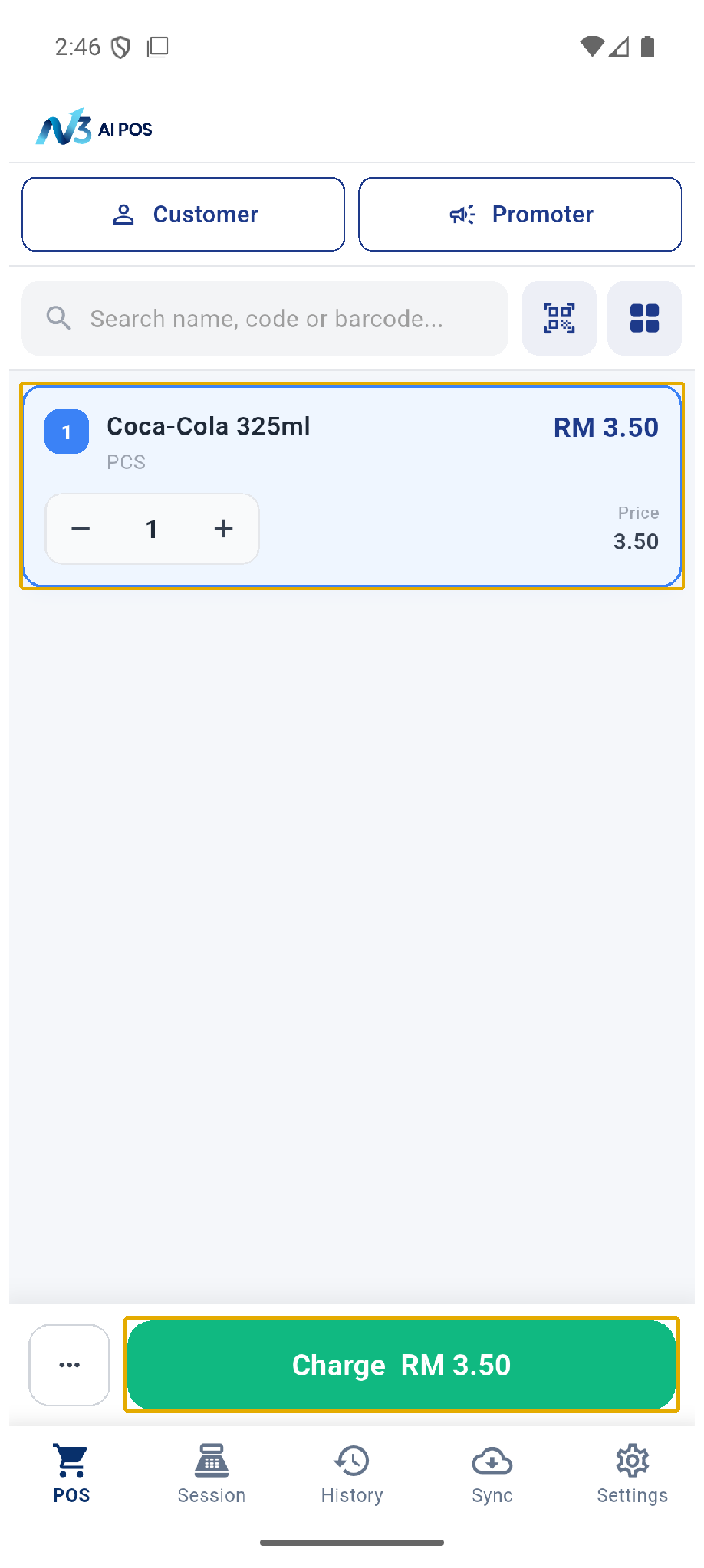
Kuala Lumpur (KL) has no outlet price for Coca-Cola 325ml, so it sells at the unit price RM 3.50. For example, on the Android cash register KL02:
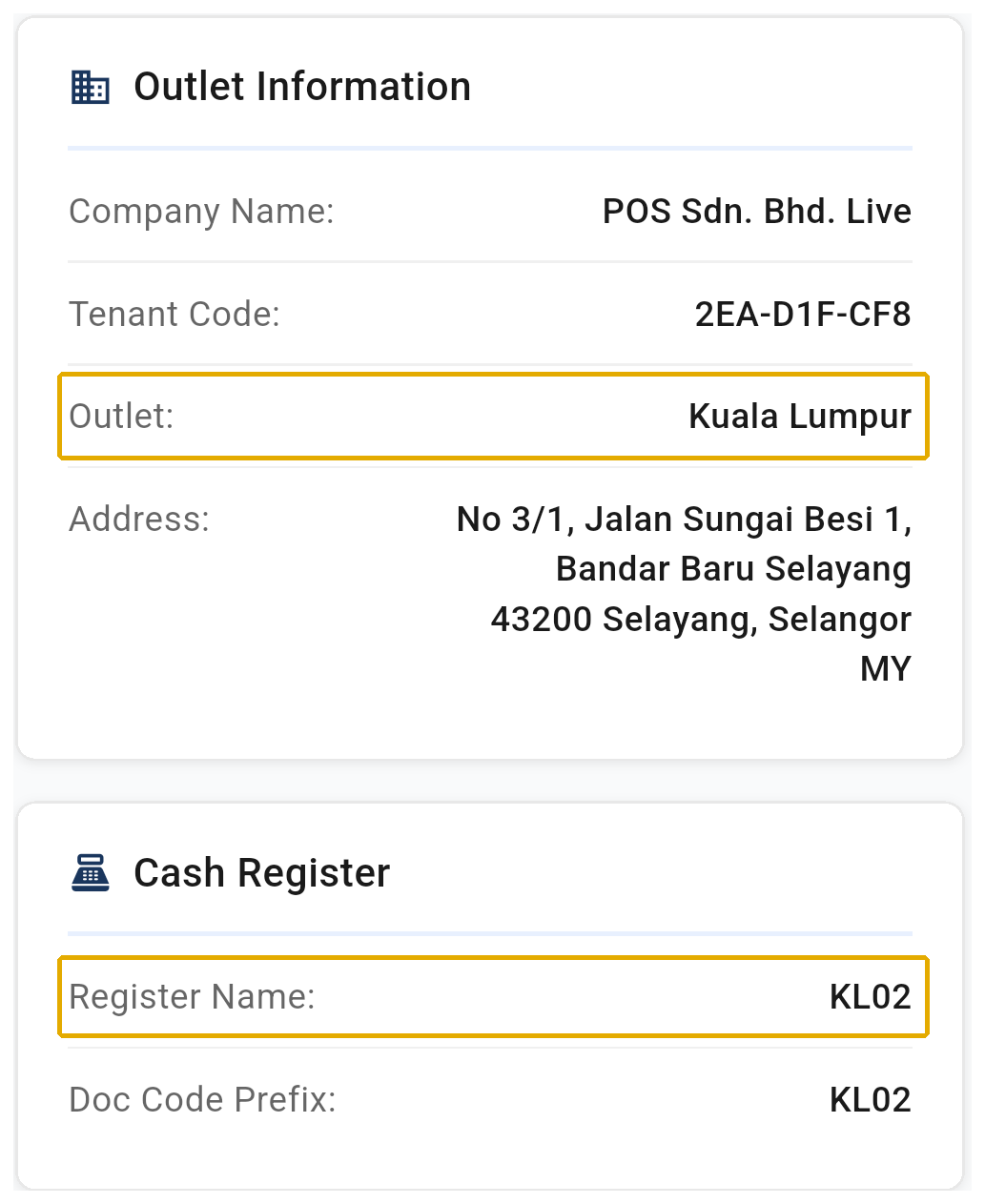
Tap Settings > Device Info. Outlet Information shows the outlet of the cash register, e.g. Kuala Lumpur, and Cash Register shows the Register Name, e.g. KL02.
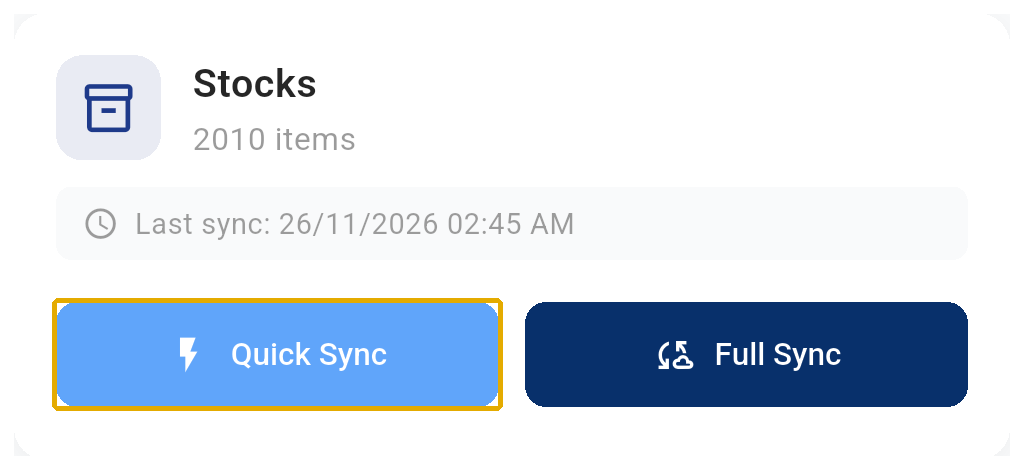
Tap Sync at the bottom. On Stocks, tap Quick Sync.
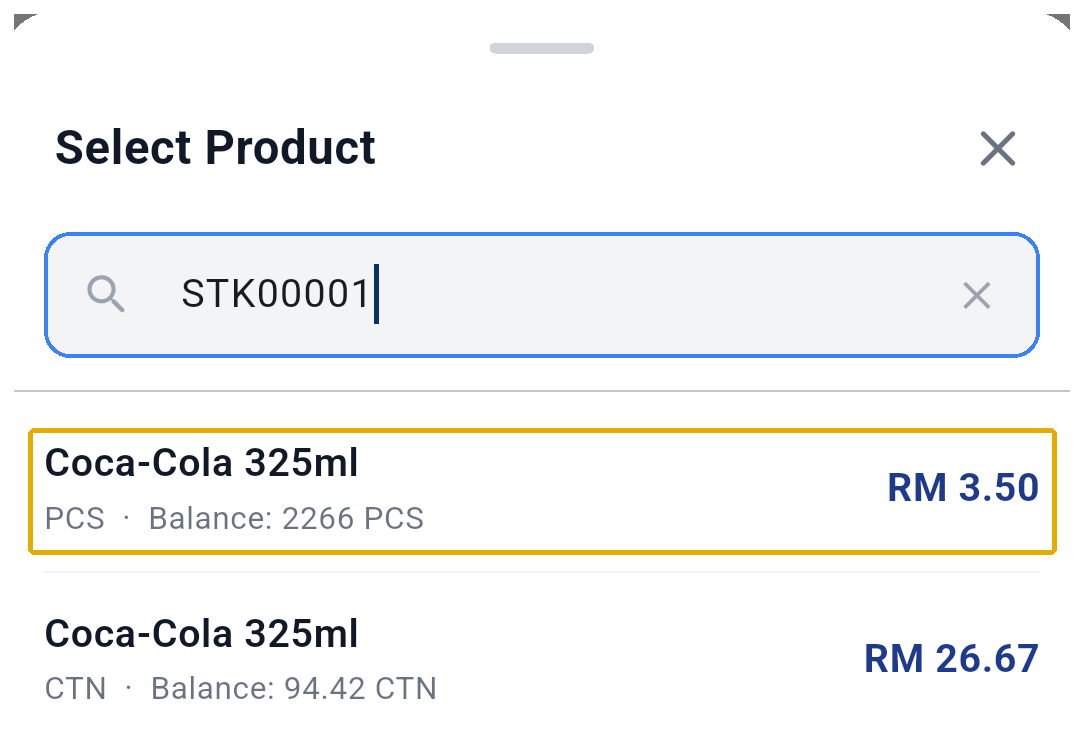
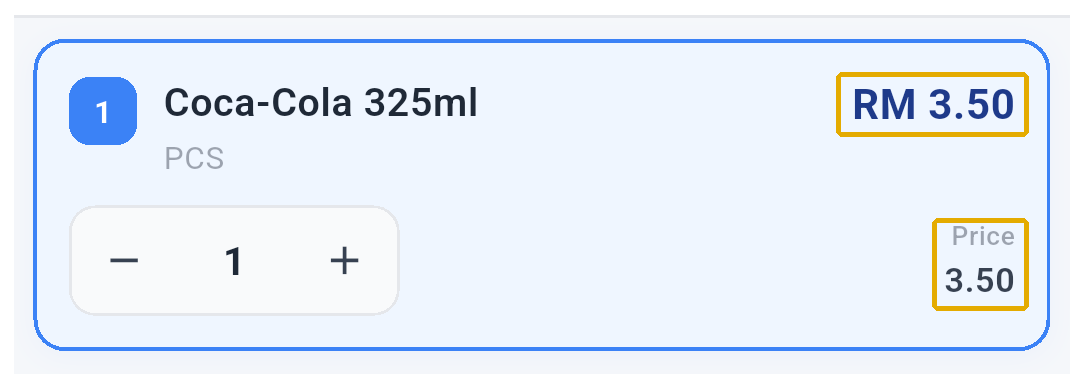
Tap POS and search for the item, e.g. STK00001. Coca-Cola 325ml PCS shows RM 3.50, the unit price.
Tap the item to add it to the cart.
Result: The Price is 3.50 and Charge is RM 3.50, while the same item sells at RM 3.80 in Sri Kembangan.
Check the Price Listing by Outlet Report
Navigate to Reporting > Report Center, search for Outlet and click Price Listing by Outlet.
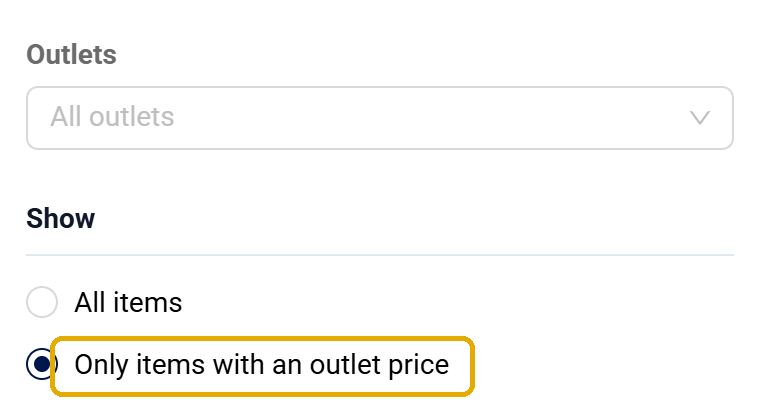
Filter by Stock Code, Stock Category, Stock Group, Stock Class or Outlets if needed. In Show, choose Only items with an outlet price to list only the items with an outlet price, or All items. Click Preview.
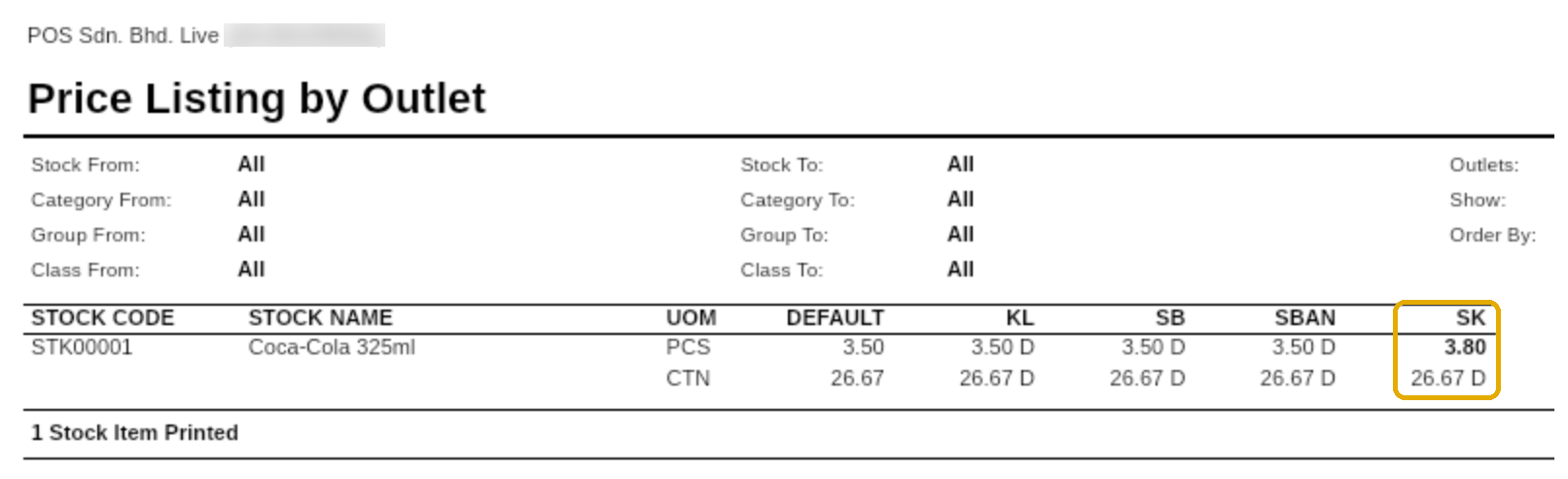
Result: The report lists each UOM with its Default (unit) price and the price at each outlet, e.g. SK 3.80. A bold price is the outlet's own price, and D means the outlet has no price of its own and sells at the default price.
What's Next :
To remove an outlet price, open the item, click Edit, clear the Outlet Price on the Outlet prices tab and click Save. That outlet then sells at the unit price again after the cash registers sync.
** Learn more about Azure Cloud
** Learn more about QNE Hybrid Cloud Software
Was this article helpful?
That’s Great!
Thank you for your feedback
Sorry! We couldn't be helpful
Thank you for your feedback
Feedback sent
We appreciate your effort and will try to fix the article
