Overview :
The Maximum Quantity (Max Qty) of a stock item sets the highest quantity you can buy in one purchase transaction. You set it in the N3 AI POS Portal. A Purchase Order, Goods Received Note, Purchase Invoice, Cash Purchase or Stock In with a line above the Max Qty cannot be saved.
At the end of this article, you will be able to:
Set the Max Qty of a stock item
See how a purchase transaction checks the Max Qty
Scenario :
The store keeps at most 240 7UP 325ml in stock, so it buys no more than 240 cans at a time. The purchaser keys in 300 on a purchase order by mistake, in the POS Sdn. Bhd. Live database.
Solution :
Set the Max Qty
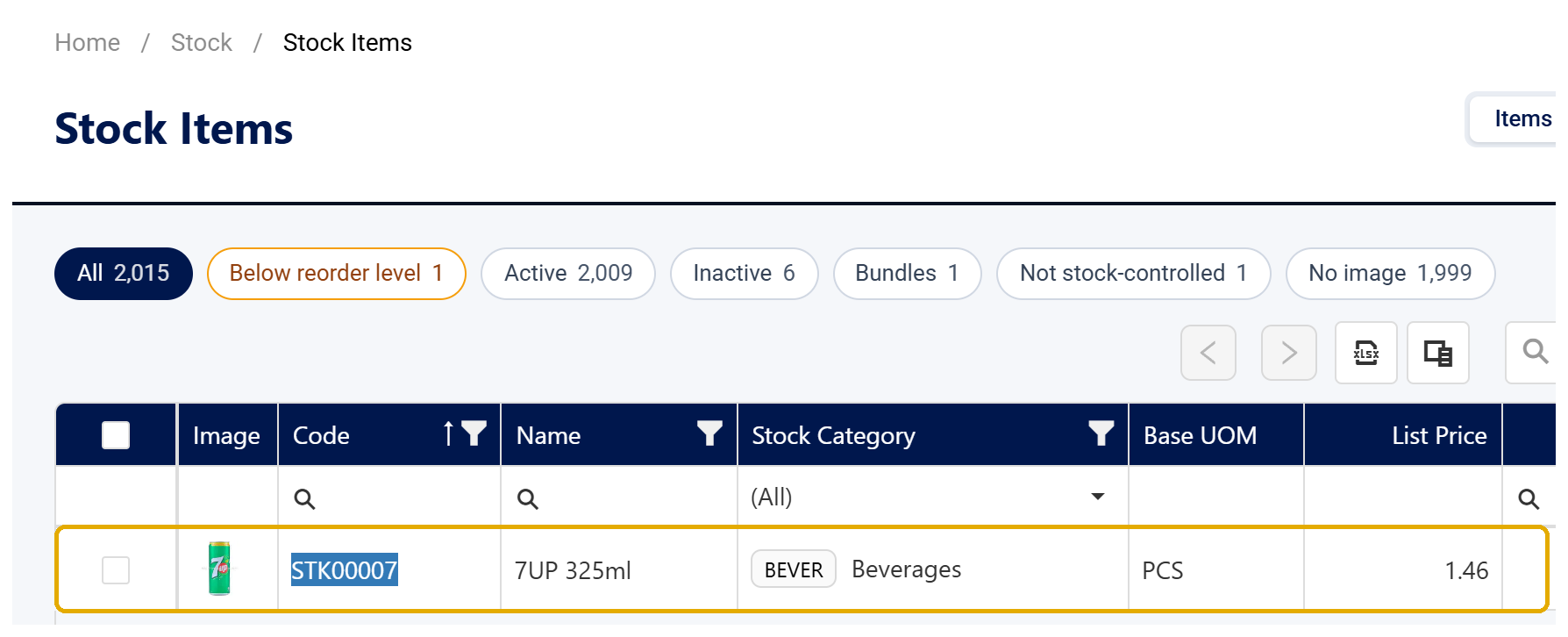
Navigate to Stock > Stock Items, search for the item, e.g. STK00007, and click its Code. Click Edit.
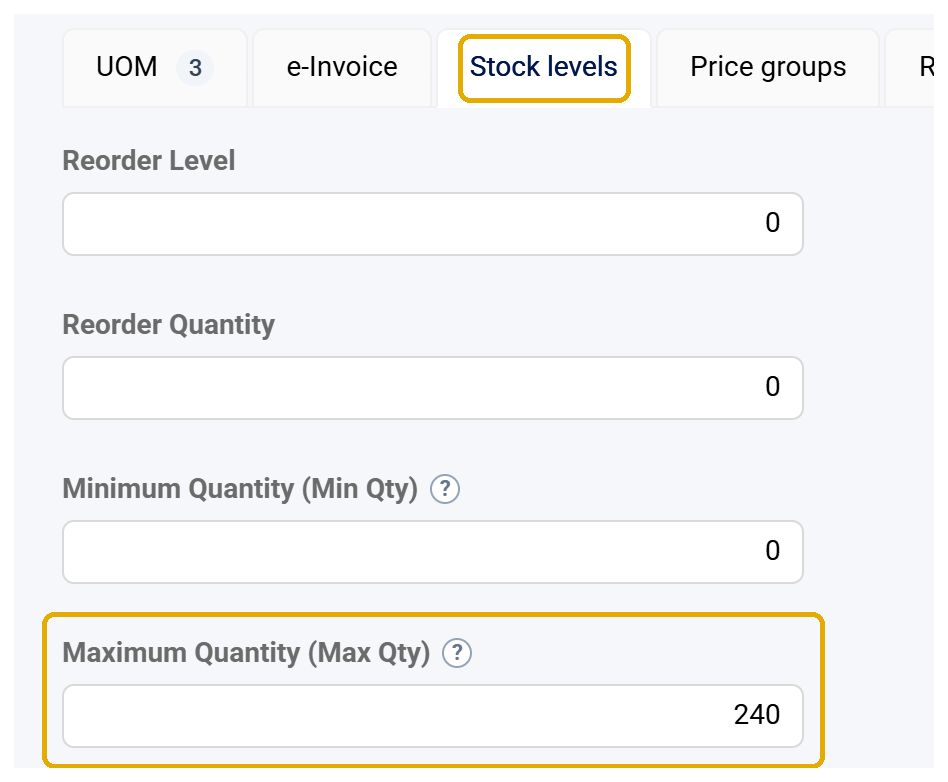
Click the Stock levels tab and fill in the Maximum Quantity (Max Qty), e.g. 240. The quantity is in the base UOM of the item, e.g. PCS.
Note: Leave Max Qty at 0 for no maximum. If you also set a Min Qty, the Max Qty must be equal to or more than it.
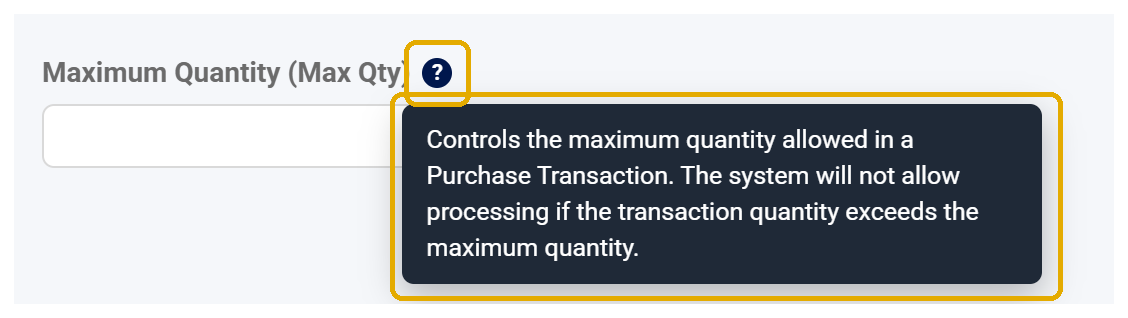
Click the ? next to Maximum Quantity (Max Qty) to read what it does:
Max Qty – Controls the maximum quantity allowed in a Purchase Transaction. The system will not allow processing if the transaction quantity exceeds the maximum quantity.
Click Save.
Result: Save a Purchase Order
In Purchases > Purchase Orders, click Add, choose the Supplier, e.g. SUP002, and add the item with a Qty above the Max Qty, e.g. 300 7UP 325ml.

Click Save. The purchase order is not saved, and this message appears:

Note: The check uses the base UOM. For example, 12 cartons of 24 cans is 288 PCS, which is also more than 240.
Change the Qty to the Max Qty or less, e.g. 240, and click Save again.

What's Next :
The same check applies when you save a Goods Received Note, Purchase Invoice, Cash Purchase or Stock In.
** Learn more about Azure Cloud
** Learn more about QNE Hybrid Cloud Software
Was this article helpful?
That’s Great!
Thank you for your feedback
Sorry! We couldn't be helpful
Thank you for your feedback
Feedback sent
We appreciate your effort and will try to fix the article
