Overview :
The Minimum Quantity (Min Qty) of a stock item sets the lowest quantity a customer can buy in one sale. You set it in the N3 AI POS Portal. At the cash register (Win App), the item is added to the cart with the Min Qty, and a sale with less than the Min Qty cannot be completed.
At the end of this article, you will be able to:
Set the Min Qty of a stock item in the Portal
See how the Win App uses the Min Qty when selling the item
Scenario :
The store sells 7UP 325ml only in a set of at least 2 cans. The store manager sets the Min Qty in the Portal, and the cashier at SK Counter01 (Sri Kembangan) sells it in the Win App, in the POS Sdn. Bhd. Live database.
Solution :
Set the Min Qty in the Portal
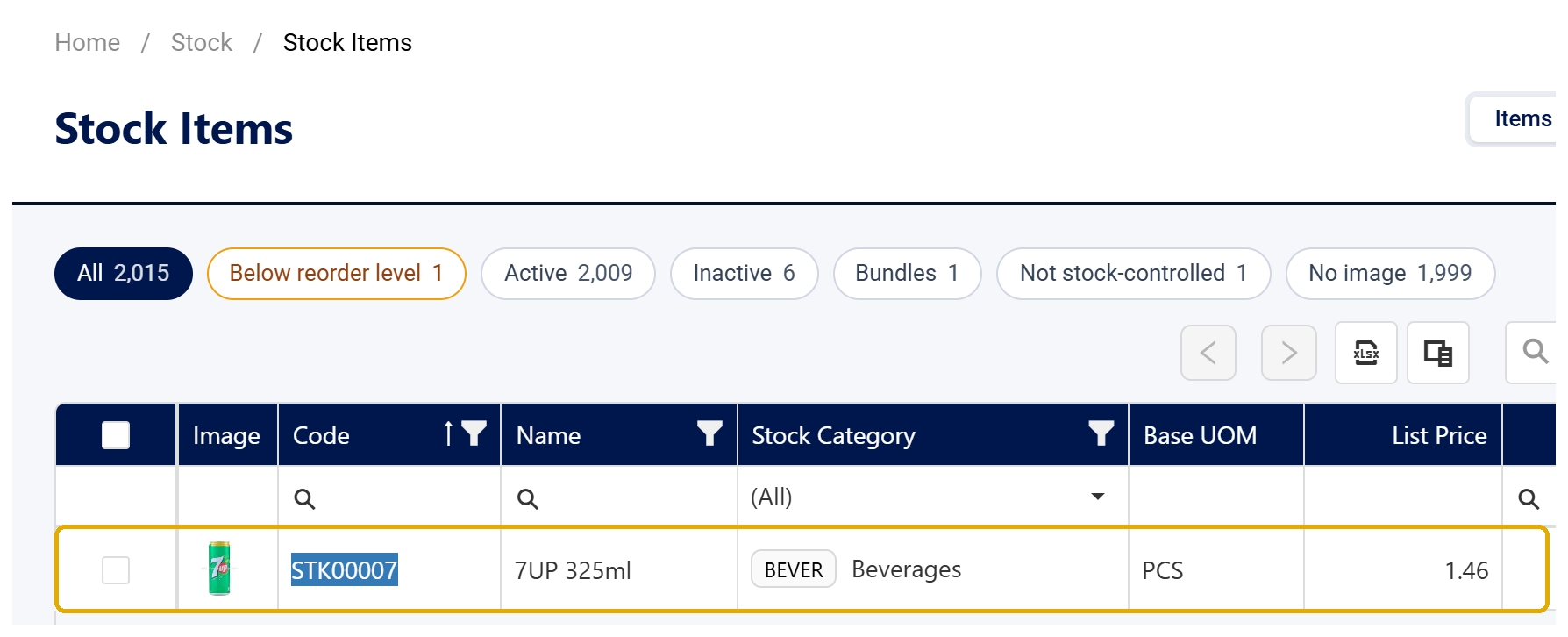
Navigate to Stock > Stock Items, search for the item, e.g. STK00007, and click its Code. Click Edit.
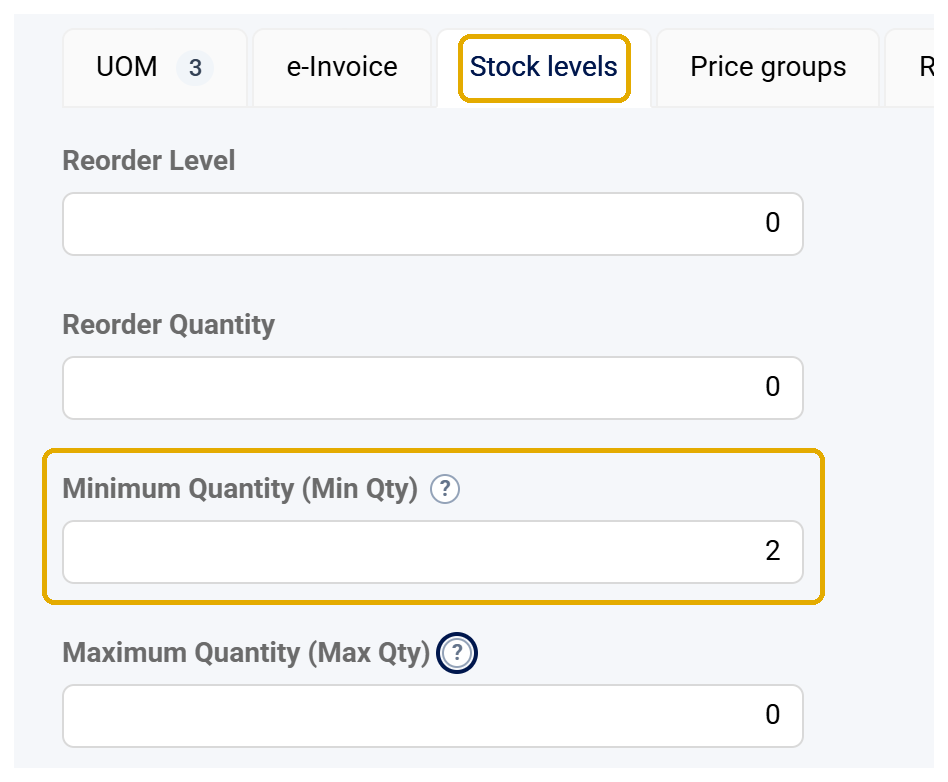
Click the Stock levels tab and fill in the Minimum Quantity (Min Qty), e.g. 2. The quantity is in the base UOM of the item, e.g. PCS.
Note: Leave Min Qty at 0 for no minimum. If you also set a Max Qty, it must be equal to or more than the Min Qty.
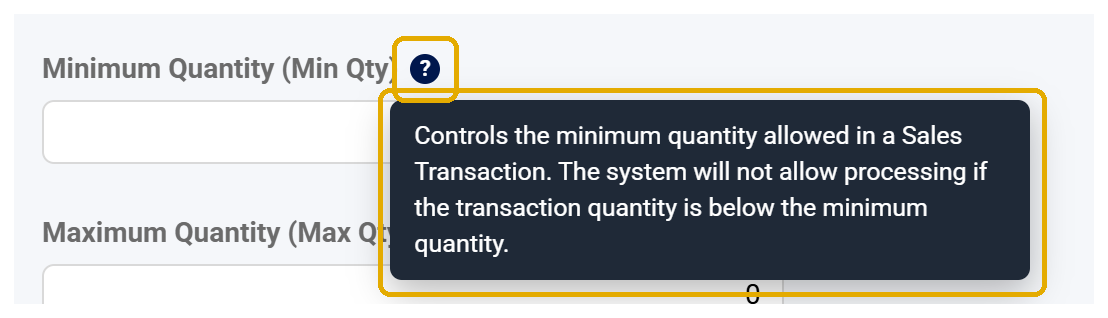
Click the ? next to Minimum Quantity (Min Qty) to read what it does:
Min Qty – Controls the minimum quantity allowed in a Sales Transaction. The system will not allow processing if the transaction quantity is below the minimum quantity.
Click Save. The cash registers get the new Min Qty when they sync.
Sell the Item in the Win App
In the Win App, search for the item, e.g. STK00007, and add it to the cart. The Quantity starts at the Min Qty, e.g. 2, instead of 1.
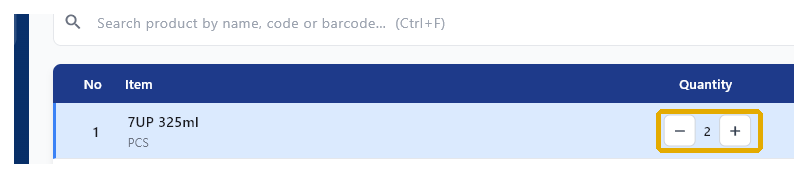
If the cashier lowers the Quantity below the Min Qty, e.g. to 1, and clicks Pay, the payment screen opens as usual:
Sales Summary – The Subtotal, Discount, Tax, Rounding and To Pay, e.g. RM 1.45 for 1 can.
Payment Summary – The payments taken, e.g. Cash RM 1.45, and the Change Due.
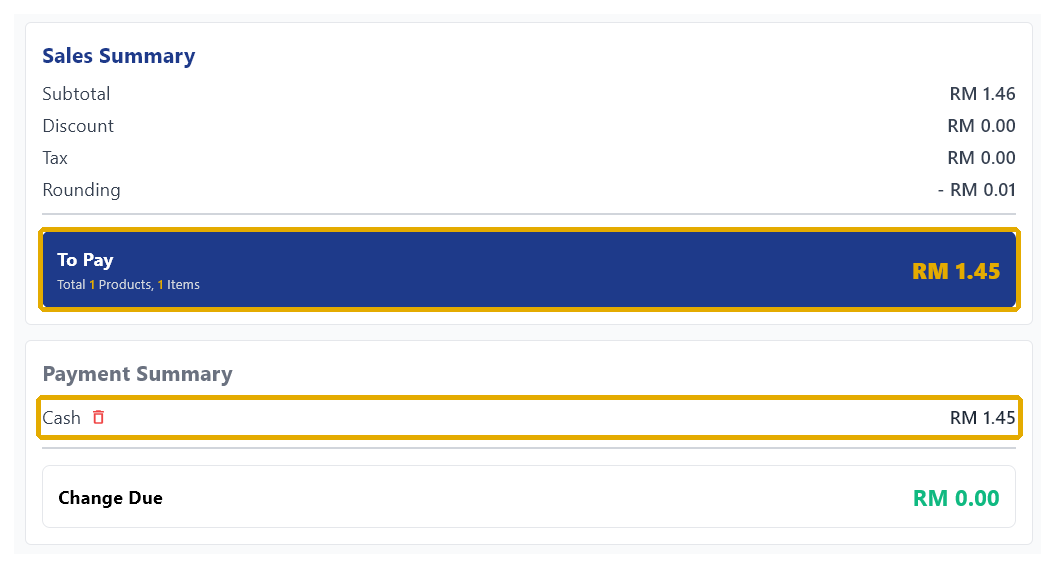
Click Enter to complete the sale. Because the Quantity is below the Min Qty, the sale is not completed and the Win App shows STK00007: quantity 1 (base UOM) is below order min 2.

Click Cancel to close the payment screen and go back to the cart. Then either:
Process the sale – Change the Quantity to the Min Qty or more, e.g. 2, click Pay, take the payment and click Enter.
Cancel the order – Remove the item from the cart, e.g. with the − button, then Remove.
What's Next :
Set the Min Qty only for items sold in sets or packs. For the other items, leave it at 0.
** Learn more about Azure Cloud
** Learn more about QNE Hybrid Cloud Software
Was this article helpful?
That’s Great!
Thank you for your feedback
Sorry! We couldn't be helpful
Thank you for your feedback
Feedback sent
We appreciate your effort and will try to fix the article
