Overview :
Quantity Precision and Price Precision set how many decimal places N3 AI POS shows and keys in for quantities and prices. The Number Format in Stock Setting applies to stock items and the stock documents: Stock Opening Balance, Stock Adjustment, Stock In, Stock Out and Stock Transfer. This article guides you through changing it and checking the result.
At the end of this article, you will be able to:
Change Quantity Precision and Price Precision in Stock Setting
Review and save the change
Check the result in a Stock Adjustment
Scenario :
A shop starts keeping some stock in part units, such as kilograms, so it needs 2 decimal places for stock quantities and 3 decimal places for stock prices. The owner changes Stock Setting from 0 / 2 to 2 / 3.
Solution :
Change Precision in Stock Setting
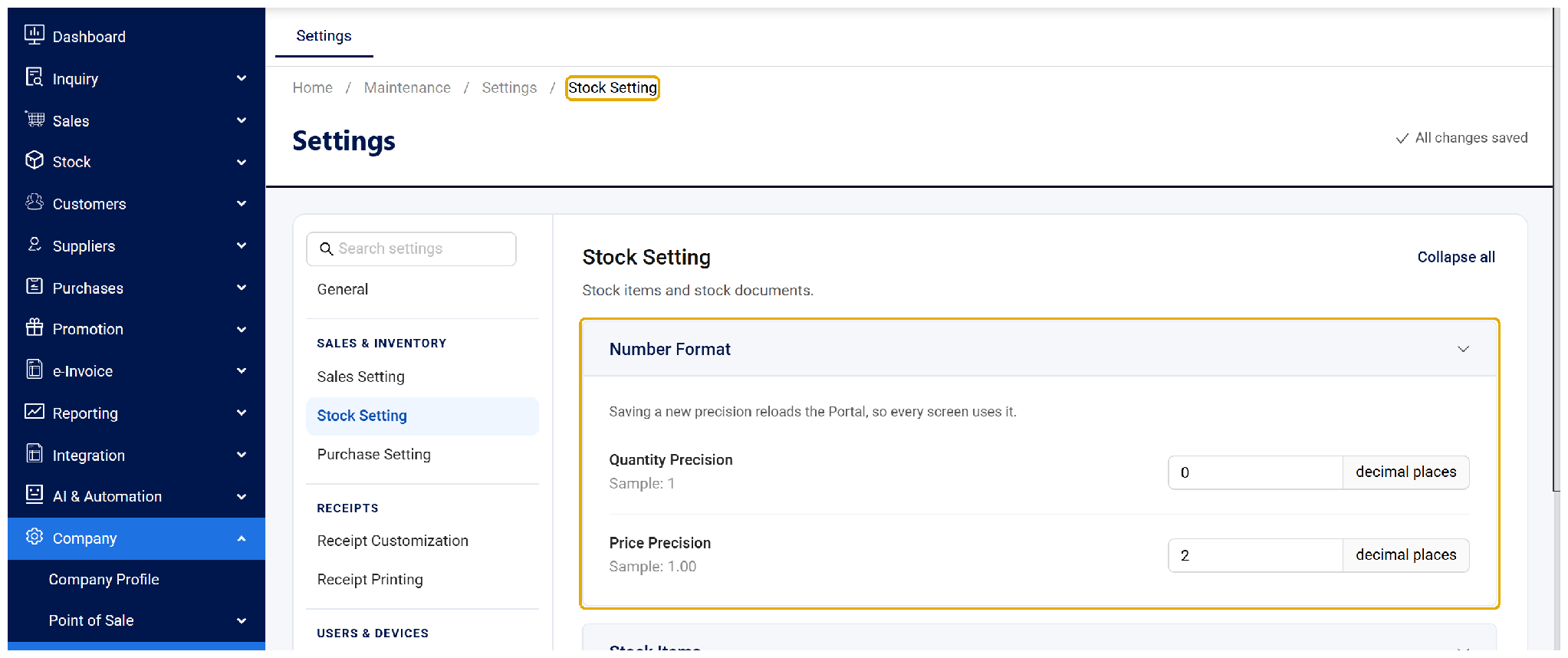
In the N3 AI POS Portal, navigate to Company > Maintenance > Settings and select Stock Setting. Number Format shows the current values, e.g. Quantity Precision 0 (Sample: 1) and Price Precision 2 (Sample: 1.00).
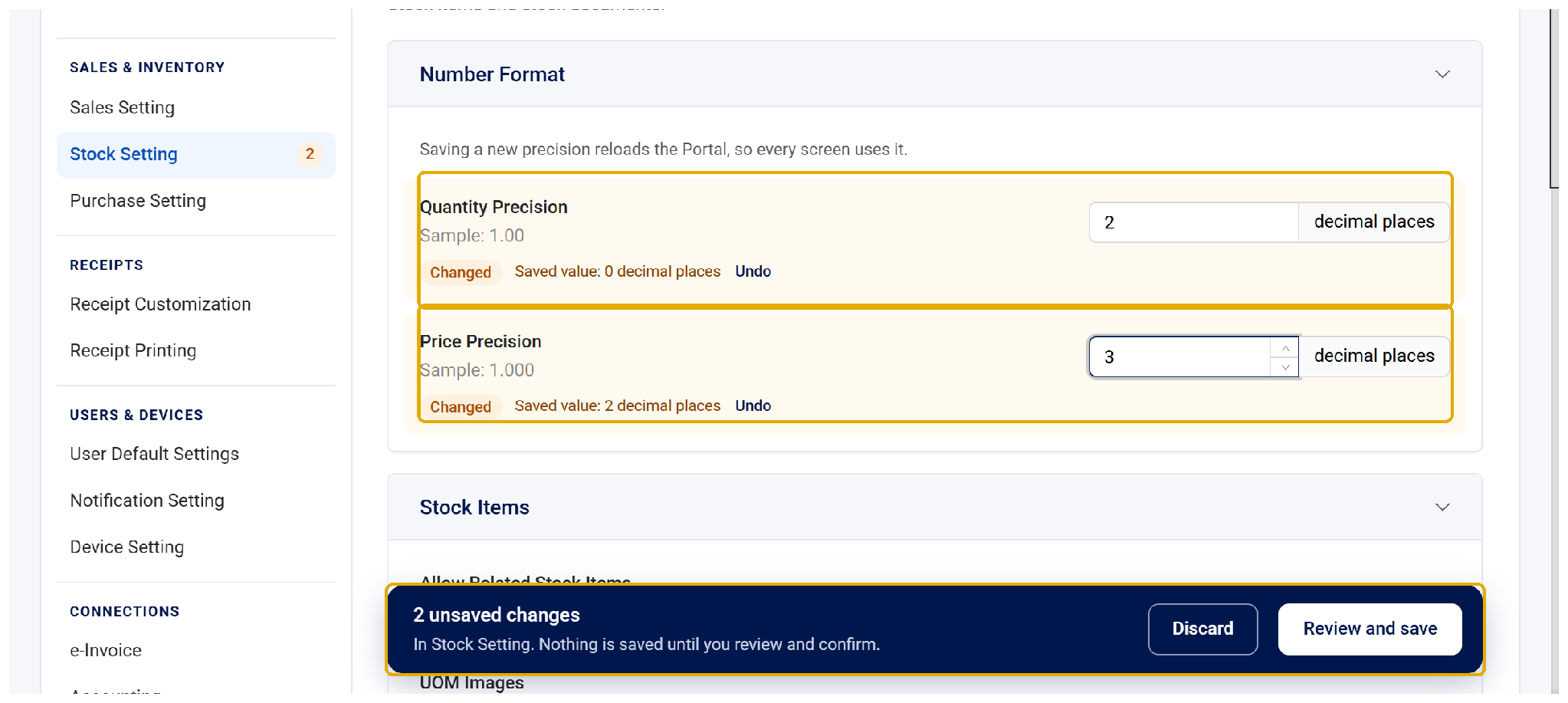
Key in the new number of decimal places, e.g. Quantity Precision 2 and Price Precision 3. Each changed row shows Changed, the Saved value and Undo, and the Sample updates, e.g. 1.00 and 1.000. A bar at the bottom shows the number of unsaved changes.
Quantity Precision – Decimal places for stock quantities.
Price Precision – Decimal places for stock prices and amounts.
Note: Precision changes are not saved automatically. Nothing is saved until you click Review and save and confirm. Click Discard to cancel the changes.
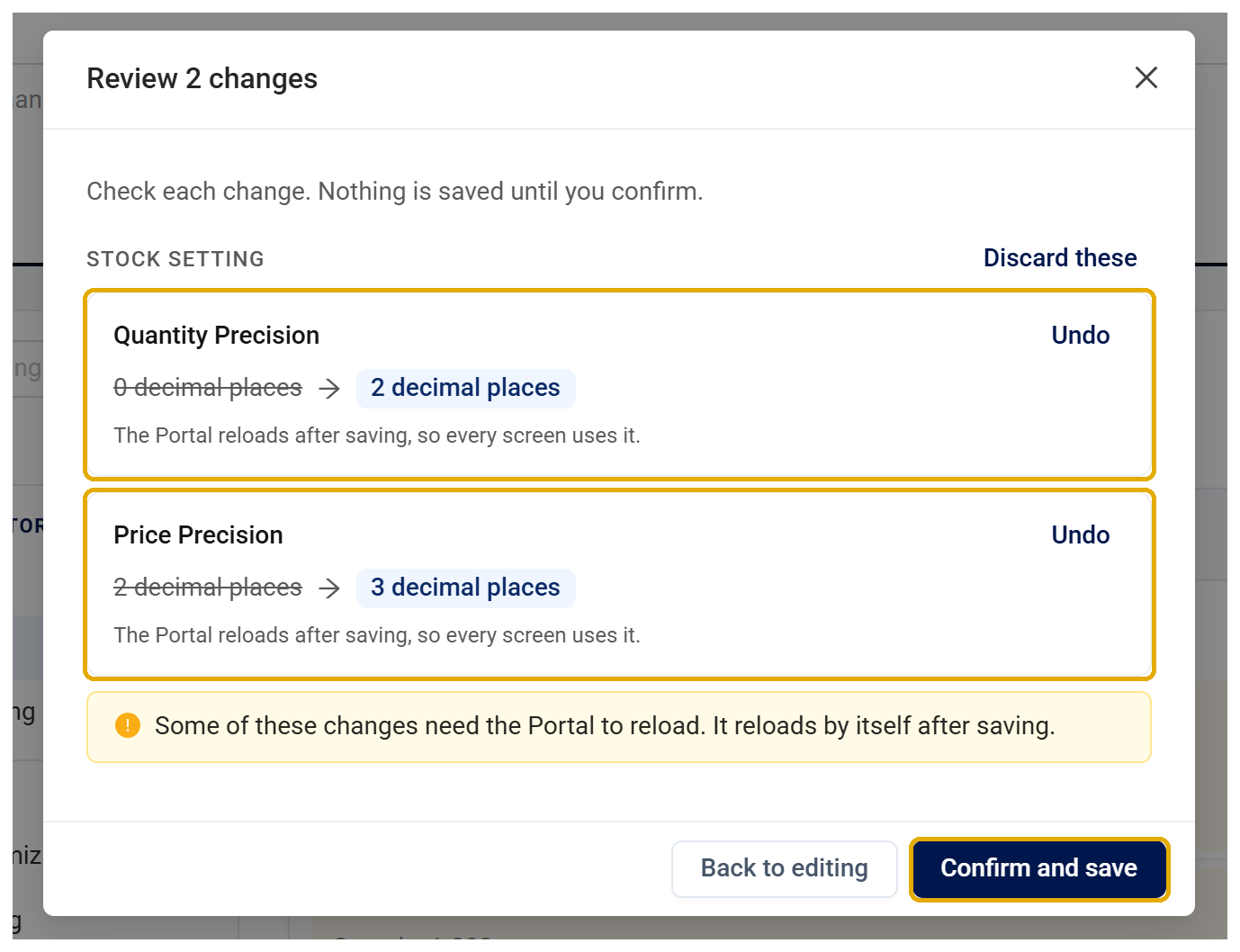
Click Review and save. The Review changes window shows each change, e.g. 0 decimal places → 2 decimal places and 2 decimal places → 3 decimal places. Click Undo to drop one change, or Back to editing to go back. Click Confirm and save.
Note: The Portal reloads by itself after saving, so every screen uses the new precision.
Result in a Stock Adjustment
Before (Stock Setting 0 / 2): a Stock Adjustment line for 7UP 325ml shows the Qty as a whole number, 12, and the Unit Price and Amount with 2 decimal places, 1.09 and 13.08.

After (Stock Setting 2 / 3): the same line shows the Qty with 2 decimal places, 12.50, and the Unit Price and Amount with 3 decimal places, 1.090 and 13.625 (12.50 × 1.09).

Stock Opening Balance, Stock In, Stock Out and Stock Transfer follow the same Stock Setting Number Format.
What's Next :
To set the precision for purchase documents, see How to Set Quantity and Price Precision in Purchase Settings in N3 AI POS. To create stock items, see How to Create, Edit, Clone & Delete Stock Master in N3 AI POS.
** Learn more about Azure Cloud
** Learn more about QNE Hybrid Cloud Software
Was this article helpful?
That’s Great!
Thank you for your feedback
Sorry! We couldn't be helpful
Thank you for your feedback
Feedback sent
We appreciate your effort and will try to fix the article
