Overview :
Cash Out records cash taken out of the drawer that is not a refund, e.g. petty cash to buy supplies or cash moved to the safe. The cash register takes it off the cash the drawer should hold, so the count at the end of the shift or session still balances.
At the end of this article, you will be able to:
Allow a cashier to record Cash Out
Record Cash Out in the Win App
Record Cash Out on Android
Scenario :
In the POS Sdn. Bhd. Live database, the cashier at SK Counter01 (Win App) and KL02 (Android) takes RM 10.00 out of the drawer to buy cleaning supplies, with the note Petty cash for cleaning supplies.
Solution :
Allow Cash Out in the Portal
Navigate to Company > Point of Sale > Cashier Roles, click the role name, e.g. Supervisor, and click Session.
Turn on Cash Out (Record cash taken out of the drawer.) and click Save.

To print a slip for each Cash Out, see How to Print Cash In and Cash Out Slips in N3 AI POS.
Record Cash Out in N3 AI POS Win App
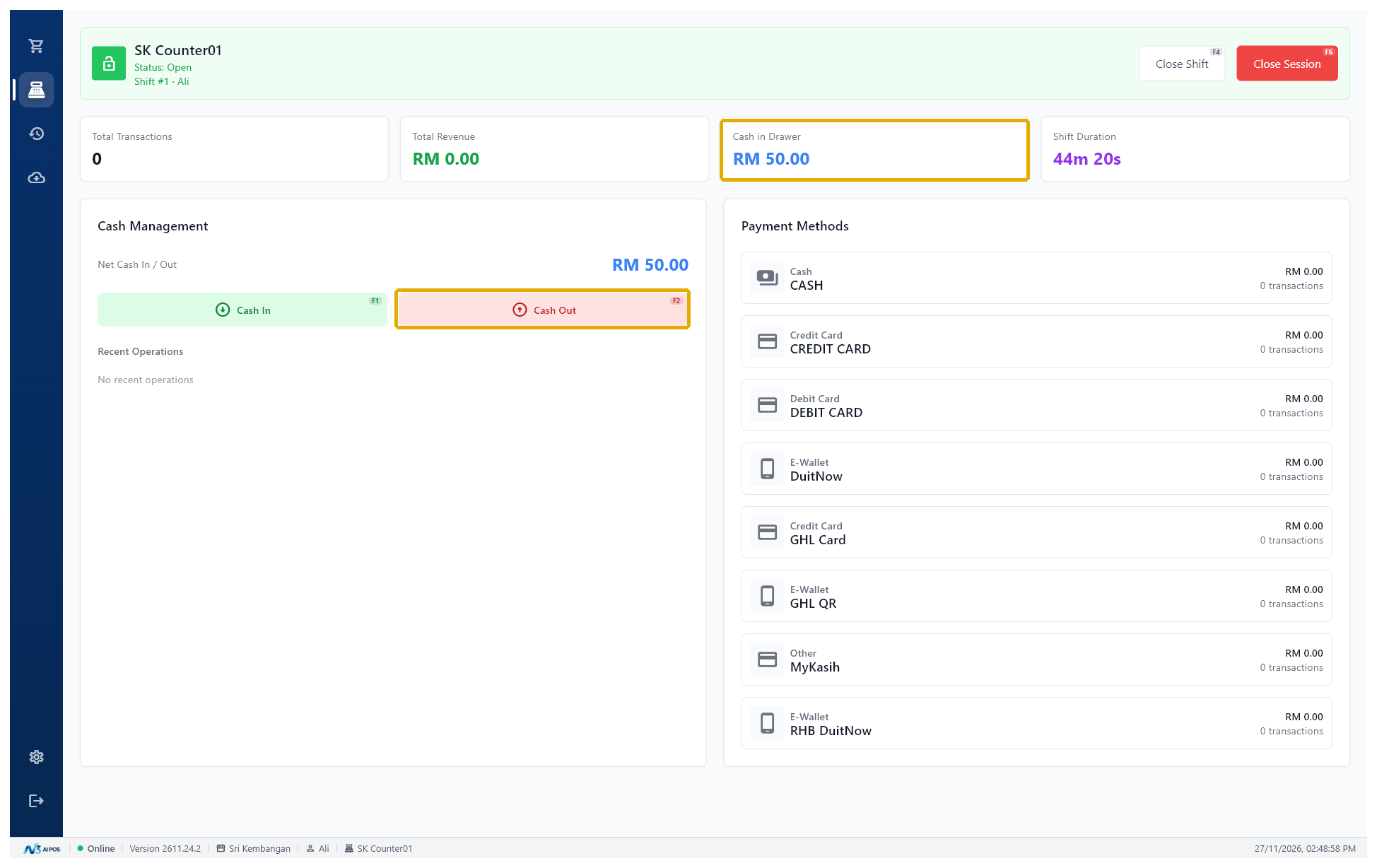
Click the Session icon on the left. Cash in Drawer shows the cash now. Click Cash Out (F2).
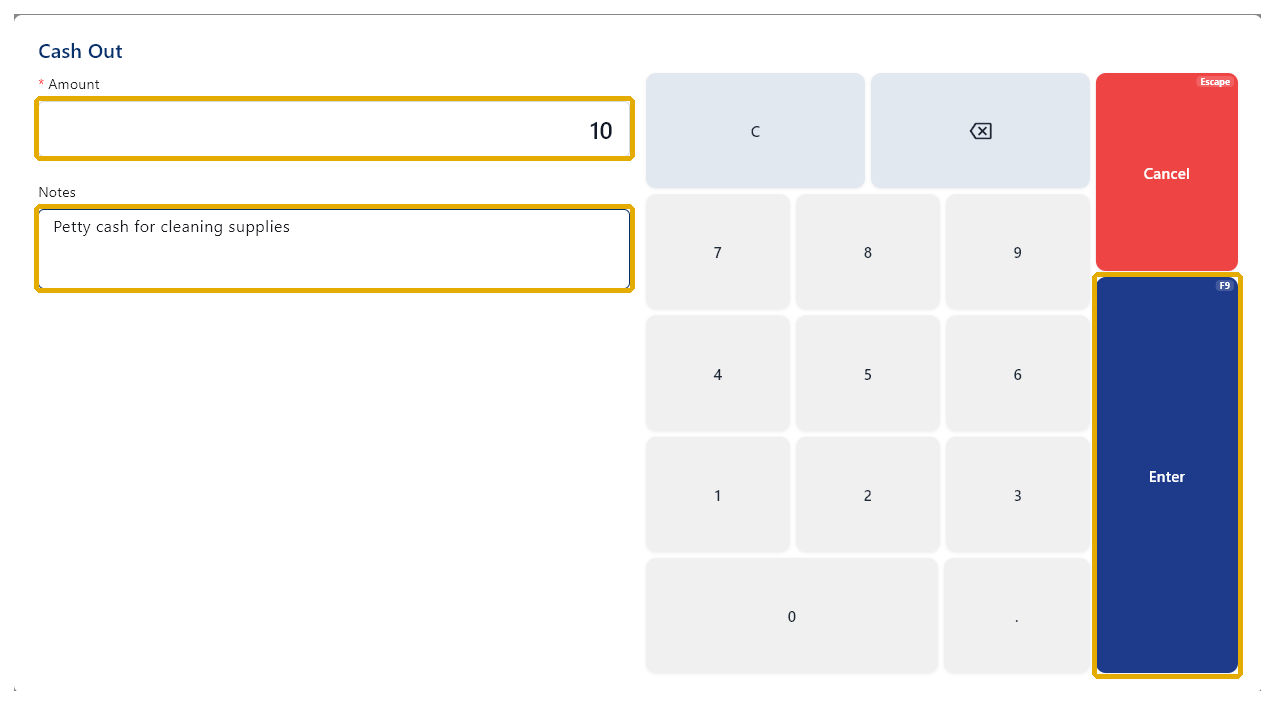
Key in the Amount, e.g. 10, and the reason in Notes, e.g. Petty cash for cleaning supplies. Click Enter (F9).
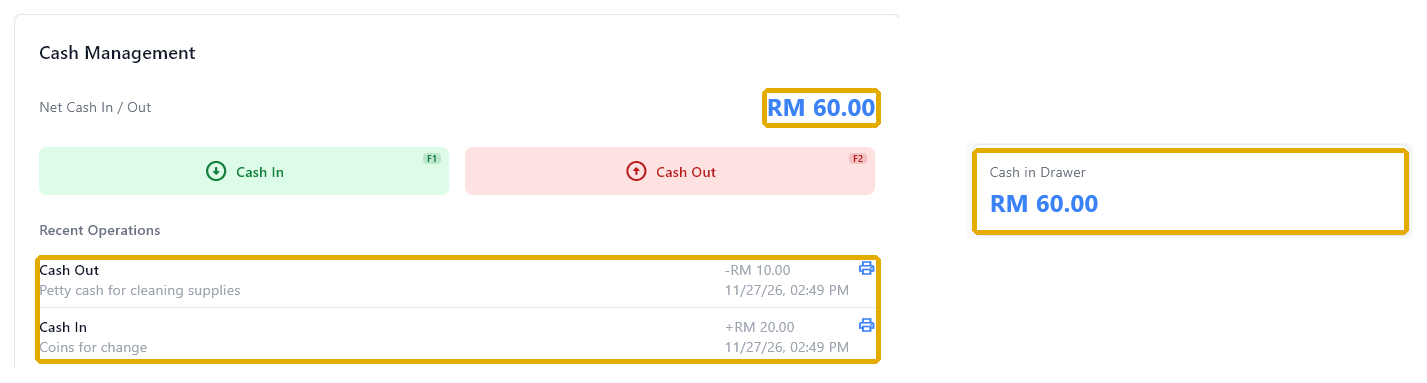
Result: Recent Operations lists the entry, e.g. Cash Out -RM 10.00 Petty cash for cleaning supplies, with its time, and Cash in Drawer goes down by the amount, e.g. from RM 70.00 to RM 60.00. Click the printer icon to Reprint receipt.
Record Cash Out in N3 AI POS Android App
Tap the Session tab and tap Cash Out (left).
Key in the Amount, e.g. RM 10, and the reason in Notes, e.g. Petty cash for cleaning supplies. Drawer now and Drawer after this show the cash before and after, e.g. RM 70.00 and RM 60.00. Tap Record Cash Out · RM 10.00, then Print or Skip for the slip.
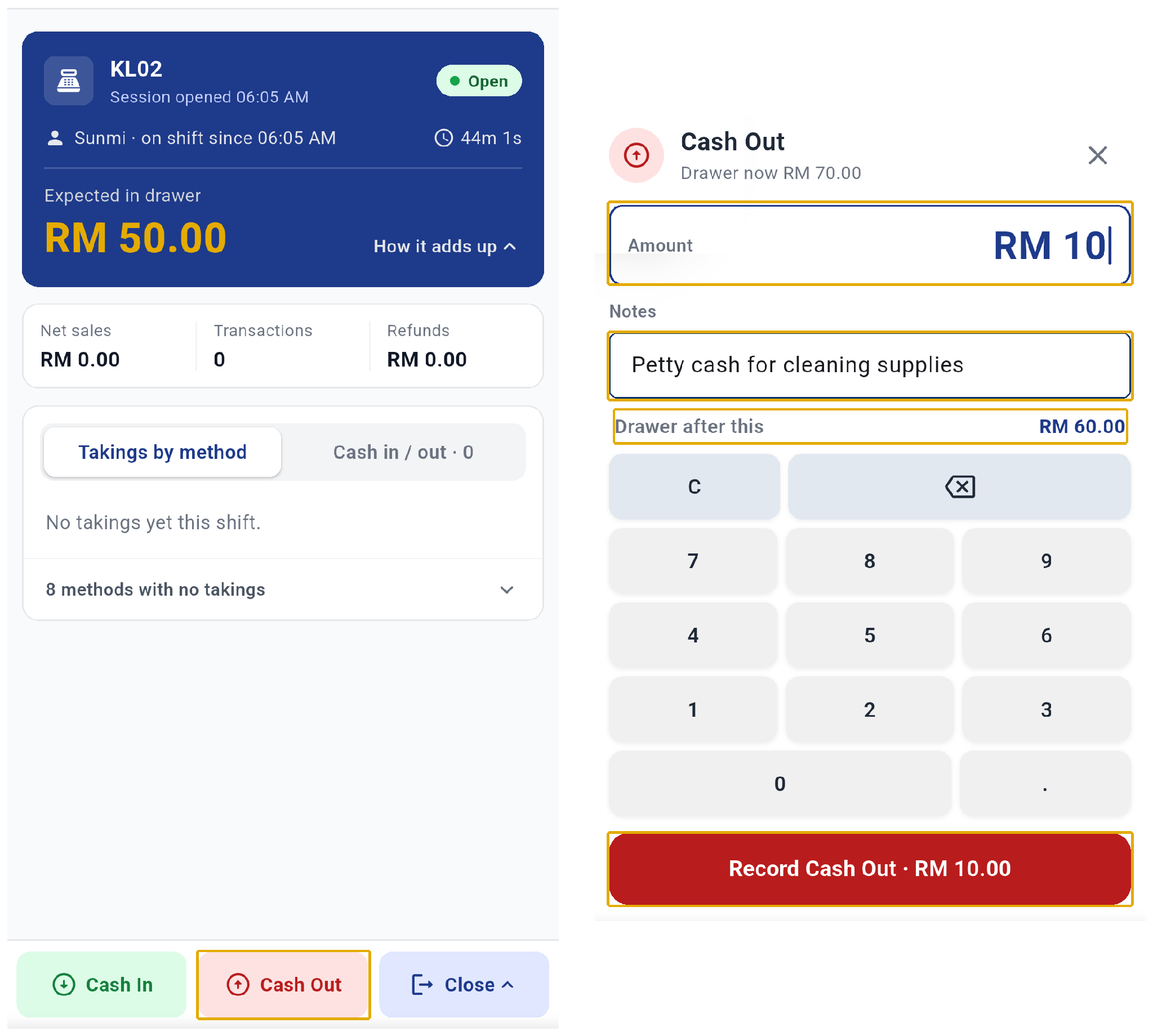
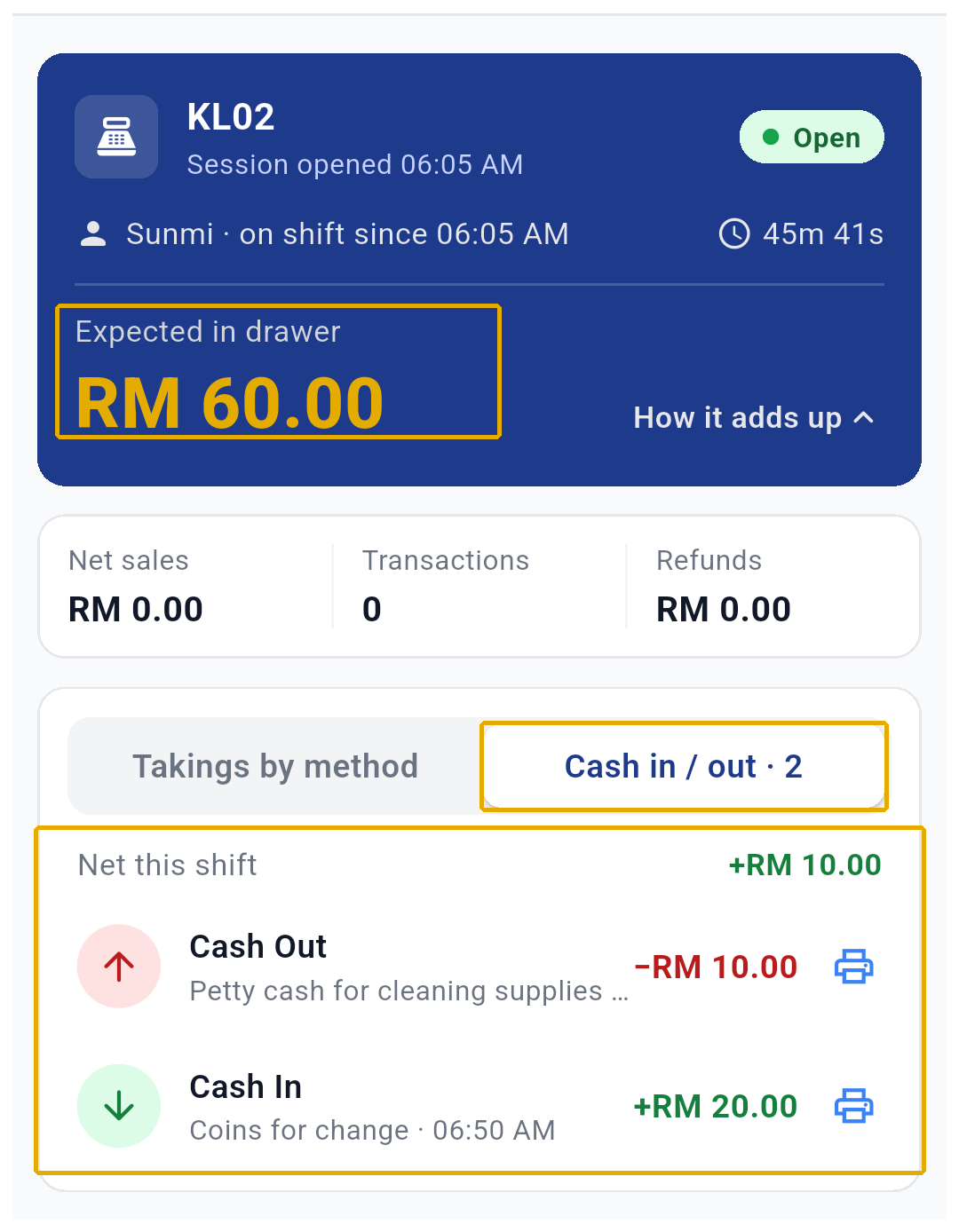
Result: Expected in drawer shows RM 60.00. Tap Cash in / out to see the entry, e.g. Cash Out −RM 10.00. Tap the printer icon to reprint the slip.
What's Next :
To put cash into the drawer, see How to Record Cash In in N3 AI POS. The Cash Out is taken off the Expected Amount when the shift or session closes.
** Learn more about Azure Cloud
** Learn more about QNE Hybrid Cloud Software
Was this article helpful?
That’s Great!
Thank you for your feedback
Sorry! We couldn't be helpful
Thank you for your feedback
Feedback sent
We appreciate your effort and will try to fix the article
