Scenario:
After completing the On-Boarding Process, let’s get started with the company basic setups.
Solution:
Before you start to key-in all your transactions, you still need to go through some basic setup, primarily to fill the information of your company on the Company Profile screen.
1. To do this, go to the Navigation Pane, click Company > Company Profile.
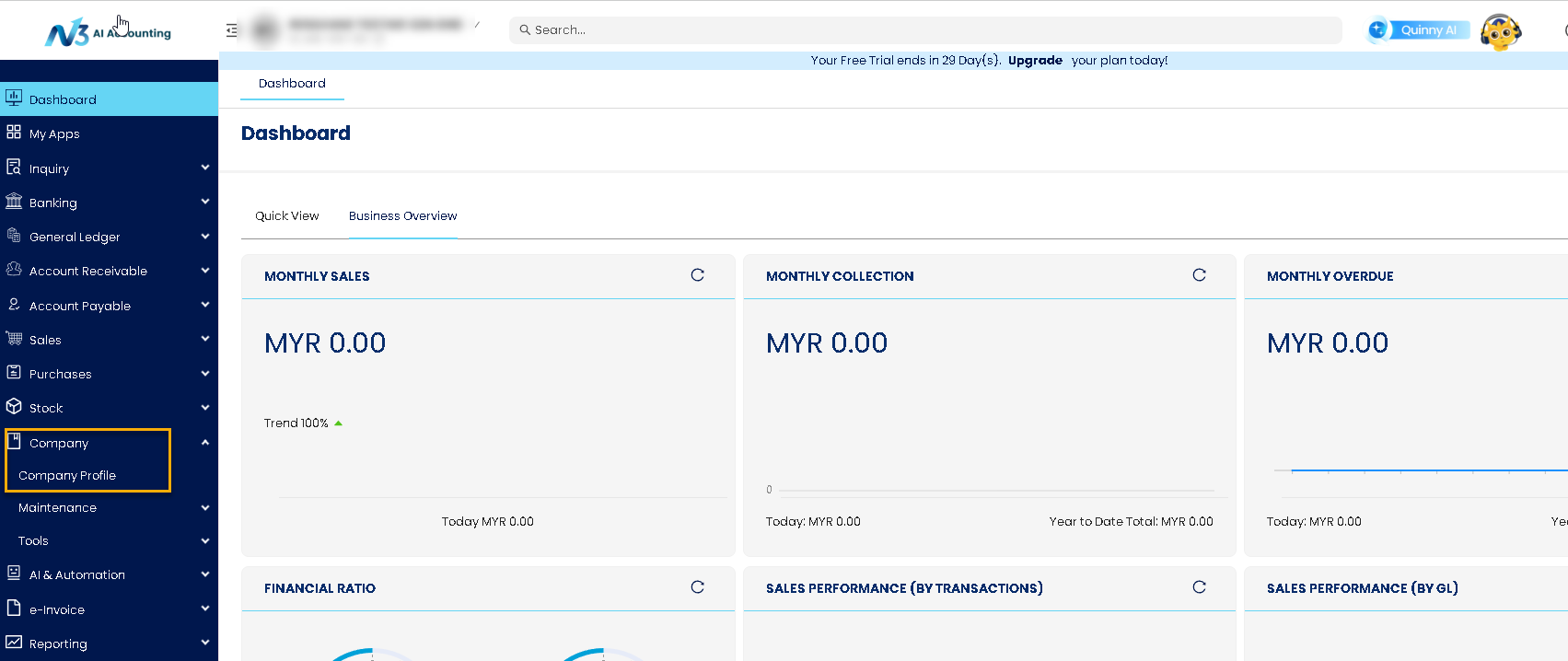
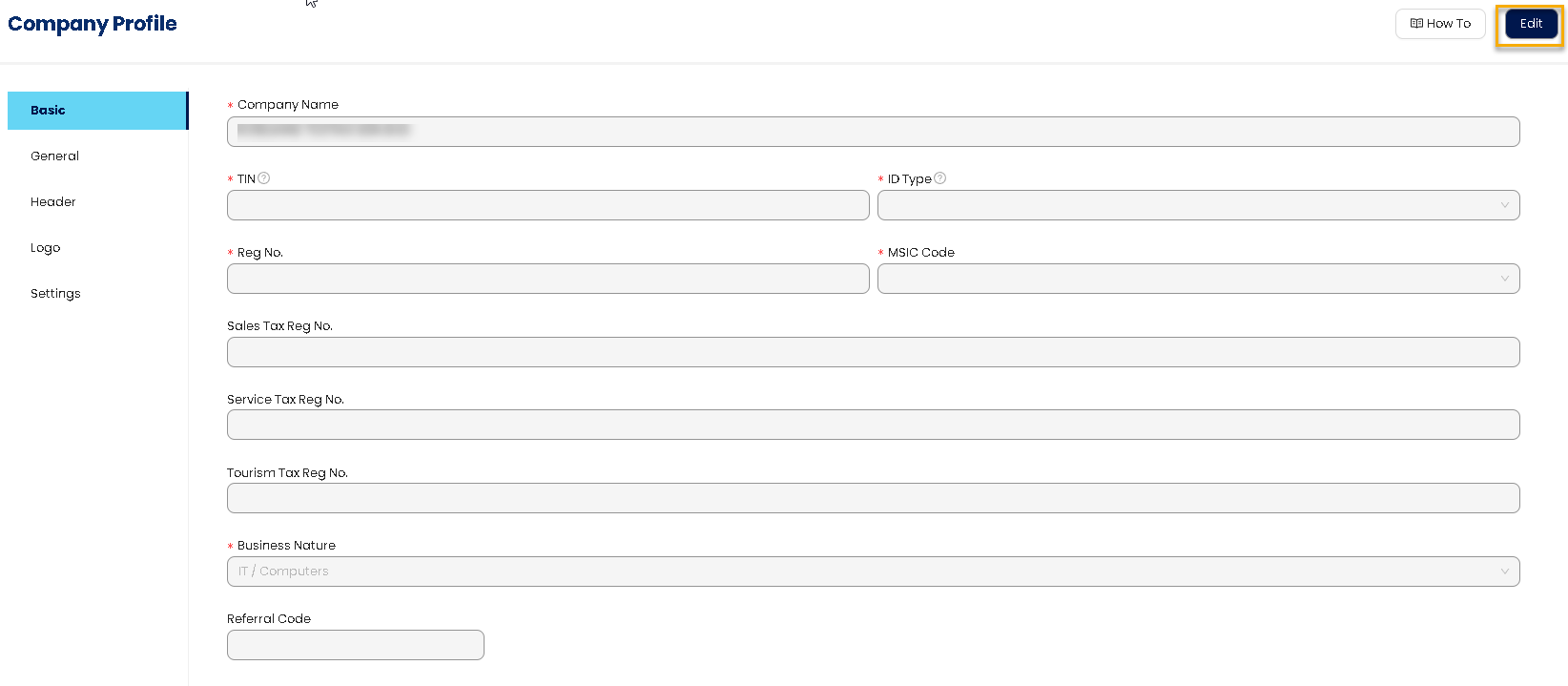
2. There are several tabs under Company Profile: Basic, General, Header, Logo and Settings.
Basic Tab: To modify, click ‘Edit’. Update all the necessary details
* TIN - Click HERE to learn how to check your company TIN
* ID Type
* Reg No. (Use the latest / new ROC)
* MSIC Code - Update the main industrial classification if you have multiple
* Business Natures
* Referral Code - (Leave it empty if you do not have Referral Code)
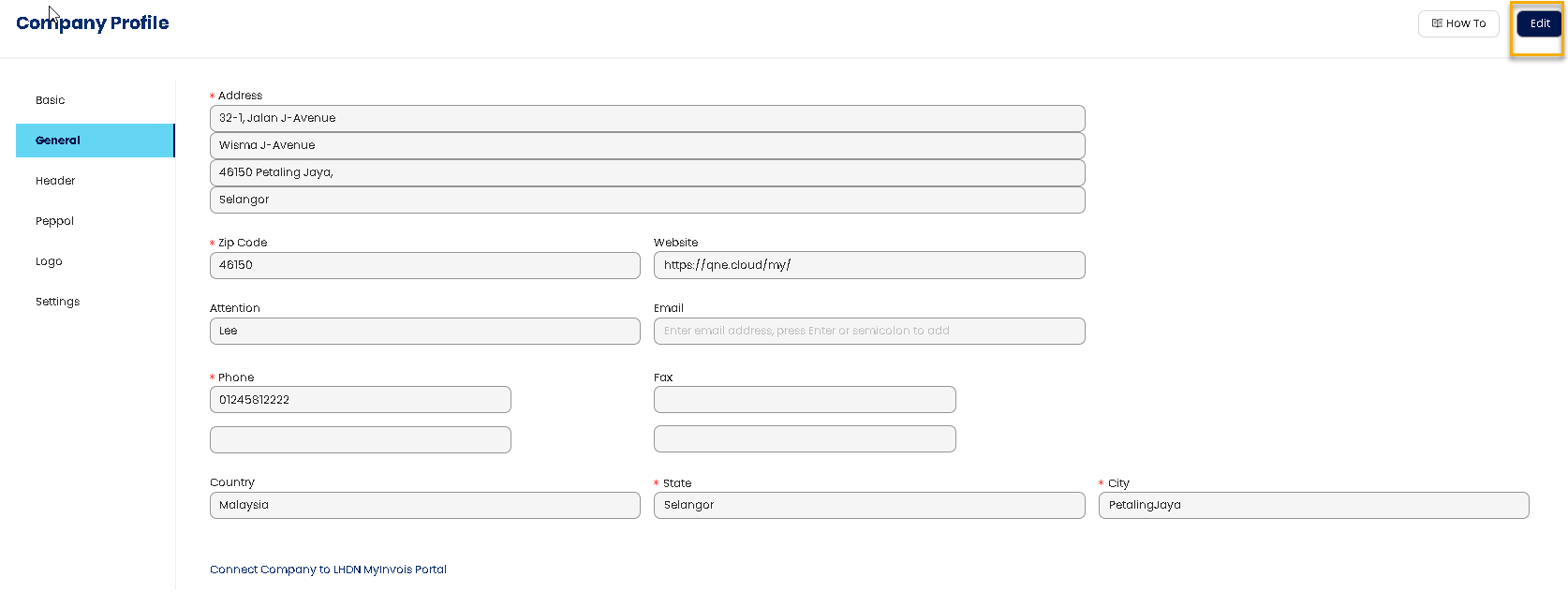
3. General Tab: where you can enter the Company Address, Website, Contact Person, and Contact Number. Click Edit
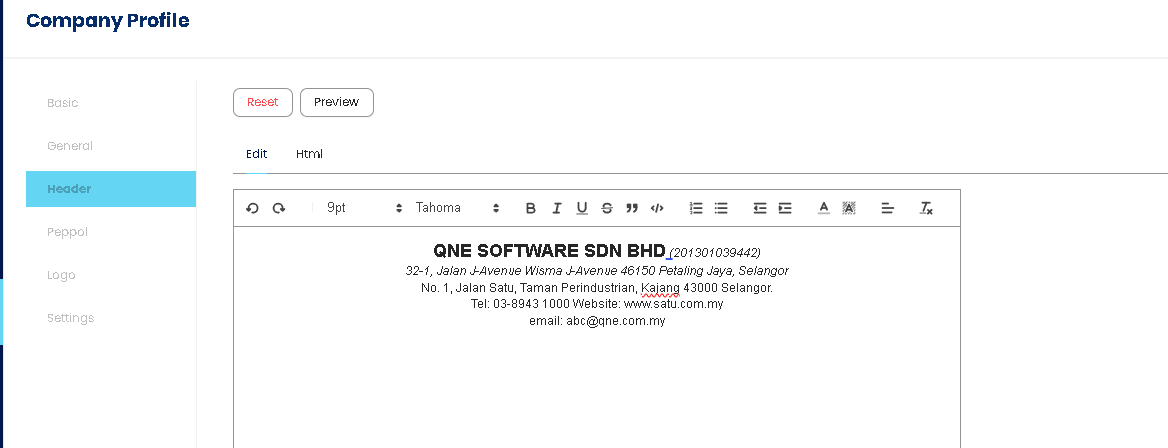
4. Header Tab: click Edit, you can finalize your Company Report Header look, and further change the formatting styles by adjusting the Font Style, Color, Size, Alignment, etc.
If you want to revert the Header to the default format based on the latest changes in the Basic and General tabs, click Reset.
Need help amending company letter head? Click HERE to learn more
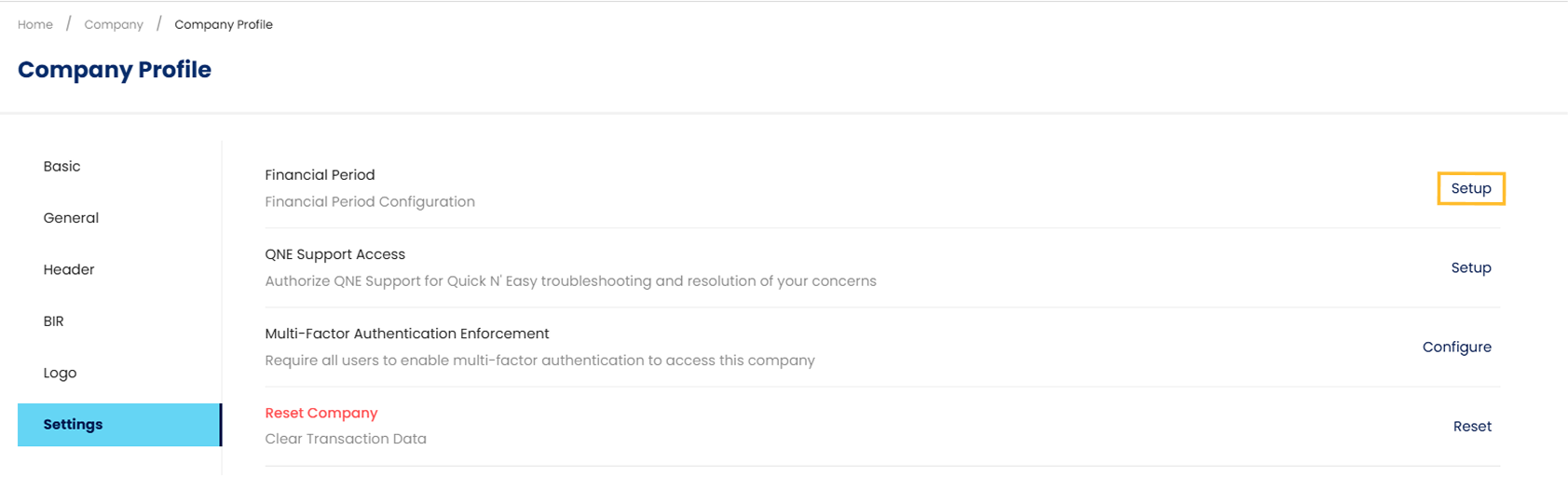
5. Settings Tab: Click Setup besides Financial Period. Which was initially set up during on-boarding can be edited in the Financial Period tab, provided no posted transactions have yet been made.
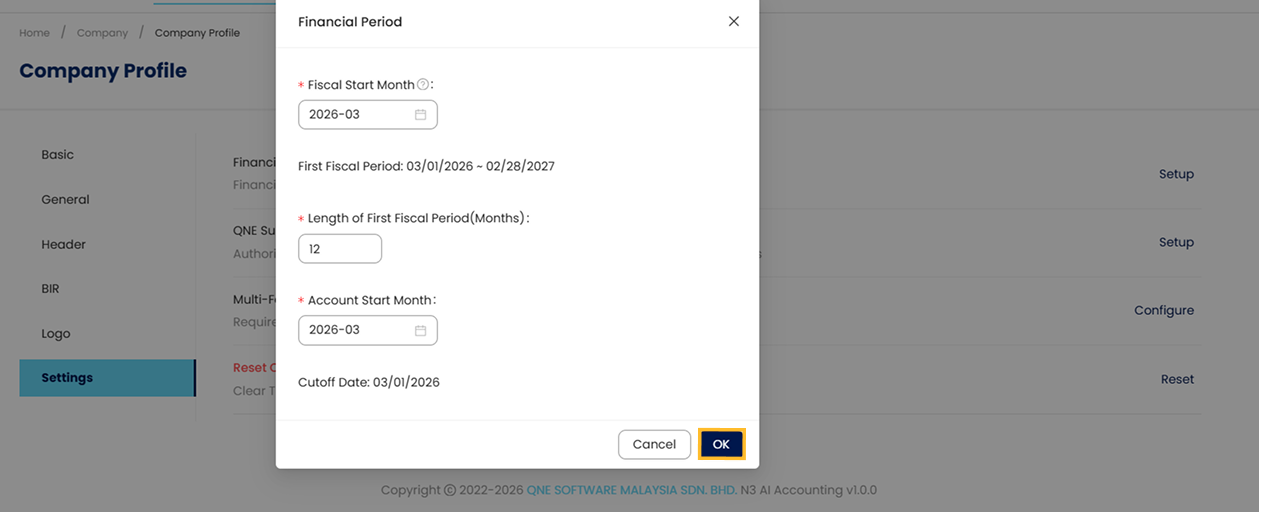
A pop-up window will appear, allowing you to edit the Financial Period details. Click the OK button.
Need help setting financial Period? Click HERE to learn more
6. Logo Tab: Allows you to remove or change the uploaded logo, or upload one in case you have skipped this step during the on-boarding process.
To do this, click the Edit button and upload the logo
Need help adjusting company Logo Size? Click HERE to learn more

NOTES
At Company > Company Profile, click Edit to modify Company Basic Info. Fill in your Sales Tax or Service Tax where applicable.
You may still modify the Company Header under Header tab.
Financial Period and Cut-Off Date can still be edited, provided no transactions have been posted.
You may remove or replace the Company Logo under Logo tab.
Remember to click on Save to apply all the changes you have made.
Related Article:
How to check income tax number online?
How to amend company letterhead for N3 AI Accounting ?
How to amend company logo size
Click HERE to continue next article about how to setup Chart of Account?
System Scope: QNE AI Cloud Accounting / N3 AI Accounting
Was this article helpful?
That’s Great!
Thank you for your feedback
Sorry! We couldn't be helpful
Thank you for your feedback
Feedback sent
We appreciate your effort and will try to fix the article
