Overview:
Train my QuickScan is a N3 AI Accounting (formerly QNE AI Cloud Accounting)
feature to automate the keywords detected during document conversion in QuickScan. Creating rules and criteria will ensure that data extraction aligns precisely with a business's document processing requirements
Scenario:
Create rules and criteria to detect the supplier invoice details
Solution:
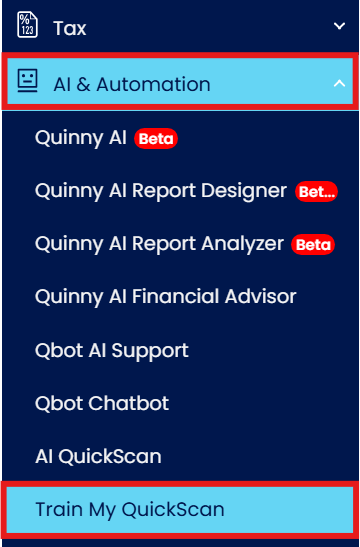
Under Navigation, go to AI & Automation > Train my Quickscan.
Click the ‘Add’ button to create another rule.

Enter the rules and criteria for detecting keywords.
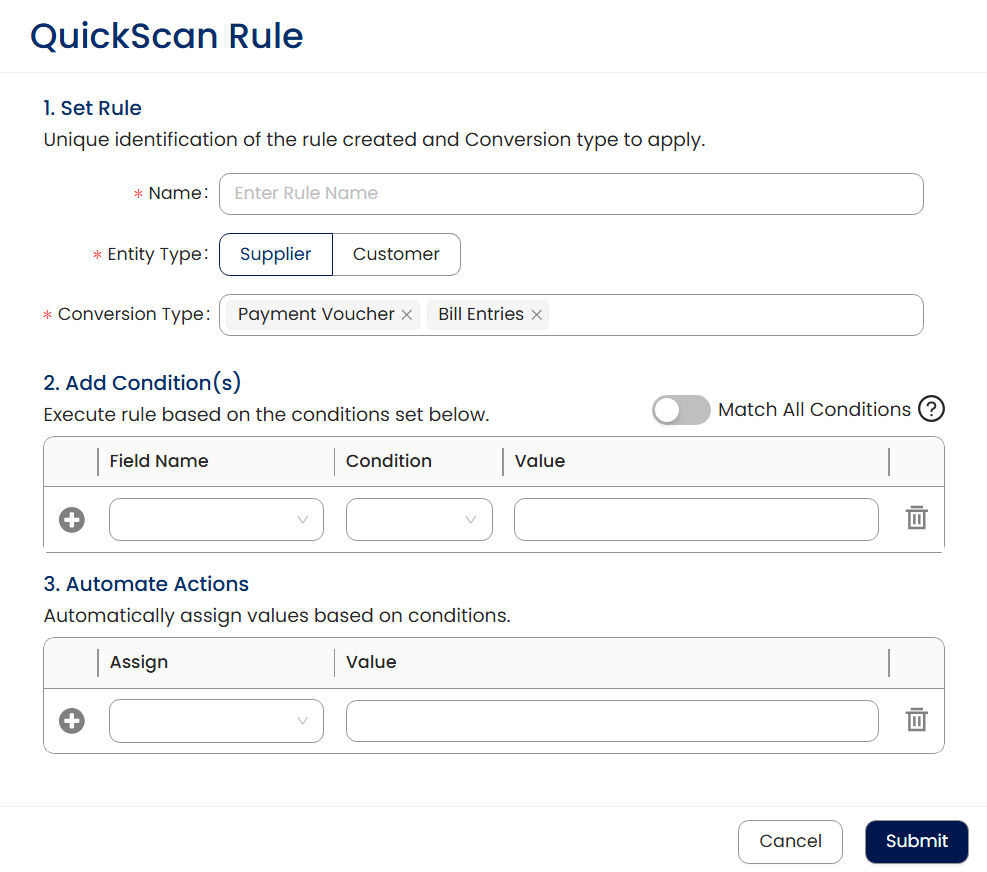
Set Rule
Name: Enter a name for the rule
Conversion Type: Select which transactions the rule will be applied.
Add Condition(s)
Match All Conditions: If ticked, all conditions must be met to perform the action, else any of the conditions can trigger the actions
Field Name: Fields available to be detected
Condition: Options for comparison (Contains, Equals, Starts with, Ends with, Is Blank, In)
Value: Condition Value
Automate Actions
Assign: Fields to automatically fill in after meeting the condition
Value: Value to fill input on the fields
Example:
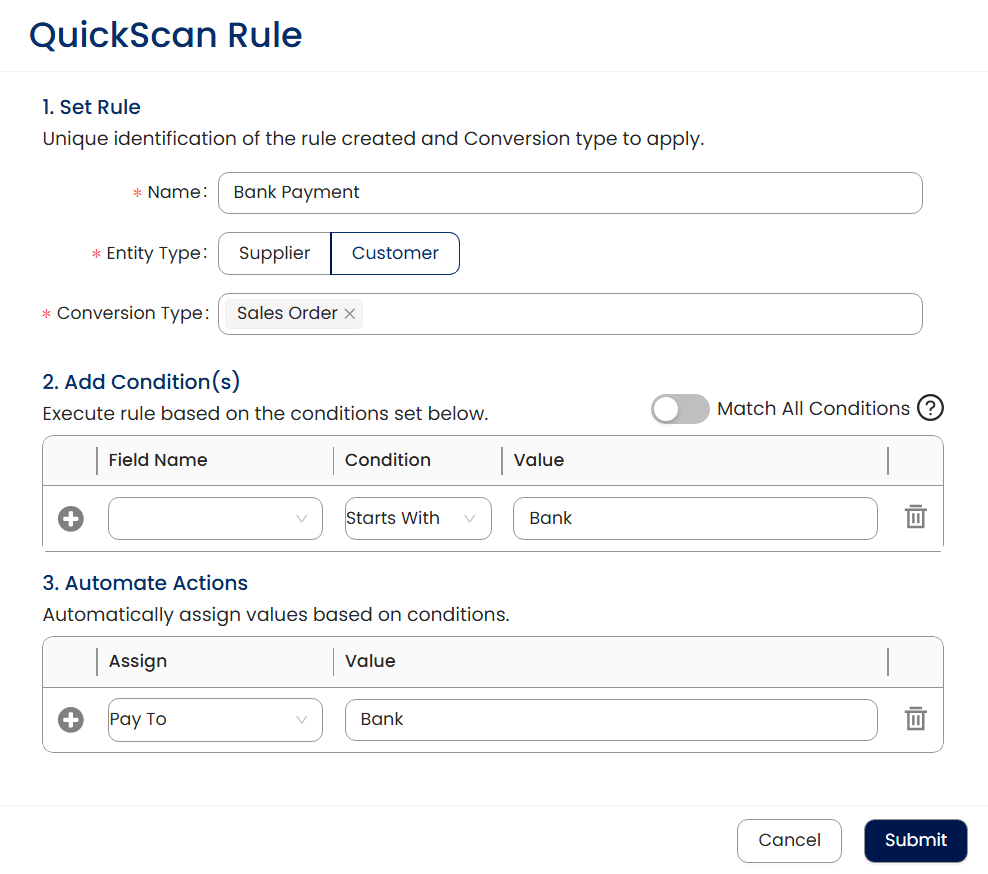
Once done, click the 'Submit' button.
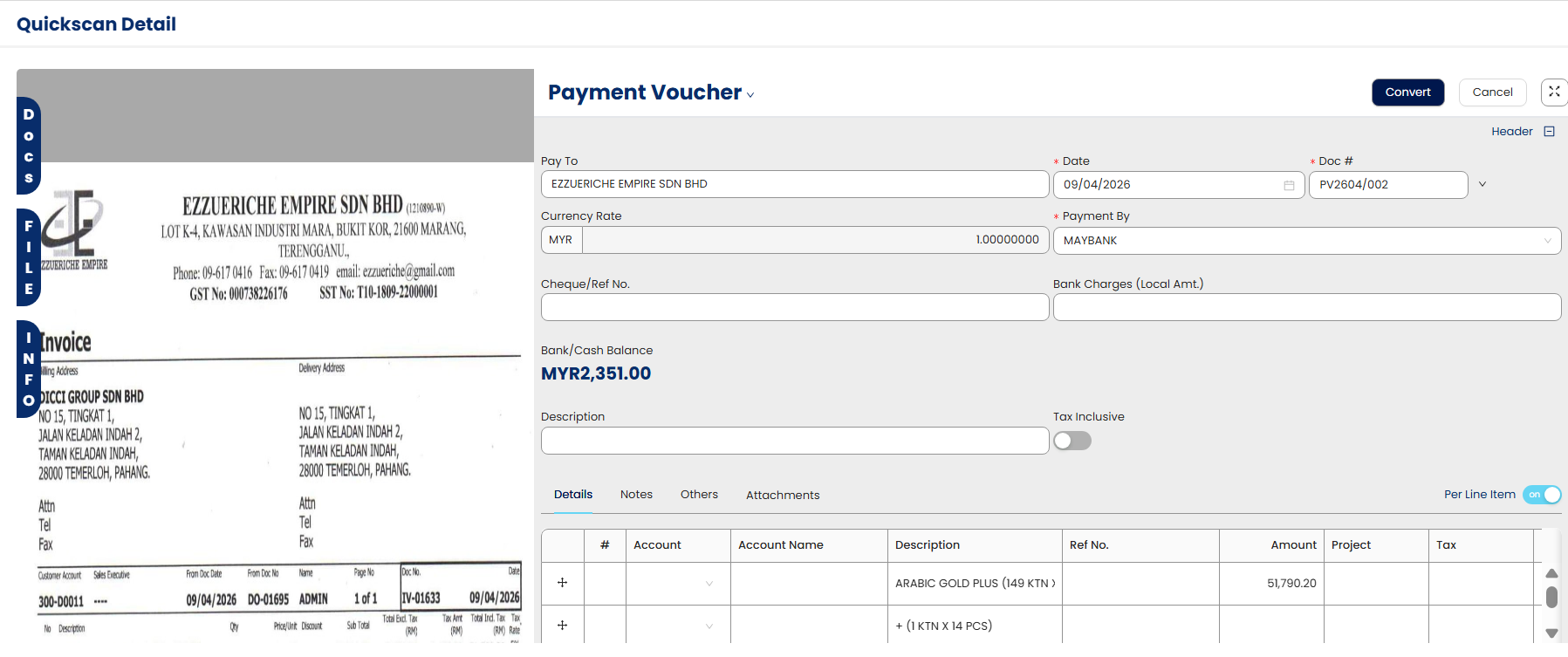
Convert the document to QuickScan.
System Scope: QNE AI Cloud Accounting / N3 AI Accounting
Was this article helpful?
That’s Great!
Thank you for your feedback
Sorry! We couldn't be helpful
Thank you for your feedback
Feedback sent
We appreciate your effort and will try to fix the article
