Overview
Under LHDN’s latest requirement, sole proprietors need to complete a simple setup in the LHDN MyTax Portal before issuing e-invoices using their Business Registration Number (BRN).
This step is to recognise you as the Business Owner and to link your personal Tax Identification Number (TIN – IG series) to your business. Once this is done, you’ll be able to submit e-invoices smoothly using your BRN.
Scenario
Have you ever noticed the MyInvois Portal displaying your personal tax details instead of your business information? Or wondered what steps a sole proprietor needs to take before submitting an e-invoice?
You’re in the right place ? We’ll walk you through the entire process step by step, so you’ll know exactly what to do before you start submitting your e-invoices.
Note: This step is applicable for both sandbox and production environments
Step-by-Step Application Process for Business Owner Role in MyTax Portal
Please note that your MyTax login will use the owner’s personal details (ID and password). To get your sole proprietorship registered as a Business Owner on the MyTax Portal, simply follow these steps for a smooth and successful registration:
Login to MyTax Portal
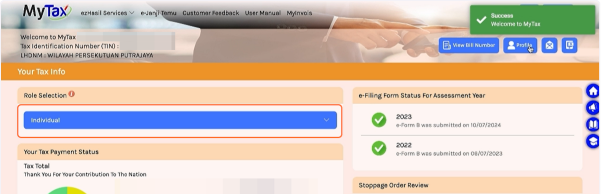
Access MyTax Portal and login to your account. If the Business Owner role has not yet been assigned, you’ll initially only see the ‘Individual’ listed under the Role Selection.
Access Profile Information
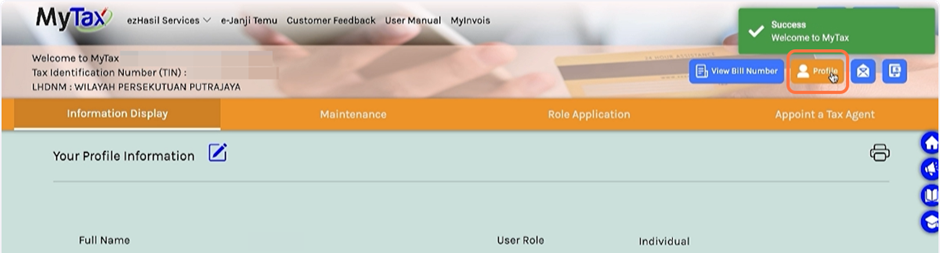
Click on the Profile icon location in the top right corner of the page. This will direct you to your profile information.
Navigate to Role Application Tab
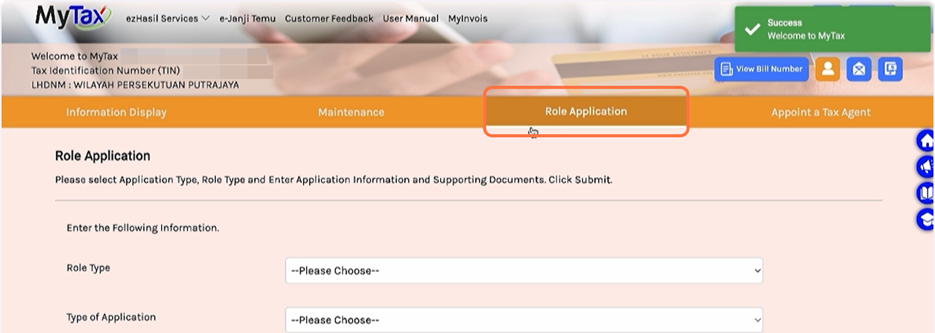
In the Profile information, click on the Role Application available on the navigation bar.
Fill in the Required Information
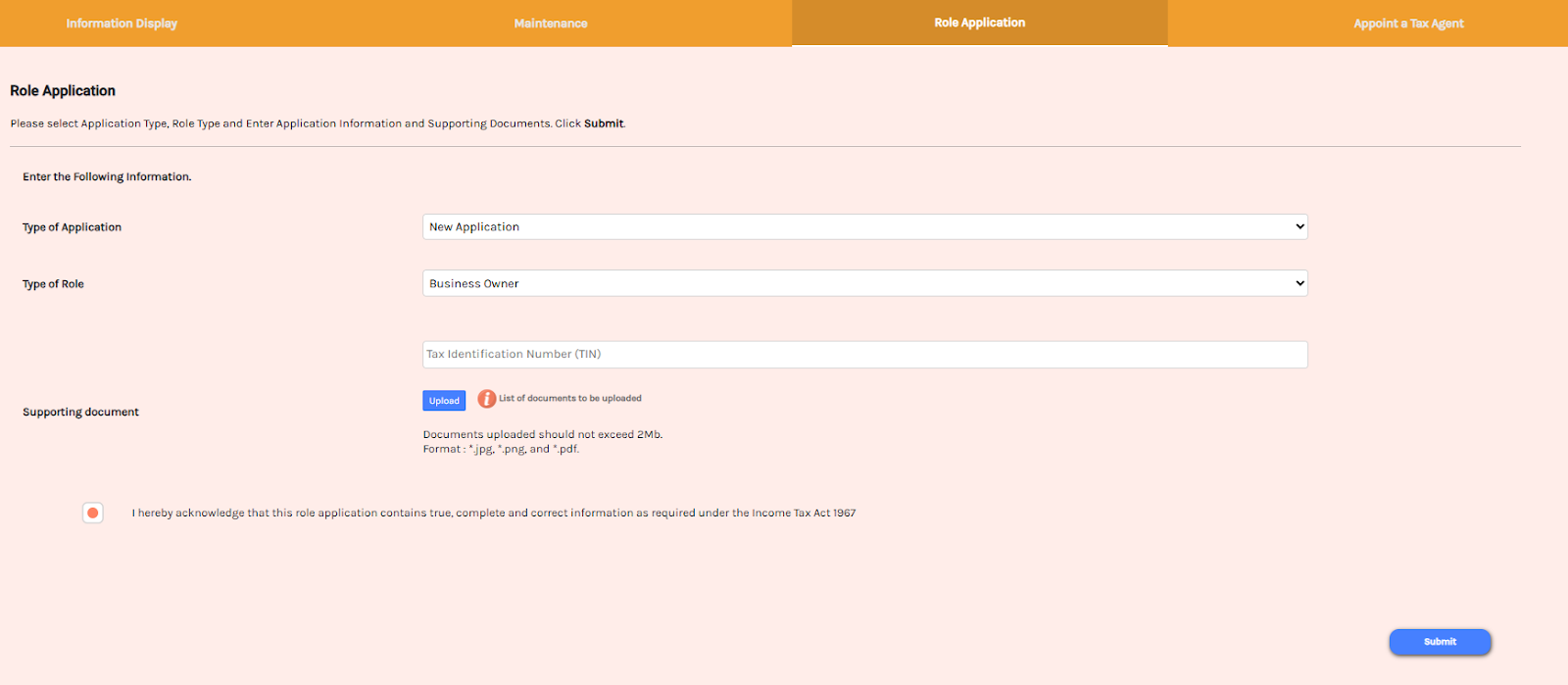
On the Role Application page, sole proprietors are required to apply for the Business Owner role.
Type of Application: New Application
Type of Role: Business Owner
Tax Identification Number (TIN): provide your own personal TIN
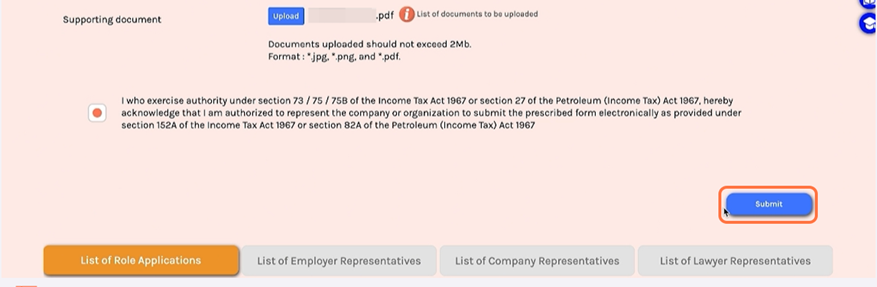
Supporting Documents: Attach your sole proprietor SSM
Tick the acknowledgement box to confirm the accuracy of the details provided
Sign and Submit
Once the required information has been provided, a signature view will appear. Please follow the prompts to digitally sign your application.
Await Approval
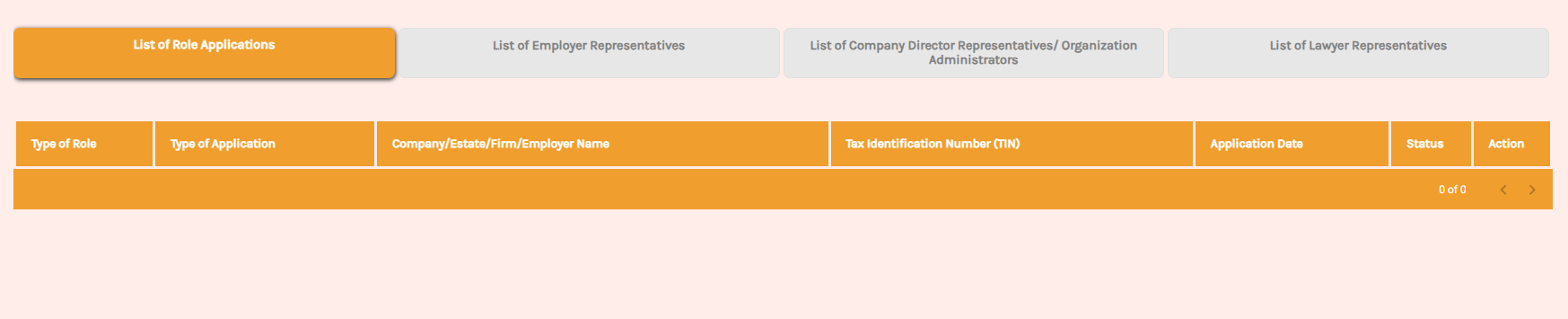
After successfully completing the digital signature, a success notification will be displayed. You will receive an email notification regarding the outcome of your role application.
Done!
** Learn more about Azure Cloud
** Learn more about QNE Hybrid Cloud Software
System Scope: QNE AI Cloud Accounting / N3 AI Accounting
Was this article helpful?
That’s Great!
Thank you for your feedback
Sorry! We couldn't be helpful
Thank you for your feedback
Feedback sent
We appreciate your effort and will try to fix the article
