Overview
The Delivery Order (DO) module allows users to create, manage and track the delivery of goods to customers. It serves as a document to record the items, quantities and delivery details before the goods are delivered to the customer.
The Delivery Order helps users maintain accurate records of outgoing goods, monitor delivery status, and ensure that the delivered goods matched the customer’s order requirements. Users may create a Delivery Order manually or transfer the details from an existing Sales Order to avoid duplicate data entry and improve processing efficiency.
The Delivery Order can also be used as a reference document for generating a Sales Invoice after the goods or services have been delivered.
Scenario
Scenario 1: Creating a Delivery Order Manually
The company needs to record a delivery but does not have a Sales Order created in the
system.
Solution
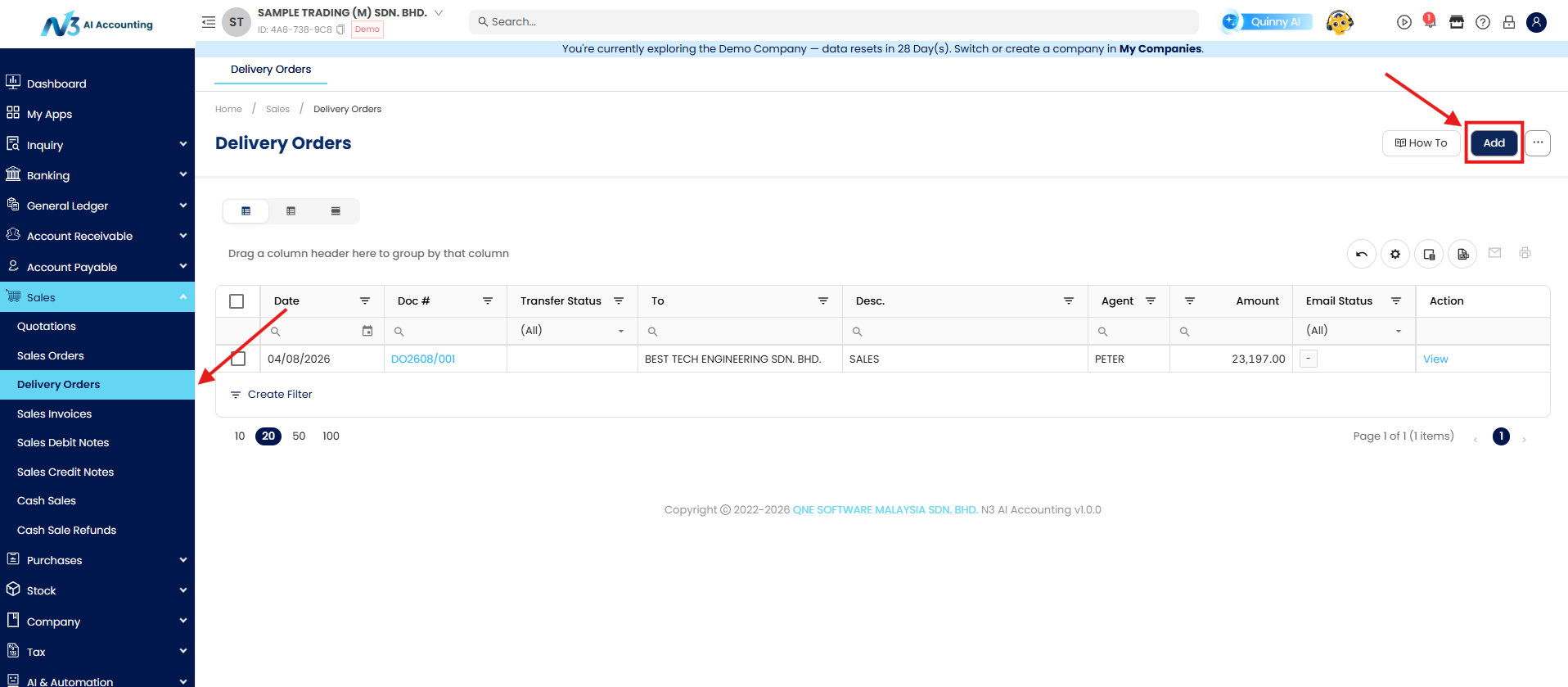
Go to Sales module > Delivery Orders > Add to create Delivery Order directly in the system.
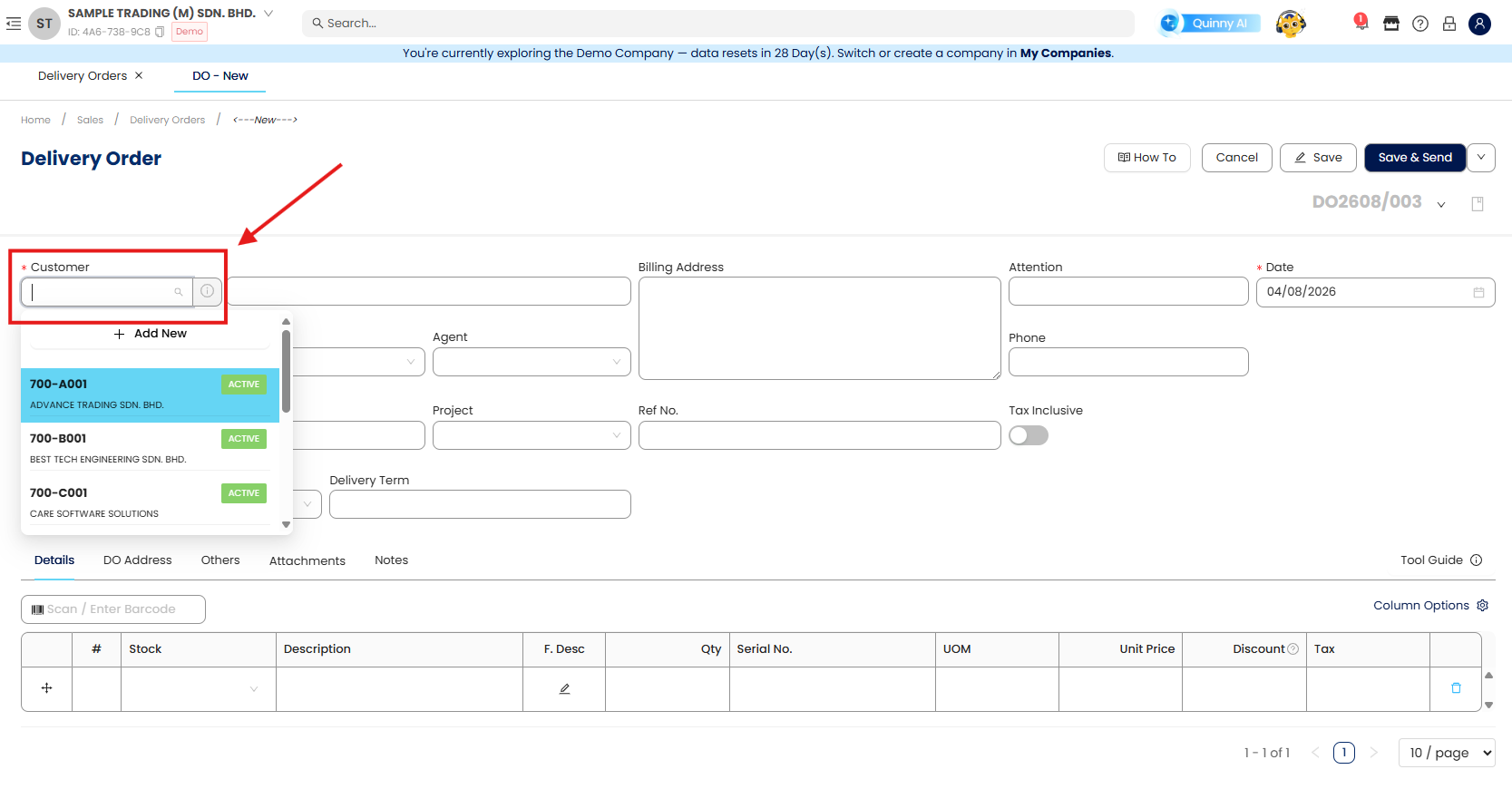
Select the Customer Code/Customer’s Name
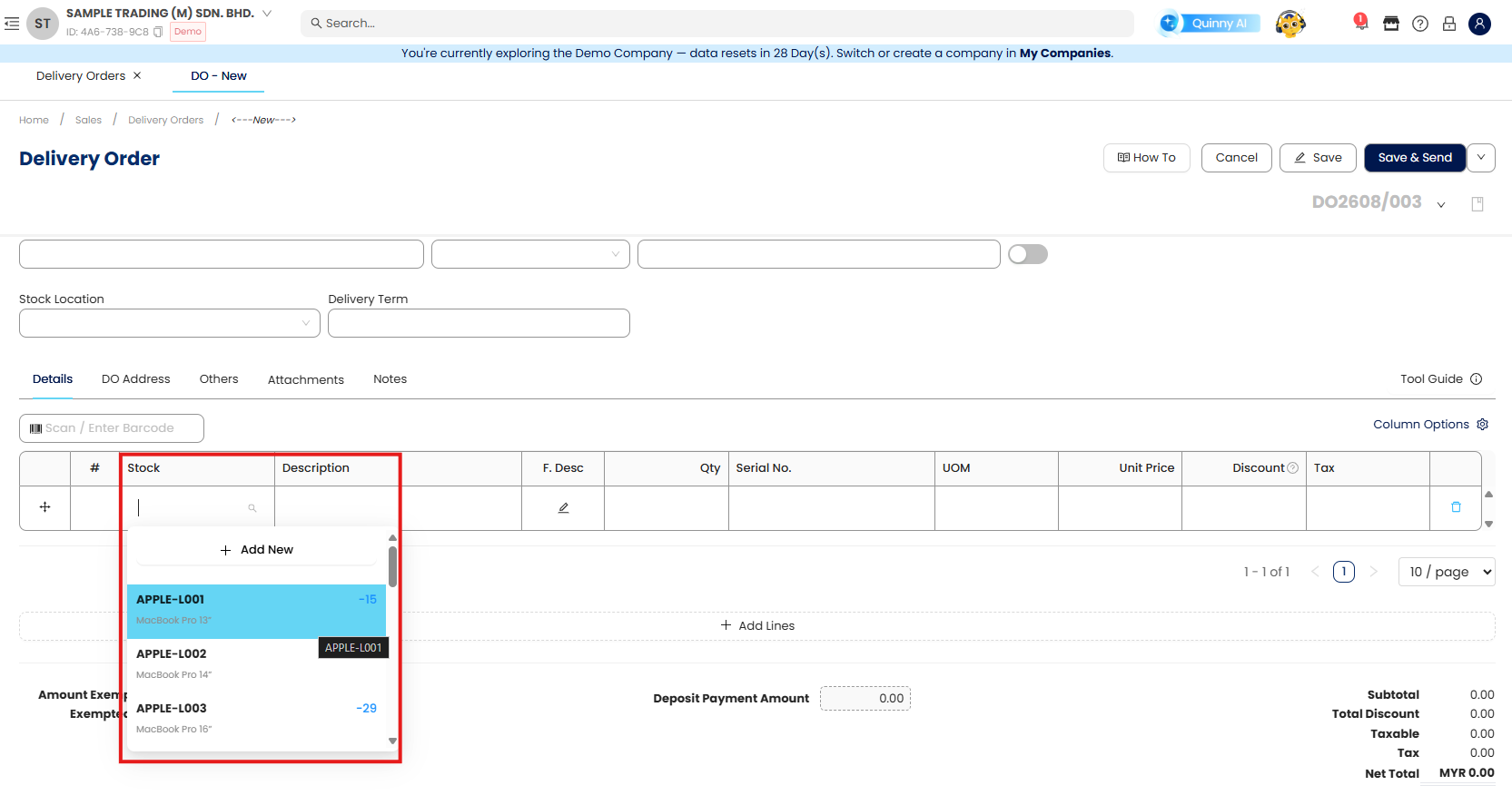
Next, we can continue to select the stock code in the Details section and fill in the required details for the transaction.
If you need to include more details of the stock item, you may click on the Column Option
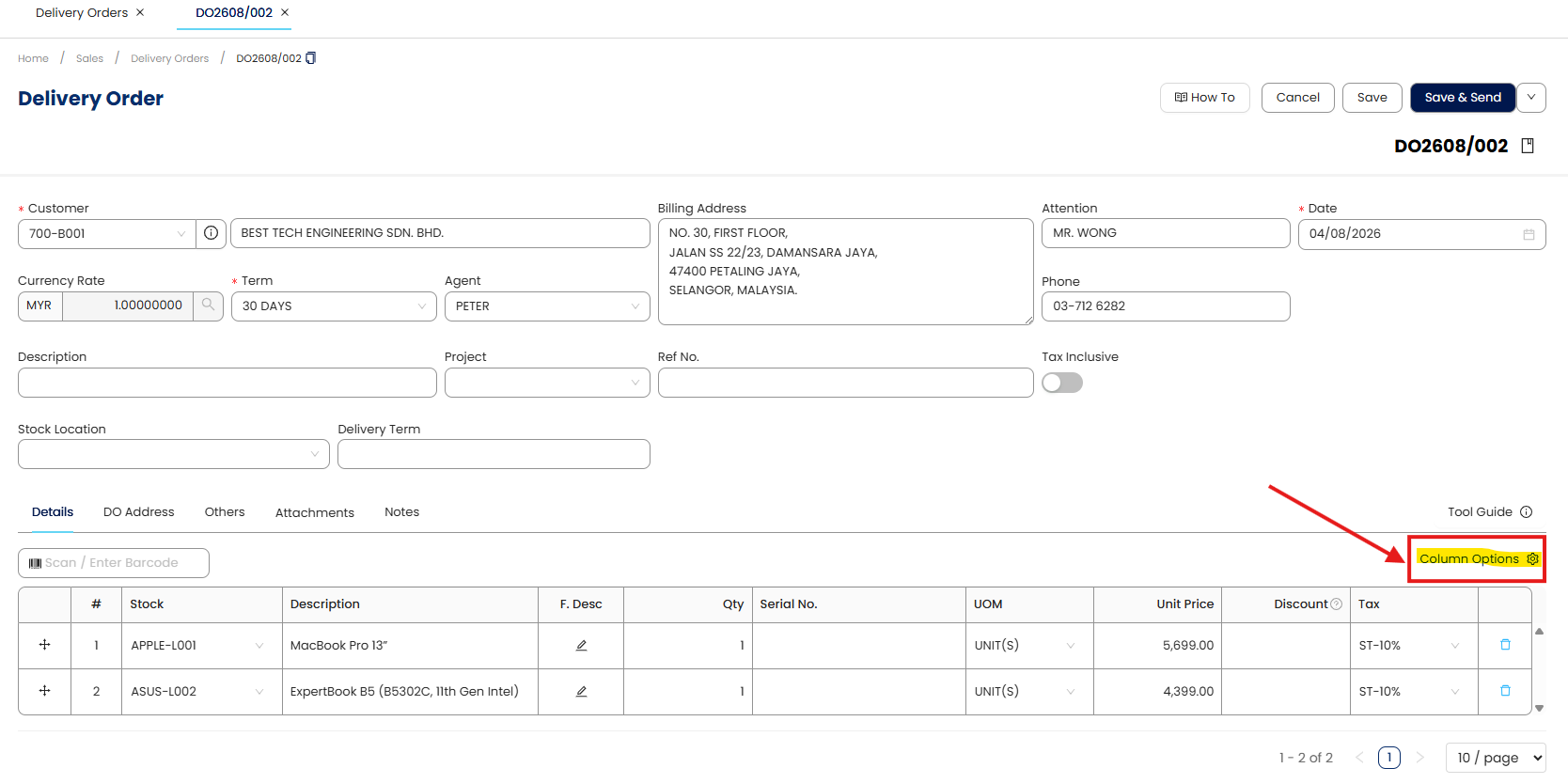
The Column Option details will pop-up on the right-side. You may select the details that need to be added in the line item.
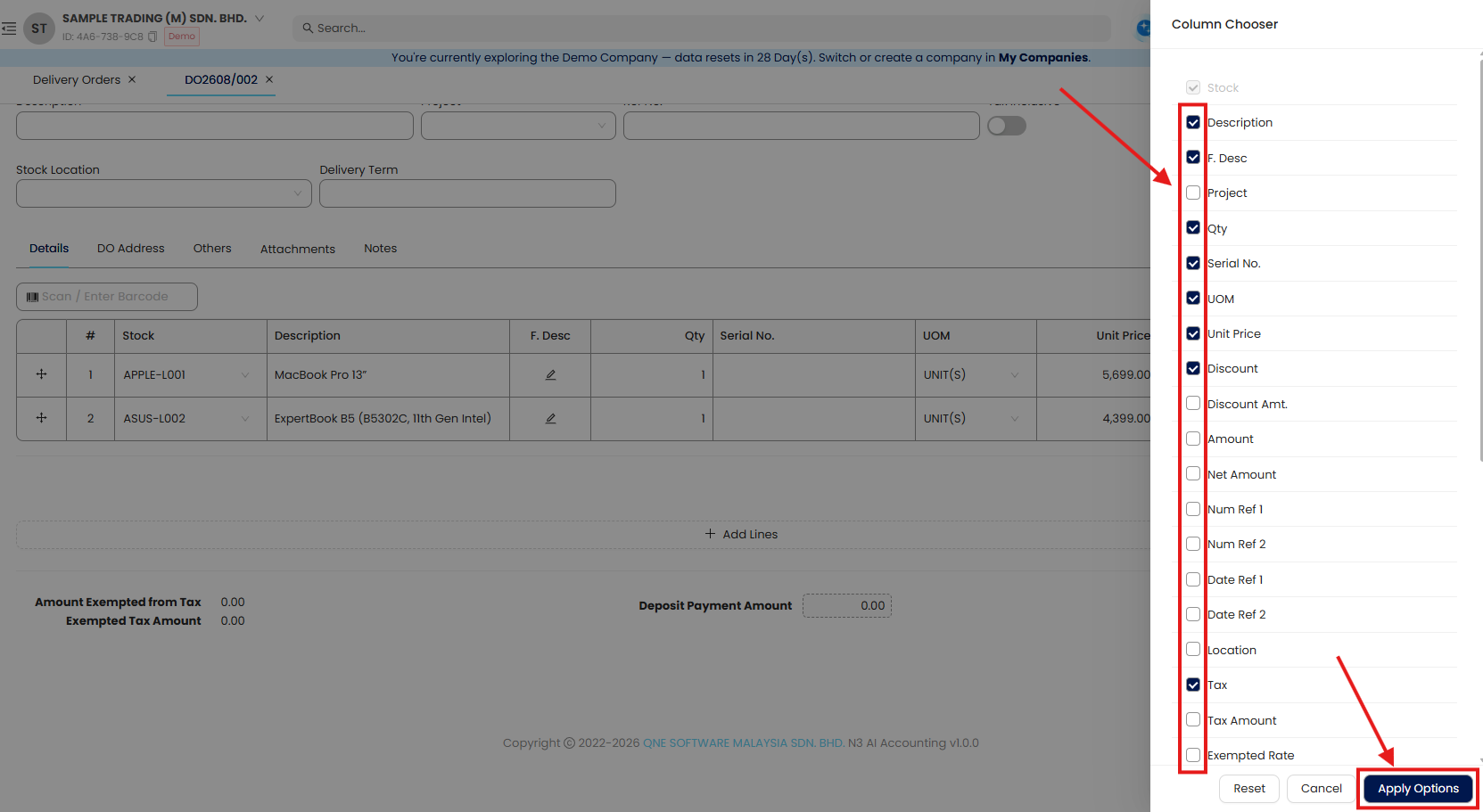
Once done, you may save the Document. And we’ve completed the step to issue Delivery Order manually.
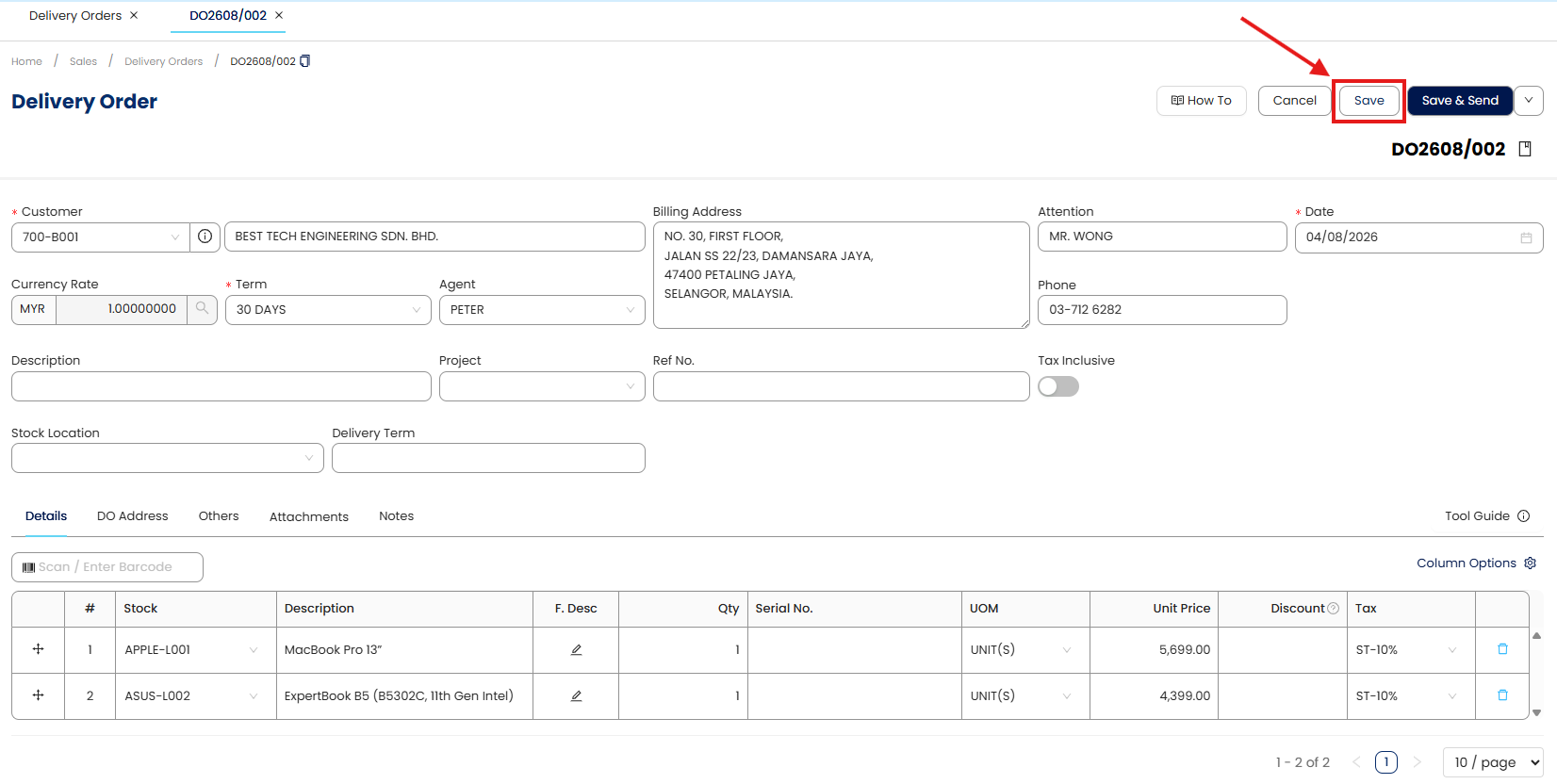
Scenario 2: Creating a Delivery Order from Sales Order
A customer has confirmed their order, and the company needs to arrange delivery of the requested goods.
Solution
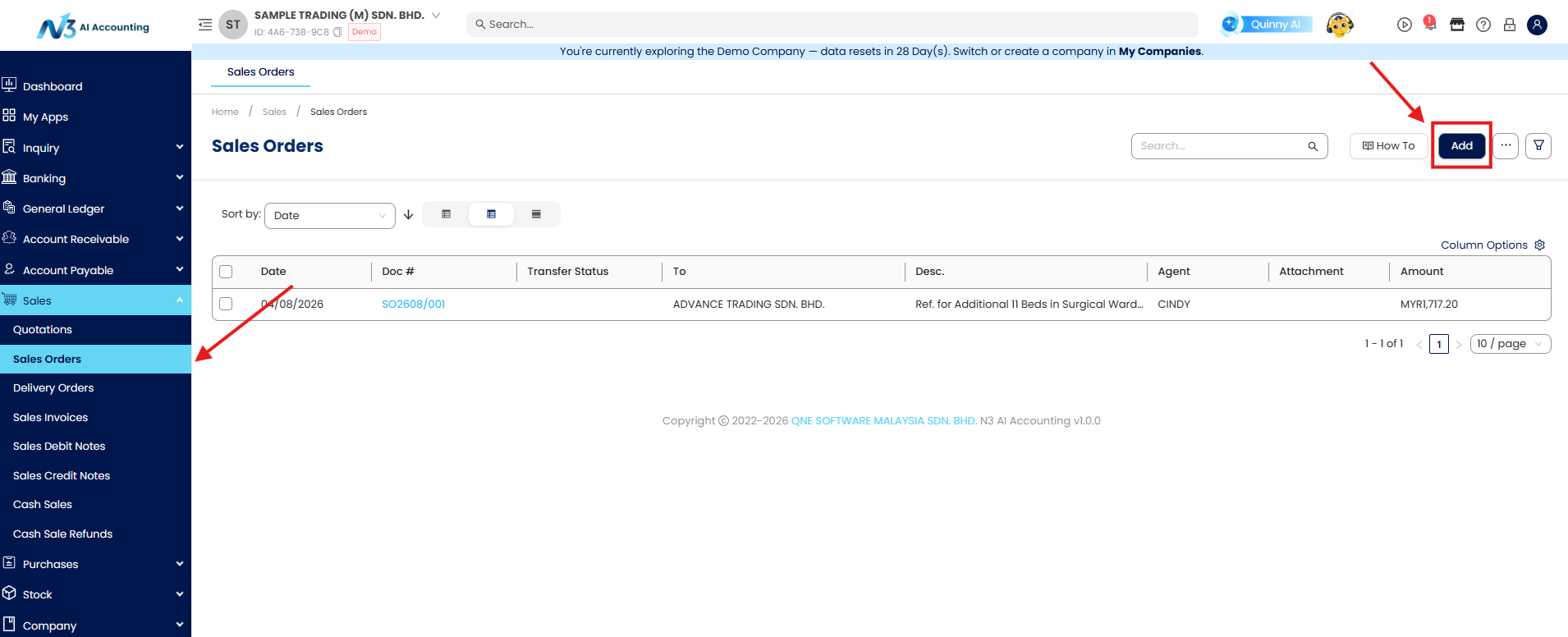
Go to Sales module > Sales Order to create new Sales Order
Input the details of the customer and the stocks that the customer ordered.
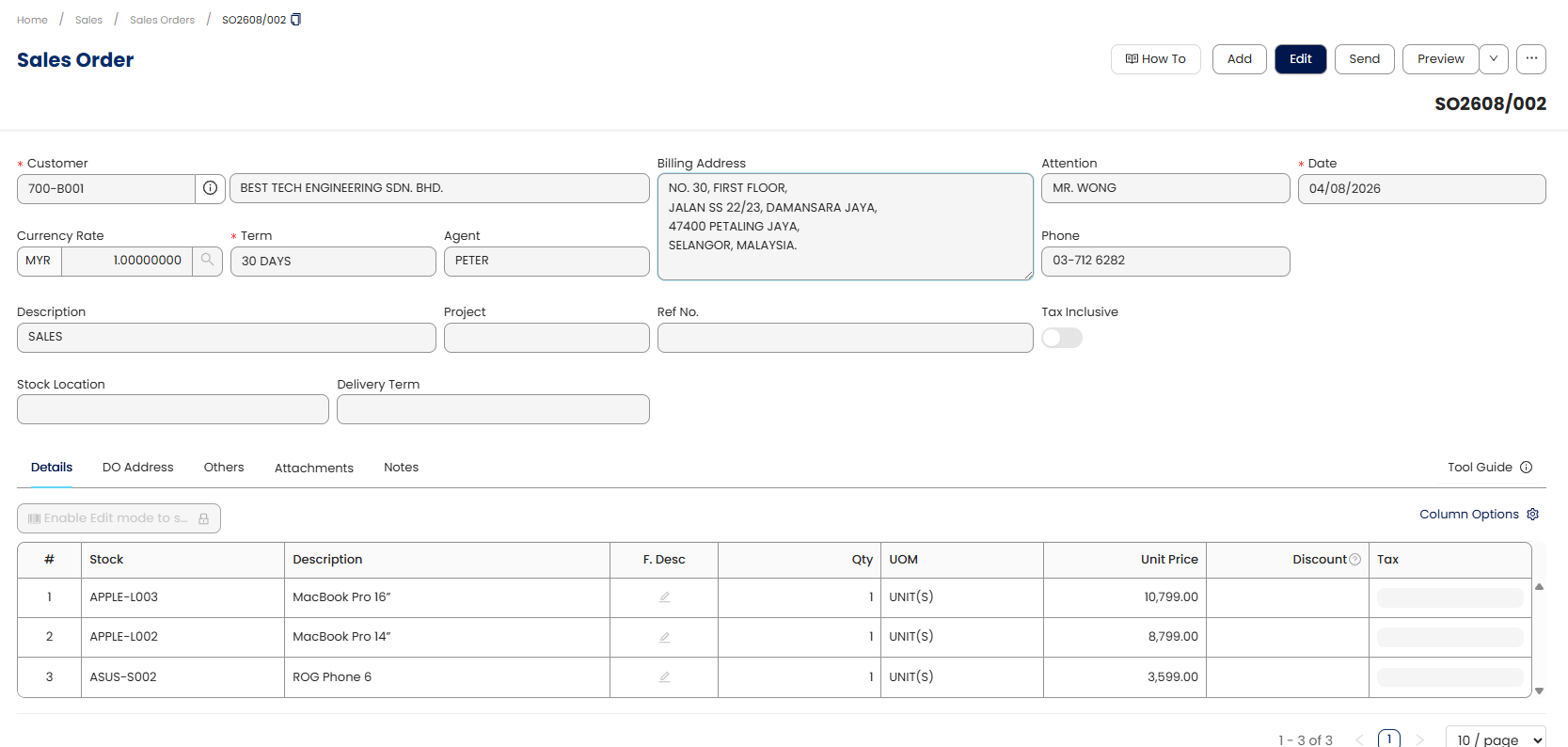
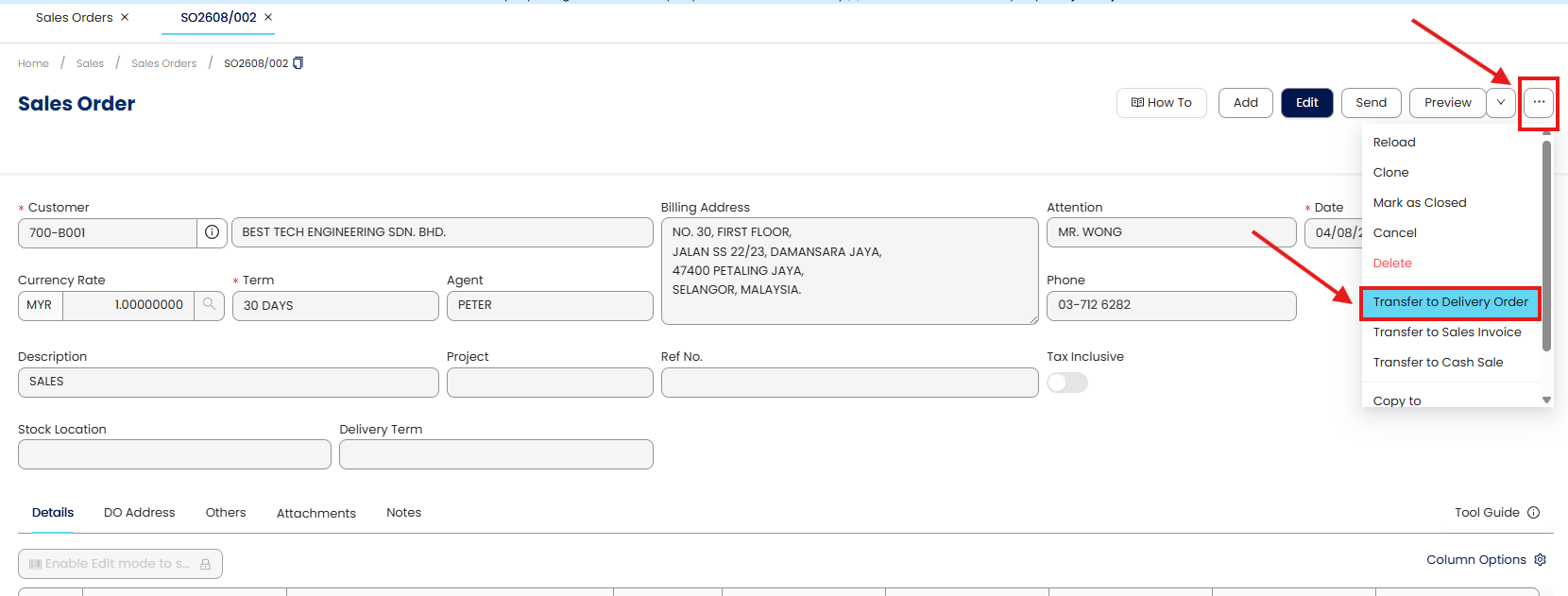
Next, we will transfer this Sales Order to Delivery Order by using the “Transfer to Delivery Order” function.
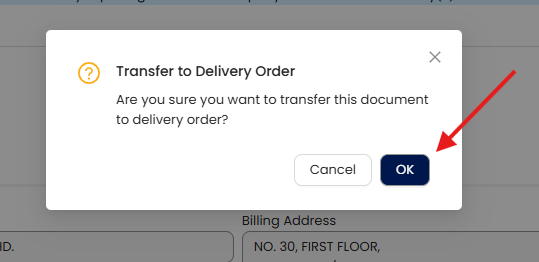
There’ll be a pop-up message for confirmation to transfer the Sales Order to Delivery Order, may proceed by clicking “OK”.
Once clicked, the system will generate the Delivery Order using the same details as issued in the Sales Order.
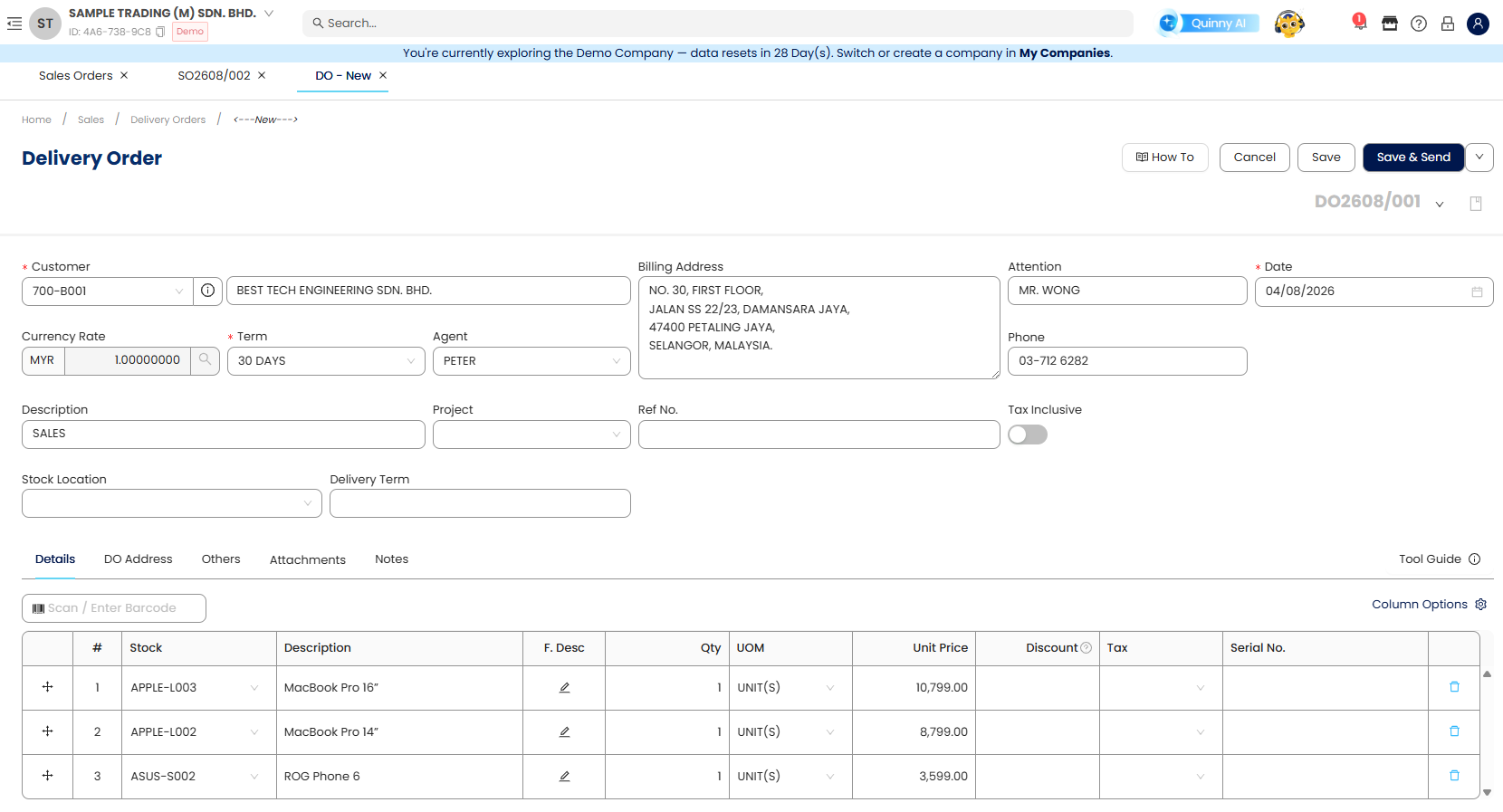
May “Save” the Delivery Order and we’re done!
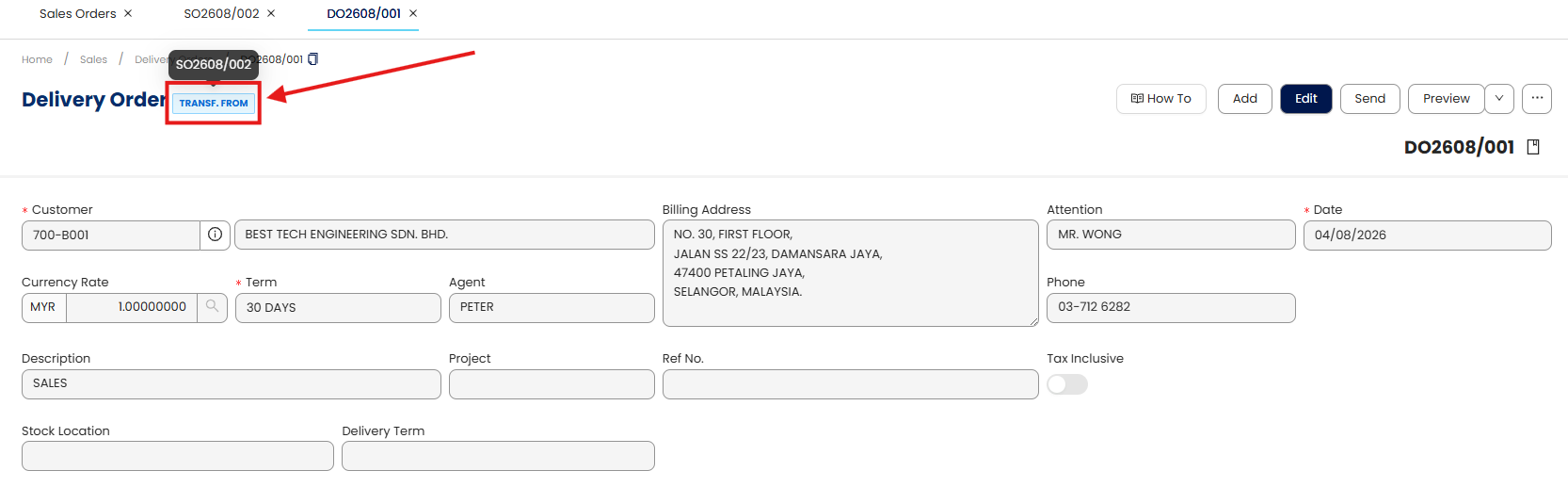
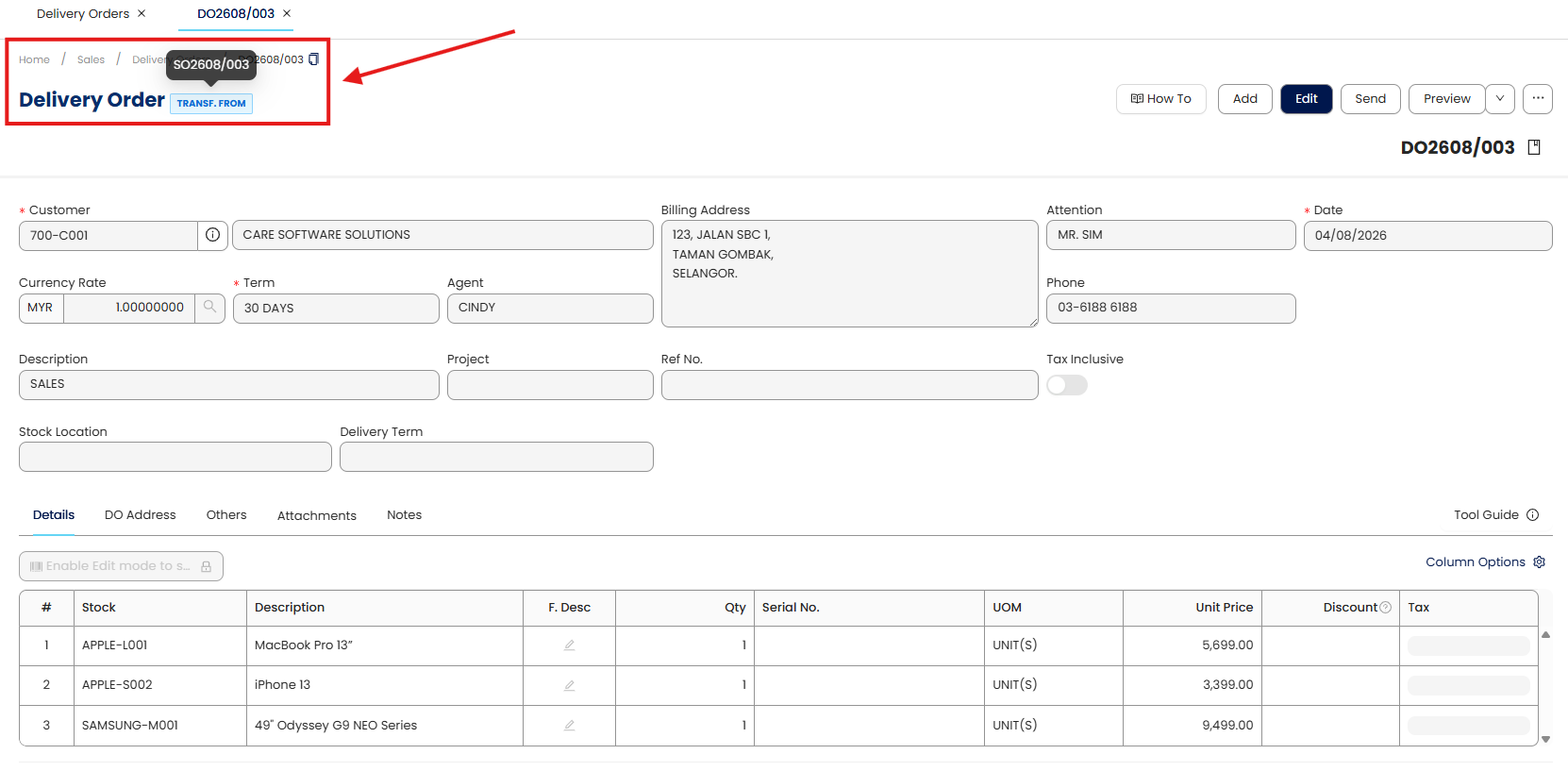
Note: The Transferred From information is provided as well at the top of the Delivery Order for reference.
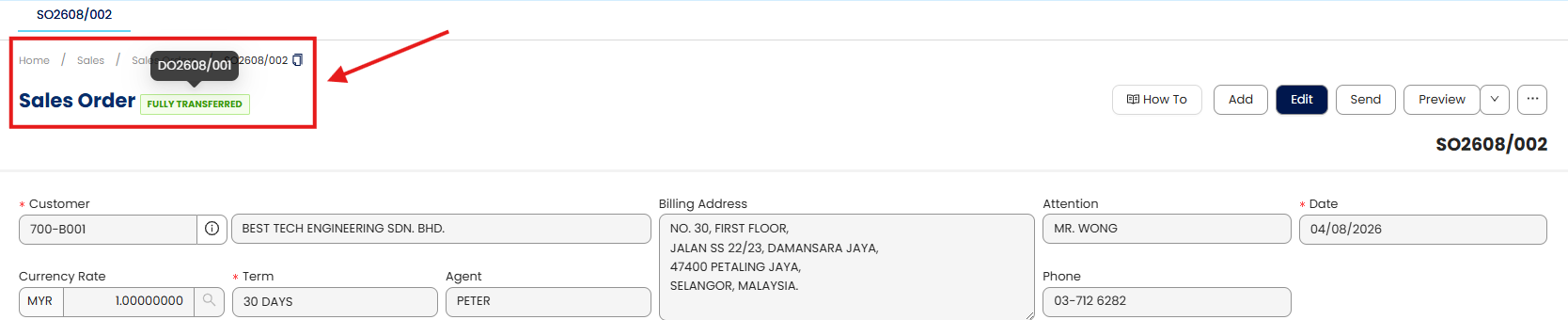
Scenario 3: Partial Delivery
The company is unable to deliver all goods from the customer’s order at once due to stock
availability or other reasons.
Solution
Create a Sales Order that contains a few stocks and key-in any required details that needs to be included for the stock item.
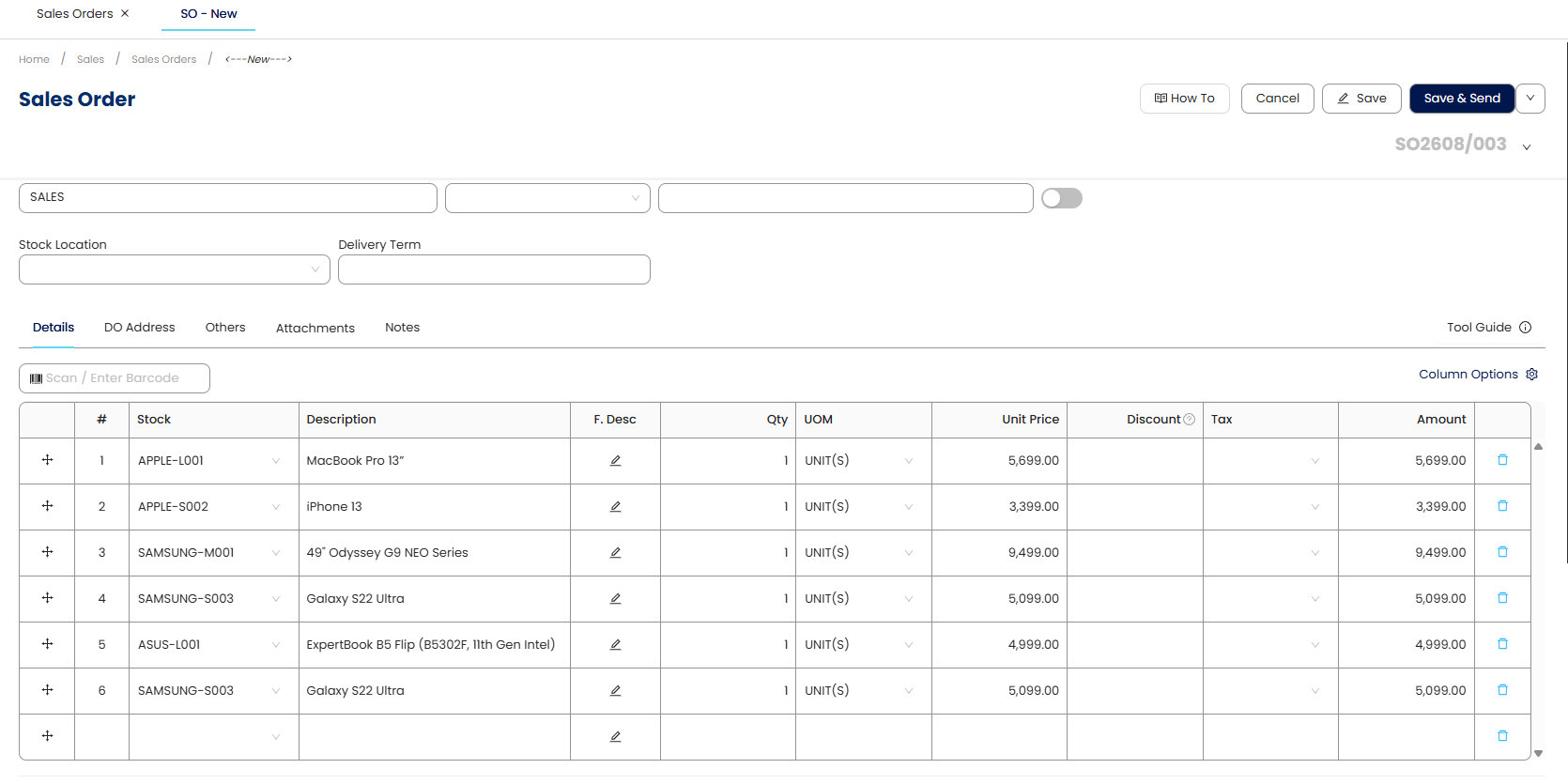
Once the information has been included, may proceed to Save the Sales Order [SO2608/003].
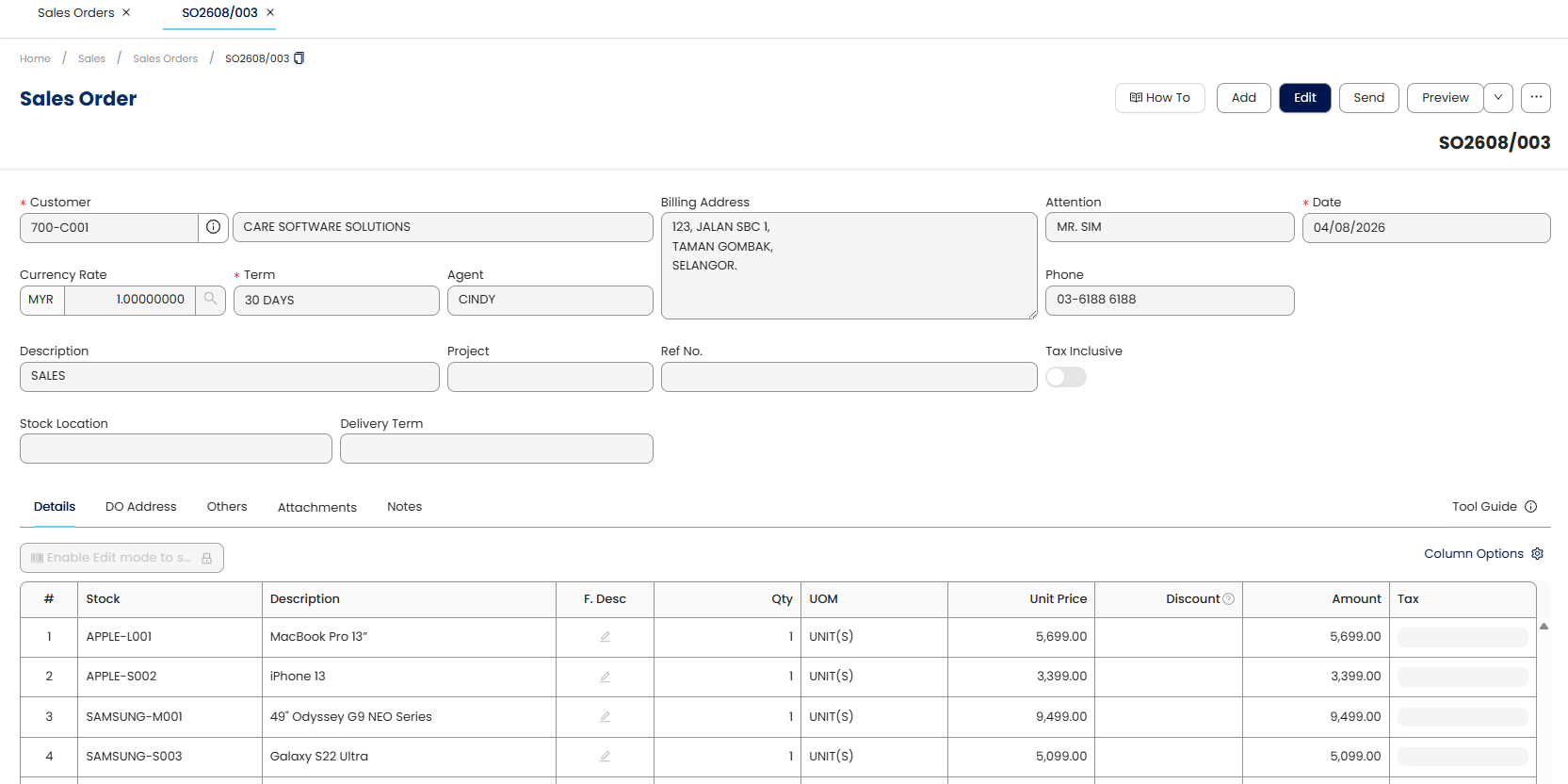
Next, open Delivery Order > Add to create a new Delivery Order.
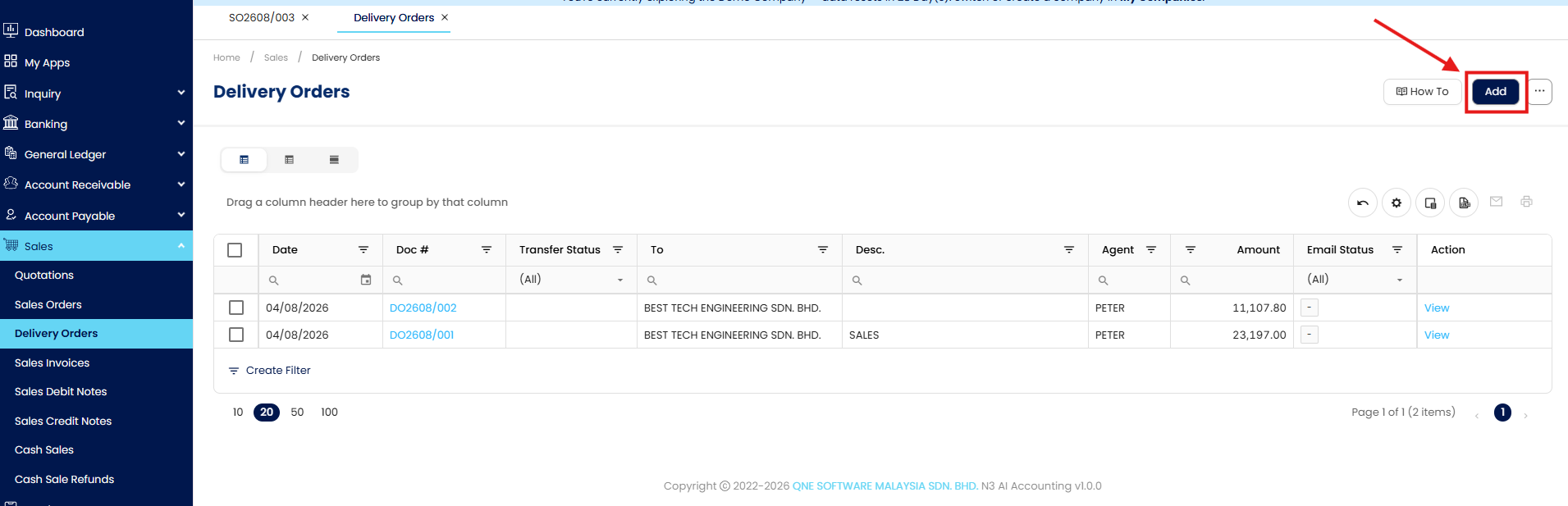
In the new Delivery Order, select the same Customer Code from the Sales Order.
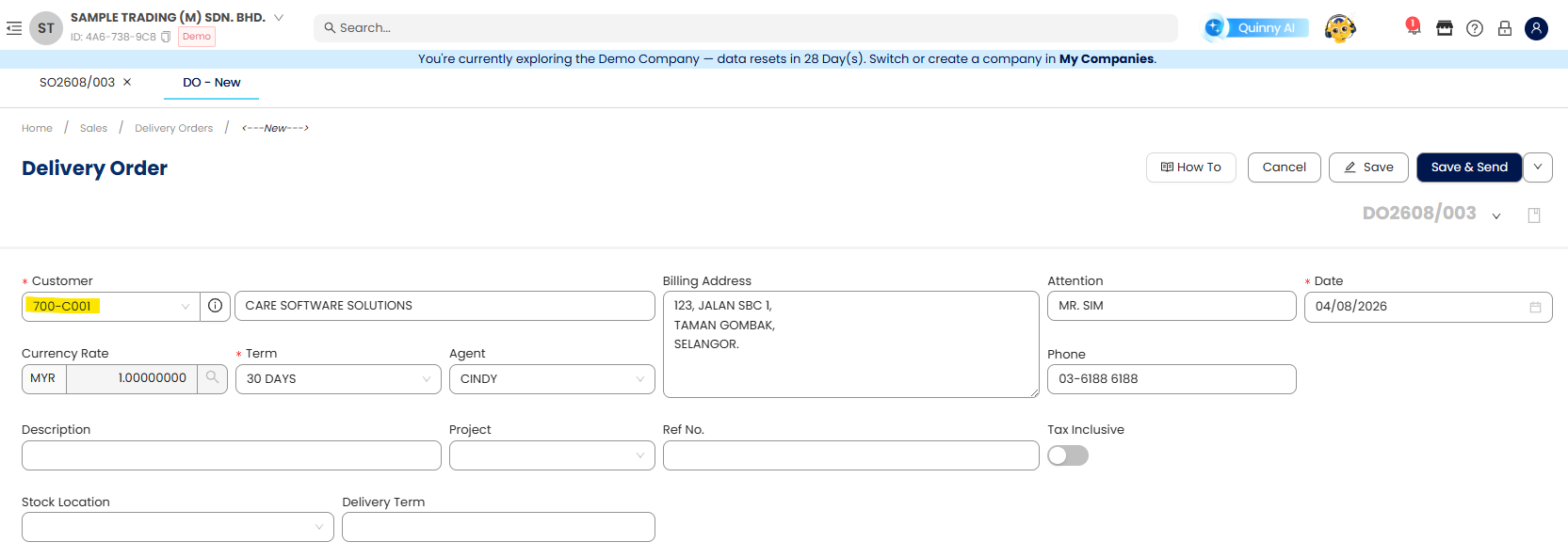
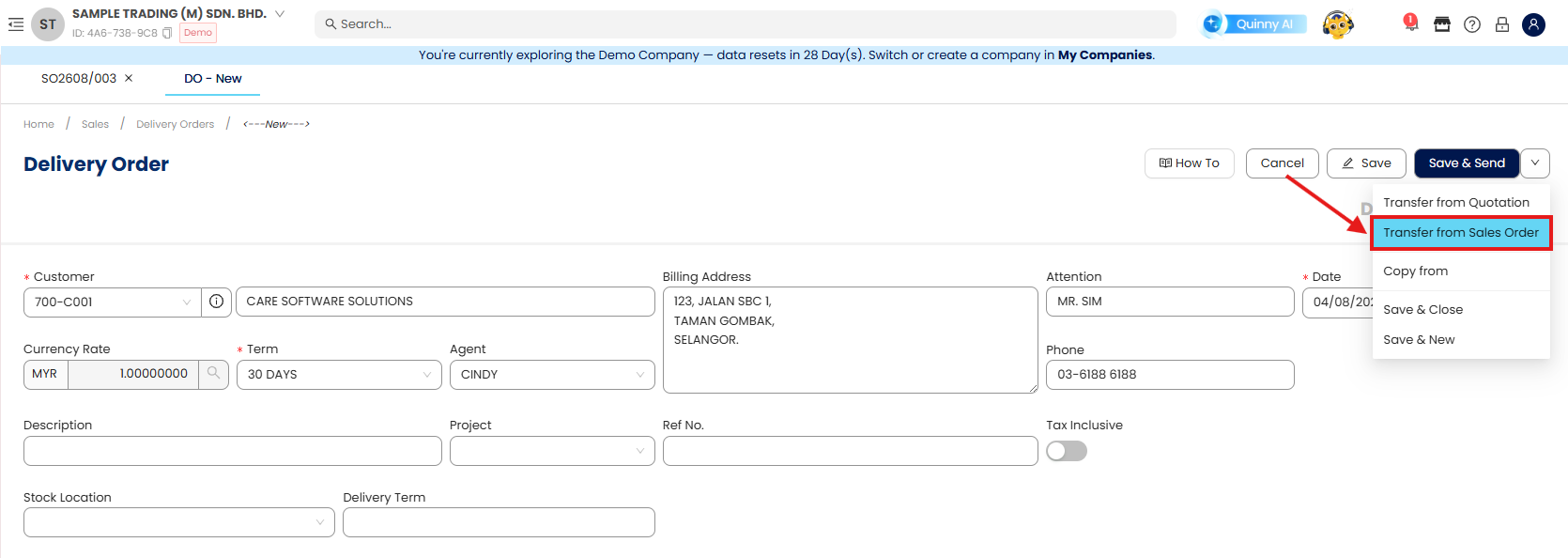
Next, select drop-down menu to select “Transfer from Sales Order”
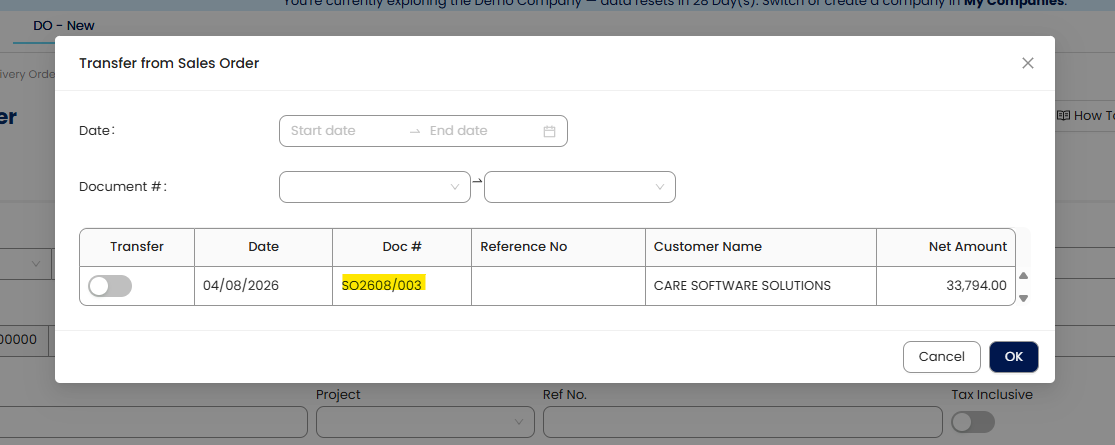
There will be a pop-up window for you to select the related Sales Order (SO) to be included in the Delivery Order (DO).
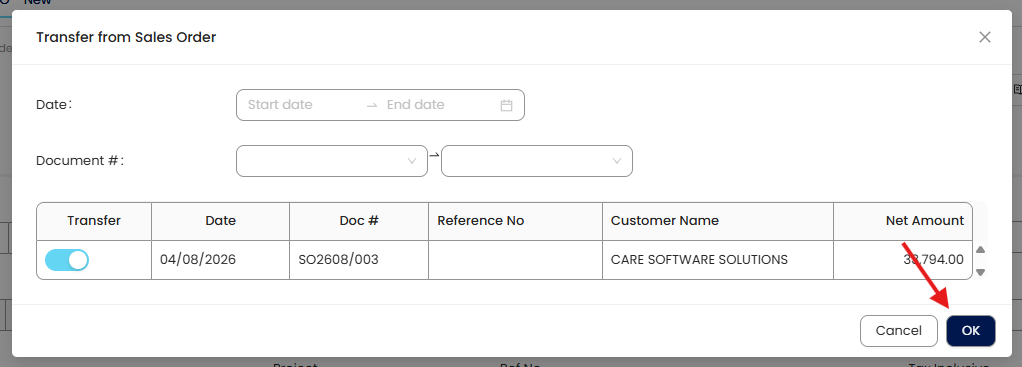
Select the Sales Order > OK. Information of the Sales Order will be included in the Delivery Order.
In this transaction, we’re going to only include some of the stock items from the sales order.
Sales Order [SO2608/003] - showing 6 items: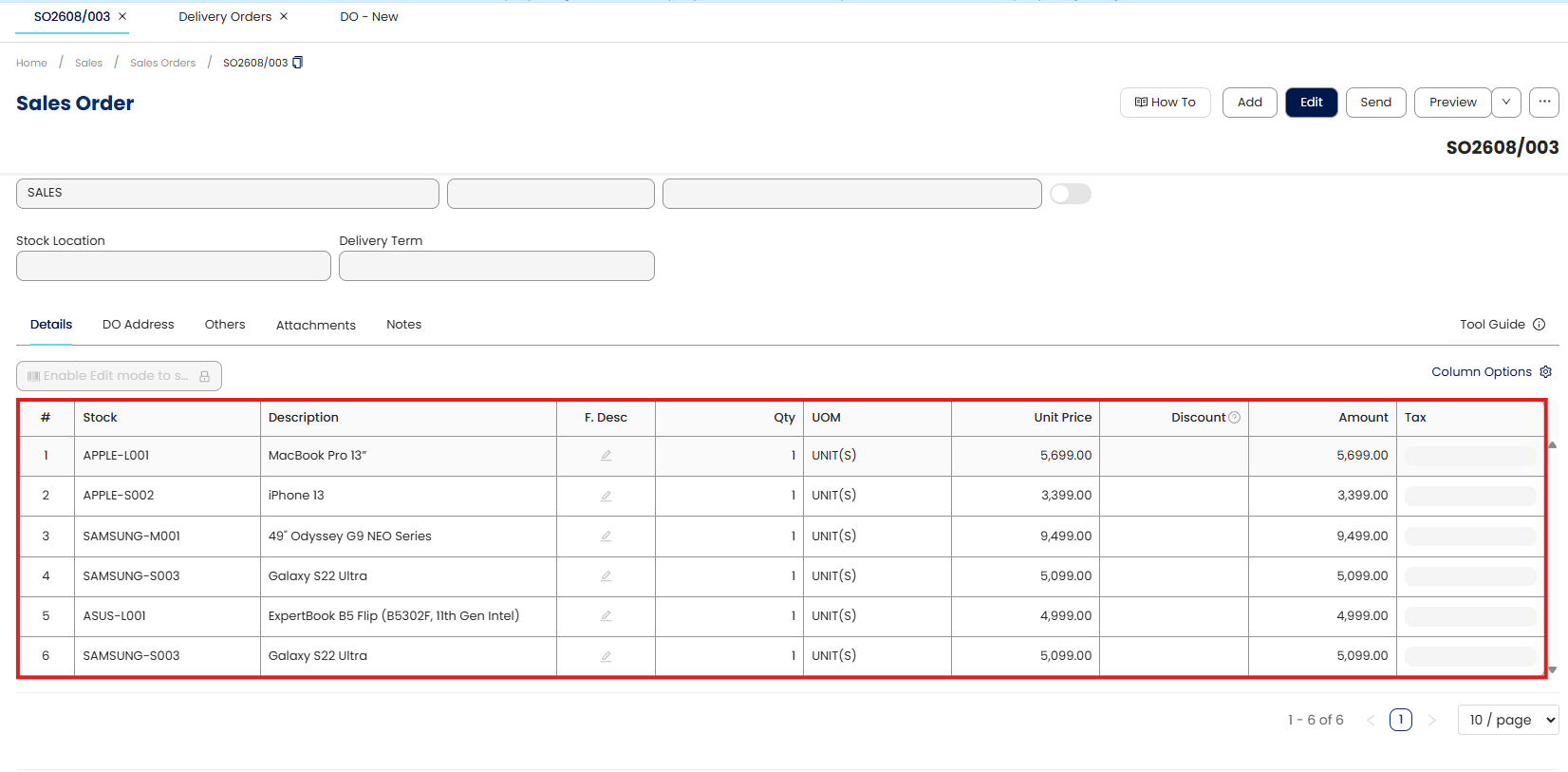
Delivery Order showing the list transferred from Sales order [SO2608/003]
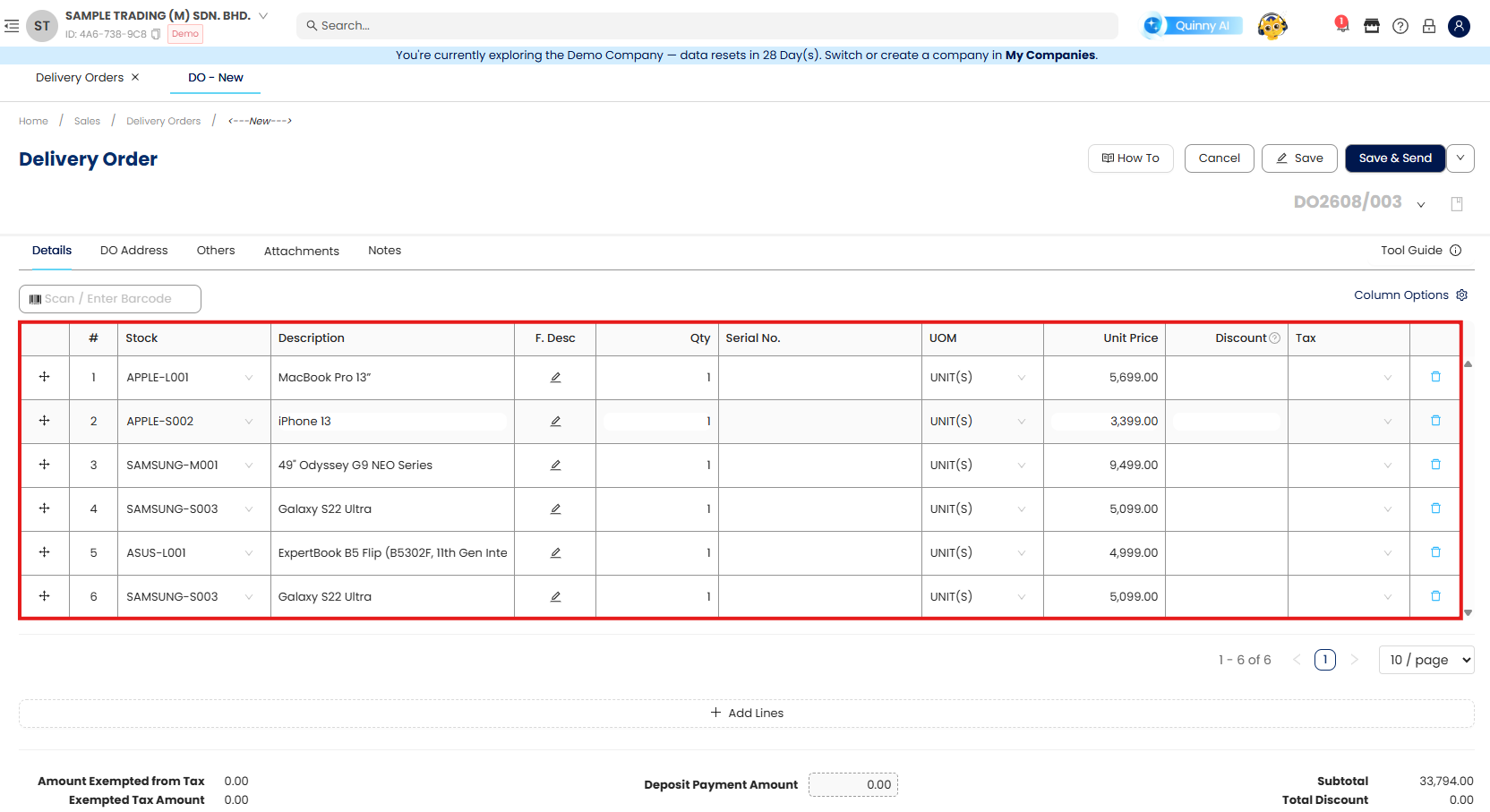
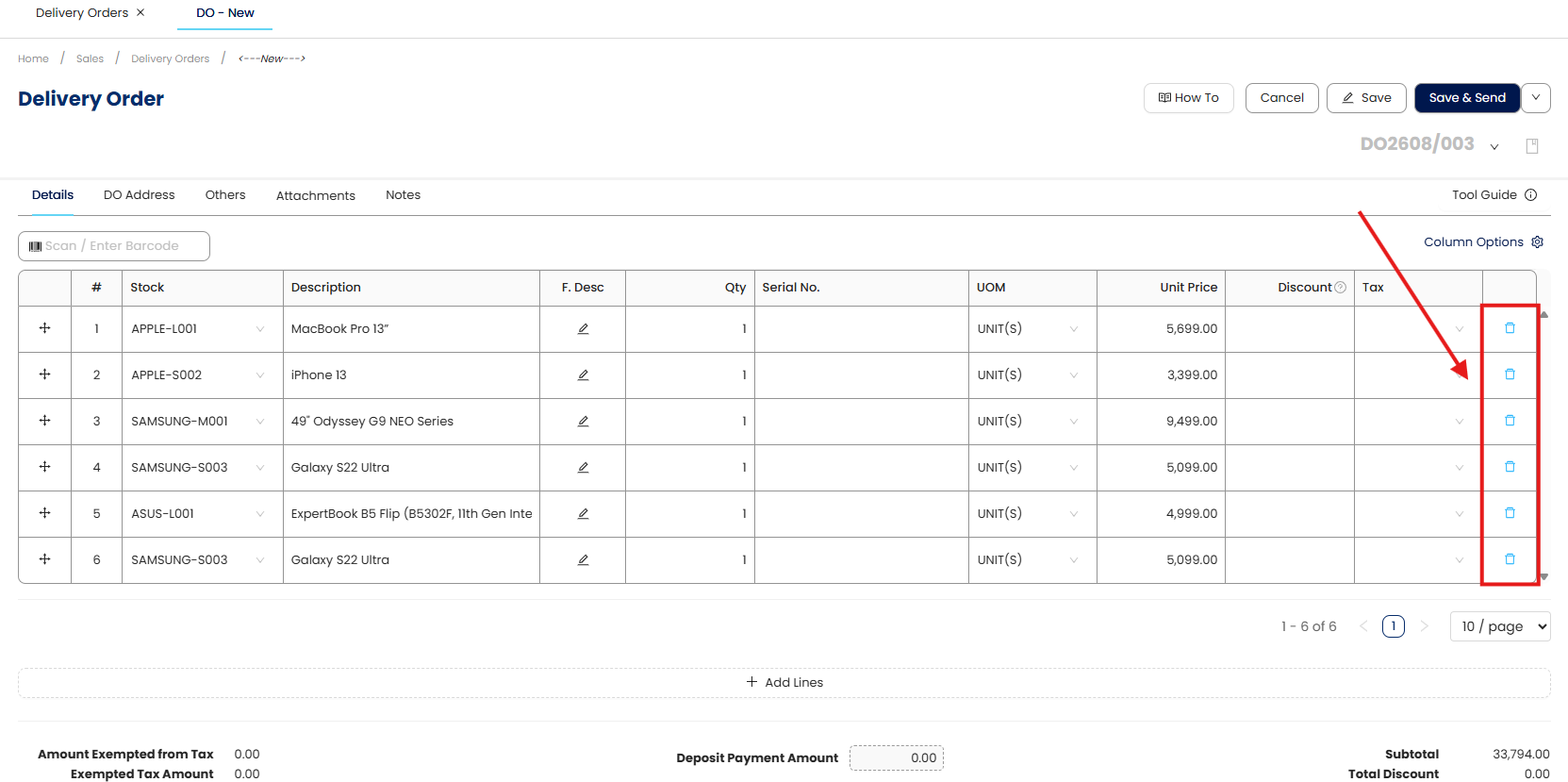
Next, we’ll exclude some of the line items from the list. As the company is only able to deliver some of the stock items only at the moment.
From the Delivery Order line item, may click on the bin button to remove the stock item from the list.
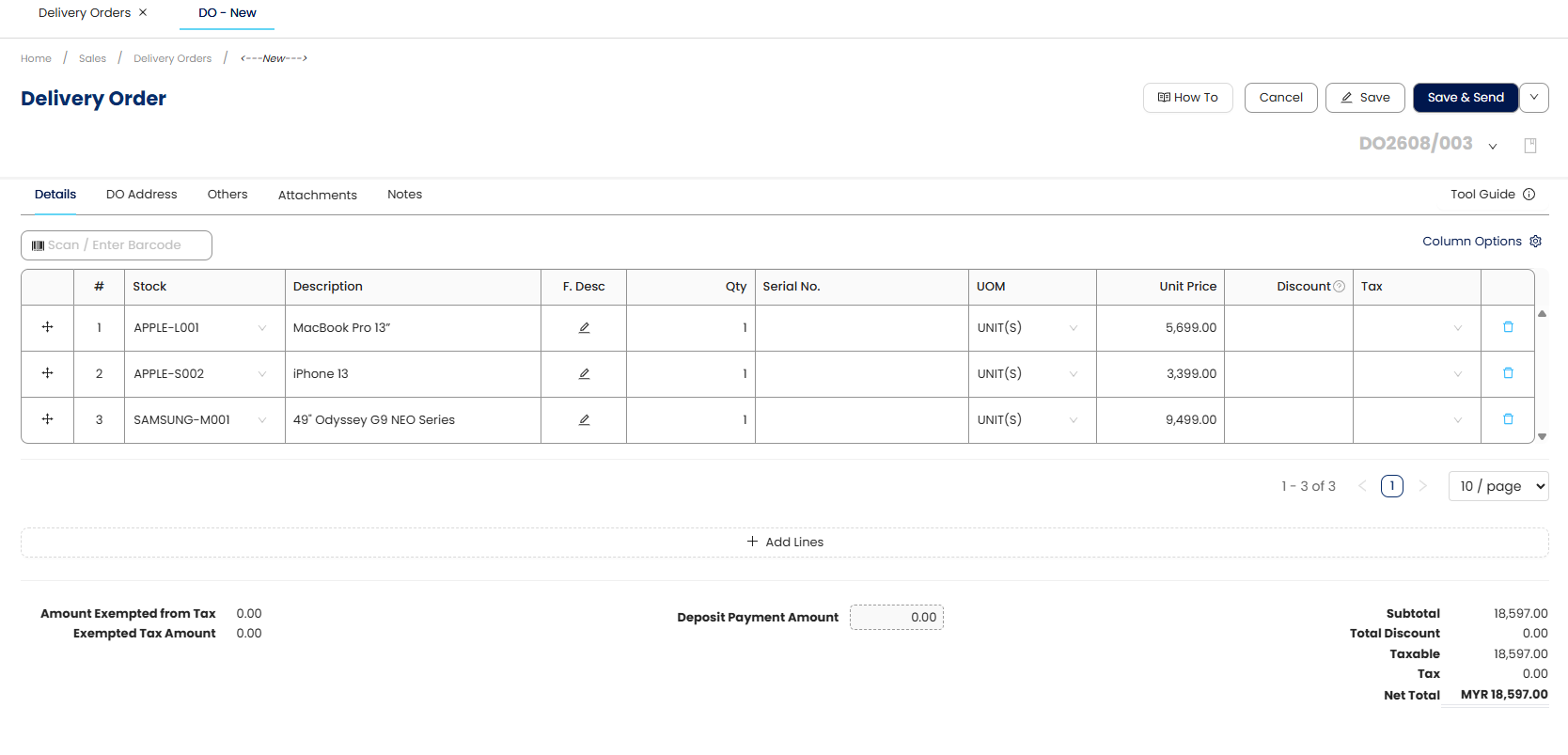
Once done, may save the Delivery Order.The Delivery Order will display the Transfer From information at the top of the document.
You may also cross-check in the Sales Order Listing where the Sales Order will be marked as “Partially Transferred”.
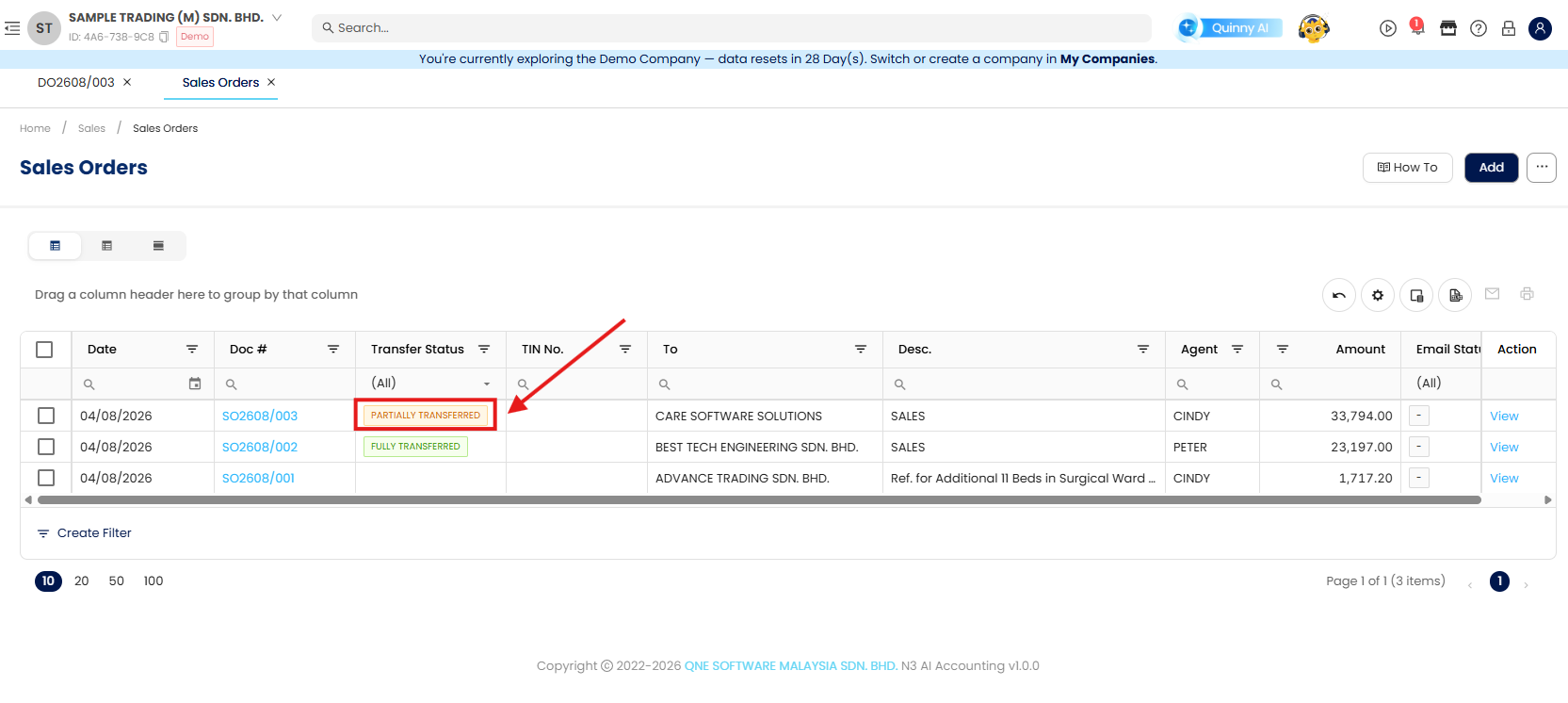
✤ Partially Transferred - Only some of the stock items being successfully transferred.
✤ Fully Transferred - All of the stock items have been transferred.
Done!
**Learn more about N3 - AI Cloud Accounting
Was this article helpful?
That’s Great!
Thank you for your feedback
Sorry! We couldn't be helpful
Thank you for your feedback
Feedback sent
We appreciate your effort and will try to fix the article
