Overview: Create Quotation
A quotation in N3 AI Accounting is a formal document used to provide customers with proposed products or services, quantities, prices, discounts, and applicable taxes before confirming a sales transaction.
Scenario:
A customer requests a quotation for several products or services. The user needs to prepare a quotation with the correct customer information, item details, pricing, and tax amounts before sending it to the customer for review.
Solution:
Step 1: Navigate to Quotations
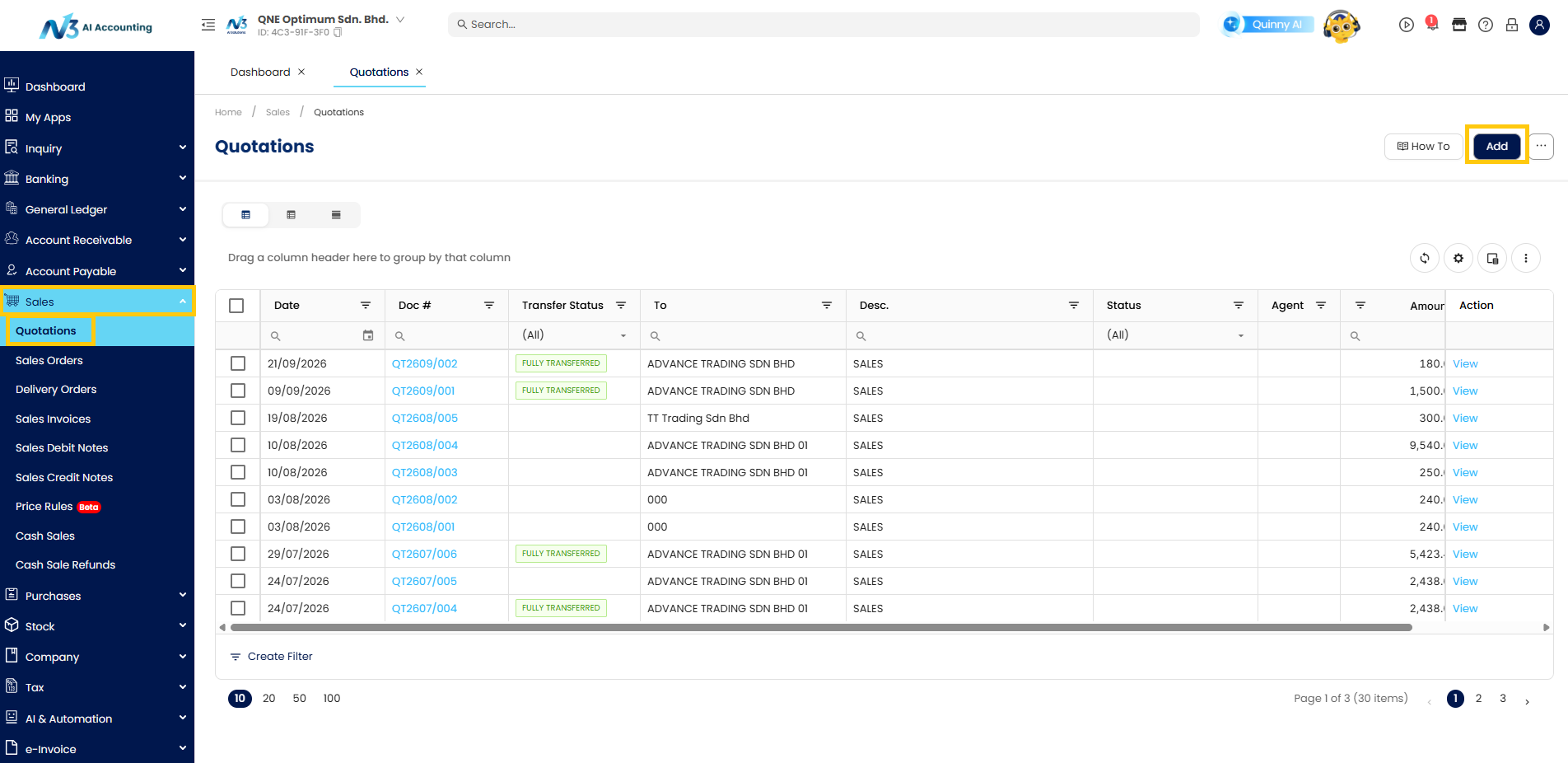
- Navigate to Sales>Quotations module and select Add.
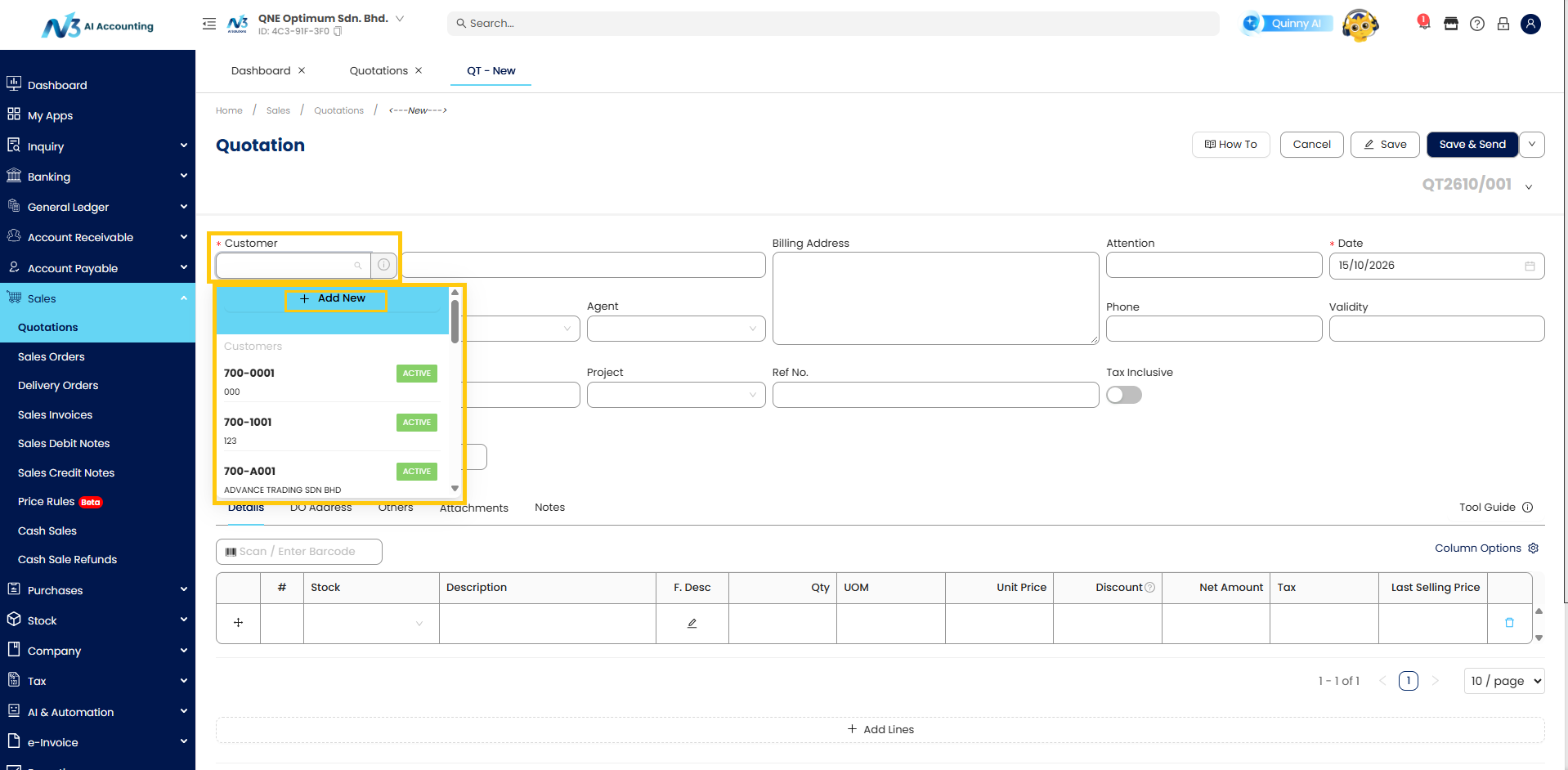
- Select the Customer from the dropdown list
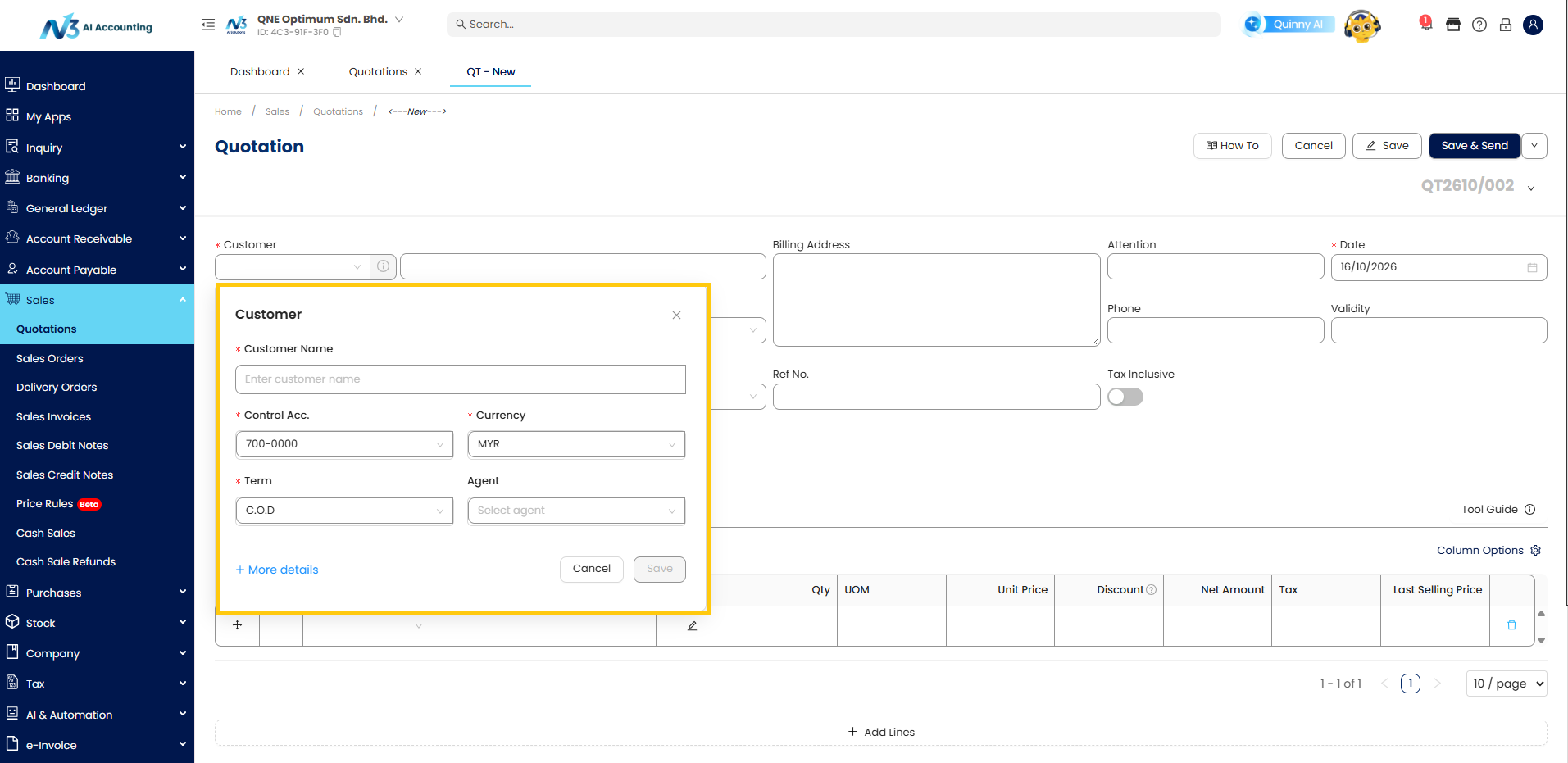
- *Notes: For non existing customer, click “+Add New” to enter their details.
- Fill in the customer details and save
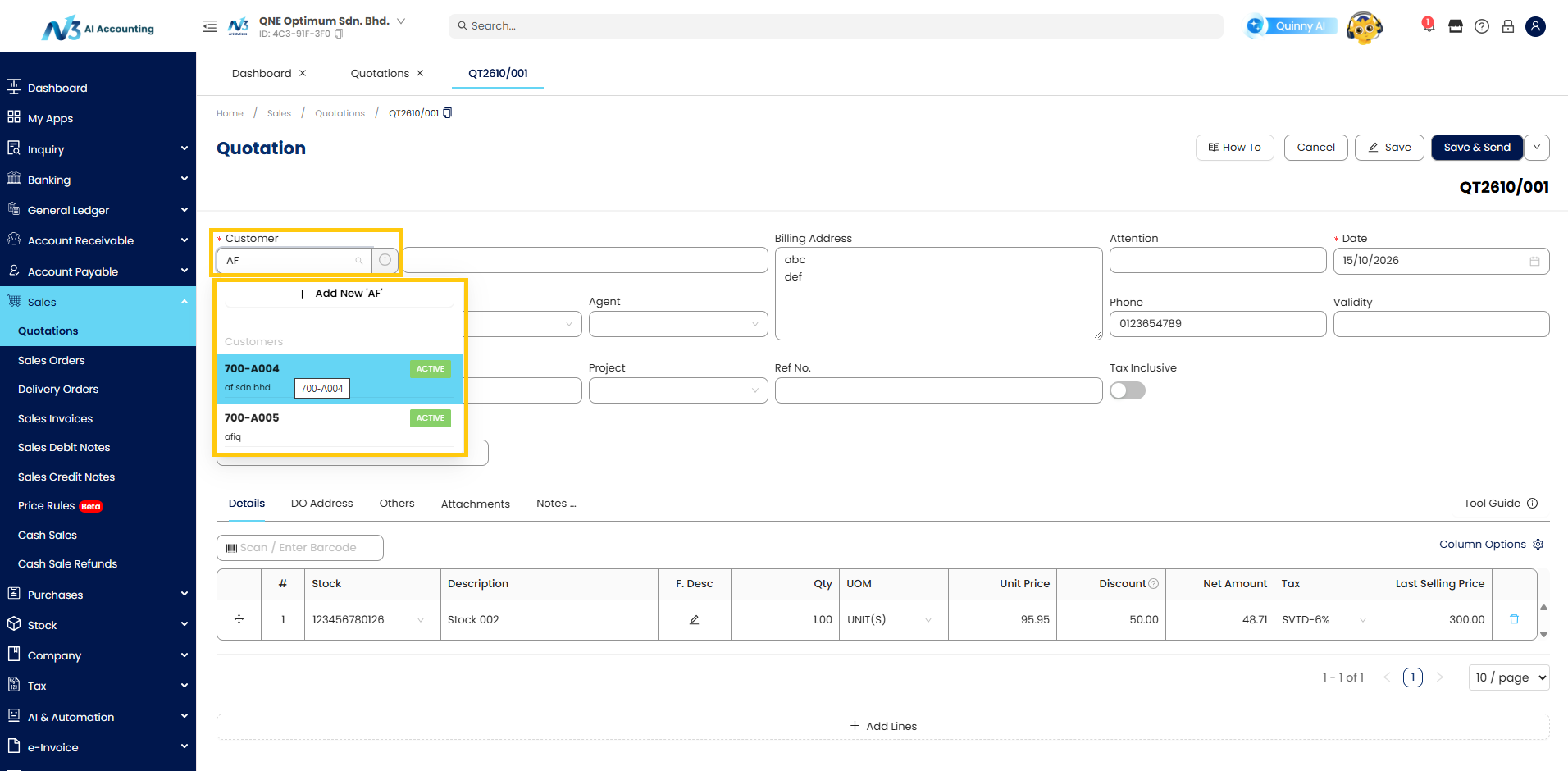
- User also can type the existing Customer system will display that match with the typing
Step 2: Select Items to the Quotation
- Select items from your inventory or service list
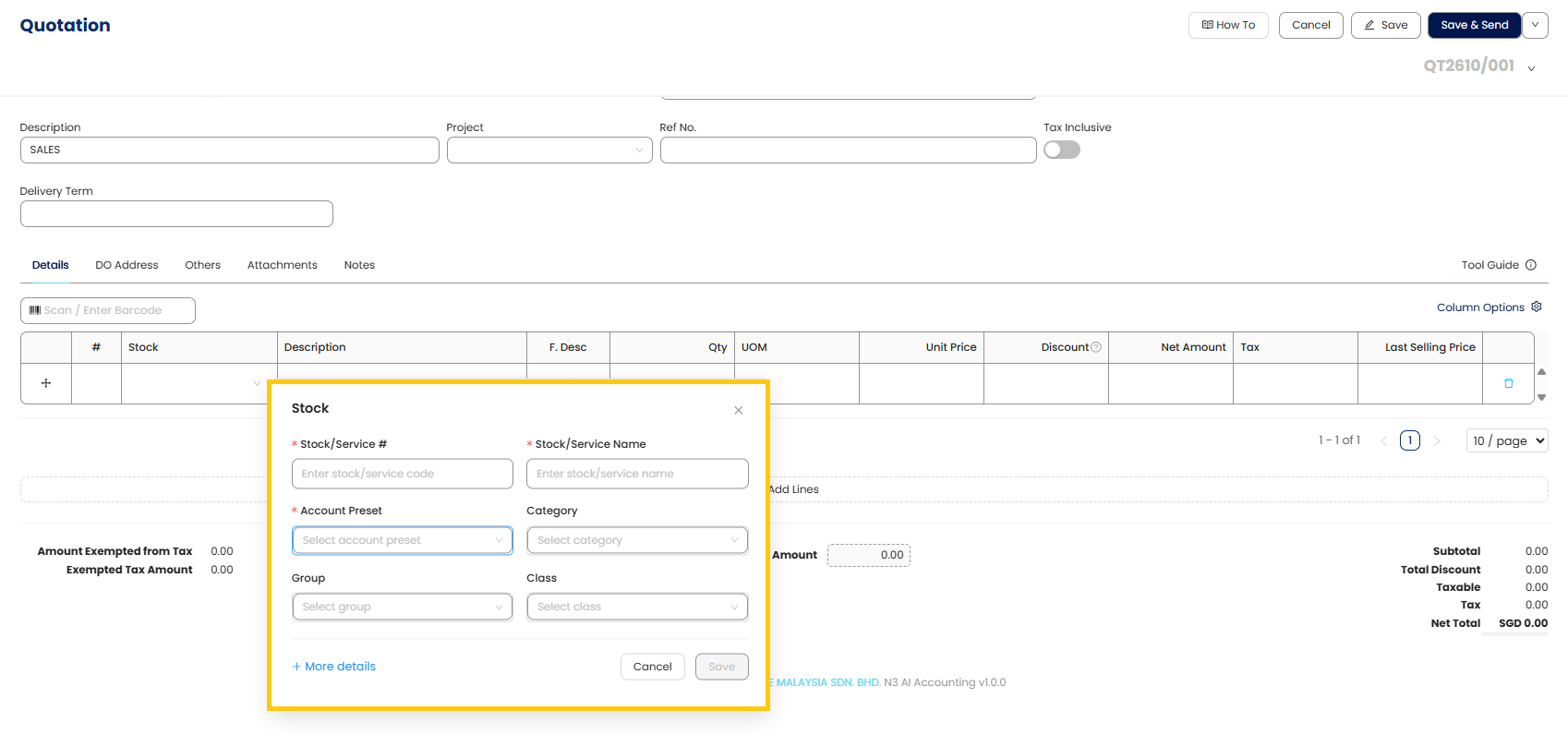
- *Notes: For non-existing item. Click “+Add Item” to add new items or services.
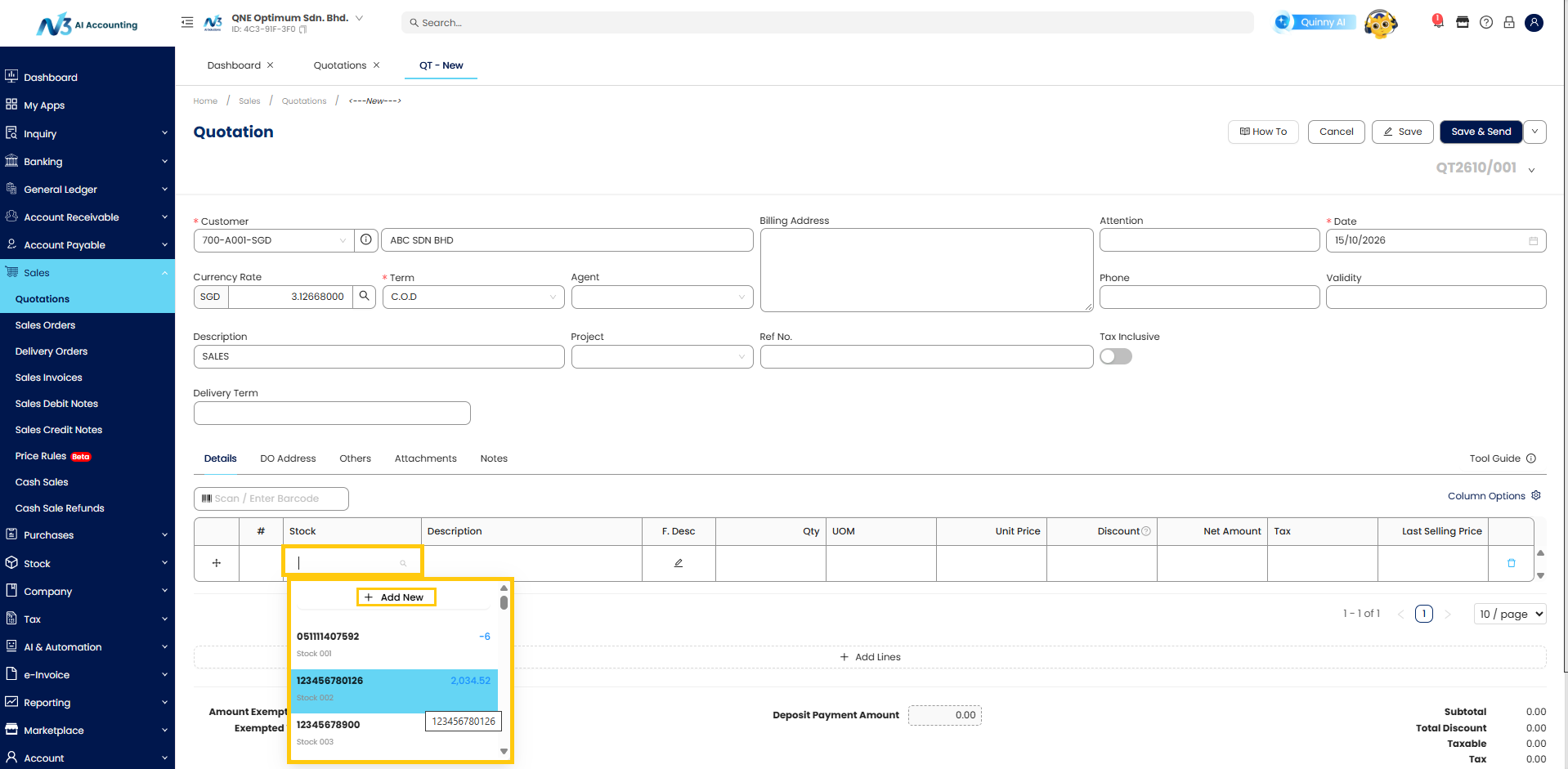
- *Fill in the Item/Service Details.
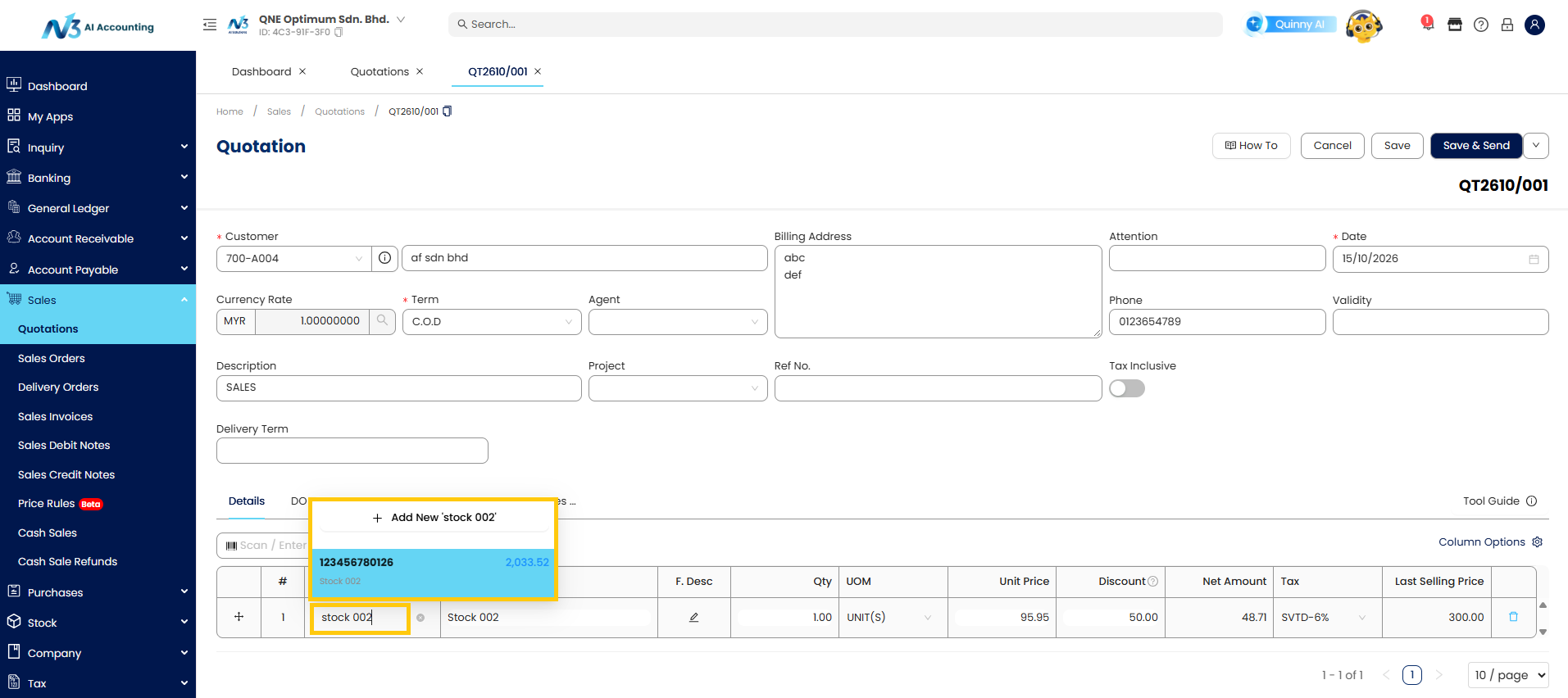
- User can type the item name or code from your inventory or service list
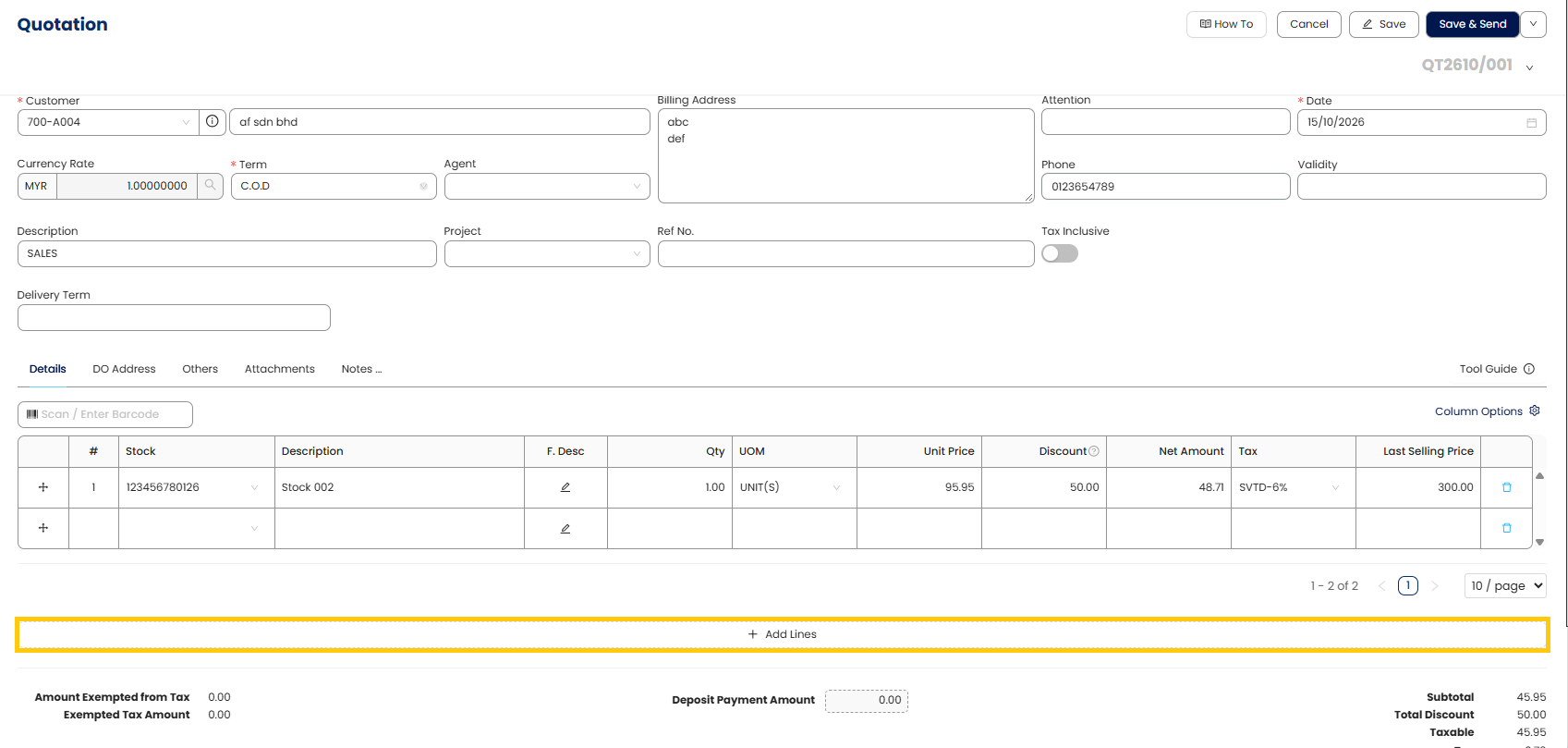
- Specify the Quantity, Unit Price, or any item-specific Discounts.
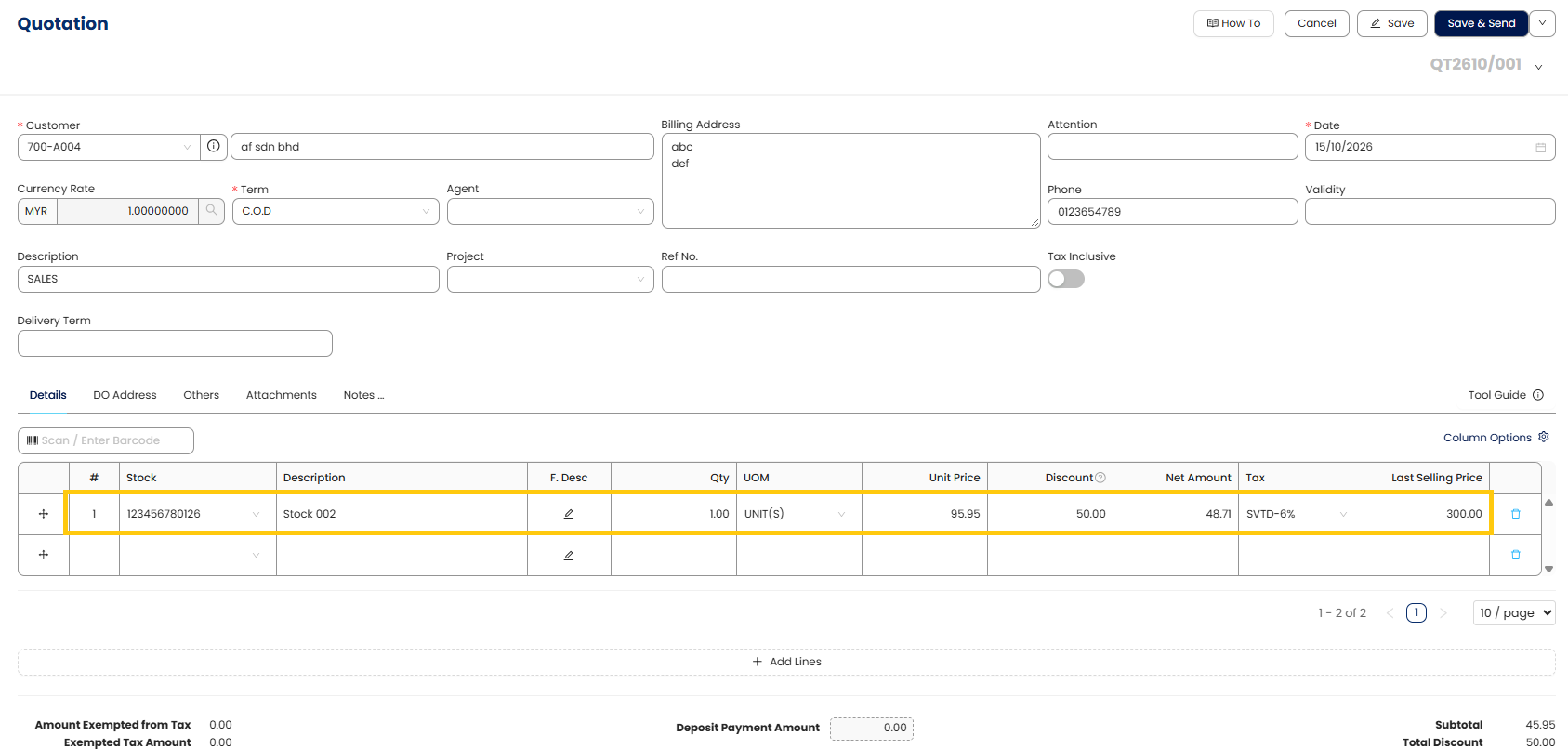
- Click “+Add Lines” to add more lines for the quotations.
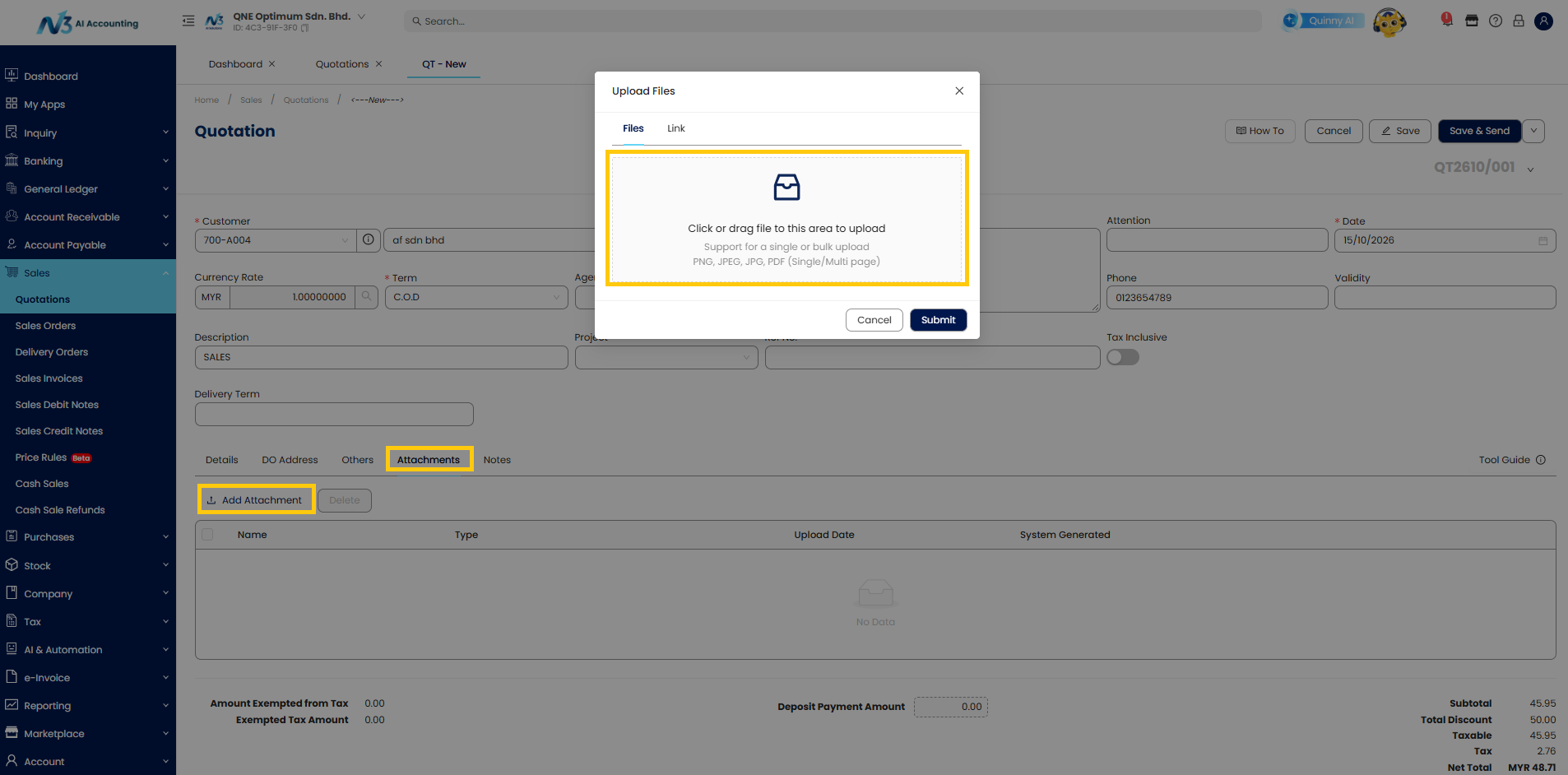
Step 3 : Add Attachement and Notes
- Optionally, attach supporting files or images to provide additional context for internal reference purpose.
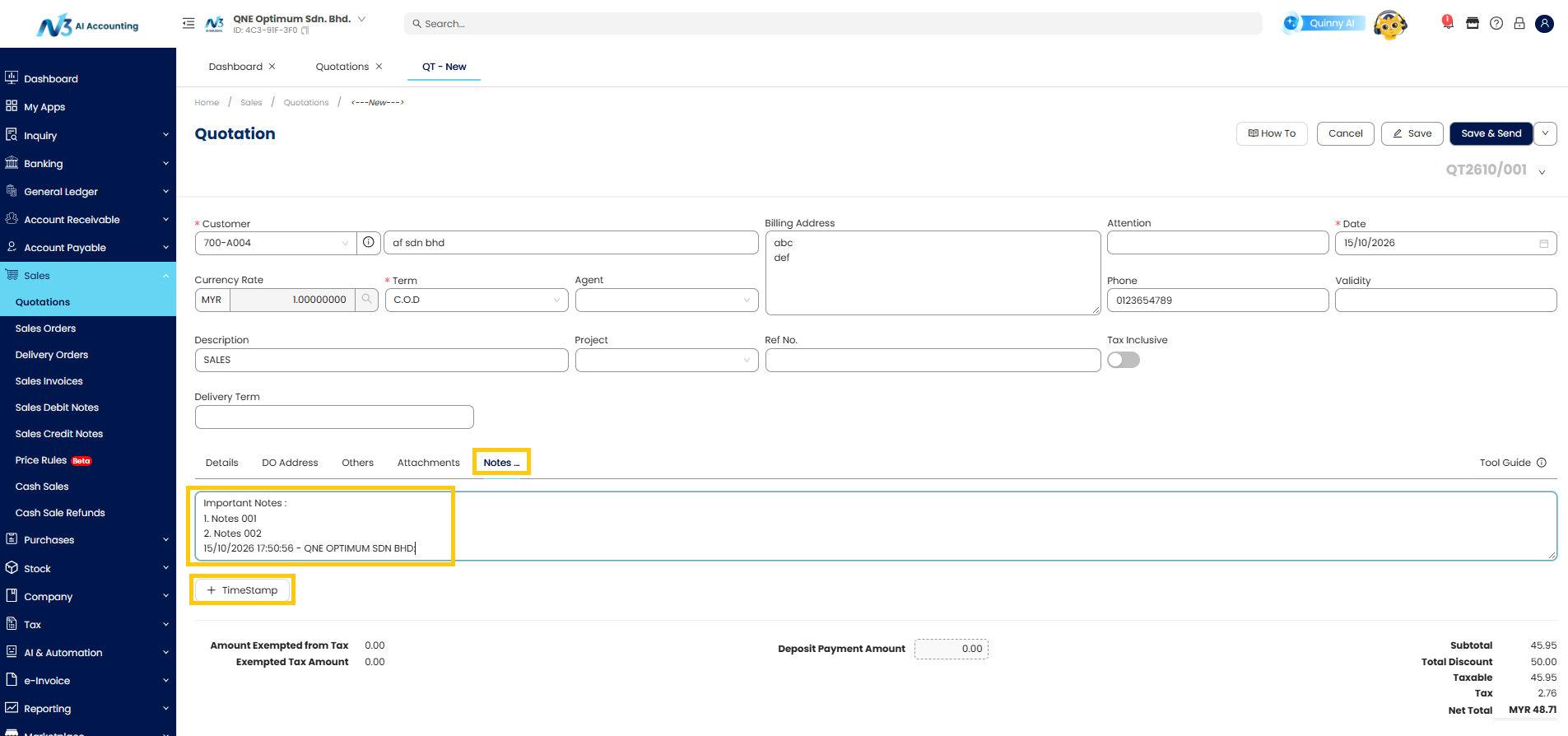
- Include the Notes section for additional information. Click Timestamp to records the date and time. If we fill in the notes, it will reflect in the Quotation report.
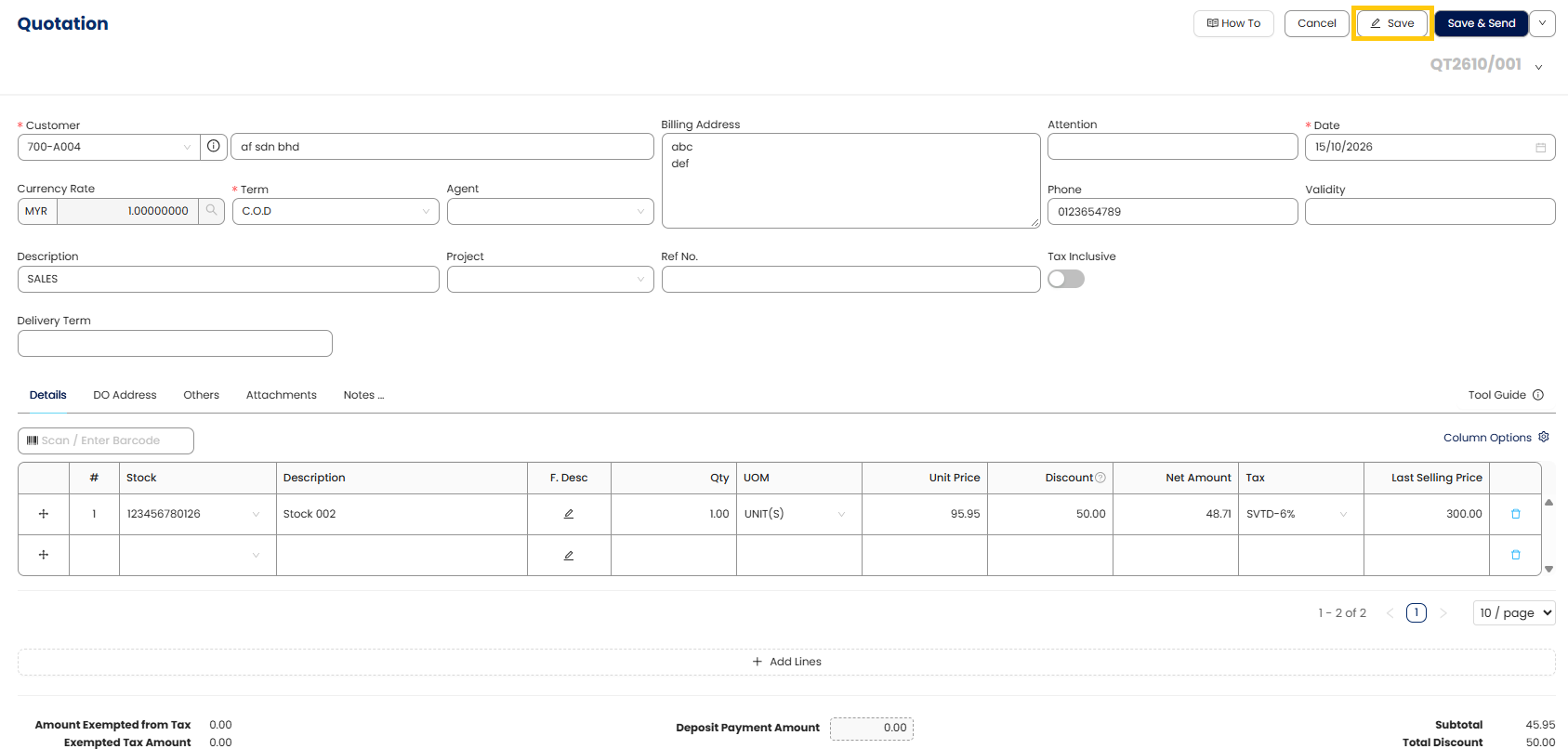
Step 4 : Review and finalize
- Review each line item for accuracy in quantity, pricing, discounts, and taxes.
- Ensure customer information is correct.
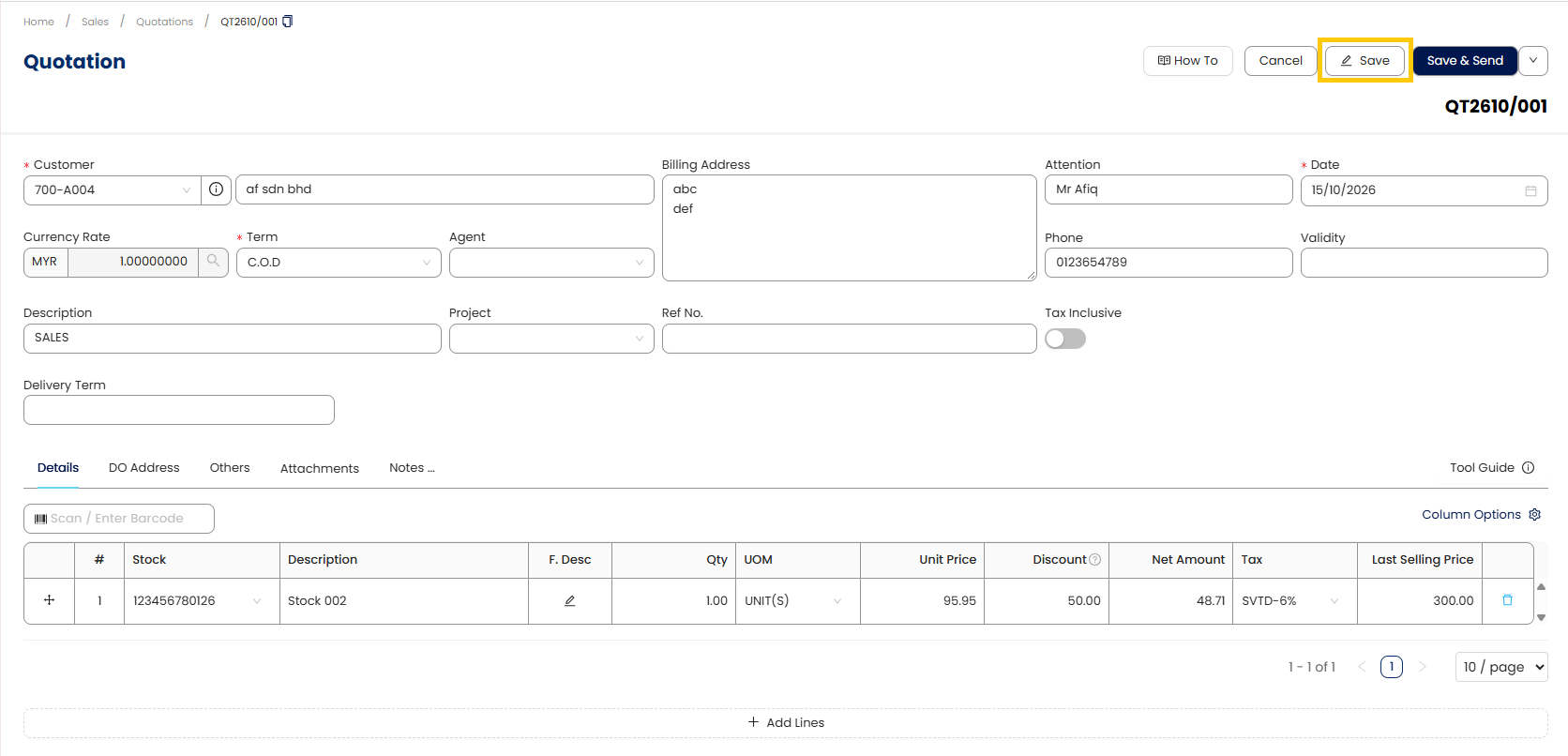
- Click Save to store the quotation in N3 AI.
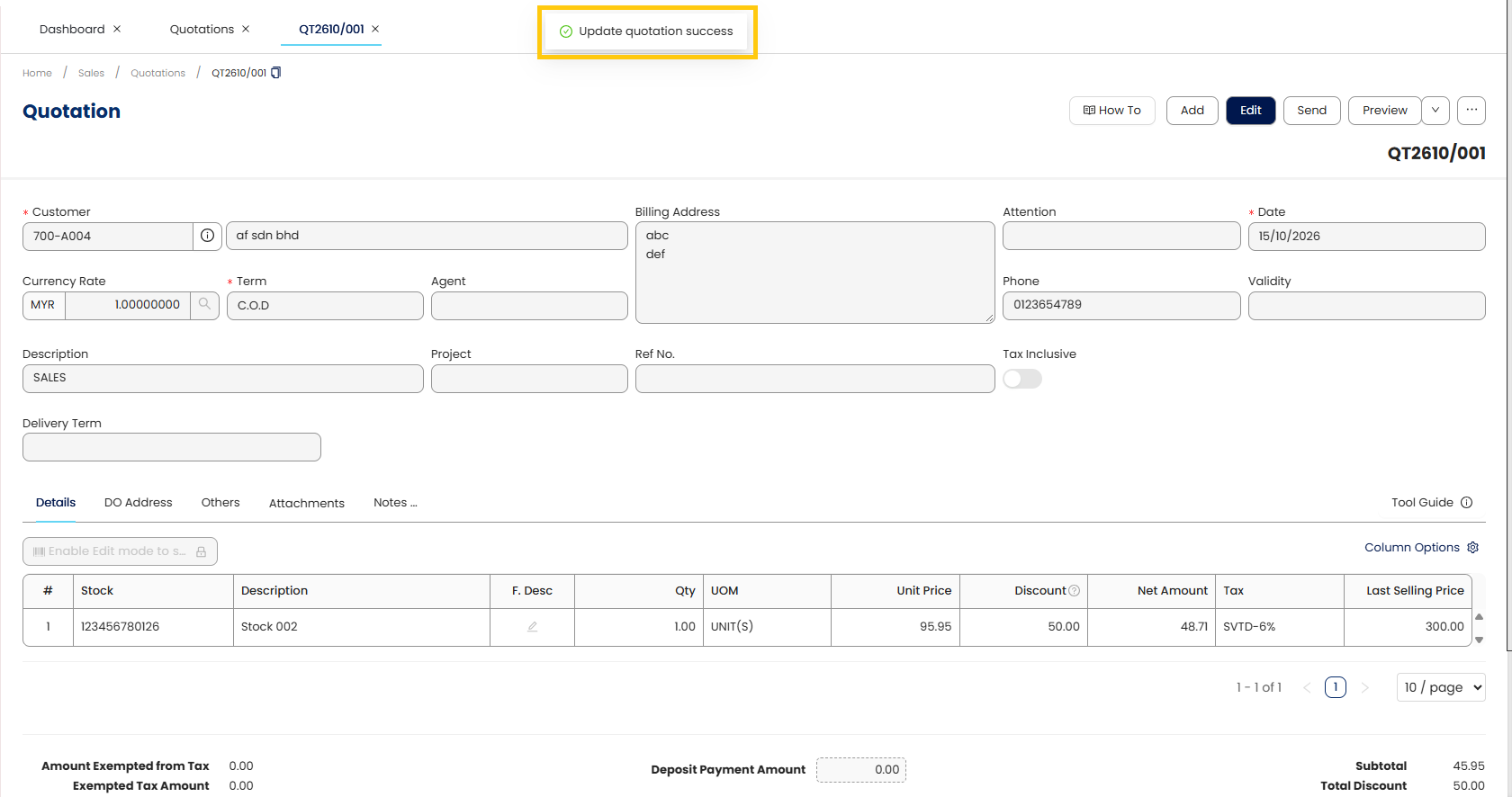
Step 5 : Preview the Quotation
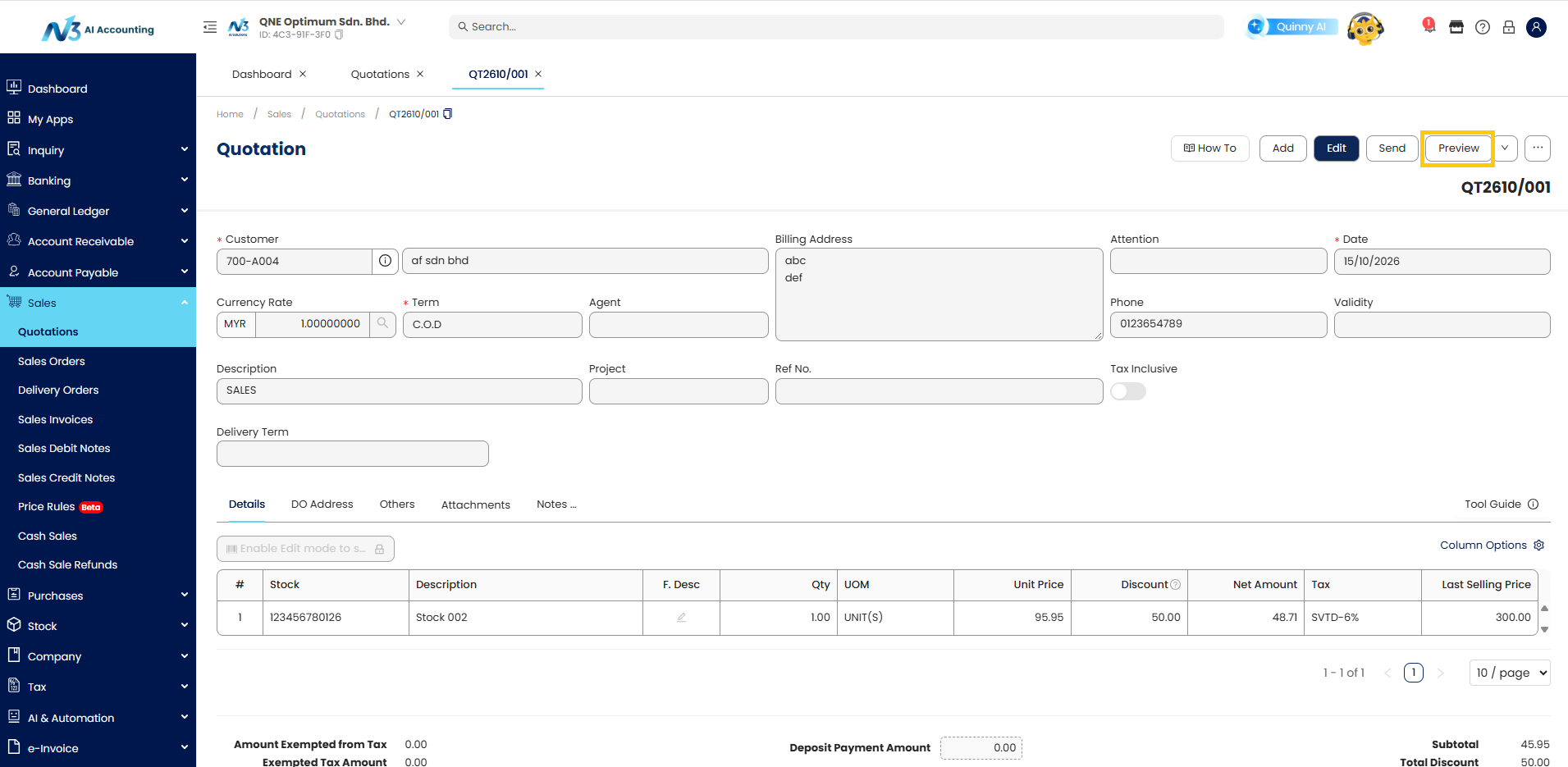
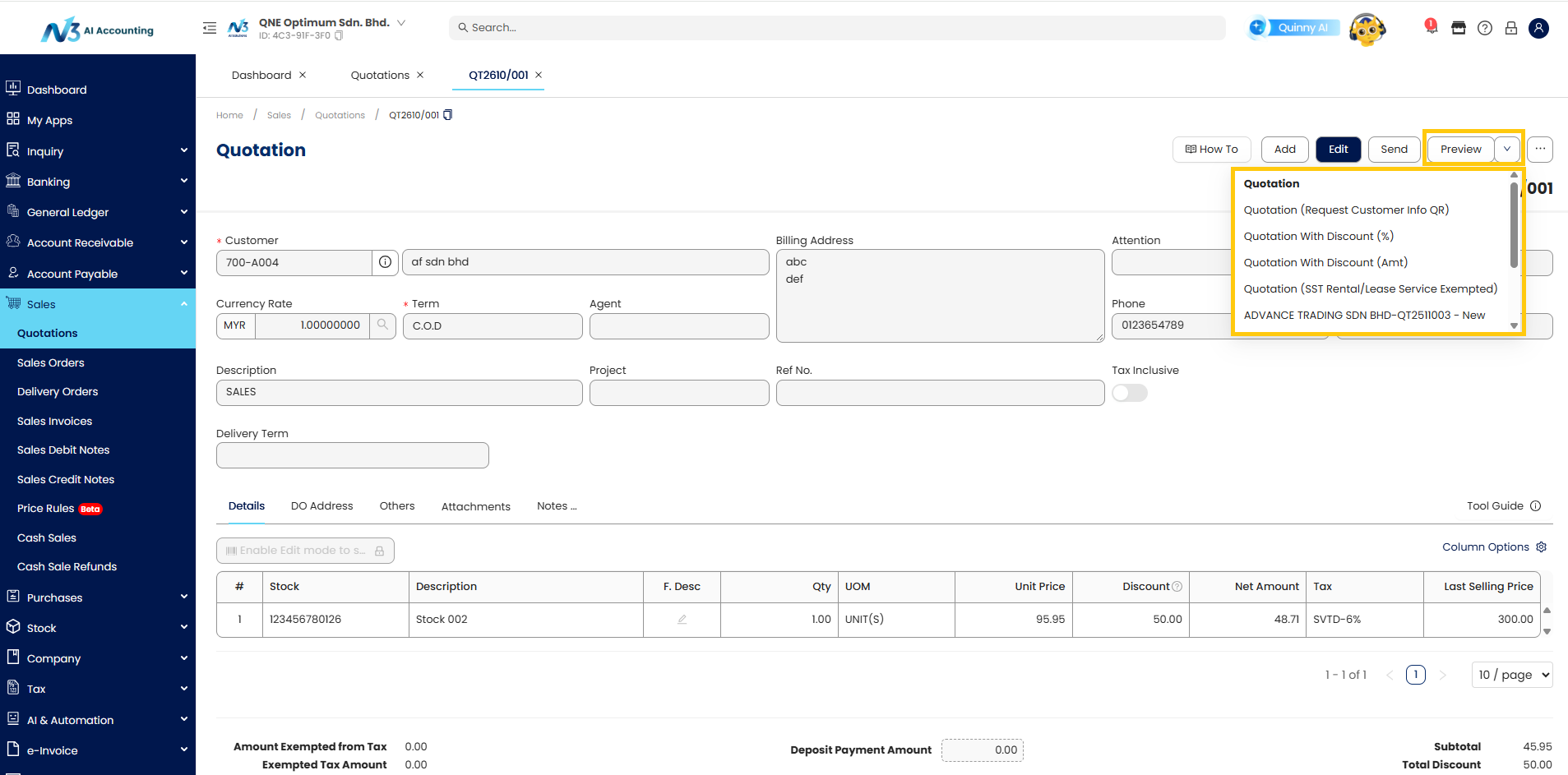
- Click Preview to preview the Quotation Report
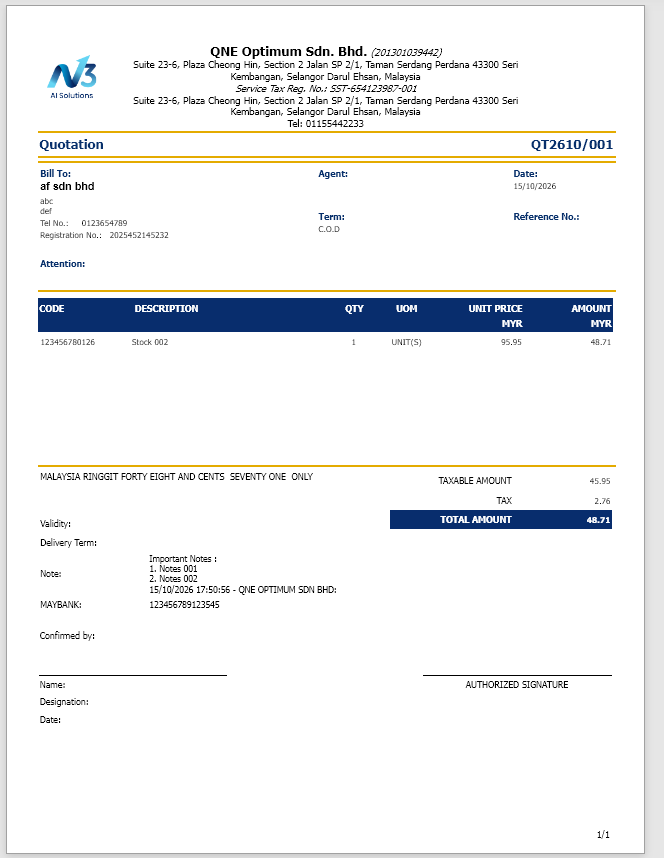
- System will generate a Quotation report for user.
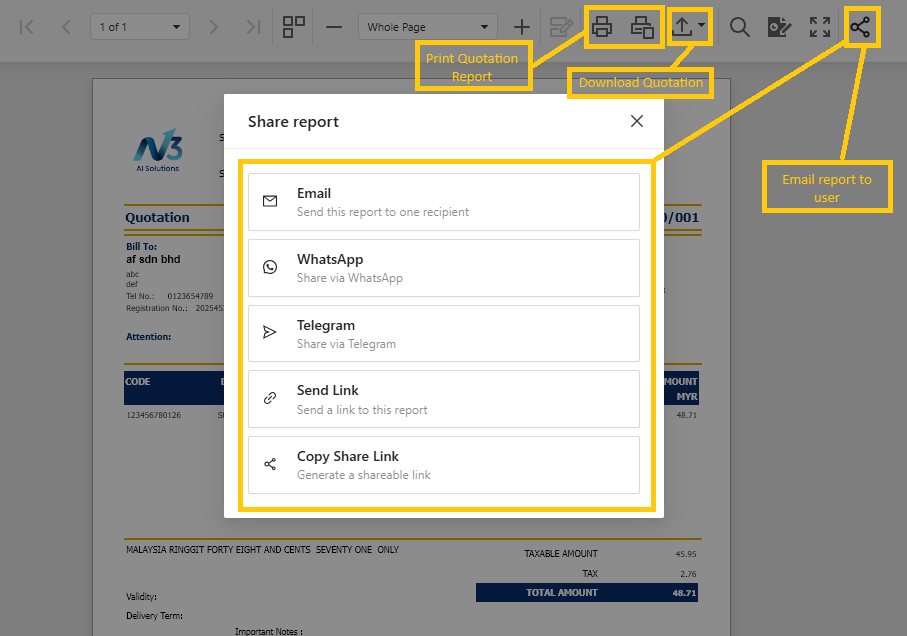
- In this page user can print, download or send email to their users. User can share the quotation via email, whatsapp, telegram or send the link for the report
- User also can select others report format as per user preferences
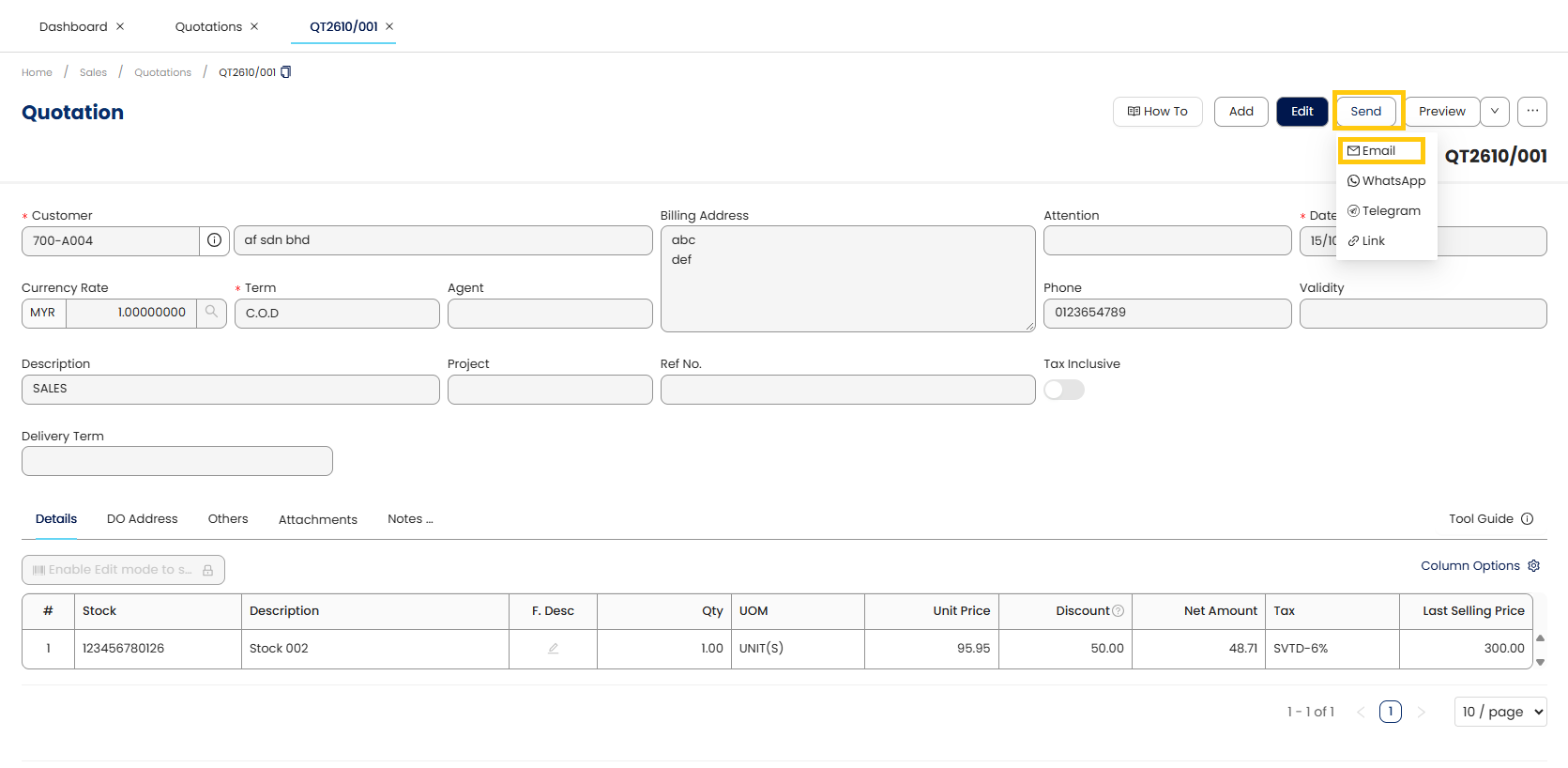
Step 6: Send the Quotation to the Customer
- Click Send via Email.
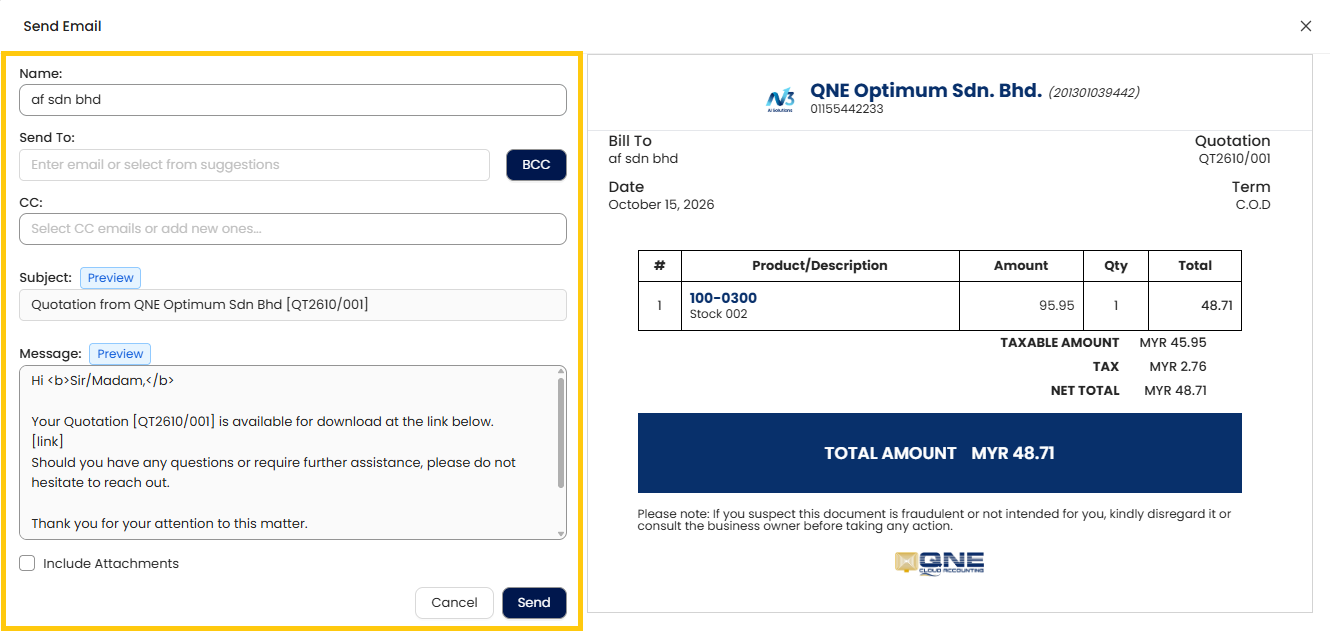
- Manually customize the email message content in the message box if necessary. To set your own email content in the system user can refer to this KB :
- Send the quotation and track its status within N3 AI for follow-up by go check the Email Status column.
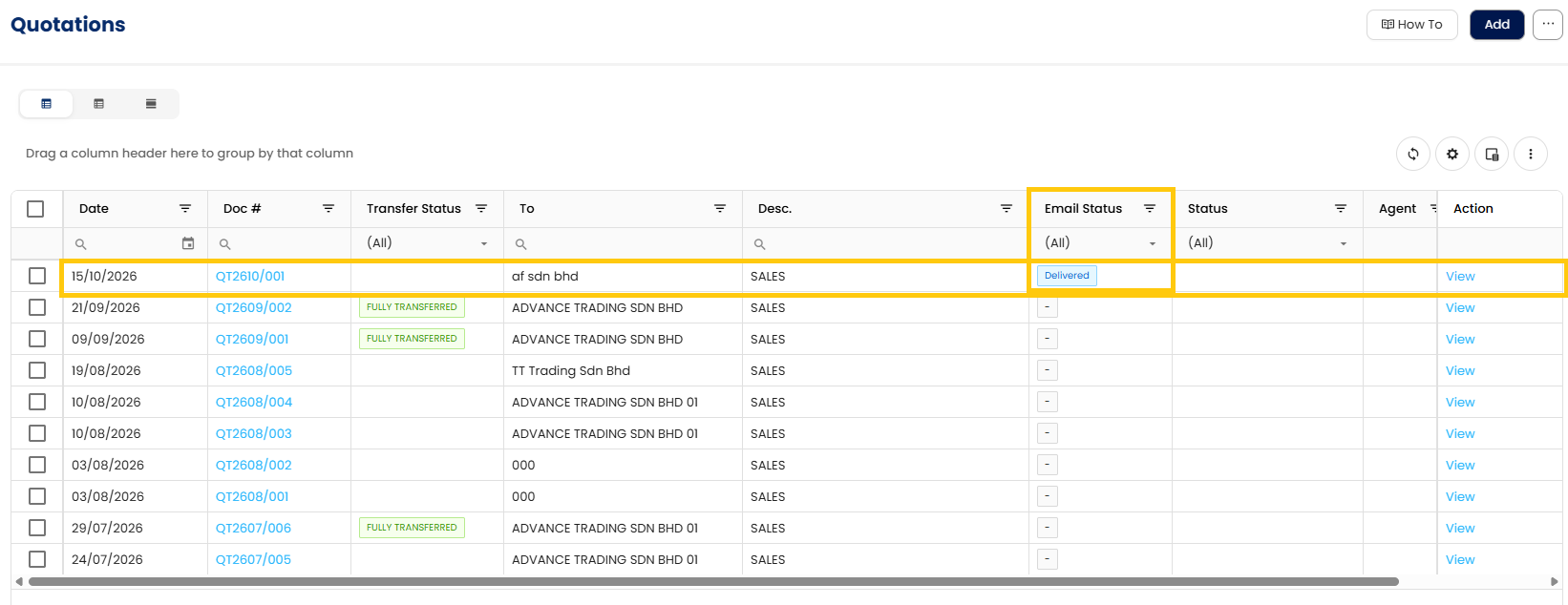
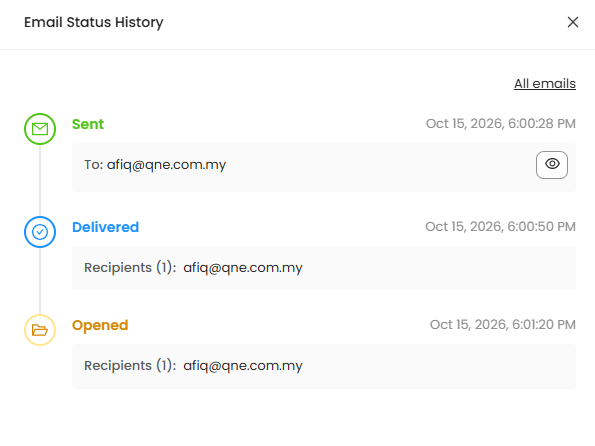
- Quotation created successful!
Edit Existing Quotation
- Navigate to Sales > Quotations.
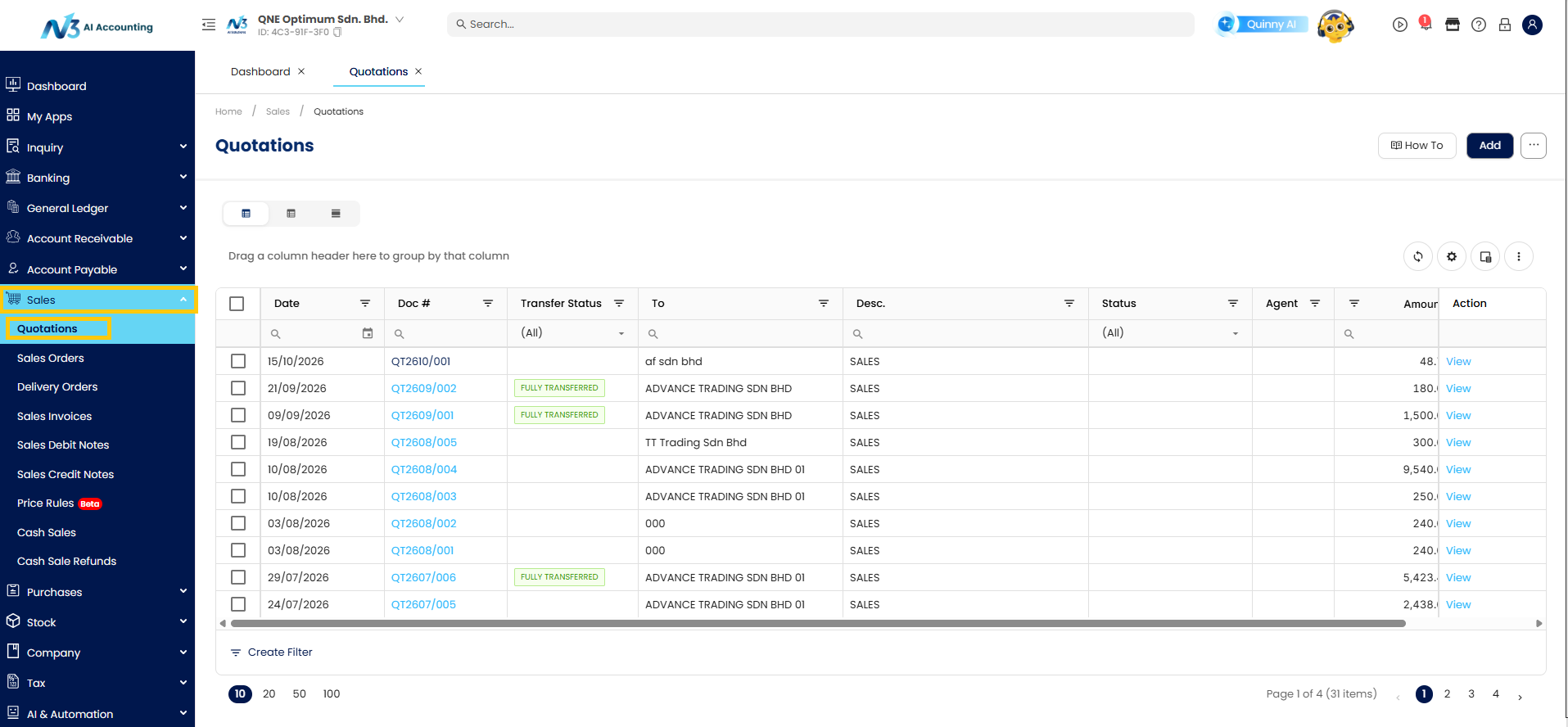
- From the list, locate the Quotation you wish to modify.
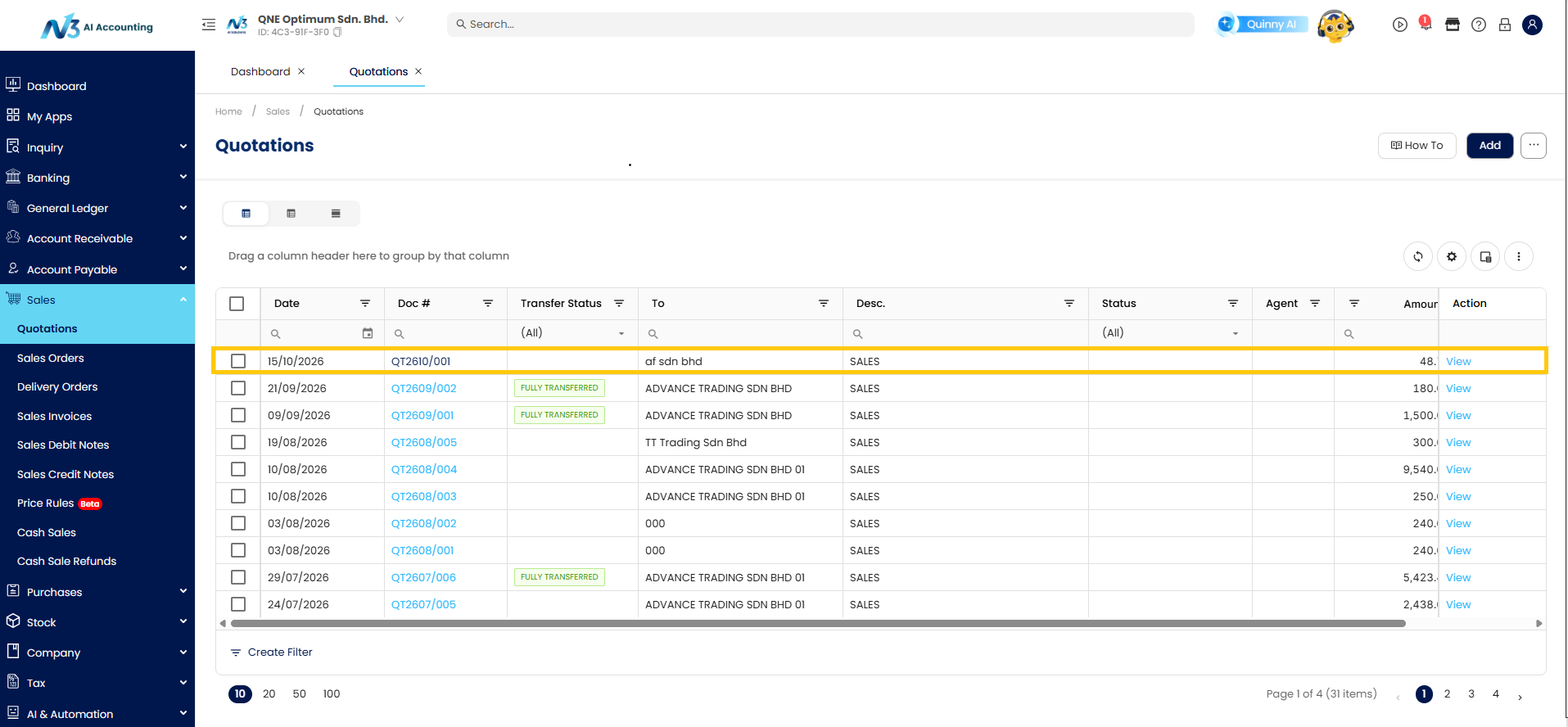
- Open by clicking the blue highlight. Then Click the Edit icon.
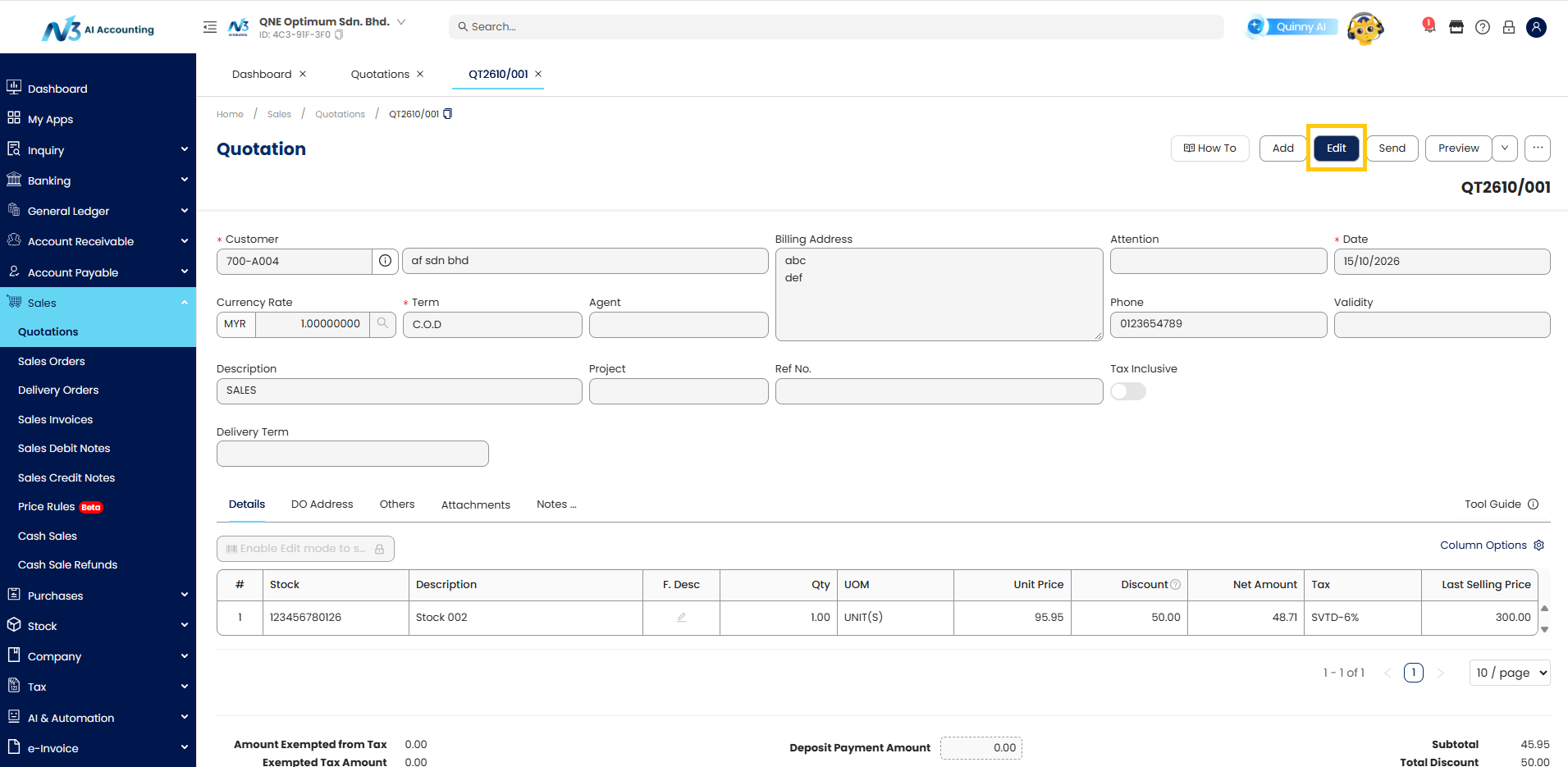
- Apply the necessary changes to the fields, then once done click Save.
Delete Quotation
- Navigate to Sales > Quotations.
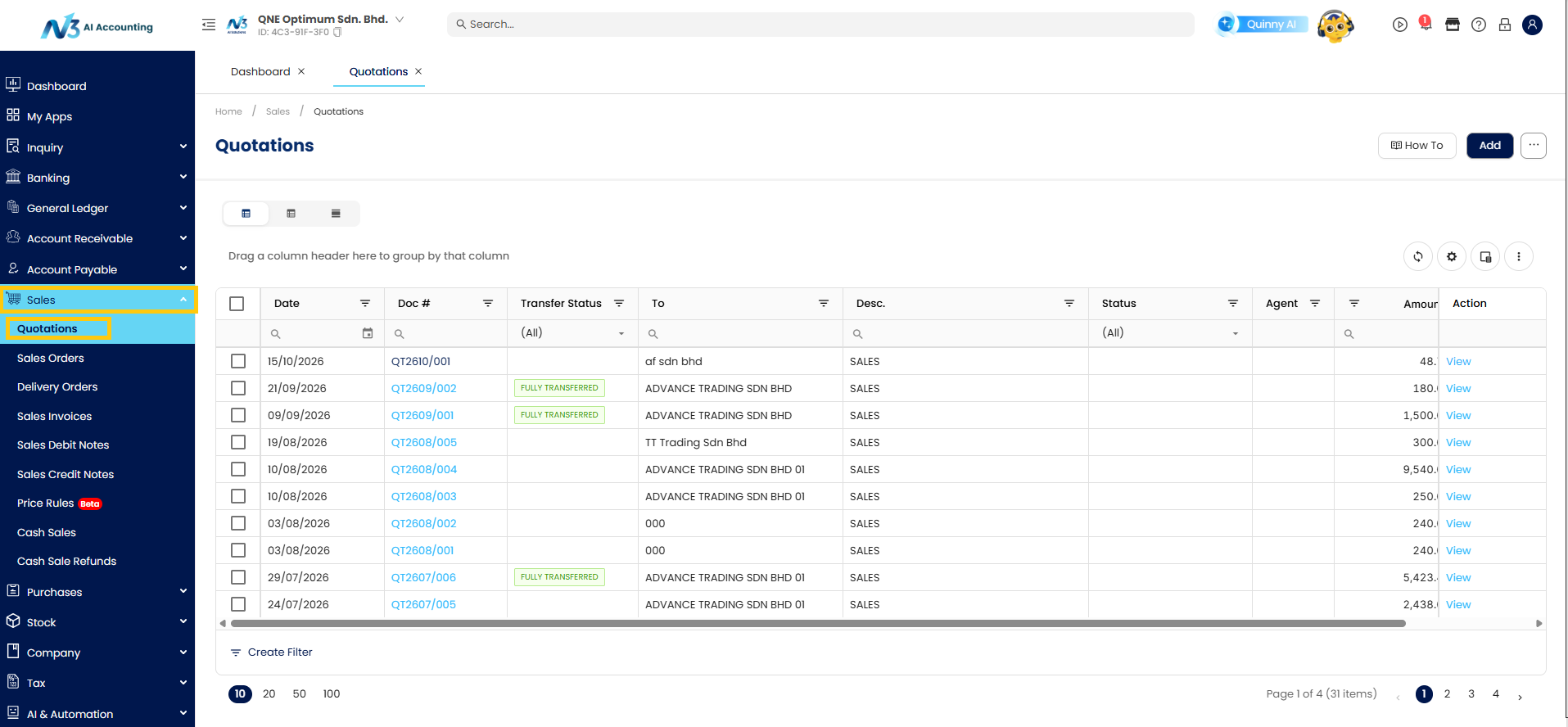
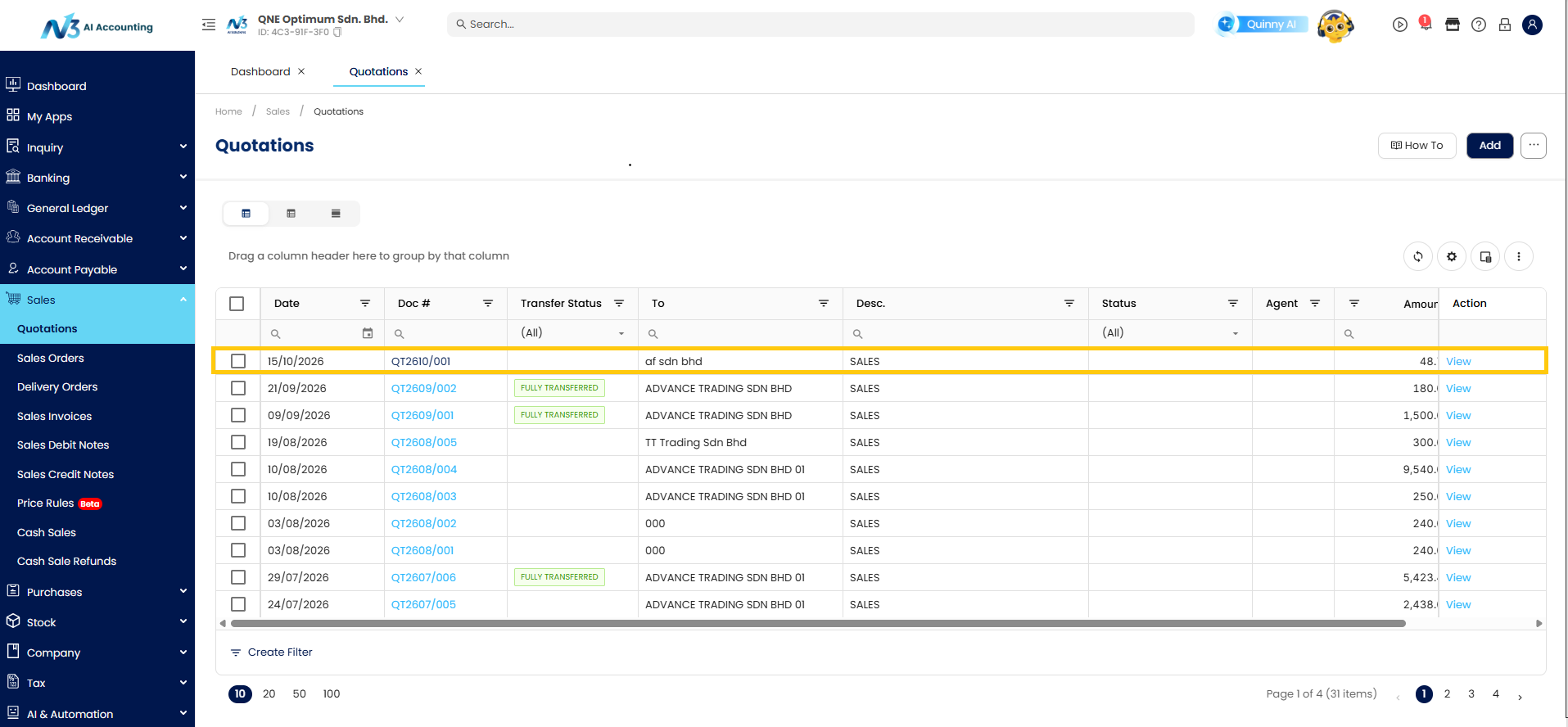
- Find the specific Quotation in the listing.
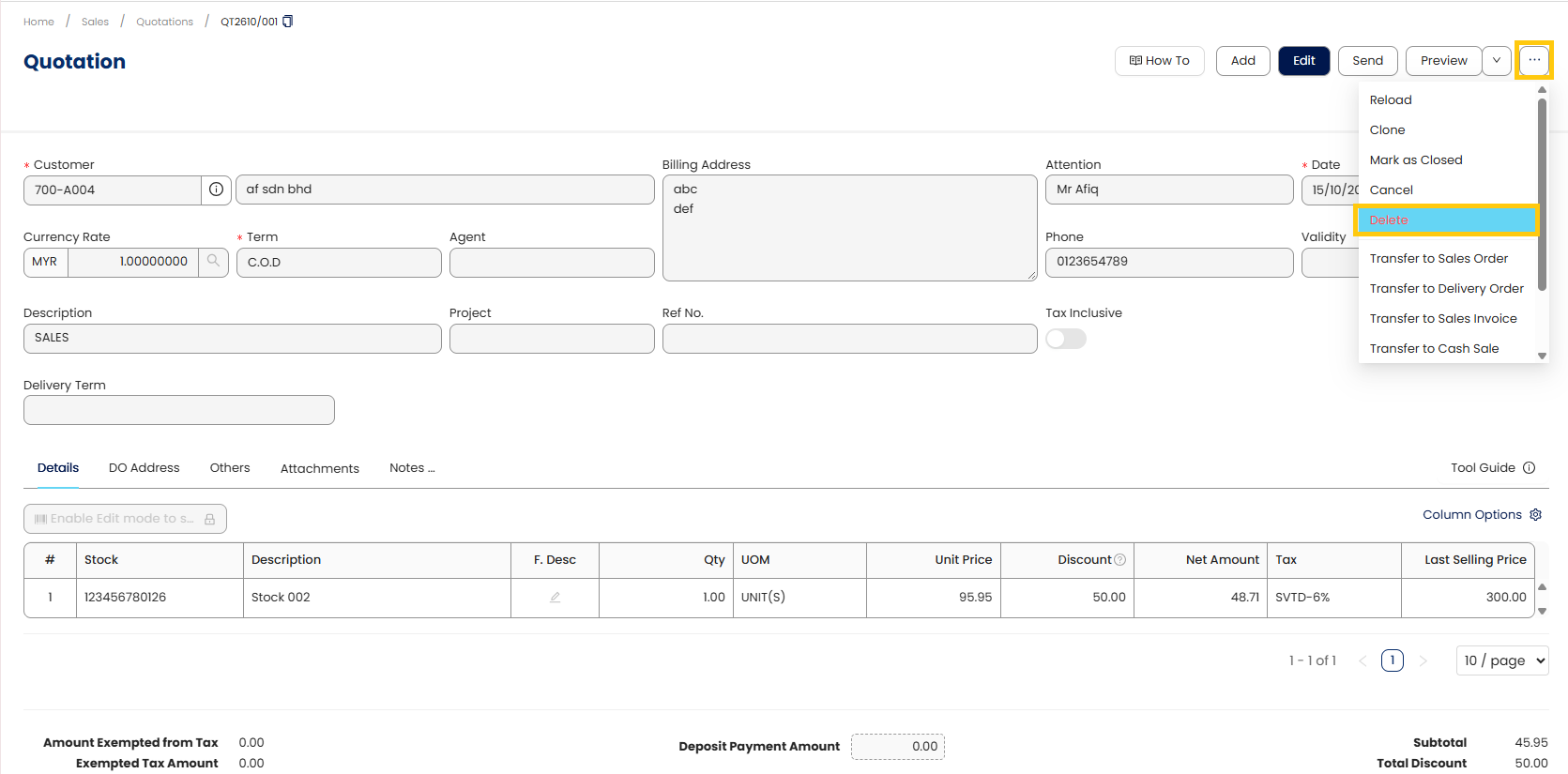
- Click the Delete icon from the drop-down button.
- A confirmation prompt will appear; click Yes to confirm.
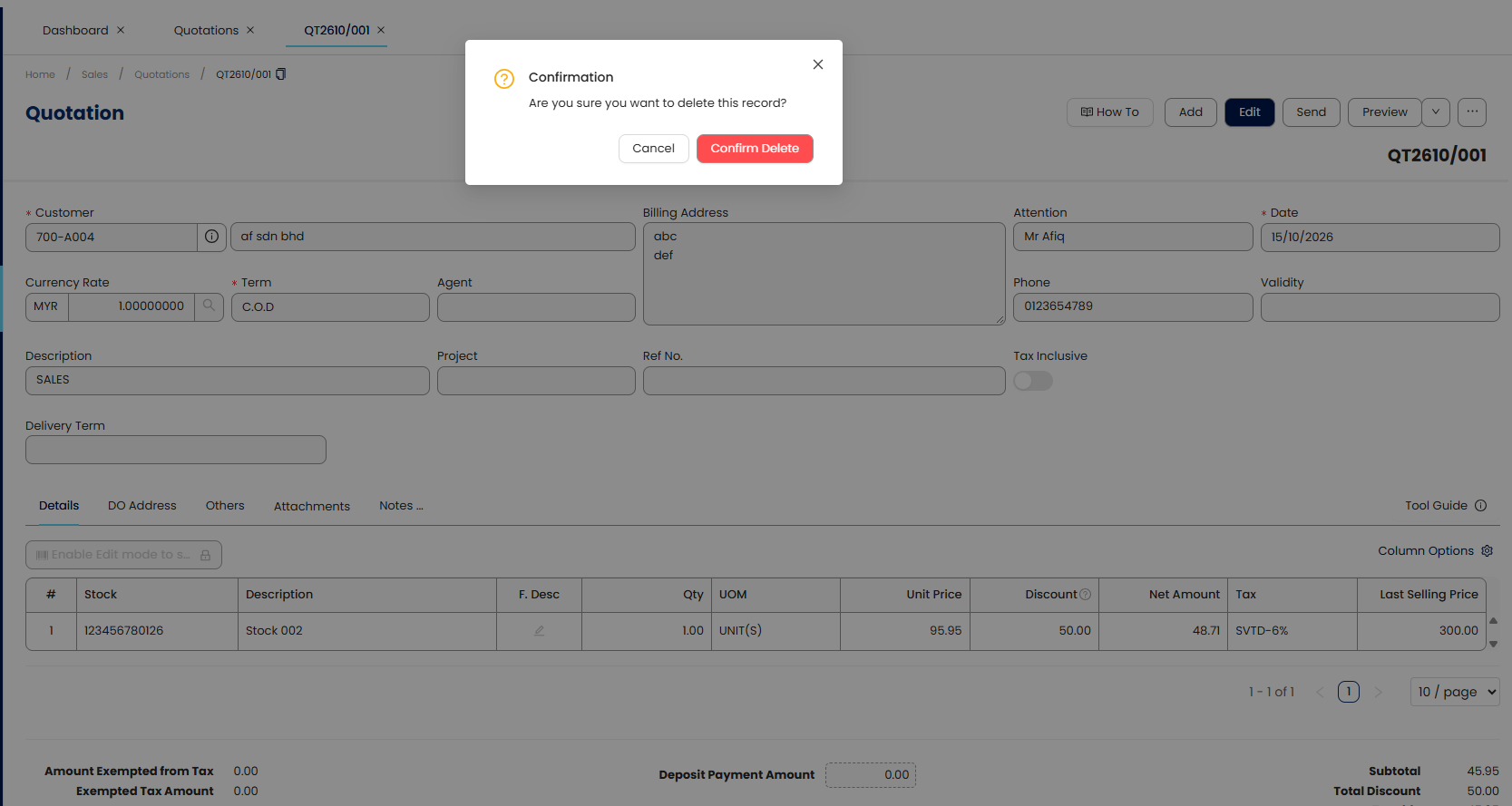
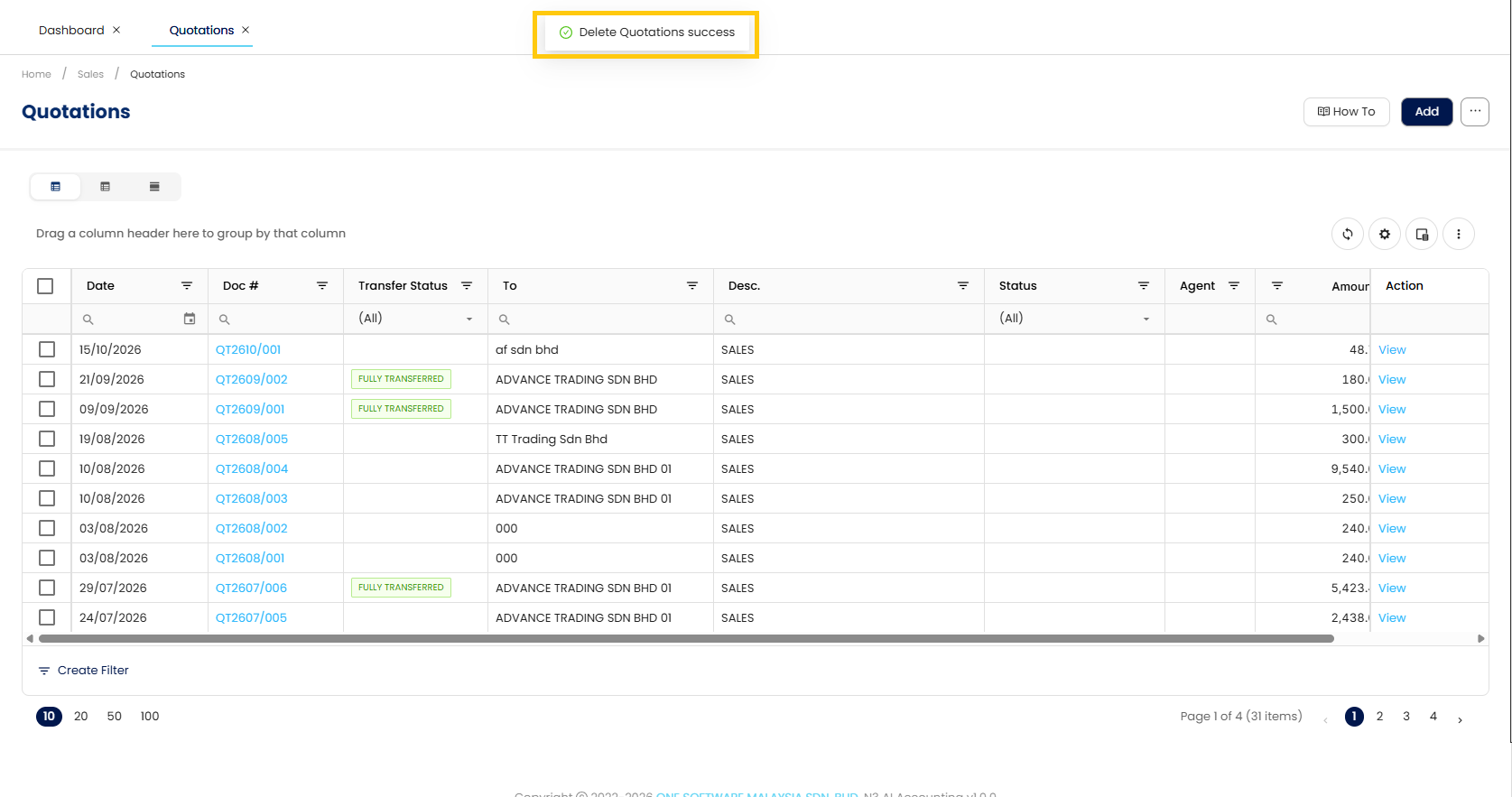
- Your Quotation are successfully deleted in the N3 AI Accounting
Click here to see the pdf file
Was this article helpful?
That’s Great!
Thank you for your feedback
Sorry! We couldn't be helpful
Thank you for your feedback
Feedback sent
We appreciate your effort and will try to fix the article
