Overview:
When you save a Receipt Voucher, a Payment Voucher or a GST Deposit, the system may show a Validation Error window with the message “Payment Method must not be empty”, and the document cannot be saved.
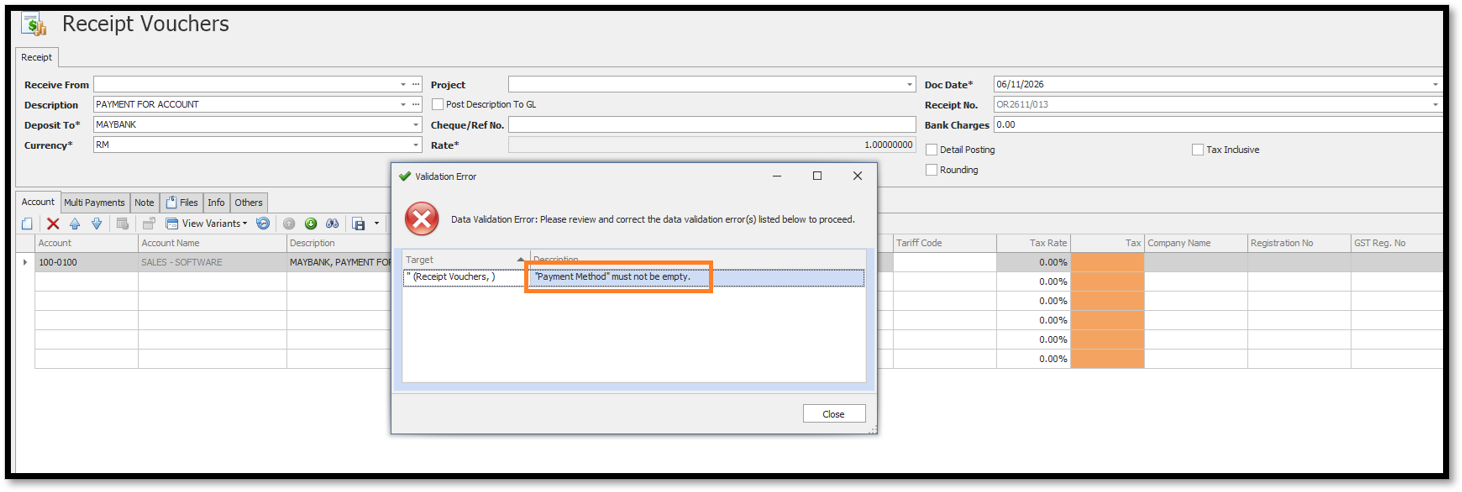
This message appears because Compulsory Select Payment Method is enabled in System Options (General tab), requiring a Payment Method for every voucher before saving.
To resolve this, either select a Payment Method in the voucher or disable this option if it is not required. This guide explains how to disable it.
Scenario:
An accounts staff member receives a “Payment Method must not be empty” validation error when saving a Receipt Voucher.
Since the company does not require Payment Method records, the administrator disables Compulsory Select Payment Method in System Options. After saving the setting, the Receipt Voucher can be saved without selecting a Payment Method.
Solution:
Option A - Select a Payment Method
1. If your company records the payment method on its vouchers, select the Payment Method in the voucher, then click Save again. You do not need to change any setting.
2. If the Payment Method field is not visible on screen, follow the guide below link to display it:
How to Display the Payment Method Field in Receipt Voucher
Option B - Turn off Compulsory select Payment Method
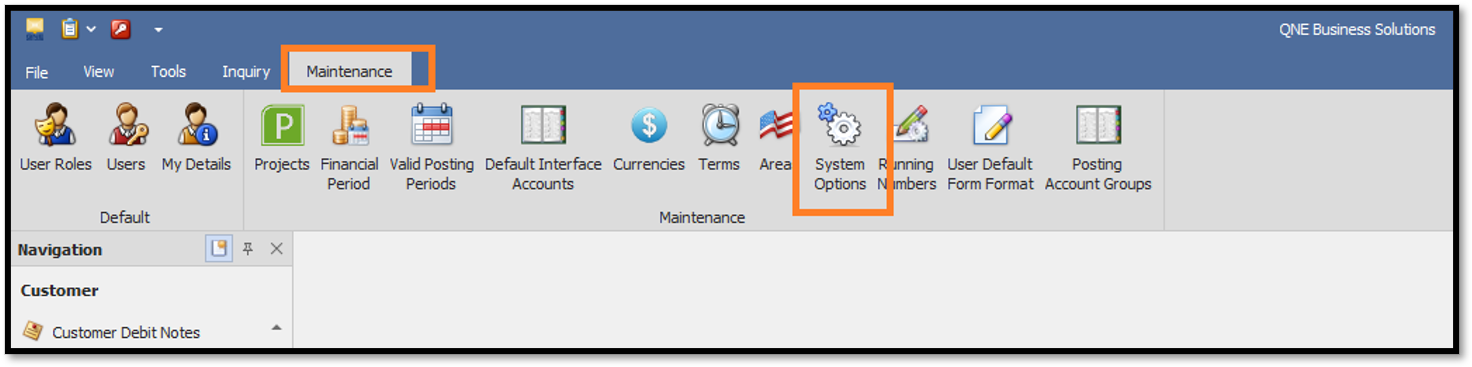
1. Click the Maintenance tab on the top menu, then click System Options.
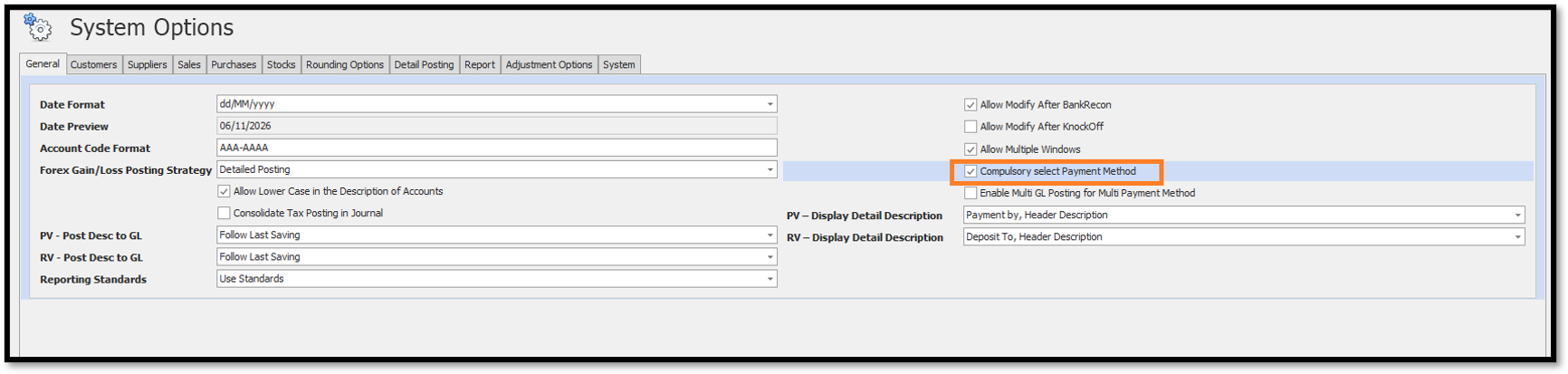
2. The System Options window opens on the General tab. The option Compulsory select Payment Method is ticked. This is why the payment method cannot be empty.
3. Untick Compulsory select Payment Method, then click Save on the Home tab.
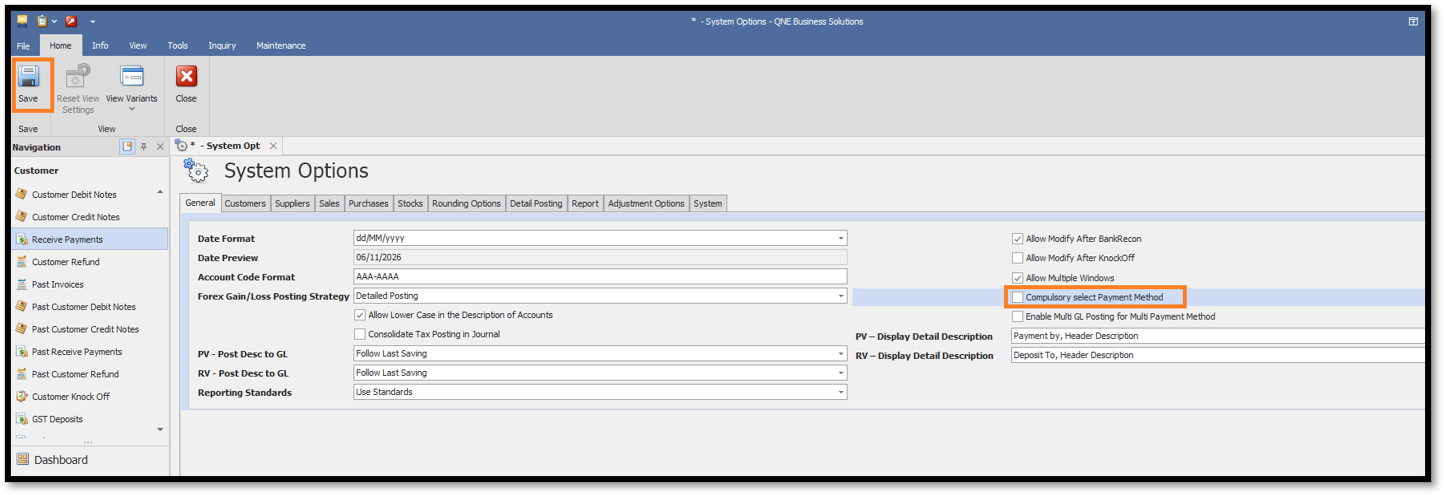
4. Close System Options, then open the voucher again and click Save. The voucher can now be saved without selecting a Payment Method.
Note:
• Use Option A if your company wants the payment method recorded on every voucher. Use Option B only if the payment method is not needed.
• System Options change how the system works, so inform your team or administrator before you change a setting.
• Remember to click Save in System Options, otherwise the change is not kept.
• If the message still appears after you save the setting, close the voucher window and open it again.
Was this article helpful?
That’s Great!
Thank you for your feedback
Sorry! We couldn't be helpful
Thank you for your feedback
Feedback sent
We appreciate your effort and will try to fix the article
