Overview :
A UOM (unit of measure) is the unit a stock item is sold or bought in, e.g. a single unit, a pack of 6 or a carton of 12. In N3 AI POS, UOMs are created on each stock item, in its UOM tab. Every item has one Base UOM with rate 1, and you can add more UOMs, each with its own Rate, price, cost and barcode. This article guides you through creating UOMs for a stock item in the N3 AI POS Portal and shows the result in the Portal, on a Purchase Order and at the till.
At the end of this article, you will be able to:
Know the default base UOM for new stock items
Add a UOM to a stock item and set its rate, price, cost and barcode
Choose the sales and purchase default UOMs
See the new UOM on purchases and at the till
Scenario :
A mini market sells Rolled Oats 500g (OAT500) by the unit (UNIT(S)) and by the carton of 12 (CTN). It now also wants to sell a pack of 6, and it always buys the item from its supplier by the carton. The owner adds a PACK UOM with rate 6, and sets the Purchase Default UOM to CTN.
Solution :
Default Base UOM for New Stock Items
Navigate to Company > Maintenance > Settings and select Stock Setting. Default Base UOM is the code and description of the base UOM that every new stock item starts with, e.g. UNIT(S) and --BASE UOM--. You can still change it on the item before saving. Stock items already saved keep their own base UOM.
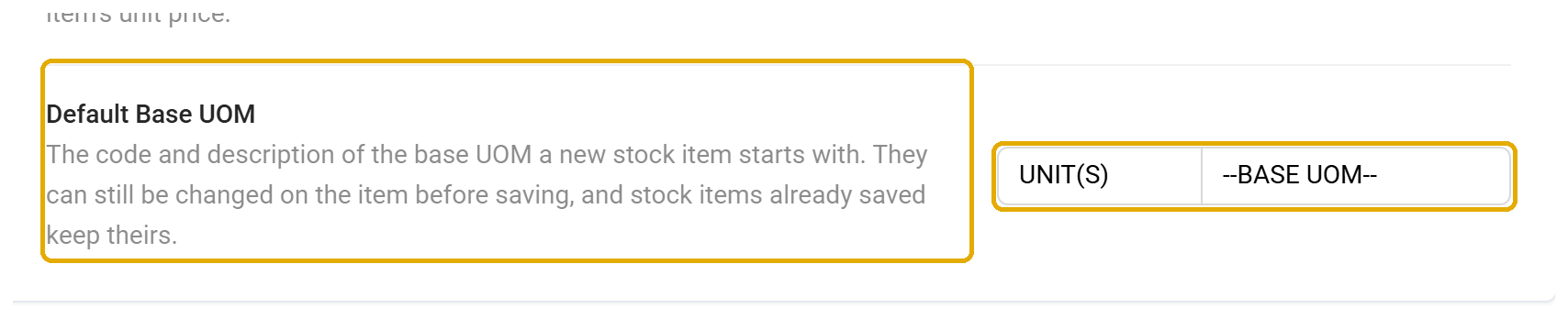
Tip: Changing the Default Base UOM only affects new stock items. Click Review and save, then Confirm and save to keep a change.
Add a UOM to a Stock Item
Navigate to Stock > Stock Items, open the stock item, e.g. OAT500, and click Edit.

In the UOM tab, click Add UOM and fill in the new row:
UOM – The UOM code, e.g. PACK.
Description – e.g. PACK (6 UNITS).
Unit Price, Unit Cost and Min Price – The selling price, cost and lowest price allowed at the till for this UOM, e.g. 45.00, 33.00 and 42.00.
Rate – How many base units the UOM holds, e.g. 6. The base UOM always has rate 1.
Barcode – Optional. A barcode for this UOM, so scanning it sells this UOM, e.g. 9556001234581.
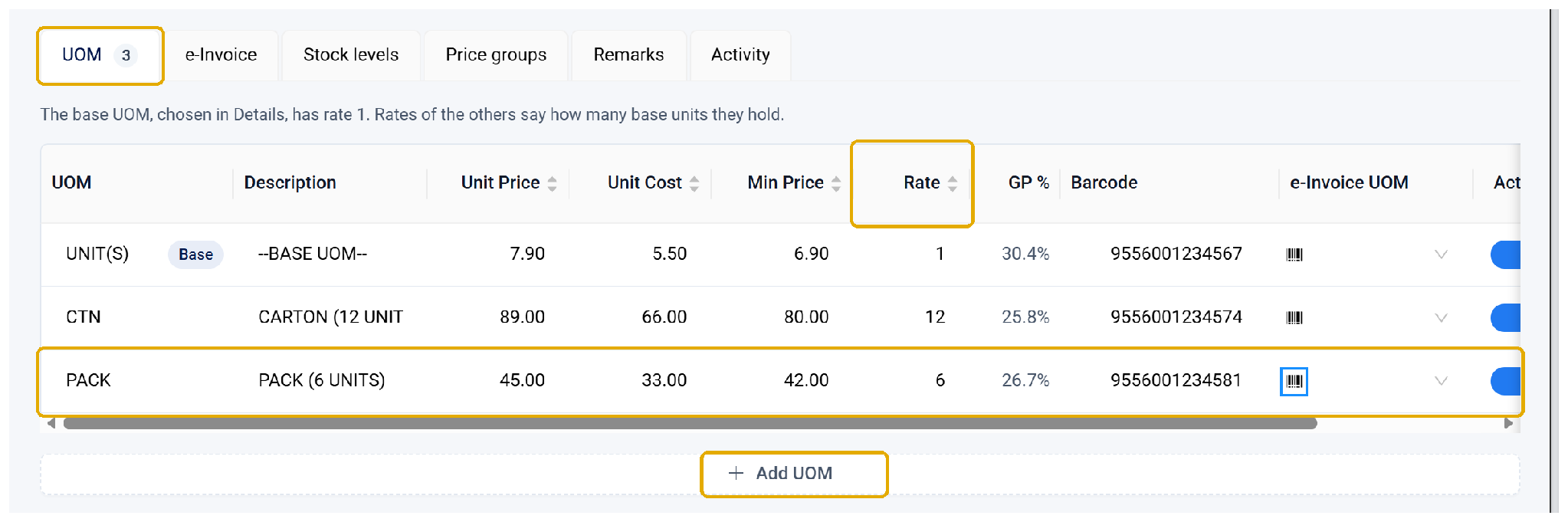
Note: GP % works out by itself from the Unit Price and Unit Cost of each UOM.
In Details, choose the default UOMs:
Sales Default UOM – The UOM chosen first when the item is sold, e.g. UNIT(S).
Purchase Default UOM – The UOM chosen first when the item is bought, e.g. CTN - CARTON (12 UNITS).
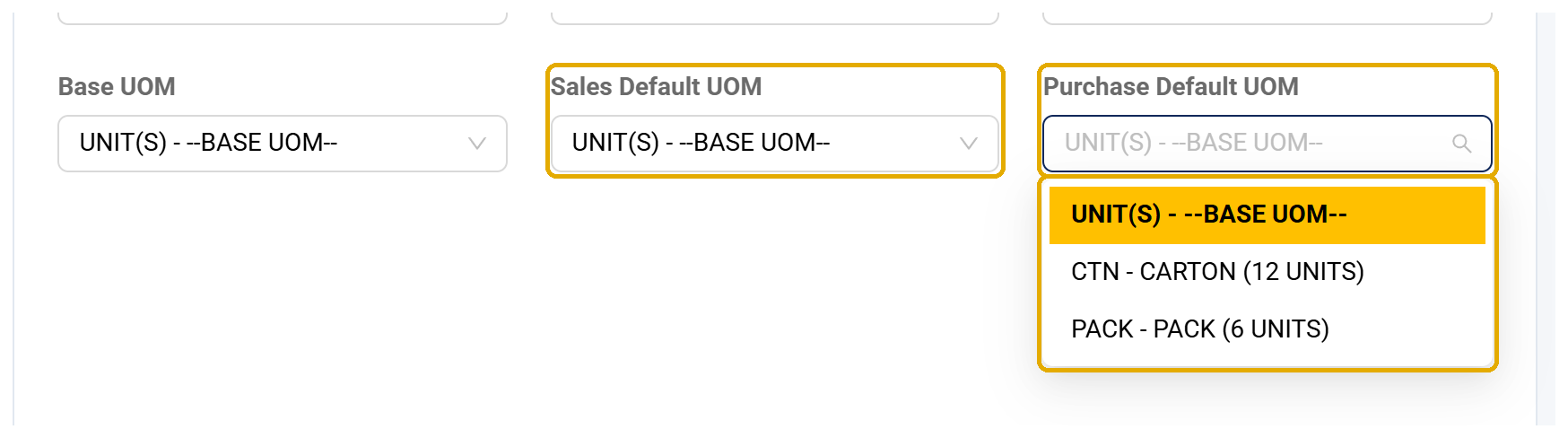
Click Save.

Result in the N3 AI POS Portal
Result: The UOM tab now shows 3 UOMs, and Purchase Default UOM shows CTN - CARTON (12 UNITS).

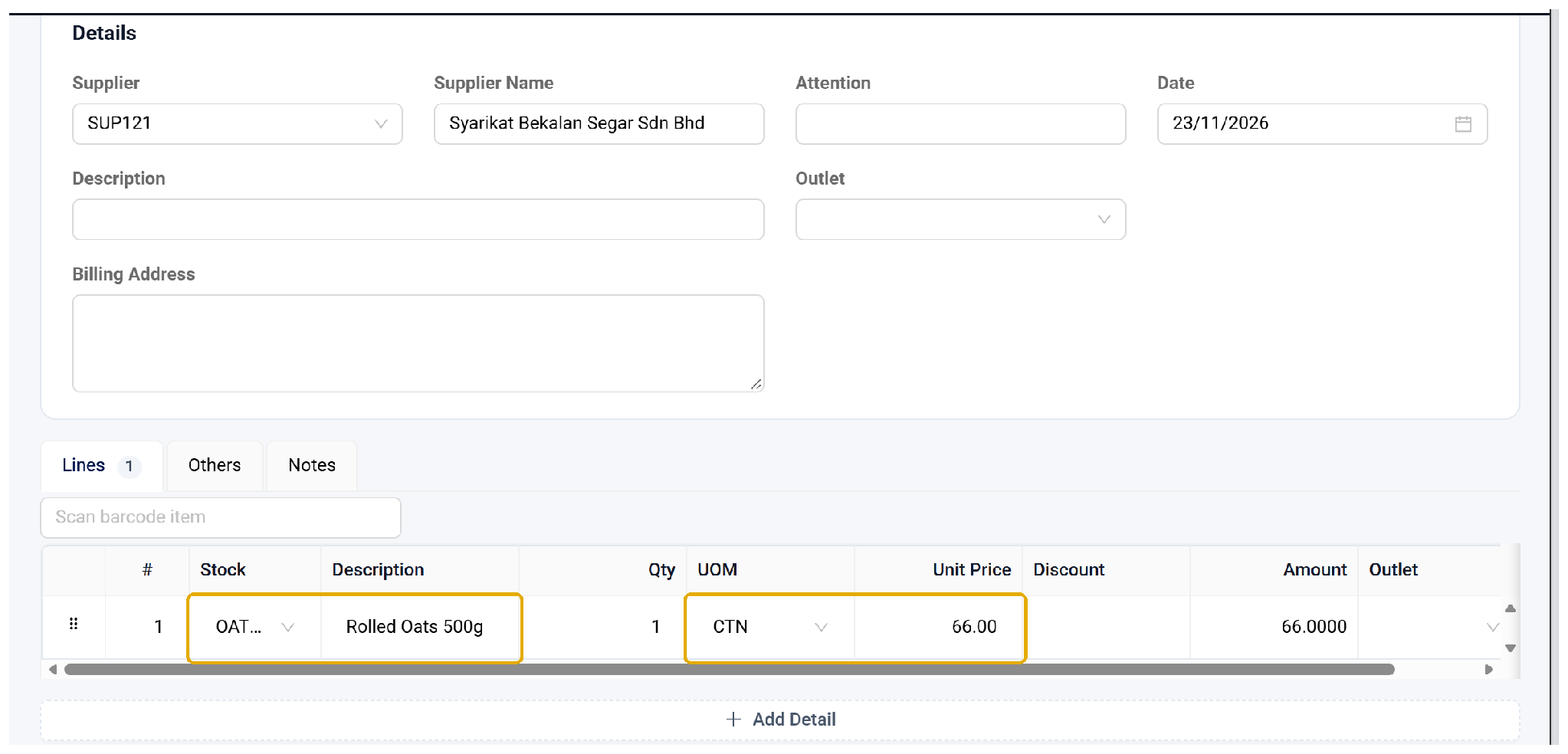
Purchase Order: In Purchases > Purchase Orders, add a Purchase Order and choose the item. The line starts on the Purchase Default UOM, CTN, at its unit cost 66.00.
Result at the Till
Tip: The tills get the new UOM when they sync. In the Win App, open Sync and click Quick Sync for Stocks. In the Android App, open the Sync tab and tap Quick Sync for Stocks.
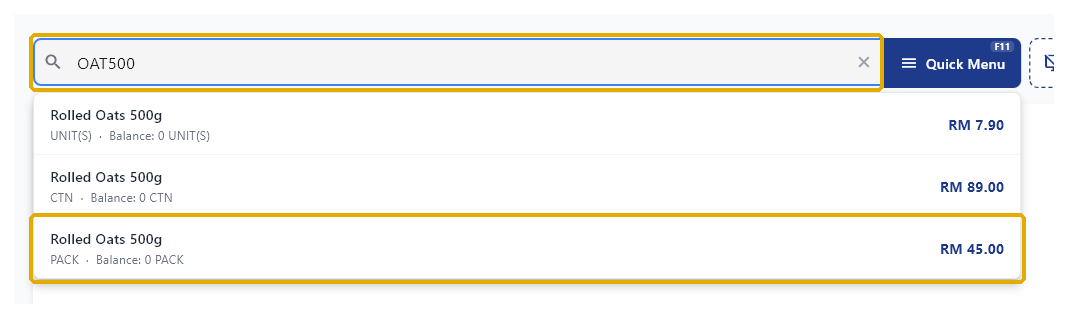
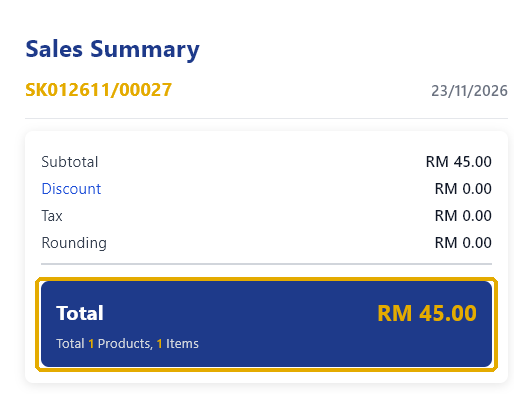
N3 AI POS Win App – On the sales screen, search the item, e.g. OAT500. Each UOM is listed with its own price: UNIT(S) RM 7.90, CTN RM 89.00 and PACK RM 45.00. Click PACK.
Result: The item is added to the bill as PACK at RM 45.00.

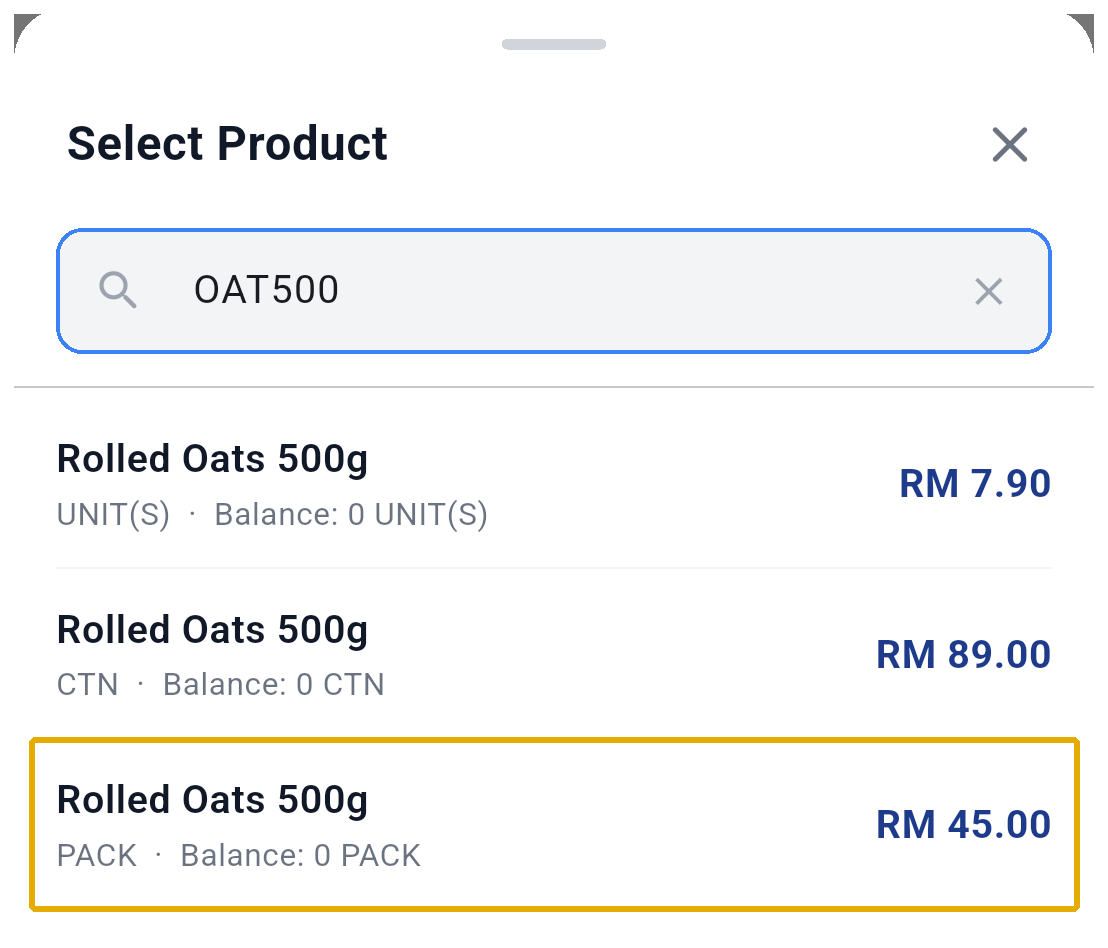
N3 AI POS Android App – On the POS screen, search OAT500. The same three UOMs are listed. Tap PACK.
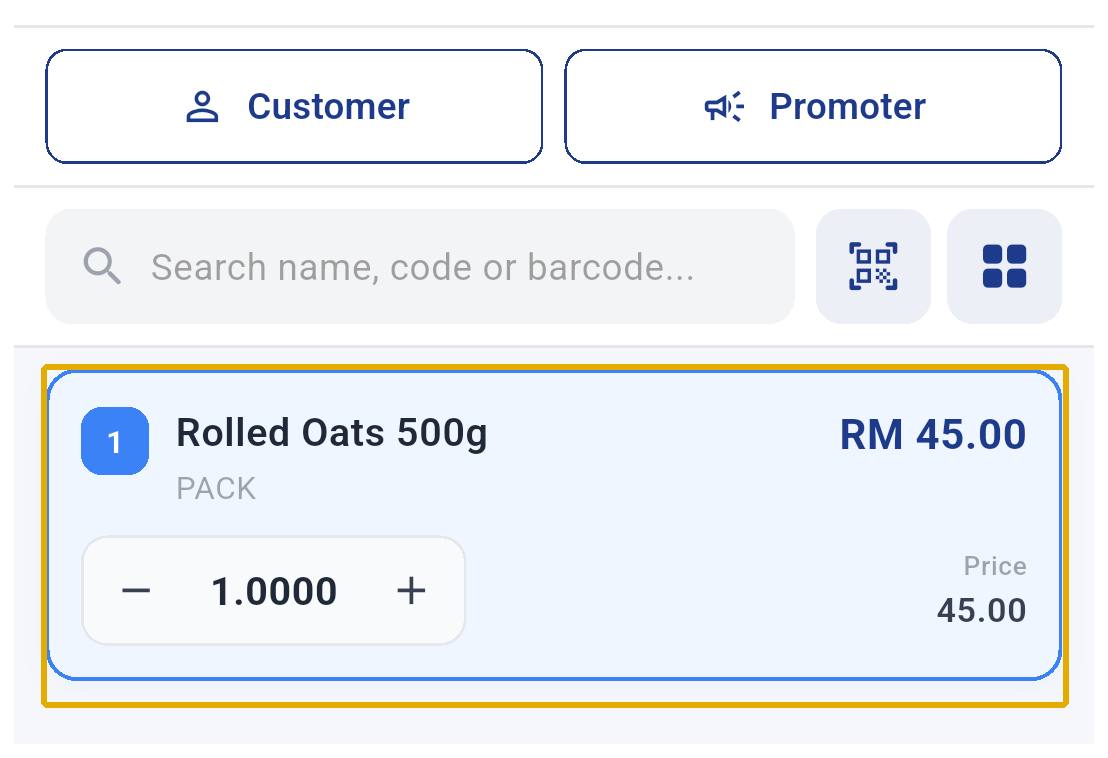
Result: The item is added to the bill as PACK at RM 45.00.
What's Next :
To give each UOM its own picture on the till's Quick Menu, see How to Add UOM Images in N3 AI POS. See also How to Create a Stock Item in N3 AI POS.
Was this article helpful?
That’s Great!
Thank you for your feedback
Sorry! We couldn't be helpful
Thank you for your feedback
Feedback sent
We appreciate your effort and will try to fix the article
