Overview :
With UOM Images, each UOM of a stock item can have its own picture, e.g. a single packet, a 6-pack and a carton. The tills show a UOM's picture on its Quick Menu tile, so the cashier can tell the packs apart at a glance. A UOM without its own picture shows the stock item's picture. This article guides you through turning on UOM Images, adding a picture to each UOM in the N3 AI POS Portal, and shows the result on the N3 AI POS Win App and Android App.
At the end of this article, you will be able to:
Turn on UOM Images in Stock Setting
Add a picture to each UOM of a stock item
Show the UOMs on the Quick Menu at the till
Scenario :
A mini market sells Rolled Oats 500g (OAT500) as a single packet (UNIT(S)), a PACK of 6 and a carton (CTN) of 12. On the Quick Menu, all three tiles look the same, and cashiers sometimes ring up the wrong pack. The owner turns on UOM Images and gives each UOM its own picture.
Solution :
Turn On UOM Images
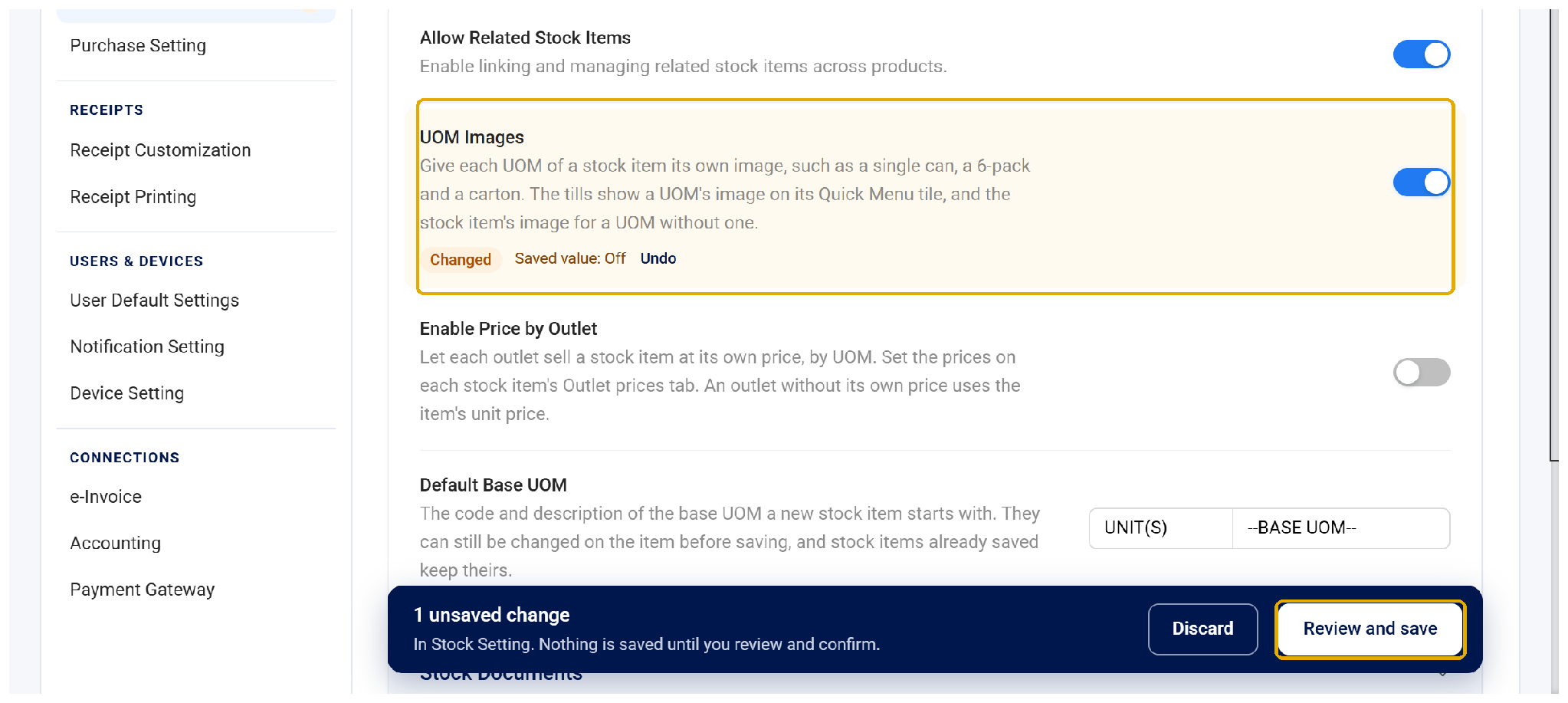
Navigate to Company > Maintenance > Settings and select Stock Setting. Turn on UOM Images, then click Review and save.
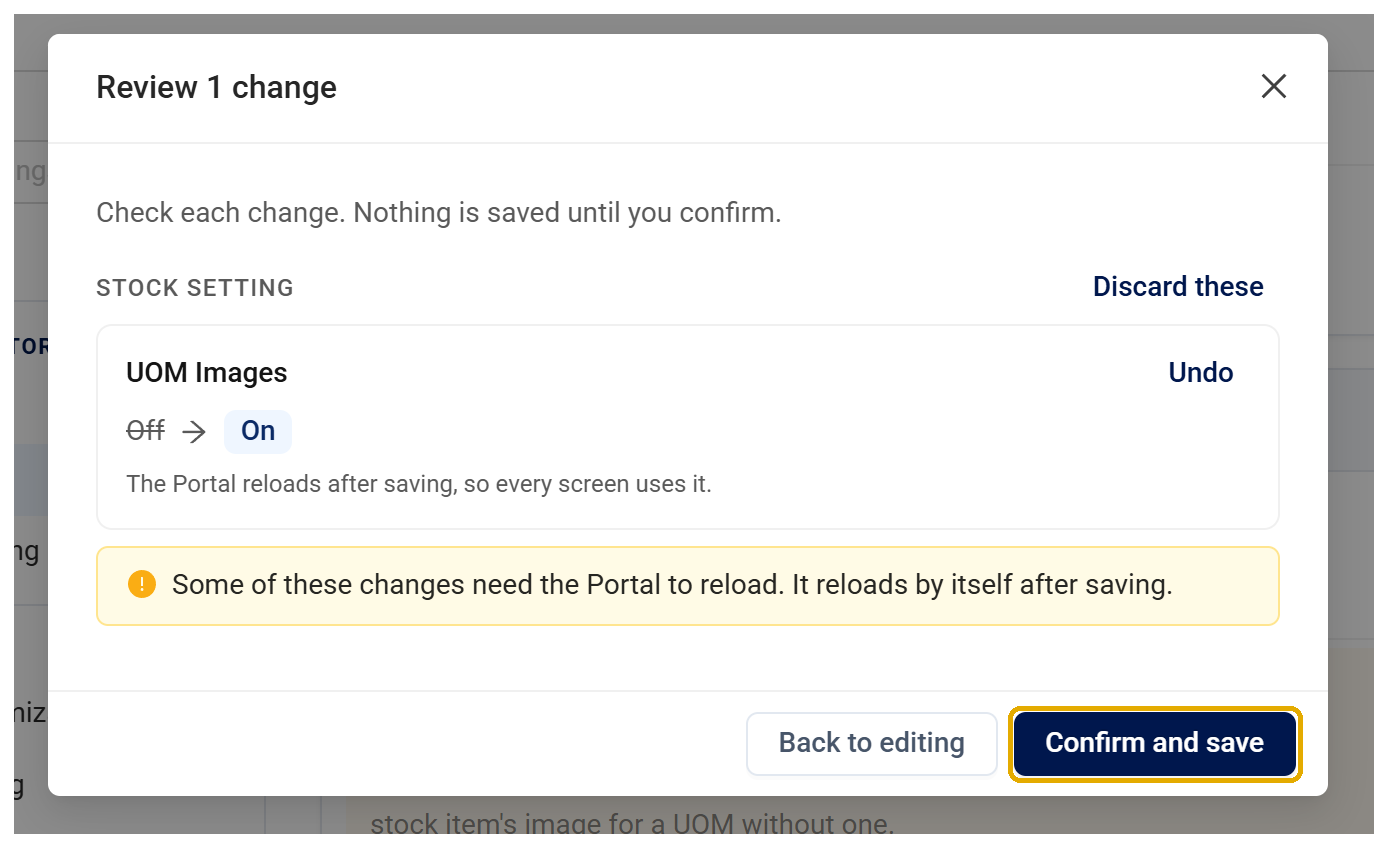
Check the change, UOM Images: Off > On, then click Confirm and save. The Portal reloads by itself.
Add a Picture to Each UOM
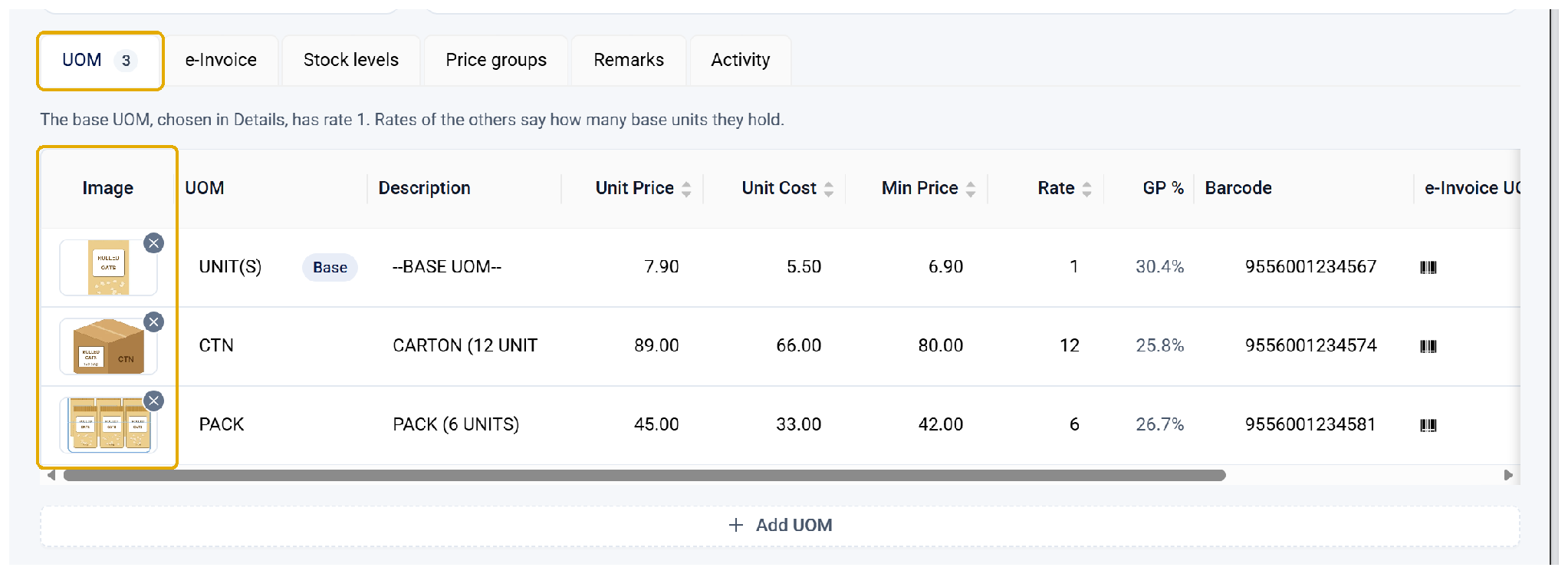
Open the stock item, e.g. OAT500, and click Edit. The UOM tab now has an Image column. Click + on each UOM row and choose its picture (PNG or JPG, up to 2 MB), e.g. a single packet for UNIT(S), a carton for CTN and a 6-pack for PACK. Click x on an image to remove it.
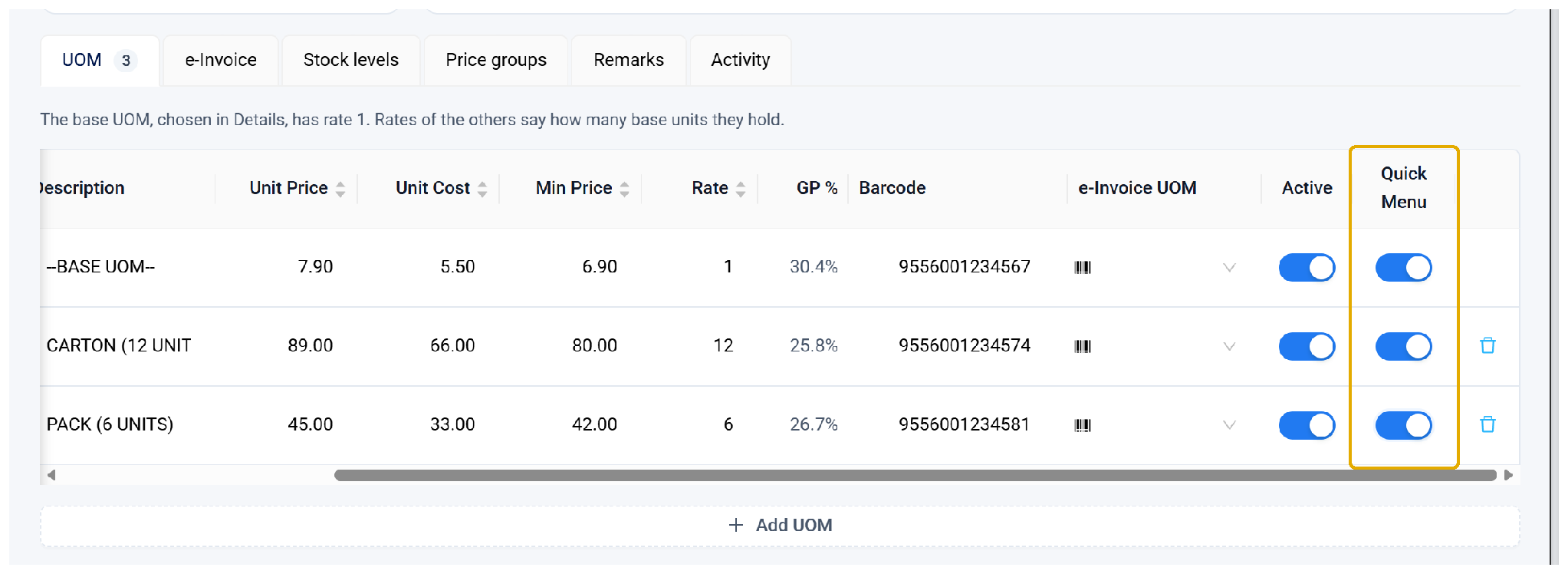
Turn on Quick Menu for each UOM that should have a tile on the till's Quick Menu, then click Save.
Tip: A UOM without its own image shows the stock item's image at the till. Run Quick Sync for Settings and Stocks on the tills, or Quick Sync All, to get the images.
Result at the Till
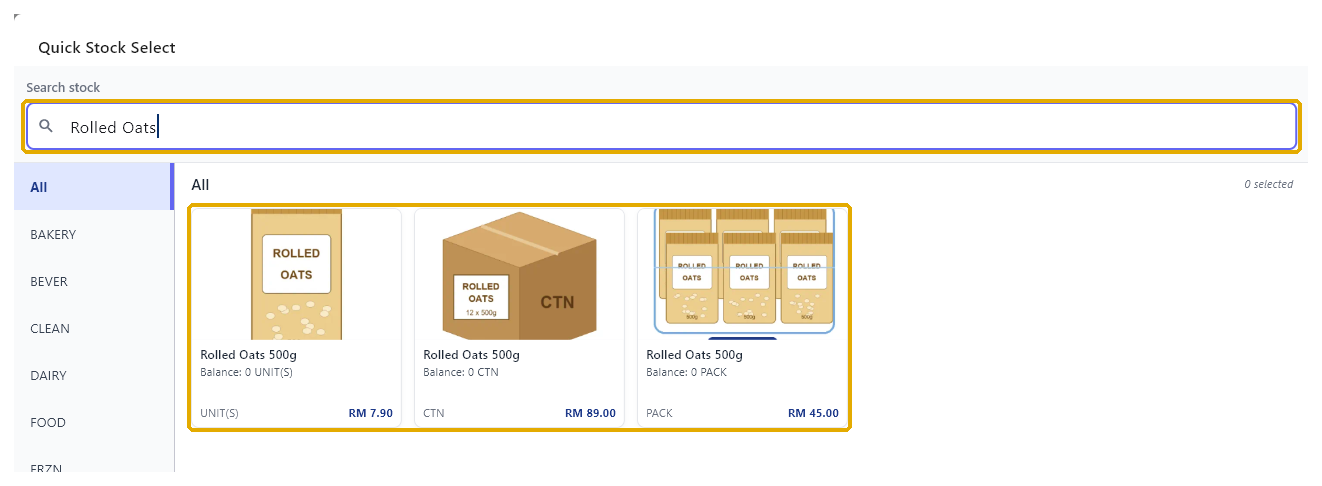
Result – N3 AI POS Win App: Click Quick Menu (F11) and search the item, e.g. Rolled Oats. Each UOM tile shows its own picture.
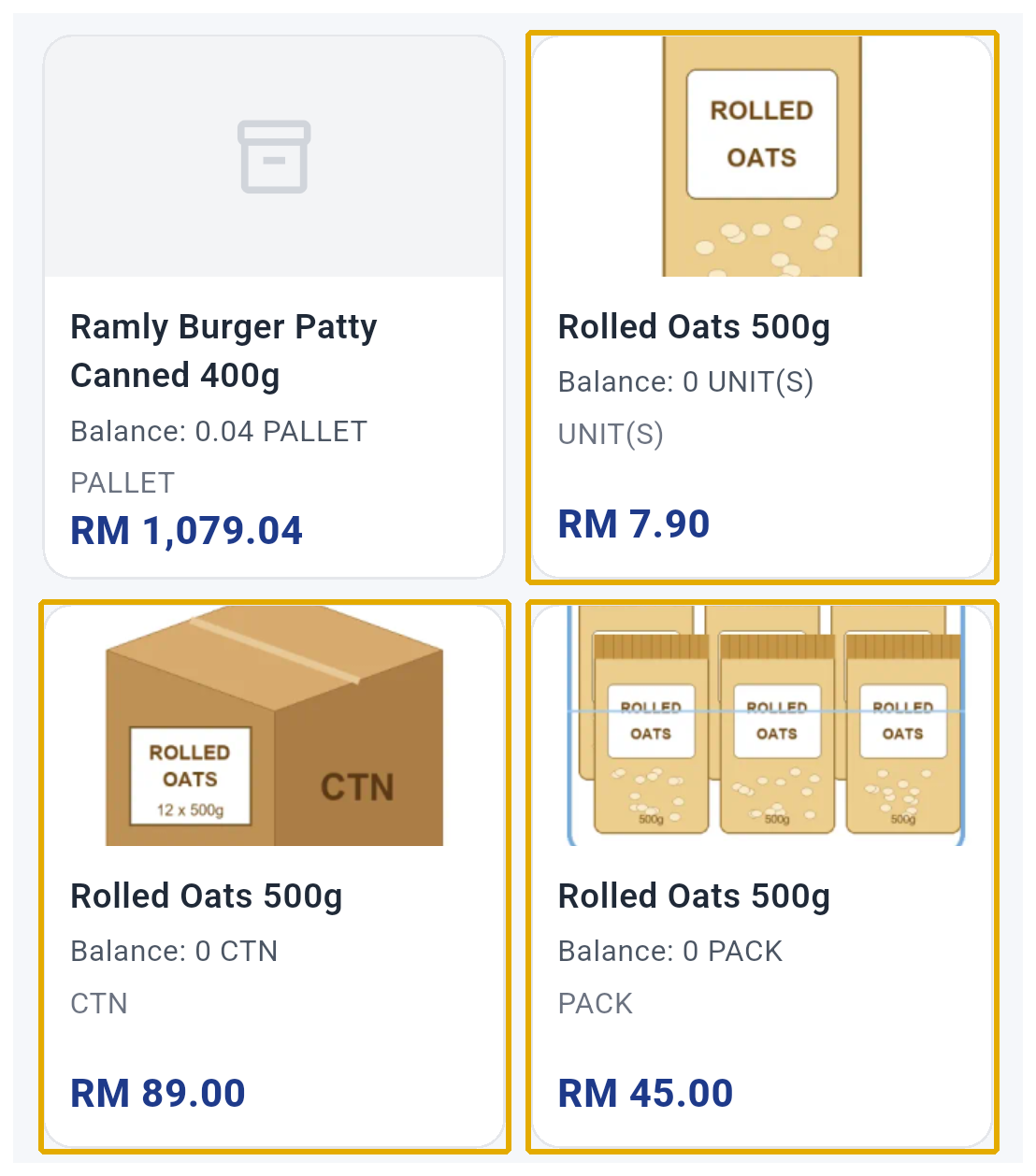
Result – N3 AI POS Android App: Tap Quick Menu and open the item's category, e.g. FOOD. Each UOM tile shows its own picture. An item without any image shows a plain box icon.
What's Next :
To add UOMs to a stock item, see How to Create UOMs for a Stock Item in N3 AI POS. See also How to Create a Stock Item in N3 AI POS.
** Learn more about Azure Cloud
** Learn more about QNE Hybrid Cloud Software
Was this article helpful?
That’s Great!
Thank you for your feedback
Sorry! We couldn't be helpful
Thank you for your feedback
Feedback sent
We appreciate your effort and will try to fix the article
