Overview :
The cash registers, the N3 AI POS Win App and the N3 AI POS Android app, keep their sales, sessions and other records on the device and send them to the cloud. Device Sync Logs in the Portal shows what every cash register sent and whether it went through, so you can check all outlets from one place. Each app also has its own Sync Logs, which shows what that cash register sent. This article guides you through checking the device sync logs in the Portal, the Win App and the Android app.
At the end of this article, you will be able to:
Check the device sync logs of all cash registers in the Portal
Check the sync logs on the Win App or the Android app
Scenario :
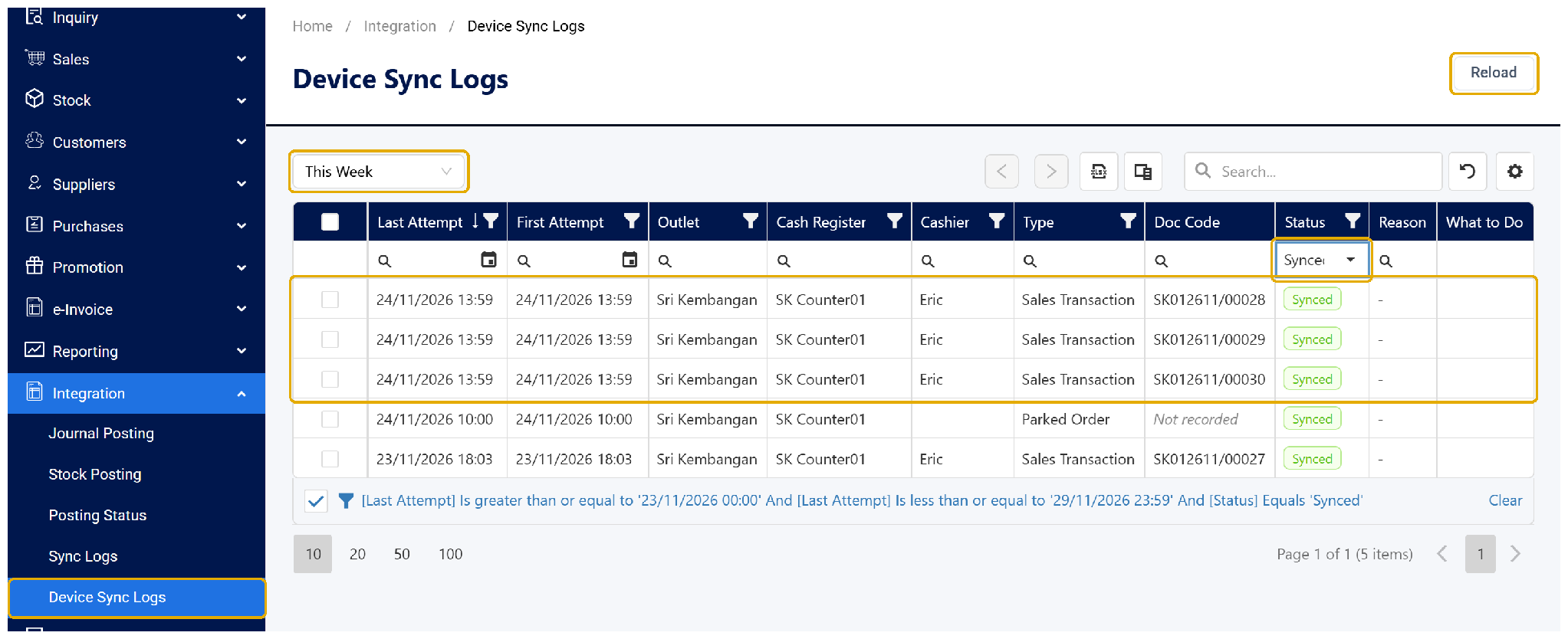
Three cash sales were made today on SK Counter01 (SK012611/00028 to 00030). The manager checks in the Portal that they reached the cloud, and the cashier checks the same on the cash register.
Solution :
Check the Device Sync Logs in the Portal
Navigate to Integration > Device Sync Logs and choose the period, e.g. This Week. Click Reload to read the list again. To see only one status, choose it in the filter box under Status, e.g. Synced.
Last Attempt / First Attempt – When the cash register last tried and first tried to send the record.
Outlet / Cash Register / Cashier – Where the record came from.
Type / Doc Code – The record, e.g. Sales Transaction SK012611/00028.
Status – Synced: the record is in the cloud. Retrying: the cash register is still trying. Needs Action: it has stopped trying.
Reason / What to Do – Why a record did not go through and what to do next.
Check the Sync Logs on the Win App and Android App
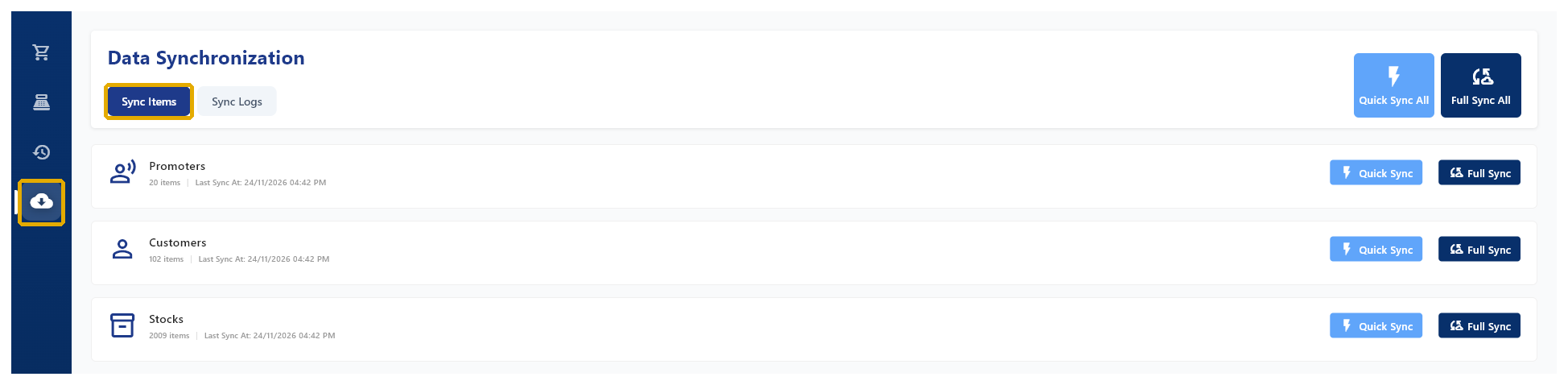
On the Win App, click Sync in the menu. Sync Items shows each kind of data and when it was last synced.
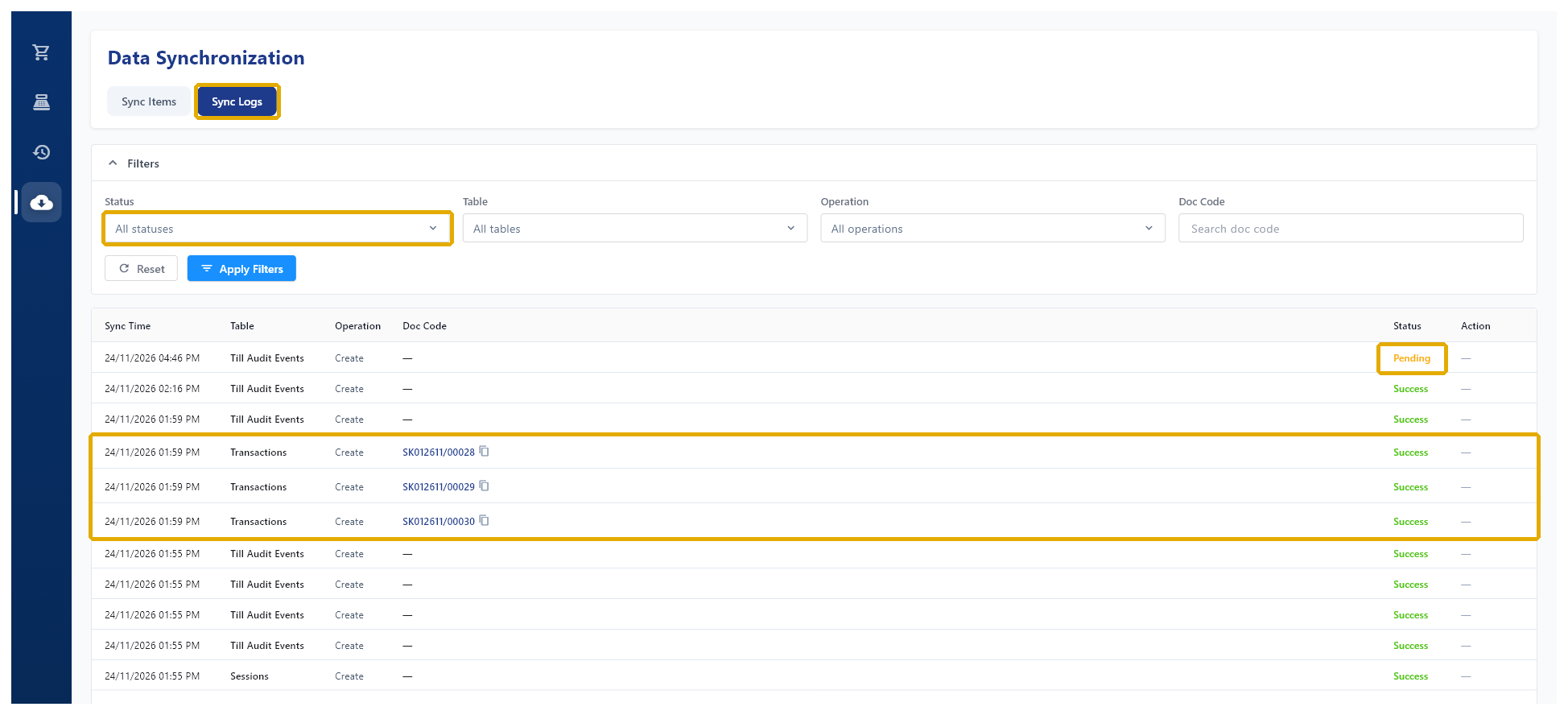
Click Sync Logs. Each record the cash register sent is listed with its Sync Time, Table, Operation, Doc Code and Status, e.g. Transactions SK012611/00028, Success.
Status – Success: sent to the cloud. Pending: waiting to be sent, e.g. the record just made.
Filters – Choose the Status, Table or Operation, or type a Doc Code, then click Apply Filters.
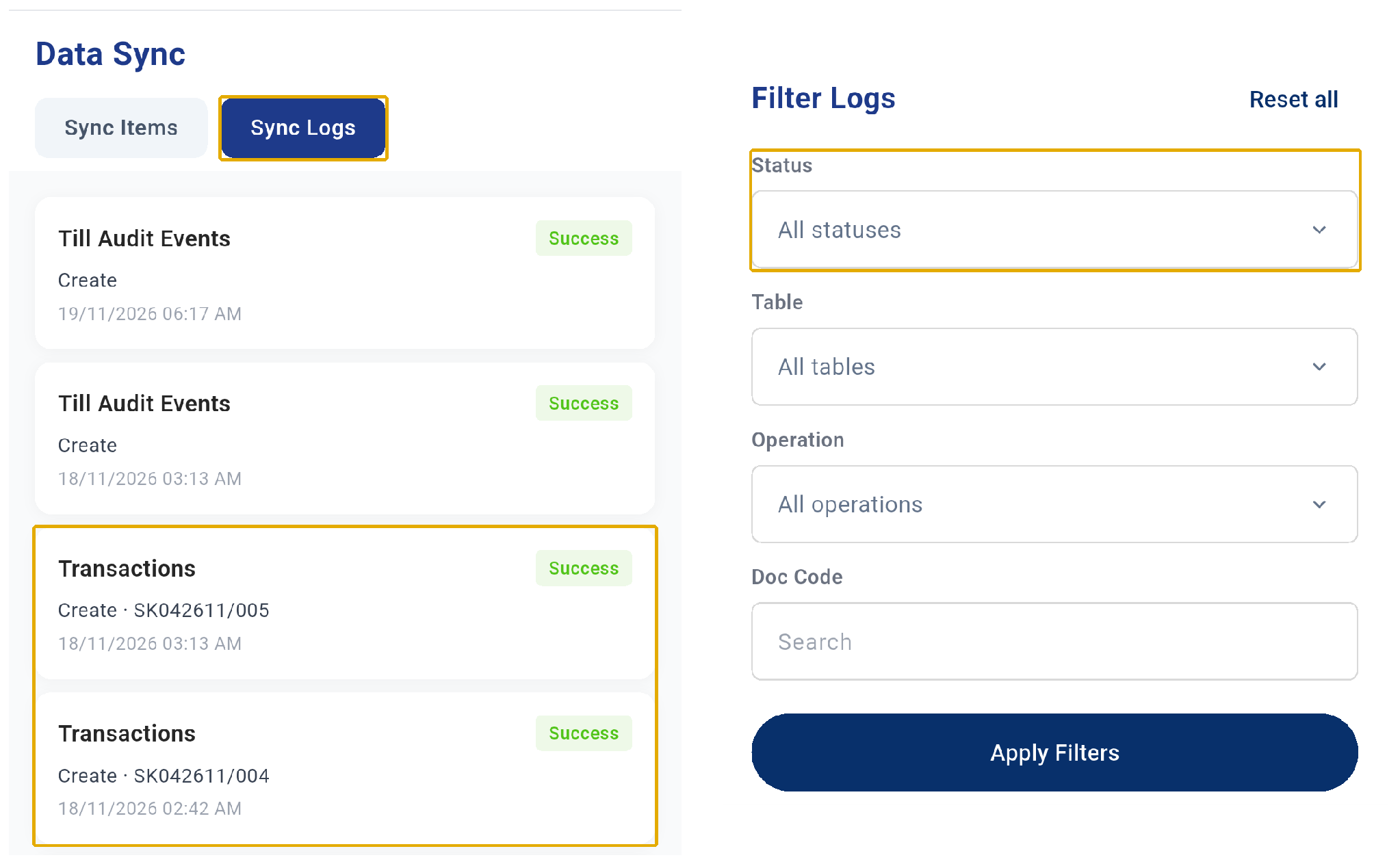
On the Android app, tap Sync in the bottom menu, then Sync Logs. Each record shows its Table, Status, Operation, Doc Code and time, e.g. Transactions SK042611/005, Success. Tap the filter button to filter by Status, Table, Operation or Doc Code.
What's Next :
Check what N3 AI POS exchanges with N3 AI Accounting in Integration > Sync Logs, and the sales waiting to be posted in Integration > Posting Status.
** Learn more about Azure Cloud
** Learn more about QNE Hybrid Cloud Software
Was this article helpful?
That’s Great!
Thank you for your feedback
Sorry! We couldn't be helpful
Thank you for your feedback
Feedback sent
We appreciate your effort and will try to fix the article
